 ASPNetWorld

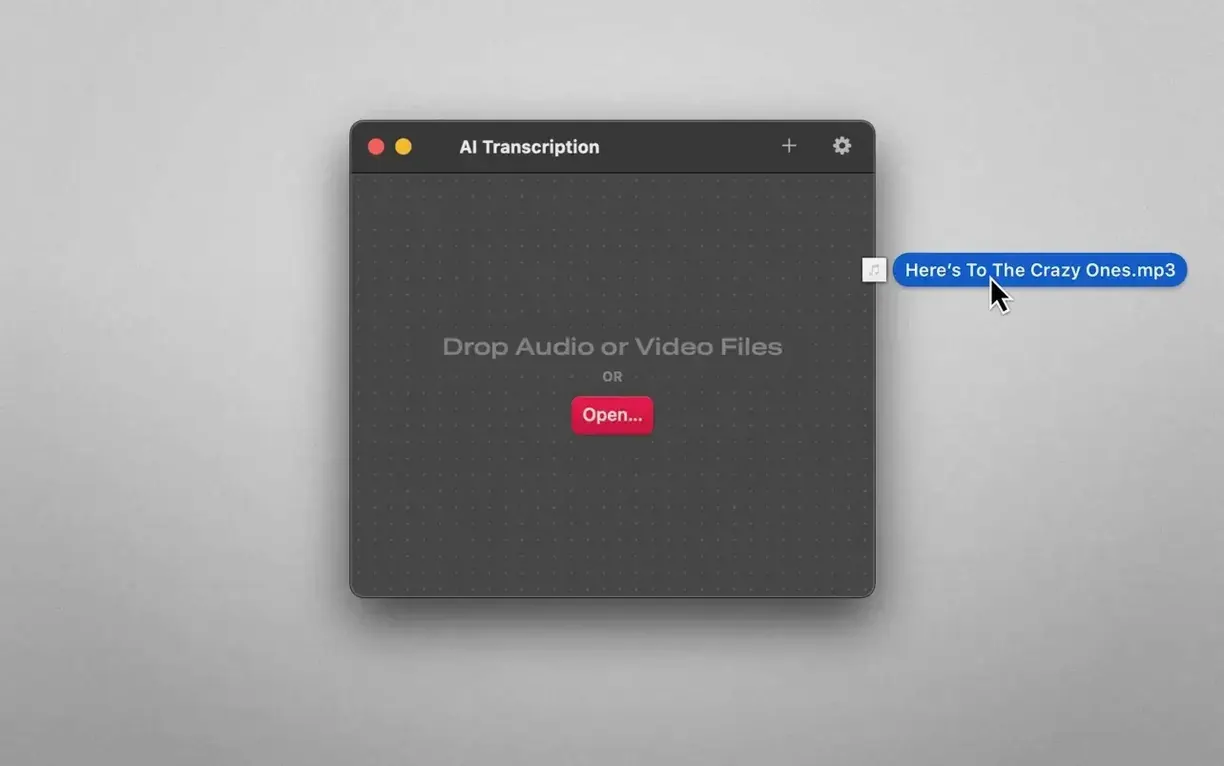
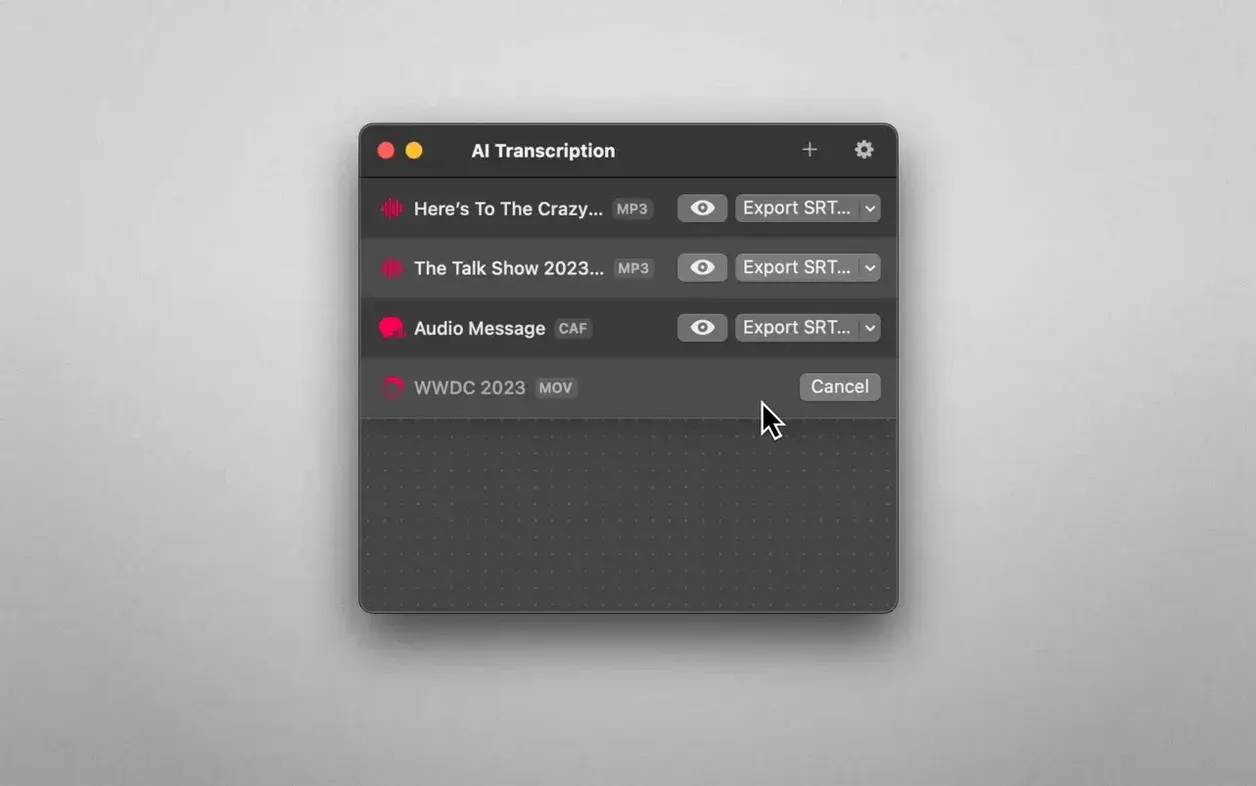
The Batch Processing queue is where the app really earns its keep next to a quick voice-memo transcriber. You come back from a morning of interviews with six long recordings, drag them all into the window, and walk away to make coffee. It works through them one by one, and because everything runs on the Mac itself there’s no upload time chewing into your morning.
- Open the app and drop a folder of WAV, MP3, M4A or MOV files onto the main pane. The queue populates instantly.
- Pick your engine from the dropdown — OpenAI Whisper for accuracy on clear speech, or Apple Speech Recognition when you want a fast first pass and power efficiency on a laptop. The choice sticks per file if you like.
- Hit the transcribe button and watch the progress bars. Each file gets a timestamped text file saved alongside the original, so your Finder stays tidy.
- Open a transcript in your usual text editor or paste it straight into a Pages document. No export dance, no cloud service login.
Because the audio never leaves the Mac, the app slots naturally next to the tools you already use for private work — a dictation you’d rather not stream to a server, a client meeting recording, or the first draft of a script read aloud. It treats transcription as a local file operation, much like compressing a folder or converting an image, which means the file stays exactly where you put it.
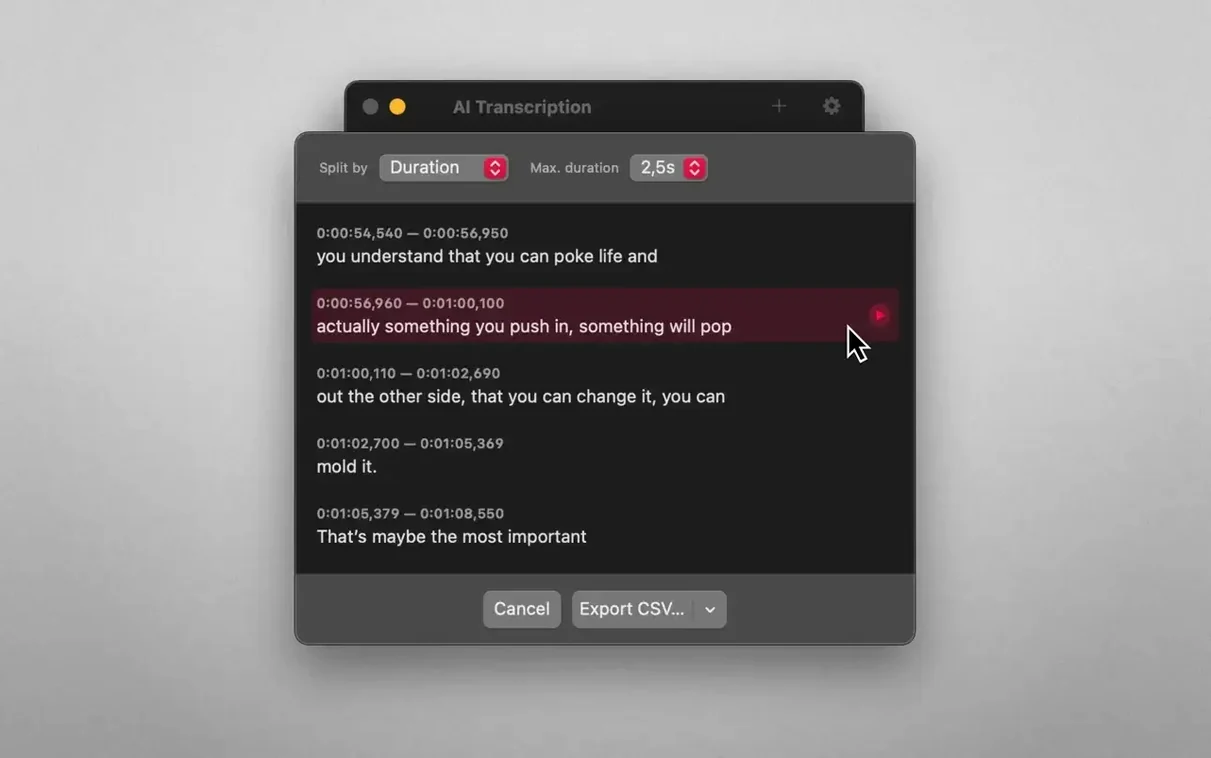
Picture a freelancer on a tight deadline: a forty-minute client briefing recorded on a voice memo app, still sitting in the Music folder under a forgettable filename. You drag it into AI Transcription while the kettle boils. The engine dropdown stays on OpenAI Whisper — the recording has a bit of background chatter from the café next door, and Whisper tends to handle that with fewer invented words. You tick the Split by sentence box, because the client loves bullet-point summaries and you’ll need clean chunks to quote from. A couple of minutes later the transcript lands as a plain text file right next to the original audio. You open it, scan the first paragraph to check the speaker attribution isn’t garbled, copy the key passages into an email draft, and send the summary off before the coffee has cooled.
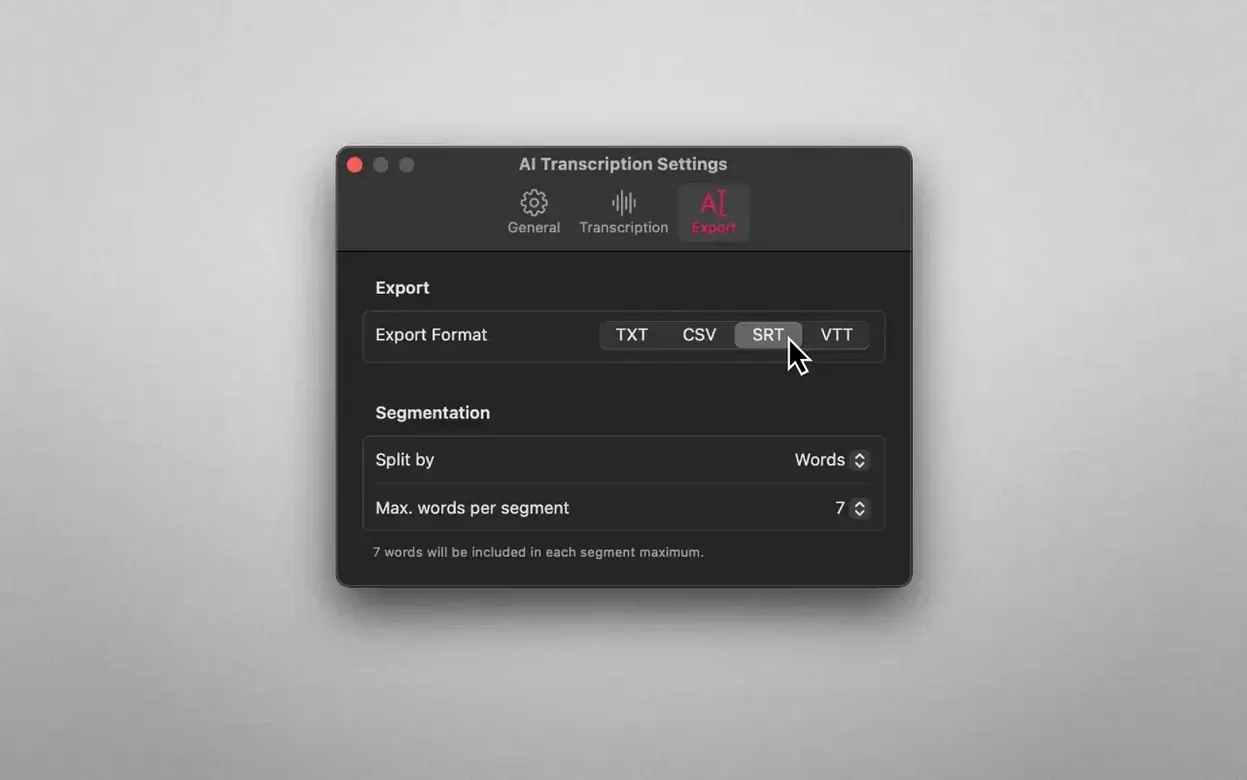
Next, you remember the same project also generated a short video walkthrough an overseas colleague recorded on their phone. The file is an MP4, and the spoken language is German. You drop it into the queue, switch the engine to Apple Speech Recognition for a quicker turnaround on a short clip, and let it run. Because the app respects the system language settings, the German transcript comes out with proper capitalisation and umlauts intact. You export it as an SRT file and attach it to the video in your editing timeline — subtitles sorted without touching a web service.
A typical session often ends with the batch queue still warm. You might line up a handful of weekly team stand-up recordings and leave them processing while you grab lunch. By the time you return, every file has a companion transcript, each one a lightweight text file that won’t bloat your project folder. No login tokens, no monthly quotas, no staring at a browser tab waiting for a server to finish. Just a Mac doing one job and finishing it.
Runs entirely offline after a one-time language model download
Does it need an internet connection at all? Not for the actual transcription. The first time you select the OpenAI Whisper engine the app downloads the language model once, and after that it stays local. Apple Speech Recognition uses the on-device models built into macOS, so no extra download is needed there. If you work from a train or a cabin with patchy signal, the app doesn’t care — it’s already got what it needs.
What happens with long recordings — say, two hours of a workshop? The app processes them in one go, no splitting required. On an Apple Silicon Mac a two-hour clear-speech recording might take around fifteen to twenty minutes with Whisper, less with the Apple engine. The file sits on your drive the whole time; the app isn’t streaming chunks anywhere. Memory usage stays moderate because it works through the audio in segments, so you can keep other apps open without the system grinding to a halt.
Can it handle more than one speaker? It doesn’t label speakers — there’s no diarisation — but the punctuation and paragraph breaks usually make it obvious where one person stops and another starts. For a podcast or a panel discussion you might add speaker markers yourself afterwards, but for most meeting or interview transcripts the raw output is clear enough to work with straight away.
Built for batch exports rather than single-file interactive review
Compared with MacWhisper, the two apps share the same Whisper backbone, but AI Transcription puts more emphasis on batch throughput and export variety. MacWhisper leans toward a single-file, interactive workflow with a built-in playback pane; AI Transcription feels more like a production tool where you feed it a folder and walk away. If you transcribe one recording a week and want a player synced to the text, the other app might feel friendlier. If you regularly come home with a handful of recordings and need SRT, CSV and WebVTT exports without extra steps, this one fits faster.
Stack it against Buzz, the open-source offline transcriber, and the difference is mostly about polish. Buzz gives you model selection and file output on a similar principle, but it’s a cross-platform app that can feel a little rough on macOS — window behaviour isn’t quite native, and the interface doesn’t follow Apple’s conventions as closely. AI Transcription behaves like a proper Mac citizen: drag-and-drop from Finder, a clean queue panel, and file outputs that land exactly where you expect them. For someone who values a tidy, low-friction experience over tinkering with model parameters, the trade-off makes sense.
Then there’s the built-in Apple Dictation and the live-caption features in recent macOS versions. Those are real-time, interactive tools — great for dictating an email or following a video call. But they don’t process pre-recorded files in bulk, and they don’t export timestamped subtitles. AI Transcription isn’t competing with live dictation; it’s the quiet batch processor you turn to after the recording has already stopped.
- macOS: 14.6 or later
- Architecture: Apple Silicon, Intel 64-bit
Questions I keep hearing
Does AI Transcription need an internet connection?
No. Both the Whisper and Apple Speech engines run entirely offline, so the audio files never leave your Mac.
What file formats can I feed it?
The app handles common audio and video containers, including WAV, MP3, M4A and MOV, via a straightforward drag-and-drop interface.
Questions from the class 0
Sign in or join the class to ask a question.
Nobody has asked anything yet. If you have used it on a real job, say what the file did.
Also on the Mac Apps shelf
The whole Mac Apps shelf Aiarty Image Enhancer
Cleans up noisy or soft photos with targeted detail reconstruction.
Aiarty Image Enhancer
Cleans up noisy or soft photos with targeted detail reconstruction.
 Aiarty Video Enhancer
Lifts old, grainy video into clearer, watchable footage.
Aiarty Video Enhancer
Lifts old, grainy video into clearer, watchable footage.
 Affinity Publisher
Lays out multi-page documents combining text and high-res images for print.
Affinity Publisher
Lays out multi-page documents combining text and high-res images for print.
 AirBuddy
Shows your AirPods battery status instantly in the menu bar.
AirBuddy
Shows your AirPods battery status instantly in the menu bar.
 Affinity Photo
Edits photos nondestructively with selective adjustments and raw processing.
Affinity Photo
Edits photos nondestructively with selective adjustments and raw processing.
 Airflow
Queues up local video files for uninterrupted, hands-off playback.
Airflow
Queues up local video files for uninterrupted, hands-off playback.
 Affinity Designer
Turns rough sketches into crisp, scalable vector artwork and layouts.
Affinity Designer
Turns rough sketches into crisp, scalable vector artwork and layouts.
 Alcove
Turns the MacBook notch into a handy capsule for alerts and controls.
Alcove
Turns the MacBook notch into a handy capsule for alerts and controls.