 ASPNetWorld
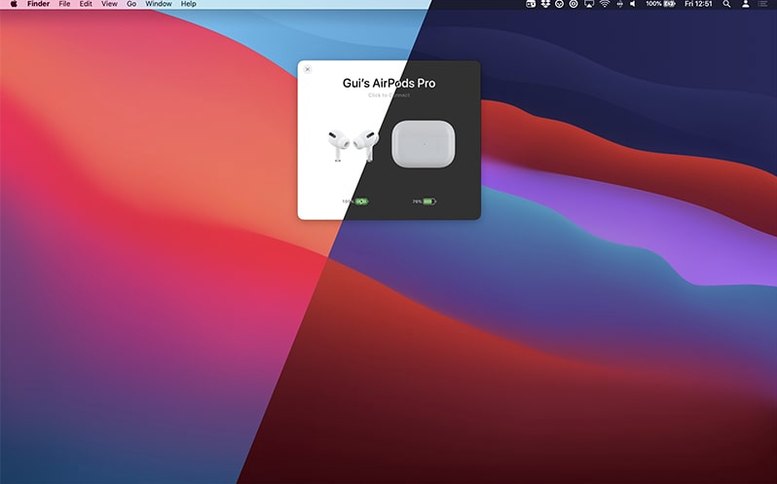
If you have ever used the stock Bluetooth menu to connect AirPods and wished it actually showed battery percentages without a three-second delay, that is the gap AirBuddy fills. It sits in the menu bar and behaves like an extension of the system you already know — only with far more information about every Apple and Beats headphone within range, and shortcuts that let you switch listening modes or route playback in a single click.
- Requires macOS 14 or later; the developer notes that the finished AirBuddy 3 will need macOS 13, but the current beta is built for Sonoma.
- Runs natively on both Apple Silicon and Intel 64-bit Macs — no Rosetta translation layer required on either architecture.
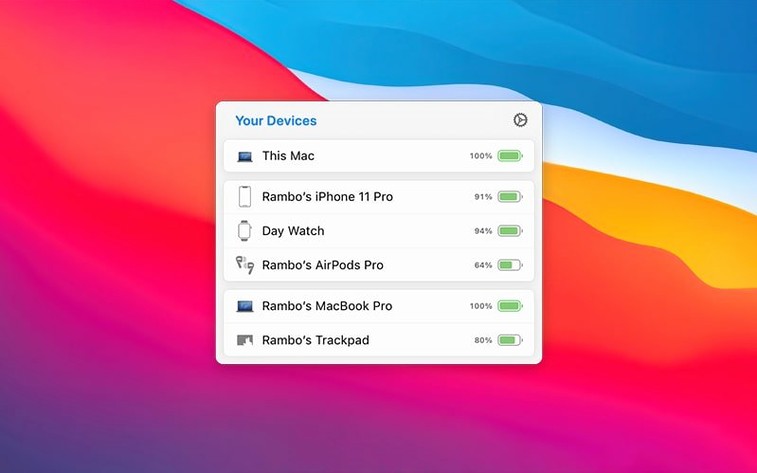
- Shows battery levels for AirPods Pro, other AirPods models, and Beats headphones the moment they are nearby, grouped by how the devices relate to each other.
- Places a customisable menu bar icon at the top of your screen: you can display the app icon, a live battery indicator, or nothing at all.
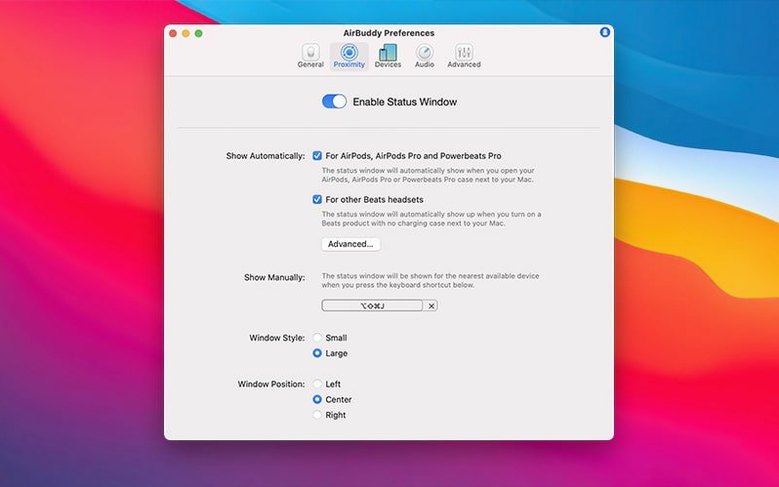
- Offers one-click connection with optional custom modes that automatically set listening mode, system volume, and microphone state when you connect.
- Includes compact and large status window designs, plus full keyboard shortcut support for playback control and switching peripherals between Macs.
What you are getting with this version is the core promise of AirBuddy 3 — battery visibility, fast connection, and a level of device control that feels like part of macOS rather than a utility layered on top. The beta is fully functional on Sonoma, and the menu bar customisation alone makes the daily experience cleaner than the previous release.
What AirBuddy really reads from your headphones
One of the first things people ask is whether AirBuddy talks to the headphones directly or just reads what macOS already knows. The answer is a bit of both. It uses the same Bluetooth and iCloud frameworks your Mac already relies on, so the battery percentages it shows match what you would see on an iPhone — but it refreshes that information more often and presents it without you having to open a single menu. It does not bypass system security or install a kernel extension; the helper tool it bundles simply asks macOS to hand over the device data that is already there, and the app gives it a readable shape.
Another common concern is battery drain on the Mac itself. Because AirBuddy listens for nearby device broadcasts only when you wake the machine or open the menu, it adds no measurable background load. You can leave it running all day and the energy impact stays flat. It is not polling every second — it relies on the low-energy signalling Apple devices already do as part of the Handoff and Continuity ecosystem.
People also wonder about using it alongside other Bluetooth peripherals, especially when a Magic Keyboard and Magic Trackpad are already paired. AirBuddy treats those as separate from audio devices. The Magic Handoff feature works by briefly disconnecting a peripheral from one Mac and reconnecting it to another, and it does not interfere with headphone routing. You can move a mouse between machines while AirPods stay locked to the one playing music, which is the kind of attention to detail that makes the utility feel considered rather than bolted together.
What the most recent builds actually changed for daily use
The jump to version 3 brought a redesigned status window that now groups devices by logical relationships — your AirPods appear next to your iPhone, your Beats sit alongside the iPad they were last connected to, and any Mac signed into the same iCloud account shows its own peripherals nearby. This grouping sounds small on paper, but in practice it cuts out the guesswork of which device belongs to whom when a household has several pairs of AirPods charging on the same desk.
The menu bar icon options introduced in the beta are worth a closer look. Choosing the battery indicator turns the menu bar into a live fuel gauge for whatever headset is closest — a thin ring that drains in real time, no clicking required. The plain app icon is better if you prefer a clean dock-like marker, and the option to show nothing at all keeps the menu bar tidy while still letting you summon the status window with a keyboard shortcut. It is a small flexibility, but one that means AirBuddy adapts to how cluttered your menu bar already is, rather than demanding a fixed presence.
Under the hood, the beta release notes confirm that the finished AirBuddy 3 will require macOS 13 or later, which suggests the developer is deliberately keeping the codebase modern enough to rely on Ventura’s Bluetooth stack improvements. The current build, 3.0-890, runs on Sonoma and handles the newer listening-mode transitions that arrived with the second-generation AirPods Pro — adaptive transparency, for instance — without the momentary audio dropout that some older utilities suffered from.
How your AirPods connect before the first sip of coffee
Imagine a morning where you sit down at the Mac with a cup of coffee and your AirPods Pro still in their case from the commute. You tap the AirBuddy menu bar icon — or press your assigned shortcut — and a status window slides down showing the case battery at seventy-two per cent, the left AirPod at ninety-one, the right at eighty-eight. A small annotation flags that the right side is draining faster, which reminds you that you spent half the train journey on a phone call using only that ear. Useful without being intrusive.
You click Connect. Because you set up a custom connection mode called “Focus Morning,” AirBuddy switches the listening mode to noise cancellation, sets the volume to twenty per cent, and leaves the microphone set to the MacBook’s internal array rather than the AirPods. All three changes happen before the little connect chime finishes playing. You open Logic Pro and start editing a podcast, listening through the AirPods while the built-in mics handle any quick voice notes.
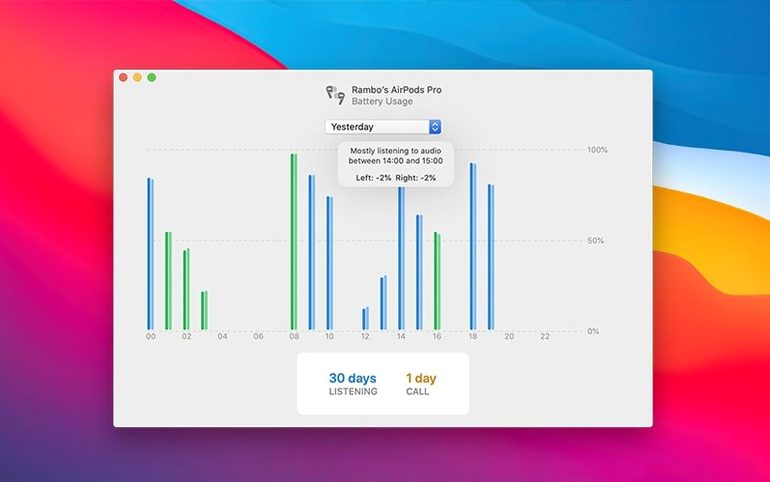
Mid-morning, a meeting pulls you into a video call. You switch the listening mode to transparency with a two-finger swipe on the trackpad — AirBuddy interprets the gesture and toggles the AirPods Pro mode without opening Control Centre. When the call ends, you swipe back to noise cancellation and carry on. By lunchtime, you glance at the usage history panel: three hours of listening, forty minutes of talk, and a gentle curve showing the battery drain across both AirPods. That panel is more of a curiosity than a dashboard you live in, but it is strangely satisfying to see the day’s audio shaped into a timeline.
Later, you move to the iMac in the studio. You use Magic Handoff to flick the Magic Trackpad across from the MacBook, and AirBuddy shows both machines in its device list with the trackpad now listed under the iMac. The AirPods, however, stay connected to the MacBook because you have not told them to move — another benefit of the grouping logic that prevents every peripheral from chasing you around the house unless you want them to.
Where AirBuddy fits among your other tools
Think of AirBuddy as the layer that sits between the hardware Apple makes and the software Apple does not quite finish. macOS already knows your AirPods battery and listening mode, but it hides that information behind Bluetooth menus and Control Centre toggles. AirBuddy pulls it forward into the menu bar and adds triggers — keyboard shortcuts, trackpad gestures, connection modes — that the operating system does not offer natively. It does not replace the system audio controls; it gives you faster routes to the same settings.
The app plays well with creative tools that need predictable audio routing. If you are running a digital audio workstation like Logic Pro or Ableton Live, the custom connection mode that forces the Mac’s internal microphone prevents the AirPods from switching to the lower-quality SCO codec when an app requests mic access — a common frustration for anyone who has ever opened a DAW while wearing AirPods and heard the audio quality collapse. AirBuddy handles this by keeping the input and output paths separate before the application even asks for them.
There is also a quiet compatibility with the affinity beta and adobe beta generative fill workflows that more Mac users are running these days. Neither of those applications touches audio, but they are resource-heavy, and having AirBuddy’s lightweight device management running alongside them means you can switch headphones or check battery status without pulling focus away from a rendering canvas. The menu bar stays responsive even when the GPU is busy, which is not something every utility can claim.
Finally, AirBuddy fits into the larger Continuity picture. Handoff, Universal Clipboard, and AirPlay are all system-level features that Apple controls tightly. AirBuddy extends that philosophy to the peripherals Apple left out — your headphones and your input devices — and does it with the same iCloud-aware logic. If you use an airbuddy mac setup across a desktop and a laptop, the result feels less like an add-on and more like the Bluetooth menu macOS should have shipped with. The fact that it also surfaces your iPhone and iPad battery levels in the same view is a small bonus that ties the room together.
The current beta shifts AirBuddy 3 towards a more polished everyday tool. The headline addition is menu bar icon choice — you can keep the full app icon, switch to a subtle battery indicator, or remove the icon entirely, which is useful if your menu bar is already crowded. Behind the scenes, the app now shows batteries, connects AirPods, handles playback, and can move peripherals between Macs, all from a single interface.
- macOS 14 (current beta); macOS 13 support planned for final release
- Apple Silicon or Intel 64-bit Mac
- Interface language: English
Questions I keep hearing
Will AirBuddy 3 run on macOS Ventura?
The current beta requires macOS 14, though the developer has stated the finished version will support macOS 13 when it ships.
Can I hide the AirBuddy icon from the menu bar?
Yes — the beta lets you choose between the app icon, a compact battery indicator, or no icon at all.
Does AirBuddy work with Beats headphones?
Absolutely; it displays battery status and connection controls for nearby Beats headphones alongside AirPods models.
Questions from the class 0
Sign in or join the class to ask a question.
Nobody has asked anything yet. If you have used it on a real job, say what the file did.
Also on the Mac Apps shelf
The whole Mac Apps shelf Airflow
Queues up local video files for uninterrupted, hands-off playback.
Airflow
Queues up local video files for uninterrupted, hands-off playback.
 Aiarty Video Enhancer
Lifts old, grainy video into clearer, watchable footage.
Aiarty Video Enhancer
Lifts old, grainy video into clearer, watchable footage.
 Aiarty Image Enhancer
Cleans up noisy or soft photos with targeted detail reconstruction.
Aiarty Image Enhancer
Cleans up noisy or soft photos with targeted detail reconstruction.
 Alcove
Turns the MacBook notch into a handy capsule for alerts and controls.
Alcove
Turns the MacBook notch into a handy capsule for alerts and controls.
 AlDente
Limits your MacBook battery charge to a chosen level for longer lifespan.
AlDente
Limits your MacBook battery charge to a chosen level for longer lifespan.
 AI Transcription
Converts batches of spoken recordings into searchable written text.
AI Transcription
Converts batches of spoken recordings into searchable written text.
 Affinity Publisher
Lays out multi-page documents combining text and high-res images for print.
Affinity Publisher
Lays out multi-page documents combining text and high-res images for print.
 Affinity Photo
Edits photos nondestructively with selective adjustments and raw processing.
Affinity Photo
Edits photos nondestructively with selective adjustments and raw processing.