 ASPNetWorld

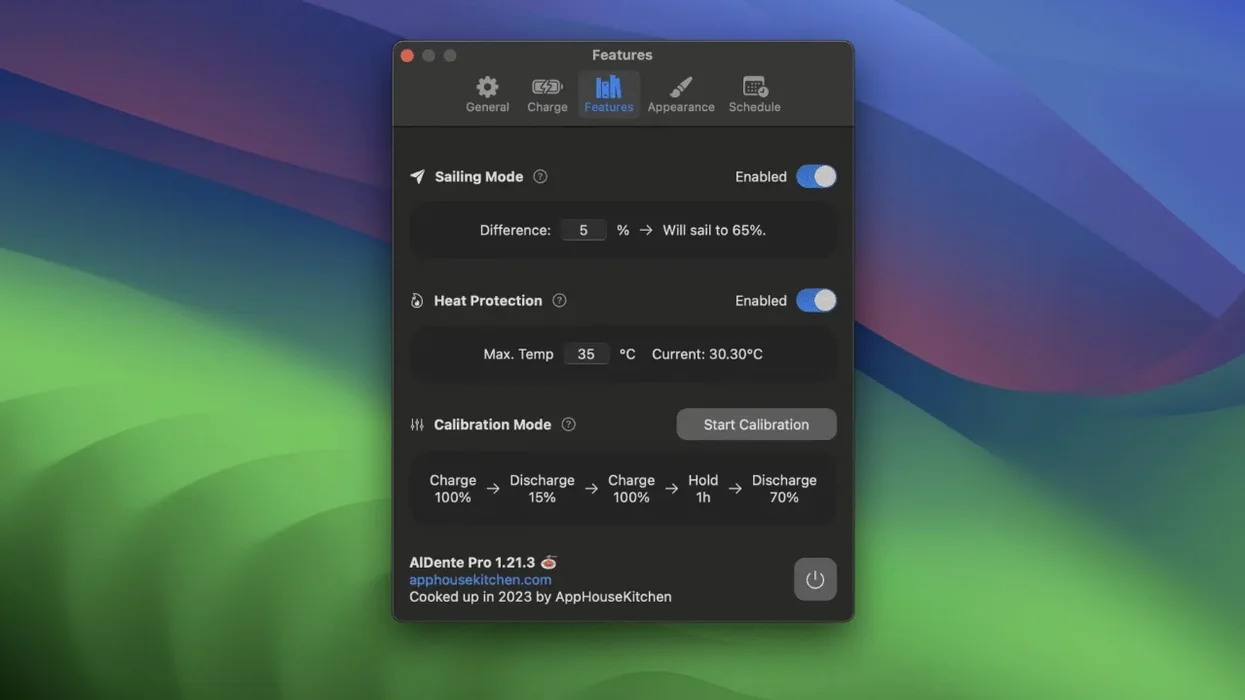
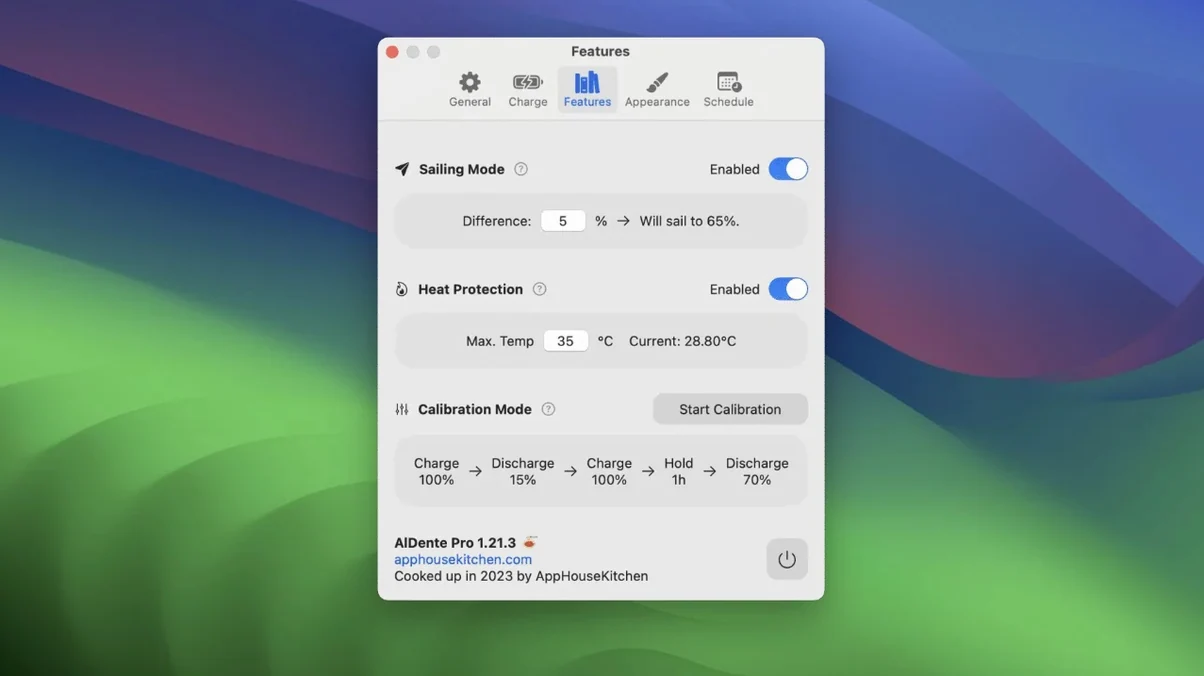
Once you engage Sailing Mode, the logic of battery charging shifts entirely. Instead of racing to 100% and holding there under mains power, your MacBook treats the set charge limit like a ceiling it can drift beneath — mimicking the natural ebb of a boat on a tide. The app itself is a lightweight menu-bar utility for keeping your battery at a chosen percentage, because lithium-ion cells age fastest when they are kept fully topped up and warm for weeks on end. If your machine spends most of its life plugged into a desk setup, the stock charge management can feel a little too eager to hit full capacity and stay there.
- Sets a hard charge cap anywhere between 20% and 100%, so the battery stops drawing power exactly where you tell it to.
- Sailing Mode lets the charge level bob a few percent below your cap before topping up again, reducing micro-cycling.
- Reads live power flow in watts: you can see at a glance whether the adapter is running the Mac directly or feeding the battery.
- Works with Apple Silicon and Intel machines running macOS 12 Monterey or later.
- Includes a calibration routine for resetting the battery gauge, helpful when the percentage display drifts after months of partial charging.
Think of it as a manual override for people who keep their MacBook docked for long stretches. The idea isn't to squeeze more runtime out of a single charge — it's about preserving the cell's overall health across years of service, so the battery holds a useful charge further into the machine's life.
Questions people usually ask before installing
One of the first things people wonder is whether AlDente fights with macOS’s own battery health management. Apple's system, found under Battery settings as “Optimised Battery Charging,” tries to learn your routine and pause at 80% until it predicts you will unplug. The trouble is that routine-learning can be patchy if your schedule shifts. AlDente takes a different approach: it simply enforces a hard ceiling. When both systems are active, macOS sometimes overrides the third-party limit and creeps the charge upward overnight, which defeats the purpose. The developer’s recommendation is to disable Apple’s optimised charging and let AlDente run the show. On a well-configured machine, you will see the battery hover right at your chosen cap and stay there, with no background tug-of-war.
Another common worry is whether limiting charge to 80% (or even 70%) makes the laptop feel tethered. The short answer is no — not if you are plugged in most of the time anyway. The threshold you pick is about preserving chemical stability, not about daily runtime. If you know you are heading into a meeting or a flight, dragging the slider to 100% ten minutes beforehand gives you a full tank without undoing months of careful cycling discipline. The app does not permanently lock you out of full capacity; it just makes full capacity a deliberate choice rather than the default.
Small conveniences and shortcuts that are easy to miss
Right-clicking the menu bar icon reveals a compact status panel that duplicates much of the main popover, but without the settings. It is a fast way to check the live wattage or toggle the charge limit off entirely when you are in a hurry. The icon itself is customisable: monochrome, battery-with-percentage, or a tiny boat symbol that nods to Sailing Mode. If you prefer a cleaner look, switching to the percentage-only icon tucks the information into a single digit, and you can still read the exact milliwatt flow in the tooltip that appears on hover.
Sailing Mode has a subtle companion setting called “Top-up” that is easy to miss. When Sailing Mode is active and the charge has dipped a few percent below the cap, the MacBook normally tops up to the ceiling again. That is the default behaviour and it works well, but you can delay the top-up window further by raising the sailing spread. A wider spread means less frequent charging bursts, which can be kinder to the battery if your mains power is clean and stable. The trade-off is that your available capacity bobs lower between top-ups, so you will want a tighter spread if sudden unplugs are a regular part of your day.
If you use an app like al dente download as a search phrase to find the latest build, you will likely land on pages that also mention the “Discharge” toggle. That toggle is worth knowing about because it lets you actively drain the battery to your chosen limit, using a small system load, rather than waiting for natural discharge. It is useful after calibration or when you bring a warm machine inside and want to bring the percentage down to a storage-friendly level quickly.
Which kinds of Mac users get the most out of it and why
People who keep a MacBook clamped into a Thunderbolt dock with an external monitor, keyboard, and drive array are the obvious beneficiaries. In that setup, the battery essentially behaves like a tiny uninterruptible power supply, and holding it at 100% for weeks can push the cells into a high-voltage stress state that accelerates chemical ageing. Setting a 60–70% ceiling while docked keeps the battery chemically comfortable, and the machine pulls current directly from the adapter when the limit is reached.
Students and academics who work mostly at a library desk also benefit, though in a different rhythm. They might arrive, plug in for four hours, then move to a café. A fixed 80% ceiling gives them enough charge for the mobile stint while avoiding the highest-voltage wear band. Because AlDente’s slider can be dragged to any value, there is nothing stopping someone from setting 65% for a long library day and bumping it to 85% on a whim.
Less obviously, musicians and live performers get a surprising amount of use from the power-path readout. When running a DAW with an audio interface on bus power, the wattage display in the menu bar shows whether the adapter is supplying enough juice or whether the battery is silently bridging a shortfall. If the reading shows a steady negative flow even while plugged in, that is a signal that the charger is under-specced for the accessories you have attached. The heat protection feature adds a safety net here: if the battery temperature climbs past a user-defined threshold, the app pauses charging automatically and runs the machine directly from the adapter. That can stop a thermal spike from turning an outdoor summer gig into a shutdown.
Common snags people hit and how to sort them out
The most frequent head-scratcher is a battery that starts charging to 100% despite the limit being set. Nine times out of ten, Apple’s own optimised charging has reasserted itself. The fix is straightforward: open System Settings, go to Battery, click the “i” next to Battery Health, and switch off Optimised Battery Charging. After a restart, AlDente should regain control. If the overcharge happens only occasionally and at odd hours, macOS’s background maintenance tasks (which can wake the machine briefly) are a likely culprit. Switching from “Sleep” to “Hibernate” when the lid is closed can reduce these wake events, though that is a deeper system tweak outside the app itself.
Another snag appears when users download an older build, sometimes via searches like aldente pro torrent or aldente crack mac, and find the discharge feature missing or unstable. Versions before 1.35 lacked the refined Sailing Mode logic, and aldente pro 1.35.1 is often cited as the release where the sailing spread became properly configurable. If your menu bar icon shows battery temperature in Fahrenheit but you prefer Celsius, or vice versa, the toggle lives under the “Extra” pane in preferences — not under “General” where most people look first.
When the battery percentage display starts to drift — showing 75% at one moment and 71% a few seconds later with no load change — the calibration routine is worth running. This drift happens because the fuel gauge chip inside the battery loses its reference points after months of partial charging. A full calibration cycle (charge to 100%, discharge fully, then charge again to your preferred limit) re-teaches the chip what “full” and “empty” actually mean. AlDente’s Calibration Mode automates this, prompting you through the steps and reminding you to leave the machine plugged in until the process finishes.
A workflow for a specific task: preparing a MacBook for long-term desk duty
Imagine a developer who has just set up a new 16-inch MacBook Pro that will spend 90% of its life on a Belkin Thunderbolt dock driving two Studio Displays. The goal is to keep the battery healthy for the three years this machine is expected to be in service, so here is a start-to-finish workflow.
First, disable Apple’s Optimised Battery Charging as described earlier — you want one chief, not two. Launch AlDente and open Preferences. On a large workhorse battery like the 16-inch model, a charge limit of 70% strikes a good balance between chemical longevity and having enough capacity for an unexpected meeting. Set the slider to 70% and enable “Launch at Login.”
Next, switch on Sailing Mode. The default spread of 5% works well for a docked machine: the battery will drift down to roughly 65% before the charger kicks back in and lifts it to 70%. That removes the constant micro-top-ups that occur if the adapter tries to hold exactly 70% with no slack. Under the “Extra” pane, set a heat protection threshold of 35°C. In a warm office or during a summer compile marathon, the battery can creep past that figure, and pausing the charge at that point prevents the combination of heat and high voltage that degrades cells fastest.
With everything configured, the menu bar icon should settle at a steady percentage. Glance at the wattage readout now and then: a positive number means the battery is receiving current, a negative number means it is discharging, and a flat line near zero with “Power Source: Adapter” means the MacBook is running entirely off the charger. That last state is the ideal for a docked machine — battery chemically idle, system fully powered by mains.
Once a month, or whenever the percentage display starts acting erratically, run Calibration Mode. The app will guide you through a full discharge and recharge cycle. Schedule this for a Friday evening so the machine can sit plugged in overnight for the final top-up. After calibration, the battery gauge will report more accurately, and the charge limit enforcement will be more precise because the controller chip now has fresh reference voltages. The developer can then reset the 70% limit and carry on with the battery essentially in a chemically stable holding pattern.
Version 1.39.4 tidies up a couple of visual quirks that appeared in the Popover when running the early betas of macOS 27.2.
- macOS 12 Monterey or later
- Apple Silicon or Intel MacBook
Questions from the class 0
Sign in or join the class to ask a question.
Nobody has asked anything yet. If you have used it on a real job, say what the file did.
Also on the Mac Apps shelf
The whole Mac Apps shelf Alcove
Turns the MacBook notch into a handy capsule for alerts and controls.
Alcove
Turns the MacBook notch into a handy capsule for alerts and controls.
 Airflow
Queues up local video files for uninterrupted, hands-off playback.
Airflow
Queues up local video files for uninterrupted, hands-off playback.
 AirBuddy
Shows your AirPods battery status instantly in the menu bar.
AirBuddy
Shows your AirPods battery status instantly in the menu bar.
 Aiarty Video Enhancer
Lifts old, grainy video into clearer, watchable footage.
Aiarty Video Enhancer
Lifts old, grainy video into clearer, watchable footage.
 Aiarty Image Enhancer
Cleans up noisy or soft photos with targeted detail reconstruction.
Aiarty Image Enhancer
Cleans up noisy or soft photos with targeted detail reconstruction.
 Antivirus Zap - Virus Scanner
Scans your Mac for malware, adware and unwanted files lurking in the system.
Antivirus Zap - Virus Scanner
Scans your Mac for malware, adware and unwanted files lurking in the system.
 AnyTrans for iOS
Moves photos, messages and music between iPhone, Mac and cloud accounts.
AnyTrans for iOS
Moves photos, messages and music between iPhone, Mac and cloud accounts.
 AI Transcription
Converts batches of spoken recordings into searchable written text.
AI Transcription
Converts batches of spoken recordings into searchable written text.