 ASPNetWorld

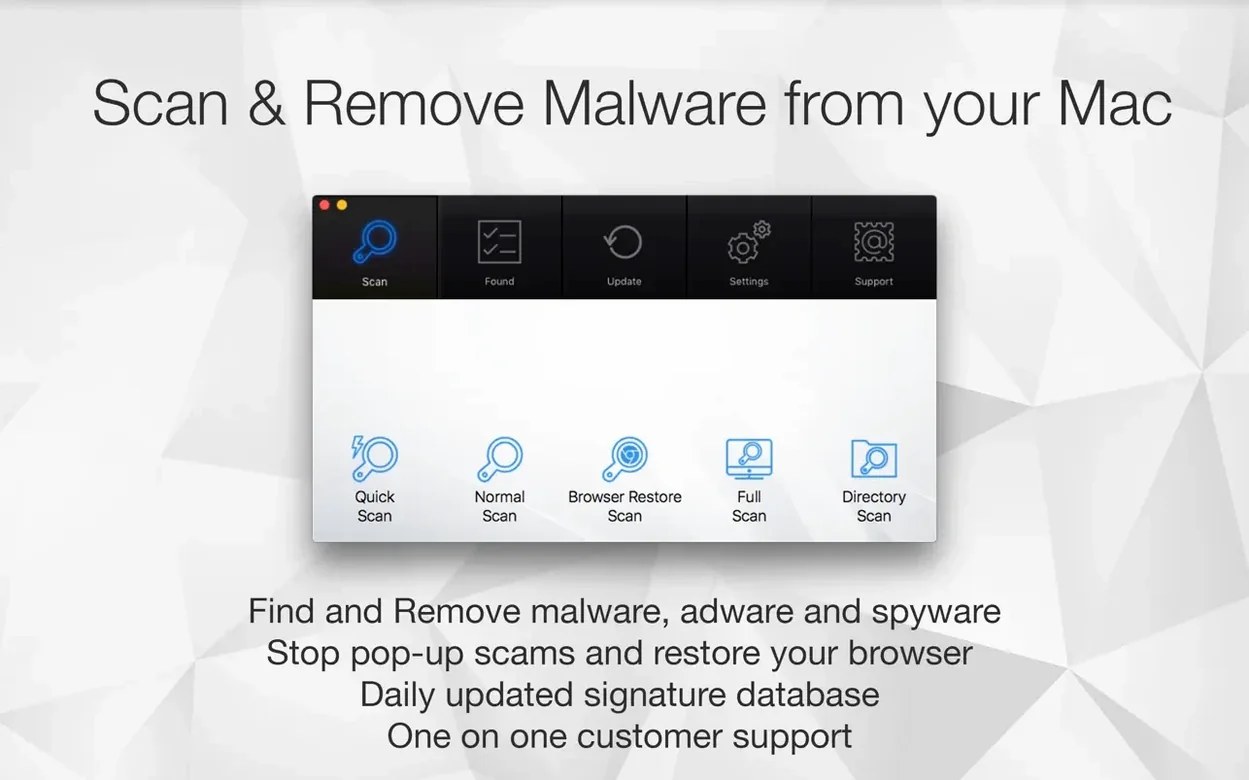
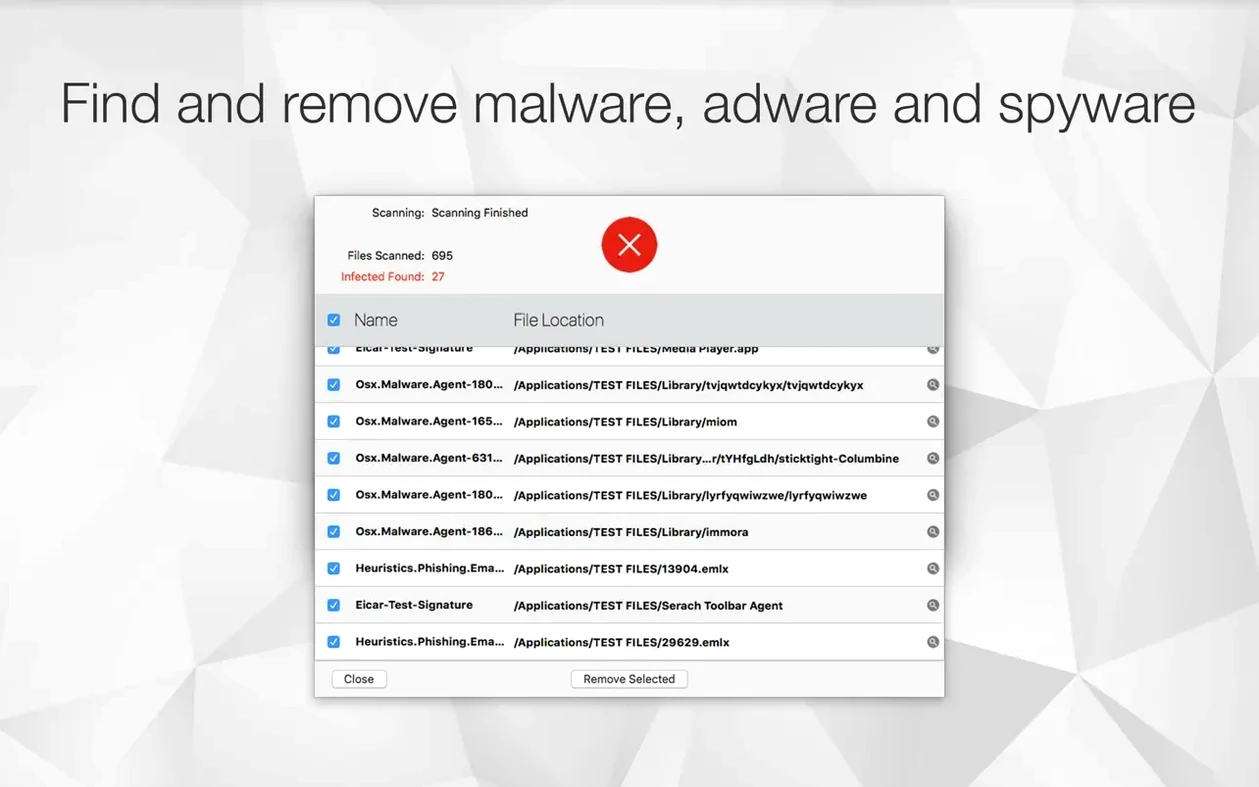
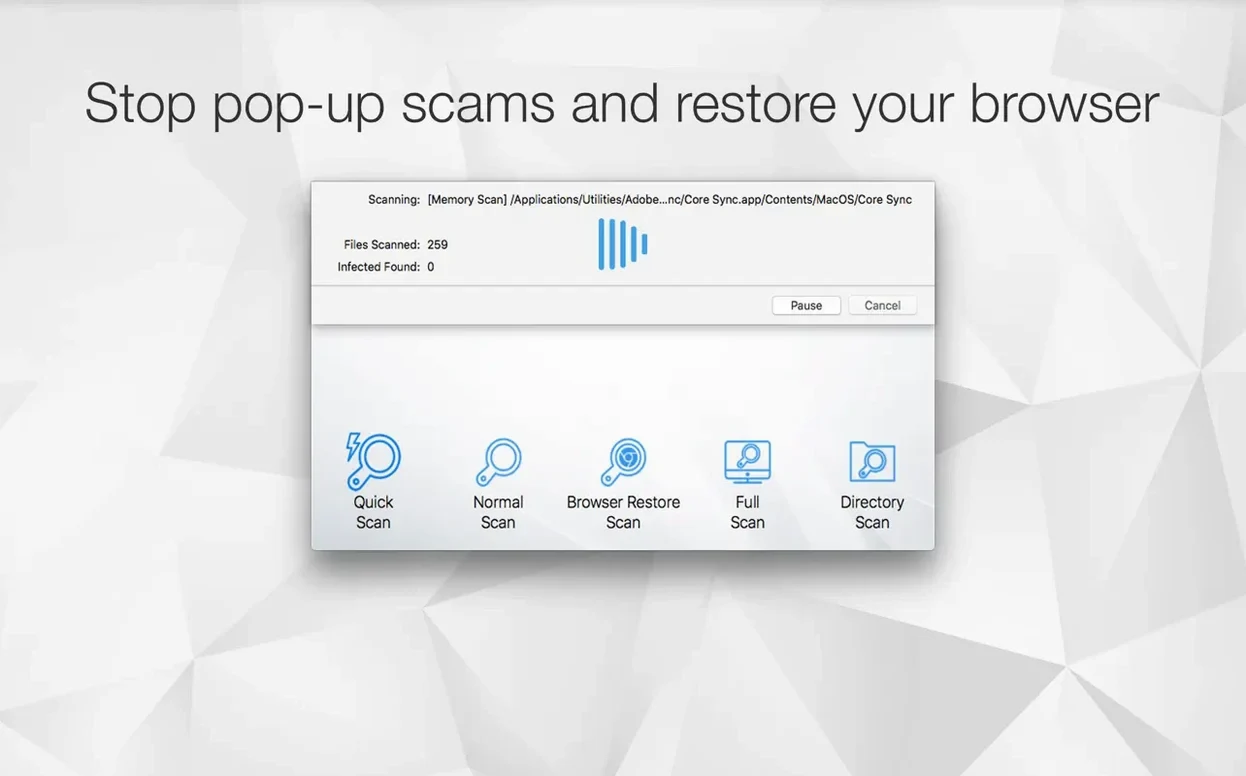
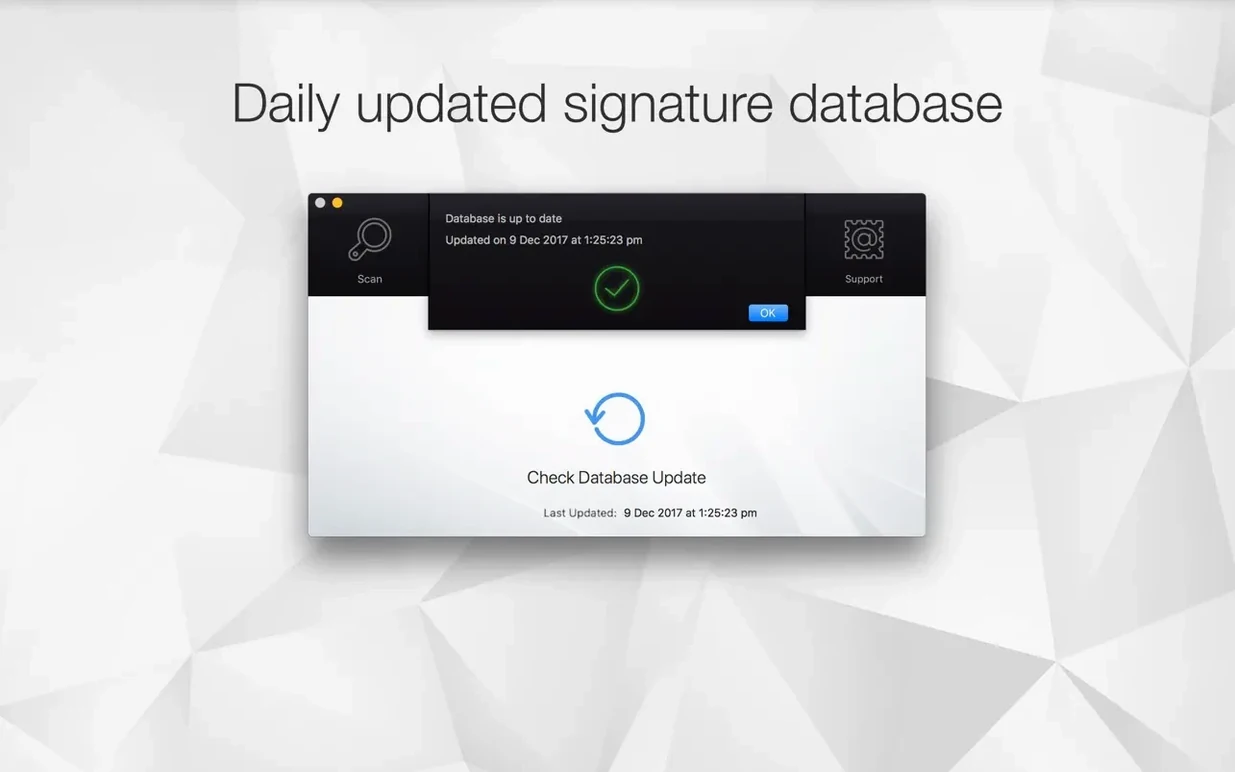
Antivirus Zap is a straightforward malware scanner built for macOS that hunts down adware, suspicious files, and other unwanted threats already lurking on your Mac. If you have just installed it and want to see what it can do, here are three sensible first moves.
Run a quick scan to catch the obvious
The quick scan zips through the most common hiding spots where adware and malware tend to settle, giving you a fast first verdict on your Mac's health. It is the natural starting point because it takes only a minute or two and often catches the low-hanging annoyances straight away.
Follow up with a standard scan for a deeper sweep
When you want a more thorough examination, the standard scan digs into a much wider set of locations across your system. Think of the quick scan as a brisk tidy-up and the standard scan as pulling the furniture out to check behind it — both have their place, and running them back-to-back builds a complete picture.
Let the Browser Restore Scan clean your web doors
Modern adware loves to hitch a ride inside your browsers, so this scan focuses specifically on hunting down rogue extensions, altered homepages, and tracking cookies that a general system sweep might overlook. It is a small but sharp tool that often surprises new users by finding clutter in browsers they assumed were clean.
A lot of newcomers treat Antivirus Zap like a fire-and-forget weapon, clicking the quick scan and walking away assuming the job is done. The quick scan is genuinely useful — it catches the low-hanging annoyances — but it only looks at a curated set of locations. If you stop there, you are leaving a fair chunk of the system unexamined. Pairing a quick scan with a standard scan is the real minimum sensible routine, and skipping the Browser Restore Scan afterwards means ignoring the very pathways that adware uses to creep back in: your browsers. Another classic slip is running scans only when something feels wrong. By the time a Mac is visibly misbehaving, whatever caused it may have already had weeks to settle in and spread. Scheduled scans exist precisely to catch intrusions before you notice them yourself, and leaving that feature untouched is like owning a smoke alarm but never putting batteries in it.
One morning inside a scheduled scan habit
Imagine it is a Tuesday. You pour a coffee, sit down, and your Mac is already ten minutes into a standard scan that Antivirus Zap kicked off automatically at 7:30. The scan is working through a few hundred thousand files, and the progress bar is ambling along without any noticeable drag on the rest of the machine — Safari opens instantly, Mail has already fetched the overnight messages, and you carry on working. Around twenty minutes in, the results pane lights up with four items: two tracking cookies and a couple of browser extensions flagged as adware, all of which the Browser Restore Scan had also been scheduled to run straight after the standard sweep. You glance at the list, confirm you want them removed, and the app handles the rest while you are halfway through an email. By the time you finish your coffee the log is clean, the browsers feel snappier, and the whole chore took exactly one click. That is the rhythm a scheduled workflow settles into — it becomes background hygiene, not a crisis response.
Scheduling it so you actually stick with it
The scheduling panel lets you set one or multiple scans per day, and the smartest pattern I have seen people adopt is a quick scan at login plus a deeper standard-plus-browser sweep during a predictable quiet window, like mid-morning. The app does not nag you afterwards; it simply runs, logs what it found, and waits for your decision if anything turned up. If you work odd hours you can shift the schedule accordingly, but the key is making it automatic enough that you stop thinking about it.
A quick scan finishes in under two minutes on a few hundred gigabytes of data
A quick scan typically wraps up in under two minutes, even on a machine with a few hundred gigabytes of data. The standard scan takes longer — anywhere from fifteen to thirty minutes depending on how many files you have accumulated — but it keeps a deliberately low profile while it works. I have never seen the fan spin up because of Antivirus Zap alone, and on both Apple Silicon and Intel machines the processor usage hovers modestly enough that you can edit video or compile code without feeling the pinch. Memory consumption stays in the low hundreds of megabytes, which on a modern Mac is unlikely to be the thing that tips you into swapping. Where you might notice a brief pause is when the Browser Restore Scan interrogates a browser that has amassed a bloated cache or dozens of extensions, because the app needs to read those databases fully. The pause is brief, and the payoff — a cleaner, leaner browser — usually justifies the half-second of stillness.
One underappreciated detail: the app integrates with Spotlight and Finder so you can right-click a suspicious download and ask Antivirus Zap to inspect it directly, which returns a result far faster than running a full manual scan. It is a small touch that suits the way most of us actually work — we spot something odd in the Downloads folder and want an answer right now, not after a system-wide sweep.
Browser Restore Scan now digs deeper into Chromium-based app engines
Version 3.3.3 tightened the Browser Restore Scan so it now reaches further into Chromium-based browsers, which matters as more Mac apps bundle their own little browser engines under the hood. The scheduling engine also got a quiet but useful polish: previously, if a scheduled scan collided with a system sleep event, it would sometimes skip that slot entirely. Now it resumes politely once the Mac wakes, so the morning scan you planned still happens even if you shut the lid five minutes before it was due.
The Apple Shortcuts integration arrived in a point release not long ago, and it opens up genuinely practical routines — for instance, a shortcut that runs a quick scan every time you unmount an external drive you use on shared machines, or one that triggers a Browser Restore Scan at the end of the working day. People who rely on tools like antivirus zap mac for quick targeted sweeps often pair it with a shortcut that zaps the browsers and then logs the results to a text file. For those who have previously searched for something like antivirus mac torrent and ended up with questionable downloads, having a right-click scanning option built into Finder gives you a fast way to check a file before you even think about opening it. These are not headline-grabbing changes, but they accumulate into an app that feels less like a standalone utility and more like a thread woven into your daily Mac habits.
- macOS 10.13 or later
- Runs natively on both Apple Silicon and Intel 64‑bit Macs
Questions from the class 0
Sign in or join the class to ask a question.
Nobody has asked anything yet. If you have used it on a real job, say what the file did.
Also on the Mac Apps shelf
The whole Mac Apps shelf AnyTrans for iOS
Moves photos, messages and music between iPhone, Mac and cloud accounts.
AnyTrans for iOS
Moves photos, messages and music between iPhone, Mac and cloud accounts.
 ApolloOne
Browses and rates raw photos straight from your existing folder structure.
ApolloOne
Browses and rates raw photos straight from your existing folder structure.
 App Cleaner & Uninstaller
Removes apps and all their leftover support files in one sweep.
App Cleaner & Uninstaller
Removes apps and all their leftover support files in one sweep.
 Apple Keynote
Builds cinematic presentations with animated transitions and layout tools.
Apple Keynote
Builds cinematic presentations with animated transitions and layout tools.
 Apple Remote Desktop
Manages and controls multiple Macs across a network from one screen.
Apple Remote Desktop
Manages and controls multiple Macs across a network from one screen.
 AppZapper
Uninstalls applications and hunts down all their scattered related files.
AppZapper
Uninstalls applications and hunts down all their scattered related files.
 ArchiCAD
Models buildings in precise detail for coordinated construction documentation.
ArchiCAD
Models buildings in precise detail for coordinated construction documentation.
 AlDente
Limits your MacBook battery charge to a chosen level for longer lifespan.
AlDente
Limits your MacBook battery charge to a chosen level for longer lifespan.