 ASPNetWorld


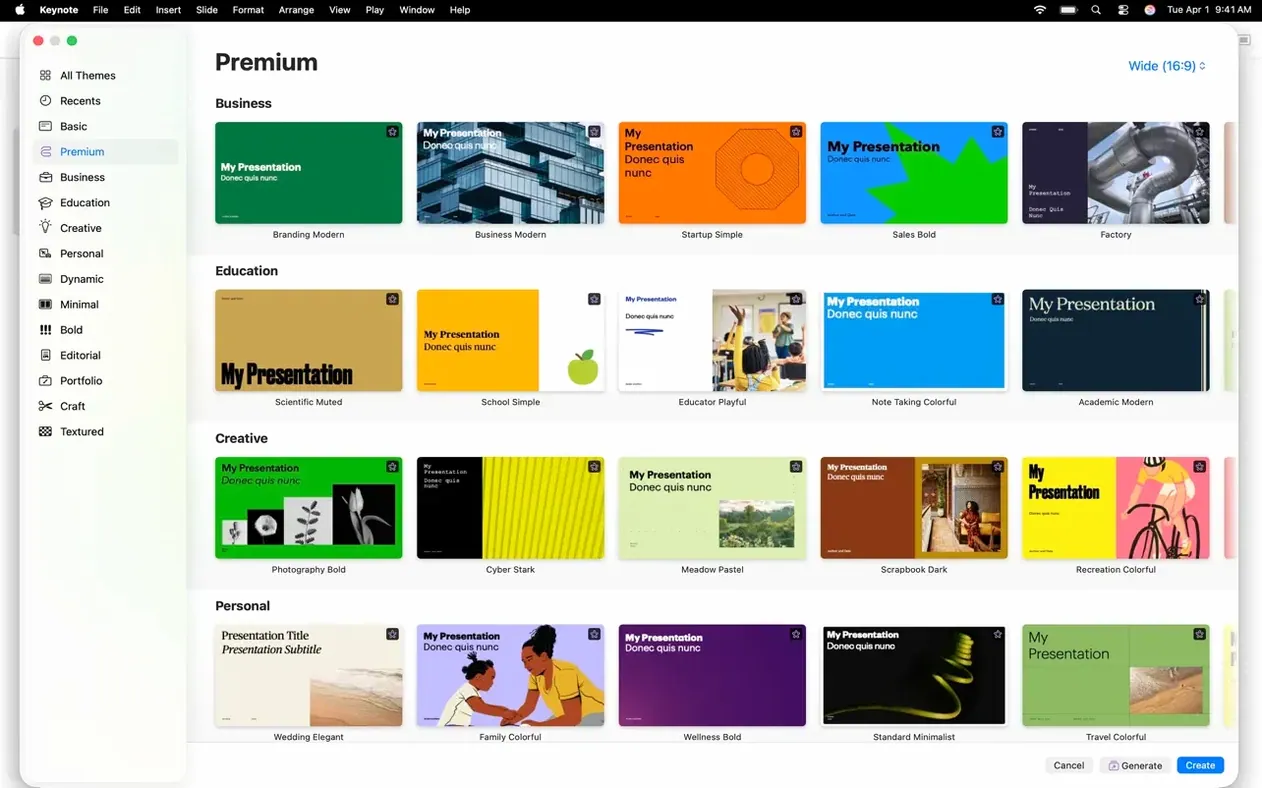
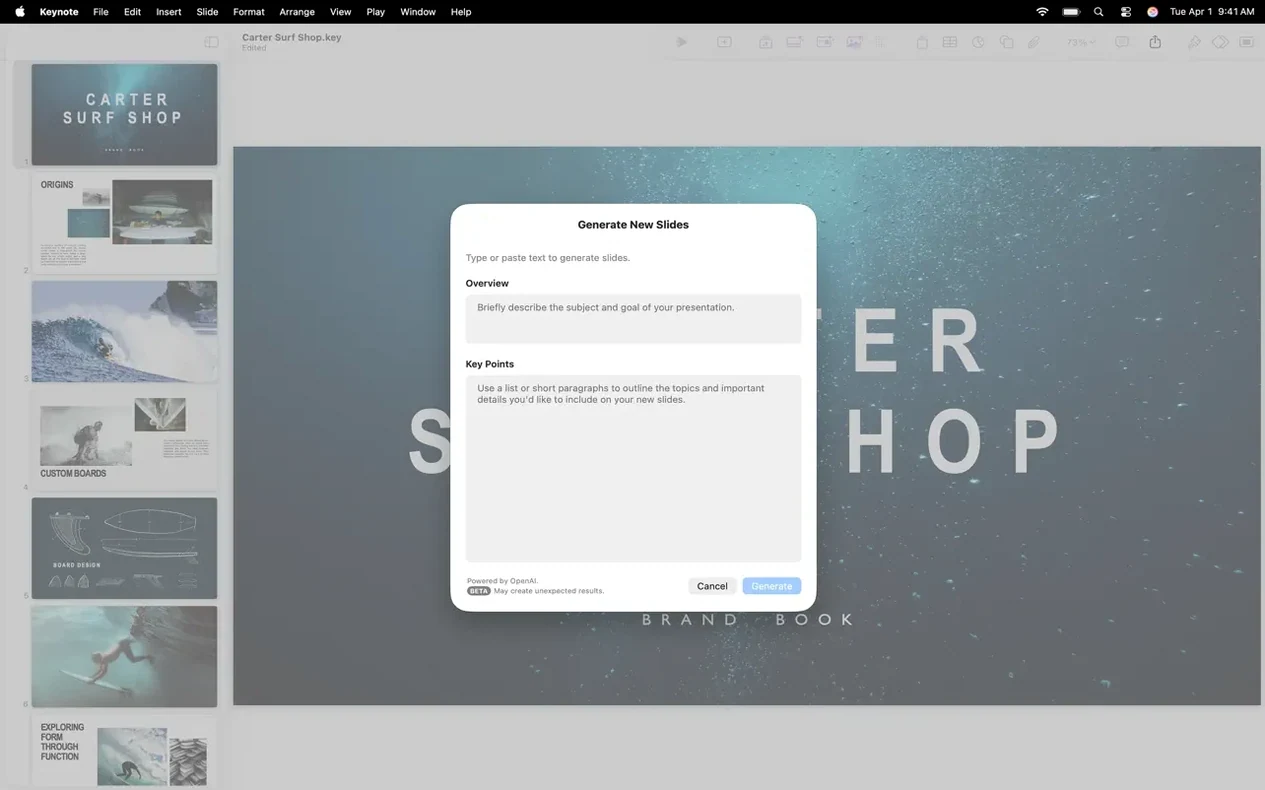
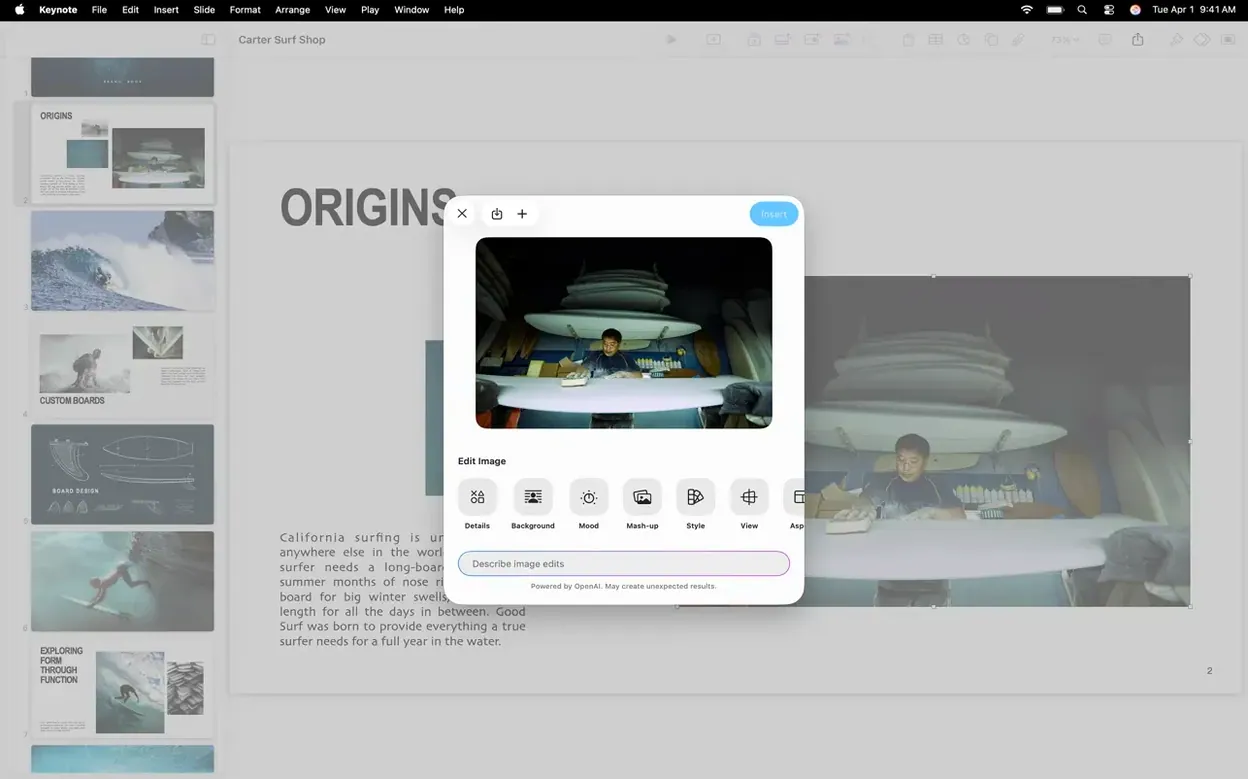
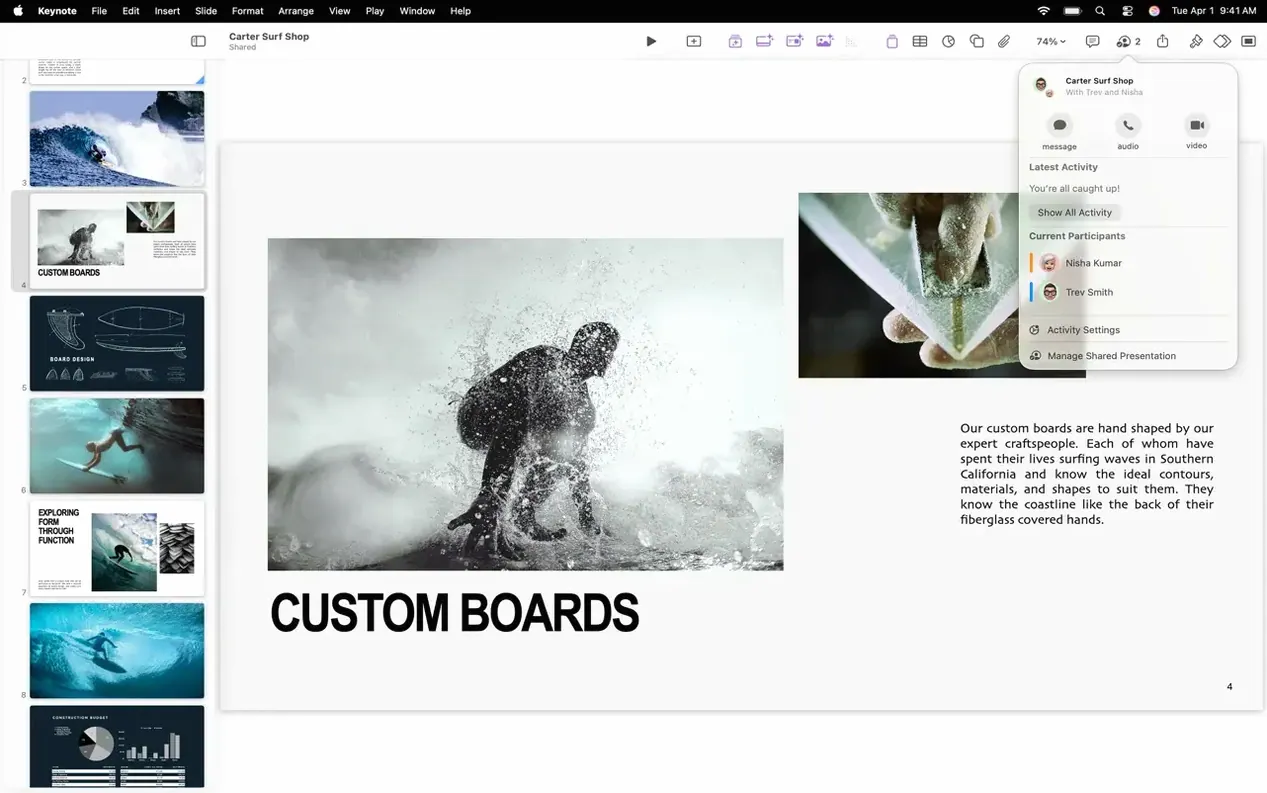
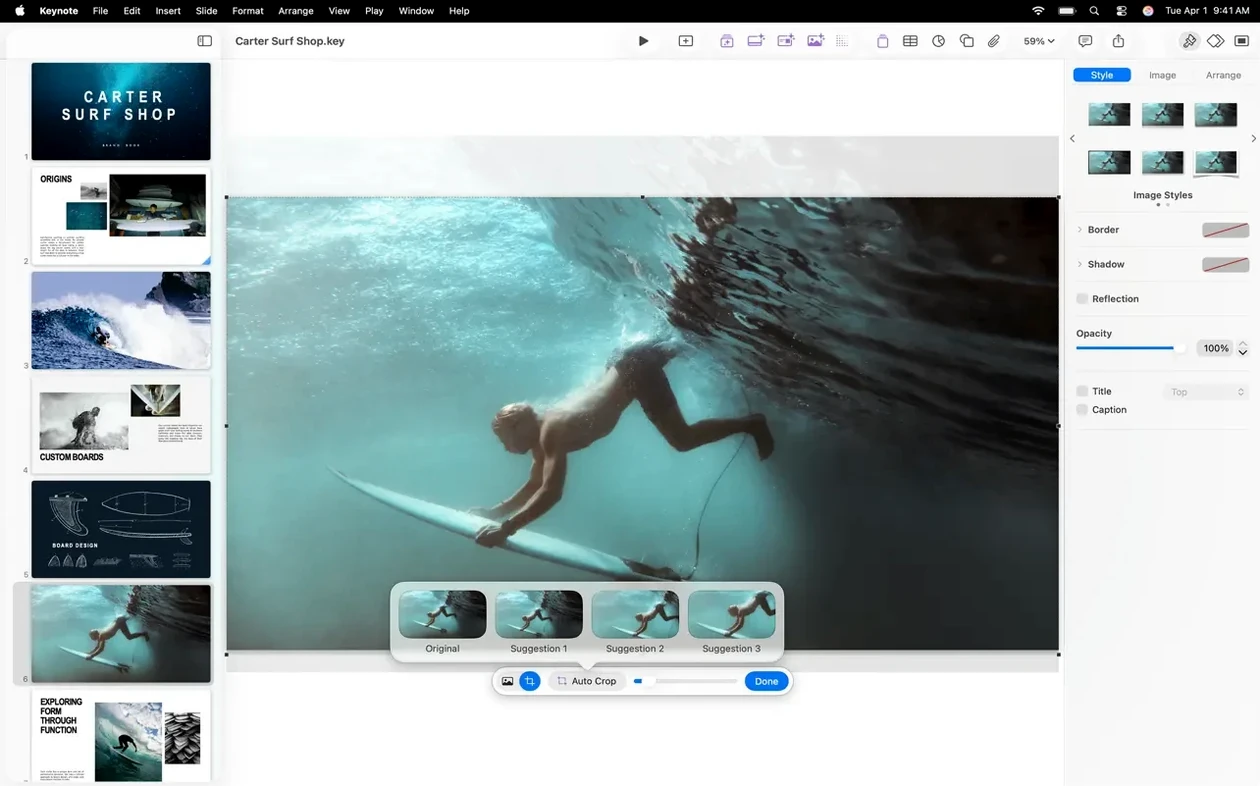
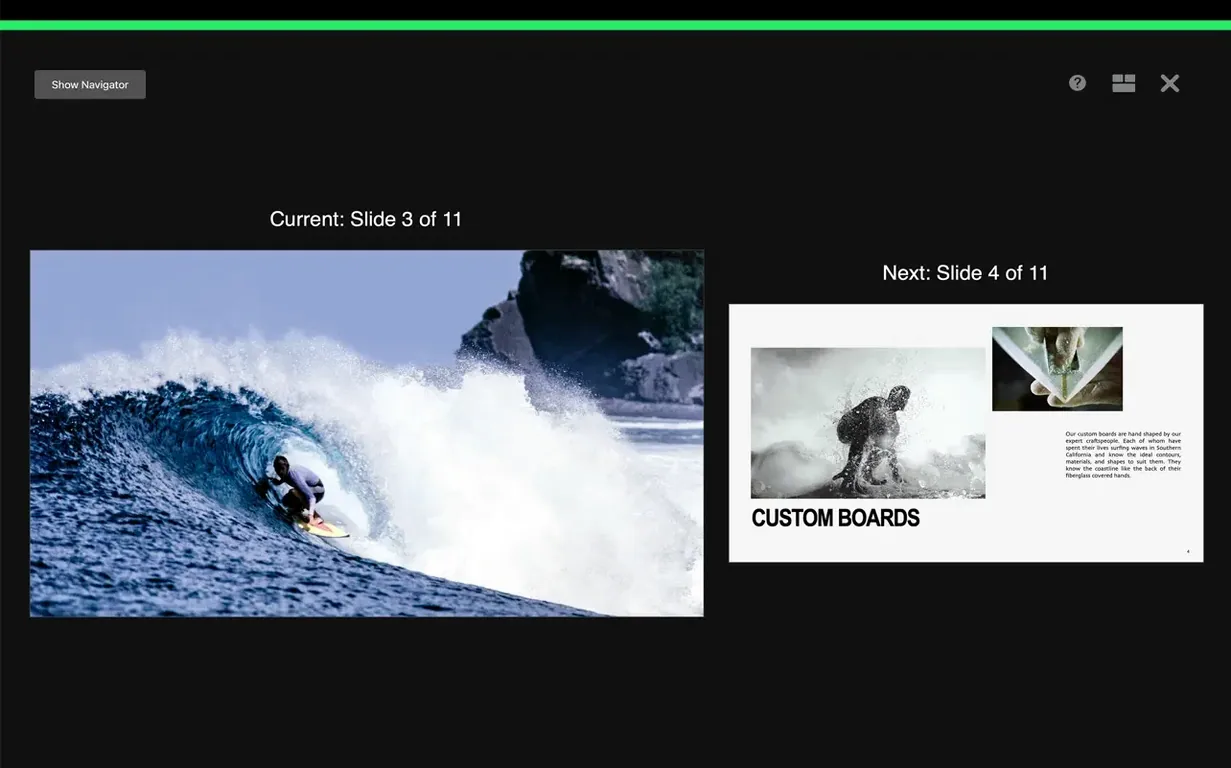
You have a pitch on Thursday and the slides still look like a bullet-pointed shopping list. You open Keynote, drop in a few images from Photos, and start arranging them on a simple black canvas. A couple of the new transitions — a radial wipe here, a character blur there — give the deck movement without feeling gimmicky. By the time you practise in the Conference Room view on a Vision Pro, it feels less like a slide deck and more like a quiet, well-told story.
Magic Move makes slides feel like a custom animation studio
Anyone who wants a clean, visual presentation tool that feels native to Apple hardware. It suits educators building lectures, designers pitching portfolios, and business users who need to export to PowerPoint or PDF. The Magic Move transition is genuinely useful for showing object relationships across slides, and iCloud sharing means you can hand off a presentation to a colleague without emailing large files. The app also exports to HTML, movie files and image sequences when you need a static or self-playing version.
Your Mac needs macOS 15.6 or newer to even open the app
Keynote requires macOS 15.6 or later, so it will not run on older Macs. Collaboration through Box or iCloud works well, but anyone on a Windows machine will still need the PowerPoint export to edit the file natively. The latest transitions — shift, radial wipe and the others — perform best on Apple Silicon Macs; an Intel machine may feel a little less fluid with heavy cinematic builds. Audio recording, video broadcasts and image galleries are built in, though the app does not replace a full video editor or a dedicated screen recorder.
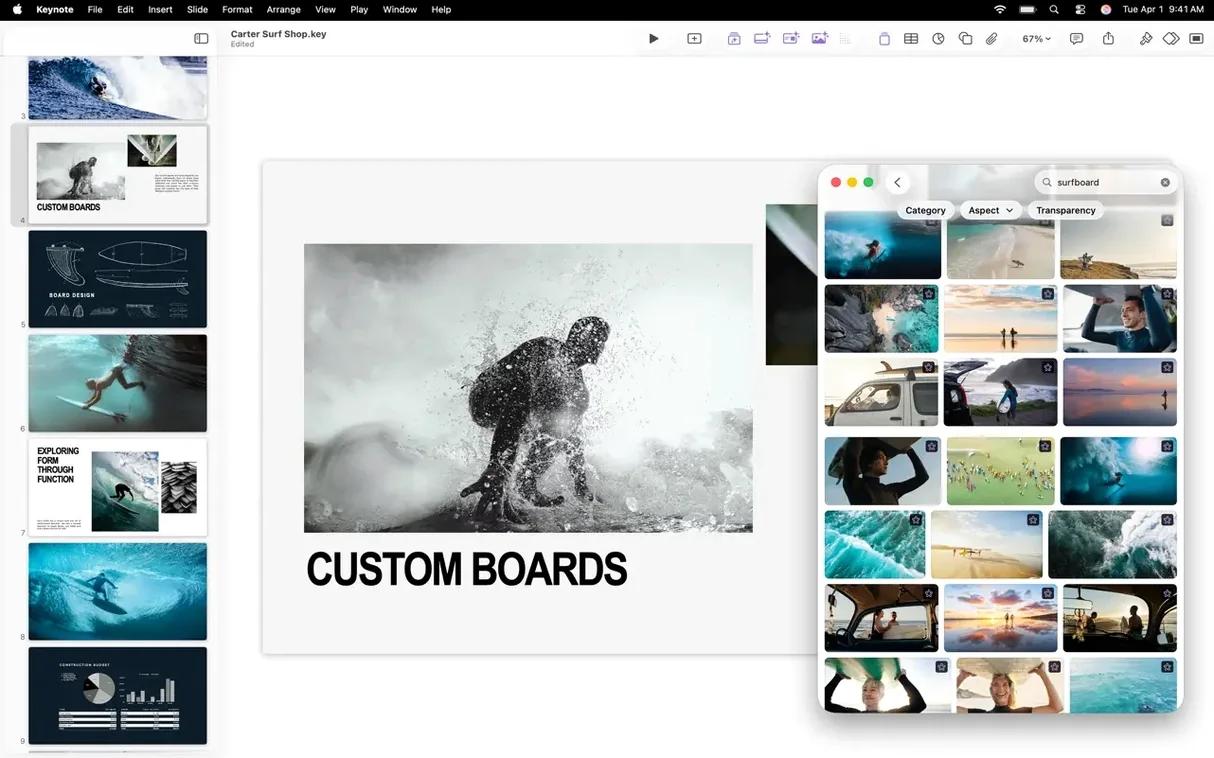
I recently built a short talk for a community college music technology evening. The brief was simple: introduce students to the idea of signal flow using nothing but a handful of hardware photos and a clear, step‑by‑step visual. I started by dropping a dark theme onto the canvas — the black‑and‑gold one Apple calls “Slate,” because it keeps attention where I want it. Then I pulled mixer and interface photos straight from the Content Hub, which saved me a trip through Finder and a round of resizing in Preview. The Content Hub’s replace‑image feature meant I could swap a blurry photo for a sharper one by right‑clicking and choosing a different shot, no re‑alignment necessary.
With the hardware images in place, I drew a few simple connector lines using Keynote’s shapes and locked them onto the slide background so my students wouldn’t accidentally drag them off‑axis during a live edit. The new shift transition let me slide an arrow graphic from channel strip to master fader with a subtle overshoot that felt mechanical and satisfying — the sort of movement that telegraphs “signal route” before anyone says a word. I then added a character‑blur build to some label text, so each label snapped into focus after its matching image appeared. A little thing, but it kept the students’ eyes moving in the order I intended.
I rehearsed the flow on my MacBook Pro, but I knew the room had an iPad connected to the projector. I pushed the file to iCloud, opened it on the iPad, and ran through the presenter display settings to put my speaker notes on the tablet screen while the audience saw only the slides. During the practice run I noticed the iPad’s annotation tools let me circle a gain knob and scribble “unity” in red with a finger, which I ended up doing live when a student asked about gain staging. The whole session felt less like a formal lecture and more like a workshop around a whiteboard, only tidier.
Paste a Numbers chart and decide if it stays linked to the data
Keynote plays well with other parts of the Apple ecosystem in ways that aren’t always obvious. A slide deck can start life as a Numbers chart — you copy a chart, paste it into a slide, and choose whether it stays linked to the original spreadsheet. Pages documents can supply styled text blocks via copy‑paste without losing formatting. For anyone who uses QuickTime to record screen demos, exporting a presentation as a movie file produces a self‑playing version that you can drop onto a timeline and trim without re‑recording the whole thing. If you use Logic Pro, you can even pull bounced audio files straight into a slide as a soundtrack, which is handy for walk‑in music at events.
macOS features like Stage Manager and Split View deserve a mention here. With Stage Manager enabled, you can keep a presenter‑notes window open on one side while the main Keynote window occupies centre stage, which turns a single‑display Mac into a reasonable rehearsal rig. Spotlight integration is quieter but useful: a presenter deck saved in the iCloud Keynote folder shows up in a Spotlight search alongside your Mail messages and Safari history, so finding it mid‑meeting is a matter of a quick Command‑Space rather than digging through folders.
Common sticking points
The first snag people mention is an exported PowerPoint file where the fonts have gone slightly wrong. Microsoft Office doesn’t ship all the typefaces Apple bundles, so a slide built with Apple‑system fonts can look skinnier or tighter when opened in PowerPoint on Windows. The workaround is to stick to fonts both platforms share — Arial, Times New Roman, Verdana — or to embed the fonts in the exported file, though embedding isn’t always foolproof across Office versions.
Another frequent puzzle involves the Magic Move transition stuttering on complex slides. Magic Move works by interpolating object positions between two slides that share identical elements, but if an object has a large image fill and a heavy shadow, the on‑the‑fly calculation can trip up older Intel Macs. Splitting the move across three simpler slides almost always fixes it, and it often makes the animation feel snappier anyway. A related note: when a slide contains a video, turn off any simultaneous builds or Magic Move transitions on that slide — Keynote will try to composite the video and the effect in real time, and the frame rate can suffer.
iCloud collaboration occasionally shows a slide as “locked” when two people edit the same deck at once. This isn’t a crash; it’s Keynote’s way of preventing two sets of changes from clobbering each other on the same object. Waiting ten seconds usually releases the lock. If it doesn’t, closing and reopening the document forces a fresh sync state from the cloud.
A classroom teacher’s afternoon
Think of a secondary‑school history teacher who wants her Year 9 class to compare three Victorian workhouse floor plans. She’s already got the images — a couple of scans from the school library and a photo she took at an industrial museum. She opens the keynote dmg she grabbed from the server, installs the app on her classroom Mac mini, and picks a pale serif theme that won’t distract from the architectural linework. Each floor plan sits on its own slide with a cropped mask that isolates the building footprint. She labels the rooms with text boxes and uses a radial‑wipe build to reveal each label in turn while she explains the layout.
On the next slide she places all three plans side by side and applies Magic Move so each plan drifts into position from its full‑screen version. The students can see how the workhouse layout evolved across decades without losing track of which building is which. She adds audio clips of factory bells from Voice Memos to give a sense of the daily routine. At the end of the lesson she exports the deck as a PDF and drops it into the class folder on Box, so the kids can revisit it on their Chromebooks at home. Nothing in the workflow needed a tutorial — just a series of small, visual decisions that turned a dry topic into something the students could follow with their eyes.
Version 15.3.1 tidies up a few rough edges and adds some striking new ways to move between slides.
- Bug fixes and under-the-hood performance improvements that make the app feel more responsive on large decks.
- Three new transitions and builds — shift, radial wipe, and character blur — for adding motion without third-party effects.
- The Content Hub now lets you swap images in a presentation more directly, saving a few clicks each time you update a placeholder.
- macOS 15.6 or later
- Runs natively on both Apple Silicon and Intel Macs
Questions from the class 0
Sign in or join the class to ask a question.
Nobody has asked anything yet. If you have used it on a real job, say what the file did.
Also on the Mac Apps shelf
The whole Mac Apps shelf App Cleaner & Uninstaller
Removes apps and all their leftover support files in one sweep.
App Cleaner & Uninstaller
Removes apps and all their leftover support files in one sweep.
 Apple Remote Desktop
Manages and controls multiple Macs across a network from one screen.
Apple Remote Desktop
Manages and controls multiple Macs across a network from one screen.
 AppZapper
Uninstalls applications and hunts down all their scattered related files.
AppZapper
Uninstalls applications and hunts down all their scattered related files.
 ApolloOne
Browses and rates raw photos straight from your existing folder structure.
ApolloOne
Browses and rates raw photos straight from your existing folder structure.
 ArchiCAD
Models buildings in precise detail for coordinated construction documentation.
ArchiCAD
Models buildings in precise detail for coordinated construction documentation.
 AnyTrans for iOS
Moves photos, messages and music between iPhone, Mac and cloud accounts.
AnyTrans for iOS
Moves photos, messages and music between iPhone, Mac and cloud accounts.
 Art Text 4
Transforms ordinary type into dimensional artwork with materials and effects.
Art Text 4
Transforms ordinary type into dimensional artwork with materials and effects.
 Antivirus Zap - Virus Scanner
Scans your Mac for malware, adware and unwanted files lurking in the system.
Antivirus Zap - Virus Scanner
Scans your Mac for malware, adware and unwanted files lurking in the system.