 ASPNetWorld
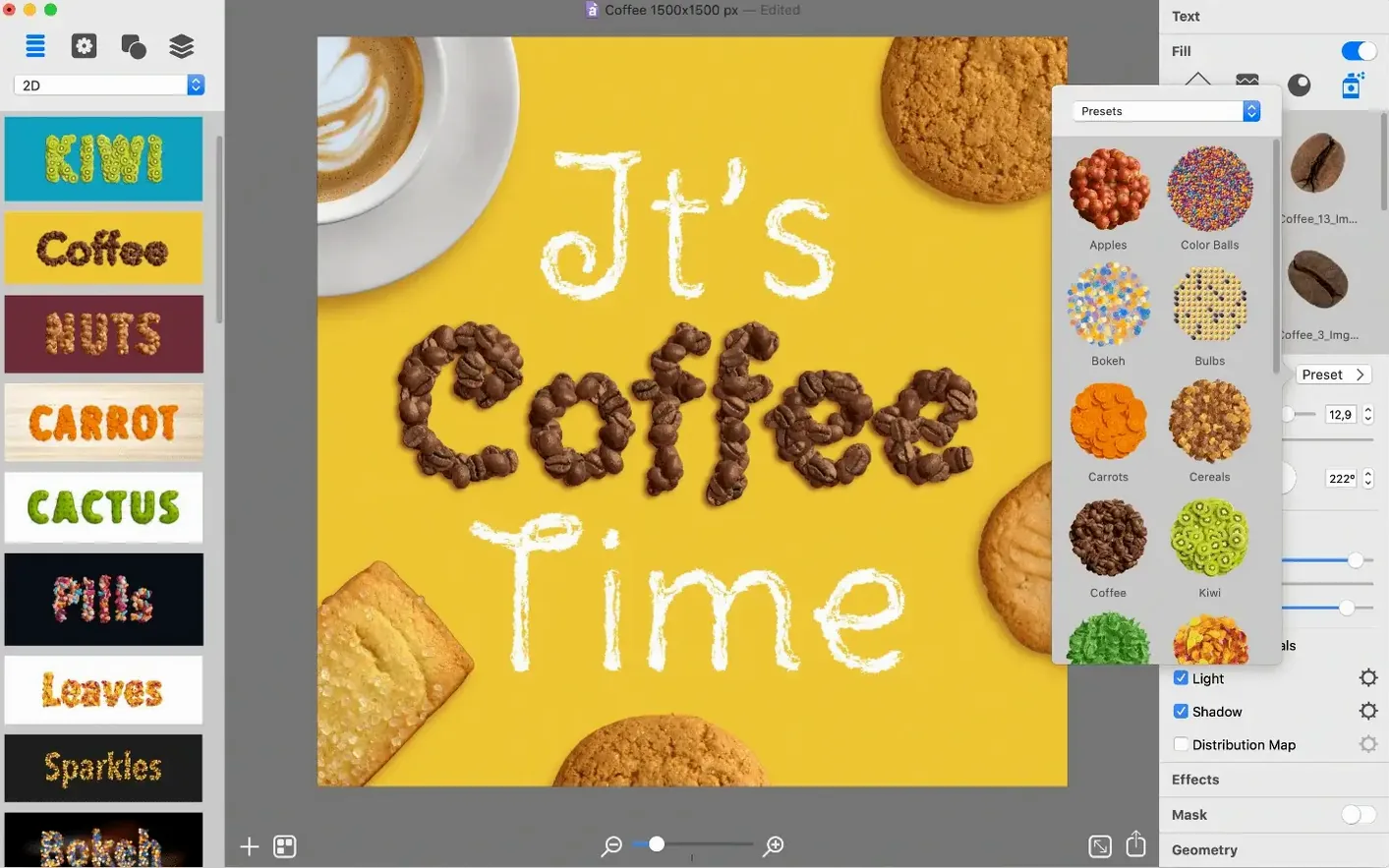
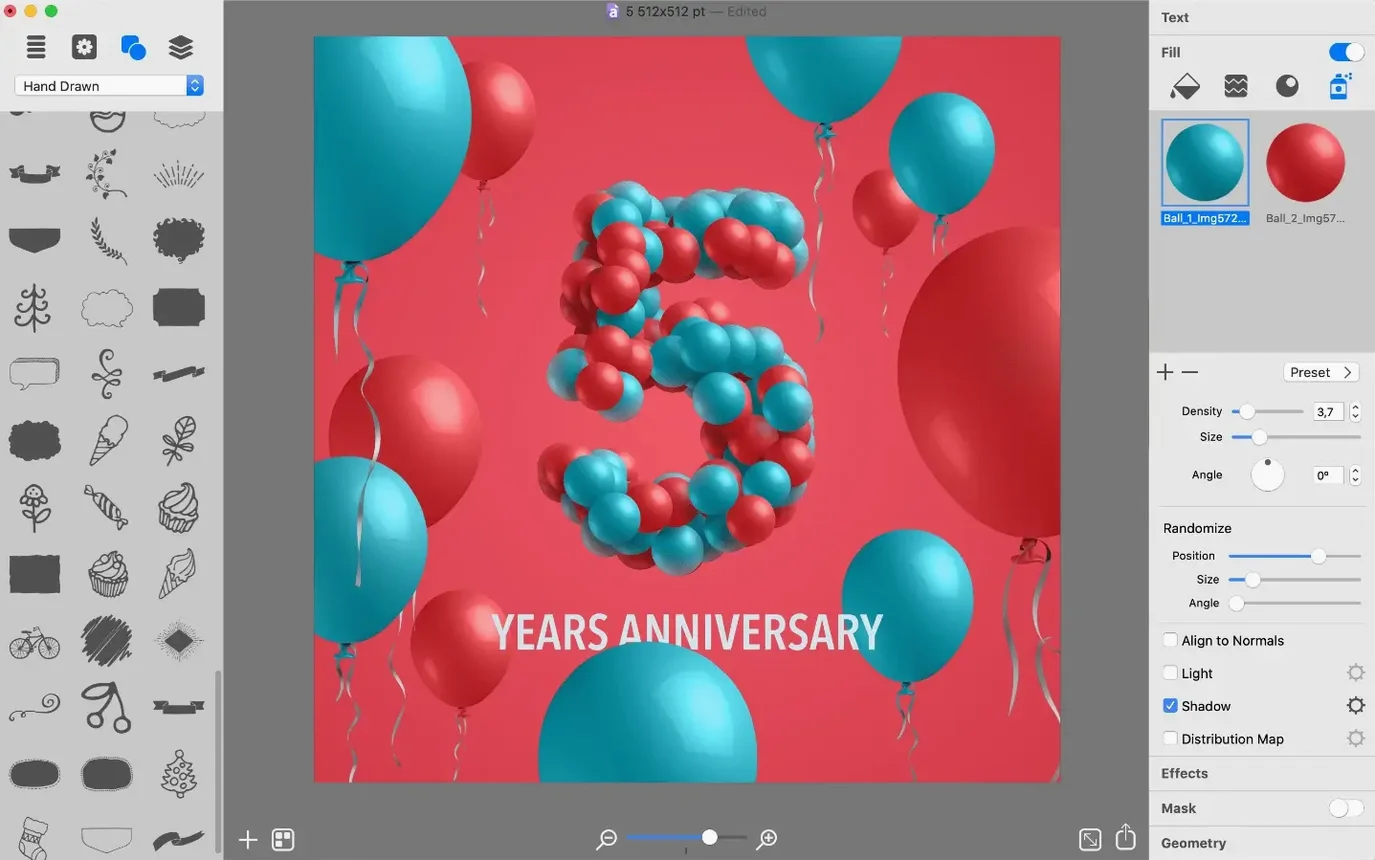
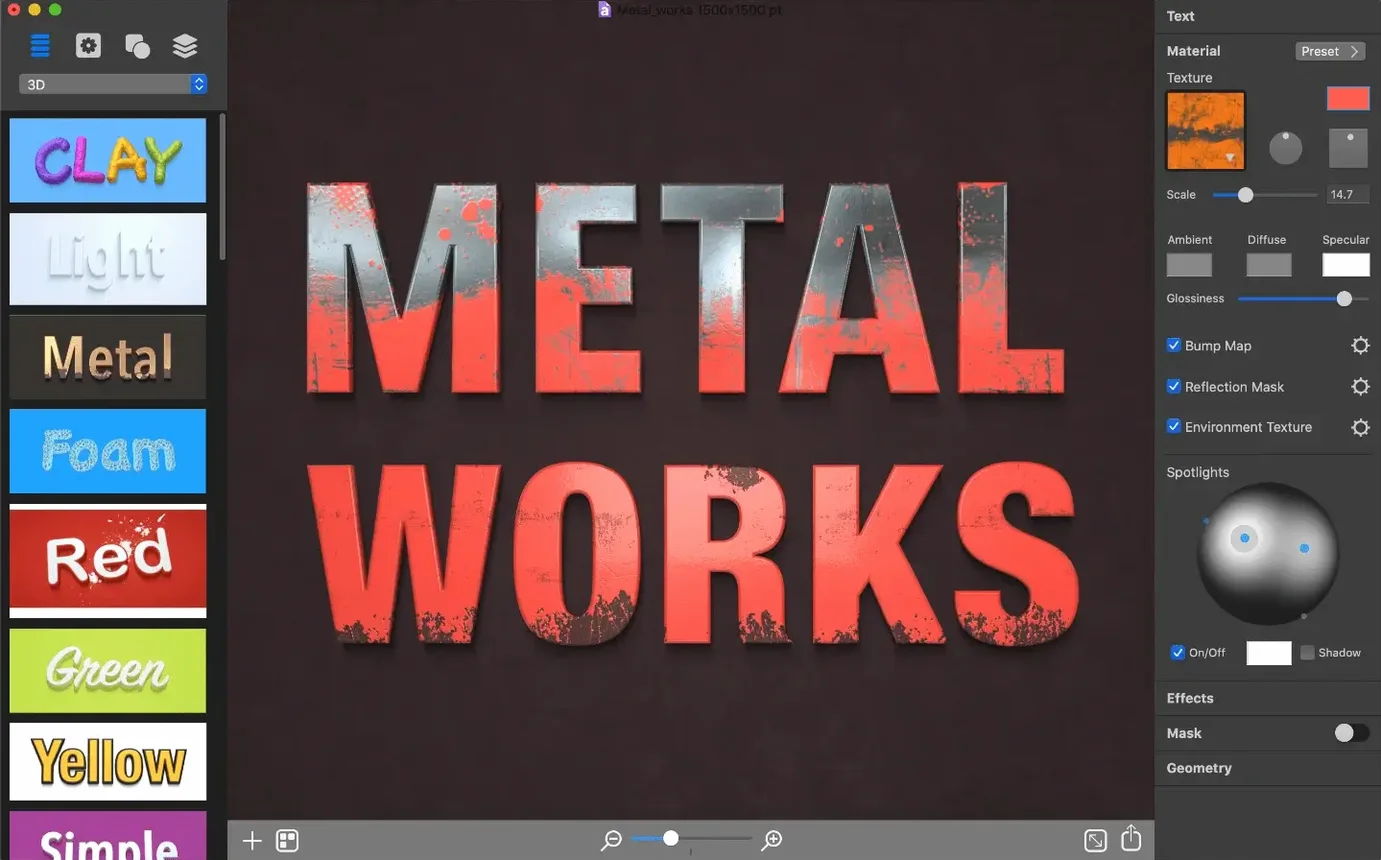
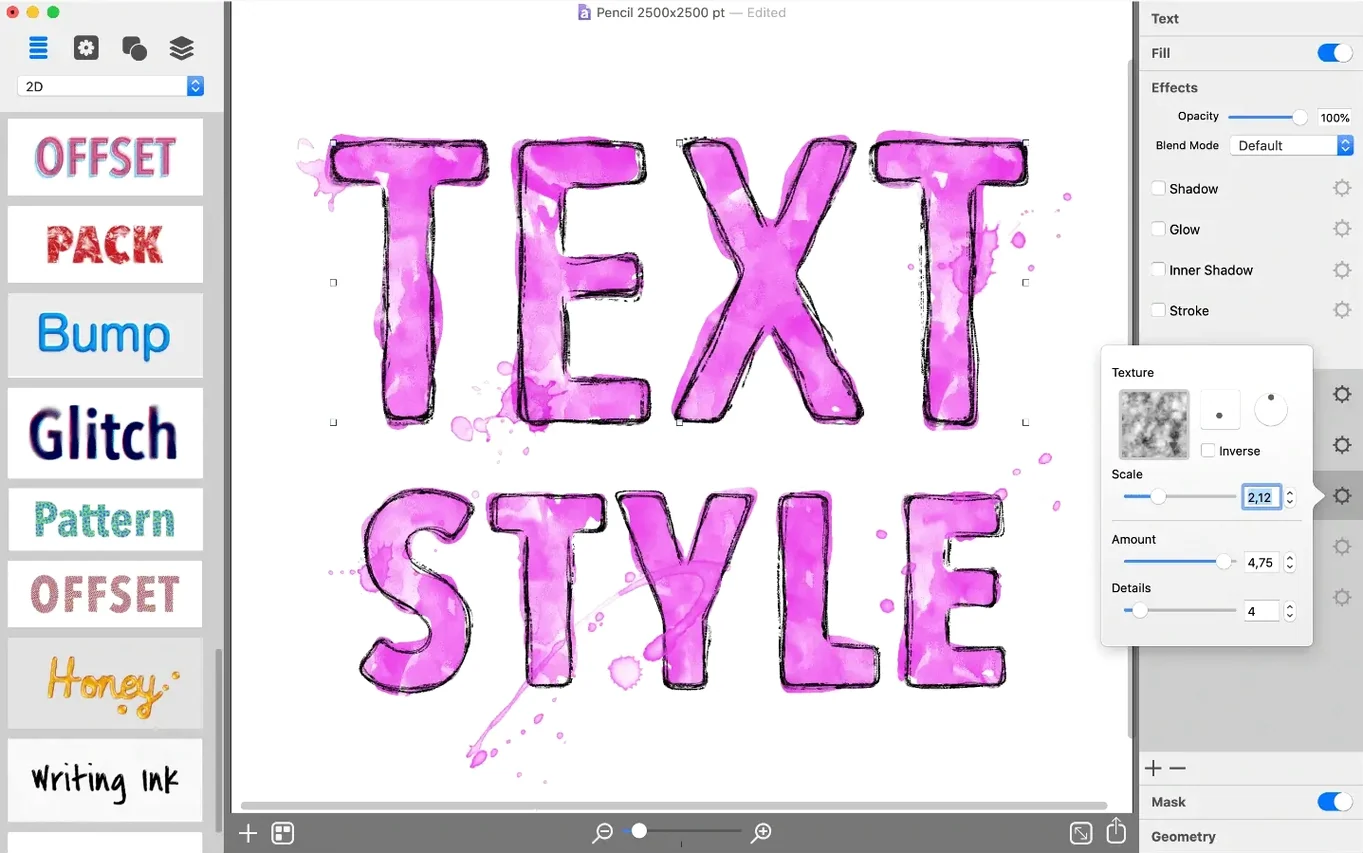
Art Text 4 is a dedicated graphic design tool for turning ordinary text into typographic artwork, using a library of materials, effects and vector shapes. It sits neatly alongside the tools you already use—it won't replace a word processor or a full photo editor, but it fills the gap when Pages feels too restrained and Photoshop is overkill. You type a word, choose a look, and the app handles the complex shading, lighting and geometry that would take ages to build manually in a general-purpose design package.
- Layered text effects — combine shadows, gradients, textures and 3D materials on a single text object, then adjust each layer independently until the surface feels right.
- Deformation controls — bend, twist and warp lettering into arcs, flags or custom curves without converting to paths first, so the text stays editable.
- 110 preset designs — jump-start a project with ready-made styles for badges, logos, web headers and social media posts, then tweak every parameter to make it yours.
- 400+ vector icons and shapes — use the built-in collection as decorative elements or text masks, or draw your own custom icons with the vector editing tools.
- Standalone output — export finished designs as high-resolution rasters or vectors that drop straight into Keynote presentations, Final Cut titles or Xcode assets.
The app runs on Intel and Apple Silicon Macs with macOS 10.14 or later, and the interface is localised into five languages. It is the sort of utility that earns its keep the first time you need a polished YouTube thumbnail or a shop-window poster and realise you can build it without opening three different applications.
Let me walk through a practical task that shows off the app’s real strengths: building a two‑level YouTube thumbnail for a cooking channel. Say the title is “One‑Pot Pasta” and you want a rich, glossy main word with a smaller, matte subtitle beneath it. You start by typing the main text, choose a slab‑serif preset from the 110 designs — maybe the one with a dark chocolate fill and a soft inner shadow — and then resize the canvas to 1280 × 720 pixels. The shape palette gives you a rounded rectangle; drop it behind the text, add a subtle gradient fill and pull the opacity back to about 60% so it frames rather than fights the lettering.
For the subtitle — “ready in twenty minutes” — type it as a separate text object, switch to a lighter material preset and switch off its deformation entirely. Nudge it into place with the arrow keys, then use the layering panel to keep the main heading on top. The whole thing stays live: if the client later asks for “Quick One‑Pot Pasta”, you just edit the text and the effects follow. Export as a PNG with alpha channel ticked, and the file drops into Final Cut or Premiere without any trimming around the edges.
One snag newcomers hit is that heavily deformed text can look jagged on‑screen while you work, even though the final render is clean. The display is a proxy view — a bit like a camera’s live‑view feed before the full‑resolution shot. To get an accurate preview, zoom in beyond 100% or do a quick test export of a single frame. If the roughness persists, dial back the deformation angle a few degrees; sharp bends amplify any anti‑aliasing artefacts.
Another common hiccup involves the material library loading with a grey placeholder for a few seconds on older Intel Macs. That is simply the shader cache rebuilding, especially after a macOS point update. Let it sit for ten seconds before you start dragging materials onto text, and the thumbnails will appear. If they still glitch, toggling between the “basic” and “advanced” material views forces a refresh.
Occasionally someone will search for an Art Text 4 Mac torrent and end up with a build that strips out the icon libraries to save space. The symptom is a blank panel where the vector icons ought to be. The fix is straightforward: you need a complete disk image. Once mounted properly, the 400+ shapes appear instantly and the custom icon editor works as expected.
As for fitting into a wider workflow, Art Text 4 plays well with macOS Quick Actions. Save a design as a high‑quality TIFF and assign a Quick Action in Automator to convert it to a different format or apply a colour profile — that lets you right‑click a finished badge in Finder and spit out a web‑ready JPEG without opening any extra apps. The exported vectors slot into Keynote slides as native shapes, so you can animate individual glyphs with Build In effects, something you cannot do with a flattened PNG. And because the app respects the system colour picker, you can sample a brand colour from Safari, drag it onto a material slot, and keep everything on‑brand without noting down hex codes.
Version 4.5.10 brings minor technical refinements that improve stability, along with the introduction of the AI Bundle 3 offer for users who want to expand their design toolkit.
- macOS 10.14 or later
- Intel or Apple Silicon Mac
Questions I keep hearing
Can I use my own icons instead of the built-in ones?
Yes, the vector editing tools let you draw custom icons from scratch or modify the included set, and you can import your own SVG files.
Which languages does the Art Text 4 interface support?
The app is localised into English, German, Spanish, French and Japanese.
Questions from the class 0
Sign in or join the class to ask a question.
Nobody has asked anything yet. If you have used it on a real job, say what the file did.
Also on the Mac Apps shelf
The whole Mac Apps shelf ArchiCAD
Models buildings in precise detail for coordinated construction documentation.
ArchiCAD
Models buildings in precise detail for coordinated construction documentation.
 Artlantis
Renders architectural models into still images and virtual panoramas.
Artlantis
Renders architectural models into still images and virtual panoramas.
 AppZapper
Uninstalls applications and hunts down all their scattered related files.
AppZapper
Uninstalls applications and hunts down all their scattered related files.
 Artstudio Pro
Paints and edits images with a brush engine that blends multiple textures.
Artstudio Pro
Paints and edits images with a brush engine that blends multiple textures.
 Apple Remote Desktop
Manages and controls multiple Macs across a network from one screen.
Apple Remote Desktop
Manages and controls multiple Macs across a network from one screen.
 Apple Keynote
Builds cinematic presentations with animated transitions and layout tools.
Apple Keynote
Builds cinematic presentations with animated transitions and layout tools.
 App Cleaner & Uninstaller
Removes apps and all their leftover support files in one sweep.
App Cleaner & Uninstaller
Removes apps and all their leftover support files in one sweep.
 ApolloOne
Browses and rates raw photos straight from your existing folder structure.
ApolloOne
Browses and rates raw photos straight from your existing folder structure.