 ASPNetWorld

AppZapper is a focused macOS uninstaller that extends the standard drag-to-Trash routine by hunting down an application's related files before you delete it.
How does the grid view change my workflow?
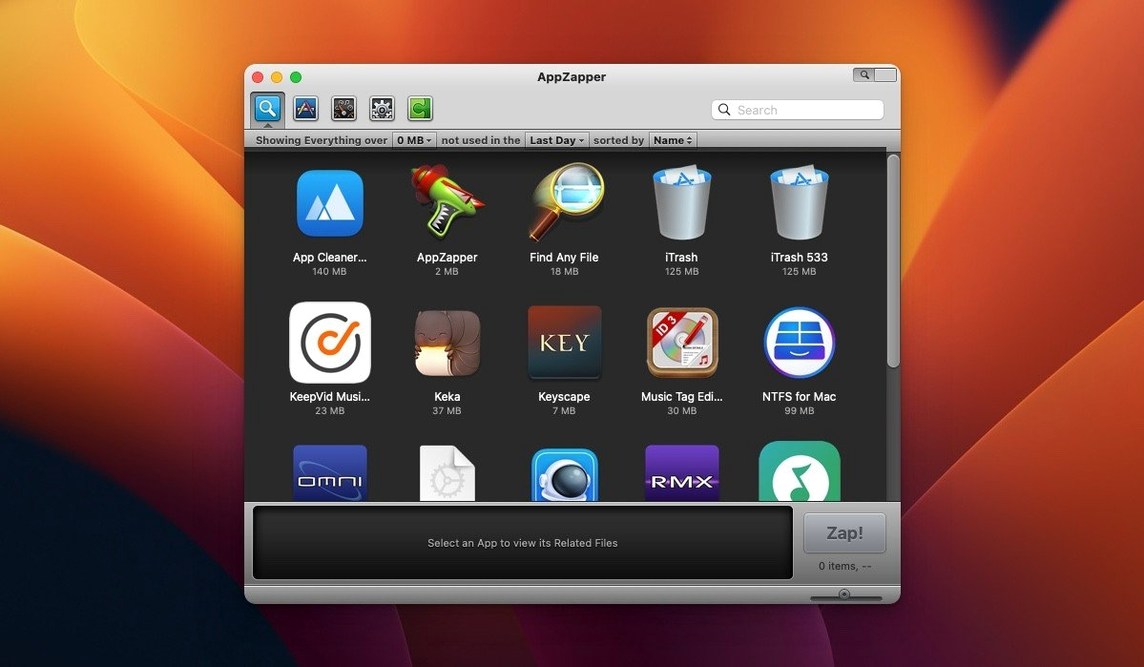
The button in the upper-right corner switches the interface to a grid-style app browser with large icons arranged in rows and columns. It turns a list of names into a visual scan, which is far quicker for spotting an app you recognise by its icon but can't quite name.
Can I be selective about what gets removed?
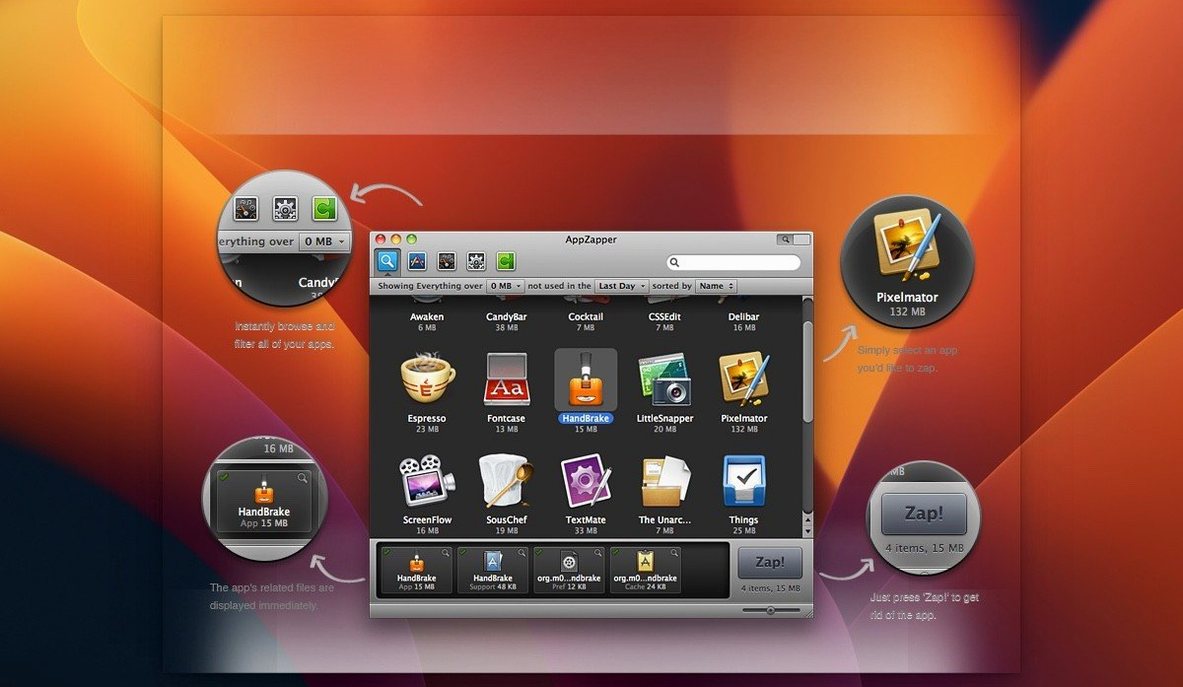
Absolutely. Once AppZapper has found the related support files, every item appears with a checkbox. You can uncheck any file you want to exclude from deletion, so you might zap the main app but keep its preferences or a custom template you tweaked ages ago.
What does the export feature do?
Introduced in version 1.7.0, the export function lets you gather an app and all its related files into a single bundle. This is useful for moving a fully configured tool to another Mac or simply archiving it in a state you know you can restore later.
How does the app handle its own updates?
Since version 1.6.0, AppZapper has used the Sparkle framework for in-app updates. This means you get notified of new versions directly inside the application, without needing to manually check a website for the latest build.
A complete zap from start to finish
Suppose you have been testing a handful of Markdown editors and now you want to clear out the two you did not bond with. Launch AppZapper and you land in the ZapGenie browser – a panel that lists every application on your Mac, sortable by name or the date you last used it. Filtering by “date last used” immediately surfaces the tools you have ignored for three months, which is often the most honest signal of what should go.
Select the first candidate. The main pane populates with the application itself plus a tree of related files: a preference plist tucked inside ~/Library/Preferences, a container folder in ~/Library/Containers, perhaps a couple of caches and a saved state file. Uncheck the preference file if you think you might revisit the app’s sibling someday and want your settings waiting. Click Zap, and the checked items vanish into the Trash. If you change your mind an hour later, every single file is sitting there ready to be restored with a right-click, because AppZapper never bypasses the Trash unless you empty it yourself.
Repeat the process for the second editor. The whole tidy-up takes under a minute, and you leave behind none of the orphaned support files that a manual drag-to-Trash would have scattered across your Library folders.
First days with AppZapper: practical nudges
When you first install AppZapper, it pays to spend ten minutes learning what your own Library actually contains. Before zapping anything important, open the app browser and click on a few applications you use daily – a browser, a mail client, a design tool. Glance at the list of related files without deleting anything. This teaches you the pattern: most apps store preferences in one place, caches in another, and containers in yet another. Once you recognise the landscape, you will make smarter choices about what to uncheck during a real zap.
A second tip concerns the export feature. In your first week, pick a small utility you have customised heavily and export it to an external drive. You will probably never need that archive, but going through the motion once means you will remember the feature exists when you do need it – say, before you wipe an old Mac for a family member and want to carry a favourite tool across.
Finally, resist the urge to zap everything in one session. The grid view makes it temptingly easy to select a dozen apps by their icons and delete them en masse, but a staggered approach – two or three apps, then a day of normal work – means you catch any mistaken deletions before the Trash is emptied.
How AppZapper compares with similar Mac uninstallers
AppCleaner, a free utility that has been around for years, performs the same core task of finding related files when you drop an application onto its window. What it lacks is AppZapper’s grid-style browser and the export-to-archive function. If you simply want to delete an app and its cruft without ever browsing your full catalogue, AppCleaner does the job. AppZapper pulls ahead when you want to survey everything installed and make decisions visually, or when you need to bundle an app for transfer.
CleanMyMac X takes a different approach entirely. It is a broad system-maintenance suite that includes an uninstaller among many other modules – malware scanning, optimisation scripts, leftover file cleaners. The uninstaller works well, but you are carrying a large toolkit for a task that AppZapper handles with a single-purpose window. Users who prefer a lean tool that does one thing and stays out of the way tend to gravitate toward AppZapper or AppCleaner rather than a suite.
Hazel, by Noodlesoft, is not an uninstaller at all but deserves mention because some people try to use it for cleanup. Hazel watches folders and applies rules – you could, with patience, build a rule set that catches preference files when an app is deleted. That approach is fragile and time-consuming compared with AppZapper’s one-click zap. Hazel shines for ongoing file organisation, not for surgical application removal.
The podcaster who finally deletes six rejected audio editors
Imagine a freelance podcaster whose Mac doubles as the recording and editing hub. Over a year they have auditioned six different audio editors, three tag editors and a handful of level-metering plugins that came bundled with an interface they no longer own. The Applications folder is a graveyard of abandoned trials.
On a quiet Sunday they launch AppZapper and switch to the grid view. The large icons make it trivial to spot the editor they uninstalled mentally but not physically. They select it, scan the related files – preferences, a folder of impulse responses, an Audio Unit component buried in the Library – and zap everything. One of the editors, however, holds a custom EQ preset they spent an hour tuning. They right-click that app in the browser, choose export, and save the bundle to an archive folder on their NAS before zapping the original. The whole cleanup reclaims several gigabytes and, more importantly, removes half a dozen background agents that had been quietly launching at login.
The second version introduces a more visual way to browse your applications. A new grid-style browser replaces the simple list with large, recognisable app icons.
- OS X 10.9 or later
- 64-bit Intel processor
Questions from the class 0
Sign in or join the class to ask a question.
Nobody has asked anything yet. If you have used it on a real job, say what the file did.
Also on the Mac Apps shelf
The whole Mac Apps shelf Apple Remote Desktop
Manages and controls multiple Macs across a network from one screen.
Apple Remote Desktop
Manages and controls multiple Macs across a network from one screen.
 ArchiCAD
Models buildings in precise detail for coordinated construction documentation.
ArchiCAD
Models buildings in precise detail for coordinated construction documentation.
 Apple Keynote
Builds cinematic presentations with animated transitions and layout tools.
Apple Keynote
Builds cinematic presentations with animated transitions and layout tools.
 Art Text 4
Transforms ordinary type into dimensional artwork with materials and effects.
Art Text 4
Transforms ordinary type into dimensional artwork with materials and effects.
 App Cleaner & Uninstaller
Removes apps and all their leftover support files in one sweep.
App Cleaner & Uninstaller
Removes apps and all their leftover support files in one sweep.
 Artlantis
Renders architectural models into still images and virtual panoramas.
Artlantis
Renders architectural models into still images and virtual panoramas.
 Artstudio Pro
Paints and edits images with a brush engine that blends multiple textures.
Artstudio Pro
Paints and edits images with a brush engine that blends multiple textures.
 ApolloOne
Browses and rates raw photos straight from your existing folder structure.
ApolloOne
Browses and rates raw photos straight from your existing folder structure.