 ASPNetWorld
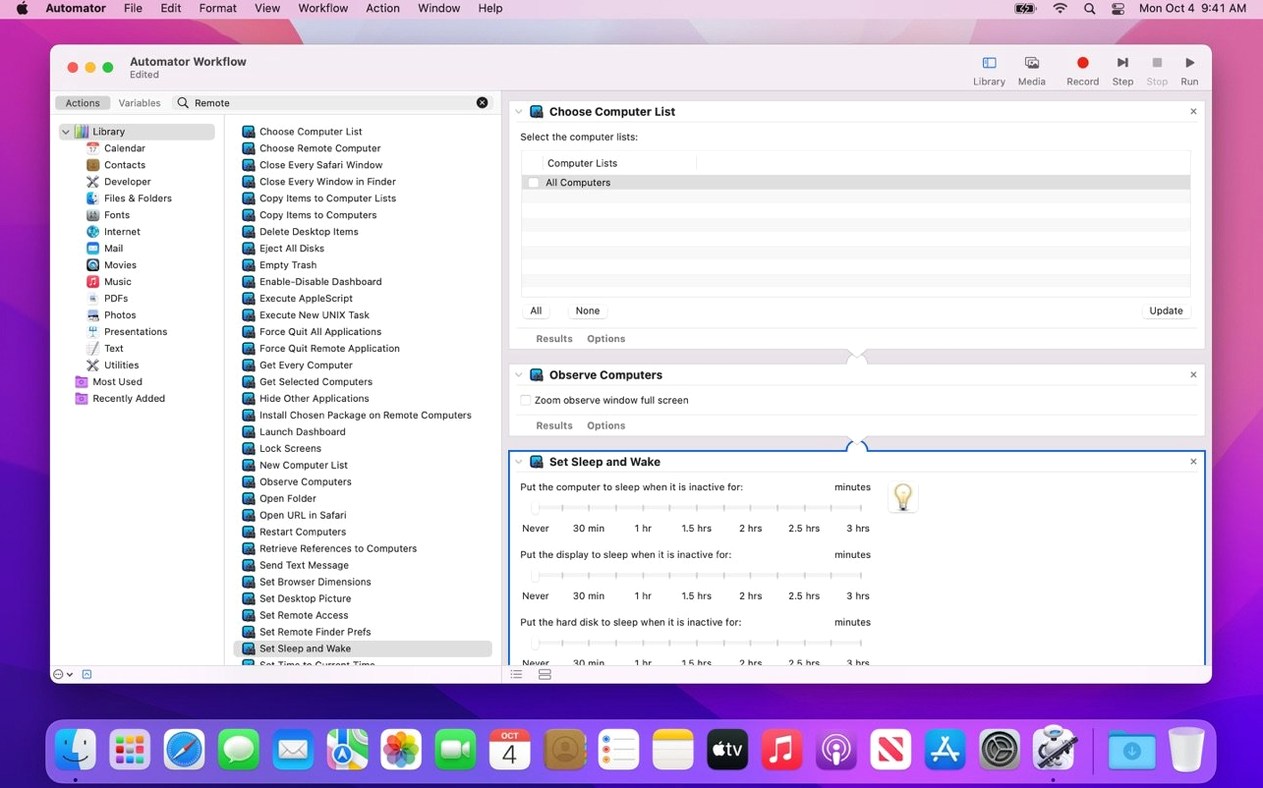
Apple Remote Desktop is the built-for-Mac way to observe, control, and configure dozens of computers from a single screen on your network.
Push out software to a whole lab
The core job hasn't changed: you can copy and install packages across your fleet, even scheduling delivery to machines that are currently offline so nothing gets left behind. Encrypted file transfers between Macs happen with a simple drag and drop.
Step in for remote help
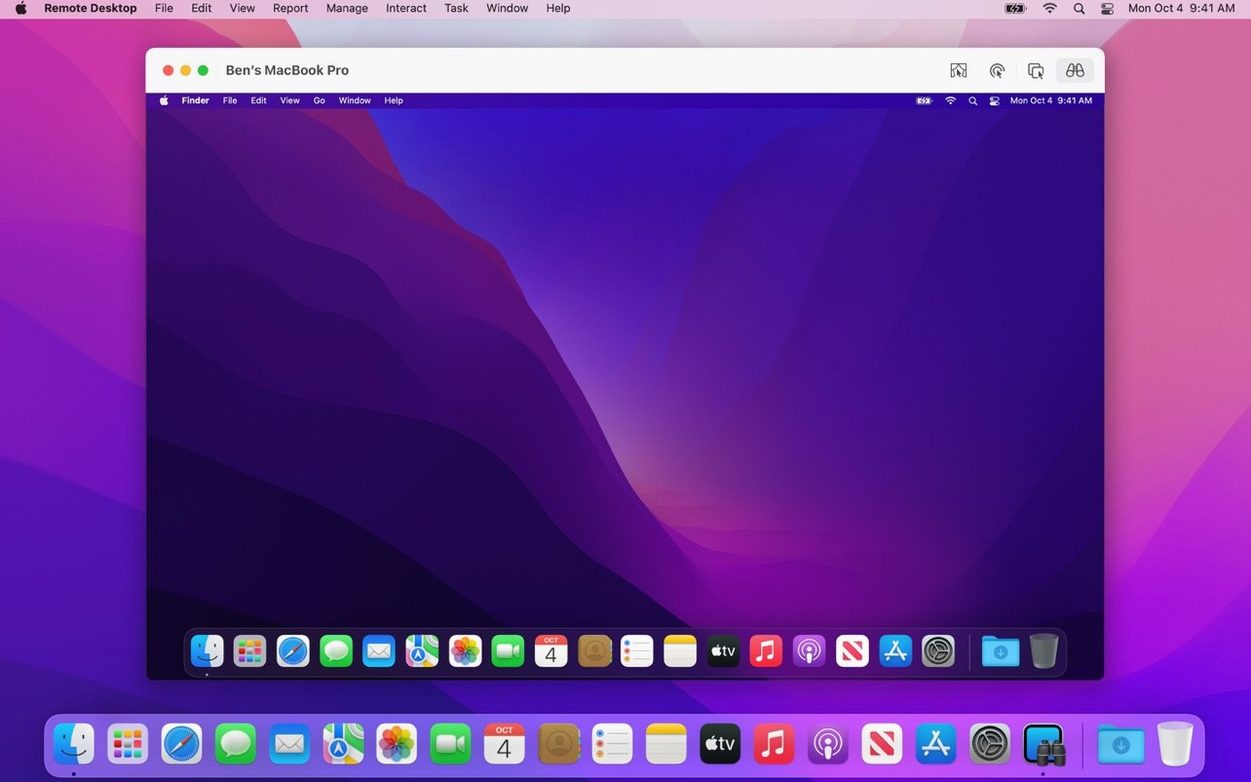
When a colleague gets stuck, you can take control of their screen or lock, sleep, wake, restart, and shut down remote Macs over a standard VNC connection — this also works with Windows and Linux systems when you just need a view.
Run reports without leaving your desk
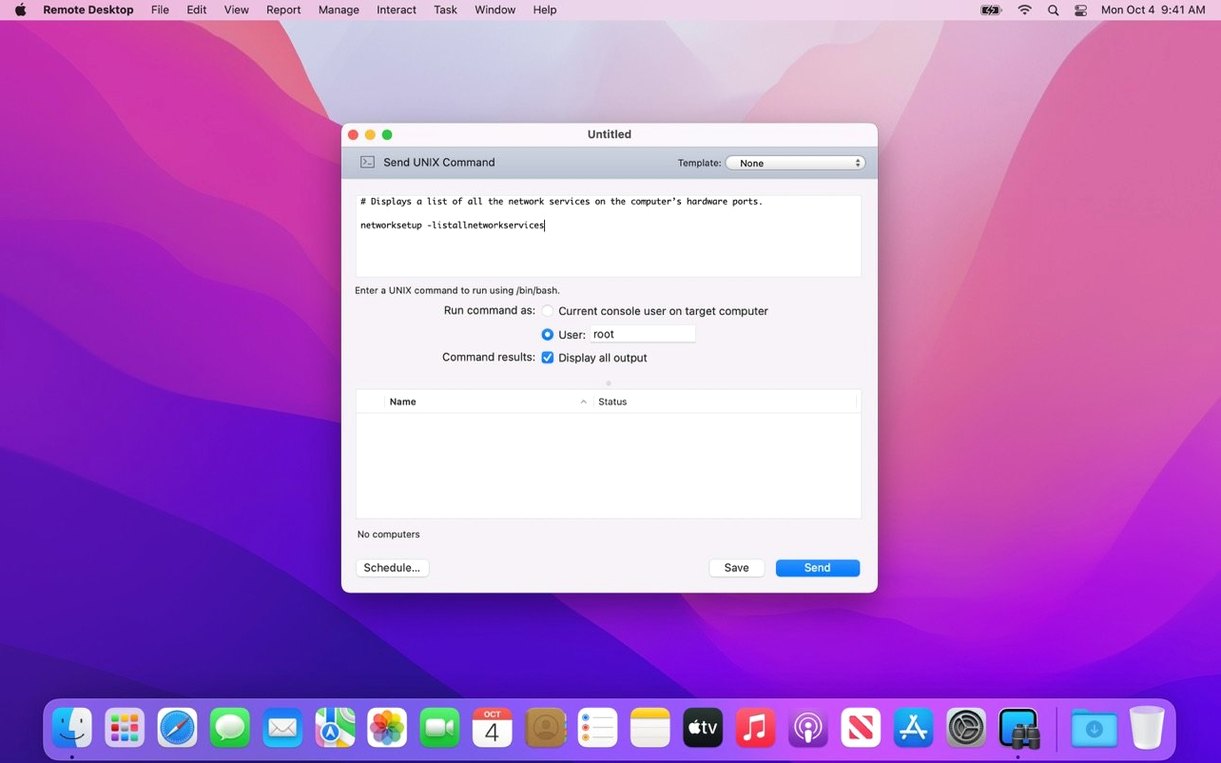
Gather system information, run UNIX commands, or search a remote Mac with Spotlight. For repetitive chores, the app ties into Automator with more than 40 built-in actions so you can build your own silent admin routines.
Managing more Macs than you can walk between in a morning
Apple Remote Desktop makes the most sense when you're responsible for more Macs than you can comfortably walk between in a morning. The sweet spot is someone who manages a lab, a classroom set, a small office fleet, or a cluster of build machines and needs to see what's happening on each screen without camping outside the door.
IT administrators in education tend to love it. Picture a school with thirty iMacs in a media suite: one copy-and-install action pushes a Creative Cloud update to the lot, while a quick system report tells you which machines are still running low on storage before the next class starts.
Help desk staff get a different slice. The remote control tools and Curtain Mode — which blanks the local screen so nobody watches you type a password — make it straightforward to fix a colleague's mail settings from across the building. You can even copy and paste between your Mac and theirs, which sounds small until you've tried to retype a sixty-character licence key from a phone photo.
Developers who manage a handful of headless Mac minis on a rack also find a home here. Running a single UNIX command on a remote machine, restarting it after a kernel panic, or pulling a hardware report without hooking up a monitor saves genuine time. The app doesn't care whether the remote Mac has a user logged in; it can still wake it, run scripts, and put it back to sleep.
If you only look after two or three machines and they're all in the same room, you'll probably find the feature set oversized. But once the count hits double digits — or the machines spread across floors, buildings, or cities — the app stops feeling like a luxury and starts feeling like the floor you stand on.
Show computer name and IP address in the screen list
Out of the box, Apple Remote Desktop works, but a few preferences make the difference between a tool that fits your day and one you wrestle with. Here's where I'd start.
Tick Show computer name and IP address in the status bar under the View menu. It sounds trivial, but when you're jumping between a dozen machines named "Mac mini," the IP address is often the only way to know which one you're actually touching.
In Preferences under the Security tab, set Curtain Mode behaviour to lock the screen when you end a session. This stops you leaving a remote machine unlocked after a late-night fix — a small guardrail that saves an awkward conversation the next morning.
For anyone pushing software, open the Task Server settings and point it at a dedicated machine rather than letting each admin Mac handle its own scheduling. A single task server means offline machines pick up their queued installs from one consistent place, and you won't end up with three different computers all trying to push the same package at the same time.
Lastly, bump up the screen sharing colour depth only if your network can handle it. The default "Adaptive" setting does a decent job balancing speed and legibility. I've watched people switch straight to "Full quality" on a busy Wi-Fi network and then complain the cursor lag makes them feel like they're drawing with a wet finger. Stick with Adaptive unless you're on wired Ethernet and genuinely need pixel-perfect colour for design work.
Build a single Scanner and add every Mac it finds
Don't try to automate everything on day one. The fastest path to confidence is a handful of deliberate, small experiments.
Start by building a single Scanner — the feature that hunts for Macs on your network — and add every machine it finds to a test group. Name the group something obvious like "Sandbox." This keeps your experiments contained while you learn what each button does.
Day one, send a simple UNIX command to the Sandbox group: uptime. It's harmless, it returns immediately, and it proves the plumbing works. Next, try a system report with just three or four hardware items ticked — storage, memory, macOS version — and watch the results populate. Seeing a live report from a machine in another room feels like a small magic trick.
Day two, practise remote control on one machine in the Sandbox. Use Curtain Mode so you understand what the remote user sees (nothing, if configured right). Copy a snippet of text on your Mac, paste it into a document on the remote machine, then reverse the direction. This copy-paste bridge becomes second nature, but the first time you use it you'll wonder why every remote tool doesn't do it.
Day three, try a software install on a single spare machine before you push to the whole lab. Drag a small package file onto the computer list entry and let the copy-and-install task run. Check the task history window afterwards — the log tells you exactly what succeeded and what failed, and learning to read it early prevents you from assuming a silent failure meant success.
By the end of the third day you'll have a working mental model: scan, report, control, deploy. Everything else is an elaboration.
Search all managed computers at once for a file or preference file
Some of the most useful features don't announce themselves. The Remote Spotlight search is one. You can search a specific remote machine for a file by name, or search all managed computers at once for an application or a preference pane. It's faster than running a report and digging through the results by hand.
The drag-and-drop file transfer works in both directions. Drag a file from your desktop onto a computer in the list and it lands in the remote Mac's default directory; drag from a remote computer's Finder window back to your own Mac and the file copies across. No separate upload dialog, no FTP client. Just drag.
If you do a lot of remote control, learn the keyboard shortcut for Send Command+Tab from the Interaction menu. Without it, pressing Command+Tab during a remote session switches apps on your local Mac, not the remote one. The menu item sends the keystroke through to the distant machine instead, which matters more than you'd think when you're trying to hop between apps on a user's screen during a support call.
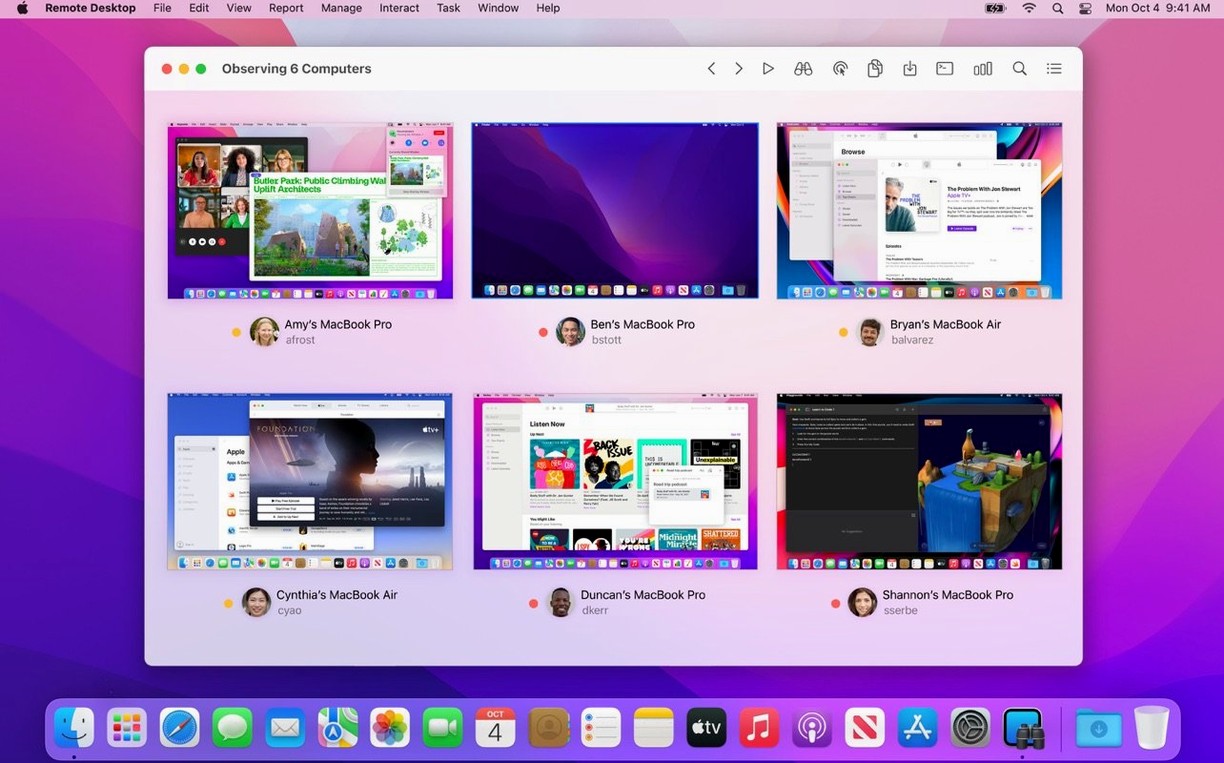
The multi-observe mode lets you watch up to fifty screens at once in a grid. For a lab supervisor who wants to glance across a roomful of student Macs without walking behind every chair, it's a quiet superpower. Double-click any thumbnail to jump straight into full control of that machine.
Lastly, the Automator integration deserves more love than it gets. Those forty-plus actions aren't just for elaborate workflows — you can build a single-action Automator droplet that sits on your desktop and locks every machine in a specific group when you drop a file onto it. Dead simple, and nobody needs to know how it works.
The Remote Desktop Client isn't installed or running on the target
Even a mature Apple app has friction points. Here are the ones that trip people up most often.
The Remote Desktop Client isn't installed or isn't running. For full control — screen sharing, package installs, system reports — the managed Mac needs Apple's Remote Desktop Client software. It's included with macOS but isn't always enabled. On the remote Mac, go to System Settings, find the Sharing pane, and turn on Remote Management. Then add the admin user account you'll use to connect. Without this, you'll only get basic VNC screen viewing, not the full toolkit.
Wake-on-LAN doesn't reach sleeping machines. The feature works beautifully on wired Ethernet but gets patchy on Wi-Fi, especially across subnets. If a machine consistently won't wake, check whether "Wake for network access" is enabled in its Energy Saver or Battery settings, and consider a wired connection for machines you rely on waking remotely.
The task history says "completed" but the software didn't install. This usually means the package ran but the Mac didn't meet its requirements — wrong macOS version, not enough disk space, or the package expected user interaction. Always test a package on one representative machine before pushing it wide, and read the task log output line by line rather than trusting the green tick.
A remote Mac appears in the scanner but won't accept a connection. Firewalls are the usual suspect. On the remote Mac, make sure the built-in firewall allows remote management connections (the Remote Management sharing service should handle this automatically when enabled, but third-party firewalls may block the ports). Apple Remote Desktop uses ports 3283 and 5900 for control, plus port 22 for command-line tasks if SSH is toggled on.
Copy and paste stops working mid-session. This can happen when the remote clipboard buffer gets confused. Disconnecting and reconnecting the session almost always clears it. If it's a frequent annoyance, check that neither machine is running a clipboard manager that intercepts pasteboard operations — they occasionally clash with the remote desktop clipboard bridge.
A small handful of users searching for an apple remote desktop 3.10 download end up with an old version because the update notice doesn't appear on managed Macs that have automatic checks disabled. The fix is straightforward: on the admin machine, choose Check for Updates from the Apple Remote Desktop menu, or head to Apple's support site and grab the current build directly. If the app was obtained outside the usual channels — some people look for an Apple Remote Desktop torrent or an Apple Remote Desktop crack — just be aware the built-in update mechanism won't function, so you'll need to manually source the latest patched build from the same place you found it. The 3.10 release adds macOS Tahoe 26 compatibility, so if your fleet has already moved to that OS, updating is non-negotiable.
The 3.10 release is principally about keeping pace with the latest Mac operating system. It introduces full compatibility with macOS Tahoe 26 and adds dedicated menu and toolbar items for Accessibility and Remote Keyboard on those newer systems. VoiceOver support now carries across to the remote Mac, which makes a real difference for inclusive administration. The update also rolls in the usual round of bug fixes and performance improvements.
- Operating system: macOS 15.5 or later
- Architecture: Apple Silicon and Intel 64-bit Macs are both supported natively
Questions I keep hearing
Does Apple Remote Desktop 3.10 work with older versions of macOS?
No, version 3.10 requires macOS 15.5 or later, and the new accessibility menu items specifically need macOS Tahoe 26 or newer.
Questions from the class 0
Sign in or join the class to ask a question.
Nobody has asked anything yet. If you have used it on a real job, say what the file did.
Also on the Mac Apps shelf
The whole Mac Apps shelf Apple Keynote
Builds cinematic presentations with animated transitions and layout tools.
Apple Keynote
Builds cinematic presentations with animated transitions and layout tools.
 AppZapper
Uninstalls applications and hunts down all their scattered related files.
AppZapper
Uninstalls applications and hunts down all their scattered related files.
 App Cleaner & Uninstaller
Removes apps and all their leftover support files in one sweep.
App Cleaner & Uninstaller
Removes apps and all their leftover support files in one sweep.
 ArchiCAD
Models buildings in precise detail for coordinated construction documentation.
ArchiCAD
Models buildings in precise detail for coordinated construction documentation.
 Art Text 4
Transforms ordinary type into dimensional artwork with materials and effects.
Art Text 4
Transforms ordinary type into dimensional artwork with materials and effects.
 ApolloOne
Browses and rates raw photos straight from your existing folder structure.
ApolloOne
Browses and rates raw photos straight from your existing folder structure.
 Artlantis
Renders architectural models into still images and virtual panoramas.
Artlantis
Renders architectural models into still images and virtual panoramas.
 AnyTrans for iOS
Moves photos, messages and music between iPhone, Mac and cloud accounts.
AnyTrans for iOS
Moves photos, messages and music between iPhone, Mac and cloud accounts.