 ASPNetWorld

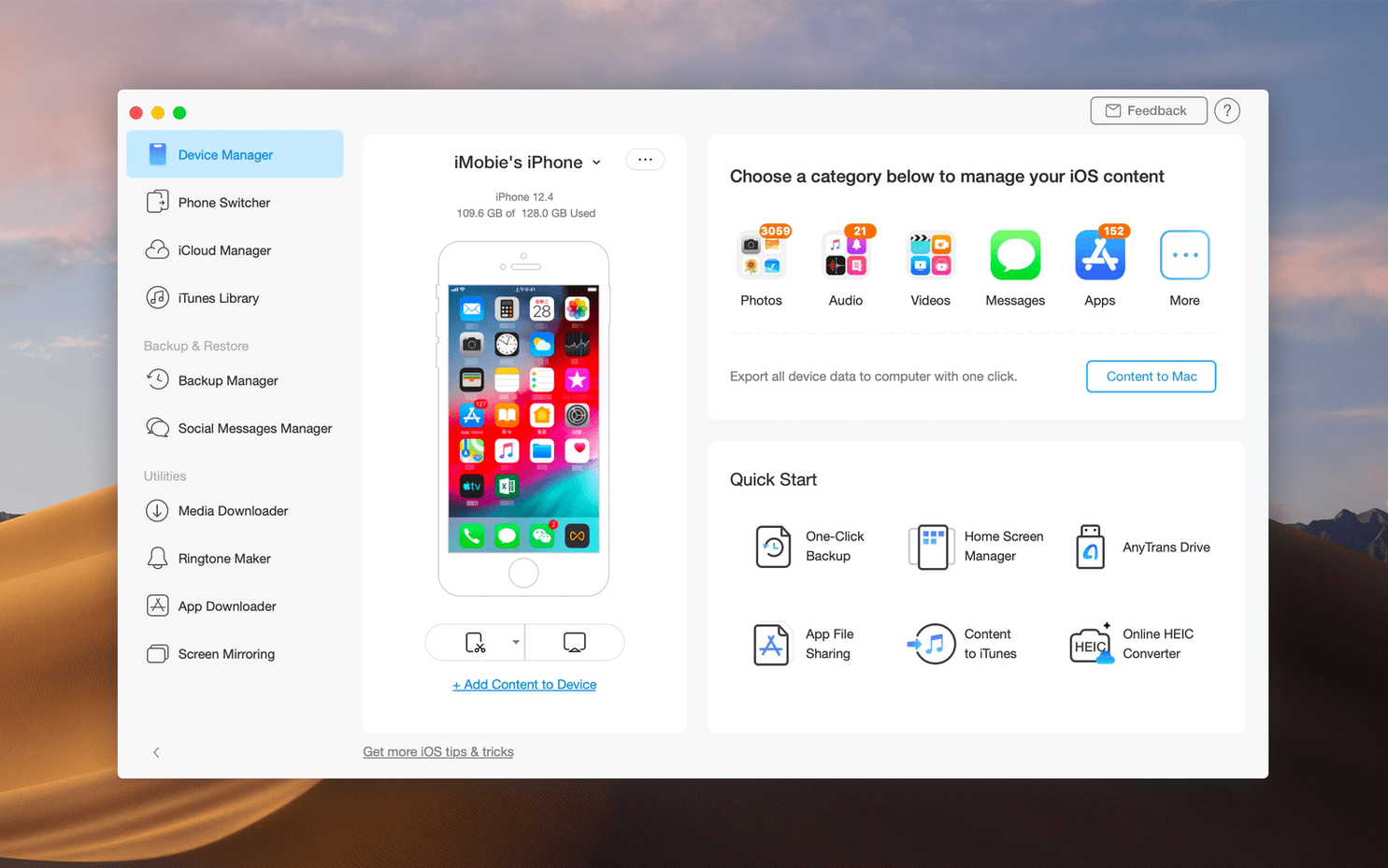
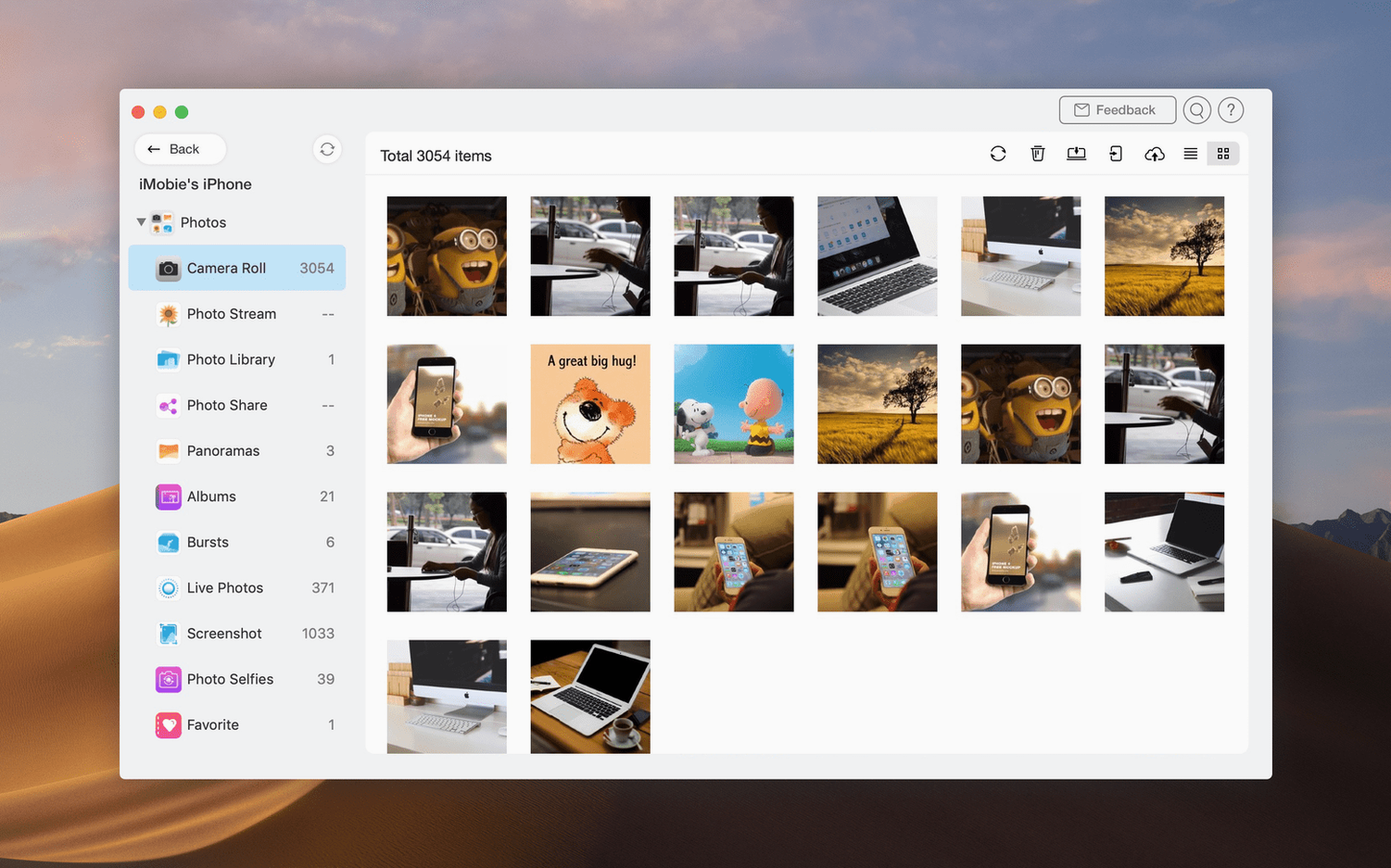
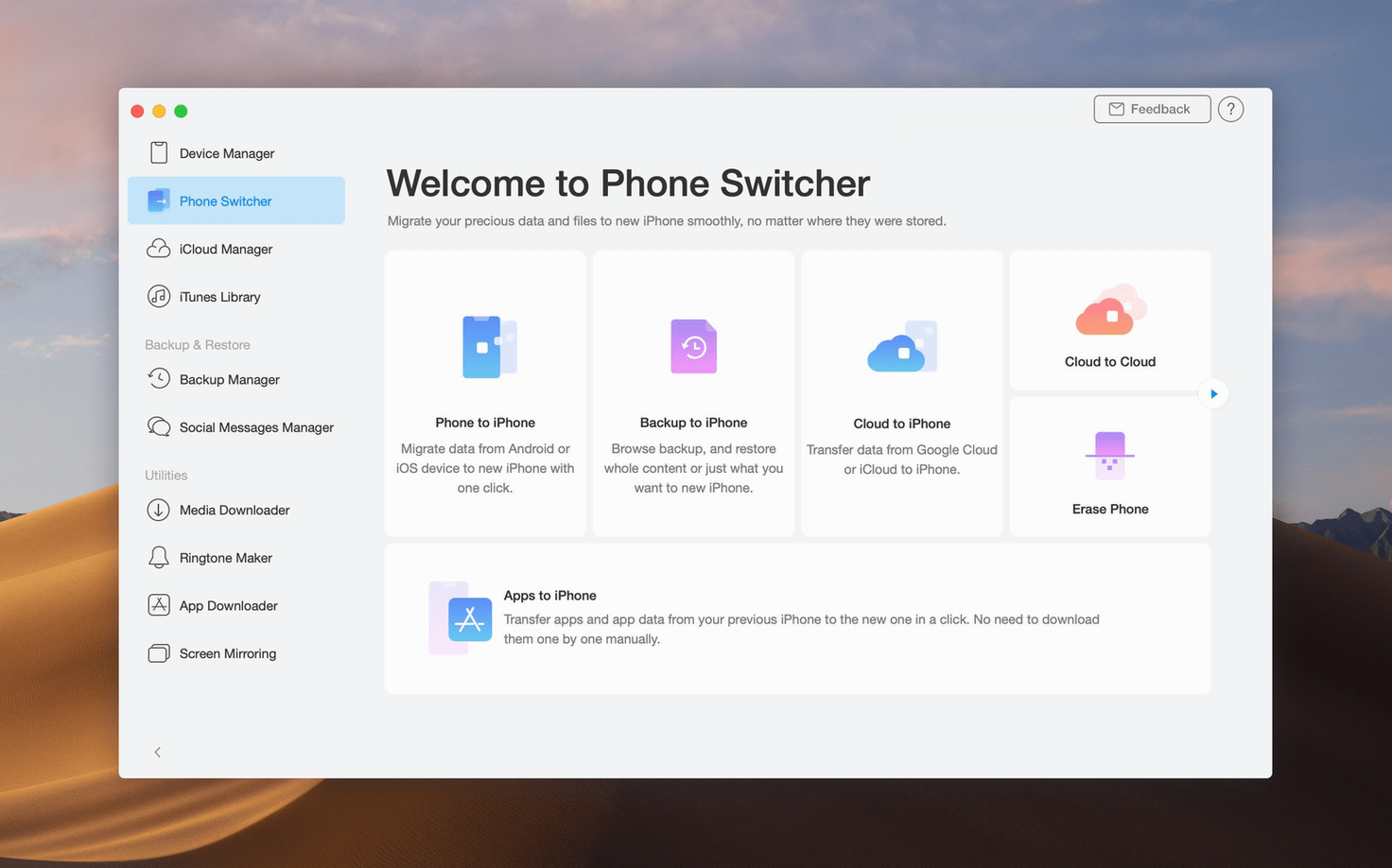
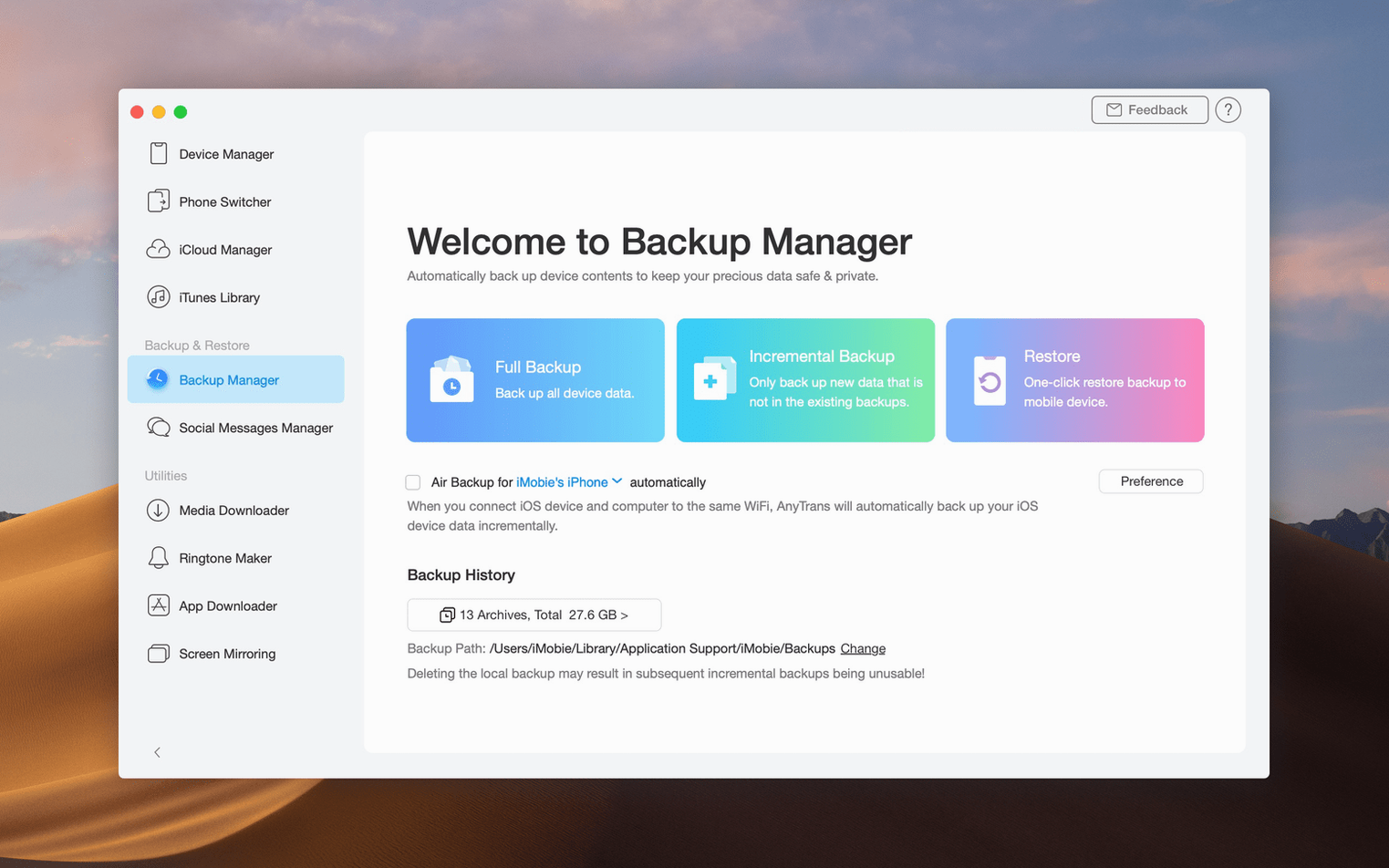
When moving photos, messages, or music off an iPhone feels needlessly complicated, a dedicated manager can smooth the whole process. AnyTrans acts as a bridge between your iOS devices, iTunes, iCloud, and your Mac, stepping in where the built-in tools stop short.
Move content between devices
Push files directly from an old iPhone to a new one, or pull music from an iPad onto your Mac without wiping anything. The app also lets you shift data between iCloud accounts, so you are not locked into a single Apple ID for everything.
Download media from the web
AnyTrans includes a downloader that grabs audio and video from over 900 websites, saving the files straight into your iOS library or a folder on the Mac.
Back up what matters
Create full or selective backups of your iPhone or iPad onto the Mac, keeping a local copy of messages, contacts, and app data that you can browse and restore later.
First days with AnyTrans
Once the app is sitting in your Applications folder, plug in an iPhone or iPad with a USB cable and let AnyTrans build its initial index. That first scan can take a few minutes while it maps out photos, music, messages, and app data; after that, subsequent connections are noticeably quicker because the app caches the device structure. If you are wondering where to start, the quickest win is usually a selective backup of your Messages thread and camera roll. Tick those two categories, pick a folder on the Mac, and you have a lightweight safety net before you experiment with anything else.
A common early mistake is leaving both iTunes (or Finder, on newer macOS builds) and AnyTrans open at the same time while the phone is connected. The two will tussle over the USB connection, and one of them will lose sight of the device. Close Apple’s own music app before launching AnyTrans, and the handshake goes through without a hiccup.
Settings worth adjusting straight away
Out of the box, AnyTrans stores backups inside your user Library folder, which is fine on a roomy internal drive. If your Mac has a smaller SSD, head into Preferences and point the backup location at an external drive instead. The same panel lets you toggle automatic conversion for incompatible media formats; turn it on if you regularly pull video from an old iPad and want to watch it on a newer iPhone without hunting for a converter later.
The device manager view defaults to a grid of content categories. Switching it to list view, which is tucked under the View menu, gives you a denser, more Finder-like layout that some people find faster for dragging batches of files across. While you are poking around the menus, check that the “Show file extensions” option is enabled — it makes identifying music formats and video containers far simpler when you are copying media from an iTunes library to a phone.
How AnyTrans fits with other apps and macOS
AnyTrans does not demand that you uninstall iTunes or stop using Finder’s iPhone sync; it works alongside them, reading the same local iTunes library and iCloud data without altering the underlying structure. That means you can continue using Apple Music for streaming and subscriptions while AnyTrans handles one-off transfers — pulling a folder of uncompressed WAV files onto an iPhone, for example, which Apple’s own tools make awkward.
Because the app taps into the standard macOS file-picker dialogue, you can pull content directly into Logic Pro or Final Cut Pro sessions. A voice memo recorded on an iPhone appears in AnyTrans as a standard .m4a file; drag it straight onto a Logic track and it lands ready to edit, sample-accurate. The same drag-and-drop works with GarageBand, Adobe Audition, and most other audio software that accepts Core Audio formats, which is handy if you teach or produce and routinely grab field recordings from a phone.
The media downloader integrates with Safari in a roundabout way: copy a URL from the browser, switch to AnyTrans, and the app detects the link on the clipboard and offers to fetch the video or audio. It is not a Safari extension, so it does not slow down the browser, but the clipboard-watching behaviour can be turned off in Preferences if you find it intrusive.
Rosetta 2 adds no lag because the cable is the bottleneck
AnyTrans is an Intel-native app, and on Apple Silicon Macs it runs through Rosetta 2. In practice, that translation layer adds no perceptible lag for USB transfers, because the bottleneck is the Lightning or USB-C cable, not the processor. A 4 GB video file moves from an iPad to the Mac in roughly the same time as a Finder copy, and the progress bar is refreshingly honest — no stalling at 90% while the app recomputes something in the background.
RAM usage sits around 200–300 MB during idle browsing of a device’s contents, rising to perhaps 600 MB when pushing a large batch of photos through the media converter. It is not featherweight, but it is also not the sort of app that will make a MacBook Air’s fans spin up during a simple music transfer. The one operation that does hit the CPU is converting a long video file from a format the target iPhone cannot play natively; expect the fans to become audible on Intel machines during a twenty-minute transcode, and the app will feel slightly less snappy if you try to browse other categories at the same time. For day-to-day copying of songs, ringtones, and photos, it stays responsive.
Stability has been solid across a week of heavy use — plugging and unplugging two different iPhones and an iPad, pulling iCloud photos while a Wi-Fi backup was running in the background. One crash occurred when an iPhone auto-locked during a message export, but the app reopened to exactly the same transfer screen and resumed without corrupting the backup. That kind of crash recovery is far more important than a flawless uptime record, and it earned a quiet nod of respect here.
Friday evening voice memo backlog from sixty student recordings
Imagine a peripatetic guitar teacher who records lesson snippets on an iPhone throughout the week — quick demonstrations of chord voicings, strumming patterns, and student performances captured with the built-in Voice Memos app. By Friday evening the phone holds sixty or seventy short recordings, all named with the date and a mumbled student name that is impossible to search.
Connecting the phone and opening AnyTrans, the teacher switches to the Voice Memos category and sees every recording listed with its actual filename, duration, and creation date. A quick multi-select grabs the whole week’s worth, and one drag to a folder named “Term 2 Lessons” on the Mac desktop pulls them across as clean .m4a files. No cloud upload, no emailing files one by one, no wrestling with the Music app. While the transfer runs, the teacher dips into the Photos section and copies a handful of chord-chart screenshots that students sent during the week, dropping them into the same project folder. Fifteen minutes after plugging in the phone, everything is backed up locally, renamed with student initials using Finder’s batch rename, and ready to archive. The teacher ejects the phone, opens Logic, and drags a tricky barre-chord recording onto a track to slow it down for a student who is struggling. AnyTrans did not get in the way; it simply made the phone behave like a storage device that understands iOS’s internal filing system.
- macOS 10.13 High Sierra or newer
- Intel processor (Apple Silicon Macs run the app via Rosetta 2)
Questions I keep hearing
Will AnyTrans run on an Apple Silicon Mac?
The current version is built for Intel processors, so it runs through Rosetta 2 on M-series Macs. Performance is perfectly usable for transfers and backups, though it is not yet a universal binary.
Questions from the class 0
Sign in or join the class to ask a question.
Nobody has asked anything yet. If you have used it on a real job, say what the file did.
Also on the Mac Apps shelf
The whole Mac Apps shelf Antivirus Zap - Virus Scanner
Scans your Mac for malware, adware and unwanted files lurking in the system.
Antivirus Zap - Virus Scanner
Scans your Mac for malware, adware and unwanted files lurking in the system.
 ApolloOne
Browses and rates raw photos straight from your existing folder structure.
ApolloOne
Browses and rates raw photos straight from your existing folder structure.
 App Cleaner & Uninstaller
Removes apps and all their leftover support files in one sweep.
App Cleaner & Uninstaller
Removes apps and all their leftover support files in one sweep.
 Apple Keynote
Builds cinematic presentations with animated transitions and layout tools.
Apple Keynote
Builds cinematic presentations with animated transitions and layout tools.
 Apple Remote Desktop
Manages and controls multiple Macs across a network from one screen.
Apple Remote Desktop
Manages and controls multiple Macs across a network from one screen.
 AppZapper
Uninstalls applications and hunts down all their scattered related files.
AppZapper
Uninstalls applications and hunts down all their scattered related files.
 ArchiCAD
Models buildings in precise detail for coordinated construction documentation.
ArchiCAD
Models buildings in precise detail for coordinated construction documentation.
 Art Text 4
Transforms ordinary type into dimensional artwork with materials and effects.
Art Text 4
Transforms ordinary type into dimensional artwork with materials and effects.