 ASPNetWorld

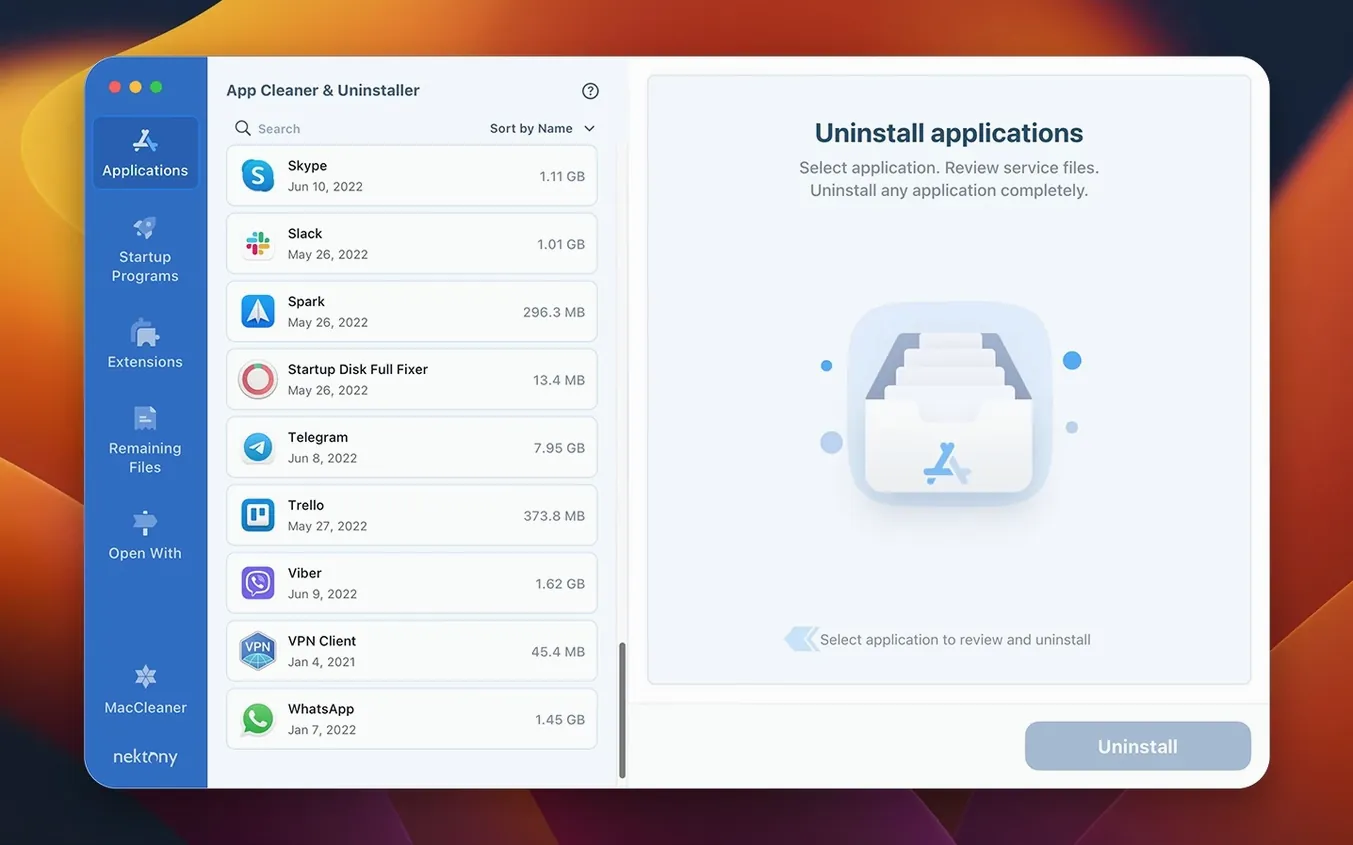
Dragging an application to the Trash feels decisive, but it leaves a trail behind — preference files, caches, and support folders that sit in your Library eating space with nothing left to use them. That mess multiplies quietly. App Cleaner & Uninstaller from Nektony exists to stop it by treating application removal as a two-part job: delete the app and sweep up everything it scattered across the system.
How it cleans and manages your apps
The workflow is straightforward enough to turn into a regular tidy-up habit rather than a once-a-year dread.
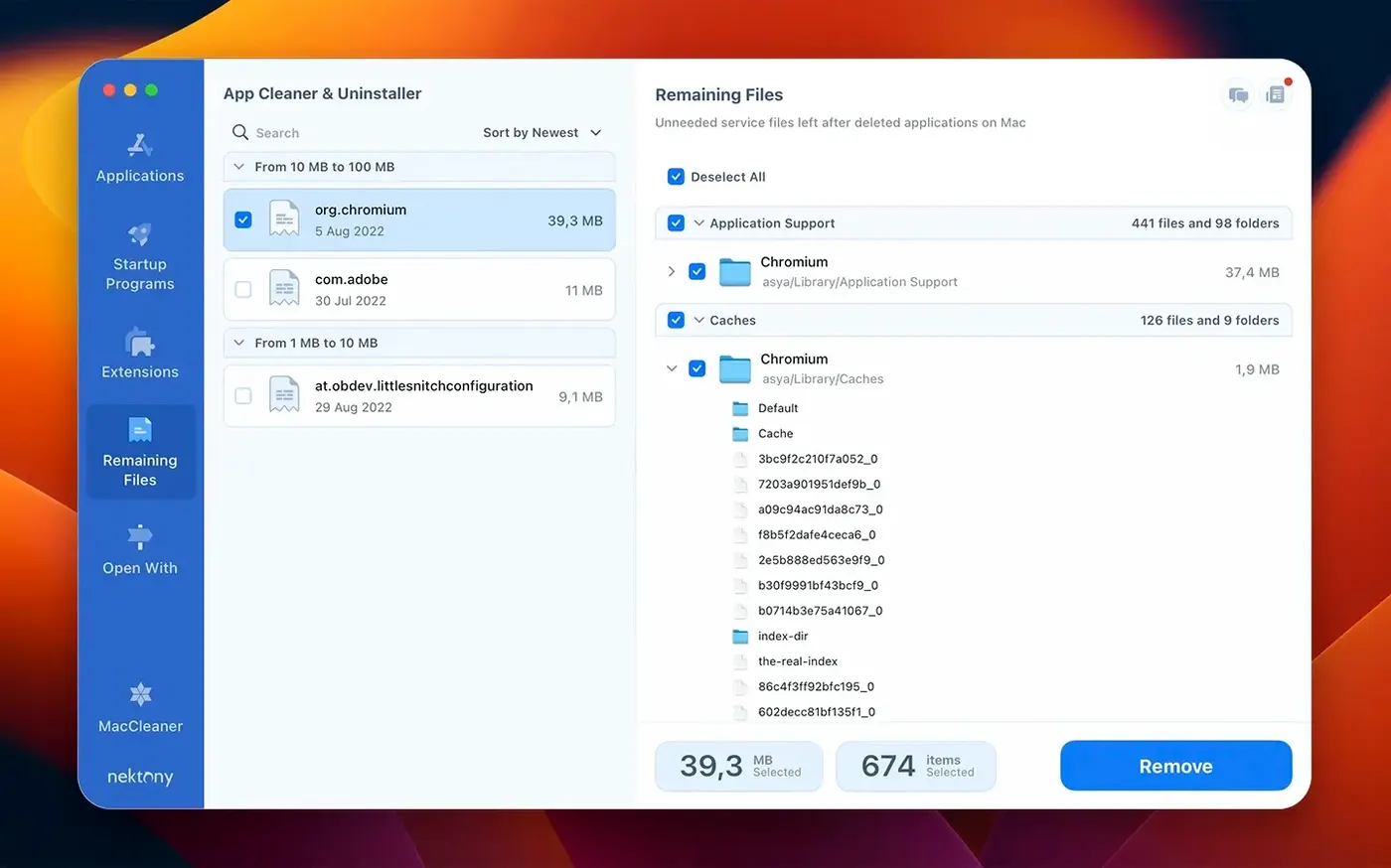
- Scan your Applications folder. The app reads every program you have installed and groups them for browsing. A useful touch here is the leftovers detection — it flags orphaned files from apps you already dragged to the Trash months ago and forgot about.
- Pick what to remove. Select an app and you immediately see a breakdown of every associated file, from the main binary down to the smallest plist hidden in a sandbox container. Nothing is hidden from view.
- Confirm and clean. One click removes the whole lot. There is no multi-stage wizard, just a clear deletion process that puts things right.
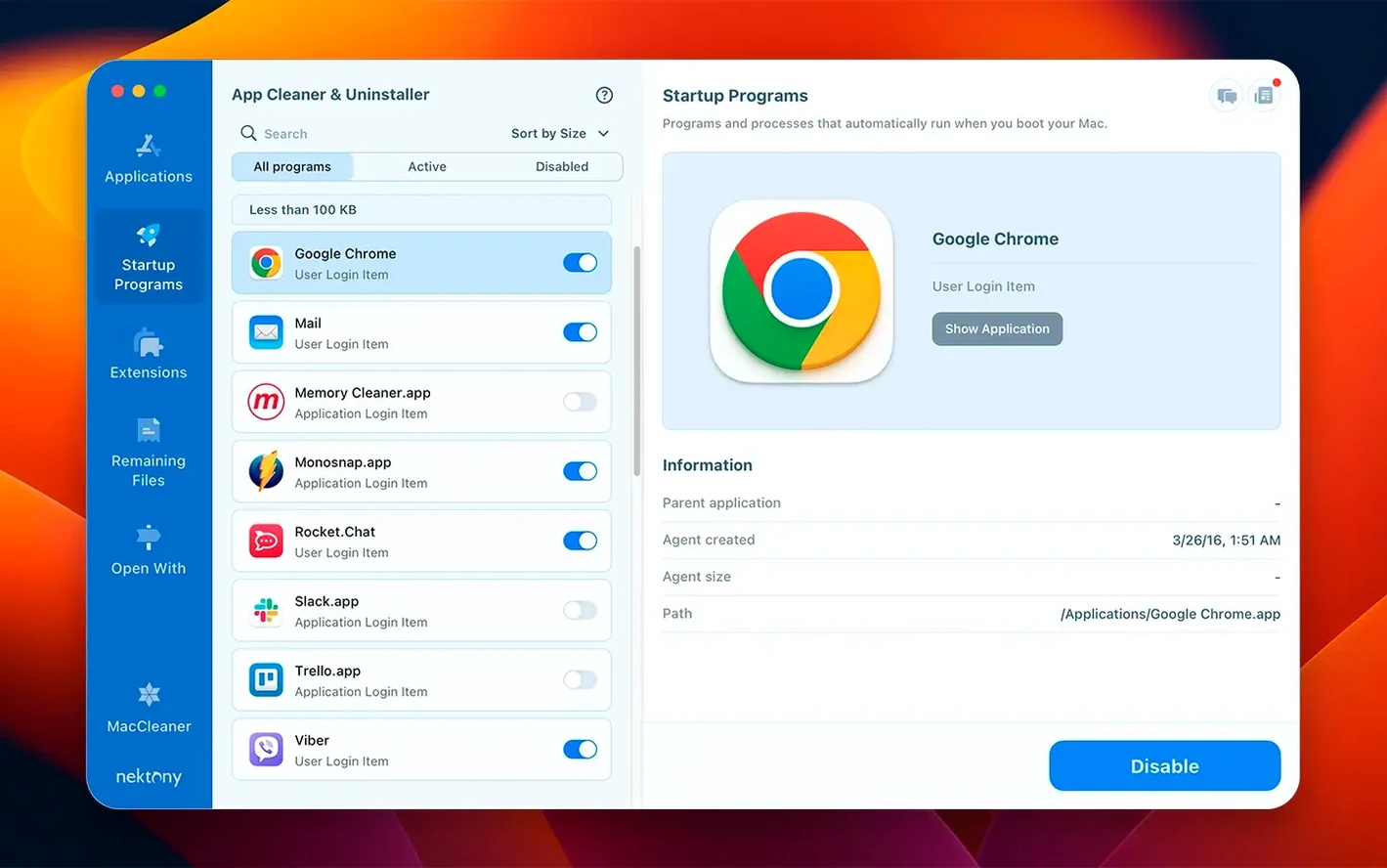
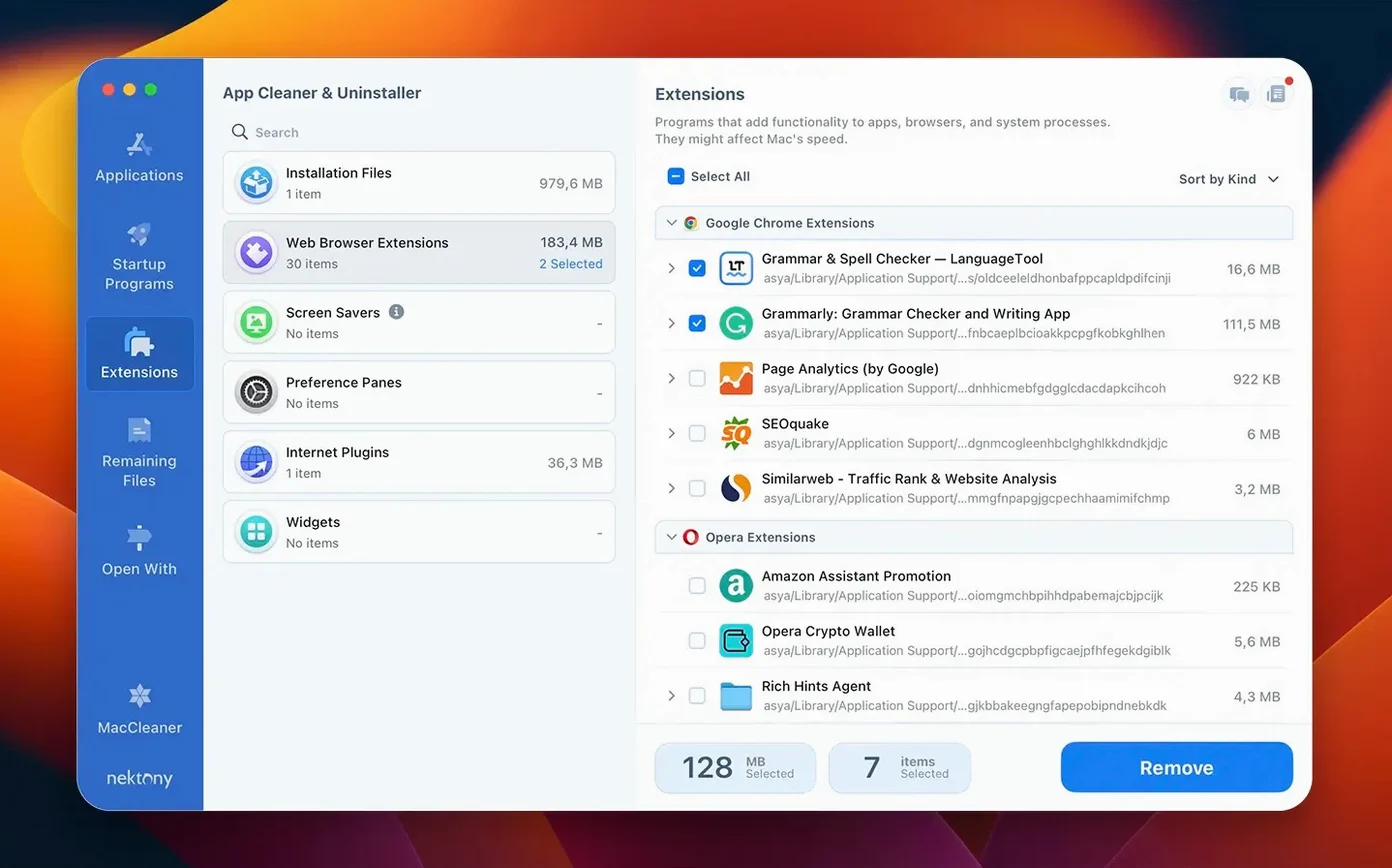
- Tame what starts automatically. Switch to the Extensions and Startup Programs section, and you can disable login items, launch agents, and system extensions that slow down boot time without you ever explicitly allowing them.
Under the hood, this is really a macOS app manager that happens to remove things exceptionally well. The Updates tab tracks new versions of your installed software, and the current release has stretched that database to include Safari extensions and even Homebrew command-line tools — handy if you live partly in Terminal.
Make the confirmation dialog match your workflow
Out of the box, App Cleaner & Uninstaller is already ready to work, but a few switches in preferences make the daily experience feel more like yours. Open the app’s preferences pane — the gear icon is tucked into the toolbar — and spend two minutes here before you start removing anything.
First, turn on “Show system applications” if you want full visibility. It is off by default, which keeps the main list tidy for newcomers, but hiding built-in macOS apps also hides parts of the system you might later want to check for leftover extensions. With it on, you see everything — the main app list just gets a little longer, and nothing surprises you later.
Next, look at the “Confirm removal” setting. Some people want a final dialogue box before files vanish; others find it an unnecessary extra click. The default is on, and I leave it that way because the confirmation screen also shows you the exact file count and total size you are about to reclaim. That number is part of the satisfaction, honestly.
Also worth a look: the scan locations list. By default the app watches the standard Applications folder and the user Library, but you can add custom folders if you keep portable apps on an external drive or in a non-standard directory. That stops you having to remember to clean those separately later.
Finally, if you use the menu bar companion — which version 10.0 redesigned and gave network traffic awareness — open its preferences and set the network monitor to show only the apps you actually care about. The default view lists everything with an active connection, which can be noisy on a busy Mac.
A freelance designer’s afternoon clean-up
Picture someone who spends their week jumping between Figma, Affinity Designer, a Markdown editor, two web browsers, and a collection of font management tools. Every client project brings a trial of some new prototyping app or a colour-picker utility that seemed essential on Tuesday and went untouched by Friday. Six months of this and the Mac feels heavier than it should.
They open App Cleaner & Uninstaller on a quiet Friday afternoon. The main window lists 173 applications. That number alone is a nudge. Sorting by last-used date reveals eight apps untouched in over a year — including two that were uninstalled by dragging to the Trash, yet still have leftover folders listed in the app’s separate leftovers pane. Those orphans account for 4.3 GB between them. A few clicks later, that space is free.
Then they switch to the Extensions view. A screen-recording plug-in they installed for a single tutorial video eighteen months ago is still registered and loading at boot. One click disables it. A browser extension for a defunct stock-photo service sits in Safari’s list — not harmful, just clutter. Removed.
Before closing the app, they run the Privacy Audit feature, which scans for browser data, recent-item lists and cached files that applications have left lying around. It flags an old chat client’s logs from 2024. The designer ticks that box, clicks clean, and gains another 1.2 GB. The whole session takes nine minutes, and the Mac feels noticeably snappier on the next restart — fewer things competing for attention before the desktop even appears.
You review every file before anything gets deleted
Will it remove something my Mac actually needs? App Cleaner & Uninstaller shows you every file it intends to delete before it touches anything. System applications are hidden by default, which reduces the chance of an accidental removal. The confirmation screen lists each file with its full path, so you can check whether a plist belongs to an app you still use. If you are ever uncertain, you can deselect individual items before confirming. Nothing is automatic.
Does it work alongside Homebrew or other package managers? Yes, and version 10.0 acknowledges that reality explicitly. The updates database now tracks Homebrew command-line tools, so if you installed something via brew install and later forgot about it, the app may flag an available update. The uninstaller side handles GUI applications, but knowing that the app sees your Homebrew ecosystem means you get a more complete picture of what lives on your Mac.
What is the difference between the free scan and the full clean? The app lets you scan your system and see every file it finds without limitation — you get the full map of what is installed, what has leftovers, and what loads at startup. Removal requires a full version. That scanning ability alone can be useful even before committing, because it surfaces orphaned files you can then go and delete manually if you know your way around the Library folders.
Focuses on app removal where CleanMyMac aims broader
App Cleaner & Uninstaller is not the only app cleaner uninstaller pro on macOS, but it occupies a particular spot between single-purpose deletion tools and sprawling system utilities. Looking at it beside two well-known alternatives makes the differences clearer.
AppCleaner (the free utility by FreeMacSoft) does one thing and does it lightly: drop an app onto its window and it finds associated files for deletion. It is fast, unobtrusive and asks for nothing beyond that single action. What it does not offer is a browsable list of every installed application, a leftovers scanner for already-deleted apps, startup-program management, or extension control. It is a single-purpose tool, and that is its strength; App Cleaner & Uninstaller is for people who want the full inventory without opening four separate utilities.
CleanMyMac by MacPaw bundles uninstalling inside a much larger suite that also handles malware scanning, system-junk removal, optimisation scripts and a menu-bar monitor. The uninstaller module works similarly — scan, select, confirm — but you are inside a bigger ecosystem with more prompts and more features competing for attention. App Cleaner & Uninstaller stays focused on the app lifecycle: install tracking, extension management, startup control, and removal. It does not try to be a general system cleaner, and for someone who already has opinions about maintenance tools, that narrower scope is often a point in its favour.
What sets App Cleaner & Uninstaller apart across all three is the breadth of its app-management view. The combination of an updates tracker that now covers Safari extensions and Homebrew, a leftovers scanner that finds ghosts from old deletions, and the privacy-audit and security-check features added in recent versions means you are getting more of an app command centre than a simple deletion tool. When someone asks me about an app cleaner and uninstaller that does not stop at uninstalling, this is the one that comes to mind first.
Version 10.0 widens the view beyond the Applications folder and into how your Mac reaches the outside world.
- A network access tab now lists which apps have permission to talk to the internet, with the ability to control that traffic directly from the redesigned menu bar app.
- The update tracking database has grown to cover Safari extensions and Homebrew command-line tools, so you are not relying on separate checkers for browser add-ons or your brew-installed utilities.
- An incompatible applications filter highlights software that may not get along with your current macOS version, saving you a reboot into a problem.
- macOS 12 or later
- Apple Silicon or Intel processor
Questions I keep hearing
Does it find files from apps I deleted before installing App Cleaner & Uninstaller?
Yes, the leftover files scan identifies orphaned service files left behind by applications that were previously moved to the Trash manually.
Questions from the class 0
Sign in or join the class to ask a question.
Nobody has asked anything yet. If you have used it on a real job, say what the file did.
Also on the Mac Apps shelf
The whole Mac Apps shelf Apple Keynote
Builds cinematic presentations with animated transitions and layout tools.
Apple Keynote
Builds cinematic presentations with animated transitions and layout tools.
 ApolloOne
Browses and rates raw photos straight from your existing folder structure.
ApolloOne
Browses and rates raw photos straight from your existing folder structure.
 Apple Remote Desktop
Manages and controls multiple Macs across a network from one screen.
Apple Remote Desktop
Manages and controls multiple Macs across a network from one screen.
 AnyTrans for iOS
Moves photos, messages and music between iPhone, Mac and cloud accounts.
AnyTrans for iOS
Moves photos, messages and music between iPhone, Mac and cloud accounts.
 AppZapper
Uninstalls applications and hunts down all their scattered related files.
AppZapper
Uninstalls applications and hunts down all their scattered related files.
 Antivirus Zap - Virus Scanner
Scans your Mac for malware, adware and unwanted files lurking in the system.
Antivirus Zap - Virus Scanner
Scans your Mac for malware, adware and unwanted files lurking in the system.
 ArchiCAD
Models buildings in precise detail for coordinated construction documentation.
ArchiCAD
Models buildings in precise detail for coordinated construction documentation.
 Art Text 4
Transforms ordinary type into dimensional artwork with materials and effects.
Art Text 4
Transforms ordinary type into dimensional artwork with materials and effects.