 ASPNetWorld

Imagine finding an old family clip shot on a camcorder in a dimly lit room — the picture is grainy, soft, and the background hum almost drowns out the voices. With Aiarty Video Enhancer, you can pull that memory into something watchable on a modern screen.
AI upscaling — the app analyses each frame and synthesises new pixels to increase resolution, aiming for a natural 4K result rather than a simple stretch.
Denoising & deblurring — separate neural models target the gritty noise that lives in low-light footage and the softness caused by fast motion or an ageing lens.
Audio denoise — a dedicated module cleans the soundtrack, reducing steady hiss and hum so the voices underneath become clearer.
Resumable exports — if a long render is interrupted, the app picks up where it left off instead of starting again.
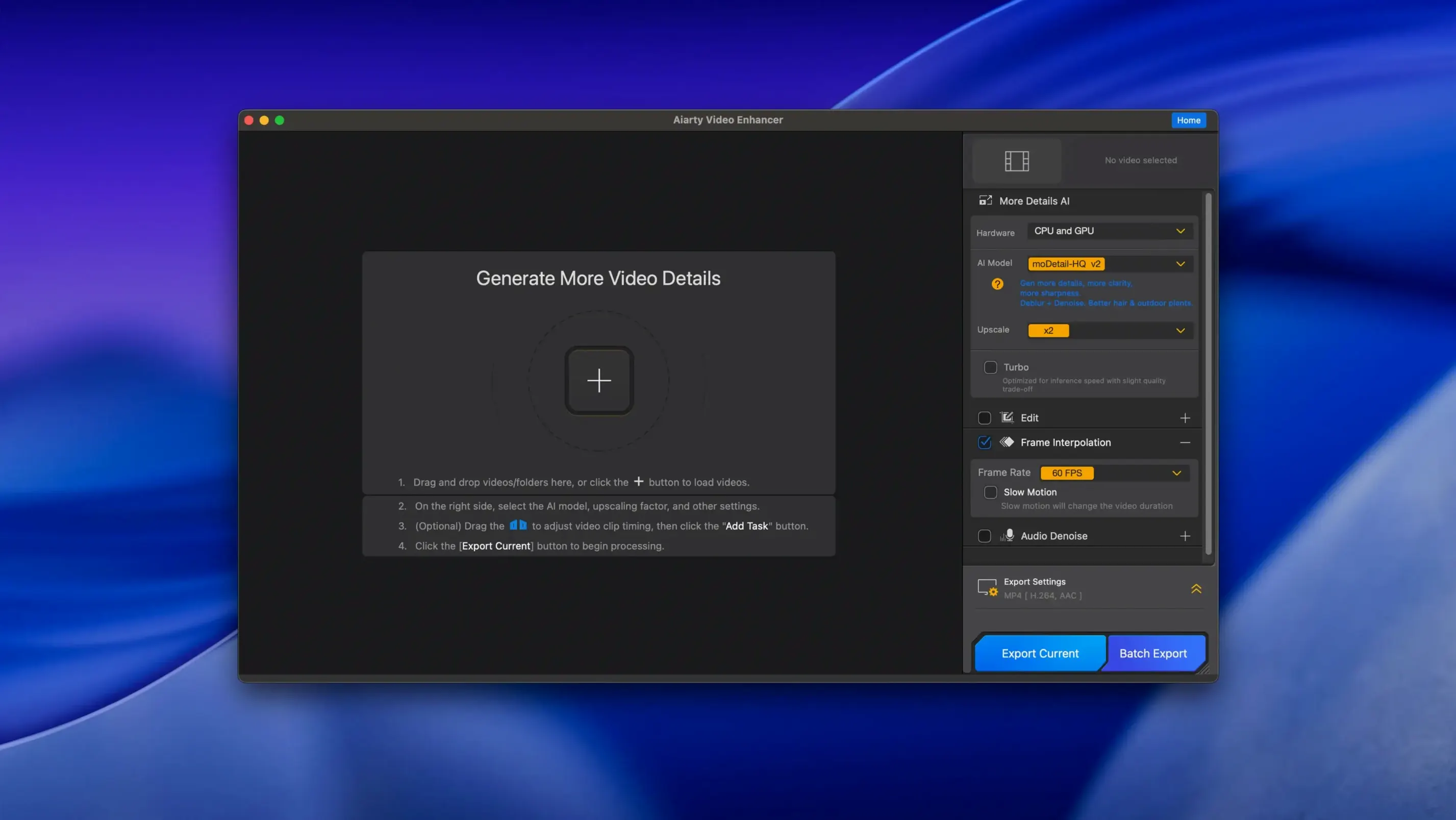
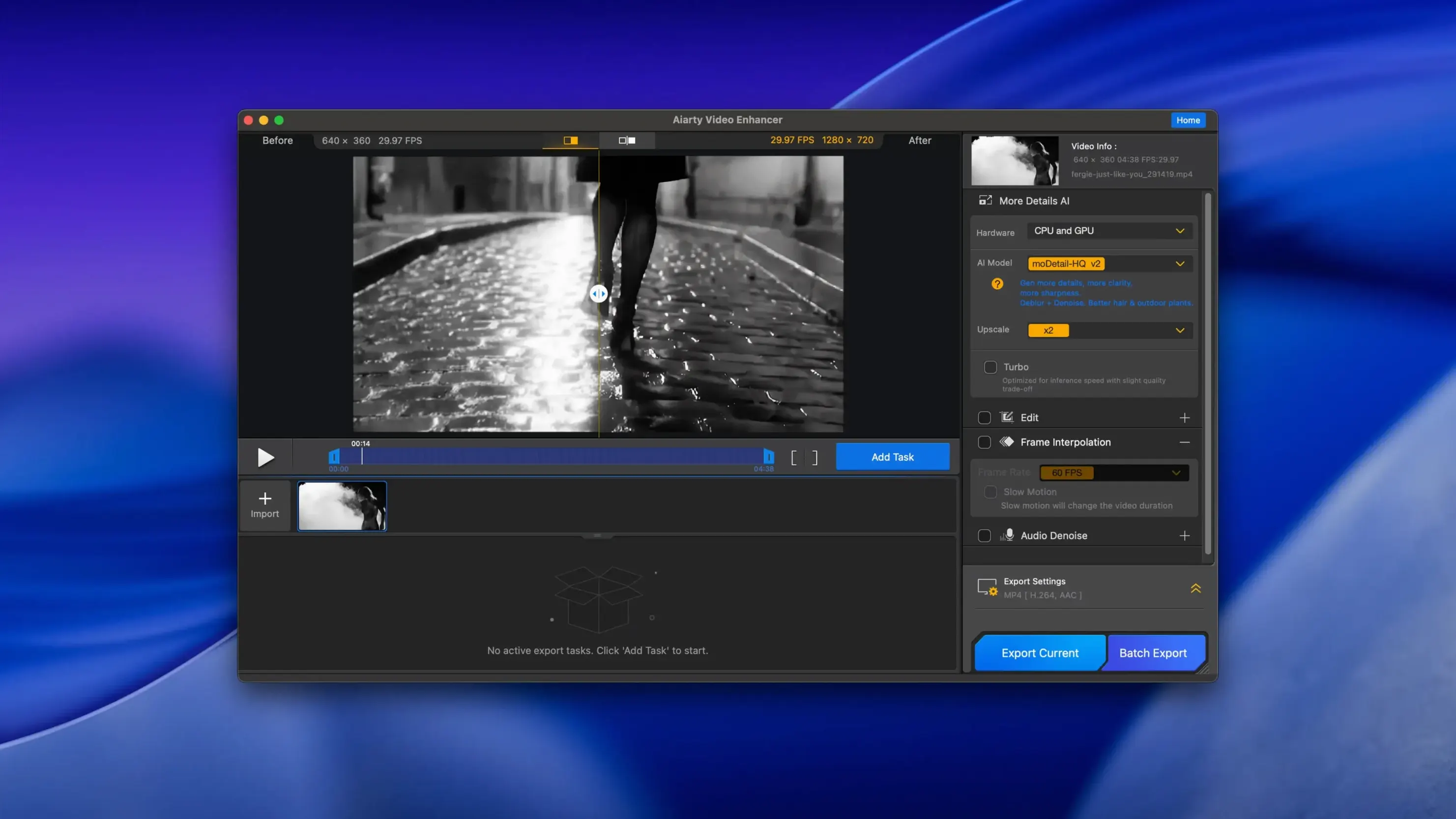
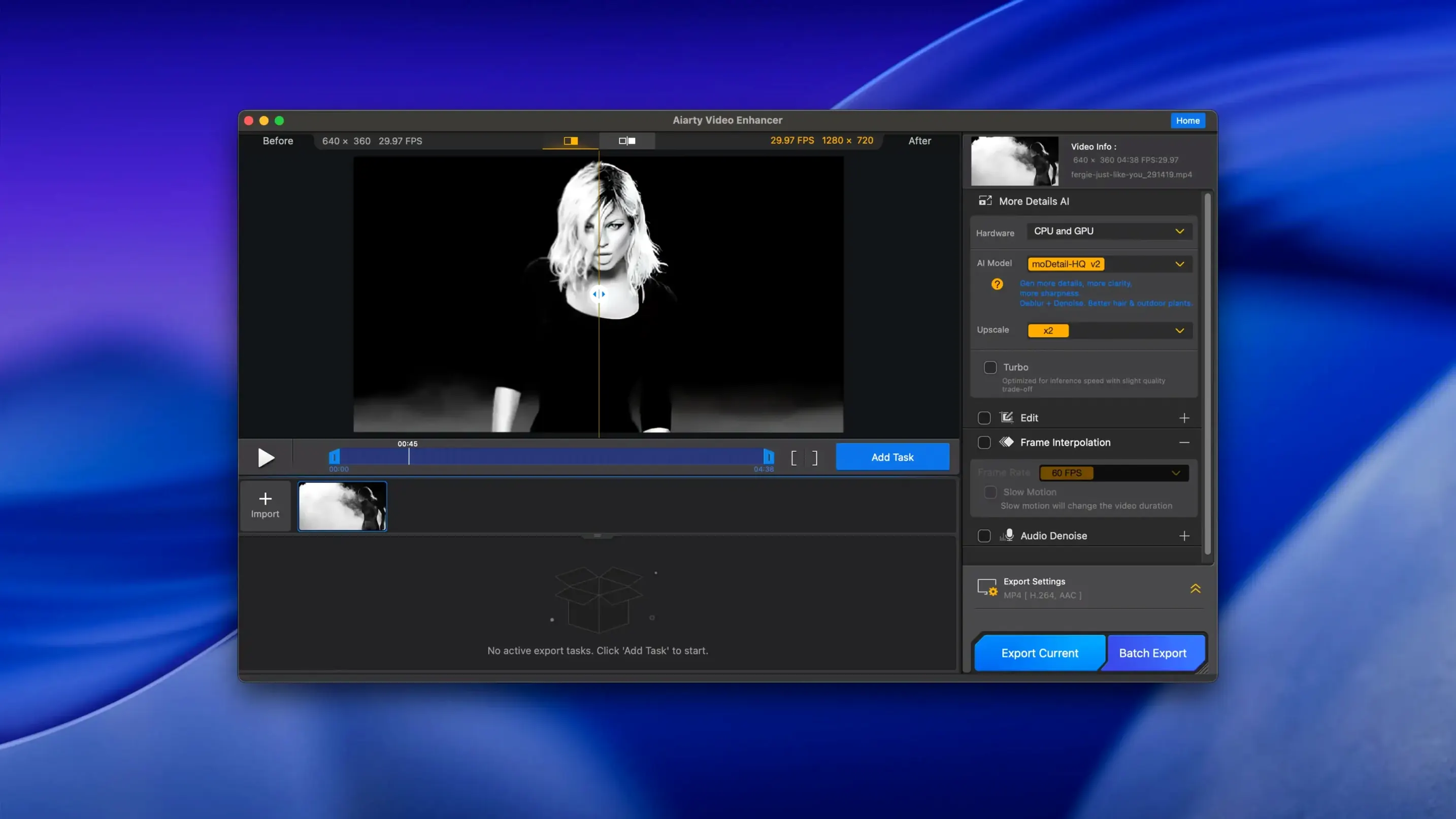
For our camcorder clip, the workflow is straightforward. You drop the file in, and the interface offers a set of AI models rather than a wall of sliders. The model that handles a combination of grain and soft focus is the sensible first choice. A live split-view preview lets you scrub through a few seconds to see the difference before committing. When you are happy, you choose an output format — MKV is now supported alongside the usual options — and let the processing run. The final result will not perform miracles on footage that is little more than a smudge, but for honest noise and blur it returns a crisp, stable image that suddenly feels part of the present.
Archivists and family historians get the most value from this upscaler
Not every Mac user needs an AI upscaler sitting in the Applications folder. The people who genuinely get value from Aiarty Video Enhancer tend to fall into a few camps.
Archivists and family historians are the obvious first group. If you have spent years digitising MiniDV tapes, VHS captures or early smartphone footage, you know the pain of watching those files on a 4K display. The grain is not artistic — it is just noise. Aiarty’s denoising models treat that material with a light touch, keeping skin textures natural while quietening the sensor chatter. The audio denoise module earns its keep here too, because old camcorder mics were unforgiving.
Content creators working with stock footage form a second group. Sometimes the perfect clip exists only in a low-resolution library, or you have to pull a frame from a video call recording. Running a short segment through the upscaler can make a 720p clip sit comfortably in a 4K timeline without the telltale softness that screams “this was stretched.”
Editors dealing with mixed-source projects — documentaries, event recaps, crowd-sourced compilations — face a constant battle with visual consistency. Aiarty acts as a normaliser, bringing phone clips, drone footage and archive material closer to a unified look before grading begins.
Casual users who just want to sharpen a single YouTube upload may find the processing time harder to justify. The app rewards patience and batch thinking: queue up several clips, let the Mac work overnight, and wake up to clean results.
Conveniences you might overlook
Some of the smartest touches in Aiarty Video Enhancer are not advertised loudly. They live in the corners of the interface, waiting for a curious click.
The split-view preview is the most useful of these. Rather than rendering a small section and hoping it represents the whole clip, you can scrub to a tricky frame — one with fast motion or a sudden light change — and see the before-and-after side by side. The dividing line is draggable, so you can slide it across the image to inspect exactly where the model is adding detail and where it might be guessing. This single feature prevents the most common beginner mistake: picking the wrong AI model for the footage.
Less visible is the model memory. The app remembers which AI model you used last for a given resolution and noise profile, so when you drop in a similar file it pre-selects the sensible option. It is a small thing, but across a batch of twenty clips it saves repeated clicking.
The resumable export system deserves a proper mention. If you are processing an hour-long file and macOS decides to install an update overnight, or the power flickers, the app does not discard the completed frames. It picks up from where it stopped. On Intel Macs especially, where long renders can push thermals, this is more than a comfort feature — it is a practical safeguard.
For users who found Aiarty Video Enhancer through searches like aiarty video enhancer 2.5 or aiarty video enhancer torrent, version 3.8 adds MKV container support, meaning those Matroska files from screen recordings or Blu-ray backups no longer need to be remuxed before processing.
It works best as a prep step before your main video edit
Aiarty Video Enhancer does not try to be a video editor, and that is to its credit. It works cleanest as a prep step before your main edit.
The typical flow is: export your source clips from Photos, QuickTime or a screen recorder, run them through Aiarty, then import the enhanced versions into Final Cut Pro, DaVinci Resolve or Premiere Pro. Because the app outputs standard formats — including MKV and MP4 — there is no proprietary wrapper to fight with. The enhanced files behave like any other media in your library.
On the macOS side, the app respects the system colour pipeline. Footage processed on a Mac with a P3 display looks consistent when viewed in Quick Look or dropped into a timeline. The audio denoise module produces linear PCM tracks that pass cleanly to Logic Pro or Audition for further sweetening, should you need it.
A less obvious pairing is with screen recording workflows. Apps like OBS or macOS’s built-in screen capture often produce slightly soft, compressed video — fine for a quick demo, but rough when you need to use that recording as b-roll. A pass through Aiarty tightens the text legibility and smooths compression artefacts before you cut the footage into a tutorial or presentation.
Users who arrived looking for aiarty video enhancer crack or aiarty torrent sometimes wonder whether the app phones home or depends on cloud processing. It does not — all inference runs locally on the Mac’s GPU, so no internet connection is needed once the models are installed. That makes it friendlier for offline editing suites and keeps your footage on your own drives.
Choosing denoise when you needed deblur wastes hours of render time
New users tend to trip over the same few things. Knowing them in advance saves frustration — and wasted render time.
Picking the wrong AI model for the job. The app offers separate models for denoising, deblurring and upscaling, and they are not interchangeable. Running a denoise model on footage that is simply soft will smooth textures that did not need smoothing. Running a deblur model on grainy footage will sharpen the noise into something even uglier. The fix is simple: use the split-view preview on a challenging frame before you commit to the full export.
Expecting magic from unwatchable source material. Aiarty is good, but it cannot invent faces that were never captured. Footage that is severely underexposed, heavily compressed to blocky artefacts, or shot at a resolution so low that a single eyelid spans three pixels will not suddenly become a 4K masterpiece. The app works best on footage that is almost good — a little soft, a little noisy, a little dull — and lifts it the rest of the way.
Ignoring the audio denoise module. Video upscaling gets all the attention, but bad sound ruins good pictures faster than the other way around. Beginners often export a beautifully cleaned video with the original hissy, rumbling audio track still attached. The audio denoise module is a single click, and it lives in the same window — there is no good reason to skip it.
Forgetting that Intel Macs need GPU headroom. The minimum spec calls for a dedicated GPU with 4 GB of VRAM on Intel machines, and that is not a suggestion. Running Aiarty on an Intel Mac with integrated graphics will technically work, but the render times stretch from minutes to hours. Close other GPU-hungry apps — browsers with dozens of tabs, design tools, anything using Metal — before starting a long batch. On Apple Silicon, the unified memory handles the load more gracefully, but closing unnecessary apps still helps.
Overlooking the MKV output option. Users who searched for aiarty video enhancer for mac and found version 3.8 now have MKV as an export format, which is particularly useful if the enhanced clip is heading into a media server like Plex or Jellyfin. Choosing MKV preserves subtitle tracks and chapter markers that MP4 would strip — a small detail that saves a remux later.
Version 3.8 focuses on export reliability and broader file handling.
- Resumable exports let you pick up an interrupted render without losing progress.
- MKV container support opens the door to a wider range of source files and output options.
- CUDA memory optimisations improve stability during heavy upscaling jobs on compatible hardware.
- macOS 11 or later
- 8 GB RAM
- 512 GB disk space
- Dedicated GPU with 4 GB VRAM or more (recommended for Intel Macs)
- Intel and Apple Silicon support
Questions I keep hearing
Does Aiarty Video Enhancer work on Intel Macs?
Yes, it supports both Intel and Apple Silicon processors, though a dedicated GPU with at least 4 GB of VRAM is recommended on Intel machines for smooth processing.
Questions from the class 0
Sign in or join the class to ask a question.
Nobody has asked anything yet. If you have used it on a real job, say what the file did.
Also on the Mac Apps shelf
The whole Mac Apps shelf Aiarty Image Enhancer
Cleans up noisy or soft photos with targeted detail reconstruction.
Aiarty Image Enhancer
Cleans up noisy or soft photos with targeted detail reconstruction.
 AirBuddy
Shows your AirPods battery status instantly in the menu bar.
AirBuddy
Shows your AirPods battery status instantly in the menu bar.
 AI Transcription
Converts batches of spoken recordings into searchable written text.
AI Transcription
Converts batches of spoken recordings into searchable written text.
 Airflow
Queues up local video files for uninterrupted, hands-off playback.
Airflow
Queues up local video files for uninterrupted, hands-off playback.
 Alcove
Turns the MacBook notch into a handy capsule for alerts and controls.
Alcove
Turns the MacBook notch into a handy capsule for alerts and controls.
 Affinity Publisher
Lays out multi-page documents combining text and high-res images for print.
Affinity Publisher
Lays out multi-page documents combining text and high-res images for print.
 AlDente
Limits your MacBook battery charge to a chosen level for longer lifespan.
AlDente
Limits your MacBook battery charge to a chosen level for longer lifespan.
 Affinity Photo
Edits photos nondestructively with selective adjustments and raw processing.
Affinity Photo
Edits photos nondestructively with selective adjustments and raw processing.