 ASPNetWorld

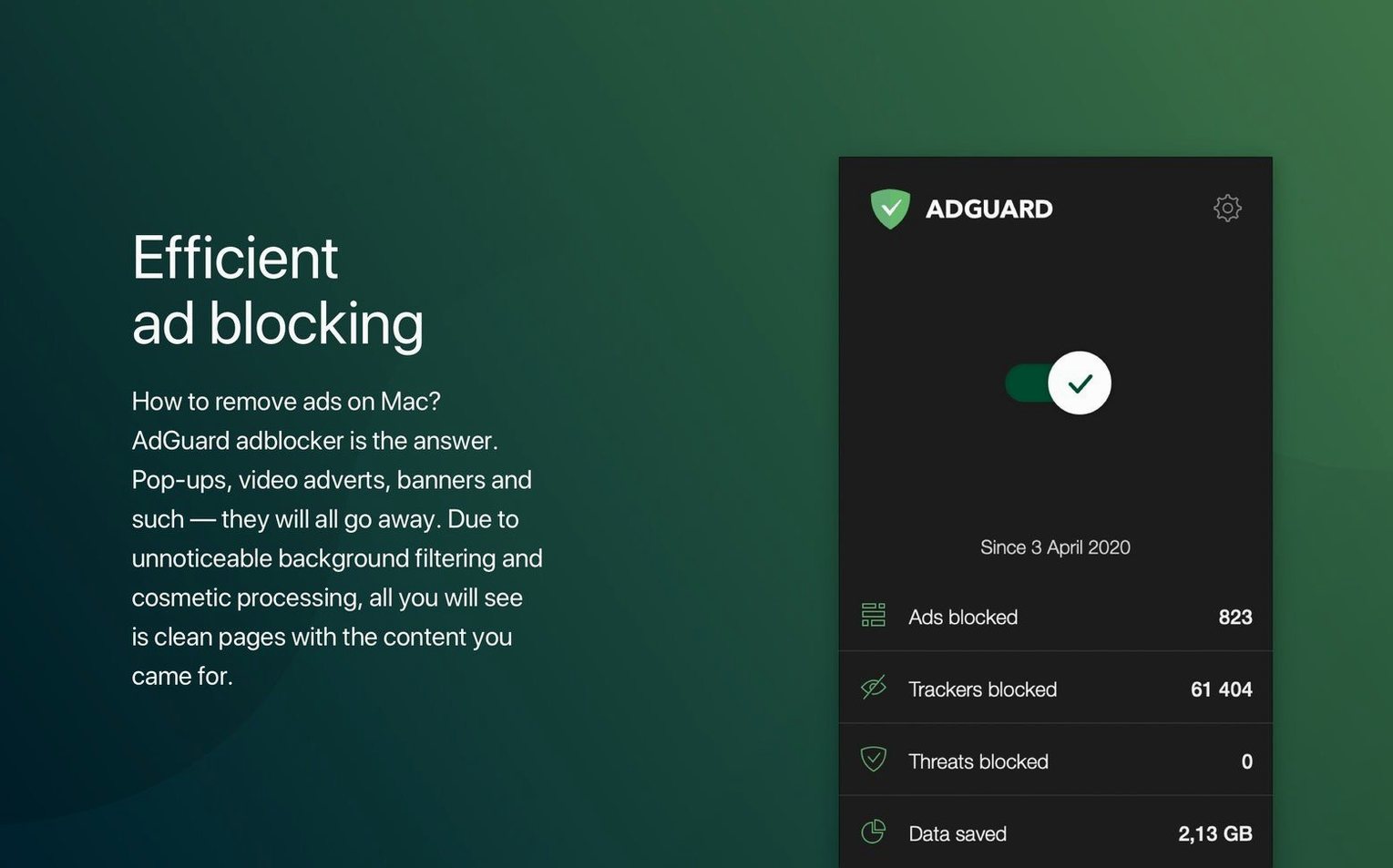
Version 2.18 of AdGuard for Mac is a maintenance and compatibility update that quietly extends the ad blocker’s reach. The headline change is native support for three AI-powered browsers, so if you have been experimenting with the new generation of intelligent browsing tools, AdGuard now filters their traffic without extra configuration. Under the hood, the team has tightened stability across the board and refreshed the system requirements to reflect what modern macOS filtering actually needs.
Runs natively on Apple Silicon without Rosetta 2
The minimum bar is macOS 10.15 Catalina, and the application runs natively on both Intel and Apple Silicon hardware — no Rosetta translation layer required. If your Mac can run Catalina or anything newer, you are clear to install. The installer package comes with straightforward instructions, and activation follows the same no-nonsense pattern: drop the app into place, follow the on-screen guide, and let it set up its network filtering rules. It really is that uneventful, which is exactly what you want from a tool that sits between your machine and the wider internet.
Blocks ads inside desktop apps, not just browsers
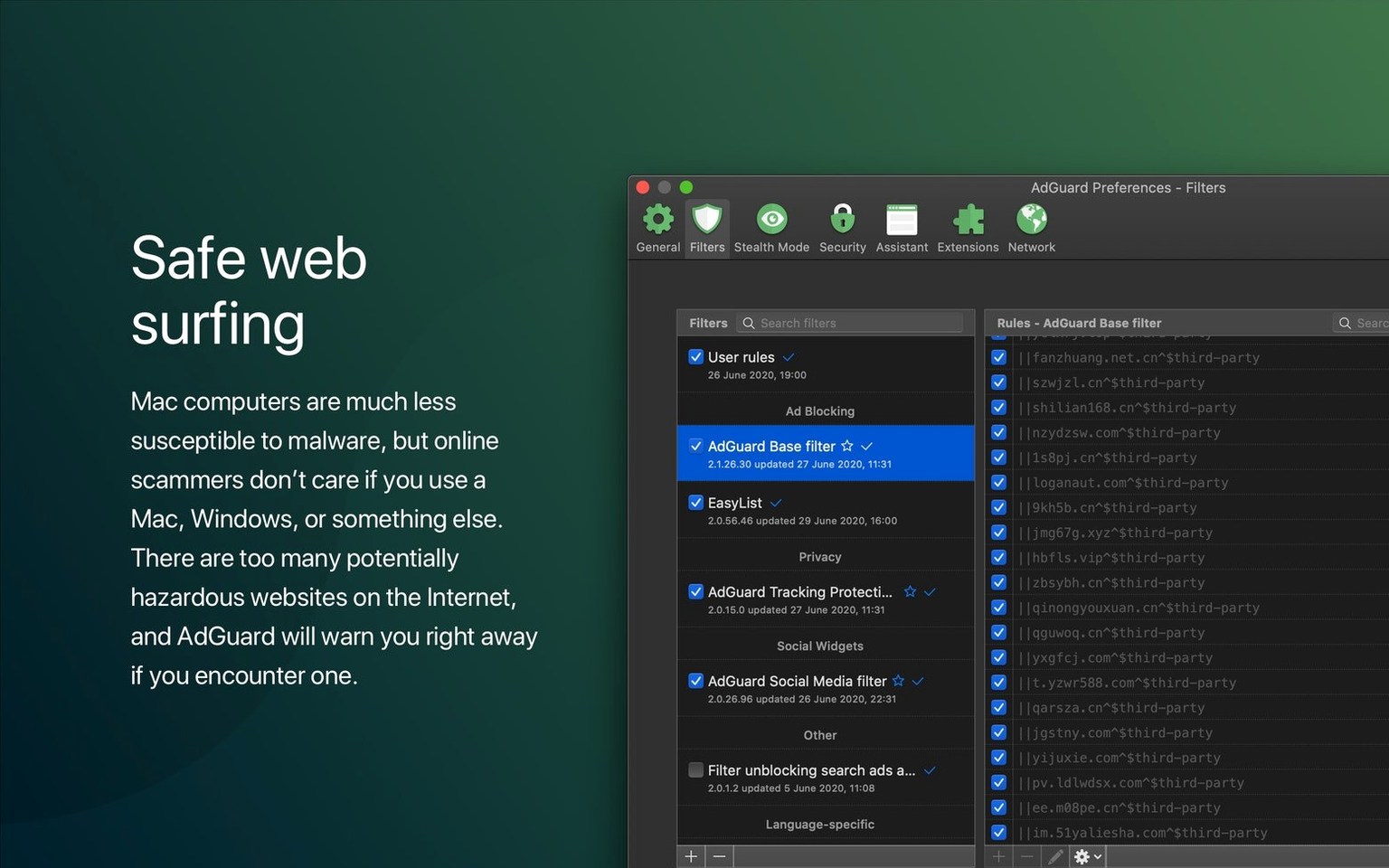
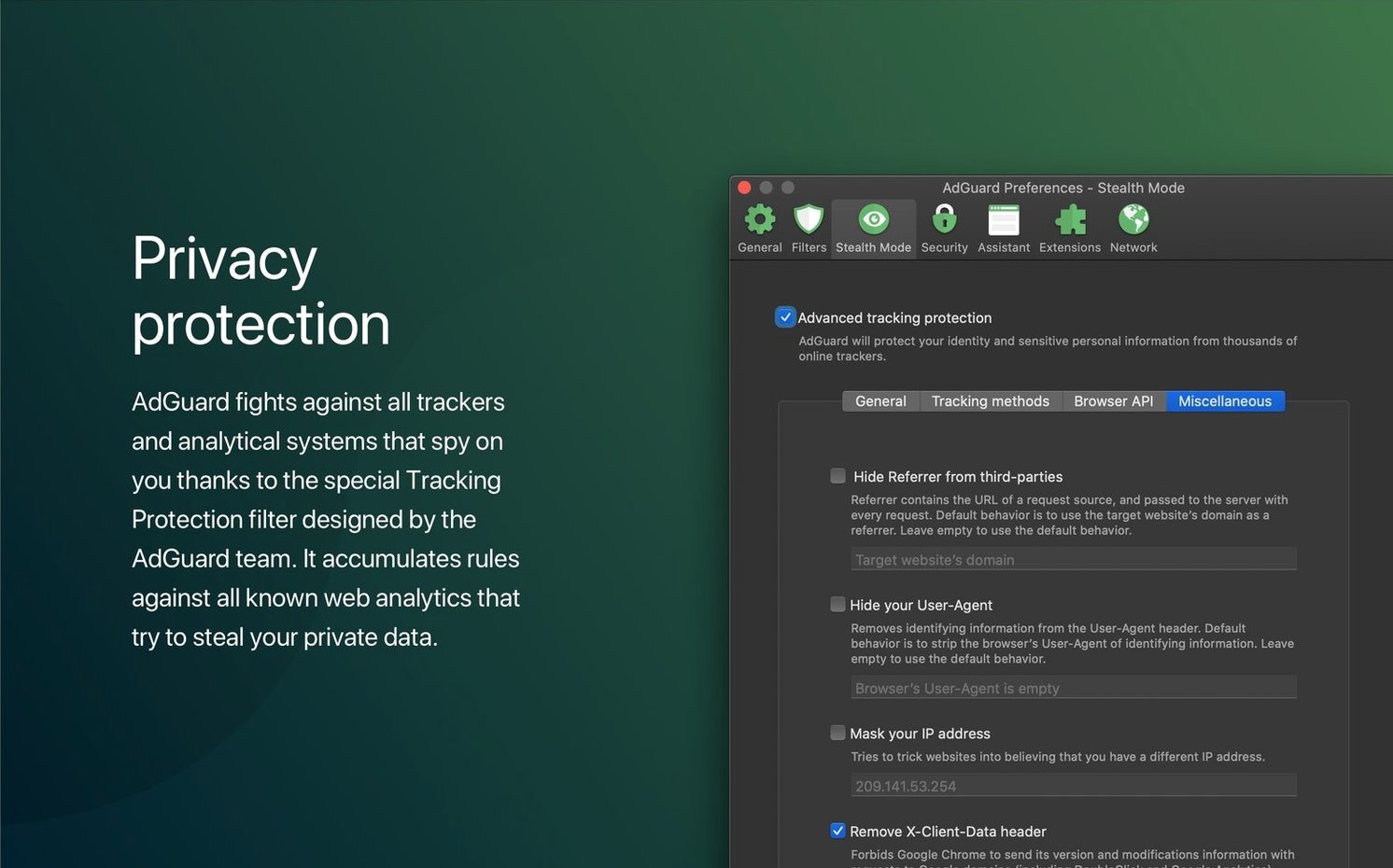
AdGuard works at the system level, so it catches ads and trackers inside browsers, email clients, and desktop apps — anywhere a request leaves your machine. A spyware filter sits alongside the standard ad-blocking rules, and the software actively scans for phishing sites and fraudulent domains rather than relying on a static blocklist. If you only need Safari protection, AdGuard Mini is the lighter companion, but the full AdGuard for Mac package covers every browser you are likely to use. The interface keeps things simple: a menu bar icon with a handful of toggles, no dashboards full of graphs you will never check. It ships in over forty languages, from Arabic to Vietnamese, so the controls speak your language regardless of where you are based.
Assuming it only works inside a web browser
Fresh installs often trip over the same handful of assumptions. The most common one is treating AdGuard like a browser extension and then wondering why ads still appear inside a desktop newsreader or a free weather app. Because the filtering happens at the network level, you need to grant the application permission to set up a local VPN or proxy configuration during installation — skip that dialogue by reflex and the whole chain breaks before it starts.
Another classic is leaving every filter list switched on. More is not better. AdGuard ships with a sensible default set, but some people tick every box in the list — including regional filters for languages they do not speak and experimental rules meant for developers. That bloats memory use, slows page rendering, and occasionally breaks perfectly innocent sites. Stick with the defaults for the first week, then add one list at a time if something legitimate sneaks through.
A quieter mistake is forgetting that the HTTPS filtering certificate needs to be trusted at the system level, not just inside a single browser. If you only approve it in Safari, Chrome will show certificate errors on secure pages and you will spend an afternoon chasing the wrong culprit. The installation guide walks through this step, but it is easy to skim past. Trust it once in Keychain Access and every browser falls into line.
AI-powered browsers like Arc now filter cleanly
The jump to version 2.18 may read like a modest update on paper, but the practical effect is noticeable in daily browsing. Adding support for AI-powered browsers means that tools like Arc, SigmaOS, and any other Chromium-based intelligent browser now receive the same filtering treatment as Safari and Firefox. Before this update, users of those newer browsers often reported patchy blocking — ads would vanish on one tab and reappear on another. That inconsistency is gone.
Stability improvements are always difficult to quantify, yet the difference shows up in uptime. Earlier builds occasionally dropped their network extension after waking the Mac from a long sleep, leaving traffic unfiltered until you manually toggled protection off and on. The 2.18 release makes that wake-from-sleep handover far more reliable. You can close the lid on a Friday and open it on a Monday without finding half your filter rules asleep at the wheel.
The updated system requirements did not raise the floor — Catalina remains the baseline — but the team quietly dropped support for some legacy kernel extension paths that were never quite stable on Apple Silicon. The result is a filtering stack that leans fully on modern Network Extension frameworks, which feels snappier and generates fewer background errors in the Console log. Casual users will not see a settings checkbox for this, but they will notice fewer beachballs when opening the app’s preferences pane.
Banking site refuses to load with filtering on
One persistent headache is a banking site or government portal that refuses to load while filtering is active. The fix is not to uninstall AdGuard — it is to open the menu bar icon, choose “Protection,” and pause filtering for sixty seconds. That gives you time to complete the transaction without touching a single filter rule. If the same site crops up repeatedly, add its domain to the allowlist in the user filter section and forget about it.
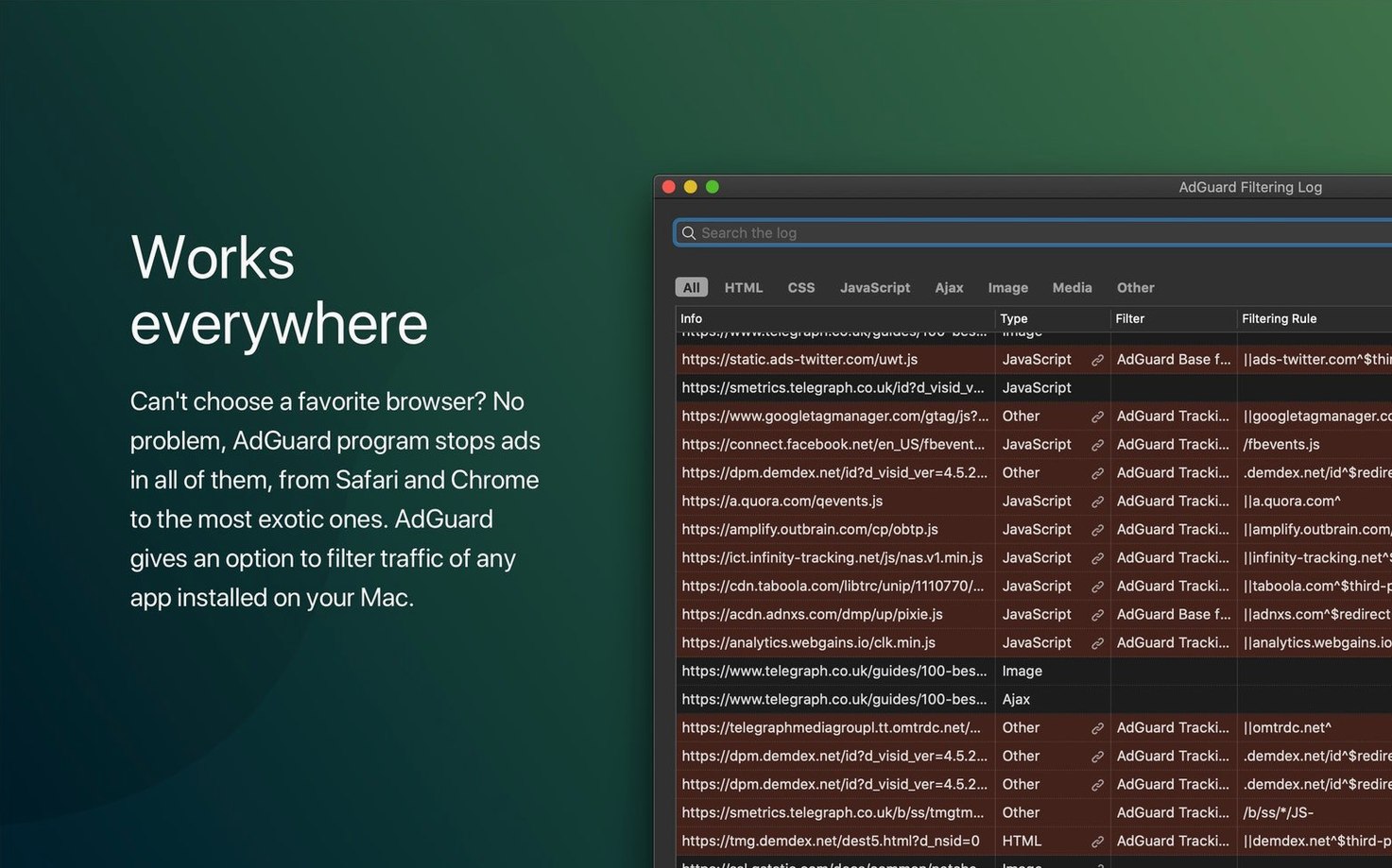
Streaming services occasionally detect the ad blocker and throw up a “disable your ad blocker” message even when you are already a paying subscriber. The culprit is usually an over-enthusiastic tracking filter rather than the ad-blocking rules themselves. Open the filtering log from the menu bar, reload the page, and watch which requests get blocked — then create a custom exception for the analytics domain the service uses to verify playback rights. It sounds fiddly, but after the first time it takes under a minute.
On machines with multiple user accounts, the filtering daemon runs once for the whole system, so settings made in one account affect everyone else. If a family member complaints that their favourite forum looks broken, check whether you added a cosmetic rule that strips sidebar elements. The solution is either to coordinate your custom rules or teach other users how to toggle protection for individual pages — the latter being far less work in the long run.
Using four different browsers without separate ad blockers
People who bounce between three or four different browsers get the biggest win, because they stop having to install and maintain a separate blocker extension for each one. A freelance web developer testing layouts in Chrome, Firefox, Safari, and an AI-powered browser like Arc will see consistent filtering across all of them without touching a single extension settings page. That alone saves a surprising amount of mental overhead.
Anyone running a MacBook on metered connections — mobile hotspots, tethered phones, or rural satellite links — benefits from the bandwidth savings. Blocking ad scripts and auto-play video embeds before they reach the network adapter trims a meaningful chunk of data usage each month. The effect is most visible on image-heavy news sites and recipe blogs, where a single page can fire off dozens of tracking requests before any content loads.
Privacy-conscious users who are already running a VPN appreciate that AdGuard sits at a different layer of the networking stack. A VPN encrypts the tunnel; AdGuard filters what travels through it. They do not compete for the same socket, and on macOS the two can coexist without the wrestling match that sometimes happens on other platforms. The combination gives you encrypted traffic that is also stripped of trackers and known malicious domains.
Starting the day with a DNS server that blocks trackers
Imagine you start your day by loading a dozen news sites, three newsletters, and a stock-tracking widget. With AdGuard freshly installed, begin by opening the app’s preferences and selecting the DNS protection tab. Pick a DNS server that blocks known malware and tracking domains — the built-in AdGuard DNS works without any extra sign-up — and toggle it on. This catches threats before your browser even sees them.
Next, open your usual browser and visit a representative site from your morning rotation. Glance at the AdGuard menu bar counter: it shows how many elements were blocked on that page. Click the counter to open the filtering log and skim the list. If a social media embed or a comment widget is blocked that you actually want to see, right-click its entry and choose “Add to allowlist.” Do this for two or three sites and you will quickly build a custom filter set that matches your actual habits, not a generic template.
For newsletters that arrive in Apple Mail or Spark, open the AdGuard menu bar icon and confirm that “Filter applications” is active — the full Mac version covers desktop email clients, not just browsers. Open a marketing-heavy newsletter and watch the remote images counter. Spacer gifs and tracking pixels vanish without you needing to configure anything inside the mail client itself. If a sender’s images genuinely matter to you, add their domain to the email-specific exception list under the network filtering preferences.
Finally, lock in the setup by enabling the automatic filter update schedule. In the general preferences, set the update check to every six hours. Filter lists evolve quickly, especially the anti-phishing rules, and a stale list is a gap that malicious domains can slip through. After a week of this routine, AdGuard fades into the background — you notice its absence far more than its presence.
Version 2.18 is a quiet but practical update that brings AdGuard to three AI-powered browsers without any fiddling on your part. It also tidies up the system requirements and irons out a few stability wrinkles that crept into earlier builds.
- Native filtering support for three AI-powered browsers
- Refreshed system requirements for current macOS versions
- General stability improvements across the application
- macOS 10.15 Catalina or later
- Works on both Intel and Apple Silicon Macs
Questions I keep hearing
Does AdGuard for Mac only block ads in my browser?
No, it operates at the system level, filtering traffic in browsers, desktop apps, and any other software that makes network requests.
What is the difference between AdGuard for Mac and AdGuard Mini?
AdGuard for Mac filters traffic across all browsers and apps, while AdGuard Mini is a lightweight version focused purely on Safari ad blocking.
Questions from the class 0
Sign in or join the class to ask a question.
Nobody has asked anything yet. If you have used it on a real job, say what the file did.
Also on the Mac Apps shelf
The whole Mac Apps shelf ACDSee Photo Studio
Helps you cull, adjust and organise RAW photos from your card.
ACDSee Photo Studio
Helps you cull, adjust and organise RAW photos from your card.
 A Better Finder Attributes
Corrects mangled file dates and EXIF timestamps in batches.
A Better Finder Attributes
Corrects mangled file dates and EXIF timestamps in batches.
 1Password
Watches your vault for weak, reused or breached passwords.
1Password
Watches your vault for weak, reused or breached passwords.
 Adobe Premiere Rush
Trims phone footage into a finished video with minimal fuss.
Adobe Premiere Rush
Trims phone footage into a finished video with minimal fuss.
 Affinity Designer
Turns rough sketches into crisp, scalable vector artwork and layouts.
Affinity Designer
Turns rough sketches into crisp, scalable vector artwork and layouts.
 Affinity Photo
Edits photos nondestructively with selective adjustments and raw processing.
Affinity Photo
Edits photos nondestructively with selective adjustments and raw processing.
 Affinity Publisher
Lays out multi-page documents combining text and high-res images for print.
Affinity Publisher
Lays out multi-page documents combining text and high-res images for print.
 AI Transcription
Converts batches of spoken recordings into searchable written text.
AI Transcription
Converts batches of spoken recordings into searchable written text.