 ASPNetWorld

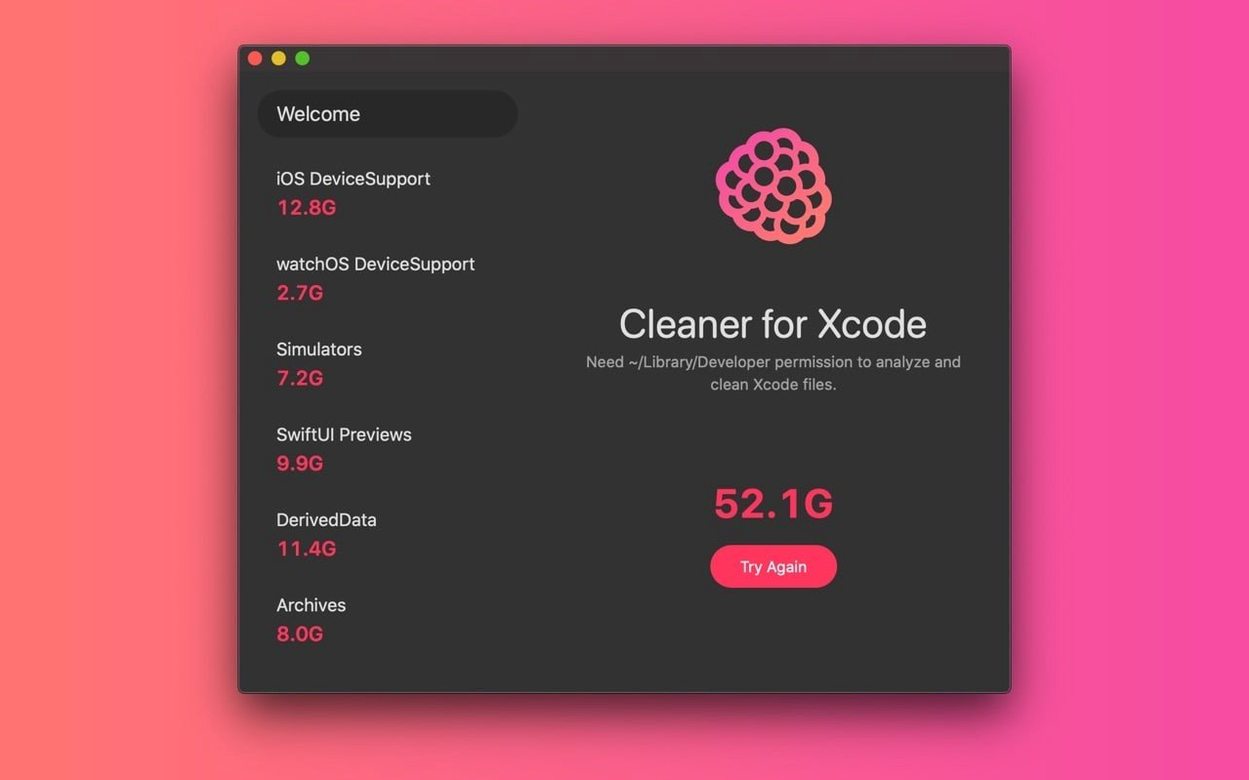
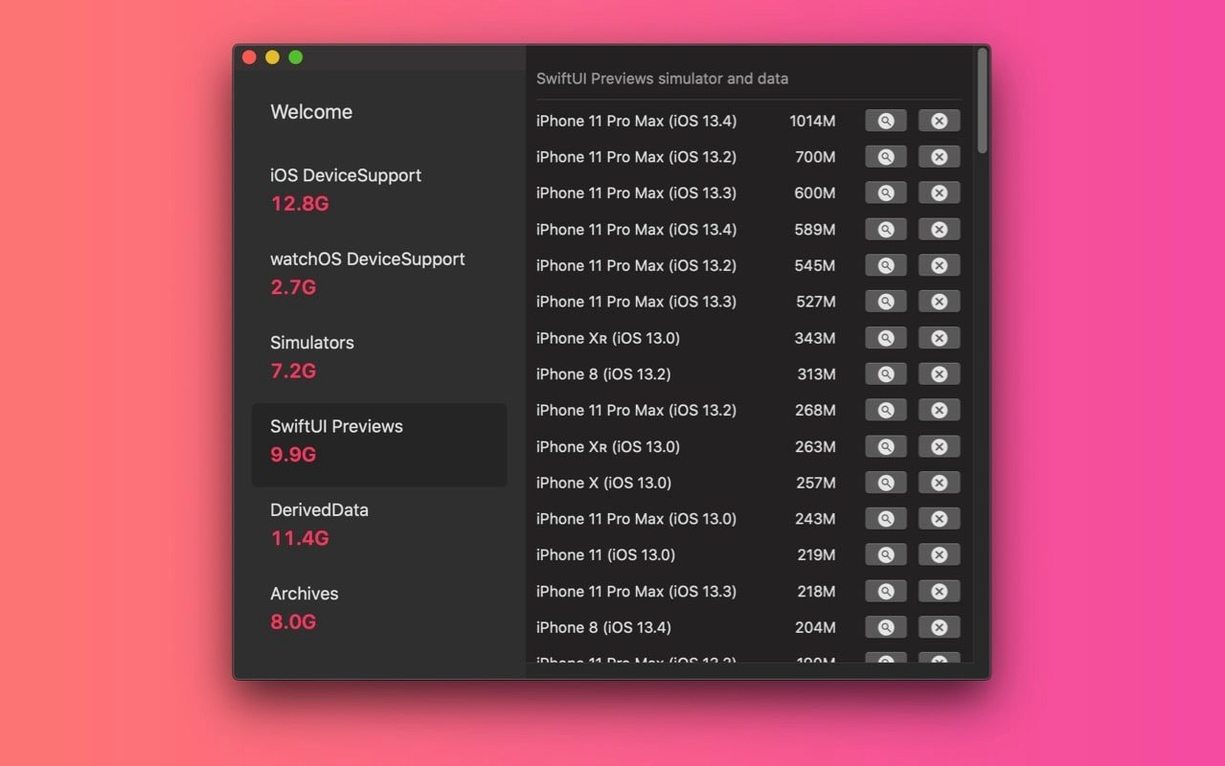
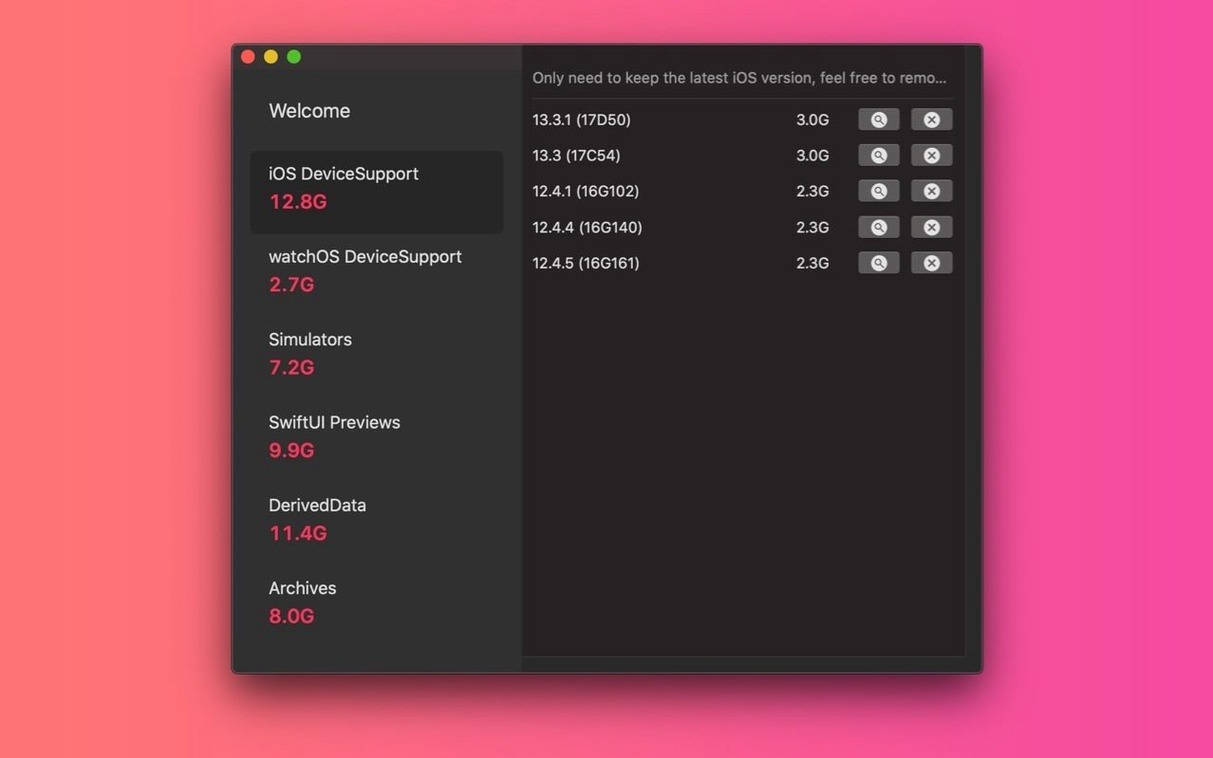
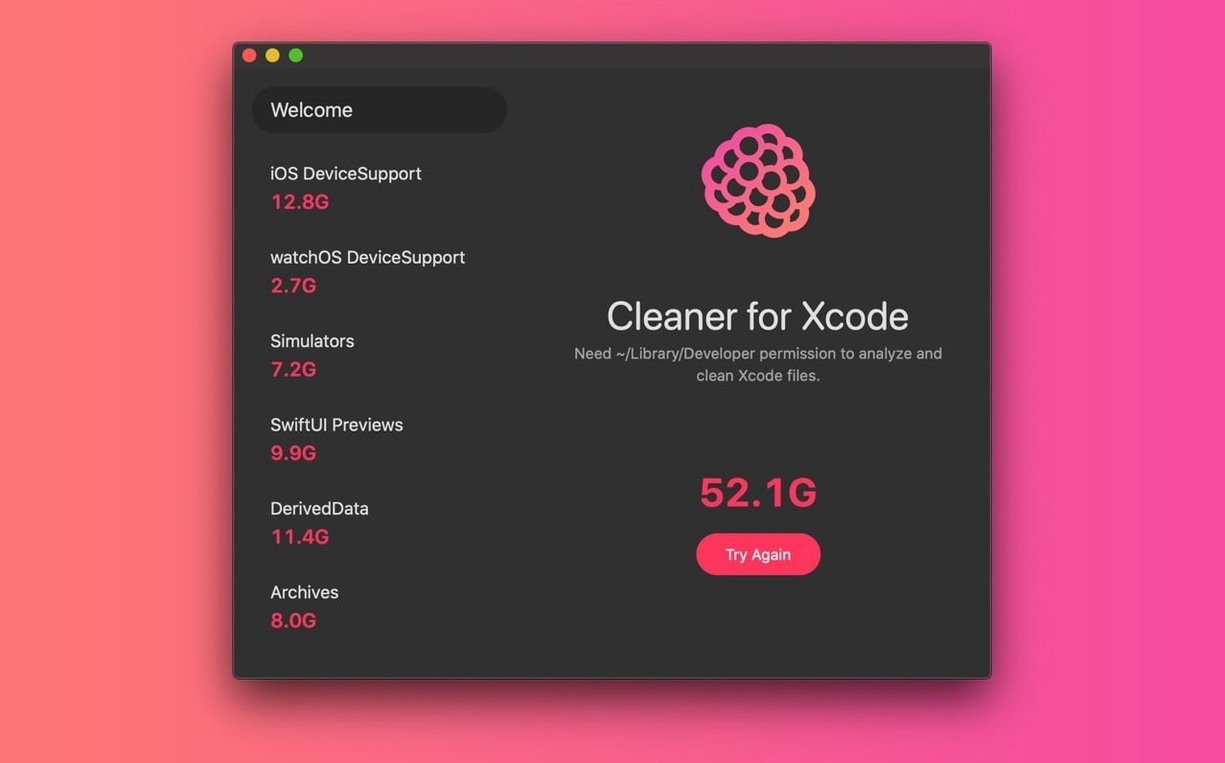
If you’ve used the Finder’s built-in ‘About This Mac’ storage view to clear space, you know it only scratches the surface. Cleaner for Xcode goes deeper, targeting exactly the cache, derived data, and outdated simulator files that Xcode accumulates over time. It’s a focused tool for a single, well-defined job, and that’s precisely why it works.
The app runs on macOS 11.0 or later and, for now, supports Intel 64-bit Macs. Its interface is available in English, Simplified Chinese, Portuguese, and Thai, which suggests a thoughtful approach to its user base. Version 4.0.5 fixed a glitch where the display would duplicate after a re-analysis — a small but welcome polish.
One question I often hear before someone tries a tool like this is how it knows what’s safe to delete. Cleaner for Xcode simply lists what it finds and lets you choose; nothing gets removed without your say-so. That’s the kind of transparency that makes a cleanup utility feel trustworthy rather than, well, a bit of a gamble.
How it fits together with other apps and macOS features
Cleaner for Xcode doesn’t live in isolation. It complements the macOS Disk Usage tool (System Information → Storage) rather than replacing it. Where Apple’s own view gives you a broad look at what categories fill your drive, Cleaner for Xcode drills into the Xcode-specific folders — ~/Library/Caches, ~/Library/Application Support/Xcode, and the various SDK and simulator directories — that the system view tends to lump together as ‘Developer Files’ or ‘Other’.
If you already use a general disk cleaner like the one built into macOS or a third-party utility, you’ll find that Cleaner for Xcode fills a gap most of them skip: it understands the internal structure of Xcode’s build cache, compiler data, and iOS simulator artefacts. A typical system cleaner might remove internet cache or temporary files, but it rarely knows that DeviceSupport folders from old iOS versions are safe to clear. That’s where this app steps in.
I also like how it plays with the Terminal habit some of us have. You could, of course, clear Xcode’s cache with rm -rf ~/Library/Caches/com.apple.Xcode* and a few other commands, but that requires remembering the exact paths and being sure nothing is in use. Cleaner for Xcode gives you a visual scan first, so you’re never guessing. It’s the difference between firing a shotgun and using a sight.
Your last scan results stay until you run a fresh analysis
One detail I nearly overlooked is that the app remembers your last scan results until you run a fresh analysis. That means you can close the window, think about which files you’re happy to lose, and come back later without having to re-scan. On a slow machine groaning under a large project, that saves time.
Another handy touch: the checkboxes are hierarchical. If you expand a category and tick a sub-folder, the parent automatically updates its count. It’s a small bit of polish, but it keeps the interface honest — no misleading totals.
There’s also a keyboard shortcut worth knowing: Cmd+R triggers a re-analysis without reaching for the mouse. The first time I used it, I’d already scanned, clicked around, and then wanted a fresh look; the shortcut worked immediately. It’s not documented in the app’s main window, so it’s easy to miss unless you try it or read a review like this one.
And if you’re in the habit of dragging the app to a dock or keeping it in Launchpad, you may notice that Cleaner for Xcode doesn’t leave a background process running. It launches, does its job, and sits quietly when closed. That’s the kind of behaviour I appreciate in utility software — no mystery services in the Activity Monitor.
Three common scan blockers and their quick fixes
Three issues crop up often with a tool like this, and they’re all easy to fix once you know where to look.
‘The app won’t scan anything.’ This usually happens when Xcode is actively building a project. The app can still open and show its interface, but the file system locks some cache folders while Xcode is running. The answer is straightforward: quit Xcode completely — not just close the window, but Cmd+Q — and then run the scan. On a few occasions, I’ve also found that a lingering Xcode process was still alive in the background. A quick check in Activity Monitor and a forced quit sorted it.
‘It shows files I want to keep.’ The app presents everything it finds; it doesn’t guess what you need. If you see a cache folder you know you’ll use again — say, a large template project you compile daily — simply leave it unticked. The app won’t touch anything you don’t select. I’ve found it useful to run the first scan just to see what’s there, then uncheck anything I’m unsure about, and only tick obvious trash like old iOS simulator data or SDK versions I no longer target.
‘Nothing seems to have changed after clean-up.’ This can happen if you chose only tiny files. The app reports the total size it will free before you confirm deletion, so it’s worth glancing at that number. If it reads a few megabytes, you’ve likely left the big items unticked. Go back, re-scan, and look for the heaviest categories — often DerivedData folders from old projects or iOS device support files that can run into gigabytes.
The one preference to adjust right away
The app doesn’t bury you in configuration, which I count as a strength. Still, there’s one setting I’d adjust straight away: under the preferences or scan options (depending on the version of 4.0.5 you see), you can choose whether to include iOS simulator data in the scan. Simulator images are notorious space hogs, especially if you’ve tested on several device generations. Leaving this on means you’ll see the biggest possible saving, but you may want to toggle it off if you still test against older iPhones or iPads.
Beyond that, the defaults are sensible. The app launches in the same language as your system locale, and it’s happy scanning the default Xcode install locations. I wouldn’t rush to change anything else until you’ve run a couple of scans and seen what’s normal for your machine. Then you can decide if you want to exclude certain categories from future scans — though, with the checkbox model, you’re already in control every time.
Version 4.0.5 fixes a bug where the list of files appeared duplicated after running a re-analysis. A tidy correction for a tidy app.
- macOS 11.0 or later
- Intel 64-bit processor
- Interface languages: English, Simplified Chinese, Portuguese, Thai
Questions I keep hearing
Does Cleaner for Xcode work on Apple Silicon Macs?
The app is currently listed as compatible with Intel 64-bit architecture. It requires macOS 11 or later, but there’s no mention of native Apple Silicon support.
Questions from the class 0
Sign in or join the class to ask a question.
Nobody has asked anything yet. If you have used it on a real job, say what the file did.
Also on the Mac Apps shelf
The whole Mac Apps shelf Daily Wallpaper HD
 Yoink
Provides a temporary shelf on the side of your screen for dragging and holding files between windows.
 Workspaces
Restores a complete project setup—files, folders, and web pages—in a single click.
 Wondershare UniConverter
Converts, compresses, and merges video files into a single format your editor and players understand.
 Wondershare Recoverit
Rescues photos, documents, and videos from reformatted drives or long-lost files with a deep scan.
 Wondershare Filmora
Helps vloggers and teachers assemble polished videos without a professional timeline.
 Wirecast Pro
Streams live video with built-in scoreboard overlays, replays, and multi-camera switching.
 Wipr
Makes cookie banners and popups vanish without a single settings toggle.