 ASPNetWorld

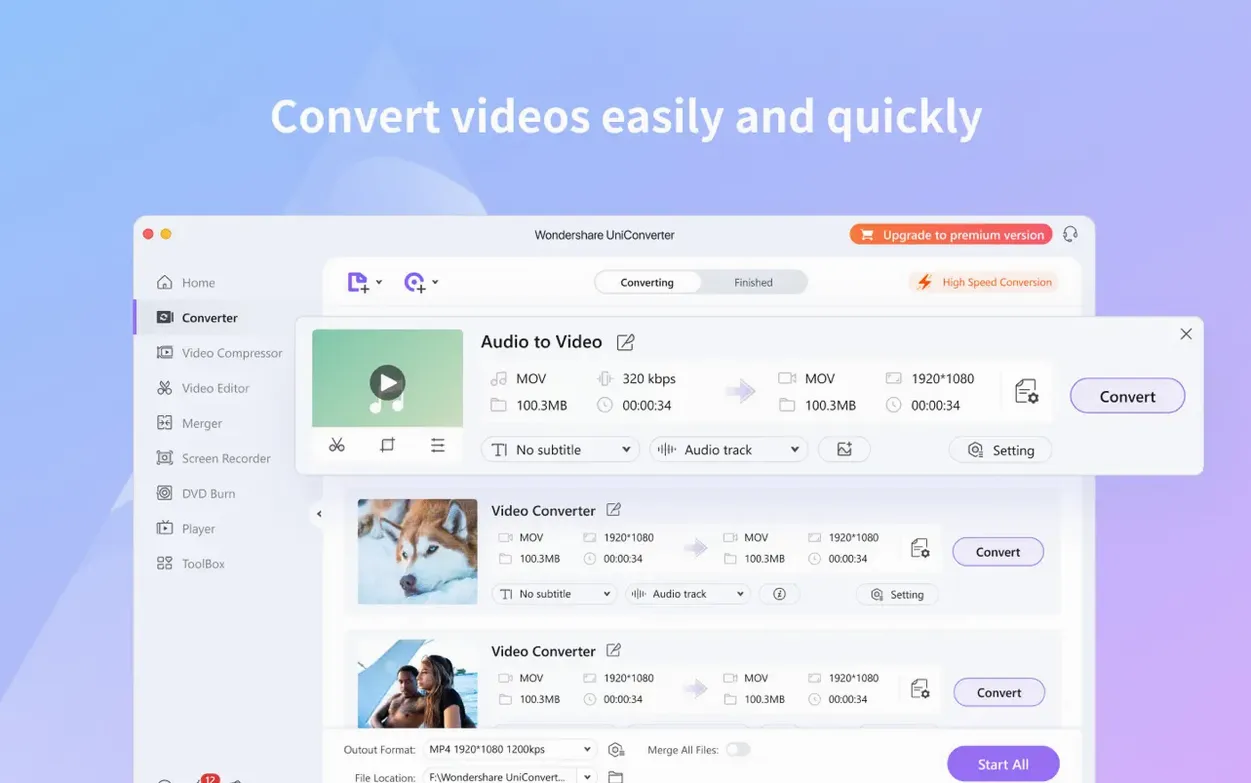
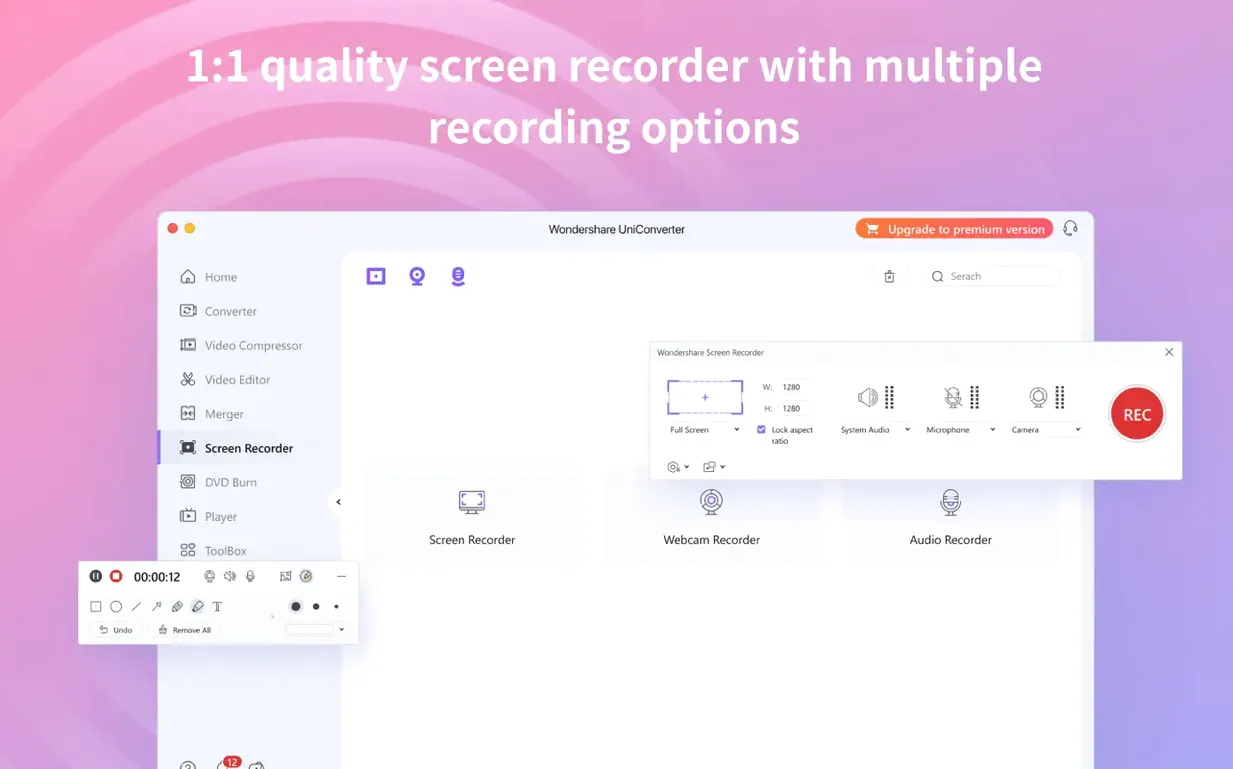
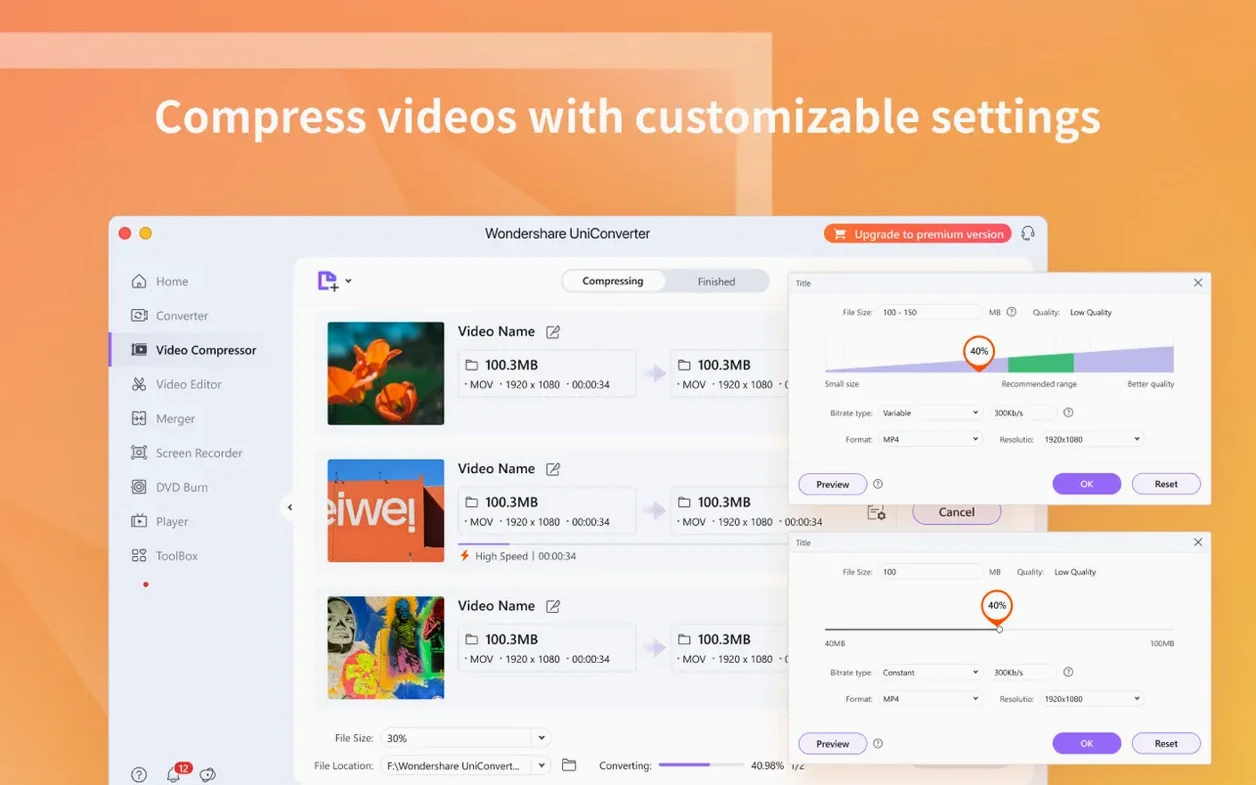
You have a folder of MKV files that won't play in QuickTime, a 4K video that stutters in your editor because the codec is wrong, and a dozen clips you'd like to merge into a single movie without buying three different utilities. That scattered, multi-app headache is the problem Wondershare UniConverter 15 sets out to solve by gathering conversion, editing, and media-tidying tools under one roof.
What it handles day to day
- Video conversion — the core engine. Drag in almost any file and turn it into a format your Mac, phone, or editing suite actually understands. HEVC/H.265 is fully supported, so you can shrink a large 4K file without crushing the detail, and batch conversion lets you walk away while a whole folder processes.
- Online video download — grab a tutorial, a music clip, or a reference video from YouTube and other sites, saved straight to a usable local file.
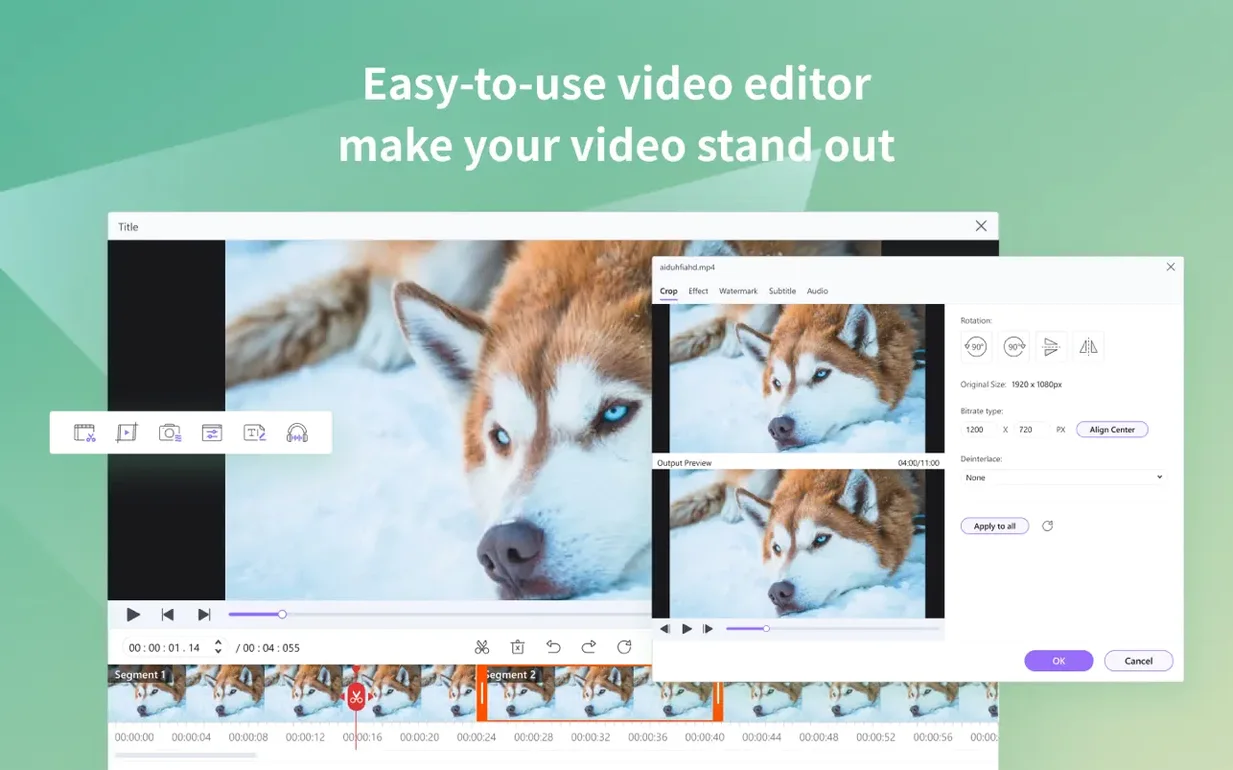
- Quick edits — crop out black bars, trim the beginning and end, split one long recording into segments, or merge several clips into one. These are the fixes you need most often, and they live inside the same window as the converter.
- Codec library for editors — if iMovie or Final Cut Pro complains about an unfamiliar file, UniConverter supplies the native codec bridge so you can import without a separate transcoding step.
The quiet organisational tools
Beyond conversion, there is a gentle media-management layer. You can extract metadata from your files and update an iTunes library as you transfer, which keeps things searchable rather than dumping a heap of "Unknown Artist" entries. On the hardware side, UniConverter runs natively on both Apple Silicon and Intel Macs, so it feels snappy regardless of which machine you are using.
The ARM-native build banished Rosetta from batch conversions
Version 15.7.3.564 isn't a headline-grabbing overhaul, and that's precisely why I like it. The shift to full ARM and 64-bit Intel support means the app now runs without Rosetta on Apple Silicon Macs, so batch conversions that used to warm up the fans now hum along at native speed. In everyday terms, a folder of thirty 4K clips that took a tea break now finishes while you're still filling the kettle.
The other change that matters is the drop to OS X 10.11 compatibility. It sounds like a footnote, but if you keep an older Mac around as a media server or a dedicated ripping station, you can install the same UniConverter build on it without hunting for a legacy version. The interface feels identical on a 2013 MacBook Air and a current M3 machine — same layout, same icon set, just slightly different clock speeds underneath. Wondershare Video Converter, as some people still call it from the older naming days, has settled into a stable rhythm with this release, and stability is rare enough to be worth a mention.
Editing a 40-minute screen recording down to the client's clip
Imagine a Thursday evening. A client has sent you a zipped folder of source clips — a mix of MOV files from a camcorder, a few MKV downloads, and an MP4 screen recording that runs forty minutes but only needs the middle eight. Here's how UniConverter turns that into a clean delivery file without you opening four different apps.
Step one: load everything at once. You drag the whole folder onto the main window. UniConverter scans the files and lists them by name, duration, and current format. The MKV files show a small warning icon because your editing suite won't touch them; the MOVs are fine as they are.
Step two: set a target format that makes sense. You select all the problem files — the MKVs and that oversized MOV — and pick H.265 from the format dropdown. Because 4K is involved, you open the quality slider and nudge it to a high bitrate rather than accepting the default. The preview pane lets you spot-check a few seconds of each clip to confirm nothing looks crushed or washed out.
Step three: trim the long screen recording. While the batch conversion hasn't started yet, you select the forty-minute MP4 and open the trim tool. A timeline appears with start and end markers. You drag them to isolate the eight-minute section you need and click save. No new file is created yet — you're just setting the boundaries for what the converter will produce.
Step four: merge the trimmed piece with two MOV clips. You tick the merge checkbox, arrange the three files in the right order by dragging their thumbnails, and the preview confirms the sequence flows without a jarring cut. One button, one output file.
Step five: let the batch run. You click "Start All" and the queue kicks off. The MKVs convert to HEVC, the trimmed-and-merged file renders as a single MP4, and the untouched MOVs simply remux into your chosen container. On an M2 Mac, the whole job takes less time than writing up the invoice.
Step six: tidy the iTunes library. While the files process, you open the transfer tab, point it at the finished folder, and tick "Update metadata during transfer." When the clips land in your iTunes library, they carry the names and dates you assigned, not a string of random characters.
Three setup rituals evening-class students learn in the first week
When I set up UniConverter on a new Mac for evening class students, I walk them through a few small rituals that pay off within the first week. None of these are hidden features — they're just workflows that the interface doesn't force you into, so they're easy to miss.
Set a default destination folder straight away. Open preferences and point output to a dedicated "Converted" folder rather than accepting the desktop dump. After a month of regular use, you'll thank your past self for not scattering renamed video files across every corner of your drive.
Create a custom conversion preset. The format dropdown is deep, but the "same as source" option with a resolution cap of 1080p is the one I use most for archiving. Save it as a named preset and it sits at the top of the list forever. No more clicking through four submenus every time you want a sensible compressed copy.
Let the codec library settle before you judge it. If you drop a freshly installed UniConverter into a Final Cut workflow on day one, the codecs sometimes need a restart to register properly. Launch Final Cut, import a test file, and if it bounces, restart your Mac. After that, the bridge stays quiet and reliable. I've seen too many people assume it's broken when it just needed a fresh session.
A scenario: the documentary researcher
Consider someone compiling archival footage for a documentary. They've sourced material from three different online archives, a DVD box set, and a hard drive of old DV tapes. The formats are chaos: YouTube downloads as WEBM, DVD rips as VOB folders, DV tapes captured as AVI, and a few modern 4K interviews shot on a mirrorless camera.
On a Tuesday morning, they load the WEBM files into UniConverter first. The YouTube downloader already grabbed them cleanly, and now they batch-convert to ProRes for the editor. The VOB folders from the DVD box set go through the DVD-to-MP4 converter — UniConverter reads the disc structure directly, so there's no intermediate ripping step in another tool. The old AVI files from DV tapes need cropping to remove the interlaced black bars at the edges, so each one gets a quick preview and a manual crop before joining the conversion queue.
By lunchtime, every clip sits in a single folder as matching ProRes 422 files, named by subject and date, ready to drop into a timeline. The researcher hasn't opened HandBrake, VLC, or a separate metadata tool. The whole morning was one application, one window, one consistent set of output settings. That kind of session is where the "all-in-one" label stops being marketing and starts being practical. Some users still search for a Wondershare UniConverter 14 crack to explore older builds, and version 15.7.3.564 runs smoothly enough that the current release earns its place on a working Mac without second-guessing.
This update broadens the welcome mat for older and newer Macs alike. Compatibility now reaches back to OS X 10.11, and the app runs natively on both ARM and 64-bit Intel processors.
- macOS 10.11 or later
- Apple Silicon or Intel Mac
Questions I keep hearing
Can Wondershare UniConverter 15 handle 4K video?
Yes, it supports 4K resolution and the HEVC/H.265 codec, so you can compress large 4K files while preserving visual quality.
Does it work on newer Macs with Apple Silicon?
Absolutely. The current version runs natively on ARM-based Apple Silicon Macs and 64-bit Intel Macs, on macOS 10.11 or later.
Can I download videos from YouTube with this app?
Yes, it includes a downloader that can grab online video from YouTube and a range of other sites and save them as local files.
Questions from the class 0
Sign in or join the class to ask a question.
Nobody has asked anything yet. If you have used it on a real job, say what the file did.
Also on the Mac Apps shelf
The whole Mac Apps shelf Wondershare Recoverit
Rescues photos, documents, and videos from reformatted drives or long-lost files with a deep scan.
Wondershare Recoverit
Rescues photos, documents, and videos from reformatted drives or long-lost files with a deep scan.
 Workspaces
Restores a complete project setup—files, folders, and web pages—in a single click.
Workspaces
Restores a complete project setup—files, folders, and web pages—in a single click.
 Wondershare Filmora
Helps vloggers and teachers assemble polished videos without a professional timeline.
Wondershare Filmora
Helps vloggers and teachers assemble polished videos without a professional timeline.
 Wirecast Pro
Streams live video with built-in scoreboard overlays, replays, and multi-camera switching.
Wirecast Pro
Streams live video with built-in scoreboard overlays, replays, and multi-camera switching.
 Wipr
Makes cookie banners and popups vanish without a single settings toggle.
Wipr
Makes cookie banners and popups vanish without a single settings toggle.
 WinZip Mac Pro
Lets you right-click a messy folder and find every duplicate, archive, and file to tidy up.
WinZip Mac Pro
Lets you right-click a messy folder and find every duplicate, archive, and file to tidy up.
 Winclone Pro
Packages a Boot Camp Windows installation into an image and restores it onto a new Mac.
Winclone Pro
Packages a Boot Camp Windows installation into an image and restores it onto a new Mac.
 Yoink
Provides a temporary shelf on the side of your screen for dragging and holding files between windows.
Yoink
Provides a temporary shelf on the side of your screen for dragging and holding files between windows.