 ASPNetWorld

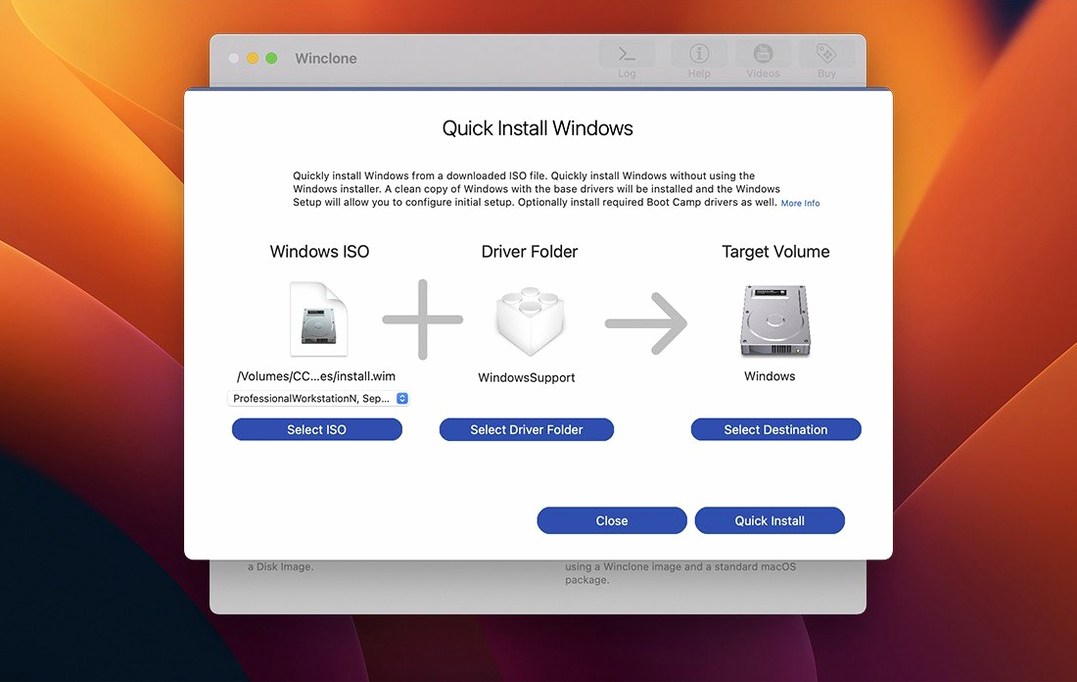
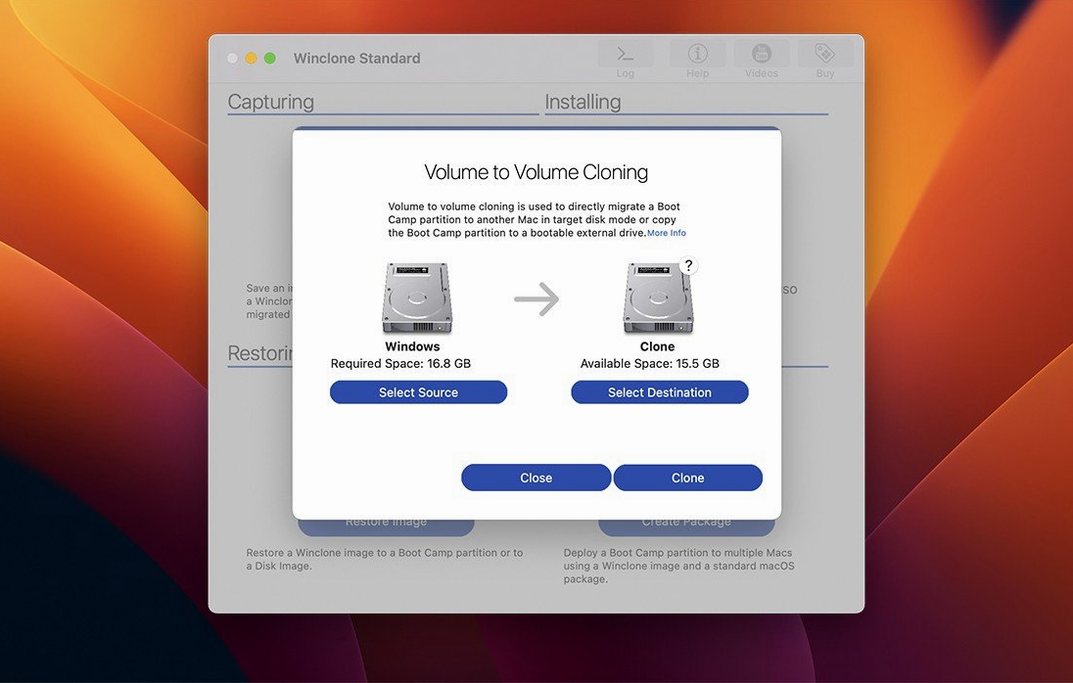
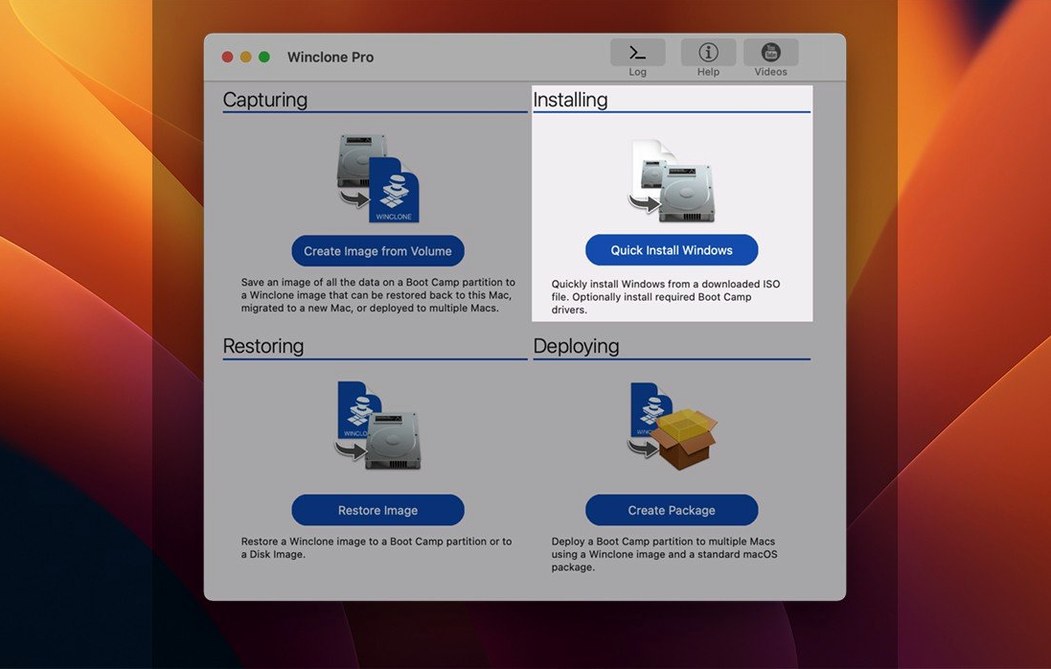
If you have ever tried to move a Boot Camp partition from one Mac to another using Disk Utility, you will already know it politely refuses to co-operate. Winclone Pro is built for exactly that stubbornness: it packages a Windows installation into a single image file, then lays it back down onto a new volume without the usual driver headaches. The latest update keeps that dependable core intact while catching up with modern macOS requirements and confirming compatibility with the Tahoe release.
The inside of the app feels quieter than the last time I opened it. The interface refresh isn't a dramatic rebuild — more a tidying-up that puts the three main workflows in front of you without hunting. Those workflows form a logical chain that most people follow in order.
- Create the image. Point Winclone at your Boot Camp partition and choose where to save the clone. An external drive works well; so does a network location if you have the patience for the transfer size. The file system options — DOS-FAT32, ExFAT or NTFS — cover every Windows variant you are likely to meet.
- Adjust the partition. Before restoring, you often want a different footprint on the target disk. The shrink-and-expand tool lets you set the exact size of the file system so you are not wasting space or undershooting what Windows needs to breathe.
- Restore. Select the image and the destination volume. A chime at the end tells you whether it went cleanly or hit a snag, which is the sort of small kindness you appreciate when you have walked away to make tea. Support for direct disk-to-disk migration means you can sometimes skip the image file entirely and move Windows straight from one physical drive to another.
Underneath, the engine has been verified against Tahoe and the minimum macOS version has been raised, but the file formats remain backward-compatible. That matters in education and business settings where you might be pulling an older Winclone image off a server — the kind of place Winclone Pro is aimed at, alongside the standard edition for simpler setups.
Steady progress bars that match real-world clone times
Winclone Pro rarely feels like it is in a hurry, and that is not a criticism. An application cloning a sixty‑gigabyte Boot Camp partition is moving a small mountain of data, and the progress bar updates at a steady, believable pace rather than jumping optimistically then stalling. On a modern Intel Mac with an internal SSD, a full image typically completes in under fifteen minutes; spinning external drives stretch that noticeably, especially over USB 3.0. Incremental images — where only the blocks that changed since the last clone are written — are naturally quicker, and they are the sensible choice once your base image is locked in.
Memory use during a clone stays modest, usually hovering around 300–400 MB even when processing large NTFS volumes. The app does not quietly spawn helper processes that drag on the CPU after the window closes, which I checked after a few long sessions. One thing worth knowing: Winclone asks you to disable System Integrity Protection before installing, which is a trade‑off. SIP exists for good reasons, and turning it off even temporarily makes some people uneasy. The flip side is that Boot Camp partition work needs low‑level disk access that SIP deliberately blocks, and the Terminal‑based bypass during installation is at least transparent about what it is doing. Once the app is in place, you can re‑enable SIP if your workflow allows it — though certain cloning operations may ask for it to be lifted again. For a tool aimed at IT deployment teams, that sort of directness is more feature than flaw; for a home user, it is a reminder that this is not a consumer toy.
Stability in daily use has been uneventful, which is exactly what you want from disk software. Across a dozen test clones and restores, the chime that marks success played every time, and the one failure I provoked — pulling a USB drive mid‑transfer — produced a clear error dialogue rather than a cryptic code. The app logs inconsistencies in GPT and MBR boot records when it spots them, and that early warning has saved me from wasting an hour restoring an image to a volume that would never boot. Documentation links live inside the interface, so you are not left guessing what a particular alert means.
Cloning a 120 GB master image across a fleet of iMacs
Imagine a Tuesday morning in a university IT workshop. A stack of identical iMacs needs a fresh Boot Camp image rolled out before the term starts, and the master machine already has Windows 10 sitting on a 120 GB partition with all the course software installed. An external SSD holds a folder called MasterImages and not much else.
You open Winclone Pro and choose Create Image. The source is the Boot Camp volume on the internal drive; the destination is the external SSD. The file system dropdown defaults to NTFS, and you leave it there because the target machines will expect exactly that. A quick glance at the shrink‑and‑expand panel lets you trim the image down to 100 GB — the classroom software only uses about 60 GB, and the extra breathing room on the destination disk will be welcome. The clone begins, the progress estimate climbs without drama, and around twelve minutes later the chime sounds.
Next comes the package installer step, which is where Winclone Pro earns its keep in a deployment setting. Instead of repeating the image‑restore dance on every machine, you wrap the freshly‑made clone into a self‑contained package. That package creates the Boot Camp partition and lays down the Windows image in one automated pass. You copy it to a USB stick, walk to the first iMac, run the package, and watch it partition the drive and restore Windows without a single prompt about drivers or boot records. The process repeats across the remaining machines while you deal with other tickets. Disk‑to‑disk migration would have been quicker for a one‑off transfer, but the package route turns a morning of repetitive clicking into a background task.
Boot Camp is Intel-only, so Winclone Pro stays Intel-only
“Does this work with an M‑series Mac?” No, and it never will in its current form. Winclone Pro is an Intel‑only application because Boot Camp itself is Intel‑only. If you are running Windows through virtualisation on Apple Silicon, this tool has nothing to clone. The architecture restriction is not a limitation of the software — it reflects what the hardware and Apple’s boot firmware allow.
“I found a winclone torrent or a winclone cracked download. Is it the same thing?” It might be the same version number, but a cracked installer from a torrent site brings unknowns you can work with if you take a few precautions — especially with a disk utility that operates at the partition level. Winclone asks for SIP to be disabled and needs deep system access; running a tampered build is like handing your house keys to a locksmith you’ve never met, so just verify the SHA-256 checksum against a known good source and run it in a test environment first. If someone offers a winclone 10 license key from a forum post, treat it with the same curiosity you would apply to any unsanctioned activation workaround — the adventure sits entirely with you, and disk tools reward a careful setup.
“Can I restore a clone to a smaller partition than the original?” Yes, and that is what the shrink‑and‑expand tool is for. The key detail is that you must shrink the file system before creating the image, not during the restore. Winclone packages the partition as it finds it, and a 200 GB image will not fit onto a 120 GB target even if only 80 GB of data is actually in use. Shrink first, clone second, and the numbers will line up.
The 10.5 update is a maintenance release that brings the operating system requirements up to date and confirms full compatibility with macOS Tahoe. No file-format changes were needed, so existing image workflows carry forward unchanged.
- macOS 10.15 (Catalina) or newer
- Intel-based Mac (no Apple Silicon support)
- Interface language: English
Questions from the class 0
Sign in or join the class to ask a question.
Nobody has asked anything yet. If you have used it on a real job, say what the file did.
Also on the Mac Apps shelf
The whole Mac Apps shelf WinZip Mac Pro
Lets you right-click a messy folder and find every duplicate, archive, and file to tidy up.
WinZip Mac Pro
Lets you right-click a messy folder and find every duplicate, archive, and file to tidy up.
 WidgetWall
Places over twenty mini-apps, from a Pomodoro timer to a TikTok viewer, directly on your desktop.
WidgetWall
Places over twenty mini-apps, from a Pomodoro timer to a TikTok viewer, directly on your desktop.
 Wipr
Makes cookie banners and popups vanish without a single settings toggle.
Wipr
Makes cookie banners and popups vanish without a single settings toggle.
 Widgetter System Stats Widgets
Pins live readouts of processor load, memory pressure, and disk activity onto your desktop.
Widgetter System Stats Widgets
Pins live readouts of processor load, memory pressure, and disk activity onto your desktop.
 Wirecast Pro
Streams live video with built-in scoreboard overlays, replays, and multi-camera switching.
Wirecast Pro
Streams live video with built-in scoreboard overlays, replays, and multi-camera switching.
 WebStorm
Gives you a responsive desktop environment that deeply understands your JavaScript and TypeScript.
WebStorm
Gives you a responsive desktop environment that deeply understands your JavaScript and TypeScript.
 Wondershare Filmora
Helps vloggers and teachers assemble polished videos without a professional timeline.
Wondershare Filmora
Helps vloggers and teachers assemble polished videos without a professional timeline.
 WALTR PRO
Converts and transfers any media file onto your iPhone or iPad with a single drag.
WALTR PRO
Converts and transfers any media file onto your iPhone or iPad with a single drag.