 ASPNetWorld
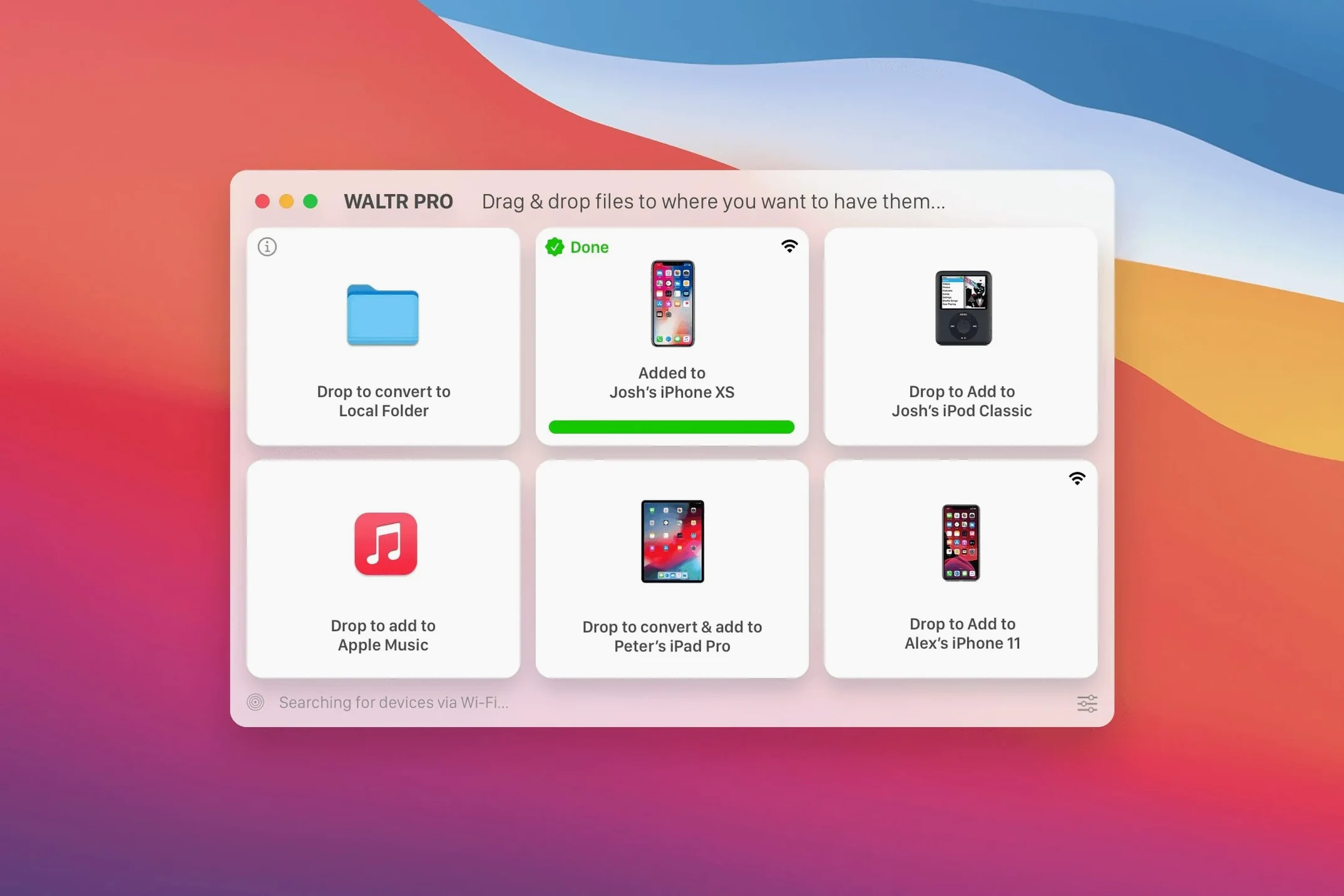
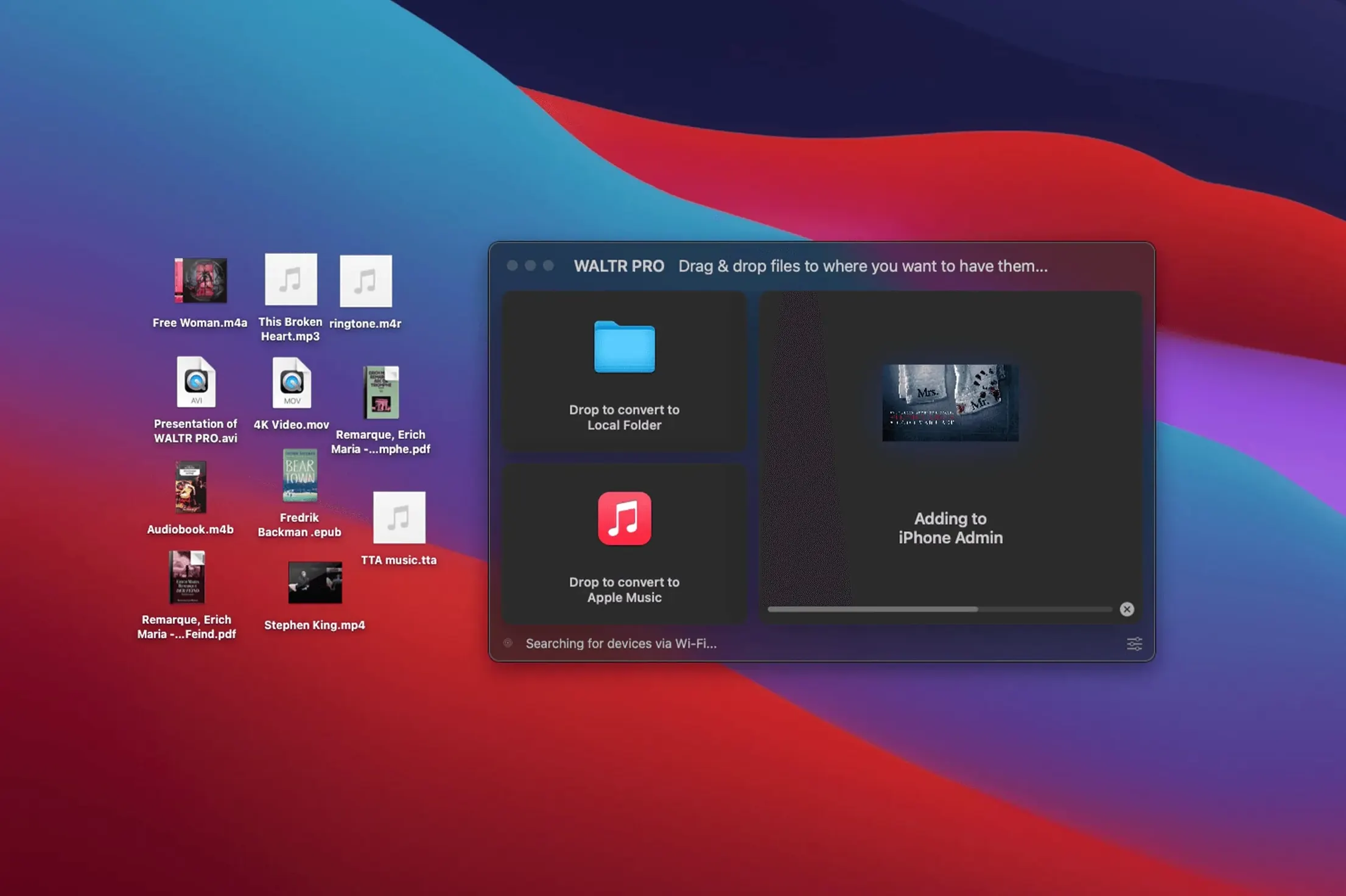
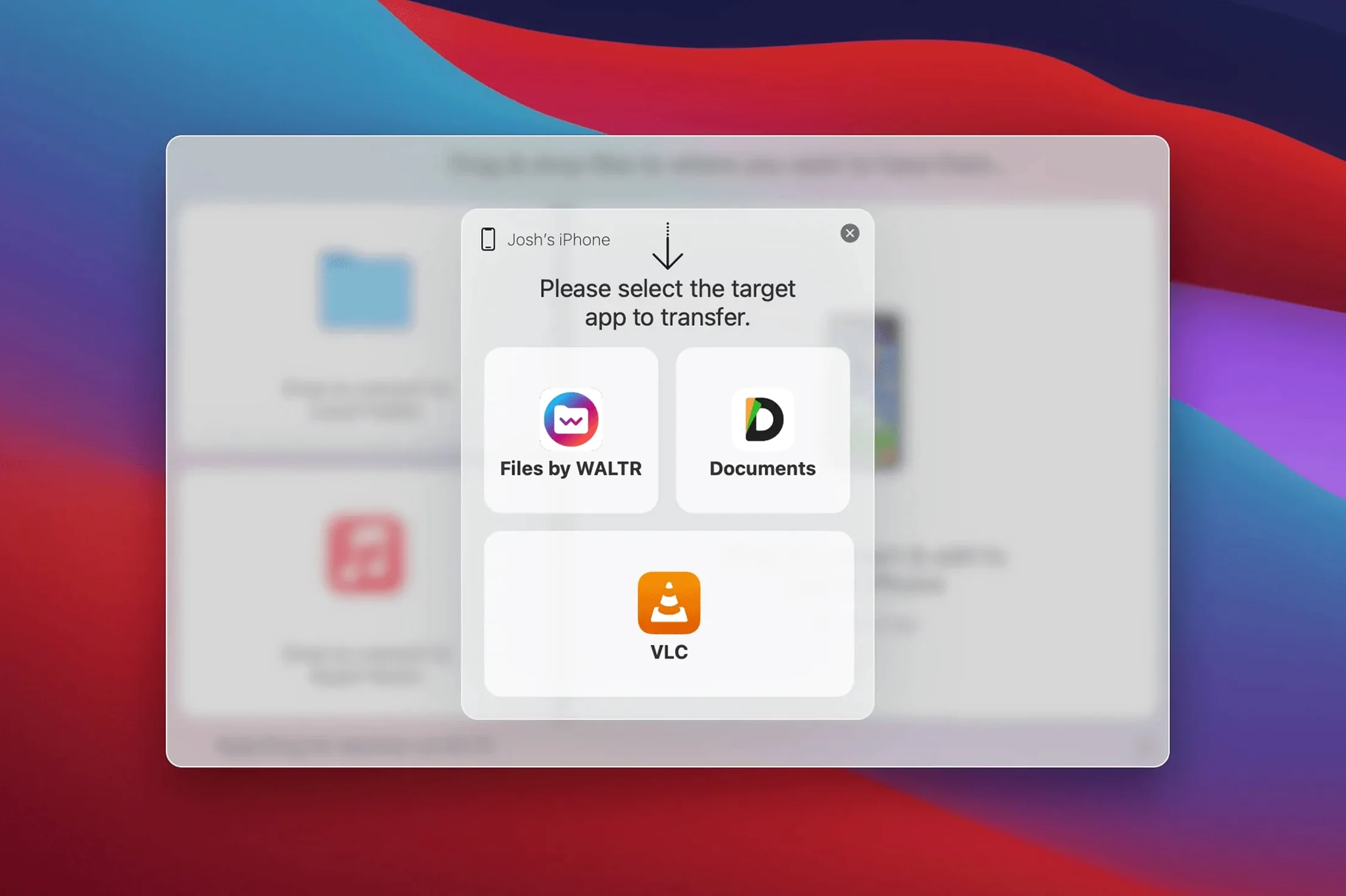
The latest build keeps WALTR PRO quietly in step with Apple’s updates, so the one‑drag transfer still feels like a small piece of magic. Here’s how a typical job plays out.
What actually happens when you drop an MKV onto the drop zone?
WALTR PRO reads the container, pulls out the video and audio streams, then rewraps them in an iOS‑friendly format right in memory — no intermediate files land on your desktop. The converted copy shoots over USB or Wi‑Fi and appears inside the stock TV app, ready to play as if it had always belonged there.
Why does my FLAC album show up in the Music app with artwork?
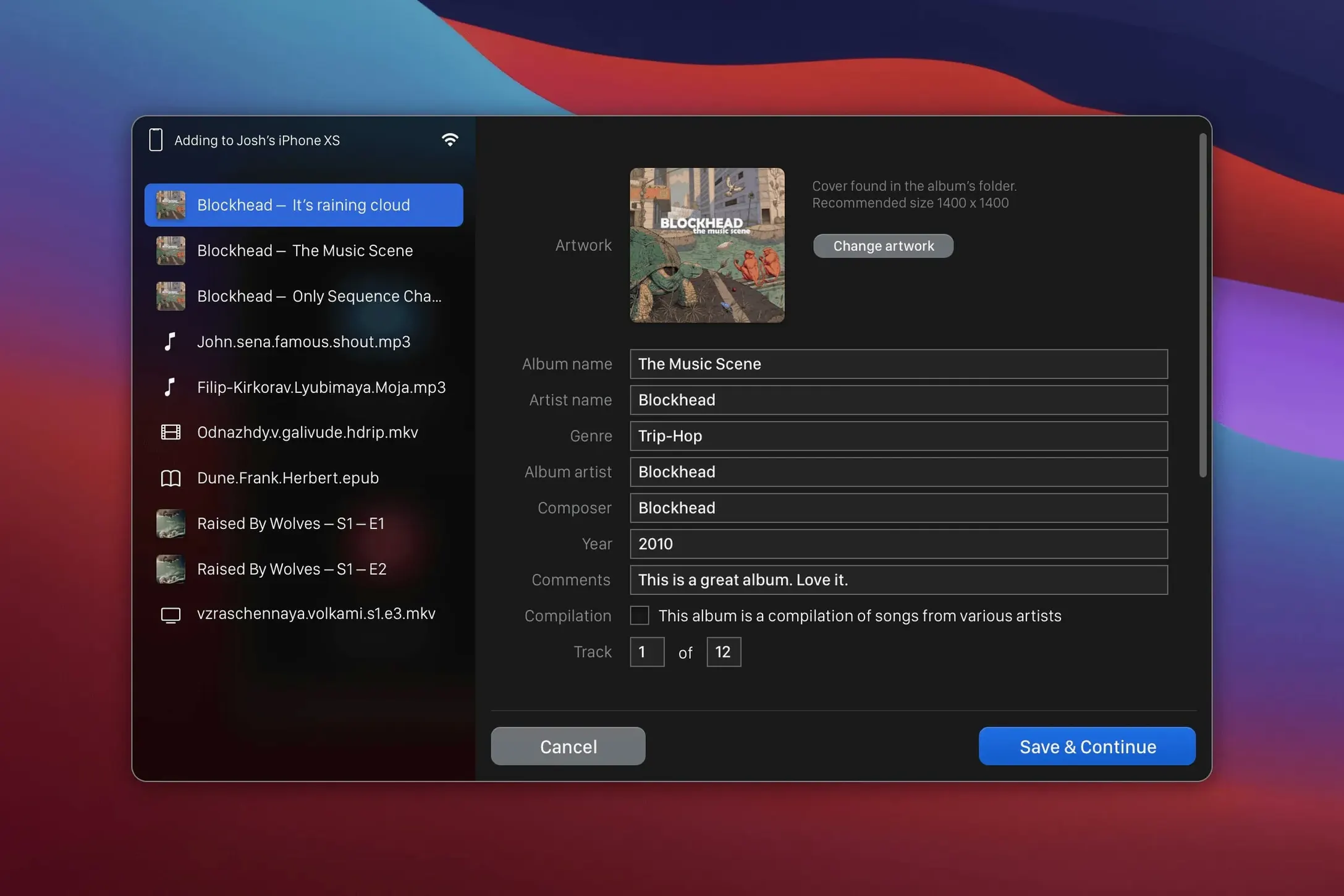
During transfer the app fetches high‑resolution cover art and song metadata automatically. A folder of FLAC files lands as a proper album with track numbers and artist names because Softorino’s recognition engine fills in the gaps iOS normally ignores for lossless codecs.
Can I send a CUE sheet alongside a single audio file?
Yes — drop the CUE file and its matching audio together. WALTR PRO reads the cue points and splits the long file into individual tracks on the device, so a live recording or DJ mix arrives as separate songs rather than one monolithic block.
Automatic bit‑depth matching keeps your 24‑bit FLAC files intact
WALTR PRO hides a handful of touches that don't announce themselves with buttons or menus. They surface only after you settle into a routine. One is the automatic bit‑depth matching for hi‑res audio — drop a 24‑bit/96 kHz FLAC, and the app preserves the original depth during conversion, so your USB DAC on the iPhone side gets exactly the stream it expects. No down‑sampling to 16‑bit unless the target device genuinely needs it.
Another quiet helper is the clipboard awareness. Copy a video URL from YouTube or Vimeo in your browser, switch to WALTR PRO, and the drop zone lights up. The app recognises the link and fetches the media directly, bypassing the need to save a file locally first. It works for audio links too — a SoundCloud track copied to the clipboard behaves the same way.
If you deal with subtitles, the app reads an .srt file sitting next to the video as long as both share the same filename. Drop the MKV, and the adjacent subtitle file tags along without a separate step. The result lands in the TV app with soft‑coded captions already switched on. Not every container supports it, but for common MKV and MP4 workflows the convenience is real.
A real task, step by step: preparing a classic comedy series for a long flight
Say you own a box set of Fawlty Towers as MKV files, ripped from DVD with multiple audio tracks and a folder of commentary‑only AC3 files. The goal is to put all twelve episodes onto an iPad, with the main soundtrack and the commentary selectable, and make sure nothing disappears into a hidden folder.
The source folder holds twelve MKV files named s01e01.mkv through s02e06.mkv, each containing a stereo AAC track and a second AC3 commentary track. There is also a folder of JPEG scene stills you want as artwork.
- Connect the iPad via USB‑C. Wi‑Fi works, but a cable keeps the speed predictable for a batch this size. WALTR PRO detects the device within seconds and shows its name in the top bar.
- Open the TV Shows tab inside the app. This tells WALTR PRO to tag the files as episodes rather than standalone movies — crucial for keeping the season order intact in the TV app.
- Select all twelve MKV files and the JPEG artwork folder in Finder. Drag them together onto the drop zone. The app reads the season and episode numbers from the filenames automatically, and maps the first JPEG to series artwork.
- Watch the status bar. WALTR PRO processes the video stream once, but notices the dual audio tracks and rewraps the container to preserve both. No transcoding of the commentary track happens unless the codec is unsupported, which saves time.
- Once the transfers complete, open the TV app on the iPad. All twelve episodes appear under one show banner, sorted by season. Tapping the speech‑bubble icon during playback reveals the commentary track as an alternative audio option.
The whole batch takes roughly the length of one episode to transfer over USB, artwork included. The commentary track survives because WALTR PRO treats secondary audio streams as first‑class citizens — a detail many batch converters overlook.
Reworked M4R ringtone handling stops errant imports into Music
Version 4.0.122 is not a headline‑grabber. Softorino focused on tightening the parts that break when Apple moves the furniture. The most noticeable fix for everyday use is the reworked M4R ringtone handling: earlier builds sometimes bumped ringtones into the Music library as orphaned tracks. The current version routes them straight to the Tones section of the iPhone, with the correct duration cap respected.
Apple Silicon Macs benefit from a native arm64 code path that arrived a few point‑releases back, and version 4.0.122 stabilises the memory‑resident conversion for those machines. On an M1 or M2, a 4 GB MKV file now rewraps without the app ever writing a temporary file to disk — the previous Intel‑only path would occasionally spill to /private/tmp when RAM pressure rose. The difference matters on base‑model MacBook Air machines with 8 GB of unified memory.
Wi‑Fi discovery also got a polish. The app now prefers Bonjour over a raw IP scan when locating devices on the local network, which means firewalls and mesh Wi‑Fi setups cause fewer dropouts. If you transfer over Wi‑Fi daily, the reliability bump is the kind you only notice when you realise a week has passed without a failed handshake.
The CUE sheet parser learned to handle UTF‑8 with BOM — a small fix that stops Japanese and Cyrillic track titles from appearing as gibberish in the Music app. Users who manage live concert recordings with international song names will spot the difference immediately.
Switch audio output to “Original” so FLAC stays lossless
The default preferences are sensible, but three adjustments make the app fit a human workflow rather than a demo script.
Toggle output quality from “Automatic” to “Original” for audio. The automatic preset sometimes compresses FLAC to 256 kbps AAC even when the target device supports ALAC natively. Setting it to Original preserves lossless audio bit‑for‑bit, and the iPhone will happily play ALAC files in the Music app. You only need Automatic if storage space is genuinely tight.
Switch the Wi‑Fi transfer mode from “Auto” to “Always Ask.” The auto mode picks USB when a cable is connected and falls back to Wi‑Fi otherwise, which sounds ideal but can surprise you if the cable is loose. Always Ask means you explicitly confirm the route for each batch, and you avoid discovering an hour later that a 20 GB film crawled over a weak 2.4 GHz signal.
Enable “Keep folder structure for music.” This setting is off by default. Turn it on before dropping a nested folder of artist subfolders. Without it, WALTR PRO flattens everything into one album view on the device. With it, the folder hierarchy maps to the iOS file system view inside the Music app, so a jazz collection organised by label stays organised.
One more checkbox hides in the Advanced tab: “Convert AC3/DTS to stereo on incompatible devices.” If you own an older iPod Classic or an iPad that chokes on surround codecs, tick this once and forget about it. The app will downmix on the fly only when the target device reports no surround support, leaving the original multichannel track untouched on newer hardware.
- macOS 10.13 or later
- 64‑bit Intel processor (also runs on Apple silicon via Rosetta 2)
- Works with all iPhones, iPads and iPods, including the original iPod Classic
Questions from the class 0
Sign in or join the class to ask a question.
Nobody has asked anything yet. If you have used it on a real job, say what the file did.
Also on the Mac Apps shelf
The whole Mac Apps shelf WebStorm
Gives you a responsive desktop environment that deeply understands your JavaScript and TypeScript.
WebStorm
Gives you a responsive desktop environment that deeply understands your JavaScript and TypeScript.
 Widgetter System Stats Widgets
Pins live readouts of processor load, memory pressure, and disk activity onto your desktop.
Widgetter System Stats Widgets
Pins live readouts of processor load, memory pressure, and disk activity onto your desktop.
 WidgetWall
Places over twenty mini-apps, from a Pomodoro timer to a TikTok viewer, directly on your desktop.
WidgetWall
Places over twenty mini-apps, from a Pomodoro timer to a TikTok viewer, directly on your desktop.
 Winclone Pro
Packages a Boot Camp Windows installation into an image and restores it onto a new Mac.
Winclone Pro
Packages a Boot Camp Windows installation into an image and restores it onto a new Mac.
 WinZip Mac Pro
Lets you right-click a messy folder and find every duplicate, archive, and file to tidy up.
WinZip Mac Pro
Lets you right-click a messy folder and find every duplicate, archive, and file to tidy up.
 VMware Fusion Pro
Runs Windows and Linux virtual machines directly on your Mac desktop.
VMware Fusion Pro
Runs Windows and Linux virtual machines directly on your Mac desktop.
 Wipr
Makes cookie banners and popups vanish without a single settings toggle.
Wipr
Makes cookie banners and popups vanish without a single settings toggle.
 ViWizard Spotify Music Converter
Saves your Spotify tracks as clean local audio files for offline listening.
ViWizard Spotify Music Converter
Saves your Spotify tracks as clean local audio files for offline listening.