 ASPNetWorld

The 26H1 update for VMware Fusion Pro quietly expanded its Linux guest list — Ubuntu 26.04 LTS, Fedora 43 and 44, and openSUSE 16.0 are all now officially supported, alongside the ability to connect remotely to ARM-based ESX hosts. It is the sort of update that keeps the hypervisor feeling current without reinventing the wheel.
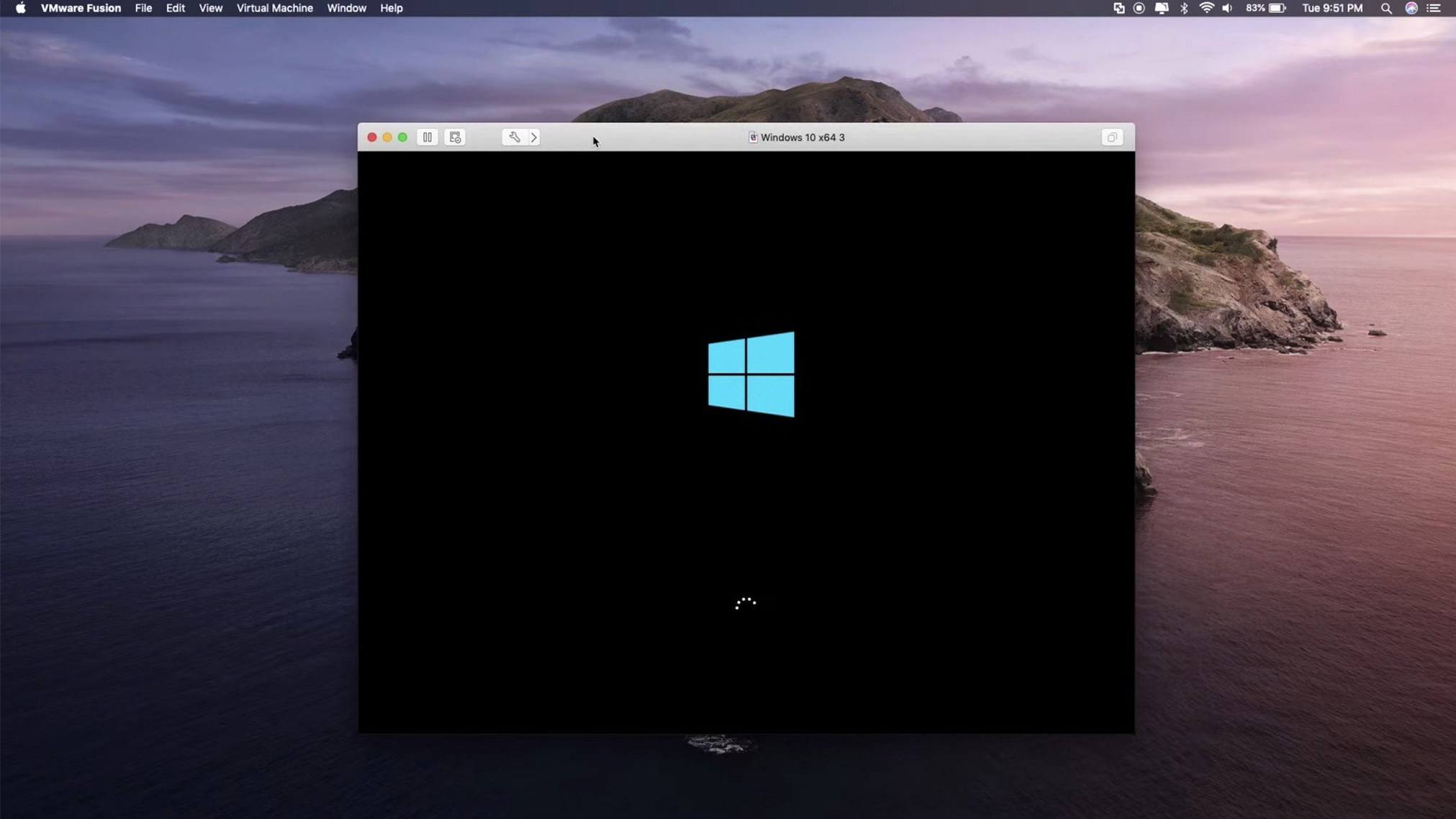
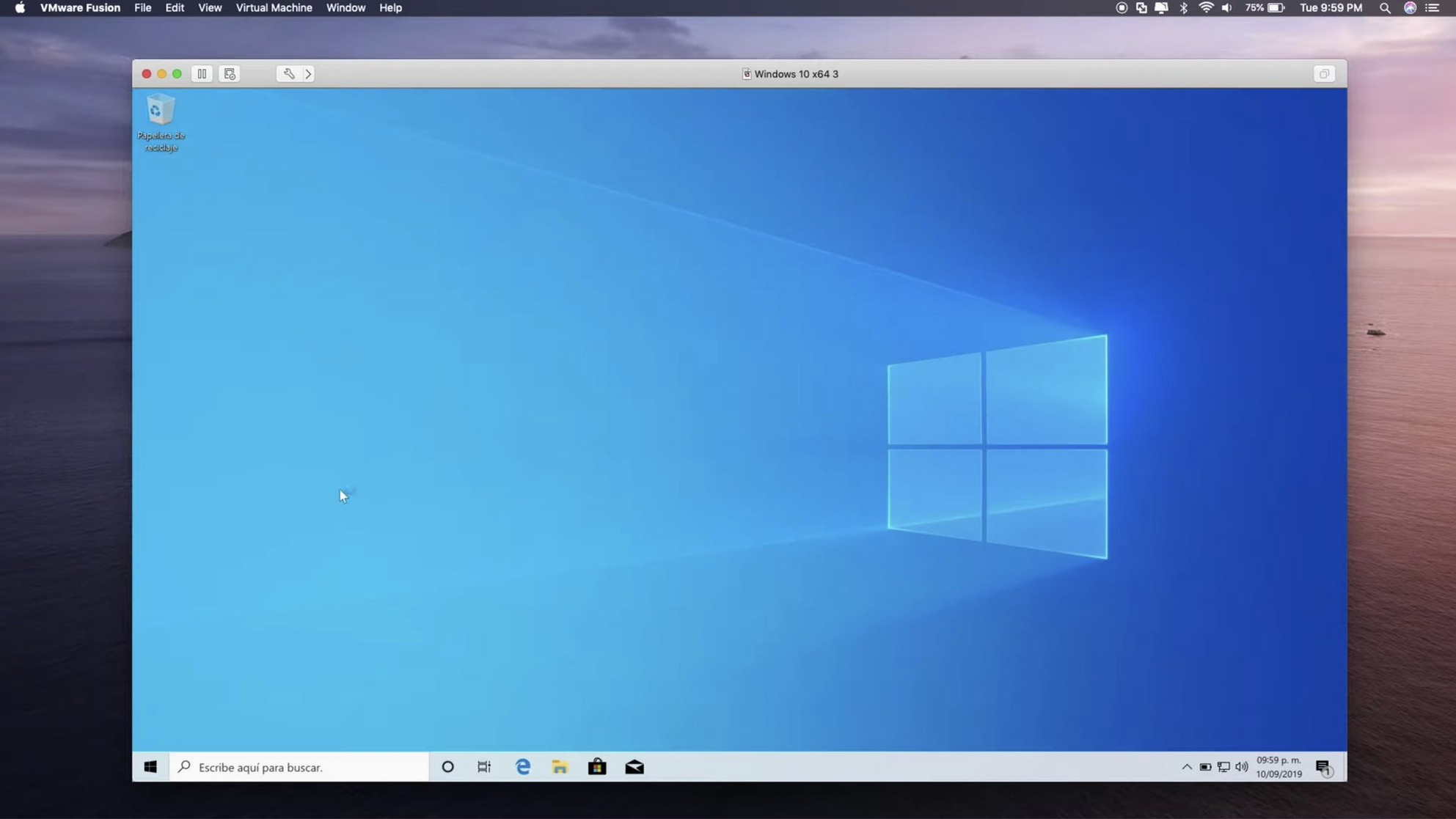
Take a common job: getting Windows 11 running on an M-series Mac so you can test a legacy accounting package your firm still relies on. After creating a new virtual machine, Fusion fetches the Windows 11 for ARM installer straight from Microsoft — no hunting for disk images. During setup, you tick a box to enable DirectX 11 hardware acceleration; a small checkbox that means the application renders its dated but functional graphs smoothly instead of stuttering. A shared folder pointing at the Mac’s Documents directory appears as a network drive inside Windows, so the exported reports land back in macOS without a USB stick in sight.
On the hardware side, Fusion recognises eGPU devices if you have one connected, which can give the Windows environment an extra shove for GPU-bound tasks. The new VM timestamps in the library — creation date and last power-on — are a small quality-of-life addition that helps when you manage half a dozen test environments and need to know which one you built last Tuesday.
The setup feels considered rather than fussy. Once the virtual machine is running, you can swipe between macOS and Windows with a three-finger trackpad gesture, and copy and paste flows in both directions. It is the kind of integration that makes you forget you are running two operating systems on the same screen.
How VMware Fusion Pro fits into the wider Mac ecosystem
Virtualisation does not sit in a bubble, and Fusion Pro has always understood that. Drop a file onto a Windows virtual machine from the Finder, and it lands on the guest desktop as if you had just copied it between two folders. The Mac clipboard and the Windows clipboard are a single shared space — copy a URL in Safari, paste it into Edge inside the VM, and nothing gets lost in translation. That level of integration extends to printers too. A USB label printer plugged into the Mac just appears inside Windows once you tick the Connect to virtual machine option in the Fusion toolbar, no driver dance required.
For developers who live in Terminal, Fusion Pro plays nicely with the Mac shell. The command-line interface supports OCI containers directly, so you can pull and run container images without booting a full Linux desktop. vmrun, the command-line utility that ships with Fusion, lets you start, stop, and snapshot virtual machines from a shell script — handy when a continuous-integration pipeline needs a clean Windows environment spun up, tested, and torn down at three in the morning. On the networking front, Fusion’s virtual network adapters show up in macOS System Settings under Network, which means you can apply Little Snitch rules or firewall profiles to VM traffic just as you would for any local service.
Spotlight does not index inside guests, but shared folders do appear in the macOS file system, so anything a VM writes to \\vmware-host\Shared Folders becomes searchable on the Mac side. And if you use Time Machine, a gentle reminder: exclude the virtual machine bundle from backups unless you enjoy watching a multi-gigabyte file change every time the guest sneezes. The checkbox is right there in Time Machine’s options panel.
What changed in everyday use with recent releases
The 26H1 build added timestamps for virtual machine creation and last power-on time — a detail that seems minor until you run eight VMs for testing different Windows builds and need to identify the one you snapshotted before a particular service pack. The timestamps sit in the virtual machine library, visible at a glance, no need to dig through file modification dates in the Finder.
Remote connectivity got a quiet but practical boost. Fusion Pro can now connect to ARM-based ESX hosts, which matters for anyone who manages a mixed server fleet. You can pull down a virtual machine from an ARM ESX host, run it locally on an Apple Silicon Mac, tweak configuration, and push it back — all without architecture mismatches causing boot failures. For Linux users, the guest operating system support list grew to include Ubuntu 26.04 LTS, Fedora 43, Fedora 44, SUSE Linux Enterprise 16, openSUSE 16.0, and FreeBSD 15.0. That is less a headline feature and more a sign that VMware is keeping pace with distribution release cadences, so you are not left building custom kernel modules to get a fresh Linux install to boot cleanly.
USB 3.1 device support has been quietly solid for a while, and the eGPU recognition means an external Radeon enclosure can accelerate Windows graphics workloads without the Mac needing to claim the GPU for itself first. In practice, that translates to smoother viewport performance in CAD applications running inside a VM — not native speed, but close enough that you stop checking whether hardware acceleration is actually on.
Small conveniences and shortcuts you might walk past
Fusion Pro tucks a lot of utility behind keyboard shortcuts and right-clicks. A few worth committing to muscle memory:
Hold the Option key while clicking the Fusion window’s green traffic-light button, and the virtual machine snaps to a size that matches common Windows screen resolutions — 1920 by 1080, for instance — instead of filling the Mac display at a fractional scaling factor that makes text look soft. This alone fixes most “Windows looks blurry” complaints without touching display settings inside the guest.
The virtual machine library supports drag-and-drop reordering. Grab a VM thumbnail and drop it onto another to create a folder, then name the folder after a project or client. When the list grows long, type-to-select works: hit a letter key, and Fusion jumps to the first VM whose name starts with that letter — faster than scrolling through twenty entries.
Inside a running VM, Ctrl+Command+F toggles full-screen mode, but the hidden gem is Command+Shift+U, which cycles through Unity view options. Unity mode pulls individual Windows application windows out of the guest desktop and puts them directly on the Mac desktop, each with its own Dock icon. The accounting package from the earlier scenario sits in its own window alongside Mail and Xcode, and you can Command-Tab to it like any other Mac app. It is not perfect — dialogue boxes sometimes appear in slightly odd positions — but for one or two critical Windows applications, it erases the mental context switch of “I am now inside a virtual machine.”
Snapshots, reached through the Virtual Machine > Snapshots menu, are the safety net most people forget they have. Before installing a dodgy printer driver or testing a registry tweak, take a snapshot. If the guest bluescreens, roll back in seconds. The snapshot manager shows a tree of states, so you can branch off, try two different configurations, and merge back later. Fusion Pro does not impose a snapshot limit, though each one eats disk space equal to the delta since the last snapshot.
How it compares with similar Mac virtualisation tools
The Mac virtualisation landscape has three main players worth comparing, each with a different personality.
Parallels Desktop takes the polished, consumer-focused route. Its Coherence mode — the equivalent of Fusion’s Unity — is arguably slicker, and the setup wizard holds your hand more tightly. Parallels tends to adopt new macOS features faster, like Touch Bar support when that was a thing. Where Fusion Pro pulls ahead is in enterprise-oriented features: deeper ESX integration, the vmrun CLI for automation, and a less pushy upgrade cycle. If you manage virtual machines across a data centre and a MacBook, Fusion Pro speaks the same management language as vSphere, which Parallels does not.
UTM is the open-source contender, built on QEMU. It can emulate architectures that neither Fusion nor Parallels touch — x86 Windows on Apple Silicon without relying on Windows for ARM, for example — but the performance penalty is steep. UTM is brilliant for running old PowerPC builds of Mac OS X or experimenting with niche Linux distributions, and it costs nothing. The trade-off is that there is no shared-clipboard integration, no Unity-like mode, and graphics acceleration is limited. UTM feels like a lab bench; Fusion Pro feels like a production tool.
VirtualBox sits somewhere in the middle. It runs on Mac, Windows, and Linux hosts with the same interface, which makes it appealing for cross-platform teams. The extension pack adds USB 3 support and some remote-desktop capabilities. But VirtualBox on Apple Silicon is still a work in progress — performance lags, and guest additions for ARM guests are not always reliable. For Intel Macs, it remains a capable free option. For Apple Silicon Macs doing serious work, Fusion Pro and Parallels are the two realistic choices, and Fusion Pro’s edge is the ESX-to-desktop pipeline and the container tooling.
A workflow from scratch: testing a web application across browsers
Suppose you are building a web application and need to verify it works on Edge, Chrome, and Firefox under Windows — but your development machine is an Apple Silicon MacBook Pro. Here is one way Fusion Pro turns that into a repeatable process.
Start by creating a new virtual machine. Fusion recognises you are on Apple Silicon and offers the Windows 11 for ARM installer download. Let it fetch and install; while that runs, create a shared folder pointing at your project’s local Git repository. When Windows boots, install the VMware Tools package that Fusion prompts you for — this brings the shared clipboard, drag-and-drop, and display driver into the guest. Install Edge, Chrome, and Firefox. Take a snapshot and name it Clean browsers.
Open the shared folder from Windows Explorer. It appears as a network drive; your project files are there, live, no copying needed. Fire up each browser and run through the test cases — responsive breakpoints, form validation, WebSocket behaviour. Cross-browser bugs surface; you fix them in VS Code on the Mac side, switch back to the VM, and refresh. The shared-folder setup means there is no “copy the build across” step, so the feedback loop stays tight.
When the bugs are squashed, take another snapshot — Tested on Edge/Chrome/Firefox — and shut down the VM. The two snapshots sit in the library, with timestamps that show exactly when the environment was clean and when testing completed. Next sprint, you can roll back to Clean browsers, update the browsers, snapshot again, and start fresh. The whole setup from blank VM to testing took under fifteen minutes, and the snapshot chain means you never have to rebuild the environment from scratch.
The 26H1 release rounds out guest OS support and adds a few workflow refinements.
- Guest OS support added for Ubuntu 26.04 LTS, Fedora 43, Fedora 44, SUSE Linux Enterprise 16, openSUSE 16.0, and FreeBSD 15.0.
- New timestamps in the virtual machine library show creation date and last power-on time.
- Remote connections to ARM-based ESX hosts are now supported.
- macOS 13 or later
- Intel 64-bit or Apple Silicon Mac
Questions I keep hearing
Does VMware Fusion Pro 26H1 work on both Intel and Apple Silicon Macs?
Yes, it supports both Intel 64-bit and Apple Silicon Macs, with the 26H1 release adding remote connections to ARM-based ESX hosts as well.
Questions from the class 0
Sign in or join the class to ask a question.
Nobody has asked anything yet. If you have used it on a real job, say what the file did.
Also on the Mac Apps shelf
The whole Mac Apps shelf ViWizard Spotify Music Converter
Saves your Spotify tracks as clean local audio files for offline listening.
ViWizard Spotify Music Converter
Saves your Spotify tracks as clean local audio files for offline listening.
 Vivid
Unlocks a second brightness ceiling your MacBook screen can already reach.
Vivid
Unlocks a second brightness ceiling your MacBook screen can already reach.
 VideoProc Converter
Converts, compresses, trims, and records video with hardware-accelerated speed.
VideoProc Converter
Converts, compresses, trims, and records video with hardware-accelerated speed.
 VideoProc Converter AI
Bundles video conversion, AI upscaling, compression, and downloading into one toolkit.
VideoProc Converter AI
Bundles video conversion, AI upscaling, compression, and downloading into one toolkit.
 VideoByte BD-DVD Ripper
Copies your discs into watchable files for phones, tablets, and media servers.
VideoByte BD-DVD Ripper
Copies your discs into watchable files for phones, tablets, and media servers.
 WALTR PRO
Converts and transfers any media file onto your iPhone or iPad with a single drag.
WALTR PRO
Converts and transfers any media file onto your iPhone or iPad with a single drag.
 WebStorm
Gives you a responsive desktop environment that deeply understands your JavaScript and TypeScript.
WebStorm
Gives you a responsive desktop environment that deeply understands your JavaScript and TypeScript.
 Vector Magic
Converts bitmap images into clean vector graphics you can scale forever.
Vector Magic
Converts bitmap images into clean vector graphics you can scale forever.