 ASPNetWorld

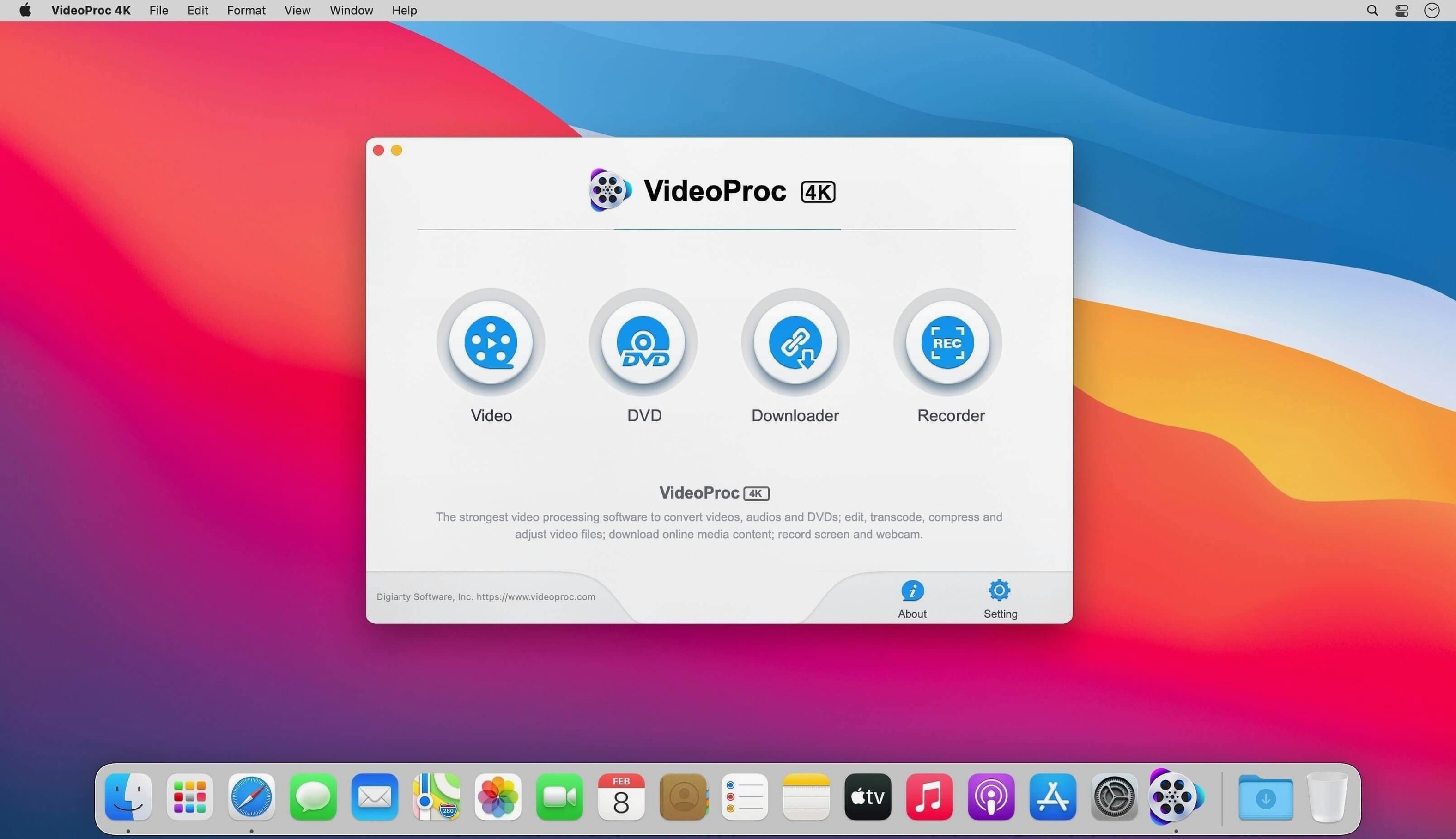
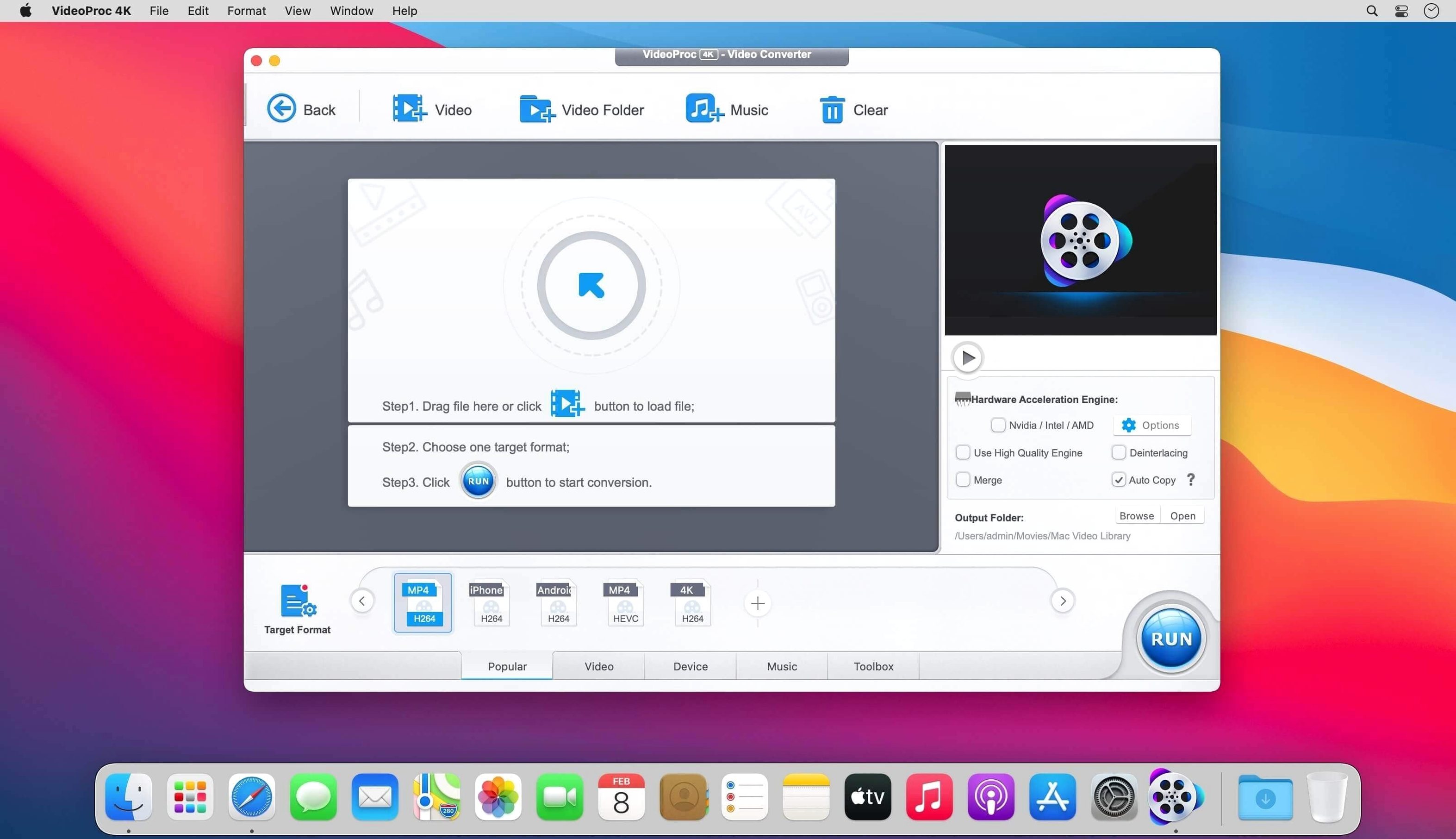
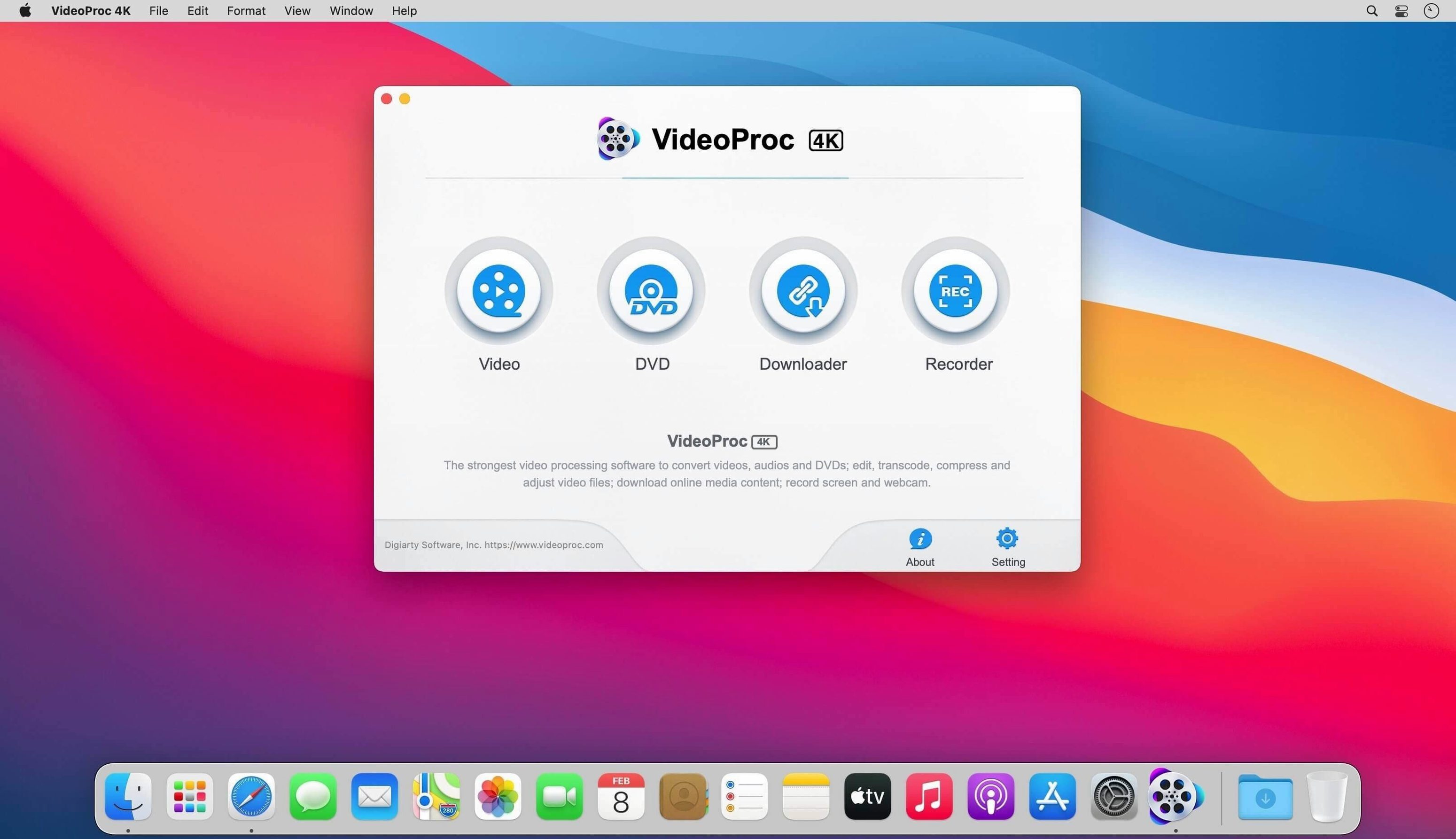
VideoProc Converter is a macOS application that handles conversion, compression, basic editing and screen recording — essentially a Swiss Army knife for video files.
Batch converts, compresses, trims, and downloads with hardware acceleration
- Converting video between a wide range of formats, with hardware acceleration to keep things moving.
- Trimming and cropping clips without needing a separate editor.
- Compressing large video files down to a more manageable size.
- Batch downloading video, audio and playlists from UHD and HD sources.
- Screen recording directly within the app.
Intel 64-bit build with AI features locked to macOS 10.15 or newer
- The Mac build is 64-bit Intel.
- AI features require macOS 10.15; classic features need 10.13 or later.
- The app runs on Mac OS X 10.10 and above.
A finished conversion produces a file that won't play back
Even a well-optimised app throws the occasional curveball. Most issues I see in class fall into a handful of familiar patterns, and the fixes are usually straightforward once you know where to look.
The conversion finishes but the file won't open. Nine times out of ten the output container doesn't match the codec inside it. An MP4 wrapper holding a MKV-only audio stream will confuse QuickTime completely. The cure is to double-check the output profile rather than just the file extension — open the target format drop-down and pick something your playback software actually supports. For quick previews on a Mac, H.264 video with AAC audio inside an MP4 container is the safest bet.
Hardware acceleration is greyed out. The app leans heavily on Intel Quick Sync for its speed boost, so if you're running an older AMD graphics Mac or a machine where the iGPU is disabled, the option won't light up. There's no magic workaround; the software path still works, just slower. On a Mac mini with an eGPU, try connecting the display directly to the Mac's own HDMI port rather than the enclosure — that sometimes brings the Intel iGPU back into play.
Batch downloads stall halfway through. VideoProc Converter can grab entire playlists, but some streaming services throttle aggressively after a dozen or so consecutive requests. Pausing the queue for thirty seconds, then resuming, often resets the server's patience. If a single file keeps failing, strip it from the queue and add it again as a fresh task — the app will renegotiate the connection from scratch.
The screen recorder captures a black window. This is usually a DRM-protected player holding the video surface hostage. Browsers that use hardware-accelerated rendering are particularly stubborn. Switching the browser's graphics acceleration off in its own settings, or recording the full desktop instead of a specific window, tends to bypass the lock.
Long batch encodes stopped dropping frames on Intel Macs
Version 6.6 brought a handful of refinements that affect real workflows more than the headline feature list suggests. The most noticeable, at least on the Intel Macs I maintain, is stability during long batch encodes. Earlier builds would occasionally drop a frame or stall after two hours of continuous work; the current build handles marathon sessions without complaint.
The AI modules — Super Resolution, Frame Interpolation, and the Image AI block — now settle into their own clearly marked panel. Frame Interpolation in particular has moved from an experimental tick-box to something you can genuinely use to smooth out old 24p footage without making it look like cheap soap-opera video. The processing time hasn't changed dramatically, but the motion estimation feels less prone to warping around fast-moving edges.
Under the bonnet, the codec library crept past 370 supported formats, and several AV1 and VP9 profiles received updated presets. That matters most if you regularly pull UHD video from newer streaming sources that have shifted to those codecs for bandwidth efficiency. The preset tweaks mean fewer manual bitrate adjustments to stop the file ballooning.
One small but welcome change: the queue panel now remembers its column widths across restarts, so you're not constantly dragging the filename column wider every time you launch the app.
Test-drive presets with a 30-second phone clip before tackling a feature film
Before you throw a two-hour film at it, warm up with something small. Drop a thirty-second clip shot on your phone into the main window and run it through three or four output presets — say, HEVC at 1080p, H.264 at 720p, and a ProRes 422 for comparison. That ten-minute exercise teaches you more about the app's speed on your particular hardware than any benchmark chart will.
Set your scratch disk early. VideoProc Converter writes temporary files during encoding, and by default it uses the system drive. If your Mac has a small internal SSD, point the temp folder at an external drive with decent write speeds. The setting lives in Preferences under the Processing tab, and it saves a surprising amount of wear on your boot drive over time.
Build a preset library as you go. The app ships with sensible defaults, but every workflow has its quirks. Once you find a combination of codec, resolution, bitrate and audio settings that works for your camera's footage, save it as a custom profile. Name it descriptively — "DJI Pocket 3 4K for Plex" is far more useful six weeks later than "Custom Profile 2".
When you install the videoproc converter mac build, grant it access to the Microphone and Screen Recording permissions in System Settings straight away, even if you don't plan to record immediately. The screen recorder module needs those permissions authorised before it will function, and the app won't always prompt you gracefully if you skip the dialogue.
The projected file size fools you because high-motion scenes spike the bitrate
Trusting the estimated file size blindly. The app gives a projected output size before encoding, but that number assumes constant bitrate throughout the entire clip. A scene with lots of motion — water, confetti, a busy street — will push the actual size higher with variable bitrate encoders. Beginners often set a target bitrate based on that estimate, then wonder why the file came out larger. Always give yourself a twenty-percent buffer on the bitrate calculation if precise file size matters.
Converting already-compressed footage without checking the source. Taking an H.264 clip from a GoPro and re-encoding it to H.264 with slightly different settings introduces a generation of loss for no real gain. The app's trimming and cropping tools work without re-encoding on some formats, and that's almost always the better path. Look for the "Copy" options in the video codec drop-down — if they're available for your source, use them.
Ignoring the audio track mapping. When converting MKV files with multiple audio streams, the first track gets selected automatically and the rest get dropped. Subtitled anime or concert recordings with commentary tracks are classic casualties. Before hitting Run, expand the audio section and confirm which stream you're actually carrying over. Adding a second audio track costs little in file size and saves a re-encode later.
Running multiple AI tasks simultaneously. Super Resolution and Frame Interpolation are genuinely demanding, even with hardware acceleration. Queuing six AI-upscaled videos at once on an Intel Mac will bring everything to a crawl. Feed them through one at a time, or at most two if you're stepping away from the machine for the afternoon.
- macOS 10.10 or later
- Intel processor
Questions I keep hearing
Which macOS versions does VideoProc Converter support?
Classic features work on macOS 10.13 and later, while the AI capabilities require macOS 10.15 or above. The application can also run on Mac OS X 10.10.
Can VideoProc Converter download whole playlists?
Yes, the batch downloader supports UHD and HD video, audio, and playlists.
Questions from the class 0
Sign in or join the class to ask a question.
Nobody has asked anything yet. If you have used it on a real job, say what the file did.
Also on the Mac Apps shelf
The whole Mac Apps shelf VideoProc Converter AI
Bundles video conversion, AI upscaling, compression, and downloading into one toolkit.
VideoProc Converter AI
Bundles video conversion, AI upscaling, compression, and downloading into one toolkit.
 Vivid
Unlocks a second brightness ceiling your MacBook screen can already reach.
Vivid
Unlocks a second brightness ceiling your MacBook screen can already reach.
 ViWizard Spotify Music Converter
Saves your Spotify tracks as clean local audio files for offline listening.
ViWizard Spotify Music Converter
Saves your Spotify tracks as clean local audio files for offline listening.
 VideoByte BD-DVD Ripper
Copies your discs into watchable files for phones, tablets, and media servers.
VideoByte BD-DVD Ripper
Copies your discs into watchable files for phones, tablets, and media servers.
 VMware Fusion Pro
Runs Windows and Linux virtual machines directly on your Mac desktop.
VMware Fusion Pro
Runs Windows and Linux virtual machines directly on your Mac desktop.
 Vector Magic
Converts bitmap images into clean vector graphics you can scale forever.
Vector Magic
Converts bitmap images into clean vector graphics you can scale forever.
 WALTR PRO
Converts and transfers any media file onto your iPhone or iPad with a single drag.
WALTR PRO
Converts and transfers any media file onto your iPhone or iPad with a single drag.
 WebStorm
Gives you a responsive desktop environment that deeply understands your JavaScript and TypeScript.
WebStorm
Gives you a responsive desktop environment that deeply understands your JavaScript and TypeScript.