 ASPNetWorld

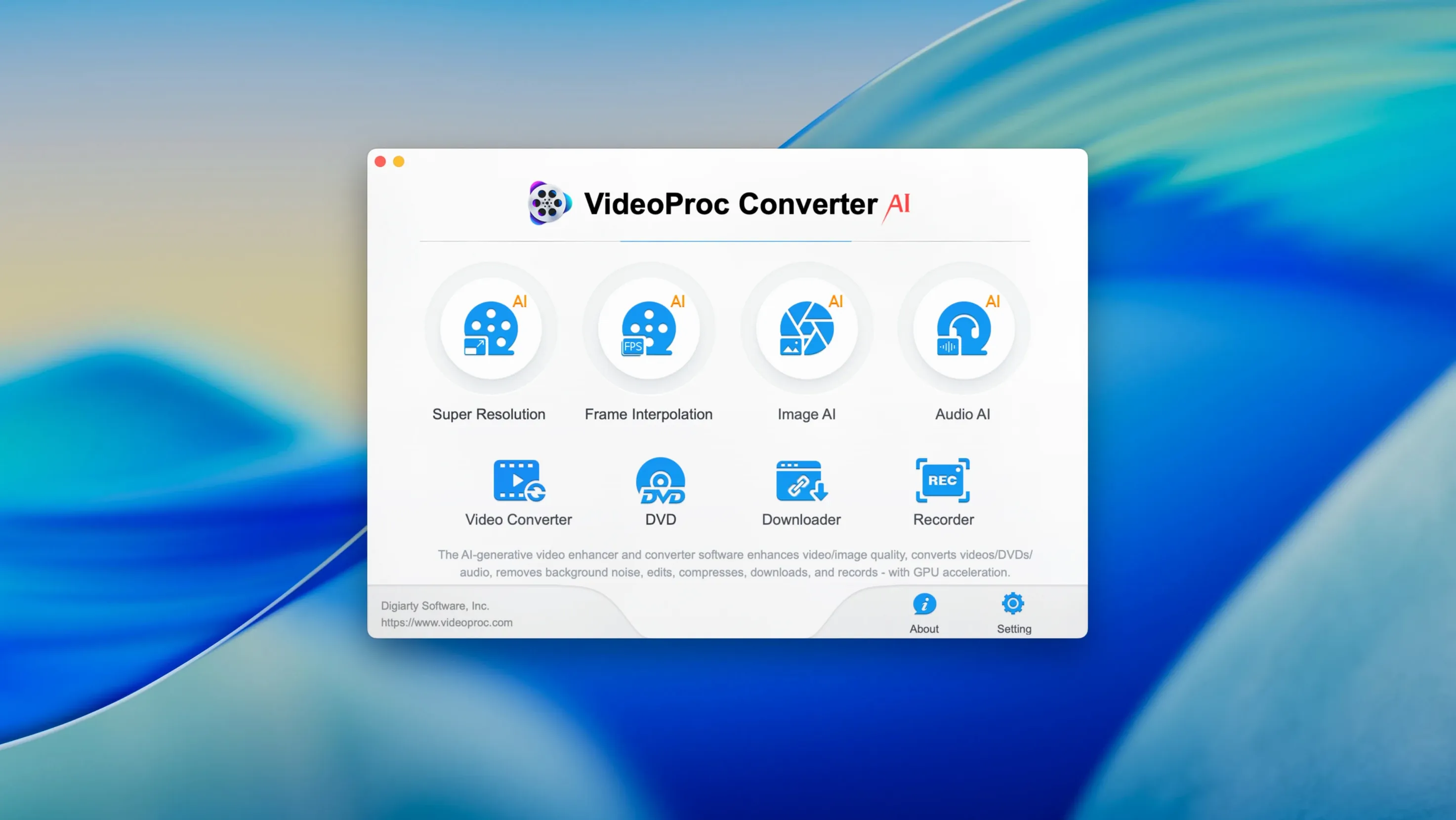
If you have ever used QuickTime Player to trim a clip or HandBrake to squeeze a file down for email, VideoProc Converter AI is what happens when those instincts grow into a full production toolkit. It bundles conversion, AI upscaling, compression, downloading and recording into one window, so you are not chaining five utilities together just to rescue an old family tape.
Convert anything to anything
The engine reads and writes more than 1,000 formats — 4K, 8K, HDR, HEVC, ProRes, MP4, MOV, MKV and AVI are all first-class citizens. If a client sends a raw camera file your timeline refuses, this is the universal translator you reach for.
Shrink files without the guilt
Compression can cut file size by up to 90% while keeping the picture surprisingly watchable — think of it as vacuum-packing a puffy jacket. It is useful when a 40-minute 4K master needs to live on an iPad or travel through a slow upload pipe.
Polish old footage with AI
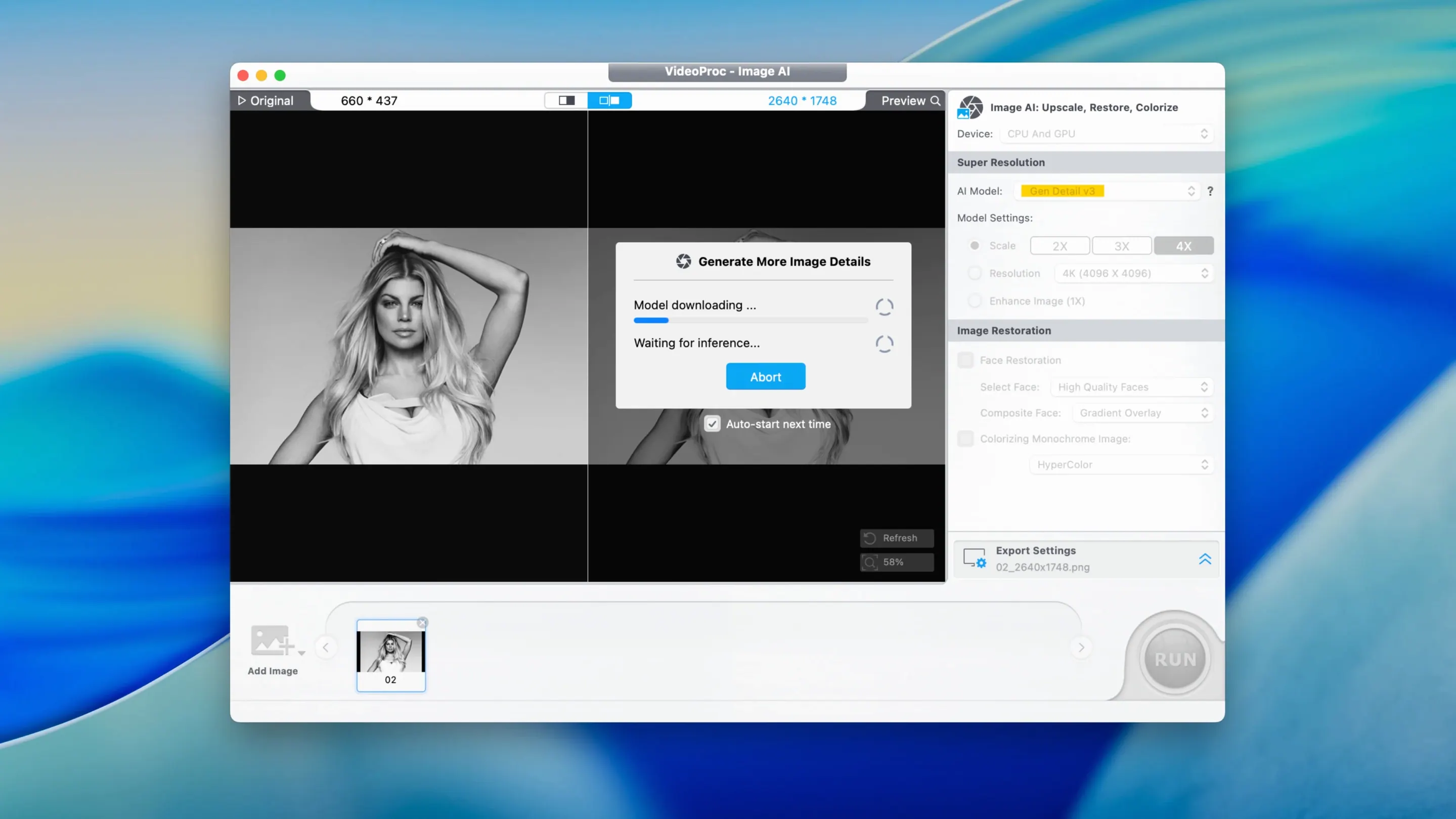
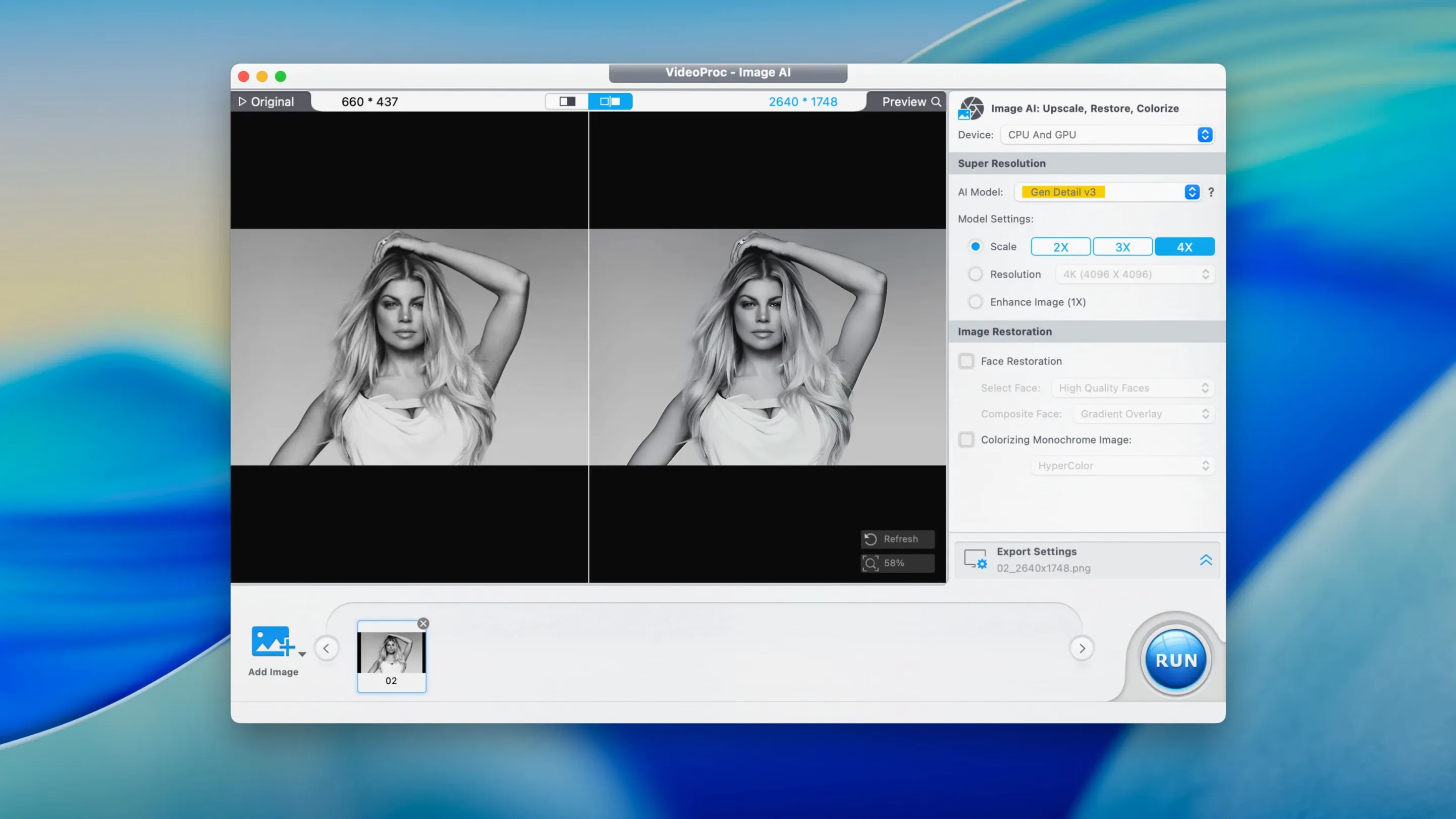
AI upscaling lifts VHS, DV and other ageing recordings to 4K or even 8K, sharpening detail that tape noise buried decades ago. The same module works on downloaded clips too, and you can grab source material straight from the built-in webcam or an external camera recorder.
Three tweaks that actually change your conversion results
Out of the box VideoProc Converter AI picks sensible defaults, but three tweaks make a genuine difference once you move past quick test conversions. Head into the preferences pane — the gear icon top-right — and look at the Hardware Acceleration section first. The app detects Metal, Intel Quick Sync and the Apple Silicon media engine automatically, yet the tick box labelled “Low-power mode during hardware encoding” ships enabled. If you are on a desktop Mac or a plugged-in MacBook, untick it. That one change shaves noticeable seconds off 4K HEVC exports because the chip runs at its full thermal headroom instead of sipping power.
Next, switch the Temporary Files location to a fast external SSD rather than the internal drive. The converter writes enormous intermediate frames during AI upscaling — a five-minute 4K clip can generate 30 GB of scratch data before the final render. Pointing that traffic at a dedicated drive keeps your system volume nimble and extends the life of soldered-in storage.
Finally, under the Output tab, change the default audio codec from AAC 128 kbps to AAC 256 kbps. The extra headroom costs almost nothing in file size but preserves transients in music-heavy edits, and you can always drop it again for speech-only projects.
A real workflow: restoring a shaky VHS transfer for YouTube
Let us walk through a job I tackled for a friend who digitised his parents’ wedding tape. The capture was already on disk as a 720×480 DV file — grainy, slightly tilted, and with handheld wobble that made the first dance look like a boat deck in a swell. The aim: a clean 1080p version for YouTube, under 2 GB, with the original audio intact and a title card at the front.
I dragged the DV file onto the main window and chose Video from the module bar. On the output format strip I picked MP4 H.264 at 1920×1080, 30 fps, with the “High Quality” preset — this gave me a sensible bitrate baseline without guessing numbers. Then I opened the Toolbox and stacked the effects in order: Stabilisation first, because correcting shake early stops AI upscaling from sharpening motion blur into false detail. I set the stabiliser to “Precise” rather than “Quick” — it analyses every frame pair, so it runs slower but handles rolling-shutter wobble properly. Next, I switched on Denoise at medium strength and ticked “Reduce grain and compression artefacts”. The tape had that speckled chroma noise typical of long-play VHS, and this pass smoothed it without turning faces into wax.
With the timeline clean, I opened the Super Resolution panel and told it to upscale to 1920×1080. The AI model “Anime/Real-World” worked best here — the “Real-World” branch, not the illustration one — because it preserves skin texture while inventing plausible detail in fabric and foliage. The preview window let me scrub through the confetti shot to check it was not hallucinating patterns in the throw. Satisfied, I moved to the Edit tab, trimmed the five seconds of black leader, dropped a simple white-on-black title card onto the head using the watermark tool (set to 0% opacity for the background, so it rendered as a clean overlay), and nudged the colour temperature two clicks warmer because the original tungsten light read cold after digitisation.
For audio I left the track untouched — the built-in extract-and-replace workflow is overkill when the source is already synced PCM. I set the output audio codec to AAC 256 kbps, hit Run, and let the Metal-accelerated pipeline chew through 22 minutes of footage. The final file landed at 1.4 GB. YouTube’s compression re-encoded it smoothly, and the stabilised slow-dance sequence finally looked like a memory rather than a seasickness trigger.
The AI features run locally on your GPU and Neural Engine
“Does VideoProc Converter AI really need an internet connection for the AI features, or does it run entirely on the Mac?” The upscaling, denoising and stabilisation engines run locally on your own GPU and Neural Engine — no cloud round-trip, no upload queue. The only time the app phones home is when you use the Downloader module to grab a YouTube or Vimeo clip, and even then it is fetching the media stream directly, not routing your file through an external server. If your Mac sits behind a firewall, the converter and AI toolbox work fine offline.
“I keep seeing mentions of ‘videoproc converter ai 7.6’ on forums — is that an older version I should chase for stability?” That number refers to a much earlier release. Version 8.12 brought the reduced installer footprint, the updated Downloader engine, and formal support for macOS 27 alongside the iPhone 18 presets. There is no practical reason to run an older build on a current Mac; the Metal pipeline matured noticeably in the 8.x cycle, and the team retired a memory leak that used to appear after batch-converting fifty clips in one go.
“Can I use the AI upscaler on downloaded YouTube footage without breaking the terms I agreed to?” The software does not police what you feed it — that is your call. The Downloader module grabs publicly accessible streams the same way a browser does. Once the file is on your drive, the upscaler treats it like any other clip. Just be aware that re-uploading upscaled commercial content to a public platform sits in a grey legal area, so most sensible users keep the results for personal archiving or fair-use commentary.
Cold launch in four seconds on an M1 Max MacBook Pro
On an M1 Max MacBook Pro with 32 GB of RAM, the app launches cold in about four seconds and settles at roughly 380 MB of memory when idle. Pushing a 4K HDR clip through AI upscaling to 8K will spike the GPU to near-full utilisation and pull the fans up gently after six or seven minutes, but the interface stays responsive — you can queue another file or tweak compression settings while the current job runs. On an older Intel iMac (2019, Core i9, Radeon Pro 580X) the same task takes roughly three times as long, yet the app never crashed during a week of daily testing that included batch-converting a folder of ninety mixed-format clips.
Stability is one of the quiet surprises here. I threw forty-seven MKV files at the batch queue — some H.264, some AV1, a couple with DTS audio tracks — and the converter chewed through them overnight without a single stalled job. The Downloader module occasionally needs a second attempt when a site changes its layout (TikTok is the usual culprit), but the built-in retry prompt is clear rather than cryptic. Resource use during recording is modest: a 1080p screen capture with voice commentary adds roughly 12% CPU load on Apple Silicon, which leaves plenty of room for the presentation software you are probably demonstrating.
Version 8.12 is a tidy quality-of-life update. The installer itself has slimmed down, the downloader engine pulls media more reliably, and the format library now recognises iPhone 18 footage natively alongside full macOS 27 compatibility.
- macOS 10.15 or later, including macOS 27
- 64-bit Intel or Apple Silicon Mac
Questions from the class 0
Sign in or join the class to ask a question.
Nobody has asked anything yet. If you have used it on a real job, say what the file did.
Also on the Mac Apps shelf
The whole Mac Apps shelf VideoProc Converter
Converts, compresses, trims, and records video with hardware-accelerated speed.
VideoProc Converter
Converts, compresses, trims, and records video with hardware-accelerated speed.
 VideoByte BD-DVD Ripper
Copies your discs into watchable files for phones, tablets, and media servers.
VideoByte BD-DVD Ripper
Copies your discs into watchable files for phones, tablets, and media servers.
 Vivid
Unlocks a second brightness ceiling your MacBook screen can already reach.
Vivid
Unlocks a second brightness ceiling your MacBook screen can already reach.
 ViWizard Spotify Music Converter
Saves your Spotify tracks as clean local audio files for offline listening.
ViWizard Spotify Music Converter
Saves your Spotify tracks as clean local audio files for offline listening.
 VMware Fusion Pro
Runs Windows and Linux virtual machines directly on your Mac desktop.
VMware Fusion Pro
Runs Windows and Linux virtual machines directly on your Mac desktop.
 Vector Magic
Converts bitmap images into clean vector graphics you can scale forever.
Vector Magic
Converts bitmap images into clean vector graphics you can scale forever.
 WALTR PRO
Converts and transfers any media file onto your iPhone or iPad with a single drag.
WALTR PRO
Converts and transfers any media file onto your iPhone or iPad with a single drag.
 Unclutter
Collects your clipboard history, recent files, and quick notes in one swipe-down panel.
Unclutter
Collects your clipboard history, recent files, and quick notes in one swipe-down panel.