 ASPNetWorld

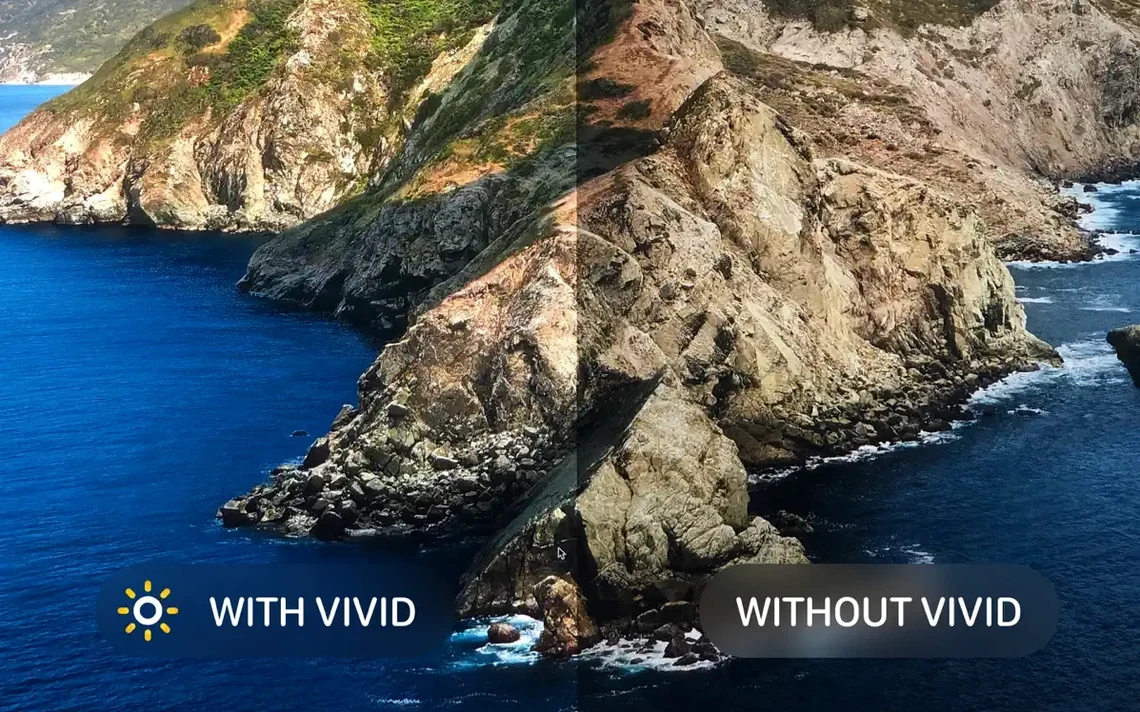
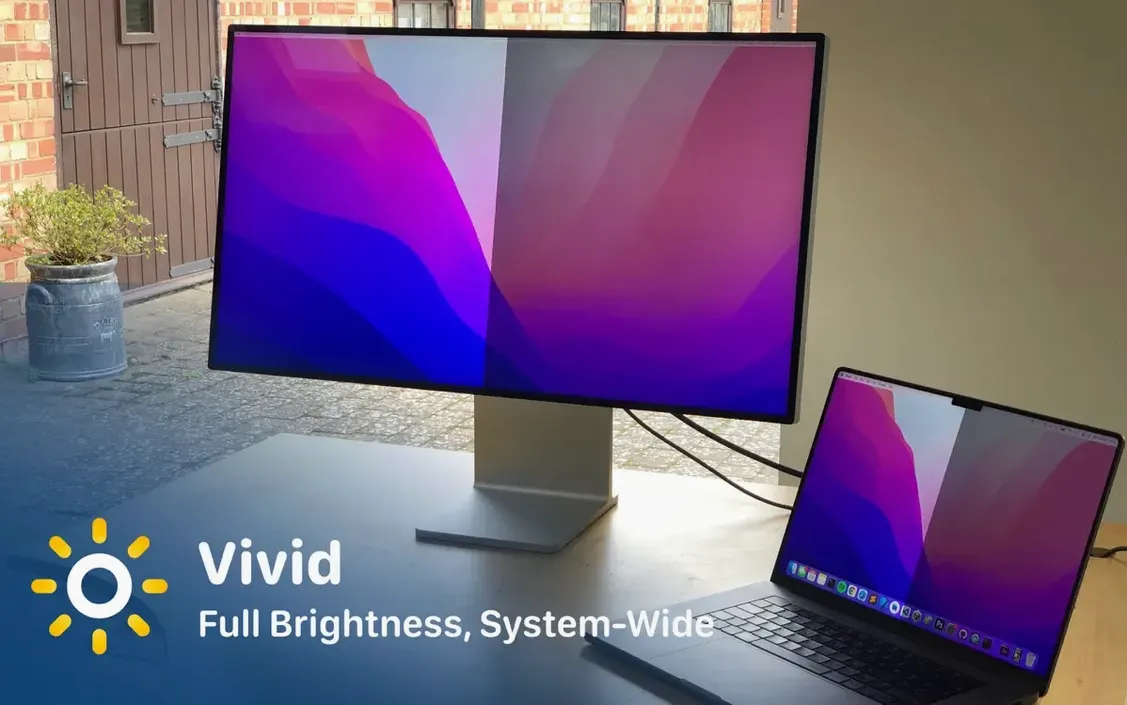
If you have ever squinted at a MacBook Pro screen under bright office lights and dragged the brightness slider all the way to the right, only to wish it had one more notch, Vivid sits in that gap. Think of it as unlocking a second brightness ceiling that the hardware can already reach — Apple just keeps it behind the curtain for thermal and power reasons. Vivid uses standard Apple APIs to open that ceiling, and it can more than double the perceived brightness of a supported display without tricking the hardware in unsafe ways.
Will Vivid run on your Mac?
Compatibility is narrow by design, because the app only works where the display hardware itself has hidden headroom. Here is what you need:
- macOS 12 Monterey or later. Earlier systems lack the framework hooks the app relies on.
- Apple silicon or 64-bit Intel. The app ships as a universal binary, so both architectures are covered.
- A supported display. In practice this means a MacBook Pro with an XDR screen (2021 or later) or a standalone Pro Display XDR. The current version also adds official support for the Apple Studio Display XDR.
- A Mac mini or Mac Studio is fine — version 2.18.1 fixed issues that affected headless desktop Macs connected to an XDR display.
The brightness ceiling doubles without a new interface
Once Vivid is installed, it extends the system brightness controls beyond the normal maximum. The interface stays out of the way: you adjust brightness exactly as you always do, with the keyboard keys or Control Centre slider, and Vivid quietly maps the top third of that range to the extra headroom. The 2.18.1 update also includes battery monitoring fixes, so the app is a little smarter about stepping back when you are on battery power. It is a single-purpose utility that does not try to be a colour calibrator or a window manager — it just gives you more light when you need it.
Sunlight overpowers the display until Vivid extends the keyboard controls
Picture a mid-afternoon in a co-working space — floor-to-ceiling windows, sun streaming across the desk. You open your 14-inch MacBook Pro and the screen looks dim against the glare. Normally you would push the brightness key until it stops, then squint. With Vivid, here is how that half-hour actually plays out.
- Open the lid and log in. Vivid loads as a background agent, so there is no window to dismiss. The extra brightness range is already available.
- Press the brightness-up key. The on-screen indicator climbs through the standard range, then keeps going. The display shifts from adequate to almost paper-bright — closer to how a phone screen punches through daylight.
- Get to work in Lightroom. You are culling a batch of photos from a shoot. With the extra luminance, shadow detail that usually disappears in a bright room stays visible. You do not have to cup your hands around the display or tilt the screen downward.
- Notice the battery percentage, once. Around 40 percent, macOS pops up a low-battery notification. Vivid scales back slightly — a gentle dip, not a flicker — because the 2.18.1 battery monitoring logic prioritises headroom only when the power budget allows it.
- Plug in and carry on. When you connect the MagSafe cable, Vivid restores the full extended range within a second. No toggles, no preferences window. The session ends when you close the lid, and next time you open it, the brightness resumes at your last setting inside the normal macOS range — Vivid does not hold the boosted level across sleep cycles, which prevents a nasty surprise in a dark room.
People miss the extra brightness because it hides inside the normal slider
Most friction with Vivid comes from misunderstanding where the extra brightness actually lives. It is not a separate slider or a toggle — it extends the existing controls, so the first snag is often “nothing seems to have changed.” Push the brightness key higher. The top third of the range is where Vivid operates. If you set brightness to maximum before installing the app, you are already at the old ceiling; back it down a notch, then push up again, and you will see the jump.
Another common hiccup appears on Mac mini and Mac Studio machines connected to a Pro Display XDR. Before 2.18.1, the app could lose its connection to the display after waking from sleep, leaving the brightness stuck at the standard maximum. The fix is already in this version, but if you are upgrading from an older release, a clean restart after dragging the new app to Applications usually shakes out any dormant preference plists.
On the macos vivid setup, some people grab the vivid mac app and expect it to work on any external monitor. It does not — it is strictly for XDR-class panels. With a standard LG or Dell 4K screen, the brightness keys behave exactly as before. The app is not broken; the display simply lacks the hardware headroom Vivid taps into. If you are searching for a vivid torrent or a vivid crack mac because you want to test it on an unsupported screen, you can still run the experiment — just confirm your panel is XDR-capable first, as the limitation is physical, not a paywall.
Lastly, a handful of users notice the brightness indicator jumping in small steps rather than sliding smoothly at the very top of the range. This is normal. The extra headroom comes in discrete hardware steps, and Vivid is mapping those steps to the top portion of the slider. It is not a calibration fault or a bug — just the granularity of the backlight controller past its usual limit.
Version 2.18.1 refines XDR display support and squashes a handful of long-standing issues. The headline addition is official compatibility with the Apple Studio Display XDR. Mac mini and Mac Studio users should also see smoother behaviour, while battery monitoring has been reworked to be less aggressive when you are plugged in and more sensible when you are not.
- macOS 12 Monterey or later
- Apple silicon or 64-bit Intel processor
- A supported Apple XDR display (MacBook Pro, Pro Display XDR, or Studio Display XDR)
Questions I keep hearing
Does Vivid work on an external monitor that isn't an Apple display?
No, Vivid is specifically built for the brightness subsystem in Apple's XDR displays — MacBook Pro screens, the Pro Display XDR, and now the Studio Display XDR.
Can Vivid damage my MacBook Pro screen?
The app uses standard Apple APIs to access brightness levels the hardware was designed to handle, so it is operating within the display's engineering limits rather than bypassing hardware protections.
Does Vivid affect battery life?
Yes, running the backlight at higher levels draws more power, but the version 2.18.1 update includes battery monitoring so the app can scale back intelligently when you are not plugged in.
Questions from the class 0
Sign in or join the class to ask a question.
Nobody has asked anything yet. If you have used it on a real job, say what the file did.
Also on the Mac Apps shelf
The whole Mac Apps shelf VideoProc Converter
Converts, compresses, trims, and records video with hardware-accelerated speed.
VideoProc Converter
Converts, compresses, trims, and records video with hardware-accelerated speed.
 ViWizard Spotify Music Converter
Saves your Spotify tracks as clean local audio files for offline listening.
ViWizard Spotify Music Converter
Saves your Spotify tracks as clean local audio files for offline listening.
 VideoProc Converter AI
Bundles video conversion, AI upscaling, compression, and downloading into one toolkit.
VideoProc Converter AI
Bundles video conversion, AI upscaling, compression, and downloading into one toolkit.
 VMware Fusion Pro
Runs Windows and Linux virtual machines directly on your Mac desktop.
VMware Fusion Pro
Runs Windows and Linux virtual machines directly on your Mac desktop.
 VideoByte BD-DVD Ripper
Copies your discs into watchable files for phones, tablets, and media servers.
VideoByte BD-DVD Ripper
Copies your discs into watchable files for phones, tablets, and media servers.
 Vector Magic
Converts bitmap images into clean vector graphics you can scale forever.
Vector Magic
Converts bitmap images into clean vector graphics you can scale forever.
 WALTR PRO
Converts and transfers any media file onto your iPhone or iPad with a single drag.
WALTR PRO
Converts and transfers any media file onto your iPhone or iPad with a single drag.
 WebStorm
Gives you a responsive desktop environment that deeply understands your JavaScript and TypeScript.
WebStorm
Gives you a responsive desktop environment that deeply understands your JavaScript and TypeScript.