 ASPNetWorld

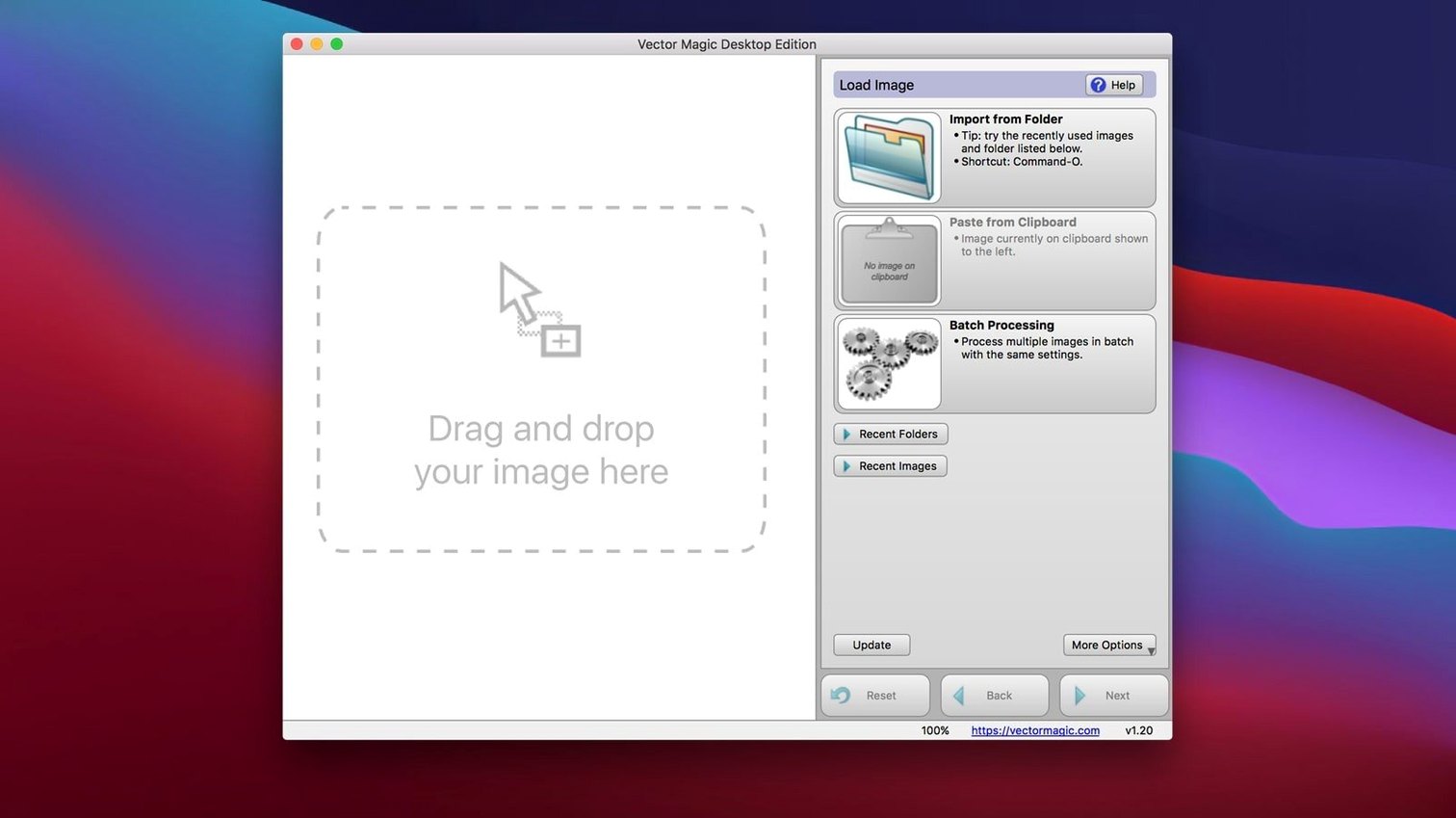
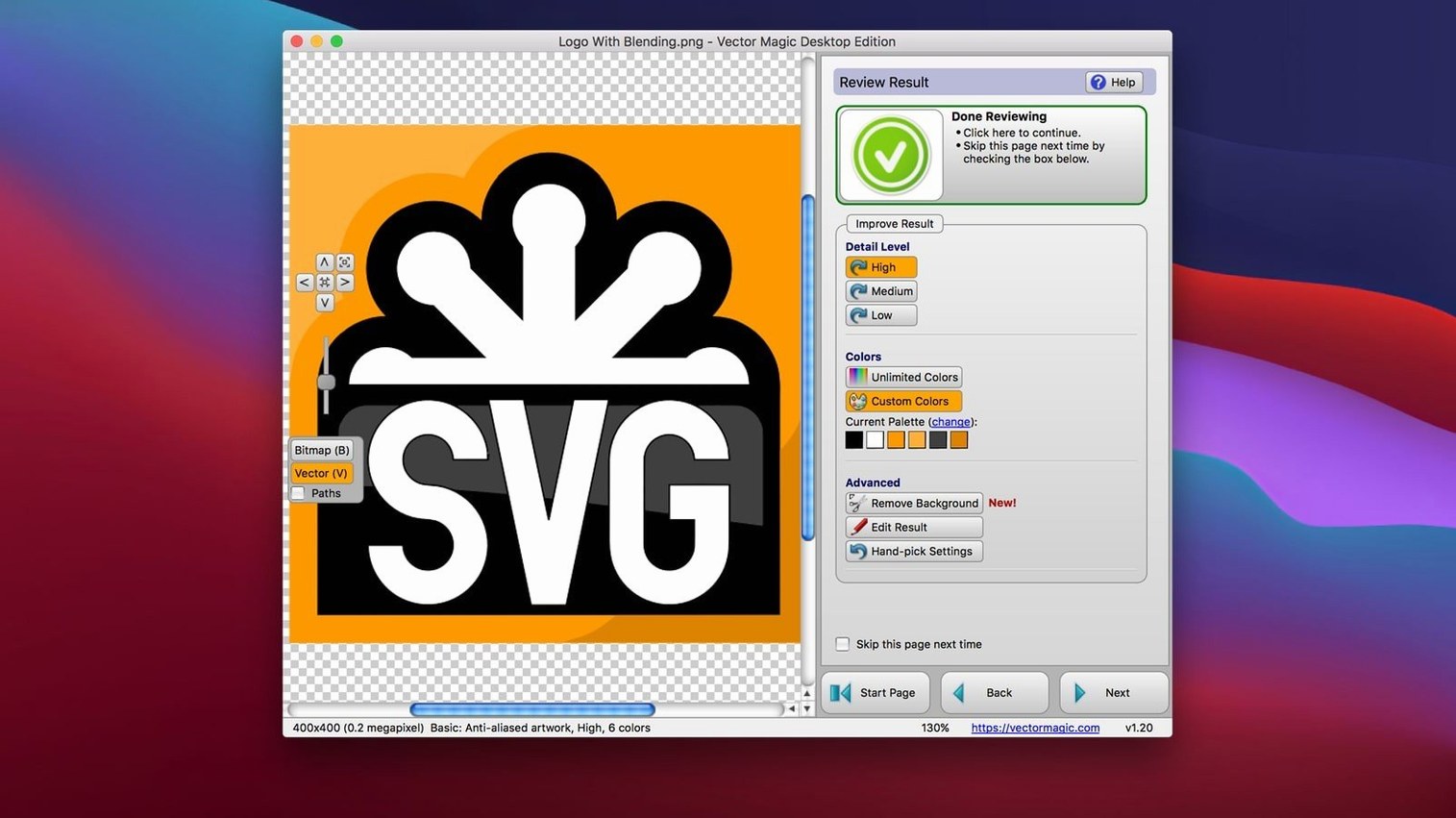
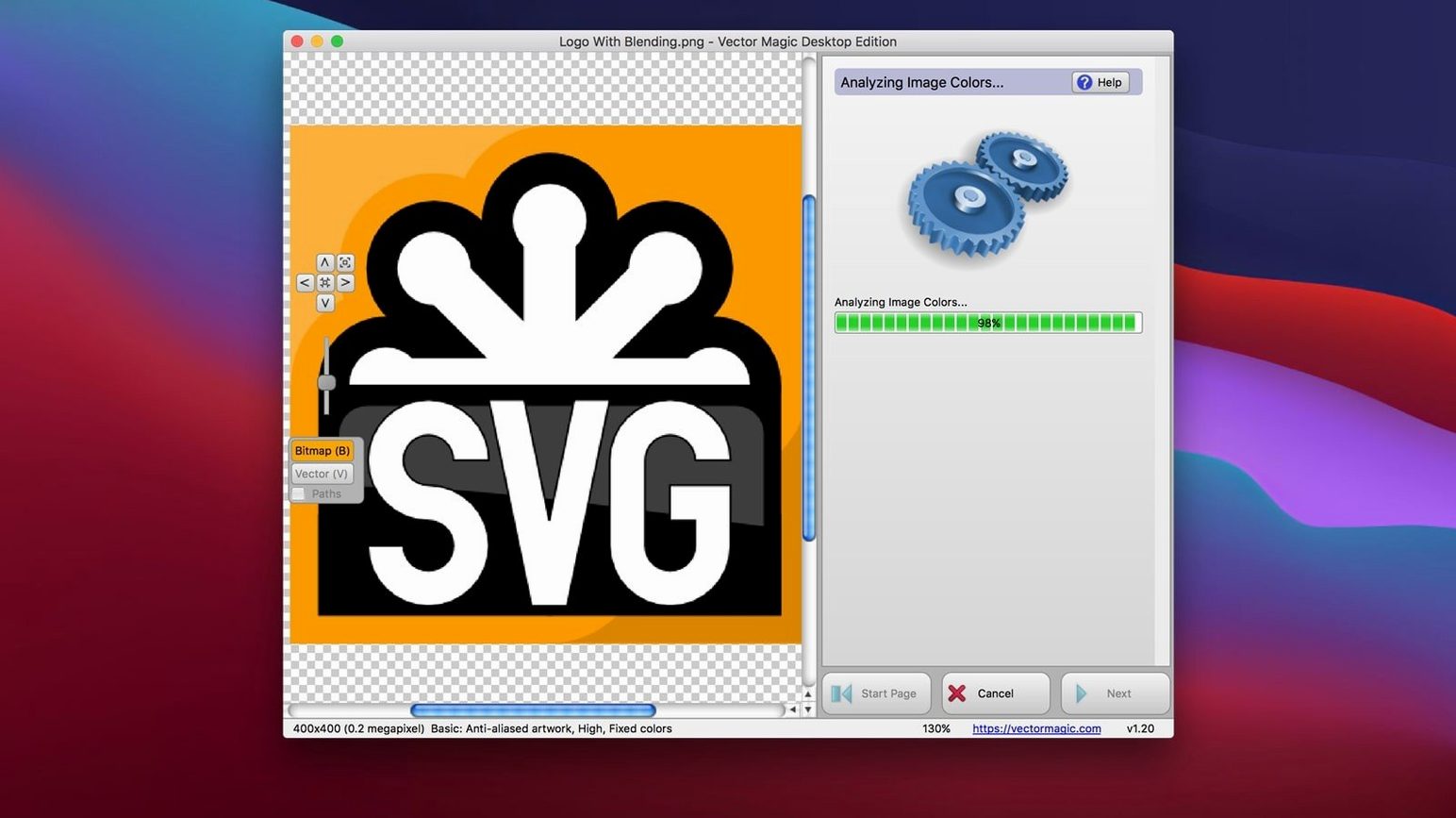
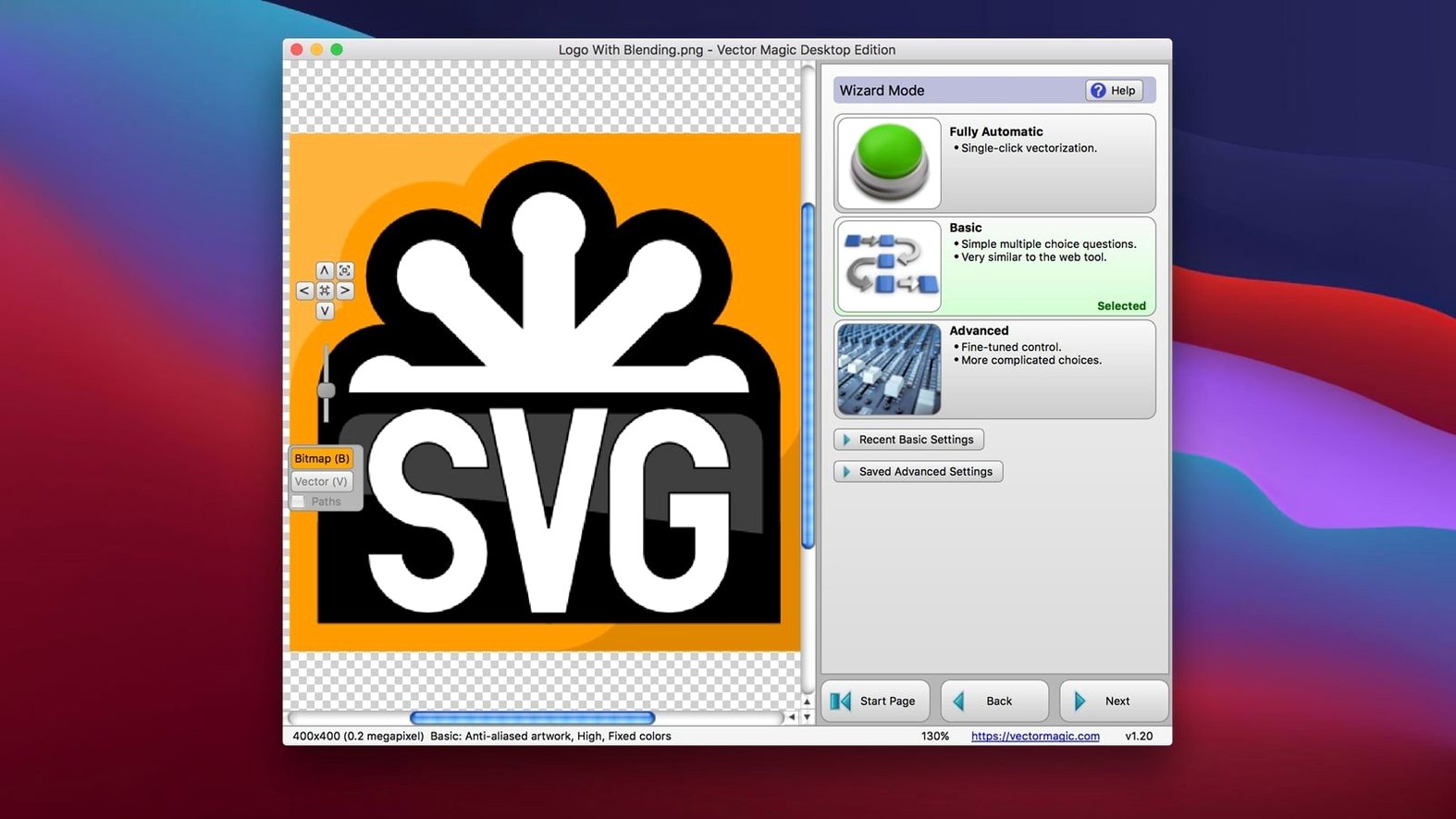
Vector Magic Desktop Edition runs on any Intel Mac with OS X 10.7 or newer. It is a 64-bit application, so it sits quite happily on older machines that still need a reliable raster-to-vector conversion tool. The interface has not been rebuilt for Apple Silicon, but Rosetta 2 handles it without fuss on modern Macs.
Tracing a logo with one click
Drop a JPG or PNG logo into the window and choose the automatic mode. The software analyses the shapes, decides where the boundaries sit, and produces an SVG, EPS, PDF or AI file you can copy straight into Illustrator or CorelDRAW.
Hand-tuning tricky artwork
Switch to manual mode when the image has soft edges or photographic gradients. You can adjust the detail level, colour count and corner sharpness while watching the preview update in real time — a bit like focusing a camera until the outlines snap into place.
Processing a folder of scans
Batch processing lets you queue up multiple bitmaps and walk away. The desktop app remembers your settings across the run, outputting everything to EPS, PDF, SVG, DXF, EMF or PNG as a matched set.
Paste artwork straight from your clipboard
Most people open the app, drag a photo in, and click the button. That works, but there are a handful of shortcuts tucked away that make the process noticeably quicker once they become habit.
Paste directly from the clipboard. If you have a bitmap copied in Preview, Photoshop or even a web browser, Command-V drops it straight into Vector Magic’s canvas. No saving a file first, no hunting through folders.
Drag the result out. The preview pane is not just for looking — you can drag the vector thumbnail straight to the Finder or onto an Illustrator dock icon. It exports in whatever output format you last used, which saves a trip through the Save dialog for one-off conversions.
Scroll-wheel zoom on the preview. Hover over the preview area and scroll to zoom in tight on a tricky edge. Right-click the preview to toggle between the vector result and the original bitmap, which is the fastest way to check whether a thin line survived the trace.
Double-click a colour swatch to merge regions. In the segmentation editor, double-clicking a colour block merges it with the neighbouring shade. It is much faster than redrawing boundaries by hand when the auto-trace has split what should be a single flat area into two near-identical tones.
Spacebar panning. Hold the spacebar and drag to pan across a large image — instantly more comfortable than grabbing scroll bars, and it works in both the bitmap and vector views.
Interface stayed familiar while the engine got sharper
Version 1.20 is the current Mac build, and the changes are evolutionary rather than a complete rethink. Cedar Lake Ventures has kept the interface largely stable for years, but a few practical improvements crept in over the late-1.1x and 1.20 releases.
The batch processor became more tolerant of mixed-format folders. Earlier builds would stall if you accidentally included a text file or a .psd with unsupported layer compression; the current version skips unreadable files and carries on with the queue rather than stopping dead.
Transparency handling improved noticeably. Where older versions sometimes filled transparent regions with white in the output vector, version 1.20 preserves the alpha channel through to SVG and EPS more reliably. If you work with logos on clear backgrounds, that single change eliminates a tedious clean-up step.
The manual mode’s preview refresh got faster — not dramatically, but enough that dragging a detail slider on a 8-megapixel photo no longer feels like waiting for a kettle to boil. The overall memory ceiling stayed the same (10 megapixels, 10 MB files), so the speed gain comes purely from smarter preview rendering rather than higher limits.
Help documentation is now built into the app window rather than opening a separate browser pane, which is a small quality-of-life change that keeps you inside the workspace when looking up palette-index controls or DXF export quirks.
Stop auto-trace treating JPEG noise as tiny shapes
“The output vector is enormous and my drawing app chokes on it.” This happens when the auto-trace treats every speck of JPEG compression noise as a separate shape. Drop the detail slider to Medium or Low in manual mode before tracing — the software then ignores tiny pixel variations and produces a much lighter file. The vector will still look clean for logos and screen graphics.
“Colours look washed out in the SVG.” By default, Vector Magic sometimes quantises the palette more aggressively than you would like. In manual mode, raise the colour count to 32 or 64, and if the original has a limited palette, tick the “exact palette” option. For print work, export to EPS or PDF instead — those formats embed colour information slightly differently and often match the original more faithfully.
“The app refuses to open a perfectly normal PNG.” Check the pixel dimensions. The ceiling is 10 megapixels, so a 4000×3000 image (12 MP) will be rejected silently — the file dialog just does not accept it. Resize to 3500×2800 or below in Preview and it opens straight away.
“Copy-paste into Illustrator pastes a low-resolution preview instead of the vector.” Make sure you copy from Vector Magic’s vector preview, not the bitmap side. The app embeds both representations on the clipboard, but Illustrator picks up whichever was active. Click the vector tab once before Command-C.
Automatic mode falls apart on anything but clean high-contrast art
One of the most frequent early errors is running every image through fully automatic mode and expecting print-ready results. Automatic mode makes sensible choices for clean, high-contrast artwork — a black logo on white, a simple icon — but it cannot read your mind about what matters in a photograph. A face traced automatically turns into a jigsaw of flat polygons that loses all the softness. For anything with gradients or shadows, switch to manual mode and use a low colour count with smoothness set fairly high; the result will be stylised, but deliberately so.
Another classic slip is ignoring the segmentation editor entirely. When a trace leaves a stray patch of colour inside a letter or a shape, beginners often delete the whole vector and start again with different settings. The editor lets you click the unwanted region and delete it, or merge it into the background, in seconds. It is the quickest way to fix a trace that is 95% correct.
People also overlook the 10 MB file-size limit when batch processing. A folder of high-resolution TIFFs scans easily exceed the cap, and the batch will skip them without a clear error message. A quick pre-check in the Finder — sort by size, and anything over 10 MB gets a resize pass first — prevents a silent, half-finished batch run.
Finally, forgetting that Vector Magic is an Intel binary leads to occasional confusion. On an Apple Silicon Mac, the first launch takes a few extra seconds while Rosetta translates it. That is normal, not a crash.
Designers rescuing client JPGs and ancient bitmap mastheads
Graphic designers who regularly receive client artwork as a flat JPG or a low-resolution PNG live in Vector Magic. A logo snapped from a website, a scanned sketch, an old bitmap masthead — all of these land in the desktop app for a quick trace before the real design work begins in Illustrator or CorelDRAW. The fact that it runs offline matters more than it sounds: studio Macs are not always online by choice, and a desktop tool that never phones home fits neatly into a production workflow.
Sign makers and vinyl cutters find the DXF output genuinely useful. Tracing a photograph of a customer’s hand-drawn sign and exporting straight to DXF skips an entire chain of intermediate file conversions. The manual colour controls let them reduce a full-colour photo to a two- or three-colour cutting path without leaving the application.
Hobbyists making T-shirt designs, stickers or laser engravings also benefit, but with a caveat: the 10-megapixel limit means enormous detailed illustrations need pre-cropping. Within that boundary though, someone tracing a family crest for a custom mug or a cartoon for a heat-press gets a crisp, scalable result without learning the pen tool in a full vector editor.
Mac users on older hardware are particularly well served. The 64-bit Intel build runs natively on machines stuck at OS X 10.11 or macOS 10.14, where newer subscription-only vector tools have long since dropped support. A 2012 MacBook Pro can still churn through a batch of 50 logos overnight, which keeps a spare machine useful in a busy print shop.
Anyone searching for vector magic for mac or a vector magic mac torrent is often in the same situation: they have a one-off tracing job, no budget for a full creative suite, and a deadline. The desktop edition, as a standalone app, slots into that gap cleanly — it does one thing, offline, and hands back a vector file ready to drop into whatever layout software is available.
It is worth understanding, though, that terms like vectormagic torrent or vector magic mac crack point to a real need for offline, no-subscription raster-to-vector conversion on macOS. The appeal of the desktop edition is precisely that it does not require an account, a browser or an internet connection to produce a proper SVG or EPS from a photograph.
- OS X 10.7 or later
- Intel 64-bit processor
- Maximum source file size: 10.0 MB
- Maximum image size: 10.0 megapixels
Questions I keep hearing
Does Vector Magic run natively on Apple Silicon Macs?
No, it is a 64-bit Intel application, but it runs smoothly through Rosetta 2 on M-series Macs.
How does manual mode differ from automatic tracing?
Manual mode gives you individual controls for detail, colour palette and corner precision, with an instant preview of every change before you commit.
Can I drag vectors straight into Adobe Illustrator?
Yes, the app supports drag-and-drop and copy-paste into graphics software including Illustrator and CorelDRAW.
Questions from the class 0
Sign in or join the class to ask a question.
Nobody has asked anything yet. If you have used it on a real job, say what the file did.
Also on the Mac Apps shelf
The whole Mac Apps shelf VideoByte BD-DVD Ripper
Copies your discs into watchable files for phones, tablets, and media servers.
VideoByte BD-DVD Ripper
Copies your discs into watchable files for phones, tablets, and media servers.
 VideoProc Converter AI
Bundles video conversion, AI upscaling, compression, and downloading into one toolkit.
VideoProc Converter AI
Bundles video conversion, AI upscaling, compression, and downloading into one toolkit.
 VideoProc Converter
Converts, compresses, trims, and records video with hardware-accelerated speed.
VideoProc Converter
Converts, compresses, trims, and records video with hardware-accelerated speed.
 Vivid
Unlocks a second brightness ceiling your MacBook screen can already reach.
Vivid
Unlocks a second brightness ceiling your MacBook screen can already reach.
 ViWizard Spotify Music Converter
Saves your Spotify tracks as clean local audio files for offline listening.
ViWizard Spotify Music Converter
Saves your Spotify tracks as clean local audio files for offline listening.
 Unclutter
Collects your clipboard history, recent files, and quick notes in one swipe-down panel.
Unclutter
Collects your clipboard history, recent files, and quick notes in one swipe-down panel.
 VMware Fusion Pro
Runs Windows and Linux virtual machines directly on your Mac desktop.
VMware Fusion Pro
Runs Windows and Linux virtual machines directly on your Mac desktop.
 Typeface
Browses a visual grid of every installed font and compares them side by side.
Typeface
Browses a visual grid of every installed font and compares them side by side.