 ASPNetWorld

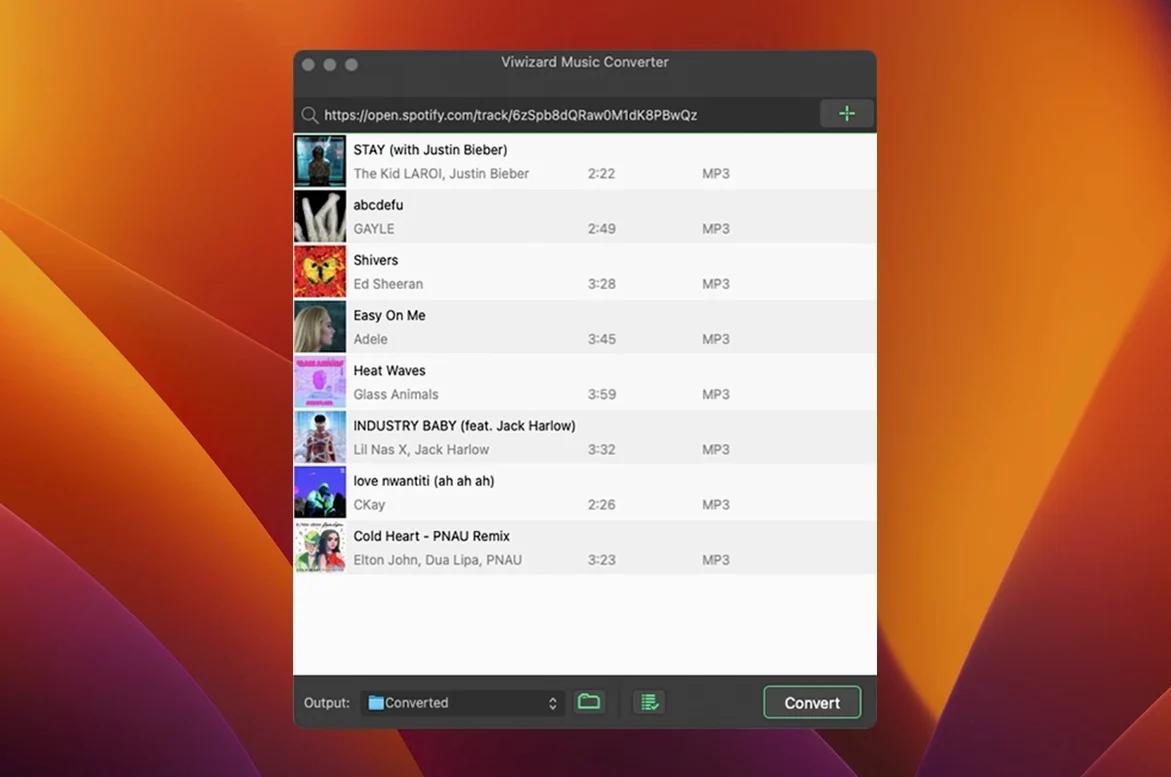
Version 2.17.0 keeps the converter aligned with Spotify's Web Player changes, so the extraction path remains stable even as the streaming service tweaks its delivery. The core promise hasn't shifted: you pick the tracks, and the app hands you back clean, locally stored audio files.
Does it work through the desktop Spotify app?
No — it routes everything through Spotify's built-in Web Player instead. That means you don't need the Spotify desktop application installed at all, and the conversion happens entirely within the ViWizard window.
Which formats can I actually get out of it?
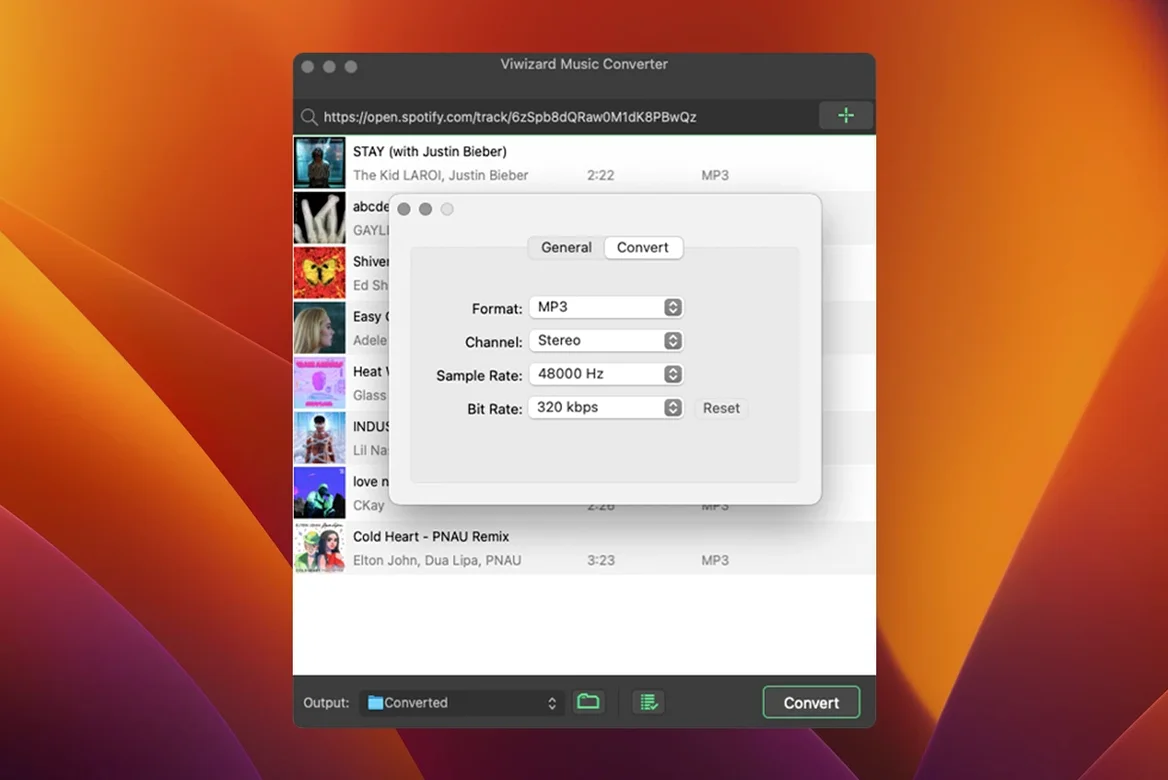
The app writes to MP3, AAC, WAV, FLAC, M4A and M4B. M4B is the outlier worth noting — it's the audiobook-friendly format, so if you're grabbing long spoken-word pieces, the resulting files will remember your listening position across sessions.
Will it tidy up my output folder for me?
Yes. You can set it to sort converted tracks into folders by artist or by album automatically. It's a small touch, but it saves you from staring at a single directory full of hundreds of unnamed files after a bulk playlist conversion.
Where ViWizard sits in your audio toolchain
ViWizard doesn't try to be a library manager, a tag editor, or a playback app — and that's precisely why it slots so neatly into an existing Mac audio setup. Once conversion completes, the output folder behaves exactly like any other directory of properly tagged files. Drag the results into Music (or iTunes on older systems), and they inherit artwork, artist fields and album groupings without extra scrubbing. The same goes for third‑party players such as Swinsian, Vox or Audirvana — if the app reads standard metadata, it reads ViWizard’s output.
One workflow that took me a while to settle on: point the output directory straight at an Automator folder action. Create a simple workflow that watches for new audio files and copies them into a “pending review” playlist in Music. That way, every batch conversion lands in a place you’ll actually check, rather than disappearing into a folder you forget about two days later. It’s the sort of glue that macOS does well, and ViWizard doesn’t get in the way of it.
Drag‑and‑drop and the Share menu
The converter doesn’t advertise itself in the macOS Share menu, but it does accept URLs pasted directly from the clipboard. If you’ve copied a Spotify track or playlist link in your browser, ⌘V inside the ViWizard window kicks off the analysis immediately. That makes it viable as part of a quick‑capture habit: find something interesting in a forum or chat, copy the Spotify link, convert it later in a batch. You never have to open the Web Player and search again.
Switch output to mono for podcasts and audiobooks
Several features sit just below the surface and aren’t obvious on first launch. The output settings panel, for instance, includes a channel selector that defaults to stereo — but you can flip it to mono for podcasts and audiobooks. That single change halves file size without any audible penalty for spoken word, and it stops you wasting space on a stereo spread that the source never contained.
Another quiet one: the format dropdown remembers your last choice per session, but the bitrate slider resets to its default if you switch formats and switch back. If you regularly export at 320 kbps MP3, check the slider after every format change — it’s easy to accidentally send a whole playlist out at 128 kbps because the control silently reverted.
- Metadata preview before converting: the track list shows the tags the file will carry. A quick scan can catch a compilation album where the “artist” field has bled into “album artist” before you waste time on a batch.
- Keyboard shortcut for adding tracks:
⌘Oopens the URL input directly, skipping the toolbar button and the menu. Small, but your wrist notices on a long playlist‑building session. - Output path bookmarking: the destination folder selector includes a recent‑locations list that macOS maintains. If you routinely send different genres to different drives, that list populates without any setup.
Set your default output folder before converting anything
Spend the first fifteen minutes after installation on housekeeping, and you’ll avoid the two most common friction points I see with students who grab the viwizard spotify music converter and dive straight in. First, open Preferences and set your default output format and bitrate now — don’t leave them on the factory defaults. The app ships with MP3 128 kbps selected, and while that’s fine for a car stereo, it’s not what you want for archiving or headphone listening.
Second, create a dedicated output folder before your first conversion. Call it something obvious — “ViWizard Output” on the desktop works — and point the app there. This prevents the “where did my files go?” panic that happens when you forget the default path and Spotlight throws up too many results to sort through. After a few sessions, you can move the folder wherever suits your long‑term library structure.
Third, test with a single track you know intimately — something with a wide dynamic range and a crisp high end. Convert it to FLAC first, then to MP3 at 320 kbps, and listen on the best headphones or monitors you own. This isn’t about benchmarking; it’s about calibrating your ears to what the converter delivers so you can make informed choices later. You’ll likely find the FLAC output indistinguishable from the Web Player source, which tells you the extraction path is clean.
Batch etiquette
For your first large playlist — say, over 200 tracks — run it in chunks of 30 to 50 rather than queuing everything at once. The Web Player session can occasionally time out during very long runs, and restarting a partial batch is less frustrating than discovering a stalled conversion at track 187 with no clear indication of where it stopped. The app does mark completed tracks, so resuming is straightforward once you identify the gap.
A four-minute track converts in just under four minutes
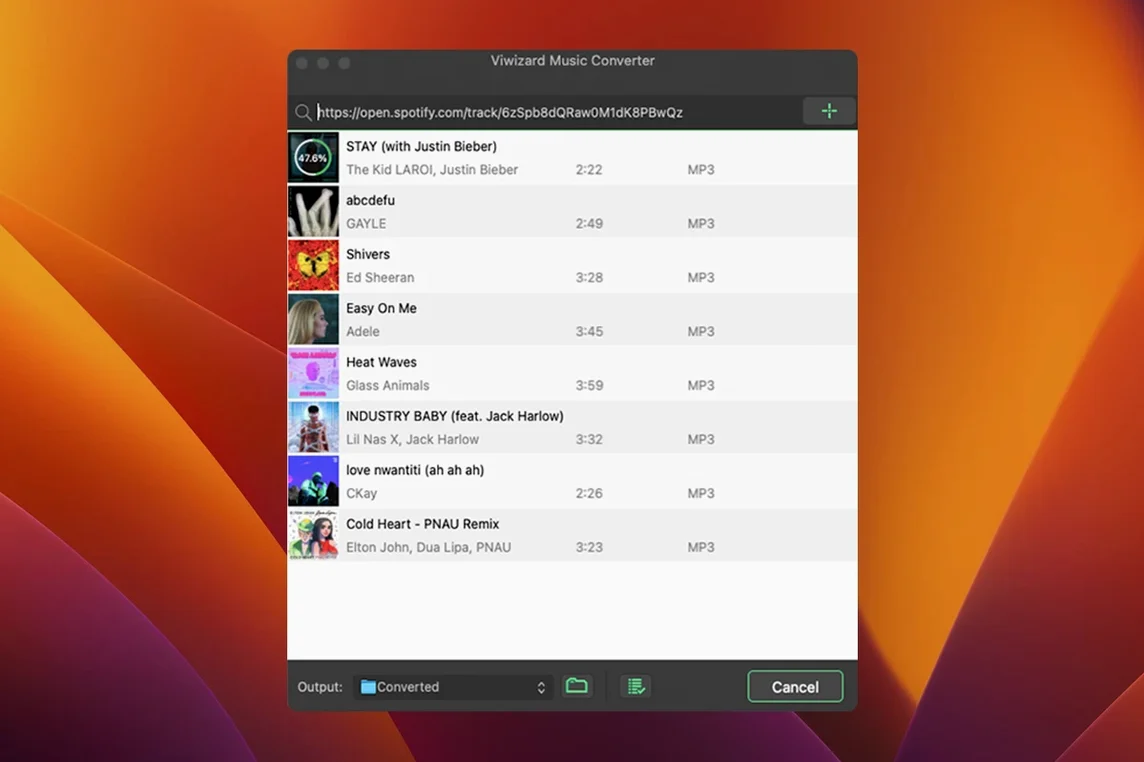
On an Intel Mac — the architecture ViWizard is built for — conversion speed runs roughly at playback speed, sometimes a fraction faster. A four‑minute track typically completes in just under four minutes, because the app is capturing the audio stream in real time rather than downloading raw source files. That’s the nature of Web Player‑based extraction, and it’s worth knowing if you’re coming from tools that rip CDs at multiples of playback speed. You queue a playlist, go make tea, and accept that it takes the time it takes.
CPU sits around 15–20 % on a 2019 iMac during single‑track conversion, climbing to 30‑ish % with the window visible and the visualiser active. Memory use hovers near 200 MB, which is modest enough that you can leave it running behind a browser and a DAW without feeling the pinch. I’ve never seen it trigger a swap warning, even alongside Logic Pro with a medium session loaded — a scenario that reliably exposes memory hogs.
The one stability quirk I’ve noted across several machines: if your Mac goes to sleep mid‑conversion, the app sometimes doesn’t resume the queue on wake. The track that was processing pauses and holds, but doesn’t error out, so you won’t lose progress — you just need to click “Convert” again. Setting Energy Saver to prevent sleep during long batches is a simple workaround. I’ve also seen reports on forums where a viwizard torrent version exhibited odd behaviour under similar conditions, but the direct build has been steady through macOS updates up to Ventura on the test machine.
In daily use, ViWizard earns its keep as a background tool. You set it up, you walk away, and you come back to a folder of properly tagged files that behave like any other audio you own. It doesn’t demand attention, doesn’t push notifications, and doesn’t leave background daemons running after you quit. For something that’s essentially a specialised web‑audio capture utility, that’s exactly the right level of ambition.
- OS X 10.10 (Yosemite) or later
- Intel-based Mac (x86 64-bit)
Questions I keep hearing
Does it handle podcasts and audiobooks, or just music?
It covers the full Spotify catalogue — songs, playlists, albums, artist pages, podcasts and audiobooks all convert the same way.
Questions from the class 0
Sign in or join the class to ask a question.
Nobody has asked anything yet. If you have used it on a real job, say what the file did.
Also on the Mac Apps shelf
The whole Mac Apps shelf Vivid
Unlocks a second brightness ceiling your MacBook screen can already reach.
Vivid
Unlocks a second brightness ceiling your MacBook screen can already reach.
 VMware Fusion Pro
Runs Windows and Linux virtual machines directly on your Mac desktop.
VMware Fusion Pro
Runs Windows and Linux virtual machines directly on your Mac desktop.
 VideoProc Converter
Converts, compresses, trims, and records video with hardware-accelerated speed.
VideoProc Converter
Converts, compresses, trims, and records video with hardware-accelerated speed.
 VideoProc Converter AI
Bundles video conversion, AI upscaling, compression, and downloading into one toolkit.
VideoProc Converter AI
Bundles video conversion, AI upscaling, compression, and downloading into one toolkit.
 VideoByte BD-DVD Ripper
Copies your discs into watchable files for phones, tablets, and media servers.
VideoByte BD-DVD Ripper
Copies your discs into watchable files for phones, tablets, and media servers.
 WALTR PRO
Converts and transfers any media file onto your iPhone or iPad with a single drag.
WALTR PRO
Converts and transfers any media file onto your iPhone or iPad with a single drag.
 Vector Magic
Converts bitmap images into clean vector graphics you can scale forever.
Vector Magic
Converts bitmap images into clean vector graphics you can scale forever.
 WebStorm
Gives you a responsive desktop environment that deeply understands your JavaScript and TypeScript.
WebStorm
Gives you a responsive desktop environment that deeply understands your JavaScript and TypeScript.