 ASPNetWorld
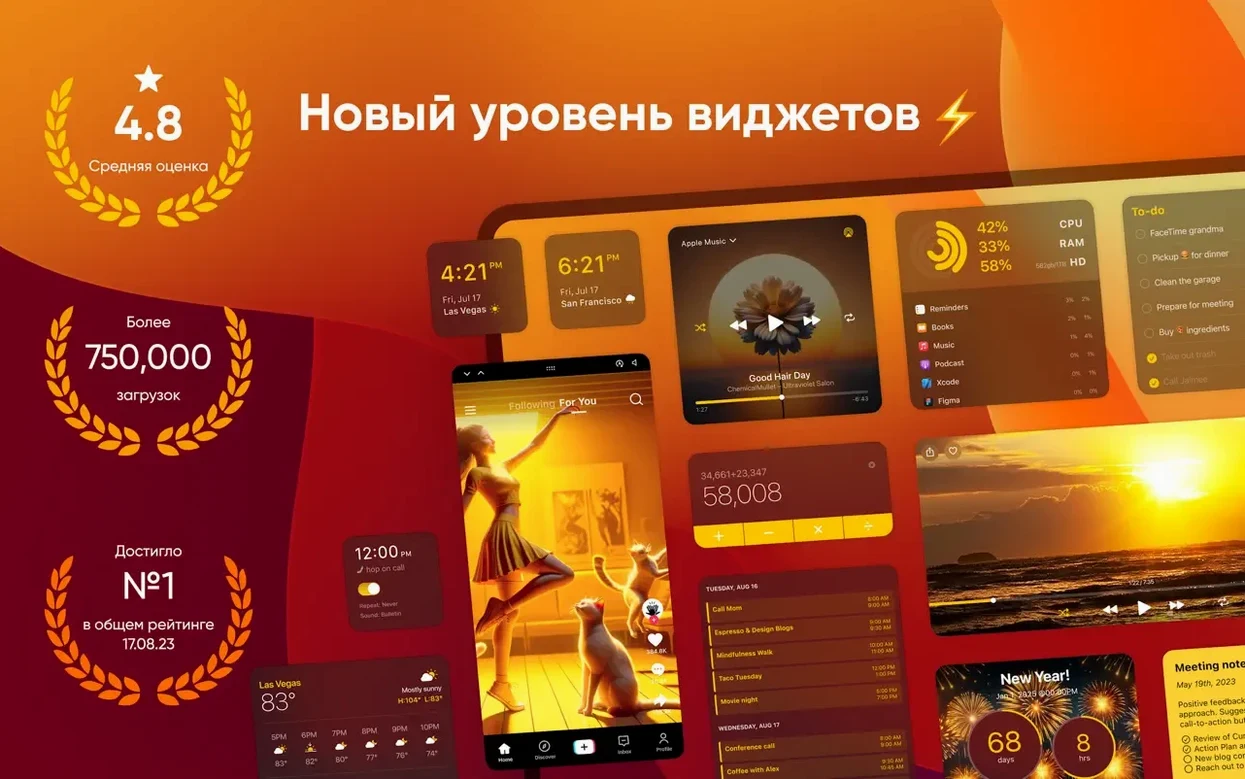
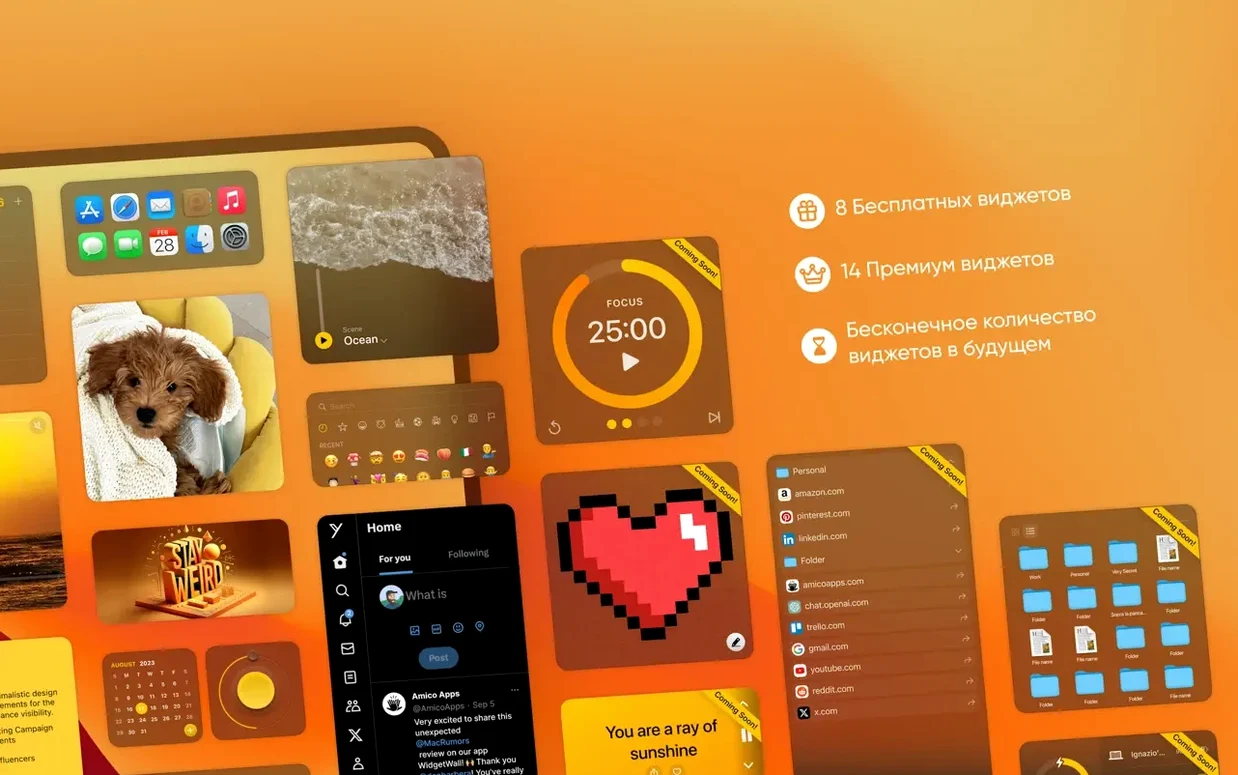
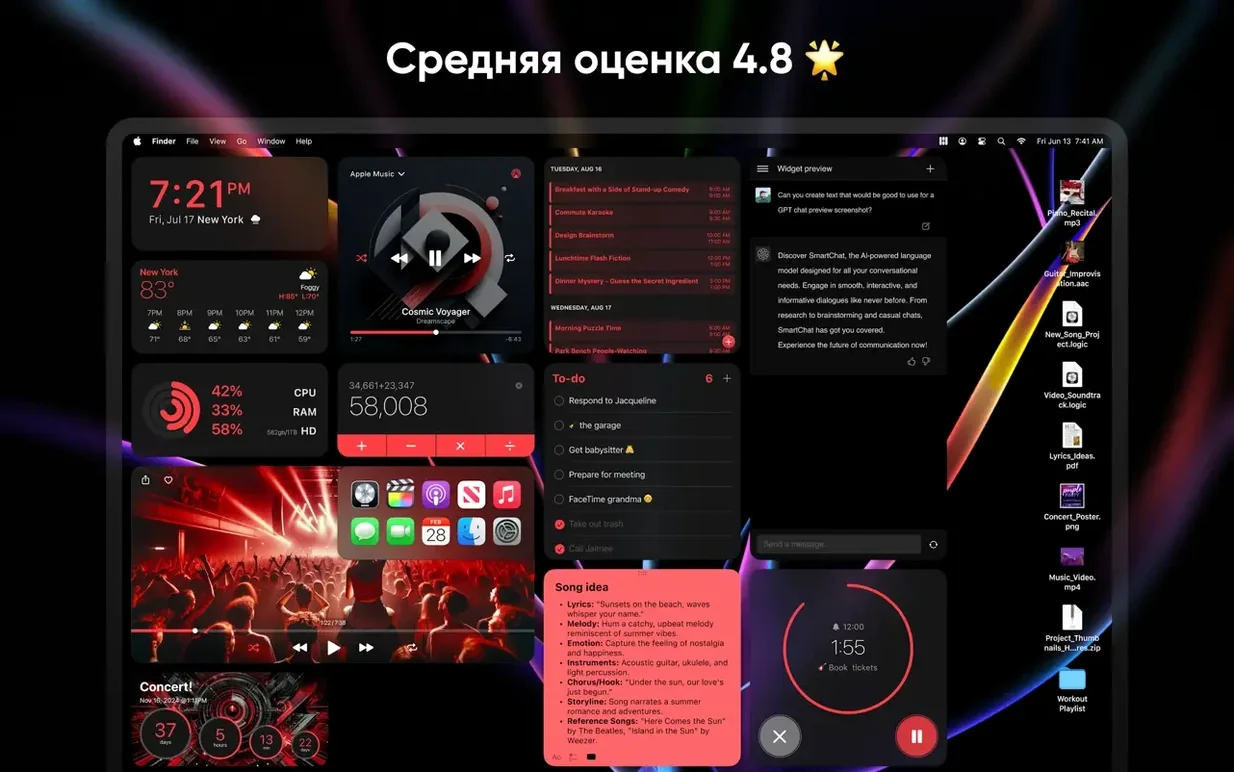
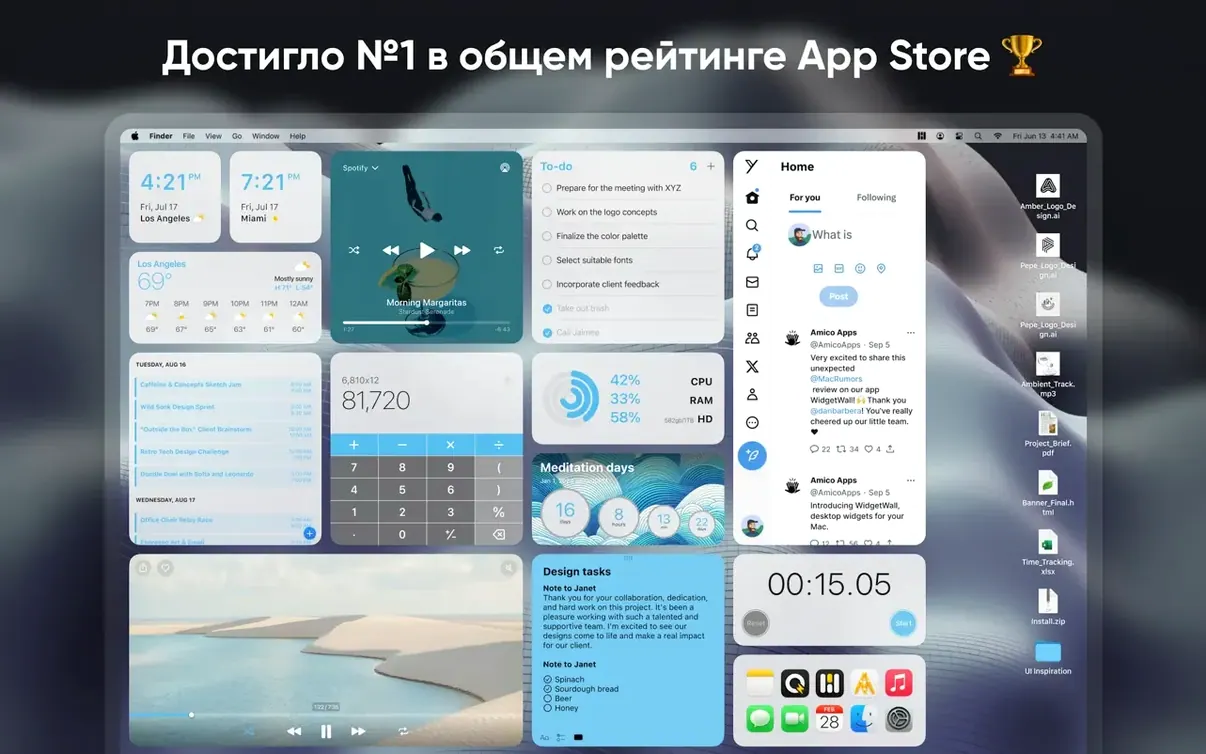
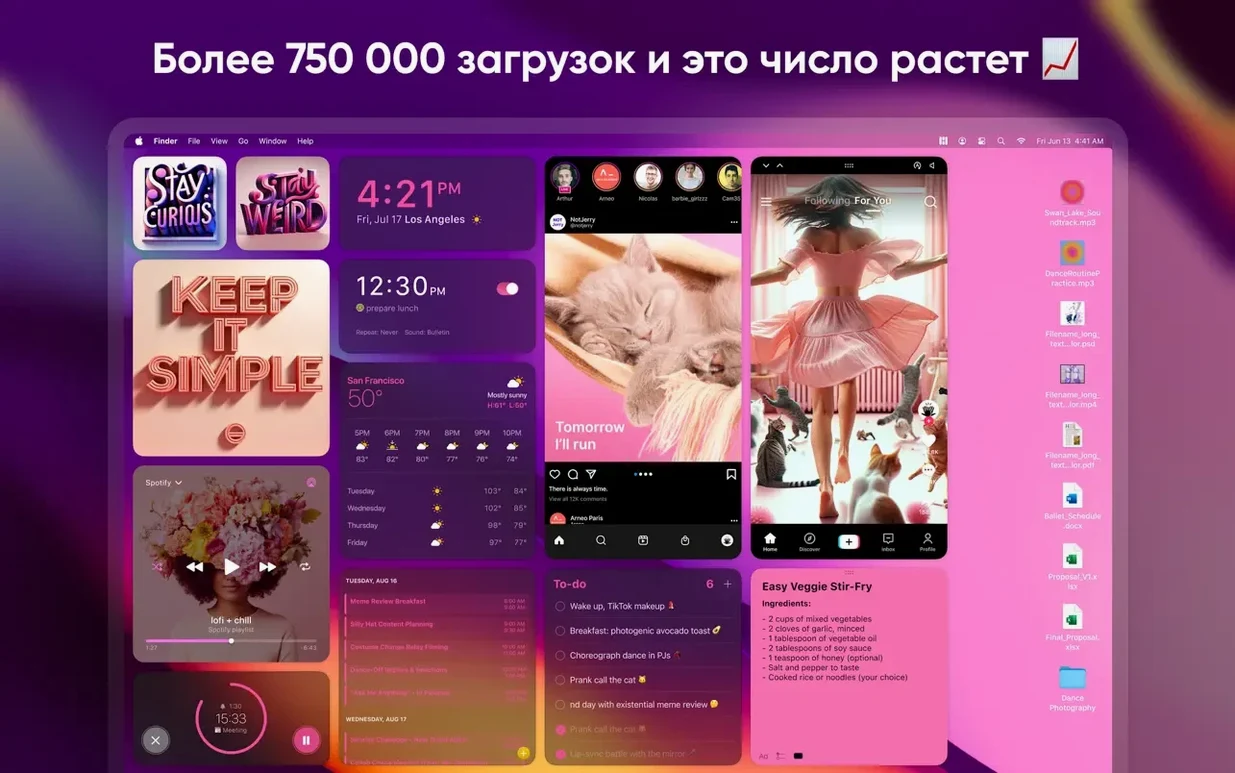
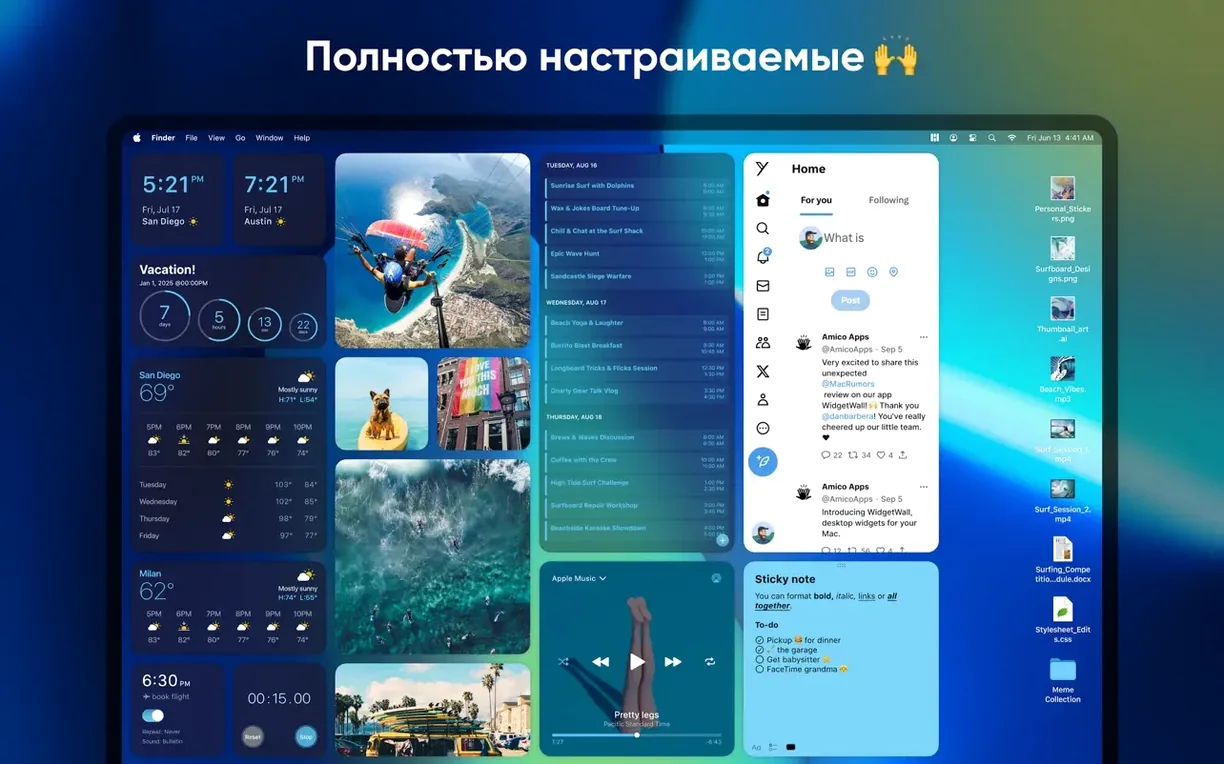
WidgetWall packs more than 20 mini-apps onto your desktop, from a Pomodoro timer to a TikTok viewer. Each sits where you can see it, without opening a browser or digging through folders.
Widget — a small, self-contained tool that lives on your desktop rather than in the Dock or menu bar. Think of it as a desk accessory that never gets buried under papers.
Desktop integration — WidgetWall places these tools directly on your wallpaper layer, so they stay visible even when application windows fill the screen. A clock widget, for example, remains readable behind your work.
Widget variety — the collection includes practical items like Calculator, Calendar, Reminders, Notes, and Weather, alongside playful additions such as Confetti, Emoji Browser, and White Noise. App Shortcuts let you launch frequently used programs from the desktop itself.
Eight widgets running barely touch the CPU
After a week with WidgetWall 3.15.2 on an M1 MacBook Air running macOS 14, the first thing that stands out is how little it asks of the system. With eight widgets active — Clock, Weather, Calendar, Reminders, Calculator, Music, Pomodoro Timer, and the Emoji Browser — the app sits at roughly 120–180 MB of RAM. That is modest for what it is doing. CPU use stays close to zero when widgets are idle, ticking up briefly when a video widget plays or when Weather polls for an update. On an older Intel Mac mini from 2018, the same setup felt equally undemanding; fans stayed quiet and nothing stuttered during a HandBrake encode running in the background.
Stability has been unremarkable in the best sense. No crashes across two weeks of mixed use, no widget freezing mid-afternoon, and no mystery disappearance when waking the Mac from sleep. The app respects macOS focus modes without fuss — switch on Do Not Disturb and the White Noise widget keeps playing, but notification-style widgets fall silent. That sort of quiet cooperation with the operating system is easy to take for granted until you use something that does not have it.
Launch speed is nearly instant. WidgetWall opens in under two seconds on Apple Silicon and about three on the Intel machine, and the widgets repaint smoothly after a reboot. The only perceptible lag occurs when you add a Video widget pointed at a large local file; there is a brief flicker while the thumbnail generates, then playback settles. For a widget wall download that bundles this many tools, the footprint is refreshingly light.
Tap a shortcut to shower the screen in confetti
Several conveniences hide in plain sight. The Confetti widget, for instance, accepts a keyboard shortcut — tap ⌃⌥⌘C and a shower of coloured paper fills the screen. It is silly, but having a celebration key within reach during a remote team call is oddly satisfying.
Other shortcuts worth knowing:
- Widget cycling — right-click any widget and choose “Next Size” to step through small, medium and large without opening preferences. It is faster than dragging resize handles.
- Pomodoro chaining — the Pomodoro Timer widget can link to the Stopwatch widget. Start a focus session and the stopwatch begins counting up automatically. Useful for tracking total work time across multiple sprints.
- Quick-hide gesture — double-click an empty area of the desktop while holding
⌥ Optionand all WidgetWall widgets fade to 20 % opacity. Repeat to restore. Handy when you need a clean screenshot. - Emoji browser search — type a keyword directly after opening the Emoji widget and it filters instantly. No need to click into a search field first; it captures keystrokes the moment the widget has focus.
The Music widget deserves a mention. It is not a full iTunes replacement, but the scrubber works with Apple Music and Spotify, and the tiny album-art thumbnail updates in real time. If you are the sort of person who keeps a widget wall of glanceable information, having track info sitting permanently in the corner of the screen saves a surprising number of trips to the menu bar.
Start with just three widgets, not all 22
Resist the urge to enable all 22 widgets at once. A busy desktop undermines the whole point. Instead, treat the first session as curation.
- Start with three. Clock, Weather and Calendar cover the basics and give you a feel for how widgets sit alongside your existing desktop icons and windows. Let them run for a full day before adding anything else.
- Pick a personal “anchor” widget. The one you will glance at most. For many people that is Reminders or the Pomodoro Timer. Place it in the same screen position you instinctively look toward — top-right for right-handed users, top-left for left-handed users.
- Reserve the medium size for glanceable data. Small widgets are good for status indicators; large widgets suit interactive tools like Calculator or the Browser. Medium hits the sweet spot for clocks, weather and music, where you want the information but do not need to interact constantly.
- Group by purpose. Put all time-related widgets (Clock, Timer, Stopwatch, Pomodoro) in one cluster. Put information widgets (Weather, Calendar, Notes) in another. Spatial grouping reduces the mental effort of scanning.
- Set the White Noise widget to auto-play on launch. If you rely on background sound for focus, this saves a manual click every morning. The setting lives in the widget’s right-click menu.
After a widgetwall download mac installation, macOS may ask for accessibility and screen-recording permissions. Grant them. Without accessibility access, the App Shortcuts widget cannot launch other apps; without screen recording, the desktop layer integration is less reliable, and widgets may hide behind full-screen windows instead of staying visible.
Widget vanished after a restart — check Login Items
No app is frictionless. Here are the issues that crop up most often and what to do about them.
Widget disappears after a restart. This usually means WidgetWall is not in your Login Items. Go to System Settings → General → Login Items and add it manually. The app has an “Open at Login” toggle in its own preferences, but the system-level setting is more reliable on macOS 14 and later.
Weather widget shows the wrong city. WidgetWall pulls location from macOS Location Services, not from its own settings. If the forecast looks off, check System Settings → Privacy & Security → Location Services and ensure WidgetWall is allowed. Toggling the permission off and on again often kick-starts a stale location fix.
Video widget plays without sound. The widget defaults to muted playback. Right-click the video and check “Enable Audio.” Also verify that WidgetWall appears in the system audio mixer — occasionally macOS routes its output to a different device than your main speakers.
TikTok widget shows a blank panel. The widget is essentially a web view, so it depends on a working internet connection. More subtly, some network-level ad blockers interfere with it. If you run a firewall or DNS filter like Pi-hole, whitelist the TikTok domains the widget contacts. The same advice applies to the Browser widget if certain pages refuse to load.
High energy use on Intel Macs with the Video widget. Hardware-accelerated decoding is available on Apple Silicon by default, but on older Intel machines the widget may fall back to software decoding. Stick to shorter clips or lower resolutions if you notice the fans spinning up. The Stopwatch and Countdown widgets are far lighter alternatives for keeping visual feedback on screen.
A final note for anyone who has just run a widgetwall free download: the app ships with activation included in version 3.15.2, so you will not hit a paywall mid-session. That means you can configure every widget, test all three sizes, and settle into a layout before deciding whether it earns a permanent spot in your login items. Most of the snags above resolve in under two minutes once you know where to look.
The interface appears in Russian, English, Spanish, Traditional Chinese, and French, matching your system language preference.
- macOS 12 or later
- Intel or Apple Silicon Mac
Questions I keep hearing
Which version of macOS does WidgetWall need?
WidgetWall requires macOS 12 (Monterey) or any later release. It runs natively on both Intel and Apple Silicon Macs.
Can I change the language WidgetWall uses?
Yes — the app supports Russian, English, Spanish, Traditional Chinese, and French, and it follows your system language setting automatically.
Questions from the class 0
Sign in or join the class to ask a question.
Nobody has asked anything yet. If you have used it on a real job, say what the file did.
Also on the Mac Apps shelf
The whole Mac Apps shelf Widgetter System Stats Widgets
Pins live readouts of processor load, memory pressure, and disk activity onto your desktop.
Widgetter System Stats Widgets
Pins live readouts of processor load, memory pressure, and disk activity onto your desktop.
 Winclone Pro
Packages a Boot Camp Windows installation into an image and restores it onto a new Mac.
Winclone Pro
Packages a Boot Camp Windows installation into an image and restores it onto a new Mac.
 WinZip Mac Pro
Lets you right-click a messy folder and find every duplicate, archive, and file to tidy up.
WinZip Mac Pro
Lets you right-click a messy folder and find every duplicate, archive, and file to tidy up.
 WebStorm
Gives you a responsive desktop environment that deeply understands your JavaScript and TypeScript.
WebStorm
Gives you a responsive desktop environment that deeply understands your JavaScript and TypeScript.
 Wipr
Makes cookie banners and popups vanish without a single settings toggle.
Wipr
Makes cookie banners and popups vanish without a single settings toggle.
 Wirecast Pro
Streams live video with built-in scoreboard overlays, replays, and multi-camera switching.
Wirecast Pro
Streams live video with built-in scoreboard overlays, replays, and multi-camera switching.
 WALTR PRO
Converts and transfers any media file onto your iPhone or iPad with a single drag.
WALTR PRO
Converts and transfers any media file onto your iPhone or iPad with a single drag.
 Wondershare Filmora
Helps vloggers and teachers assemble polished videos without a professional timeline.
Wondershare Filmora
Helps vloggers and teachers assemble polished videos without a professional timeline.