 ASPNetWorld

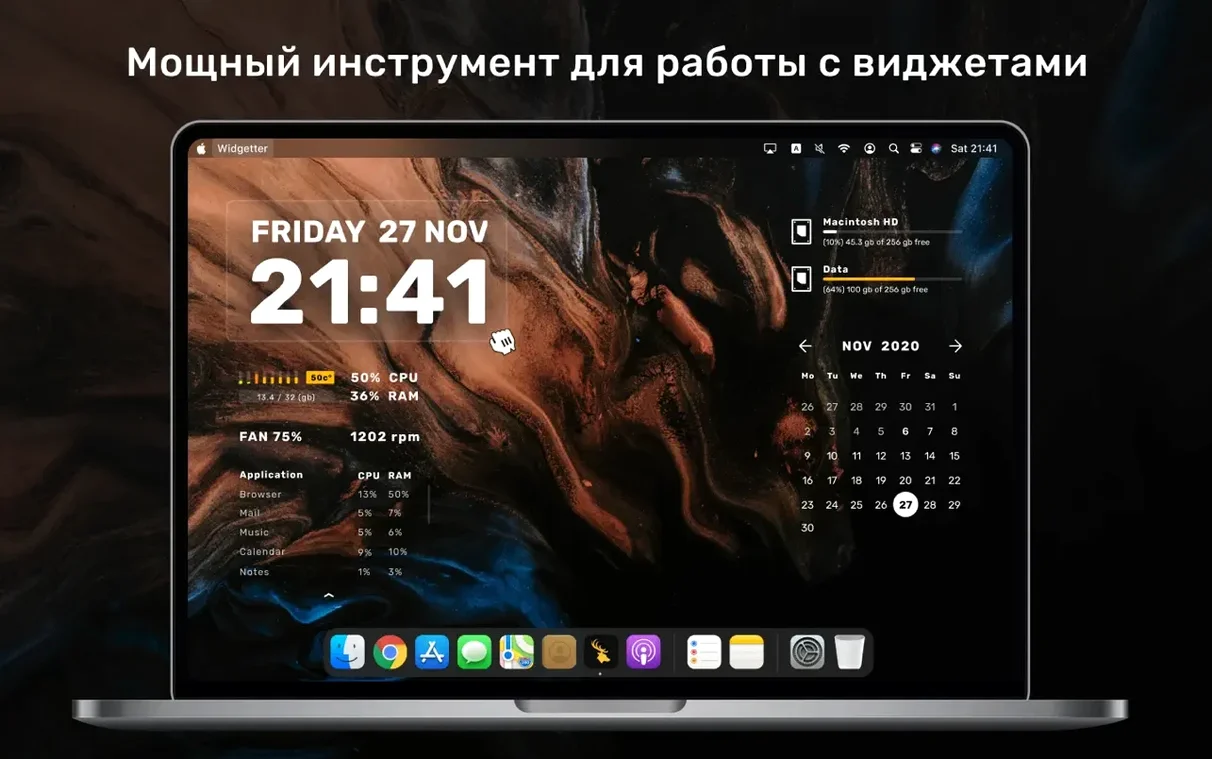
CPU, RAM, Storage, and RPM — all on the desktop
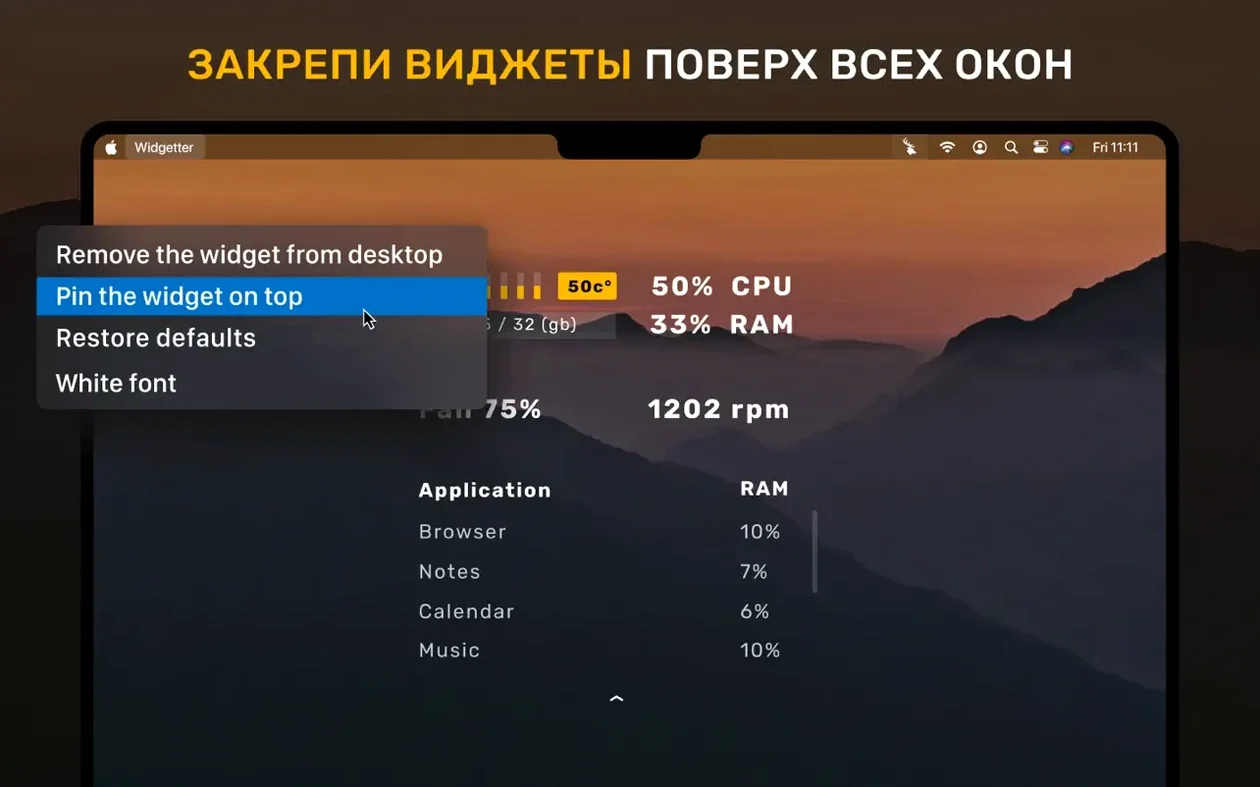
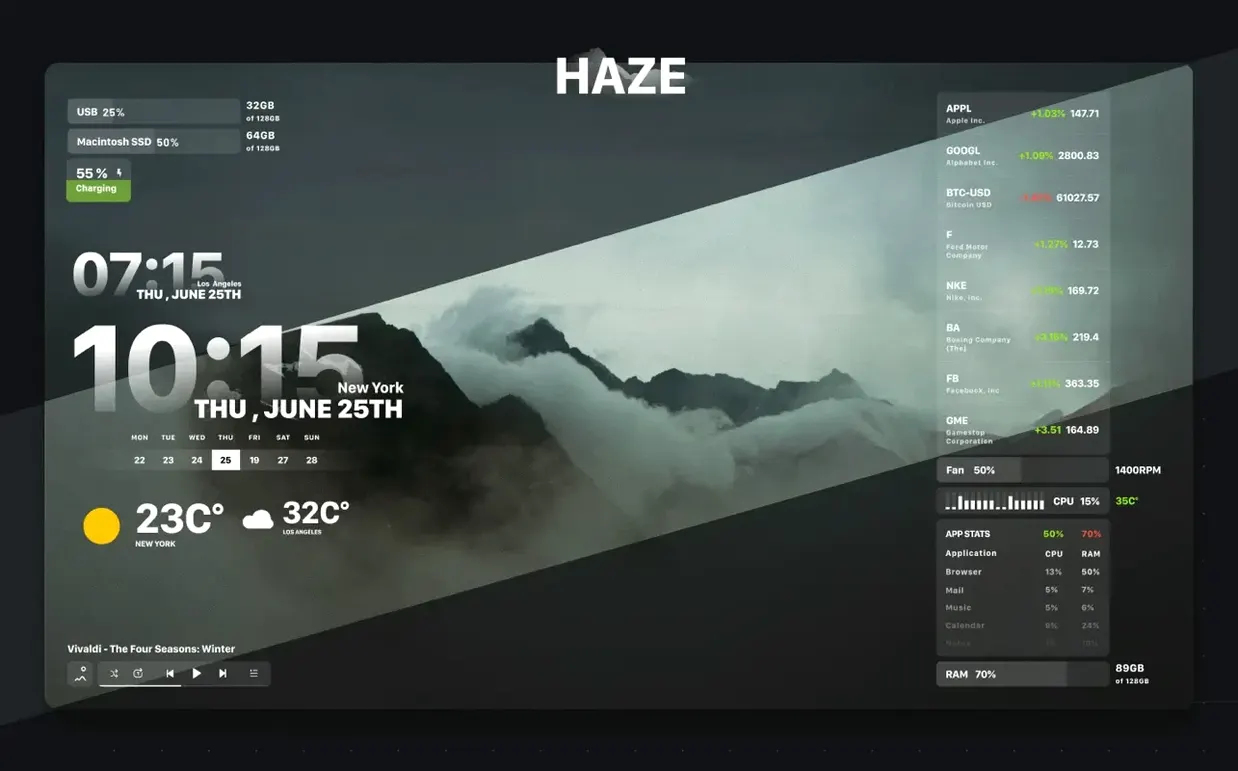
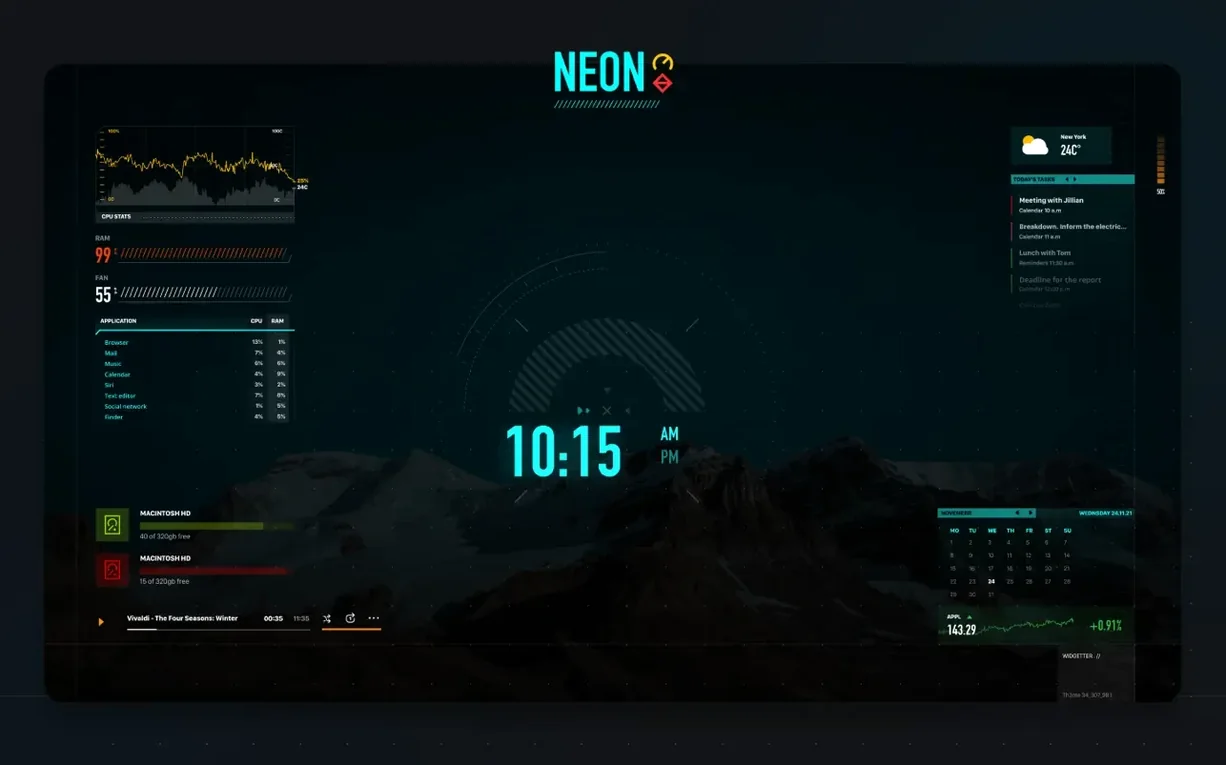
System monitoring is where Widgetter really earns its keep. Rather than digging through Activity Monitor, you can pin live readouts of processor load, memory pressure, and disk activity directly onto your desktop. The RPM widget is a nice touch for anyone who still spins rust — it shows you exactly when your mechanical drives are working hard. And because you can add multiple instances of the same widget, there's nothing stopping you from keeping an eye on all four cores and both drives simultaneously.
Logs, reports, and early warnings
The collection also surfaces the kind of data that usually stays hidden until something goes wrong. Widgetter can pull in system logs and operational reports, then highlight potential errors before they become actual headaches. Think of it as a dashboard warning light for your Mac — it won't fix the problem, but it gives you a head start on diagnosing it.
Weather, calendars, and the rest of the workspace
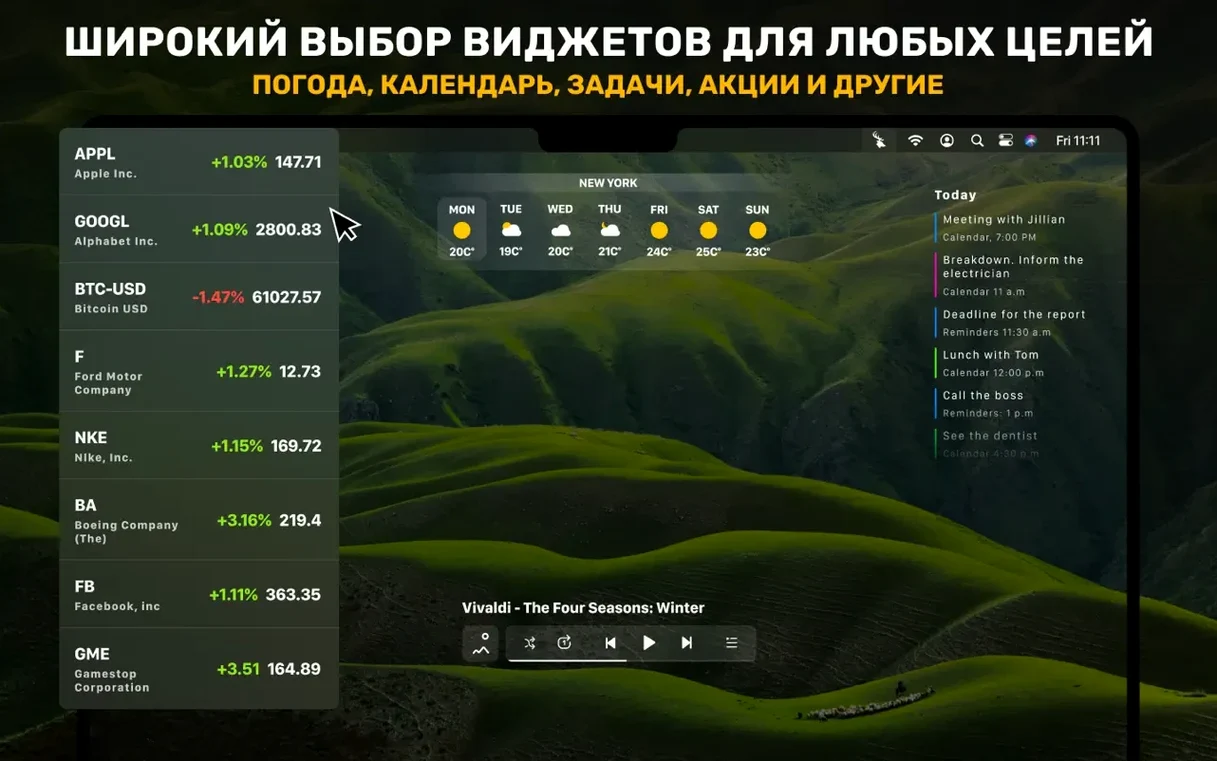
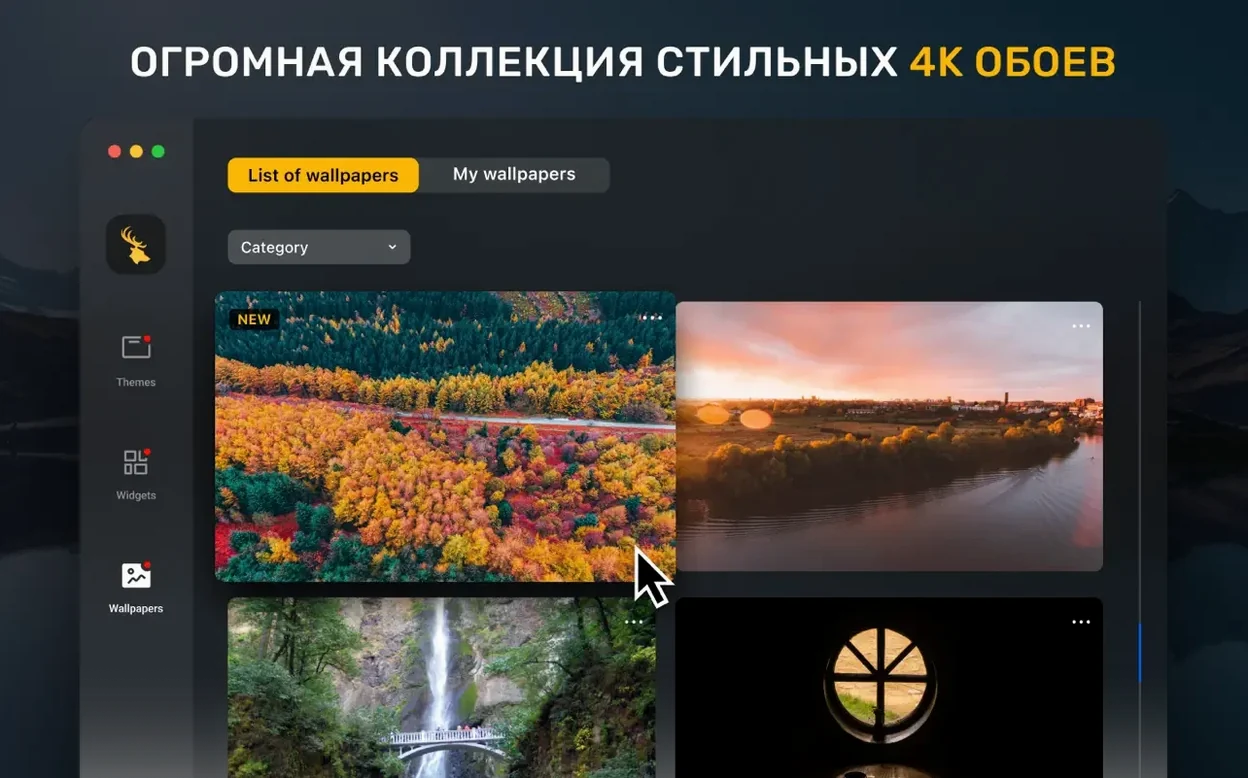
Beyond the purely technical, the app covers the organisational side of things too. You'll find widgets for date and time, a calendar view, battery status, media player controls, internet speed, currency and cryptocurrency quotes, and a task and reminders panel. It all sits alongside a built-in set of 4K and 5K wallpapers, so the whole desktop feels like a cohesive workspace rather than a patchwork of floating panels.
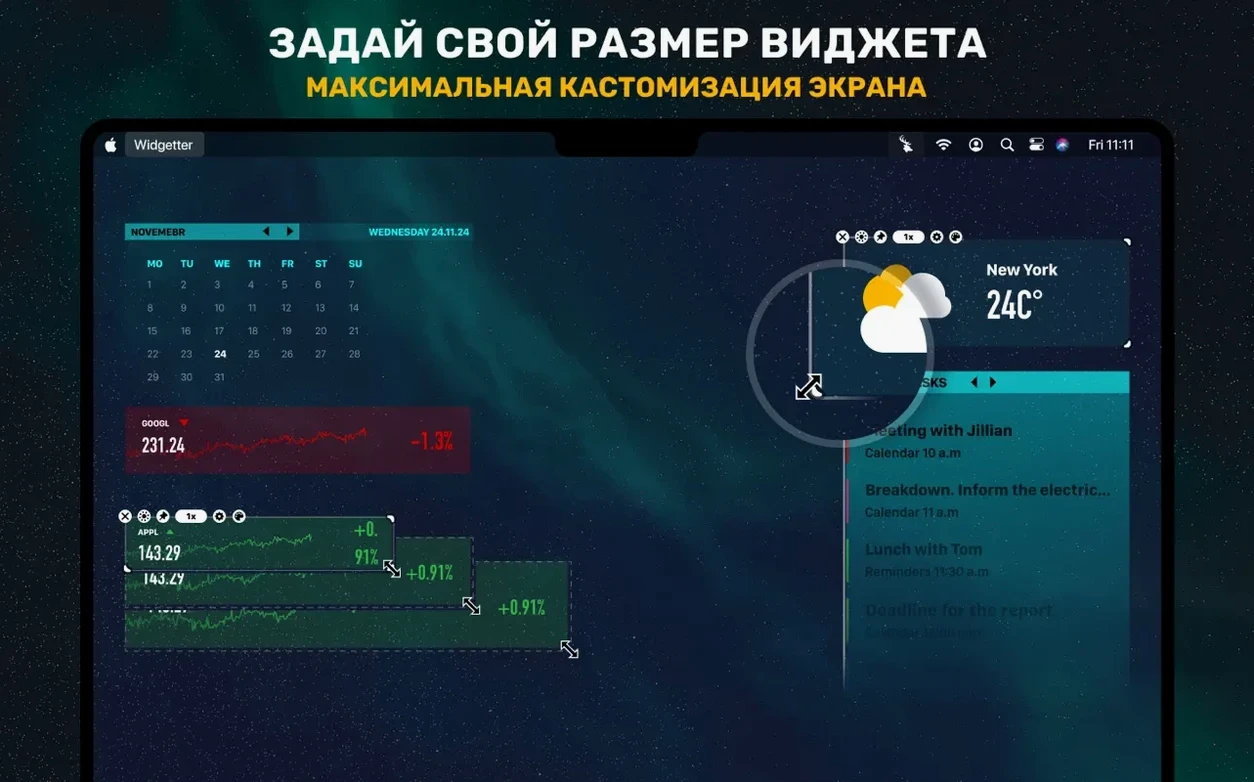
I usually start a Widgetter session by clearing my desktop of anything that isn't earning its place — open Finder windows, stray screenshots, yesterday's downloads — until I'm left with a clean slate. The first widget I drag out is almost always the CPU monitor, set small and placed just above the Dock on the right-hand side. I'll resize it by pulling a corner until it's just large enough to read the percentage without being distracting, then pin it with a translucent background so it blends into whatever wallpaper I'm using that week. After that comes the RAM readout, positioned directly above it, and then a thin weather strip for my own city tucked into the top-left corner. The whole setup takes about ninety seconds once you know where you want things, and the free-form sizing means you never have to settle for a widget that's slightly too big or slightly too cropped.
Once the basics are in place, I'll usually add a second weather widget for a city where a colleague or family member lives — being able to glance up and see that it's raining in Manchester while I'm sitting in dry Cardiff has saved me from more than one poorly timed phone call. If I'm mixing or editing later in the day I'll bring up the storage widget as well, keeping an eye on how much scratch space I have left. The beauty of Widgetter's design is that multiple instances don't fight each other; each one remembers its own size, colour scheme, and data source, so a Brisbane weather panel and a Cardiff weather panel coexist without any configuration gymnastics.
Dial in any hex colour for widget text and background
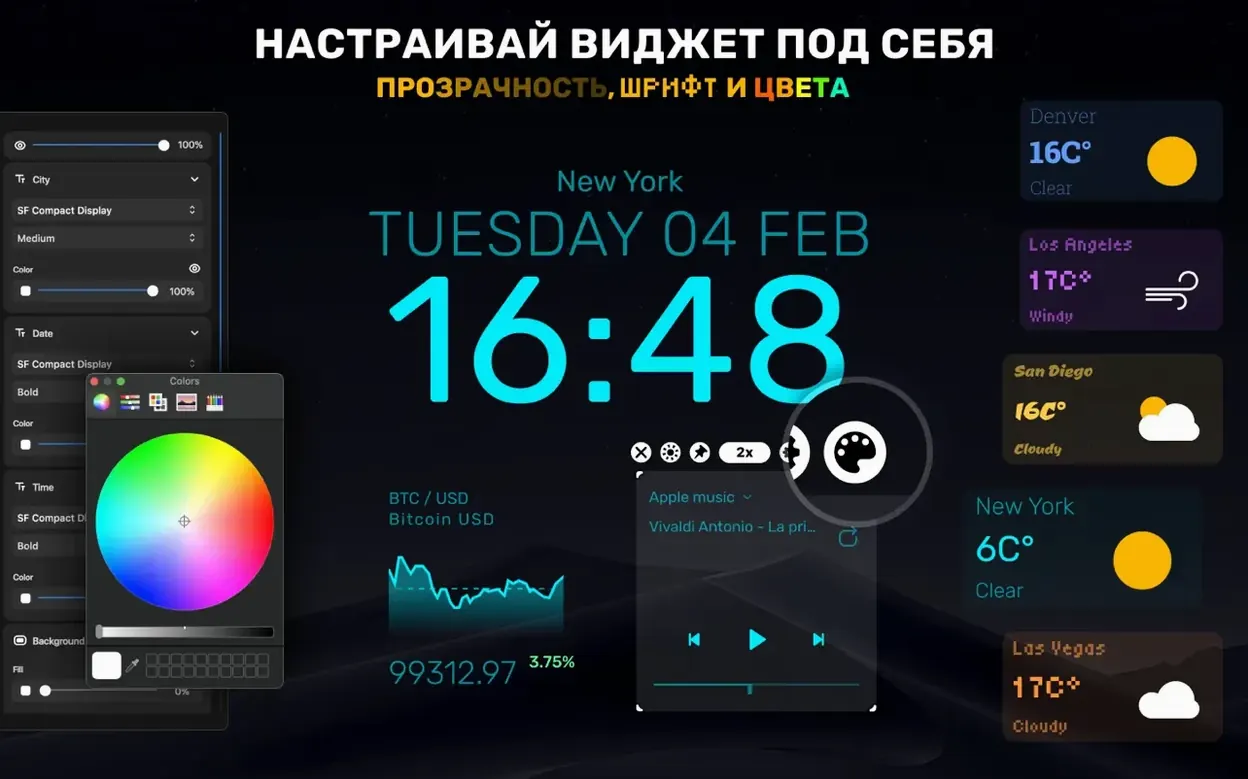
The colour and font customisation runs deeper than you might expect. It's not just a handful of presets — you can dial in any hex value you like, which means a widget's text and background can match a brand palette, a desktop theme, or simply your favourite shade of green. Even the opacity slider has real range; I've seen people set widgets to near-invisible during focused work, leaving just the numbers floating over the wallpaper like a head-up display. And if you hold Option while dragging a widget, it snaps to the edges of other widgets, which saves the fiddly alignment work that usually eats up five minutes of a setup session.
Another detail worth knowing: the error-highlighting logic isn't just a binary pass-or-fail flag. When the system logs widget detects something unusual — a disk I/O error, a thermal throttle event, a daemon crash — it shows a subtle amber glow rather than an alarming red, so you can decide whether it's worth investigating or just a transient blip. That sort of restraint is rare in monitoring tools, and it makes the difference between a widget you glance at and a widget you learn to ignore.
Light enough for an older Mac running macOS 10.13.2
Will this slow down an older Mac? The app's footprint is surprisingly light. We're talking about a process that spends most of its time reading values the system is already tracking, so the overhead on a Mac running macOS 10.13.2 or later is barely measurable. On a 2015 MacBook Air I've seen the combined widget set add less than half a percent to CPU usage, and that's with eight widgets active. The 64-bit Intel and Apple Silicon builds both behave themselves — there's no Rosetta translation layer to worry about on M-series machines.
Can I use this alongside other desktop customisation tools? Generally, yes. Widgetter sits in its own layer and doesn't interfere with menu bar utilities or tools that modify the Dock. The one caution is stacking it with other apps that also draw overlay windows — if you use something like Übersicht or GeekTool concurrently, you'll want to keep their widget areas physically separate on the desktop to avoid visual clutter and the occasional z-order shuffle.
What happens when I disconnect from the internet? The system stats, battery, calendar, tasks, and media controls keep working regardless of connectivity. Weather and currency widgets will show the last fetched value with a small "offline" indicator until the network returns, which is cleaner than most desktop widget systems manage. The cryptocurrency quotes behave the same way — they cache the last known price rather than blanking out, so you're never staring at an empty panel wondering if the app has crashed.
Widgetter 2.5.3 is a tidy maintenance release that sweeps up a handful of small, nagging bugs. Nothing dramatic in the feature list, but the widgets should feel a touch more settled on the menu bar — fewer odd flickers, more predictable behaviour when you switch between monitor layouts. If you'd noticed the odd reading going stale on Apple Silicon Macs, that's been chased down too.
- macOS 10.13.2 or newer
- Runs natively on both Apple Silicon and Intel 64-bit Macs
Questions I keep hearing
What system data can the widgets display?
They cover CPU, RAM, storage, and RPM activity, plus system logs, reports, and operational data that can flag possible errors.
Can I run more than one of the same widget?
Yes — you can add multiple instances of any widget type, which is handy for monitoring several drives or CPU cores side by side.
Questions from the class 0
Sign in or join the class to ask a question.
Nobody has asked anything yet. If you have used it on a real job, say what the file did.
Also on the Mac Apps shelf
The whole Mac Apps shelf WebStorm
Gives you a responsive desktop environment that deeply understands your JavaScript and TypeScript.
WebStorm
Gives you a responsive desktop environment that deeply understands your JavaScript and TypeScript.
 WidgetWall
Places over twenty mini-apps, from a Pomodoro timer to a TikTok viewer, directly on your desktop.
WidgetWall
Places over twenty mini-apps, from a Pomodoro timer to a TikTok viewer, directly on your desktop.
 Winclone Pro
Packages a Boot Camp Windows installation into an image and restores it onto a new Mac.
Winclone Pro
Packages a Boot Camp Windows installation into an image and restores it onto a new Mac.
 WinZip Mac Pro
Lets you right-click a messy folder and find every duplicate, archive, and file to tidy up.
WinZip Mac Pro
Lets you right-click a messy folder and find every duplicate, archive, and file to tidy up.
 WALTR PRO
Converts and transfers any media file onto your iPhone or iPad with a single drag.
WALTR PRO
Converts and transfers any media file onto your iPhone or iPad with a single drag.
 Wipr
Makes cookie banners and popups vanish without a single settings toggle.
Wipr
Makes cookie banners and popups vanish without a single settings toggle.
 Wirecast Pro
Streams live video with built-in scoreboard overlays, replays, and multi-camera switching.
Wirecast Pro
Streams live video with built-in scoreboard overlays, replays, and multi-camera switching.
 Wondershare Filmora
Helps vloggers and teachers assemble polished videos without a professional timeline.
Wondershare Filmora
Helps vloggers and teachers assemble polished videos without a professional timeline.