 ASPNetWorld

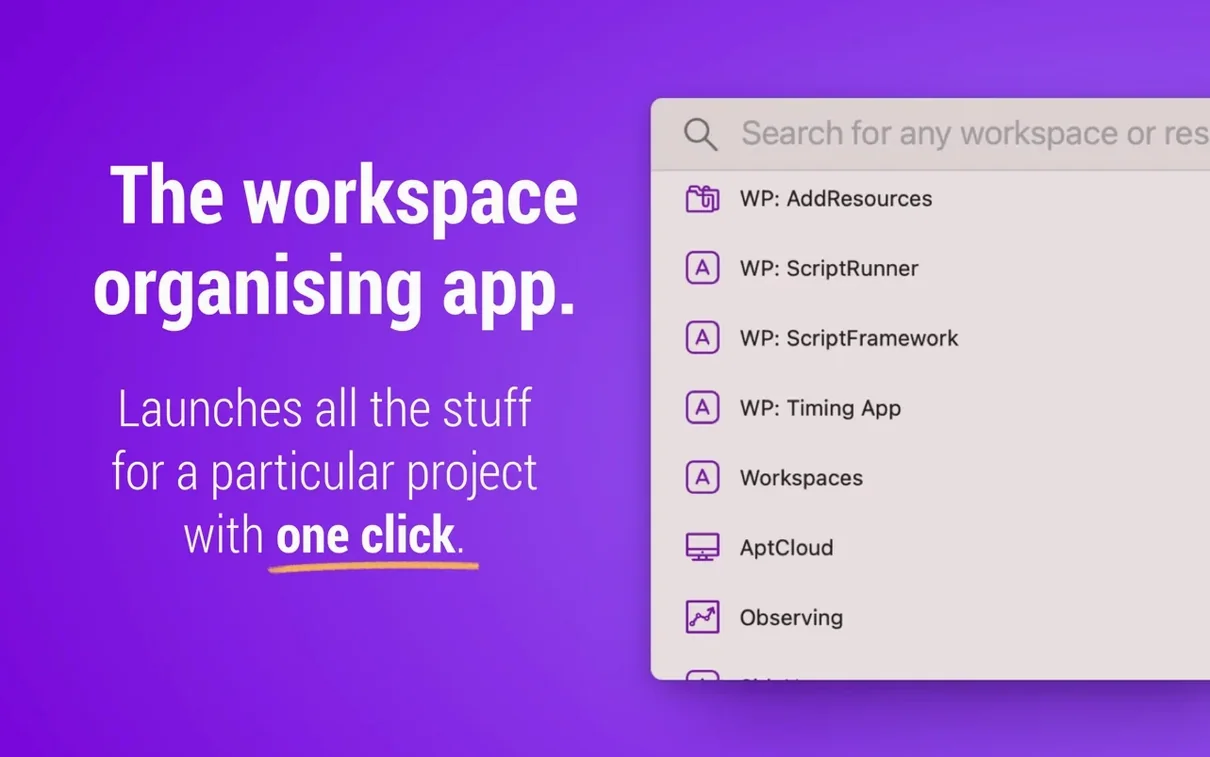
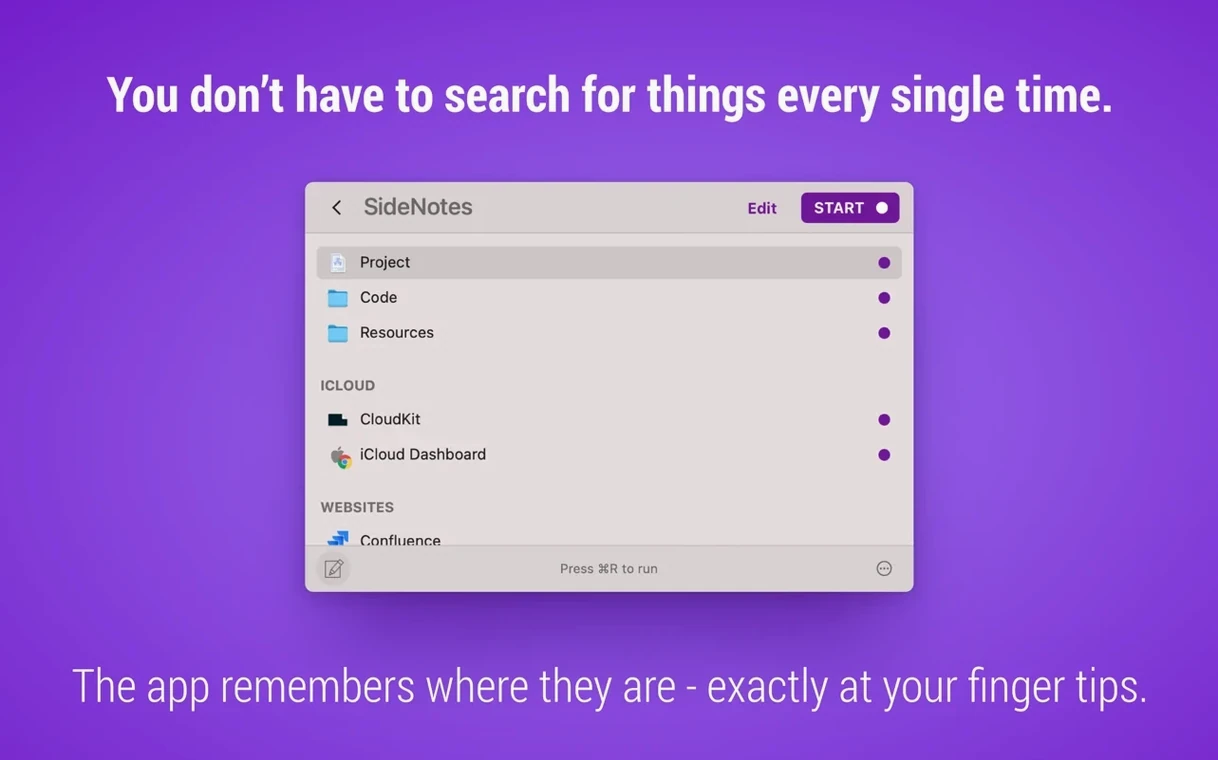
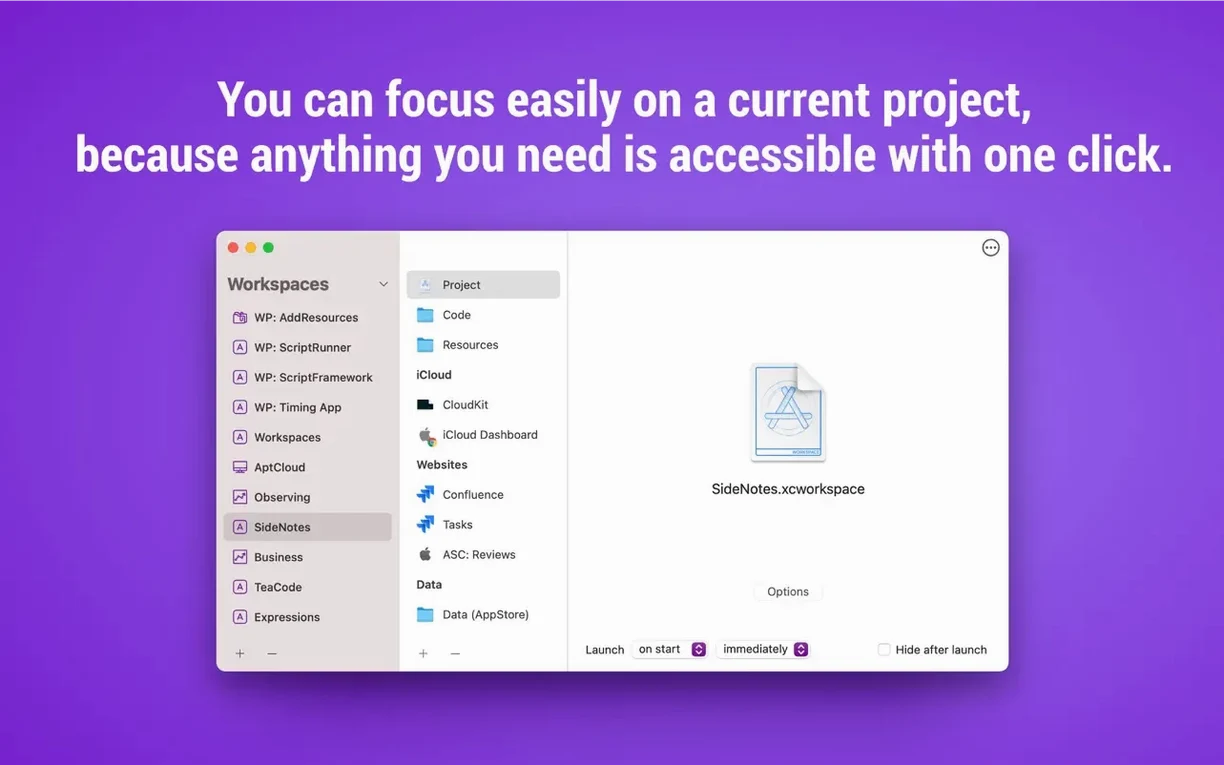
Jumping back into a project usually means a small ritual of opening and arranging: the right folders, a few key files, a specific website for reference, and maybe an email draft you were staring at. It is a few minutes of clerical work your brain could do without. Workspaces by Apptorium remembers all of that as a single saved environment, so one click puts everything back where it was.
Will Workspaces 2.3 run on my Mac?
Yes, as long as you are on macOS 10.14 Mojave or newer. The application runs natively on both Intel-based Macs and Apple Silicon machines, so you get full performance regardless of your processor.
What exactly can I launch with it?
You can bundle together files, folders, websites, applications, and even specific email messages. Think of it as a playlist for your work items — hit play and the whole set opens at once.
Is it easy to get at my saved workspaces?
Quite easy. You can launch individual resources or full workspaces straight from the menu bar icon, or run them directly from the editor. A right-click on that icon gives you a context menu for quick launching too.
What is the point of the editor?
The editor is where you build and fine-tune a workspace. It stores every resource you add so the collection can be reopened instantly later, and version 2.2 made it possible to trigger both workspaces and individual items without leaving that view.
Building a weekly client report — a start-to-finish workflow
Let’s make it concrete. You produce a summary every Monday morning for a client: you need the latest spreadsheet from a shared folder, a local Pages template, the client’s analytics dashboard in Safari, and the email thread where they sent last week’s notes. That is four separate things you normally hunt down. With Workspaces, you gather them once and never hunt again.
Open the app and create a new workspace — call it Monday Report. Click the plus button and choose File. Navigate to your Pages template and add it. Do the same for the spreadsheet folder on the network share; Workspaces treats it as a folder resource, so selecting it later opens the whole directory in Finder. Now add a Website resource and paste the analytics URL. The clever bit is the email. Switch to Apple Mail, find the thread, and drag it straight into the resource list — Workspaces stores a direct link back to those messages. Save the workspace.
Monday morning arrives. You click the menu bar icon, find Monday Report in the list, and everything springs open: the template ready to edit, the folder at your fingertips, the dashboard loading in your browser, and the email thread in Mail. No clicking through file trees, no typing URLs. The whole ritual collapses into a single action.
Two tweaks in General to make workspaces yours
Out of the box, Workspaces behaves sensibly, but a couple of tweaks make it feel more your own. Open the Settings window — redesigned in 2.2 — and look at the General tab first.
If you prefer your workspaces to launch without the editor window getting in the way, enable Close Search after opening editor. It sounds small, but it keeps the focus on the resources you just opened rather than the tool itself. While you are there, check the Search preferences. Single-click opening from Search is on by default in the current version, and it is worth keeping — one click on a found resource fires it up, no second-guessing with a double tap.
Move to the Menu Bar settings. The right-click context menu for launching workspaces arrived in 2.2, and it becomes your fastest path once you have more than five saved environments. Make sure the menu bar icon is set to stay visible; hiding it defeats half the convenience. If you regularly juggle workspaces throughout the day, assign a global keyboard shortcut for the Search window. It gives you a command-palette-like feel — summon Search, type a workspace name, hit Return, and carry on working.
40 MB idle and a ten-file launch on M1
The application itself is lightweight. On an M1 MacBook Air it idles at around 40 MB of memory with a handful of workspaces defined, and launching a big set — ten files, two folders, a website, and Mail — barely nudges the CPU. Intel machines see similar restraint; the code runs native on both architectures, so there is no Rosetta translation overhead to worry about.
I have thrown twenty-resource workspaces at it without a stutter. The only perceptible delay is the time it takes your other apps to open what they were asked to open — Workspaces is not the bottleneck. Stability has been uneventful across a week of daily use. The 2.2 update squashed a few editor and shortcut gremlins, and 2.3 added plugin update indicators without introducing anything flaky. Crashes are not zero — no software is — but I have yet to provoke one during normal project switching.
If your workflow leans heavily on workspaces mac download as a concept you have probably tried other launchers that swell into window managers. This one stays in its lane. It does not try to tile your windows or script your automations; it just opens what you tell it to open, then gets out of the way. That restraint shows in the resource numbers — low memory, near-zero background CPU, and a menu bar helper that never feels invasive.
One quirk: the first launch after installation triggers a Gatekeeper step, because the app is not notarised. You mount the disk image, Terminal asks you to press Enter, and then you drag the app into Applications. It is a one-time ritual, not an ongoing annoyance, and the app runs without further complaint once it is in place.
Version 2.3 is a quieter maintenance update that keeps your tools honest. The main addition is a set of indicator flags that appear when a plugin you rely on has an update available, so you are not left guessing about compatibility.
- macOS 10.14 or later
- Compatible with Intel and Apple Silicon Macs
- Interface language: English
Questions I keep hearing
Can I search for a specific resource I've saved?
Yes, the Search function lets you find any stored resource, and since version 2.2 a single click on a result opens it immediately.
Questions from the class 0
Sign in or join the class to ask a question.
Nobody has asked anything yet. If you have used it on a real job, say what the file did.
Also on the Mac Apps shelf
The whole Mac Apps shelf Wondershare UniConverter
Converts, compresses, and merges video files into a single format your editor and players understand.
Wondershare UniConverter
Converts, compresses, and merges video files into a single format your editor and players understand.
 Wondershare Recoverit
Rescues photos, documents, and videos from reformatted drives or long-lost files with a deep scan.
Wondershare Recoverit
Rescues photos, documents, and videos from reformatted drives or long-lost files with a deep scan.
 Wondershare Filmora
Helps vloggers and teachers assemble polished videos without a professional timeline.
Wondershare Filmora
Helps vloggers and teachers assemble polished videos without a professional timeline.
 Wirecast Pro
Streams live video with built-in scoreboard overlays, replays, and multi-camera switching.
Wirecast Pro
Streams live video with built-in scoreboard overlays, replays, and multi-camera switching.
 Wipr
Makes cookie banners and popups vanish without a single settings toggle.
Wipr
Makes cookie banners and popups vanish without a single settings toggle.
 Yoink
Provides a temporary shelf on the side of your screen for dragging and holding files between windows.
Yoink
Provides a temporary shelf on the side of your screen for dragging and holding files between windows.
 WinZip Mac Pro
Lets you right-click a messy folder and find every duplicate, archive, and file to tidy up.
WinZip Mac Pro
Lets you right-click a messy folder and find every duplicate, archive, and file to tidy up.
 Winclone Pro
Packages a Boot Camp Windows installation into an image and restores it onto a new Mac.
Winclone Pro
Packages a Boot Camp Windows installation into an image and restores it onto a new Mac.