 ASPNetWorld

Find Any File 2.6.1 works on practically any Mac you’re likely to have, from an older machine running OS X 10.11 El Capitan right through to the latest Apple Silicon laptops on macOS 15 Sequoia. It’s a nimble little search app from developer Thomas Tempelmann that reads your disks directly, rather than relying on a pre-built database the way Spotlight does. That one difference changes what it can find — and where it can look.
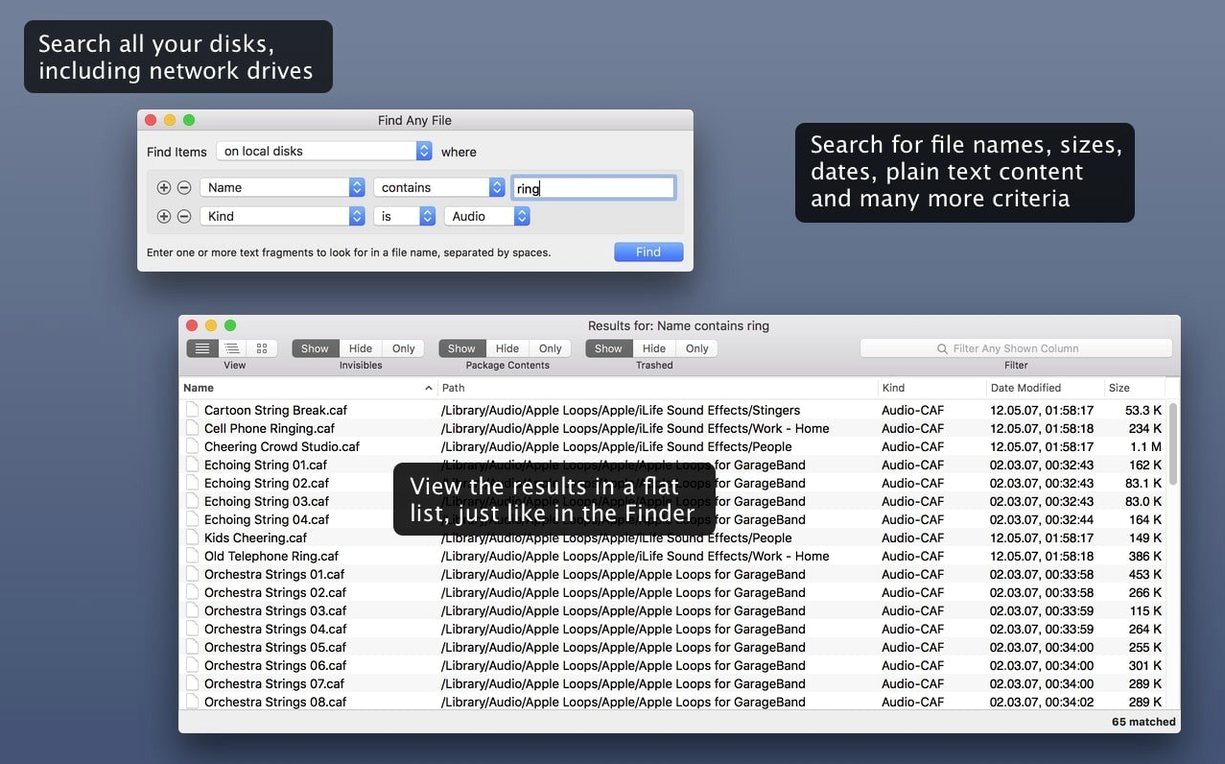
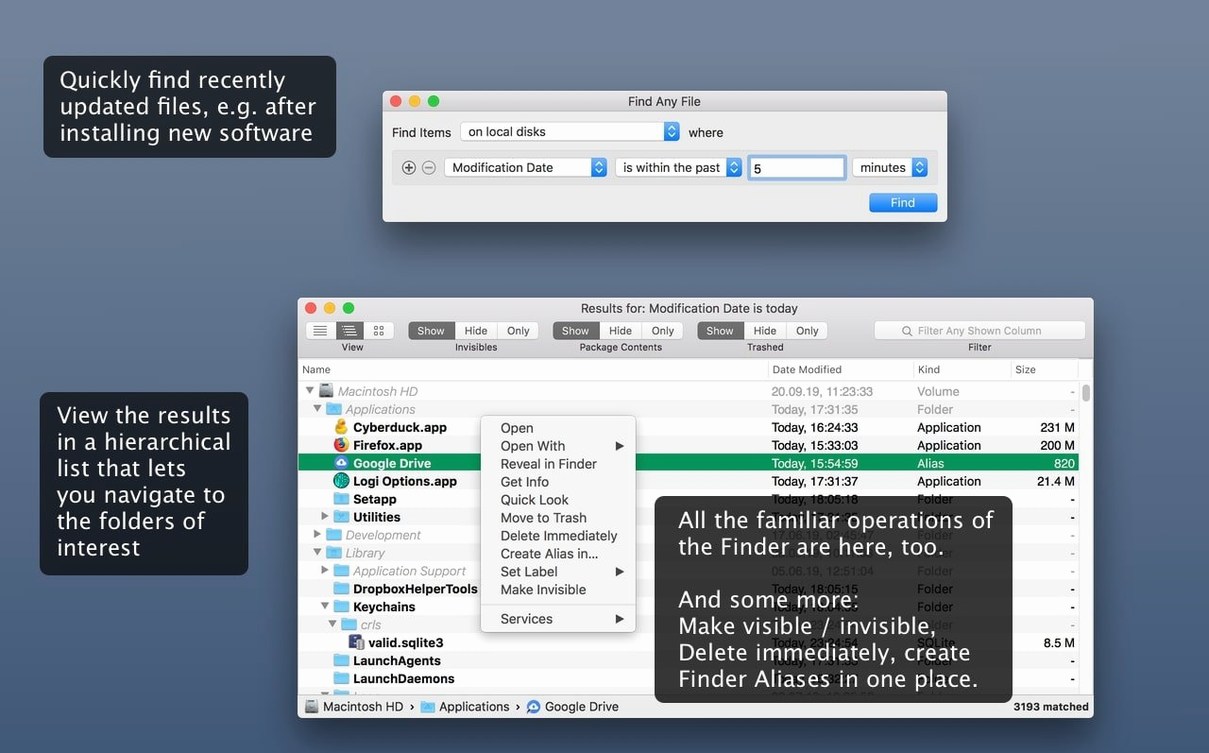
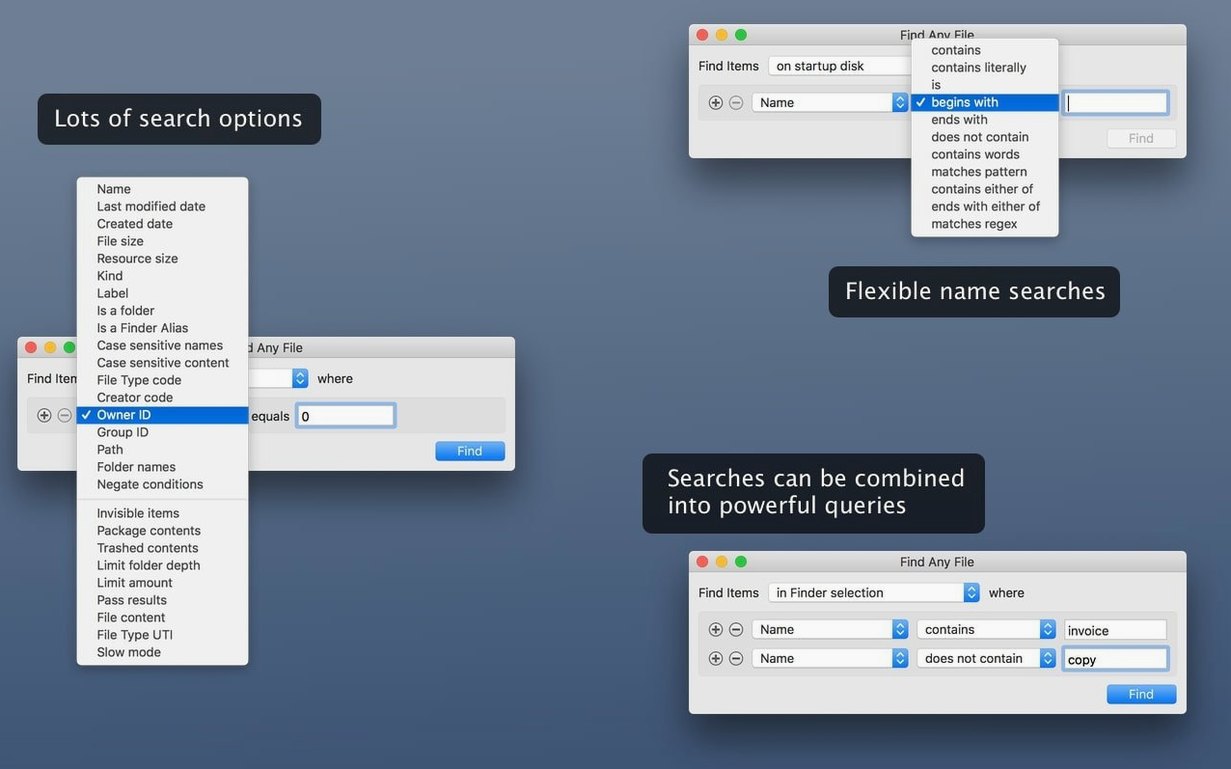
Because it doesn’t depend on an index, Find Any File happily searches server volumes, external drives, and any other disk that Spotlight has never touched. It can also peer inside bundles and packages — those special folders macOS treats as single files, like Photos libraries or .app packages. You can search by name, date, size, or even by text content, and the results appear in a hierarchical folder view that mirrors the actual structure of your drive. For anyone who has ever known a file exists but watched Spotlight shrug, this is the patient friend who actually goes and looks.
Think of it less as a replacement for Spotlight and more as a companion for the jobs Spotlight wasn’t built to do. When you need a brute-force, real-time hunt across an unfamiliar server share, or you want to find every file modified in a particular hour last Tuesday, Find Any File is the tool you reach for.
Make drag-and-drop search the default result action
Out of the box, Find Any File works straight away, but a couple of tweaks in the preferences window make it noticeably more useful day to day. Open Find Any File > Settings (or press ⌘,) and look under the General tab.
The first thing I suggest to my evening class students is to tick Show package contents. Without it, the app treats a Photos Library or an .app bundle as a single opaque item. Turn it on, and a search for “sqlite” will surface database files tucked deep inside packages that a normal search would skip entirely. It’s the whole reason many people seek out a find any file mac download in the first place.
Next, check Include system files. Spotlight deliberately hides most of /System and /Library from its results, which is sensible for everyday use but maddening when you’re trying to locate a stray preference file or a kernel extension. With this enabled, Find Any File shows everything — just remember you turned it on, so you don’t later wonder why your results are full of unfamiliar Unix paths.
Under the Advanced tab, raise the Number of search threads to match your Mac’s processor cores if you regularly search spinning hard drives. On an SSD-equipped Mac, the default is usually fine; on a mechanical drive, more threads can cut a deep search time by half. And if you ever use the text search, consider adding a few common file extensions to the Text content search: file types field — things like txt log csv md plist — so the app isn’t pointlessly grinding through every binary on your disk.
A Workflow: Tracking Down a Stray Config File
Here’s a real scenario I hit last month. A piece of audio software had stopped remembering my interface routing, and I knew the culprit was a corrupted preference file — but the developer’s support page named three possible filenames, and Spotlight found none of them. A perfect job for Find Any File.
I launched the app and set the search location to my boot drive using the “Where” pop-up at the top of the window. In the Name field, I typed the first candidate filename without its extension — just routing — and left “Ends with” as the default match mode. Under the Options popover, I made sure Include system files and Show package contents were both active. Then I hit Find.
The results list populated in about four seconds, showing the file buried inside ~/Library/Application Support/ — a path Spotlight would have indexed but not shown me, because the file sat inside a bundle. A right-click on the result let me choose Reveal in Finder, and from there I could rename the suspect file and restart the software. Problem diagnosed in under a minute. That’s the pattern: name what you know, widen the scope, and let the app brute-force the rest.
Admins rely on it when Spotlight can’t see inside network shares
Not every Mac user needs Find Any File, but for certain types it quickly becomes indispensable. System administrators and IT support staff who manage fleets of Macs or wrangle server shares use it constantly — it’s one of the few tools that will find any file on a network volume without first indexing the entire thing. The same goes for audio engineers and video editors who juggle projects across multiple external drives; a session file mislaid at 2 a.m. is a lot less stressful when you can search by modification date and size in a single pass.
Developers get a lot from it too. Searching for a symbol across uncompiled source files, hunting down build artefacts, or locating a specific version of a framework inside an .xcarchive — these are tasks where the hierarchical results view really earns its keep. And there’s a quieter audience: careful Mac users who like to know what’s actually on their drives. The kind of person who, after uninstalling an application, searches for its leftover support files and deletes them properly. For that sort of spring-cleaning, a find any file mac search is far more thorough than dragging an app to the Trash and hoping for the best.
Switch from the home folder to root when results come up empty
One recurring grumble is that Find Any File reports “No items found” when the file definitely exists. Nine times out of ten, the culprit is the search location. The app defaults to your home folder, not the whole disk, and it’s easy to forget you’ve left it pointing at a subfolder. Before tweaking any other setting, tap the “Where” pop-up and switch it to your boot drive or the specific volume you need.
Another hitch: the text search feels slow compared to the filename search. That’s because it is — it’s reading raw bytes from disk rather than consulting an index. The fix is to narrow the scope. Use the Name field to restrict the search to files with a plausible extension (like .txt or .log), and use the Size filter to exclude enormous files you know won’t contain your search term. A 4 GB disk image isn’t going to hold your missing meeting notes, so don’t make the app read through it.
Users coming from an any video converter torrent or similar general-purpose utility sometimes expect Find Any File to preview file contents. It won’t — that’s not its job. It finds files and shows you where they live; you double-click or right-click to open them in their native application. And if you’ve ever used an any video converter ultimate torrent, you’ll recognise the difference between a tool that processes files and one that simply locates them. Find Any File is squarely in the latter camp.
Finally, on very large server volumes with millions of files, the app can beachball for a few seconds when sorting a huge results list by date. Turning off Calculate folder sizes in the View menu helps, as does switching the sort to Name until the scan finishes. It’s a fair trade-off: the price of searching without an index is a little patience while the disk does its work.
Version 2.6 brought some welcome quality-of-life improvements, with version 2.6.1 building on that foundation. AppleScript support lets you integrate searches into your own workflows, and new columns for Comments, Trashed, and Hidden status give you more context right in the results list. The reliability of finding files by their Finder comments was also tightened up in this release.
- macOS 10.11 (El Capitan) or later
- Compatible with both Intel and Apple Silicon Macs
Questions I keep hearing
Does Find Any File search inside hidden folders?
Yes, it searches every corner of a disk it has permission to read, including files inside bundles, packages, and normally invisible directories.
Can Find Any File replace Spotlight on my Mac?
It’s designed as a companion, not a replacement. Spotlight is faster for everyday searches on indexed drives, while Find Any File excels at deep searches on unindexed or server volumes.
Questions from the class 0
Sign in or join the class to ask a question.
Nobody has asked anything yet. If you have used it on a real job, say what the file did.
Also on the Mac Apps shelf
The whole Mac Apps shelf Final Cut Pro
Tracks moving objects so titles and blurs follow them automatically.
Final Cut Pro
Tracks moving objects so titles and blurs follow them automatically.
 FileMaker Pro
Helps you build custom databases without writing all the code yourself.
FileMaker Pro
Helps you build custom databases without writing all the code yourself.
 Flicker Free
Removes flicker and strobing from your video footage.
Flicker Free
Removes flicker and strobing from your video footage.
 Folder Preview Pro
Lets you peek inside folders without fully opening them.
Folder Preview Pro
Lets you peek inside folders without fully opening them.
 FontLab
Lets you design and refine your own typefaces.
FontLab
Lets you design and refine your own typefaces.
 ForkLift
Moves files between folders and servers in a dual-pane view.
ForkLift
Moves files between folders and servers in a dual-pane view.
 FotoMagico
Builds timed slideshows that feel more like short films.
FotoMagico
Builds timed slideshows that feel more like short films.
 FxFactory Pro
Adds a library of video effects to your editing software.
FxFactory Pro
Adds a library of video effects to your editing software.