 ASPNetWorld

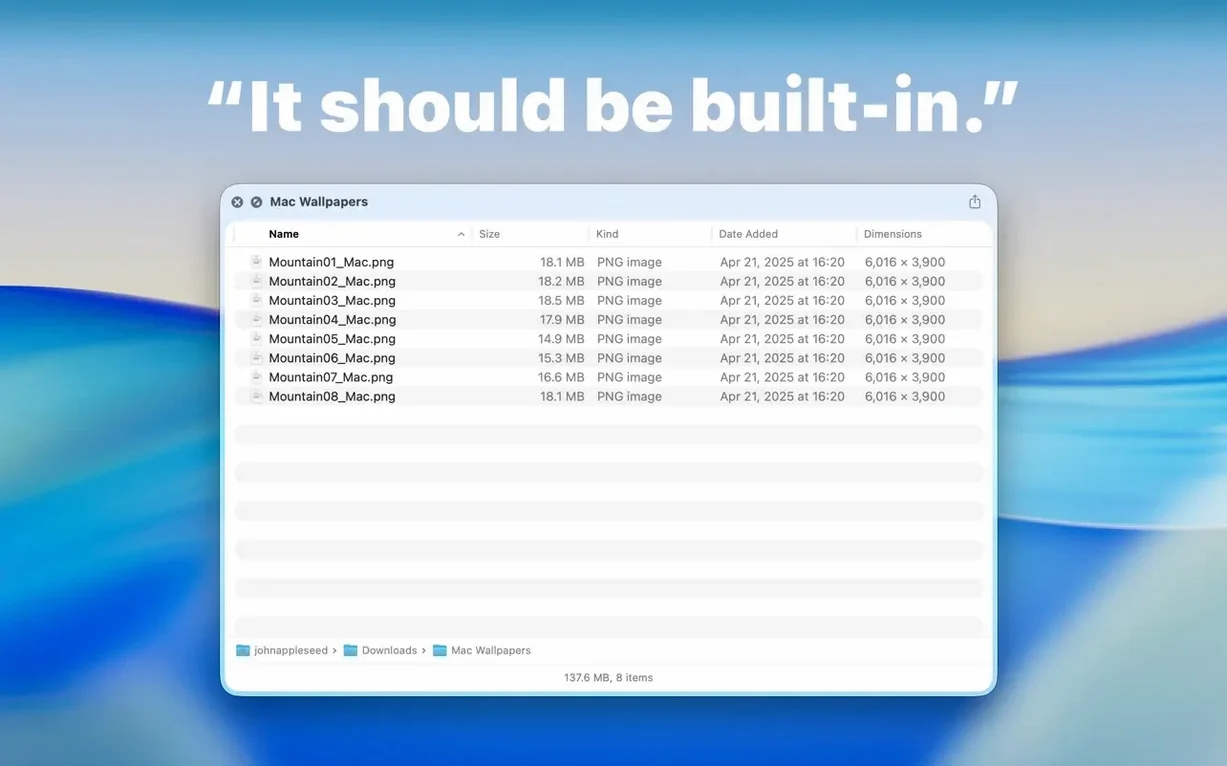
Select a folder in Finder, tap the spacebar, and the Dual Columns view splits the preview into two neat panels. You can browse a nested folder structure as if you had opened it, yet the window floats over everything else and disappears the moment you tap space again.
Peek inside without leaving the keyboard
The magic lies in how little it asks of you. Highlight a folder of project assets, hit space, and the preview shows you everything inside — images, documents, subfolders — in a familiar icon or list view. No double-clicking, no extra windows piling up on the desktop.
Grab a file as you browse
Spot the graphic you need? From version 3.1 you can drag a file straight out of the preview and drop it into an email, a chat window, or another folder. The preview acts like a temporary, lightweight Finder window that vanishes once you have what you came for.
Work through a folder level by level
Deep folder structures are where Finder navigation gets tiresome. Right-click any folder and pick the new Contents item to step inside without ever opening a full window. Each level appears in the same compact preview, with the folder's total size tucked under its name in the toolbar so you always know how much space you are dealing with.
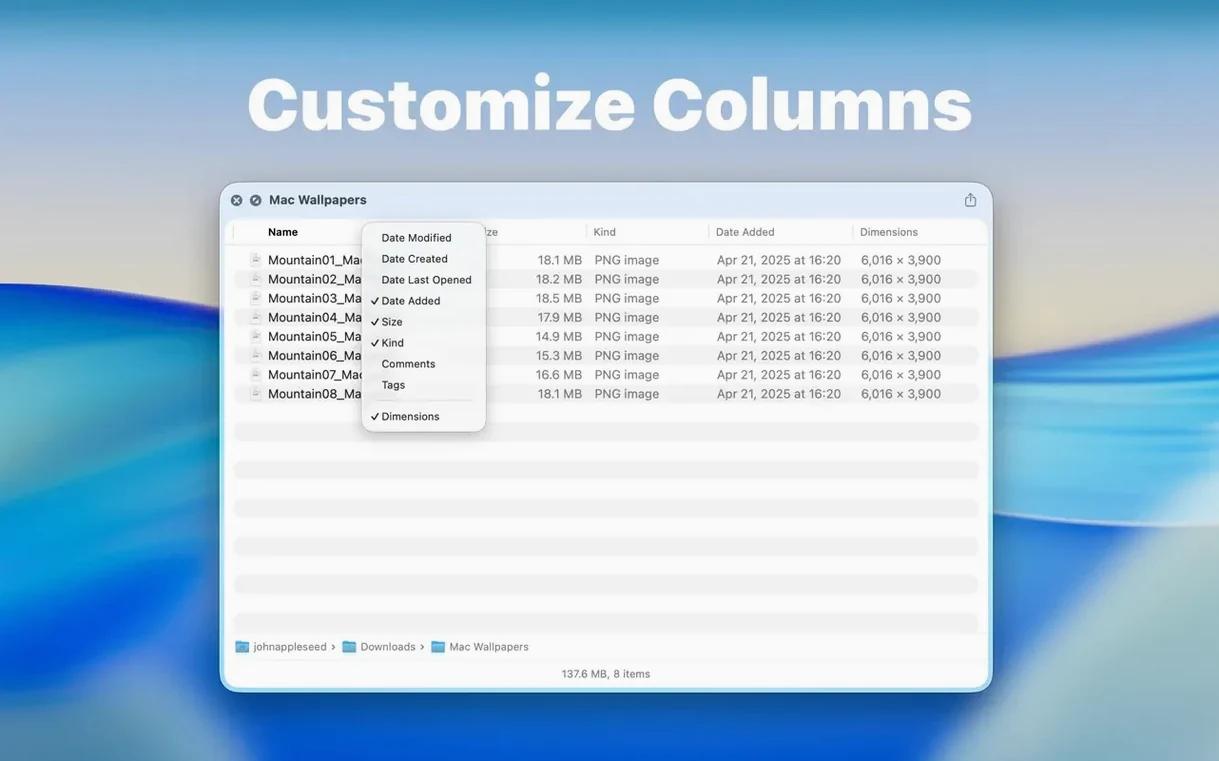
Right-click column headers to show only filename and size
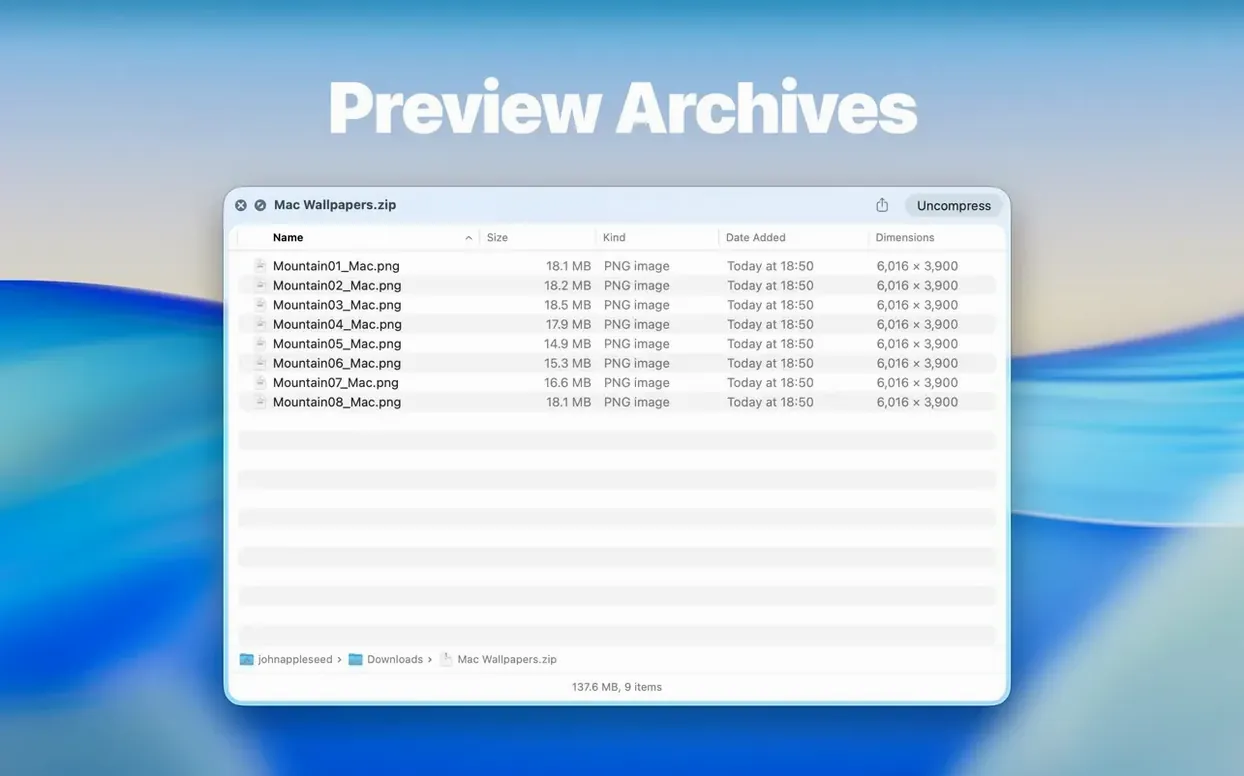
Some of the best touches sit exactly where you would not think to look. Right-click the column headers in list view and a menu lets you show or hide individual columns — handy when you only need filename and size, or when a wide date-modified column pushes everything else off the preview. The archive size limit is another quiet addition. In version 3.1 you can cap preview extraction at 5 GB or 10 GB, which stops a monster ZIP from hogging memory while you wait for a quick glance inside. And if you regularly work with compressed folders, try dragging a .rar or .7z onto a Finder window and hitting space — the extension treats them just like ordinary folders, no extra unpacking step required.
Tick the option to show hidden files like .git folders
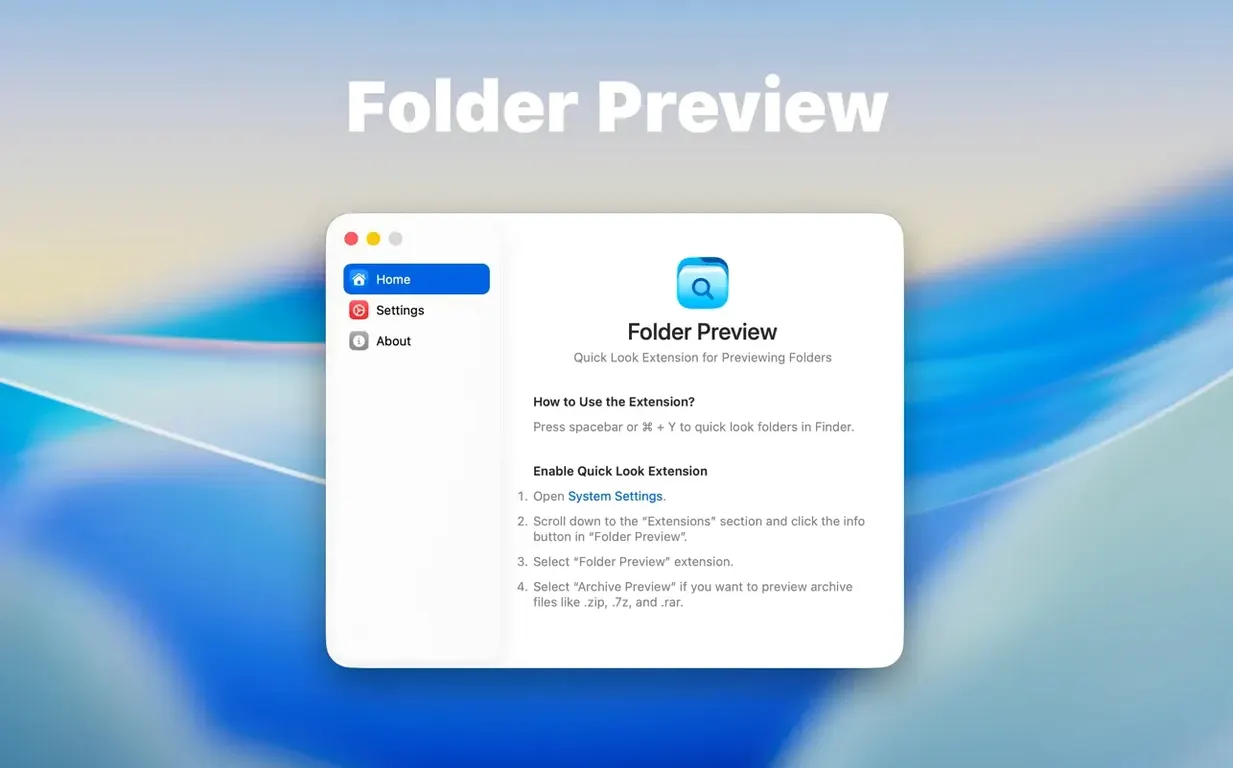
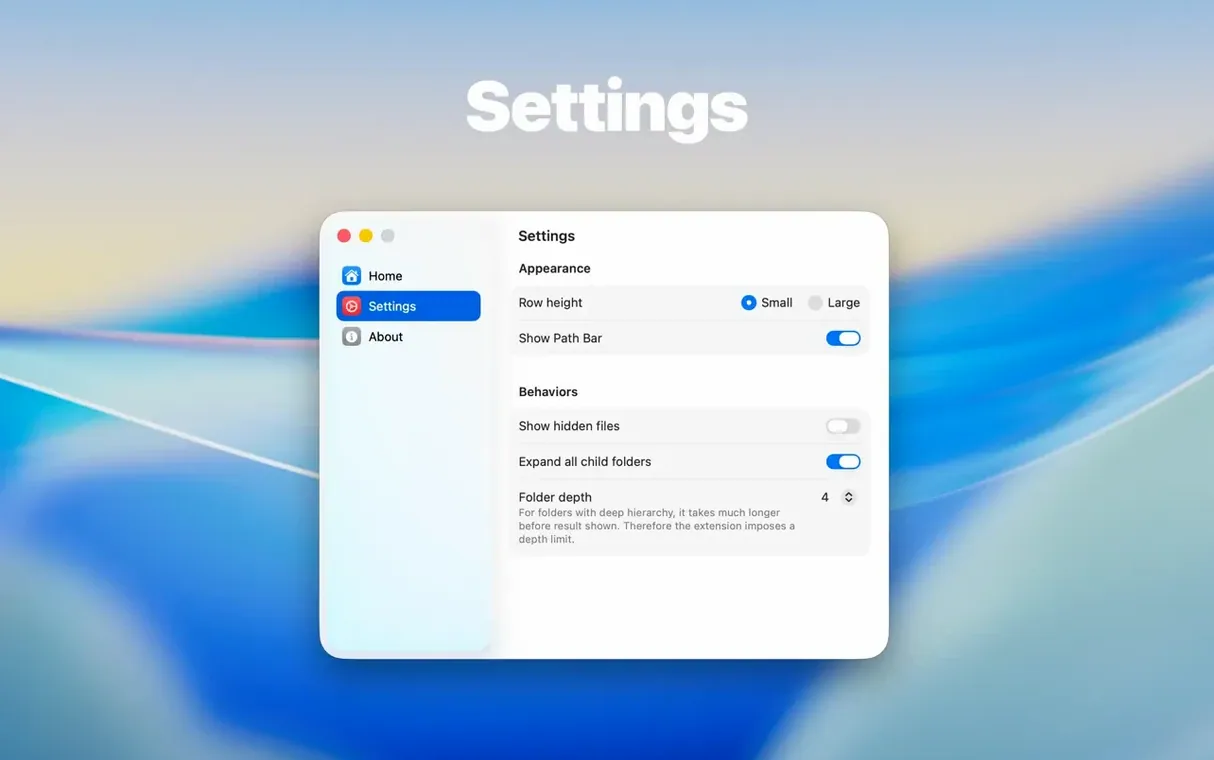
Launch the app from your Applications folder or Launchpad, then open its preferences from the menu bar. The first thing I tick is the option to show hidden files inside previews; if you deal with .git folders or dotfiles, that single checkbox saves constant trips to Terminal. Next, pick a default view — icon view suits designers scanning folders of images, while list view suits anyone who sorts by date or size. The size limit for archives lives in the same pane, and setting it to 5 GB is a sensible starting point unless you routinely inspect large backups. Finally, check that Quick Look is switched on under System Settings > General > Login Items & Extensions > Quick Look — the extension registers itself there automatically on first run, but a quick confirm avoids head-scratching later.
Dual Columns view redraws smoothly on an 8 GB MacBook Air
On an Apple Silicon MacBook Air with a modest 8 GB of RAM, the preview opens with no perceptible lag even on folders holding a few hundred items. The Dual Columns view redraws smoothly when you resize the window, and dragging a file out of the preview feels as responsive as doing it from a real Finder window. Memory use stays low because the app hands off the heavy lifting to macOS's Quick Look framework rather than running its own background indexing service. I left it enabled for a solid week of work — sorting photo libraries, peeking into downloaded .zip collections, checking which client folder holds the latest draft — and never saw a crash or a hung preview. It is one of those utilities that quietly knits itself into your muscle memory until you forget it was ever missing.
Tap spacebar on any folder to inspect contents without opening it
Start by treating the spacebar as your new file inspector. Instead of opening a folder to check its contents, highlight it and tap space — you will be surprised how often you close the preview without ever needing a full window. When you do need to pull a file out, remember the drag-and-drop gesture works from both icon and list views; I keep Mail and Messages at the edge of the screen so I can lift an attachment straight from a folder preview free of extra clicks. If you regularly archive projects with .tar.gz or .7z files, spend five minutes organising your templates so the archive preview can replace the dedicated unarchiver you might otherwise reach for. And if you have ever searched for a folder preview torrent or a folder preview mac crack hoping to add this capability to Finder, you already know the feature is built into the operating system in a limited form — this extension simply makes it complete.
Version 3.1 sharpens the browsing experience with several practical additions.
- The new Dual Columns view gives you a side-by-side look at nested folders, making it easier to compare contents or move through a deep structure without losing your place.
- A Contents item now appears in the context menu, letting you step through a folder level by level in a single preview pane.
- Files can be dragged directly out of the preview from both list and icon views, saving you from having to open the folder fully just to grab an item.
- macOS 13 or later
- Compatible with Intel and Apple Silicon Macs
Questions I keep hearing
Does Folder Preview Pro work with archive files like ZIPs?
The app is designed for regular folders in Finder, though version 3.1 introduced archive size limit options up to 10 GB for handling large compressed files more gracefully.
Can I use the previewed files directly in other apps?
Yes, the drag-and-drop support added in the latest version lets you pull files straight out of list and icon views into any compatible application.
Which version of macOS do I need?
Folder Preview Pro requires macOS 13 or later and runs natively on both Intel and Apple Silicon Macs.
Questions from the class 0
Sign in or join the class to ask a question.
Nobody has asked anything yet. If you have used it on a real job, say what the file did.
Also on the Mac Apps shelf
The whole Mac Apps shelf Flicker Free
Removes flicker and strobing from your video footage.
Flicker Free
Removes flicker and strobing from your video footage.
 FontLab
Lets you design and refine your own typefaces.
FontLab
Lets you design and refine your own typefaces.
 ForkLift
Moves files between folders and servers in a dual-pane view.
ForkLift
Moves files between folders and servers in a dual-pane view.
 Find Any File
Scans your disks directly to find files the Finder misses.
Find Any File
Scans your disks directly to find files the Finder misses.
 FotoMagico
Builds timed slideshows that feel more like short films.
FotoMagico
Builds timed slideshows that feel more like short films.
 Final Cut Pro
Tracks moving objects so titles and blurs follow them automatically.
Final Cut Pro
Tracks moving objects so titles and blurs follow them automatically.
 FileMaker Pro
Helps you build custom databases without writing all the code yourself.
FileMaker Pro
Helps you build custom databases without writing all the code yourself.
 FxFactory Pro
Adds a library of video effects to your editing software.
FxFactory Pro
Adds a library of video effects to your editing software.