 ASPNetWorld

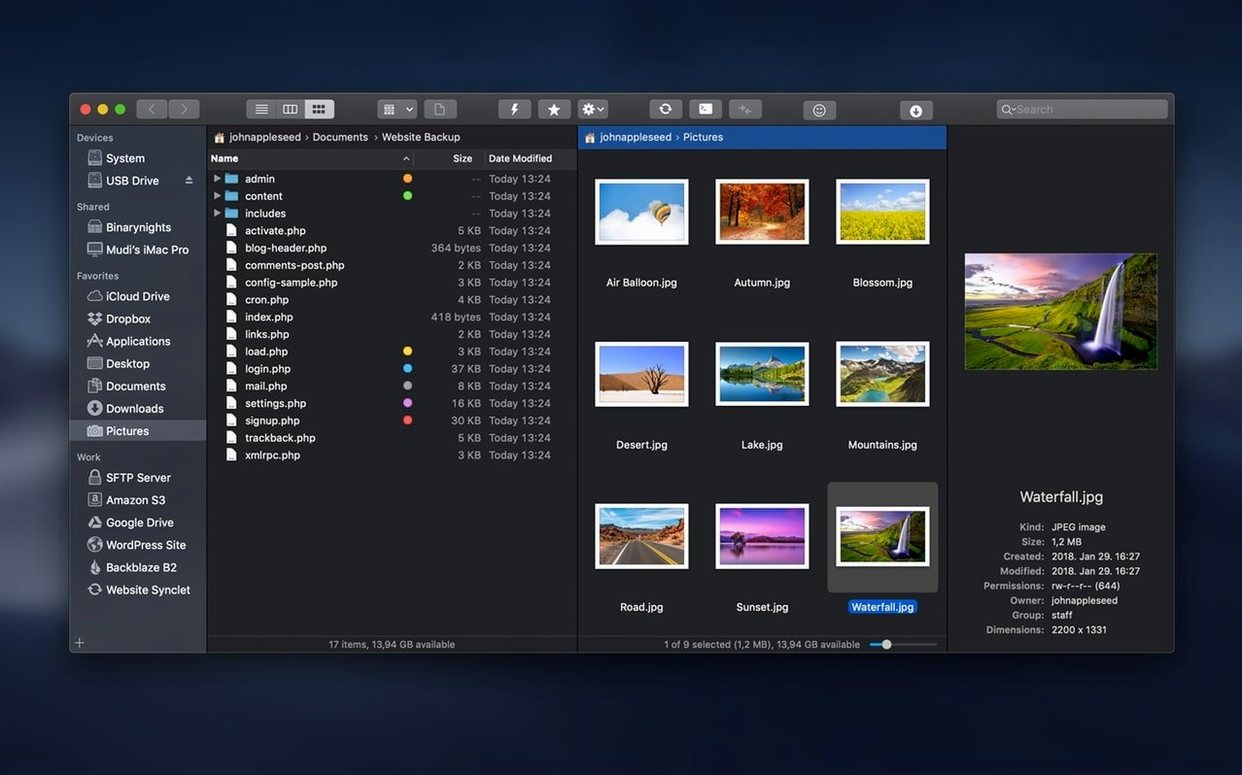
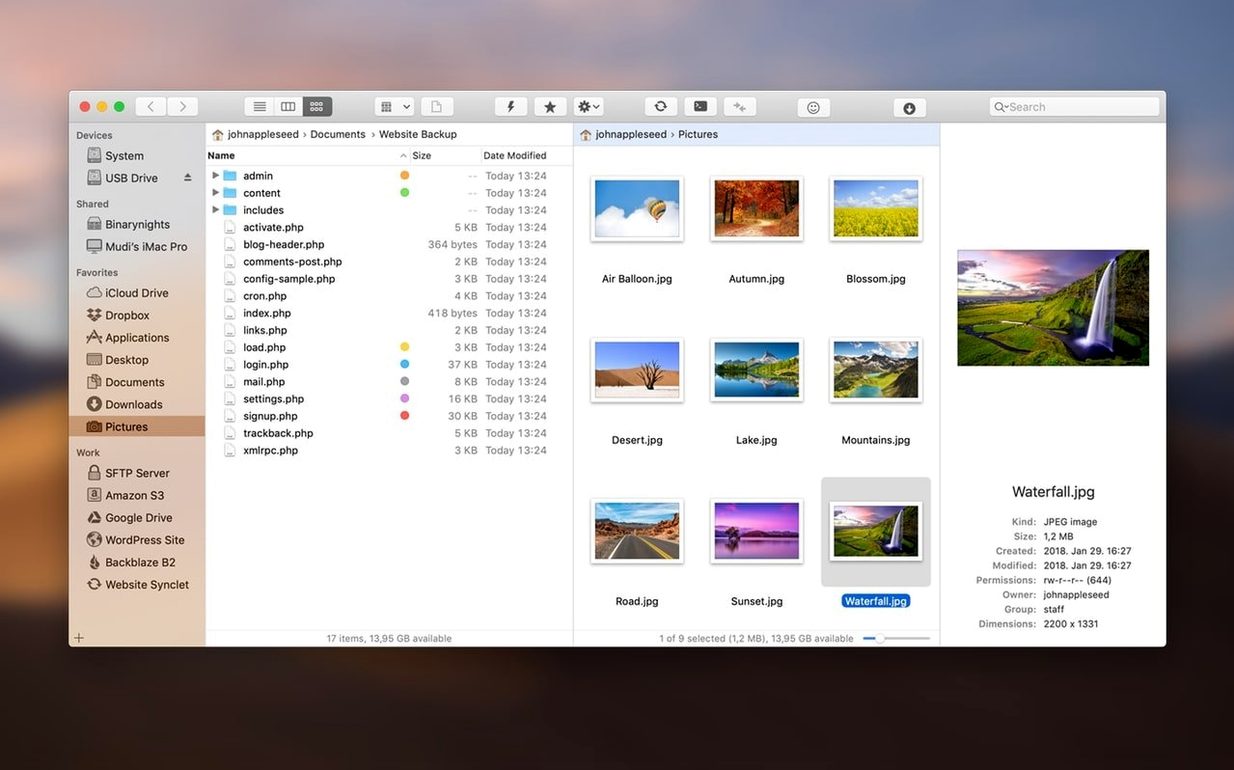
Photographers juggling shoots across an S3 bucket, web developers nudging files onto a staging server, and anyone who's outgrown the single-window shuffle of the Finder will recognise the quiet relief that a proper dual-pane manager brings. ForkLift 4 has settled into that role for years, and version 4.7.6 keeps the rhythm going without rewriting the tune.
What the update tidies up
The headline in this release is practical rather than flashy. A couple of gremlins that appeared under macOS 27 Golden Gate have been squashed, and the general feel of interacting with files—dragging, dropping, queuing transfers—has been smoothed out. Think of it as a service visit: nothing you'd frame on the wall, but everything now clicks the way you remember it.
The deeper toolkit that stays put
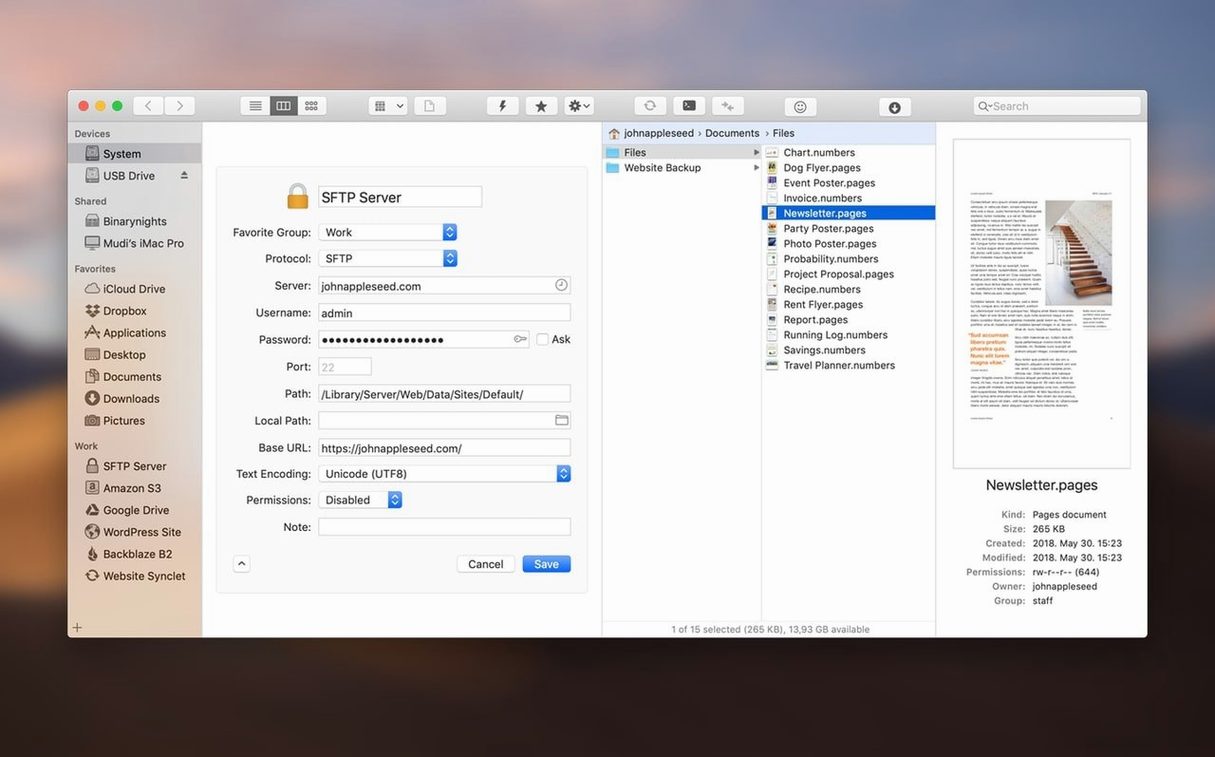
Beneath that maintenance layer, the application remains the same Swiss Army knife it has been for a while. You can still browse archives as if they were ordinary folders, preview photos and PDFs without launching a separate app, and edit a text file on a remote server almost before the thought has finished forming. Panels can be stacked vertically, laid side by side, or collapsed to a single view, and the connection list reads like an alphabet soup of protocols—FTP, SFTP, SMB, WebDAV, Amazon S3, AFP, NFS—all active simultaneously if your workflow demands it. A Finder replacement it may aspire to be, but the real strength is how calmly it handles a desk full of remote volumes while the local sidebar barely breaks a sweat.
One of the quietest mistakes new users make with a forklift 4 mac setup is treating the second pane as mere decoration. They drag the divider across, open a remote connection in the right panel, then continue doing all the actual work on the left. That habit misses the point entirely. The twin-pane layout isn't there to look busy—it's a workspace where a local folder and an SFTP home directory can sit side by side, each behaving like a first-class citizen. Drop a file onto the wrong side? Press Command-Z and the transfer reverses, which surprises people who expect remote undo to be a fantasy.
Another early stumble is trusting the default sort order when synchronising folders. A sync preview that looks clean can hide timestamp mismatches caused by timezone drift on a remote server. ForkLift 4 lets you adjust how timestamps are compared—down to a tolerance in seconds—so take the extra half-minute to check that setting before you fire off a two-way sync on a production directory. And speaking of sync: beginners often run a full mirror before a spot check. Use the file comparison view first. It colour-codes differences and lets you cherry-pick which side wins, file by file, which is far safer than trusting an algorithm to guess your intentions across a few thousand assets.
The final trap worth flagging is archive browsing. The feature works so smoothly—double-click a .zip or .tar.gz and it opens like a folder—that people forget they're inside an archive at all. Dragging a file out copies it; trying to delete one within the archive does nothing silently unless you extract, modify and repack. The software won't scold you, but it won't do what you assumed either.
A sync workflow from start to finish
Imagine a web developer maintaining a static site whose local build folder lives at ~/Projects/site/public. The staging server listens via SFTP on a known IP, and the remote path is /var/www/staging. Both sides hold the same folder tree but have drifted after a morning of hotfixes applied directly on the server.
Step one: open ForkLift, set the left panel to the local public folder, and connect the right panel to the staging server. Bookmark that pairing now—it saves retyping credentials every session. Step two: select Commands > Synchronize from the menu bar. The sync sheet drops down with both paths already filled. Switch the mode to Two-way and tick the option to Include subfolders. Crucially, untick Delete orphaned items on the first run. You want to see what's different before anything vanishes. Step three: click the Preview button, not the Sync button. ForkLift 4 scans both directory trees and presents a list of every file that differs by size or modification date. Green arrows mark items that will copy, red marks those that would be deleted, and a question mark flags conflicts where both sides have changed since the last sync.
Step four: work through the conflicts manually. Click a conflicted file and a side-by-side comparison opens if the format allows it. Decide which version wins, or choose Keep both and rename one copy. Step five: once every row has a clear action, click Sync. The transfer queue appears in the bottom panel, showing progress for each file. When it finishes, a log confirms what moved where. The whole process takes about ninety seconds for a hundred files, and the server is back in lockstep with the local copy.
Connect to three SFTP endpoints before lunch
Web developers and system administrators who maintain multiple remote servers are the most obvious beneficiaries. They're the ones who connect to three SFTP endpoints before lunch and need forklift mac to remember the paths, keys and port numbers without fuss. For them, the killer feature isn't the dual pane alone but the way a single toolbar button can drop them into Terminal or iTerm with the remote working directory already set—no more typing cd /var/www/some/deeply/nested/app by hand.
Photographers and video editors who archive work to Amazon S3 or a local NAS also extract outsized value, though for different reasons. Their workflows involve large, sequentially numbered files where previewing a RAW or a ProRes clip without launching a separate application saves real minutes over a day. The archive browsing feature means they can check what's inside a zipped delivery package without unpacking it onto the desktop first, keeping the workspace clean when disk space is tight.
Less obviously, writers and researchers who use plain-text notes scattered across local folders and WebDAV shares find a home here too. The built-in text editor handles remote files without the save-to-temp-then-upload dance that standalone editors impose. A researcher keeping field notes on a university WebDAV server can open, edit and close a file with exactly the same keystrokes they'd use for a local document, and that consistency reduces friction in a way that's subtle but cumulative over a long working day.
Version 4.7.6 focuses on stability and feel. It resolves two specific issues that appeared on macOS 27 Golden Gate and includes a handful of refinements that make everyday file interactions—like drag-and-drop and transfer management—respond more fluidly.
- macOS 12 or newer
- Intel processor
- Interface languages: English, German, Hungarian
Questions I keep hearing
Can ForkLift 4 connect to more than one server at the same time?
Yes, it can maintain simultaneous connections to multiple servers, including FTP, SFTP, Amazon S3, WebDAV, SMB, AFP and NFS volumes, all accessible from the sidebar.
Questions from the class 0
Sign in or join the class to ask a question.
Nobody has asked anything yet. If you have used it on a real job, say what the file did.
Also on the Mac Apps shelf
The whole Mac Apps shelf FotoMagico
Builds timed slideshows that feel more like short films.
FotoMagico
Builds timed slideshows that feel more like short films.
 FontLab
Lets you design and refine your own typefaces.
FontLab
Lets you design and refine your own typefaces.
 Folder Preview Pro
Lets you peek inside folders without fully opening them.
Folder Preview Pro
Lets you peek inside folders without fully opening them.
 FxFactory Pro
Adds a library of video effects to your editing software.
FxFactory Pro
Adds a library of video effects to your editing software.
 Garden Planner
Helps you lay out planting beds and garden features before digging.
Garden Planner
Helps you lay out planting beds and garden features before digging.
 Flicker Free
Removes flicker and strobing from your video footage.
Flicker Free
Removes flicker and strobing from your video footage.
 Gemini
Finds and removes duplicate files that waste space.
Gemini
Finds and removes duplicate files that waste space.
 Find Any File
Scans your disks directly to find files the Finder misses.
Find Any File
Scans your disks directly to find files the Finder misses.