 ASPNetWorld

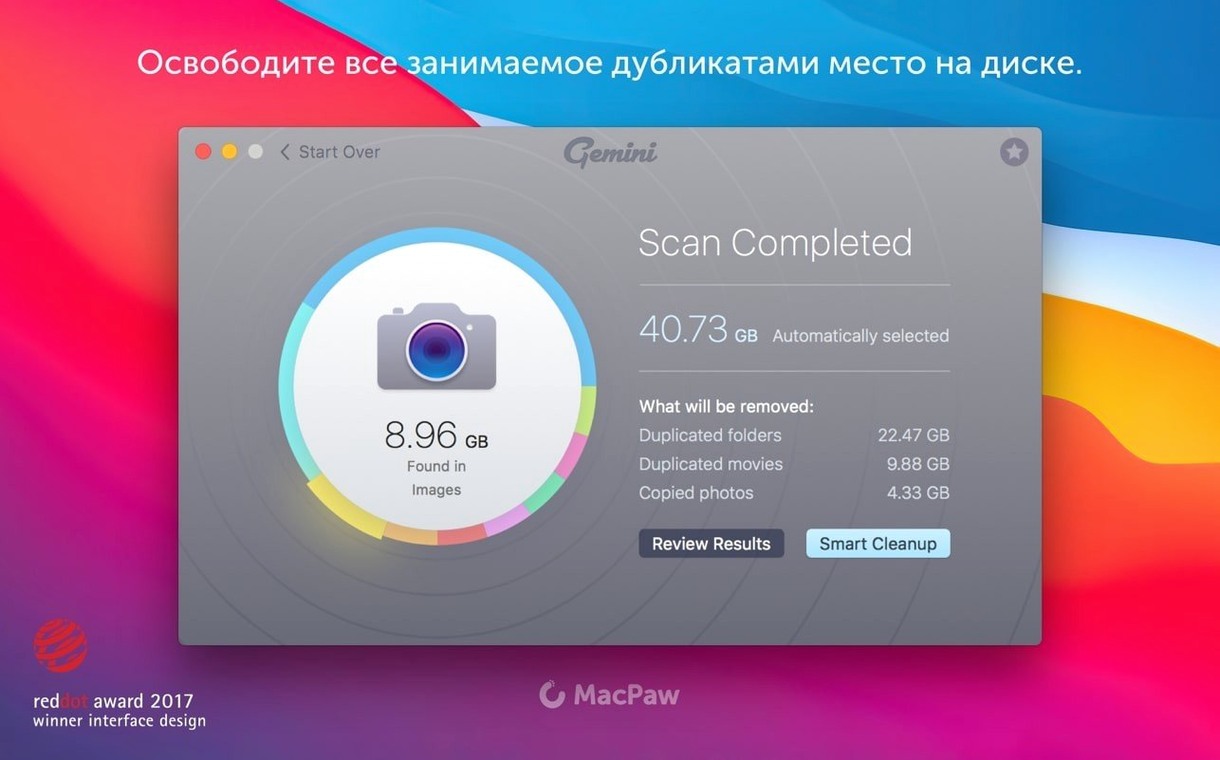
Gemini is for the Mac user who has finally admitted that somewhere in the depths of their home folder, seventeen identical copies of the same royalty-free crash cymbal are living under different names. It hunts down duplicate and similar files — not just by name or size, but by examining content — across images, music, video, folders, and even photo libraries. The interface presents its findings clearly, letting you review what it found before a single file is touched.
- Content-aware scanning — Gemini doesn't just match file names; it looks inside the file. Two photos with different titles but identical pixel data will be flagged, as will songs ripped at slightly different bitrates that are effectively the same track.
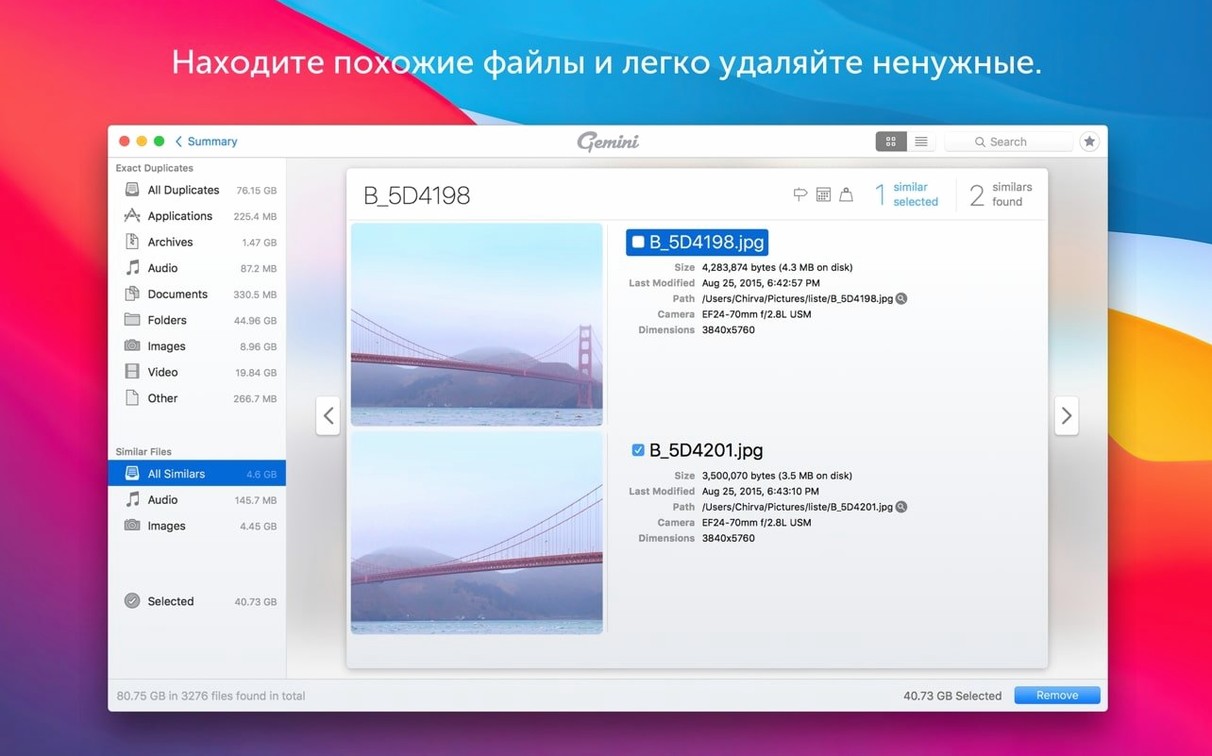
- Similar files detection — A series of burst-mode photos where only the model's expression changes? Gemini groups them as similar, not identical, so you can keep the best shot and reclaim the rest.
- Safe removal preselect — The app marks which copies it considers safe to delete, prioritising duplicates outside system folders and those with less convenient locations.
- Learning engine — When you override its suggestions and choose a different file to keep, Gemini remembers. Those preferences shape future scans, so the app gradually aligns with your judgement instead of starting fresh each time.
- Broad format support — It works across images, audio, video, folders, and Apple photo and music libraries, meaning one scan can tidy up scattered duplicates that span several media types.
A duplicate finder is only as useful as the trust you place in its recommendations. Gemini earns that by watching how you make decisions and adapting its preselect logic accordingly — so the third or fourth scan feels less like a manual audit and more like a quick confirmation.
Quieter scans that handle very large folders without stalling
Version 2.10.2 doesn't introduce sweeping new features you'd notice from a splash screen, but the adjustments under the bonnet make the daily routine of cleaning house noticeably smoother. The scanning engine received quiet refinements to how it handles very large photo libraries — the kind that have grown organically since a 2008 iPhoto import and now sprawl across multiple drives. Previously, a scan of a 40,000-image library might pause while the app chewed through metadata; the current build spreads that load more evenly, so the progress bar keeps moving even when it hits a dense cluster of RAWs and sidecar files.
There's also a subtle improvement in how Gemini handles the Photos app integration. Earlier versions could occasionally flag images still referenced by albums or shared streams as safe to delete, which meant you'd need to double-check against your library. The 2.10.2 build respects those internal references more carefully, so the "safe to remove" badge appears on genuine orphans rather than files that just happen to live outside the library bundle. For people who manage their image collections almost entirely inside Photos, that change removes a small but persistent anxiety from the review step.
Drag the preview divider to inspect files side by side
The preview pane in the results view does more than display a thumbnail. You can drag its divider to the left or right to give yourself a larger inspection area without leaving the main list — useful when you're comparing two nearly identical TIFFs and need to spot the version with the correct colour profile. A right-click on any file brings up a "Show in Finder" option, but holding Option while clicking that menu item opens the enclosing folder with the file already selected, which is faster when you want to verify context before deciding.
Keyboard shortcuts speed up the review phase once you know they exist. The Delete key marks a file for removal; pressing it twice in quick succession confirms the action on the currently selected group. The arrow keys move between groups, and pressing Space opens a Quick Look preview of whichever file is highlighted — this uses macOS's built-in Quick Look, so it handles everything from PDFs to ProRes video without Gemini needing its own renderer. In the "Similar Files" section, pressing Command and clicking two thumbnails selects them for a side-by-side comparison, which is far quicker than scrolling back and forth.
There's also a quiet feature in the app's preferences: you can tell Gemini to ignore files below a certain size threshold. Set it to 100 KB and your scans will skip thousands of tiny cache files and text clippings that aren't worth your attention, cutting scan time by a noticeable margin on older spinning drives. The preference is tucked away under the "Scan" tab and isn't mentioned during setup, so plenty of users discover it months into using the app.
Coffee, an external drive, and a 'Misc Projects' folder full of duplicates
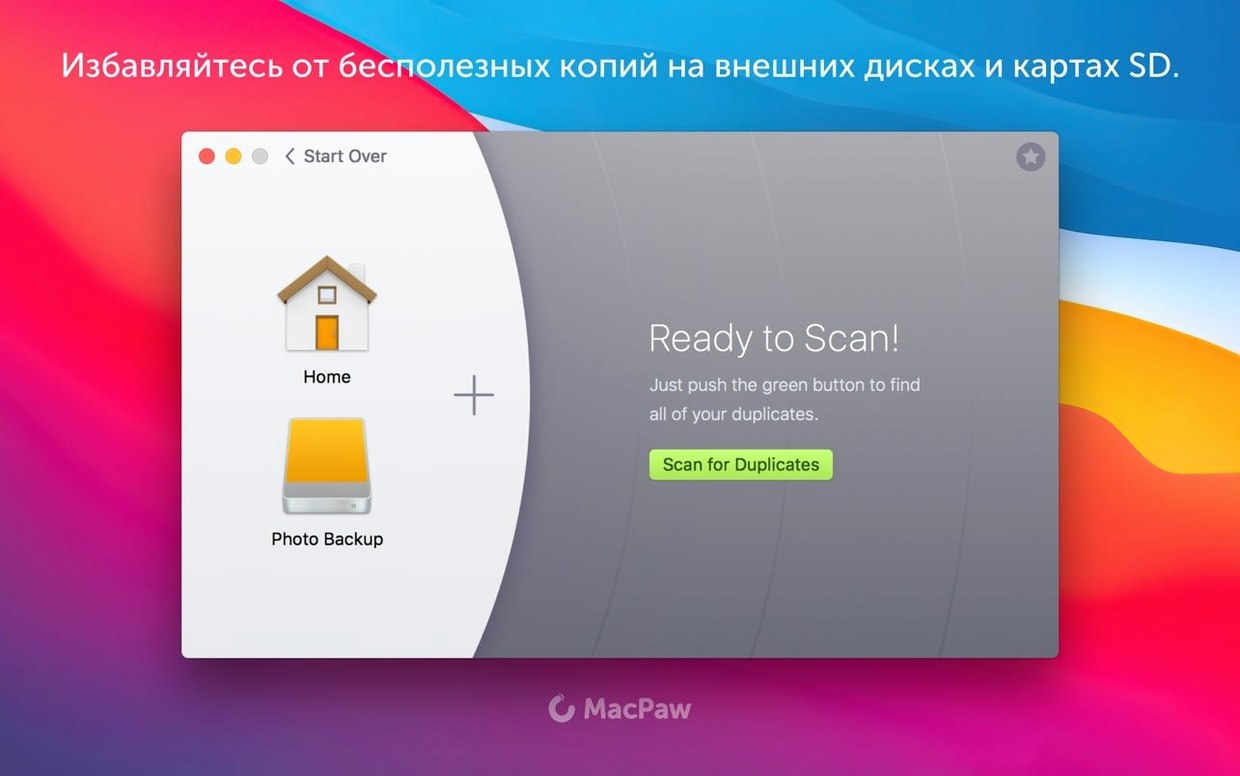
Imagine a Saturday morning — coffee, an external drive blinking on the desk, and a nagging suspicion that your "Misc Projects" folder has been quietly duplicating itself for two years. You launch Gemini and are greeted by a clean window with a large plus button and a handful of suggested locations: Home folder, Photos, iTunes, and any attached drives. You drag the external drive onto the window because you want to tackle that first.
The scan begins, and Gemini draws a simple map of what it's finding as it works — coloured segments for images, audio, documents, and other files fill in gradually. A large photo library on the drive means the scan pauses for a minute near the forty-percent mark, but the app stays responsive; you can already browse early results as the scan continues in the background. When the bar reaches the end, the main view populates with groups, sorted by the ones likely to free the most space.
The first group is a set of twelve identical Photoshop files, each about 80 MB, scattered across three different project folders. Gemini has pre-selected eleven of them for deletion, leaving one copy in the most recent folder untouched. You hover over each thumbnail, confirm they really are the same layered composition, and click "Smart Cleanup" to remove the duplicates. The next group is more ambiguous — six versions of a logo exported at slightly different dimensions. You switch to the "Similar Files" tab for this group, compare the two largest versions, and manually mark the smaller ones for removal. A few clicks later, the external drive has 2.3 GB more breathing room, and you move on to the home folder scan with the same rhythm.
A workflow for reclaiming space from a sprawling Photos library
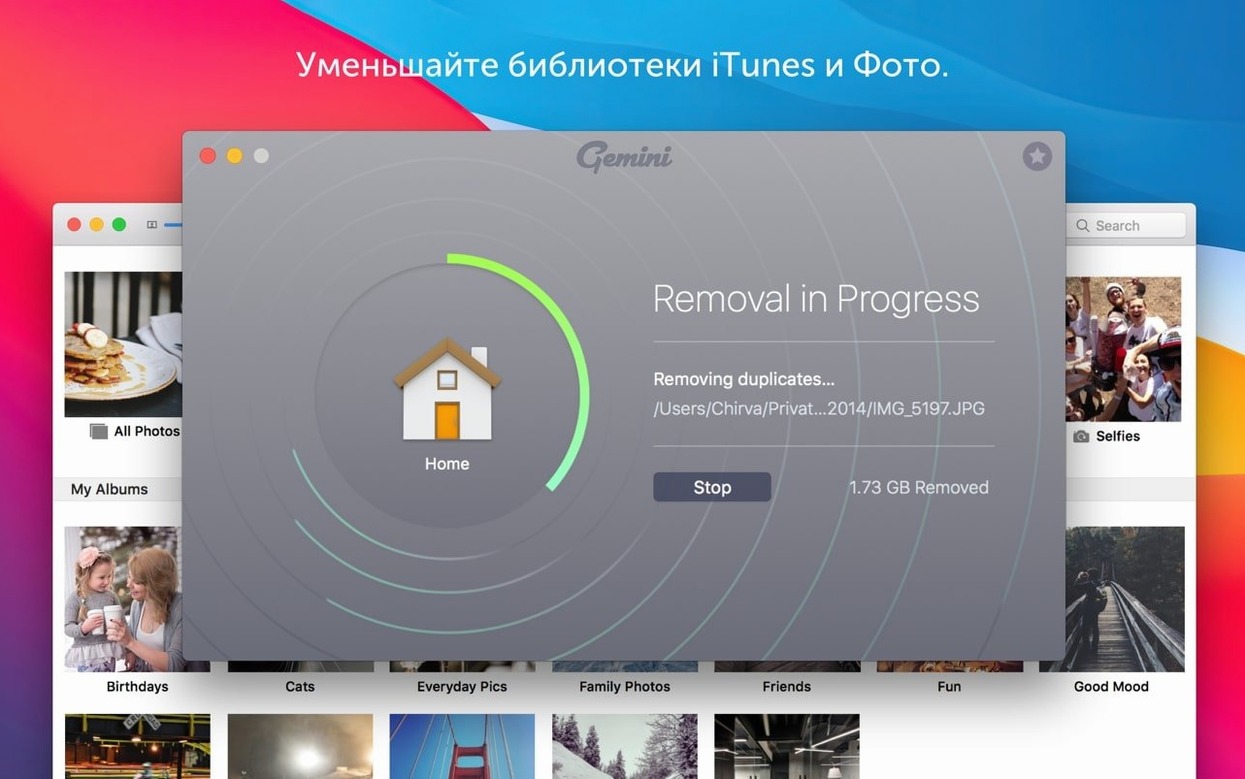
Photos libraries accumulate duplicates in ways that are hard to catch by hand: an image imported from an SD card, then imported again a year later from a backup, then shared via AirDrop and saved back to the library with a slightly modified filename. Gemini can address this without you needing to export everything into dated folders first.
Start by selecting the Photos library from Gemini's home screen rather than pointing it at the library bundle in Finder. This tells the app to query the library's internal database instead of treating it as a generic folder, which preserves album associations and avoids flagging the same image referenced in multiple albums as a duplicate. The scan takes longer than a file-system scan — depending on library size, five to fifteen minutes is typical — but the results are grouped with awareness of how Photos organises data.
When the results appear, switch to the duplicates view first. Gemini groups images that are bit-for-bit identical and pre-selects the copies with the least convenient locations: files sitting loose in the "Imports" folder are marked before ones stored inside organised albums. Review these quickly — the thumbnails are large enough to confirm content at a glance — and run the cleanup.
Now switch to the "Similar" tab, which is where the real space savings often hide. Here you'll find burst shots, bracketed exposures, and images that differ only in a minor crop. Gemini shows a stacked thumbnail for each group, and clicking it expands a filmstrip view so you can scrub through the variations. Select the sharpest frame from a burst of twenty, mark the rest, and move on. For bracketed exposures, you might keep all three if you plan to blend them later; Gemini's learning engine will note that choice and stop suggesting those groups for removal in future scans. After working through the similar sets, the library can easily shed several gigabytes without losing a single image you actually want.
Some users who find Gemini useful also search for terms like Gemini 2 torrent or Gemini Mac torrent when looking for the app online, and the build available here is ready to install without extra steps.
- macOS 10.13 High Sierra or later
- Intel 64-bit processor
Questions I keep hearing
Does Gemini delete files automatically?
No. Gemini always presents its findings for review. It preselects what it considers safe to remove, but you confirm every deletion before anything is sent to the Trash.
Questions from the class 0
Sign in or join the class to ask a question.
Nobody has asked anything yet. If you have used it on a real job, say what the file did.
Also on the Mac Apps shelf
The whole Mac Apps shelf Garden Planner
Helps you lay out planting beds and garden features before digging.
Garden Planner
Helps you lay out planting beds and garden features before digging.
 FxFactory Pro
Adds a library of video effects to your editing software.
FxFactory Pro
Adds a library of video effects to your editing software.
 Ghost Buster Pro
Clears leftover files after you uninstall an app.
Ghost Buster Pro
Clears leftover files after you uninstall an app.
 Glyphs
Builds a new typeface from a single well-structured capital letter.
Glyphs
Builds a new typeface from a single well-structured capital letter.
 FotoMagico
Builds timed slideshows that feel more like short films.
FotoMagico
Builds timed slideshows that feel more like short films.
 ForkLift
Moves files between folders and servers in a dual-pane view.
ForkLift
Moves files between folders and servers in a dual-pane view.
 FontLab
Lets you design and refine your own typefaces.
FontLab
Lets you design and refine your own typefaces.
 Folder Preview Pro
Lets you peek inside folders without fully opening them.
Folder Preview Pro
Lets you peek inside folders without fully opening them.