 ASPNetWorld

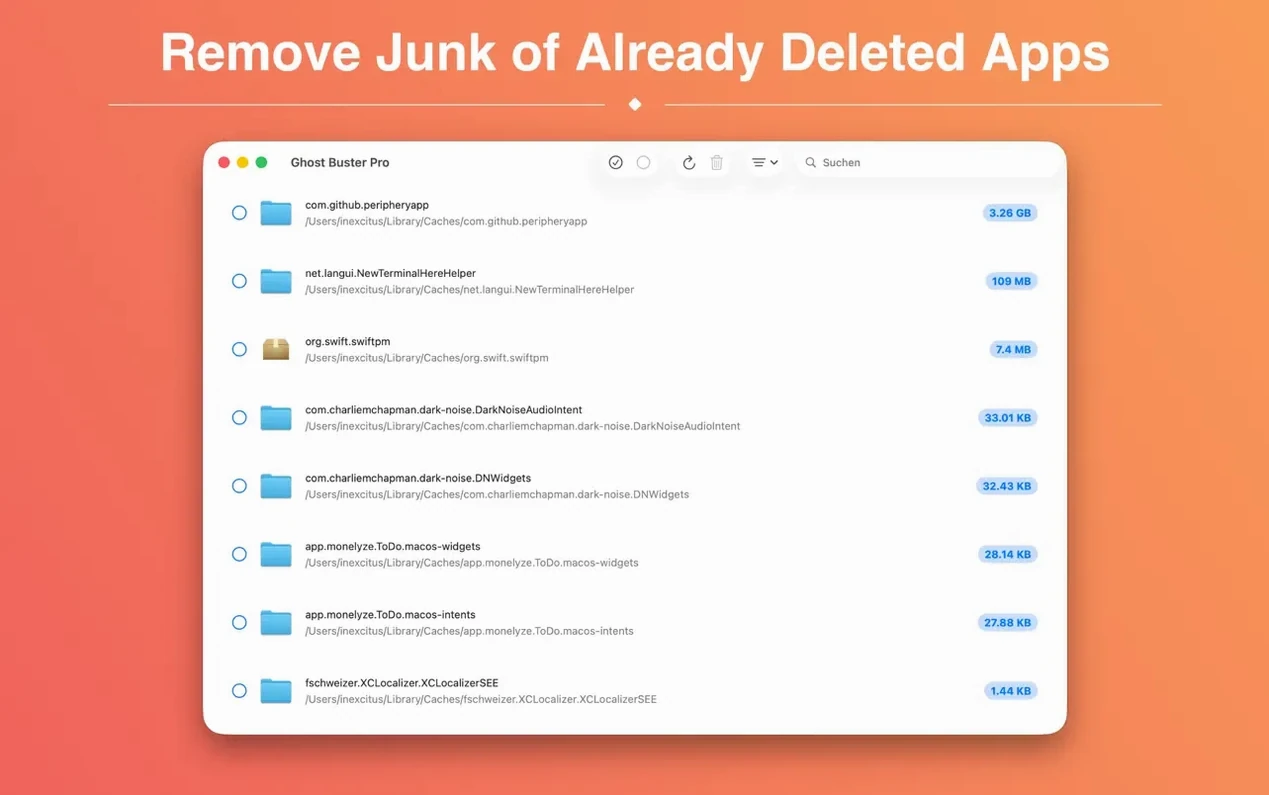
Once an app is dragged to the Bin, the story rarely ends there. Preferences, caches, saved states and support files often stay behind in the Library, quietly eating space. A single uninstalled video editor can leave over a gigabyte of forgotten data across six different folders. Ghost Buster Pro hunts down exactly that kind of clutter.
Reclaim space after large creative suites, system prep, or app testing binges
- Reclaiming disk space after removing large creative suites or games
- Cleaning up before handing a Mac to a new user or selling it
- People who regularly test and discard apps and want a tidy system
Requires macOS 15.6 or later and deletes files with no undo step
- Requires macOS 15.6 or later, so older machines are out of luck
- Deletion is direct — there is no built-in undo or quarantine step for files you remove
- It only finds leftovers from apps that have already been uninstalled, not active ones
Serial app testers, developers, and pre-sale system cleaners lean on it most
Not every Mac user will find themselves reaching for a leftover cleaner once a week. The people who genuinely get the most from Ghost Buster Pro tend to fall into a few clear camps. The first group is the serial software tester: the person who installs four Markdown editors in an afternoon, keeps one and bins the rest. Each of those discarded apps probably sprinkled a preference file, a cache folder and maybe a launch agent somewhere. Over a month that adds up.
Then there is the creative professional who has cycled through trial versions of audio plug-ins, video codecs and design tools. A single abandoned plug-in bundle can scatter components across /Library/Audio, /Application Support and a hidden cache directory, and macOS has no built-in mechanism to track any of it once the main bundle is gone. Ghost Buster Pro spots those remnants without the user needing to know the folder paths.
Finally, people preparing a Mac for sale or handover get a genuine safety net. Even after manually deleting user accounts and wiping obvious folders, leftover support files from long-gone apps can linger. Running the utility as a final sweep before erasing the drive means you are not accidentally passing on licence tokens, preference plists or cached personal data from apps you thought you removed years ago. A useful ghost torrent of an old finance app or an abandoned screen recorder can leave behind more than you would expect, and Ghost Buster Pro drags it into the light.
A Dock-readable icon for macOS 27 arrived in version 6.2.0
Version 6.2.0 arrived with a fresh app icon tailored for macOS 27, which is a small cosmetic shift but a useful one for anyone who keeps the utility in the Dock — the new design reads clearly at small sizes and feels less like a holdover from an earlier era. Under the hood, the scanning engine has been tuned to handle the folder structures that recent macOS releases introduced, particularly around sandboxed app containers and the way system services now cache user-specific data. In practice, that means fewer false negatives when scanning for leftovers from apps that were removed months ago.
The most noticeable everyday improvement is that the search kicks off instantly on launch, with no welcome screen or setup wizard getting in the way. You open the app and it is already working. That might sound trivial, but for a utility you use in short bursts — often while thinking about something else entirely — removing even a few seconds of friction makes the difference between a tool you actually run and one you forget about. Combine that with the one-click deletion from the results list, and the whole workflow has been compressed to: open, glance, click, done. For people who maintain several Macs or who clean up test machines regularly, that speed is the headline feature.
It sometimes flags files from apps that only moved or changed bundle identity
No cleanup tool is mind-reading software, and Ghost Buster Pro occasionally surfaces items that belong to apps still in use. This happens most often when an app has moved location or was updated through a mechanism that changed its bundle identifier. The fix is simple: read the file path before clicking delete. A preference plist inside ~/Library/Preferences with a recognisable app name is probably safe, but if the path looks unfamiliar or references a developer name you do not recognise, take a moment to search the filename in Finder before removing it.
A second snag relates to system-level support files. Ghost Buster Pro can see leftovers in /Library as well as the user Library, but deleting some of those — particularly audio component caches or kernel extension remnants — without understanding what put them there can be risky. The utility does not delete anything without your consent, so the responsibility sits with the user. The safe approach is to treat system-wide leftovers as a second pass: clear everything in your user Library first, restart the Mac, and only then return to deal with anything flagged in the root Library if you are certain the parent app is gone for good.
Occasionally someone grabs a ghost buster pro mac download that has been repackaged, and the app either fails to launch or throws a Gatekeeper warning. In those cases, mounting the disk image and following the Terminal bypass step — pressing Enter when prompted — resolves the block. After that the app drags into the Applications folder and runs without further fuss. If you are searching for a clean ghost buster pro setup on a machine running macOS 15.6 or later, make sure the build you have matches the architecture of your Mac; the ARM and x86-64 slices are both included, so the same disk image works on Apple Silicon and Intel hardware without any extra steps.
Sort scan results by date before your first pass
Ghost Buster Pro keeps things intentionally light on preferences, but there are two decisions you can make before the first scan that will shape how safe and useful the results feel. The first is to sort results by date rather than by name. Leftover files from an app you removed two years ago are a different priority from something dropped last week. Date sorting surfaces recent clutter first, which is usually what you actually want to deal with.
The second is to resist the urge to select everything at once. The one-click deletion is genuinely fast, which makes it tempting to tick all boxes and fire. A better habit is to scan the list in chunks: grab all the obvious caches first, then the preferences, then the Application Support directories. That way if you pause halfway through and come back later, you know exactly what you have already cleared. It also makes it less likely you will accidentally remove a shared component that another app still relies on.
If you have used ghost buster pro before and are reinstalling on a fresh system, there is no configuration to export or import — the utility is stateless by design. That means every install starts clean, and every scan is a snapshot of the current drive. For people who value predictability in a tool that touches the file system, that is quietly reassuring.
Version 6.3.1 is a quiet tidy-up behind the scenes. The About window and the Help menu have been reworked to share the same look and feel you'll recognise from the rest of the app, so everything now feels like it belongs to the same family.
- macOS 15.6 or later
- Apple Silicon or Intel 64-bit processor
Questions I keep hearing
Does Ghost Buster Pro work with apps I uninstalled months ago?
Yes. It scans for leftover files regardless of when the parent application was removed, so long as the traces are still on the disk.
What languages does the interface support?
Ghost Buster Pro is available in Russian, English, German, Spanish, Italian, Simplified Chinese, Korean, Polish, and French.
Questions from the class 0
Sign in or join the class to ask a question.
Nobody has asked anything yet. If you have used it on a real job, say what the file did.
Also on the Mac Apps shelf
The whole Mac Apps shelf Glyphs
Builds a new typeface from a single well-structured capital letter.
Glyphs
Builds a new typeface from a single well-structured capital letter.
 Gemini
Finds and removes duplicate files that waste space.
Gemini
Finds and removes duplicate files that waste space.
 Garden Planner
Helps you lay out planting beds and garden features before digging.
Garden Planner
Helps you lay out planting beds and garden features before digging.
 FxFactory Pro
Adds a library of video effects to your editing software.
FxFactory Pro
Adds a library of video effects to your editing software.
 FotoMagico
Builds timed slideshows that feel more like short films.
FotoMagico
Builds timed slideshows that feel more like short films.
 ForkLift
Moves files between folders and servers in a dual-pane view.
ForkLift
Moves files between folders and servers in a dual-pane view.
 FontLab
Lets you design and refine your own typefaces.
FontLab
Lets you design and refine your own typefaces.
 Folder Preview Pro
Lets you peek inside folders without fully opening them.
Folder Preview Pro
Lets you peek inside folders without fully opening them.