 ASPNetWorld

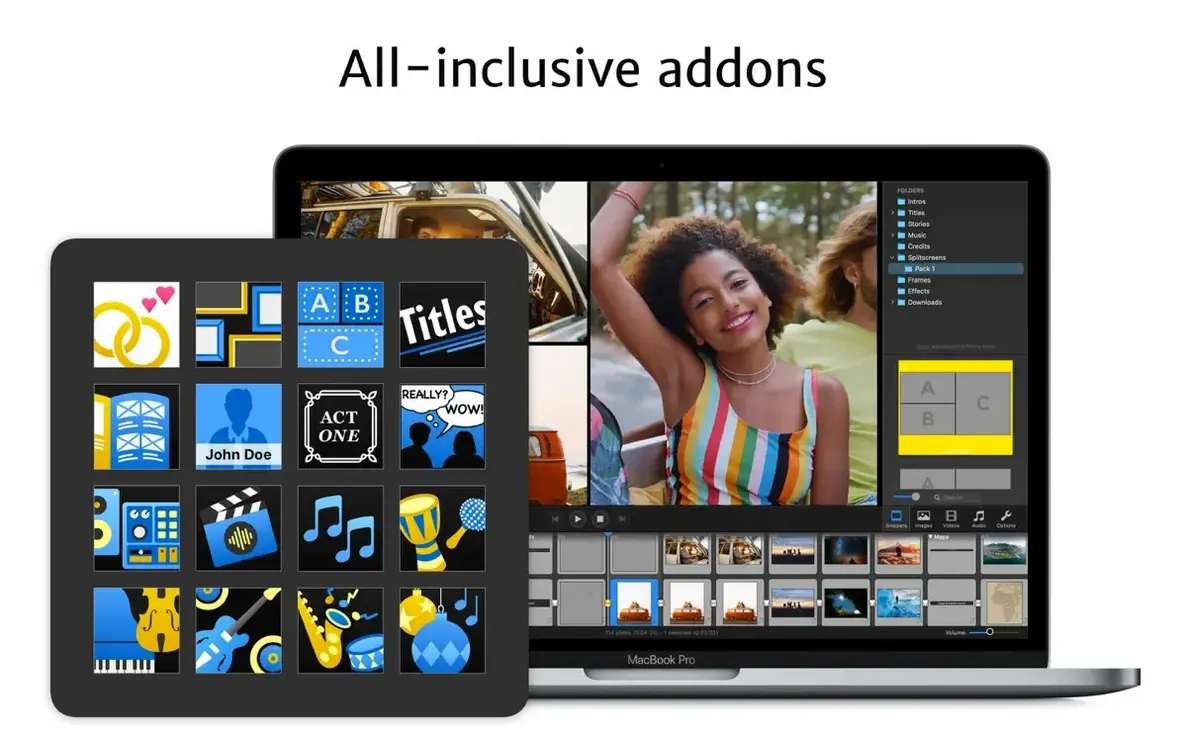
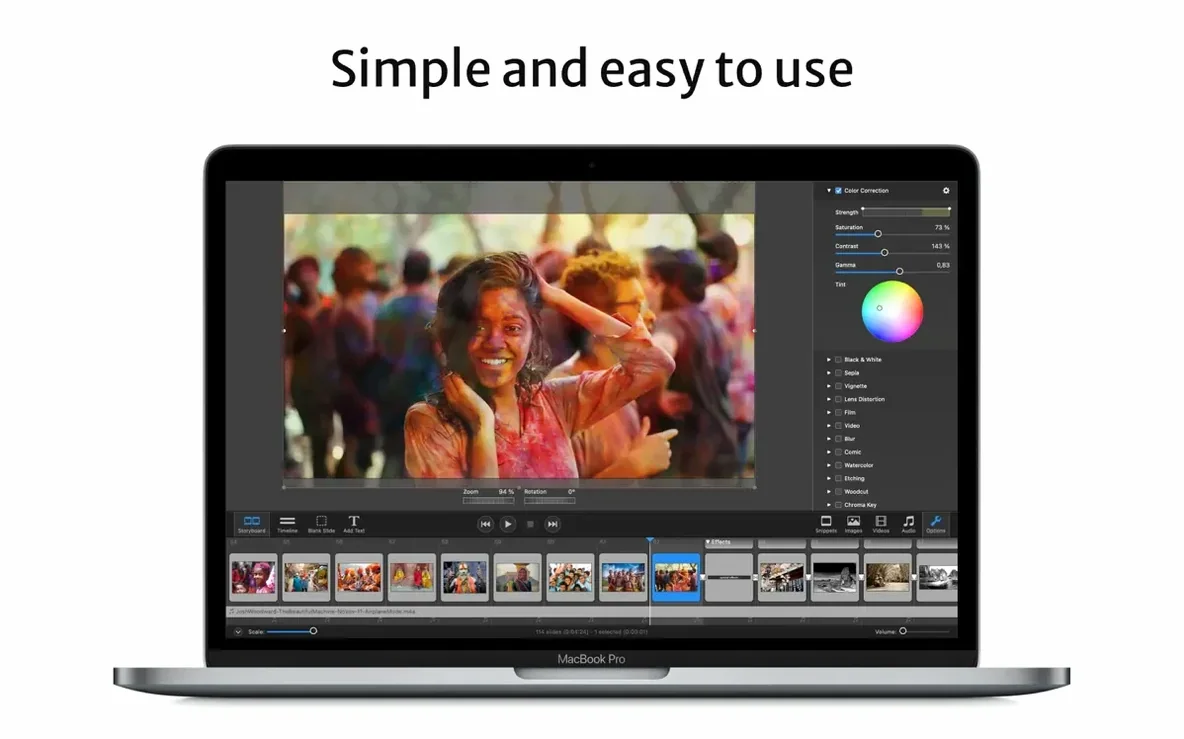
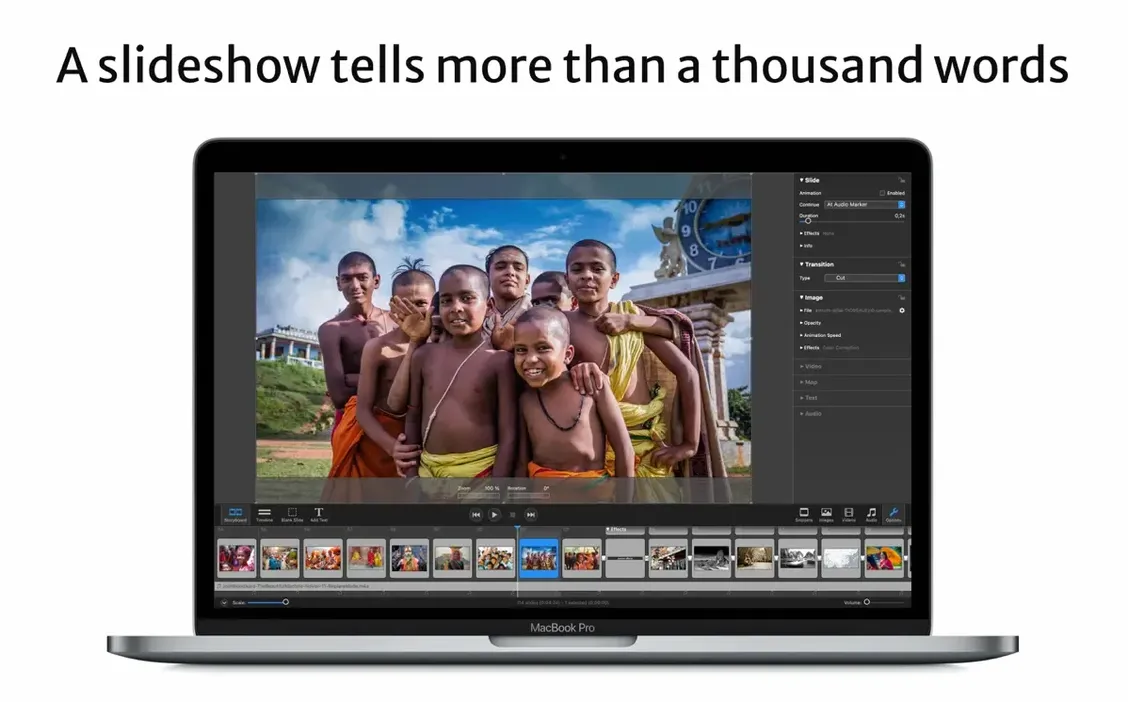
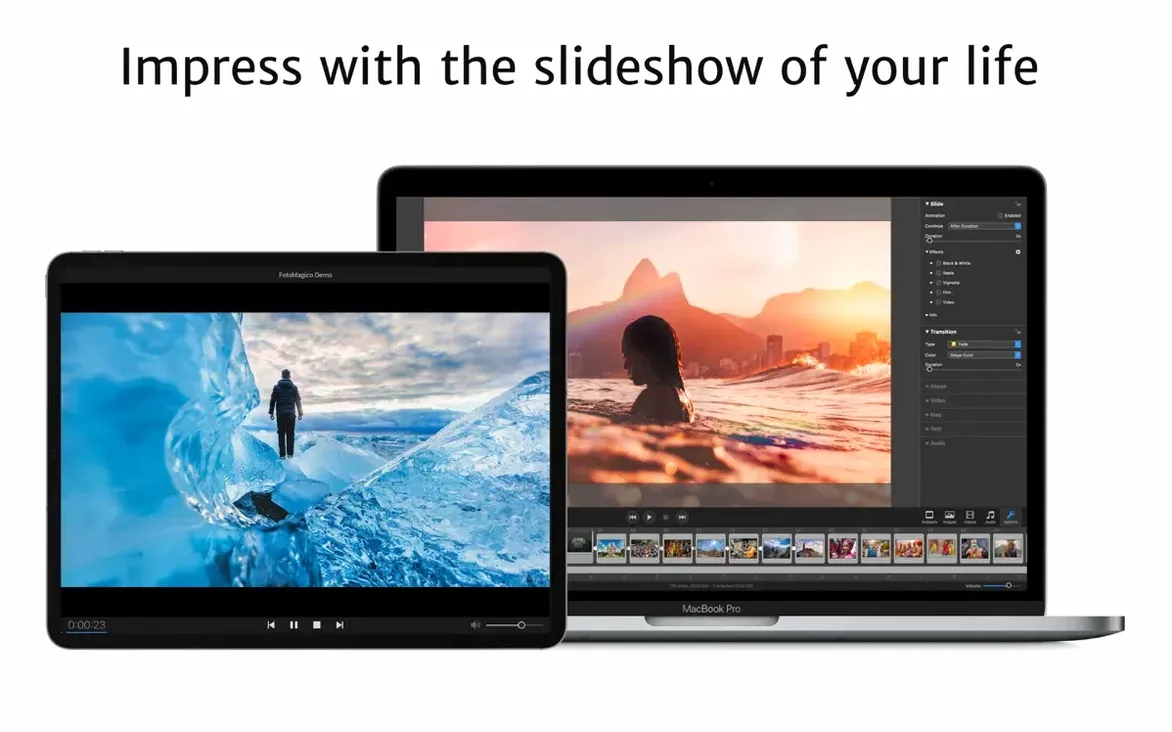
FotoMagico is built for the kind of presenter who cares about timing as much as they care about image quality. Wedding photographers, creative directors, and marketing teams tend to use it when a Keynote deck feels too rigid and a video export queue would slow them down. It treats a slideshow as a live performance rather than a render-and-pray exercise, letting you play a full-resolution sequence instantly while you tweak transitions, text captions and layer animations on the fly.
Full-resolution playback skips the export wait
- Real-time playback at full resolution. You can play a slideshow immediately without exporting it first, which makes client previews and live stage presentations much smoother.
- Layered image editing. You can resize, move, rotate, zoom and combine images directly on the canvas, building multi-layered compositions without leaving the app.
- Cross-device projects. Projects can be stored on iCloud Drive and opened on both Mac and iPad, so you can start an edit at a desk and fine-tune it on location.
- Controlled sharing. The bundled player app can limit how long a slideshow remains available or how many times it can be viewed, which is useful for sending proofs to clients.
- Social-first presets. Built-in presets for Instagram vertical stories mean you do not have to guess at safe zones when repurposing a landscape show for a phone screen.
Only runs on macOS 14 Sonoma and newer
- FotoMagico 6.10 requires macOS 14 Sonoma or newer; older systems all the way back to Catalina have been dropped.
- An iPad version exists, but feature parity is not identical — the Mac app remains the fuller editing environment.
- The addons for Final Cut Pro and the legacy Aperture plugin are included, though Aperture itself is no longer supported by Apple.
Sticking points that surface in classes and forums
Even a well-oiled slideshow app has its sticking points, and FotoMagico is no exception. Most of the friction I see in classes and forums falls into a handful of repeatable patterns, so here is what tends to trip people up and how to work through it.
Audio drifting out of sync during long shows. This usually happens when you mix audio file formats inside a single project — a 48 kHz WAV sitting next to a 44.1 kHz MP3, for example. FotoMagico tries to resample on playback, but long timelines expose tiny rounding errors. The fix is simple: before importing, convert all your audio to the same sample rate and bit depth in something like TwistedWave or even Apple Music. 48 kHz, 16-bit PCM keeps the engine happy without bloating file sizes.
Masked images that render with a thin white edge. If you have masked a subject and see a faint outline when the slide plays, check whether the original image has an alpha channel or was saved with anti-aliasing against a white background. Re-export the asset with a transparent background at exactly the dimensions of your stage, then reapply the mask. The edge vanishes nine times out of ten.
Slideshow player expiry not behaving as expected. The standalone player can limit a show by date or by number of viewings, but it relies on the host computer's system clock. If a client has their clock set back or forwards, the expiry logic can misfire. For anything time-sensitive, I recommend also watermarking the export — at least then you have a visual cue that the copy is not final, regardless of what the clock says.
Snippets misbehaving on odd stage sizes. The 6.10 update improved aspect-ratio matching for Snippets, but if you drag a Snippet onto a custom stage and it still looks squashed, try creating the Snippet on a stage with the same aspect ratio first. Snippets remember their original geometry, and a mismatch between the source and destination stages can confuse the auto-fit logic even after the latest fixes.
A working photographer's workflow
Imagine a wedding photographer who has just delivered a USB of high-res stills to a couple. A week later, the bride asks for a short highlights reel she can post on Instagram before the full gallery goes live. The photographer does not want to open a video editor for a thirty-second piece, and she certainly does not want to render multiple drafts while the couple tweaks the song choice over WhatsApp.
She opens FotoMagico on her MacBook Pro, picks a vertical Instagram Story preset, and drops in twenty favourites from the day. The real-time playback engine lets her scrub through the whole sequence while the couple sits beside her in a coffee shop. She adjusts the pacing of each slide to match the rise and fall of a licensed track from the built-in music addon, adds a soft fade transition, and types a short caption on the final slide. No export, no proxy files — just a live preview at full resolution on the laptop screen.
When they agree on the cut, she exports a standalone player file with a fourteen-day viewing limit and emails it for the couple to share with family. Then she exports the same project as a screensaver for her studio iMac and a QuickTime-compatible MOV for her archive. One afternoon, one project, four delivery formats, zero rendering anxiety.
How FotoMagico fits with other apps and macOS
FotoMagico does not try to replace your photo library or your video editor. It sits between them, so understanding how it talks to the rest of the Mac ecosystem makes it far more useful.
It reads directly from the Apple Photos library, which means you can browse your albums inside the media picker without exporting anything first. If you have your Photos library synced through iCloud, those images are available on both Mac and iPad versions of the app automatically. For Aperture holdouts, the legacy plugin still lets you send a selection straight into a new slideshow project, though most people have long since migrated to Lightroom or Capture One — in which case, a TIFF or JPEG export to a watched folder does the same job.
The Final Cut Pro plugin is a neat bridge. You can build a complex animation sequence in FotoMagico — multi-layered compositions, text animations, music-synced transitions — and drop the whole thing onto a Final Cut timeline as a single clip. Because the plugin exports at the timeline resolution, you avoid the generational quality loss that comes from bouncing an intermediate file. On the audio side, any audio unit plug-in you have installed on your Mac is available inside FotoMagico for sweetening narration or levelling music, which means your iZotope or FabFilter investments work here too.
macOS integration highlights:
- iCloud Drive sync keeps project files in step between a desktop Mac and an iPad, with no manual transfers.
- QuickTime-compatible export means any app that can open a .mov — including Keynote, PowerPoint, and web browsers — can play the result.
- Screensaver export turns a slideshow into a macOS screensaver that appears in System Settings alongside Apple's built-in options.
- Watermarking is applied at export time, and you can use a transparent PNG with your logo, making it a lightweight alternative to adding watermarks in a batch processor.
More expressive than a viewer, less daunting than a timeline editor
FotoMagico occupies a middle ground that is easy to miss if you only compare feature checklists. It is more expressive than a photo viewer's slideshow mode and less timeline-obsessed than a full non-linear editor.
FotoMagico vs. Keynote. Keynote is a presentation tool that happens to handle images well; FotoMagico is a slideshow tool that borrows presentation ideas. Keynote gives you more control over text-heavy slides, interactive hyperlinks and live collaboration. What it lacks is real-time, full-resolution playback without rendering and the kind of image animation depth — multi-layered zooms, blended pans, masked reveals — that FotoMagico treats as its native language. If your slides are mostly bullet points with the occasional photo, Keynote is fine. If every slide is a photograph and timing is the point, FotoMagico pulls ahead.
FotoMagico vs. iMovie. iMovie is a video editor; it thinks in clips, a fixed timeline and a single export resolution. You can certainly make a photo montage in iMovie, and for simple Ken Burns moves it is perfectly adequate. But iMovie offers no standalone player with expiry controls, no screensaver export, and no way to play a sequence live at full resolution while you tweak it. The moment a client wants a watermarked preview with a limited viewing window, iMovie users end up exporting a low-res file and hoping for the best. That is exactly the workflow FotoMagico was designed to avoid.
FotoMagico vs. Movavi Slideshow Maker. Movavi leans towards the consumer end of the pool — lots of themed
Version 6.10 is primarily a compatibility release that draws a line under older macOS builds and adds support for the latest Apple operating system.
- macOS 27 Golden Gate support was added, bringing the app forward alongside the newest Mac hardware.
- Support for macOS 10.15 Catalina through macOS 13 Ventura was dropped entirely.
- A crash on quitting the app was fixed, and several stability improvements were made across the board.
- Snippets now match the stage aspect ratio more reliably for unusual stage sizes, and some controls in the Map Assistant were localised.
- macOS 14 Sonoma or newer
- Apple Silicon or 64‑bit Intel Mac
- Interface languages: English, German, French
Questions I keep hearing
Can I play a FotoMagico slideshow on a computer without the editor installed?
Yes, a separate player is included that can run high-resolution slideshows on any Mac, with optional limits on view count or expiry date.
Does FotoMagico work on macOS Ventura or older?
No — version 6.10 dropped support for Catalina through Ventura and now requires macOS 14 Sonoma or later.
Questions from the class 0
Sign in or join the class to ask a question.
Nobody has asked anything yet. If you have used it on a real job, say what the file did.
Also on the Mac Apps shelf
The whole Mac Apps shelf ForkLift
Moves files between folders and servers in a dual-pane view.
ForkLift
Moves files between folders and servers in a dual-pane view.
 FontLab
Lets you design and refine your own typefaces.
FontLab
Lets you design and refine your own typefaces.
 FxFactory Pro
Adds a library of video effects to your editing software.
FxFactory Pro
Adds a library of video effects to your editing software.
 Garden Planner
Helps you lay out planting beds and garden features before digging.
Garden Planner
Helps you lay out planting beds and garden features before digging.
 Folder Preview Pro
Lets you peek inside folders without fully opening them.
Folder Preview Pro
Lets you peek inside folders without fully opening them.
 Gemini
Finds and removes duplicate files that waste space.
Gemini
Finds and removes duplicate files that waste space.
 Flicker Free
Removes flicker and strobing from your video footage.
Flicker Free
Removes flicker and strobing from your video footage.
 Ghost Buster Pro
Clears leftover files after you uninstall an app.
Ghost Buster Pro
Clears leftover files after you uninstall an app.