 ASPNetWorld



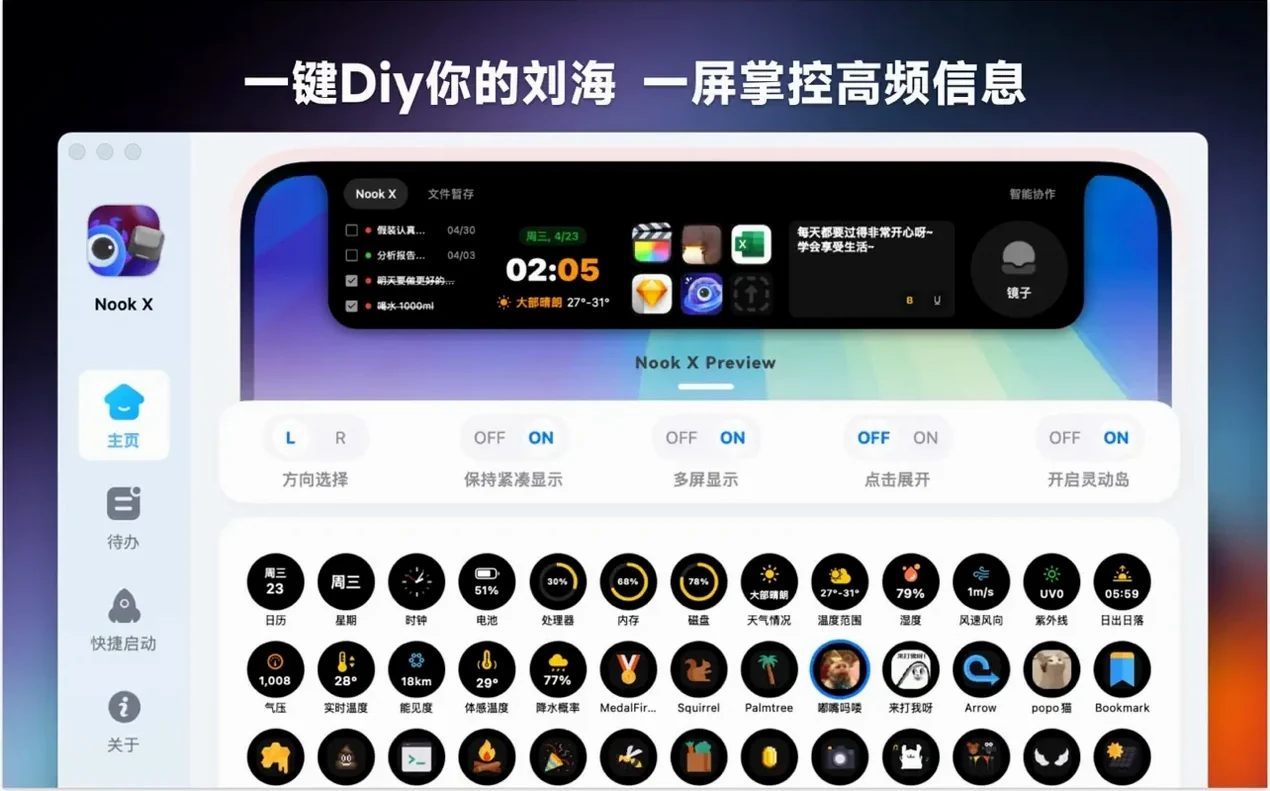
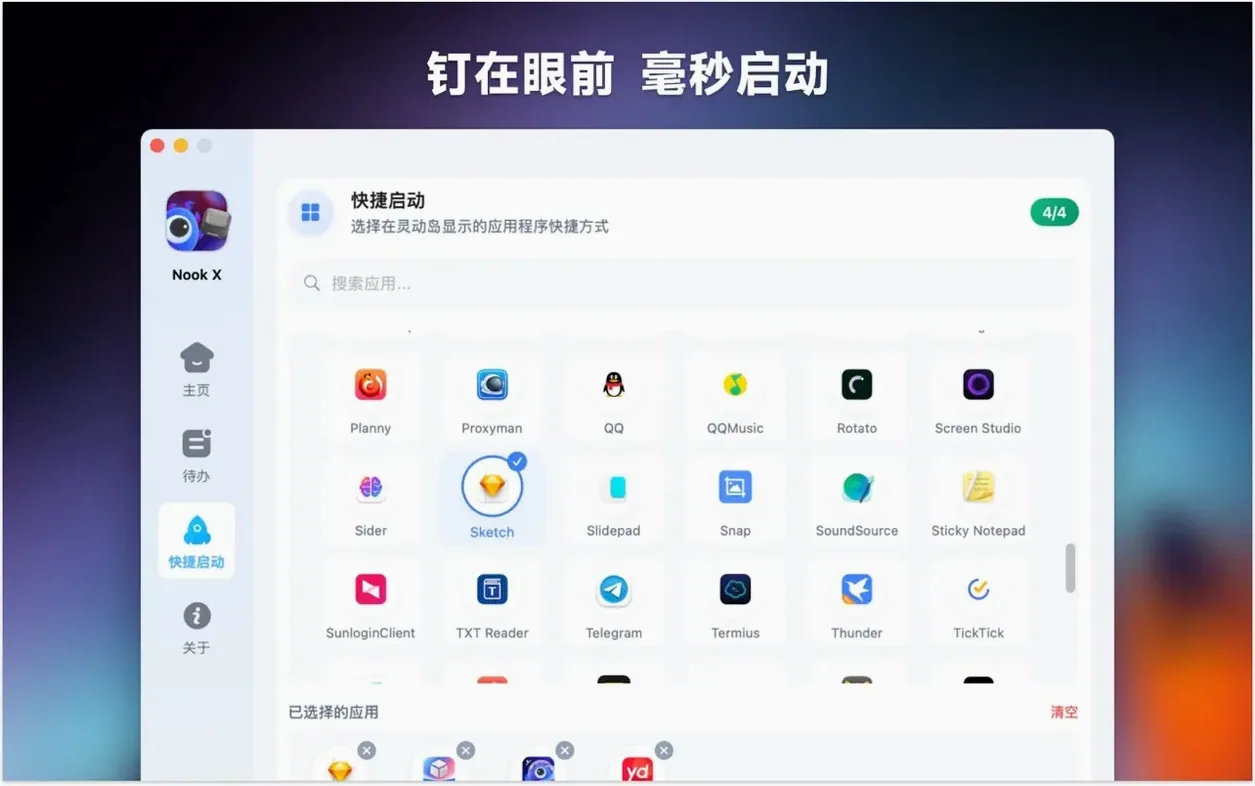
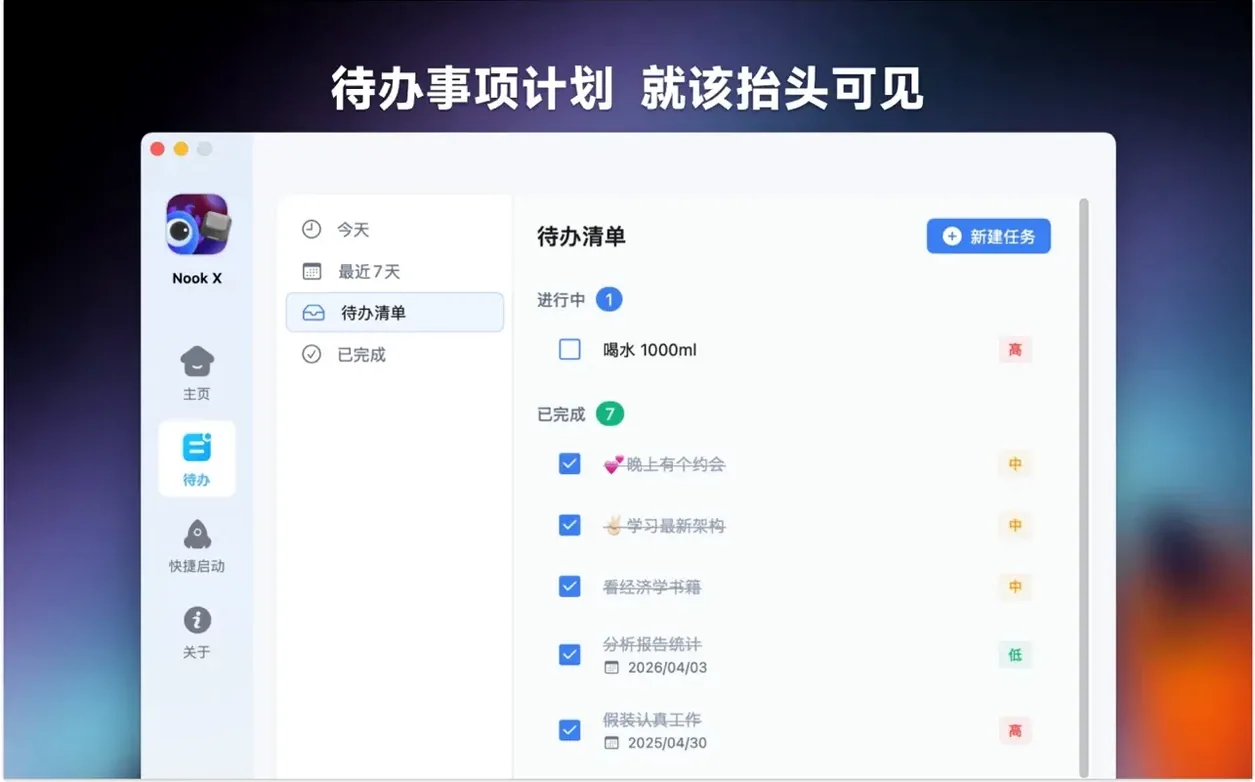
Songwriters who need a lyric sheet without switching windows, busy freelancers juggling reminders, and anyone curious about having a discreet AI assistant on hand — that's the crowd Nook X is built for. It lives in the menu bar notch of your Mac, giving you a handful of tools that stay out of sight until you need them.
- Click the notch to open a compact panel. The first tab handles tasks: jot down a to-do, set a priority, and attach a reminder so nothing slips.
- Switch to the lyrics tab. Feed it a track and the words appear in a karaoke-style scroll — handy for practice sessions or impromptu singalongs.
- Open the AI chat tab. Type a question, ask for a translation, or talk it through with voice input when your hands are busy.
- The built-in audio player supports common formats, so you can cue up a reference track without launching a separate app.
Think of it as a multi-tool that borrows the notch — a piece of screen real estate that usually does nothing — and fills it with genuinely useful bits of utility.
The notch isn't Nook X's real interface
The first hour with Nook X tends to follow a familiar script. Someone installs it, clicks the notch, types a few tasks, maybe asks the AI chat something frivolous, and then forgets the app is running. That’s not a mistake in itself — the app is designed to be unobtrusive — but it leads to the real error: treating each tab as a lonely island.
The biggest missed opportunity is not linking tasks and chat. You can highlight text in a chat response, right-click, and turn it straight into a to-do. If you’re using the AI to brainstorm a project, pull out the actionable bits on the spot. Don’t copy them into another app. The whole point is that the thinking tool and the doing tool sit in the same notch.
Another common stumble involves the lyrics tab. People drag in a song, watch the words scroll, and assume the file has to be playing inside Nook X’s own player. It works just as happily with music playing from Apple Music or Spotify. Let the lyrics tab listen; keep your main player where it is. Knowing this stops you from rebuilding playlists twice.
Beginners also tend to ignore the voice input button in the chat tab — not out of dislike, but because they forget it exists. On a MacBook, it’s often faster to dictate a quick translation request or a rambling thought than to type it, especially if you’re pacing around the kitchen. Give it a go on day one, even if you normally prefer typing.
Lastly, there’s the subtle mistake of leaving every task at its default priority. The app doesn’t nag you about it, so a list of twelve equal items feels manageable until Thursday arrives. Set a high priority on two or three things early on, and the task list starts to work for you instead of just storing anxiety.
Freelancers and solo creators connect with it fastest
Nook X isn’t trying to be everything to everyone, and that’s a strength. Certain Mac users will find it clicks almost immediately, while others might open it once and wander off.
Freelancers and solo creators occupy the sweet spot. These are people who manage their own deadlines, answer their own questions, and often work with audio. A composer checking a lyric reference, a video editor keeping a shot-list as tasks, a translator using the AI chat for a quick phrasing check — each of them touches two or three tabs in a normal working day. For them, the notch becomes a kind of silent production assistant that never interrupts the main screen.
Language learners get surprising mileage from the combo of voice input and AI translation. You can speak a sentence in your target language, see the transcribed text, then ask the assistant to polish it or explain the grammar. The lyrics tab adds another layer: pull up a song in the language you’re studying, follow the words in karaoke mode, and ask the chat what a tricky line means. That’s three learning touchpoints inside one notch-sized panel.
DJs and live performers often keep a separate device for track notes and cue sheets. Having a lyrics tab and a quick task list in the menu bar — accessible without leaving performance software — is the kind of thing that sounds minor until you’ve been caught squinting at a phone mid-set. The audio player’s format support means you can quickly audition a file without telling your main DJ app to pause.
Notch-sensitive minimalists are a smaller but real group. They dislike apps that add clutter to the menu bar or the Dock. For them, Nook X’s decision to piggyback on the notch is a genuine draw. It’s there when you want it, invisible when you don’t, and doesn’t spawn floating windows. That’s a particular kind of Mac philosophy, and this app respects it.
The app now remembers exactly where you left off
The current build, version 2026.09.15, has settled into a rhythm where the changes are less about flashy new features and more about how the app behaves when you’re not paying attention.
Earlier releases were reported to occasionally lose their place in a long task list after a restart. Recent updates have focused on persistence — your task order, lyric positions, and even half-finished chat sentences now survive a Mac reboot cleanly. In everyday terms, that means you can shut down on Friday evening and trust that Monday morning will pick up exactly where you left off.
The lyrics search function has become noticeably quicker. Typing a fragment of a line now returns results while you’re still typing, rather than waiting for you to press Enter. It’s a small shift, but if you’ve ever tried to identify a song from a misheard lyric, you’ll appreciate the immediacy.
Language support has also expanded in subtle ways. The app interface now covers fourteen languages — from Russian to Thai — and the AI chat handles questions and translations across that range without needing a separate language pack. For multilingual households or teams, this means fewer trips to the settings panel; the app generally follows your system language and gets on with it.
Switch reminders from polite to present
Out of the box, Nook X is polite to a fault. It won’t push reminders aggressively, it won’t auto-launch, and it won’t make assumptions about how you want the lyrics to behave. That’s a good starting point, but a few tweaks make it feel more like yours.
- Auto-launch at login. If you’re the kind of user who’s going to rely on the task list daily, enable this. The app’s footprint is tiny, and having it ready in the notch from the moment you sit down means you’re more likely to use it.
- Default reminder time. The app lets you set a preferred time for new reminders — morning, afternoon, or a custom hour. Pick the time when you’re most likely to act on a nudge, not the time you create the task. A reminder set at 9:30 a.m. for something due Friday is far more useful than one that buzzes at midnight when you’re adding it.
- Lyrics auto-detect behaviour. By default, the lyrics tab waits for you to tell it which song is playing. Switch it to automatically listen for audio from any source. This is the single setting that transforms the karaoke mode from a manual ritual into something that just works while you’re doing other things.
- Chat response length. The AI assistant can be set to give concise or detailed answers. If you’re using it mainly for quick translations or definitions, keep it concise. If you’re brainstorming ideas or asking it to explain concepts, switch to detailed. You can always ask for more or less in the moment, but the default shapes the rhythm of every interaction.
Put real tasks in the task tab on day one
The first forty-eight hours with a tool like Nook X determine whether it becomes a habit or a forgotten download. These small practices help it settle in.
Use the task tab for real things on day one. Don’t fill it with test items like “learn Nook X.” Add the three things you actually need to do tomorrow morning. Attach a priority to one of them. Let it prove its usefulness with genuine material, not placeholder text.
Try the lyrics tab with a song you know well. Pick something where you already half-know the words — a track you’ve hummed for years but never quite nailed. Watching the correct lyrics scroll past is a small delight, and it demonstrates the karaoke mode better than any unfamiliar song could.
Ask the chat something you’d normally Google. The instinct to open a browser for a quick fact check or translation is strong. For one afternoon, redirect those impulses to the notch. Ask about a word’s etymology, get a recipe converted to metric, or have the AI explain a technical term in plain English. The goal isn’t to abandon your browser forever; it’s to feel how much faster the notch-based assistant is for small, self-contained queries.
Create at least one task from a chat response. This is the feature that ties the app together, and it’s easy to overlook in the first rush of experimentation. If the assistant suggests a book to read or a step in a process, right-click and turn it into a to-do. Once you’ve done this a couple of times, the two tabs stop feeling separate.
Let it run in the background overnight. Don’t quit the app at the end of your first session. Let it sit in the notch through a few sleep-wake cycles. Notice how it behaves — whether reminders fire after the Mac wakes, whether the lyrics tab remembers your last track, whether your task list is still there in the morning. This quiet testing period is what tells you if it’s earned a permanent spot.
- macOS 13 or later
- Works natively on both Apple Silicon and Intel 64‑bit Macs
Questions I keep hearing
Does Nook X replace the standard macOS notch behaviour?
No, it sits alongside it. Your usual menu bar items stay where they are; Nook X adds an extra interactive zone that appears when you click the notch area.
Questions from the class 0
Sign in or join the class to ask a question.
Nobody has asked anything yet. If you have used it on a real job, say what the file did.
Also on the Mac Apps shelf
The whole Mac Apps shelf NotchBox
Turns the empty space around your MacBook notch into a strip of quick-action buttons and live widgets.
NotchBox
Turns the empty space around your MacBook notch into a strip of quick-action buttons and live widgets.
 NotchNook
Turns the MacBook notch into a pop-out panel for shortcuts, a mini music player, and file drops.
NotchNook
Turns the MacBook notch into a pop-out panel for shortcuts, a mini music player, and file drops.
 Nik Collection
Adds film looks, black-and-white and detail filters to photos as plug-ins.
Nik Collection
Adds film looks, black-and-white and detail filters to photos as plug-ins.
 OmniGraffle Pro
Builds precise diagrams, wireframes, and site maps from a deep library of draggable stencils.
OmniGraffle Pro
Builds precise diagrams, wireframes, and site maps from a deep library of draggable stencils.
 OmniPlayer: MKV Video Player Pro
Plays almost any video file you throw at it, fetches subtitles online, and streams web clips.
OmniPlayer: MKV Video Player Pro
Plays almost any video file you throw at it, fetches subtitles online, and streams web clips.
 Navicat Premium
Connects to multiple databases so you can manage MySQL, Postgres, and others side by side.
Navicat Premium
Connects to multiple databases so you can manage MySQL, Postgres, and others side by side.
 ON1 Photo RAW
Manages a local photo library and develops raw files with layered, non-destructive edits.
ON1 Photo RAW
Manages a local photo library and develops raw files with layered, non-destructive edits.
 One Switch
Flicks common Mac settings like Dark Mode or Do Not Disturb on and off from a single menu bar panel.
One Switch
Flicks common Mac settings like Dark Mode or Do Not Disturb on and off from a single menu bar panel.