 ASPNetWorld

QuickTime Player handles the basics, but the moment you throw a stray MKV at it, you remember its limits. OmniPlayer steps into that gap without trying to replace everything else on your Mac. It opens the files QuickTime won't touch, pulls in subtitles from online sources, and grabs web video from a URL — all without demanding you reorganise your media library first. Think of it less as a new media hub and more as the player you reach for when the built-in tools shrug.
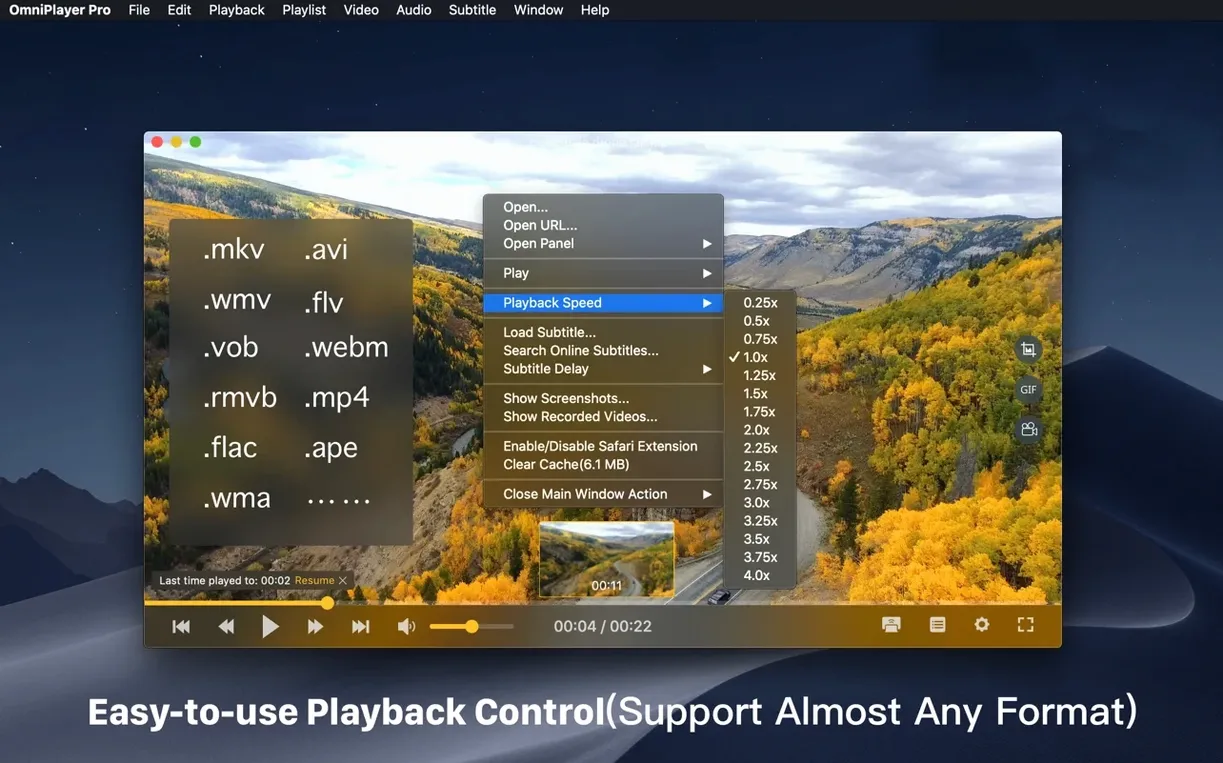
- Plays MKV, AVI, WMV and other formats QuickTime skips, including large files like a 30 GB MKV without choking.
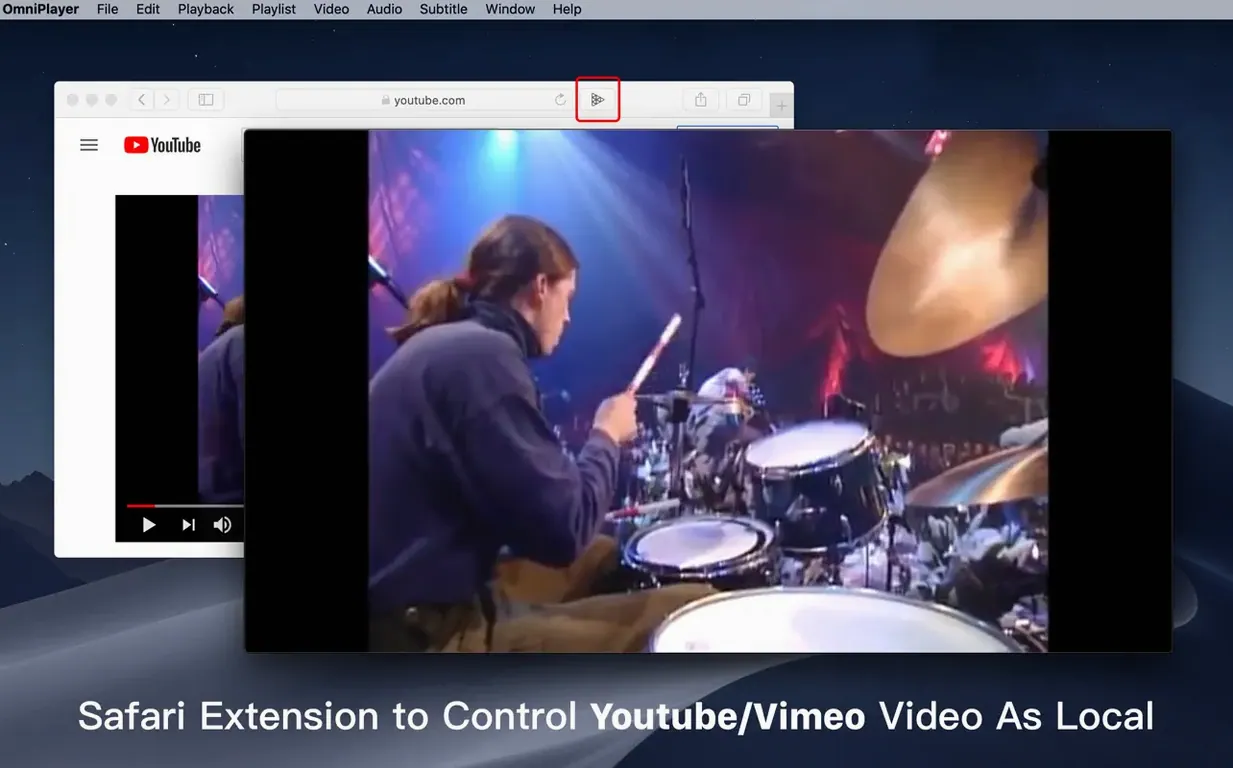
- Accepts a YouTube or Vimeo URL directly; paste the link and playback starts inside the app.
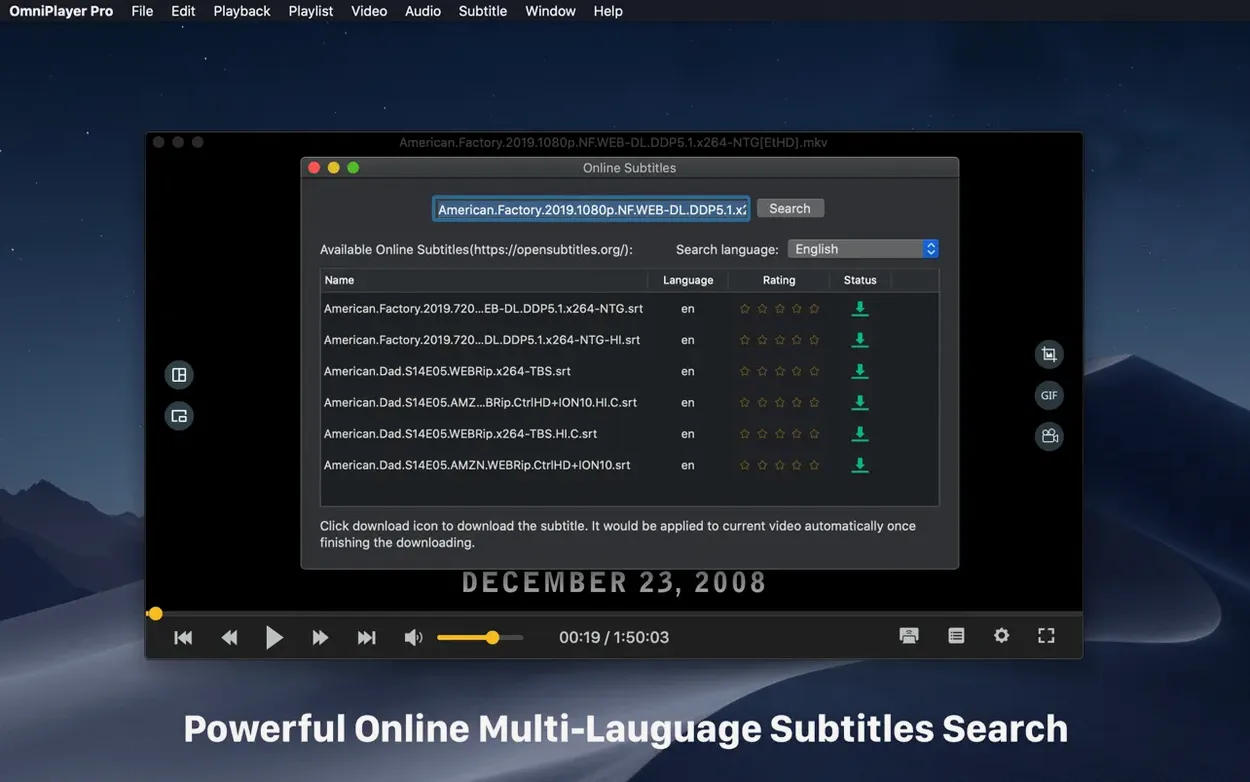
- Searches for subtitles online by video title or hash, and loads local subtitle files in real time as you watch.
- Offers fine-grained speed control from 0.25x for slow-motion study up to 4x for skimming lectures.
- Lets you dial in audio delay on the fly, so you can nudge lip-sync back into alignment without restarting.
- Remembers where you stopped in every file, then resumes from that exact frame when you return.
Controls tuck themselves away during playback, leaving a clean window that feels closer to a preview than a full-blown editor. The player auto-populates a temporary playlist from whatever you open and clears it on quit — handy for a quick viewing session without leaving clutter behind. Rotation controls round out the package for phone-shot footage that arrives at the wrong angle.
Where OmniPlayer expects more tinkering than IINA
Put OmniPlayer next to IINA and you spot the family resemblance immediately — both favour a clean, minimal playback window, both lean heavily on open-source decoding libraries under the hood. The difference is in what each app expects from you. IINA assumes you want a library, a playlist manager, a music mode, and a full preferences panel styled like a System Settings page. It is gorgeous, but it makes itself known. OmniPlayer is quieter: it opens, plays, remembers, and gets out of the way. If IINA is the thoughtful media butler, OmniPlayer is the friend who already knows where you keep the remote.
VLC is the obvious yardstick — it plays anything, runs everywhere, and has the kind of settings panel that could double as a PhD thesis. What VLC rarely does well is feel like a Mac app. Its interface sits on top of macOS rather than inside it, and subtitle downloading requires a separate hop to a browser. OmniPlayer folds that search into the playback window itself. VLC still wins on sheer format breadth and network-protocol arcana, but for the day-to-day task of watching an MKV with subtitles that just work, OmniPlayer shaves off several steps.
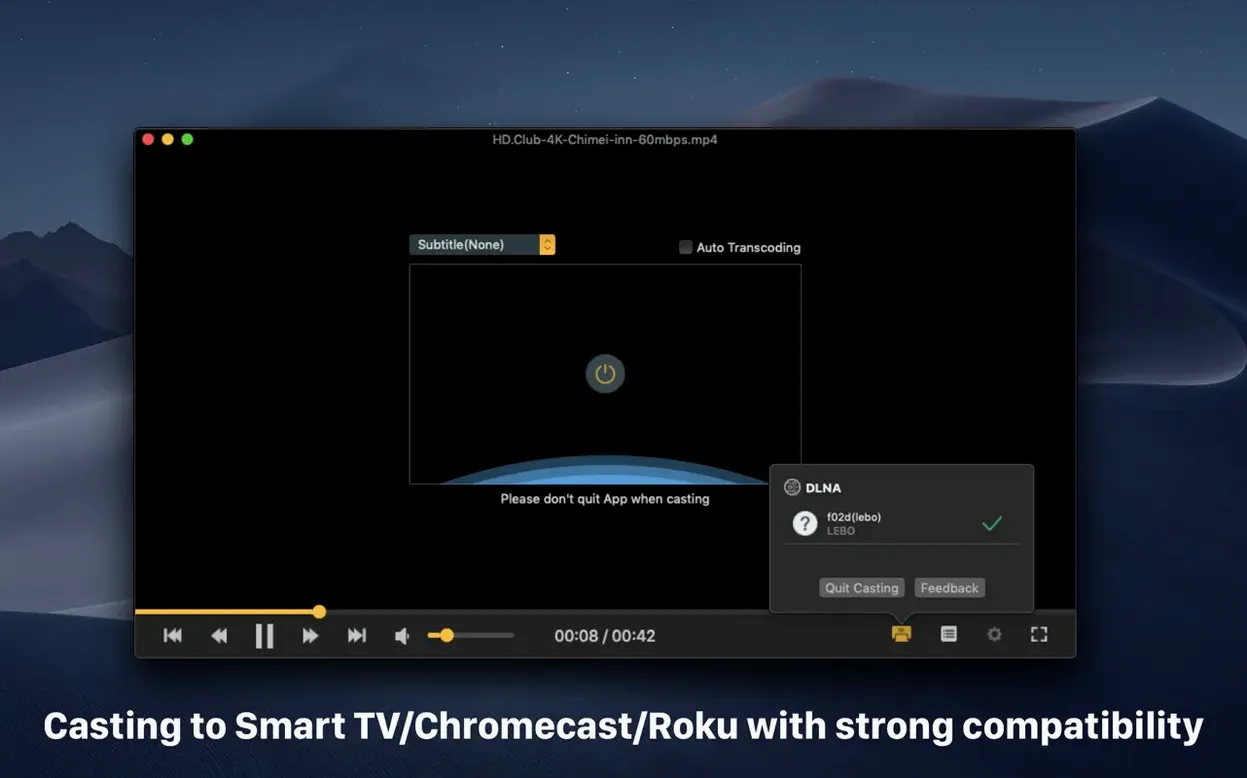
Then there is Elmedia Player, which shares OmniPlayer's appetite for web video URLs and wireless casting. Elmedia leans harder into streaming — it can pull video from a page without you hunting for a direct link — but its free tier neuters half the useful features. OmniPlayer gives you Chromecast, DLNA, Roku, subtitle search, and playback-speed control in one download without paywalling the pro bits behind a splash screen.
A real-world workflow: foreign-language film night
Imagine you have a 14 GB MKV of a French film, a separate SRT file a friend sent you, and a vague hope that the dialogue will sync. Here is a path through OmniPlayer that takes about ninety seconds.
Drag the MKV onto the dock icon. The file opens immediately — no library import, no metadata scan. Hit Space to play, then press Command-S to reveal the subtitle loader. Point it at the SRT on your desktop. If the timing drifts, tap the left or right bracket keys to bump subtitle delay backward or forward in half-second increments until lips and text agree. Should the translation feel clunky, open the subtitle search panel — OmniPlayer queries OpenSubtitles by file hash first, and normally surfaces a handful of English options within seconds. Click one, and it replaces the current track without restarting playback.
Mid-film, you realise the audio mix favours the rear channels and the dialogue is buried. Right-click the video, choose Audio Track, and switch from the 5.1 mix to a stereo downmix if the file includes one. The changeover is instant. Hit Command-E to grab a still of a scene you want to remember, and the PNG lands on your desktop with the timestamp baked into the filename. No export dialog, no format picker — one keystroke, one file.
Hover on the progress bar to reveal a scene preview thumbnail
Several shortcuts live in plain sight but rarely get clicked. Hover over the progress bar during local playback and a thumbnail preview pops up — it is accurate enough to let you skip to a specific scene without guesswork. The audio delay slider, tucked inside the audio menu, accepts typed values, so you can enter something precise like 0.35s rather than dragging the knob and hoping. If you regularly watch content in a language that needs non-Latin subtitle encoding, the encoding dropdown near the subtitle panel remembers your last choice per video, which saves a trip through Cyrillic or CJK menus every session.
The playlist behaviour deserves a mention too. OmniPlayer builds a temporary list from whatever you open, but you can also drop a folder onto the window and it queues every playable file inside, respecting alphabetical order. Press Command-Option-Right Arrow to jump to the next item. When you quit, the whole list evaporates — no manual cleanup, no leftover entries staring at you next time you launch the app. For anyone who treats a media player as a tool rather than a collection manager, that transient playlist is a quiet gift.
Keep the transport bar visible while paused
Out of the box, OmniPlayer makes a few choices that suit casual viewing but benefit from a quick tweak. Open Preferences and consider these changes:
- Disable «Auto-hide controls» during pause. The default hides the transport bar when playback pauses, which can leave you prodding the screen to find the timeline. Uncheck it and the controls stay put while you decide whether to resume.
- Set screenshot format to JPEG at 90% quality. The default PNG is lossless but produces files several megabytes large for a 1080p frame. JPEG at high quality trims that to a few hundred kilobytes without visible degradation, which is kinder to a cluttered desktop.
- Adjust the jump interval. The left and right arrow keys skip five seconds by default. If you watch content where ten seconds is the right grain — lectures, panel discussions — change it in the playback tab and you will half the number of key presses per session.
- Turn on «Resume last playback position» per media type. The global setting works, but OmniPlayer lets you enable it only for video and leave audio files to start fresh. Useful if you dip into music tracks and do not want a thirty-second fragment remembered as the permanent entry point.
Version 2.1.22 is a maintenance update that squashes a few bugs. The headline fix addresses a playback failure when loading 30 GB MKV files, which previously caused a hang on open.
- macOS 11 (Big Sur) or later
- Intel 64-bit processor
Questions I keep hearing
Does OmniPlayer run natively on Apple Silicon Macs?
Version 2.1.22 is listed as an Intel build, so it runs on Apple Silicon through Rosetta 2 translation rather than as a native ARM app.
Questions from the class 0
Sign in or join the class to ask a question.
Nobody has asked anything yet. If you have used it on a real job, say what the file did.
Also on the Mac Apps shelf
The whole Mac Apps shelf OmniGraffle Pro
Builds precise diagrams, wireframes, and site maps from a deep library of draggable stencils.
OmniGraffle Pro
Builds precise diagrams, wireframes, and site maps from a deep library of draggable stencils.
 ON1 Photo RAW
Manages a local photo library and develops raw files with layered, non-destructive edits.
ON1 Photo RAW
Manages a local photo library and develops raw files with layered, non-destructive edits.
 One Switch
Flicks common Mac settings like Dark Mode or Do Not Disturb on and off from a single menu bar panel.
One Switch
Flicks common Mac settings like Dark Mode or Do Not Disturb on and off from a single menu bar panel.
 Optimage
Compresses images to a smaller file size while keeping the visual loss invisible to the eye.
Optimage
Compresses images to a smaller file size while keeping the visual loss invisible to the eye.
 Pacifist
Extracts a single file from a .pkg installer without running the whole package.
Pacifist
Extracts a single file from a .pkg installer without running the whole package.
 Paragon NTFS
Lets your Mac write, copy and delete files on Windows-formatted drives.
Paragon NTFS
Lets your Mac write, copy and delete files on Windows-formatted drives.
 NotchNook
Turns the MacBook notch into a pop-out panel for shortcuts, a mini music player, and file drops.
NotchNook
Turns the MacBook notch into a pop-out panel for shortcuts, a mini music player, and file drops.
 NotchBox
Turns the empty space around your MacBook notch into a strip of quick-action buttons and live widgets.
NotchBox
Turns the empty space around your MacBook notch into a strip of quick-action buttons and live widgets.