 ASPNetWorld
That strip of screen either side of the notch is dead space — pixels you glance past a hundred times a day. NotchBox Pro reclaims it, packing quick-access tools into the menu bar area so the notch becomes something you reach for, not just something you ignore.
Setting up a notch-sized control centre
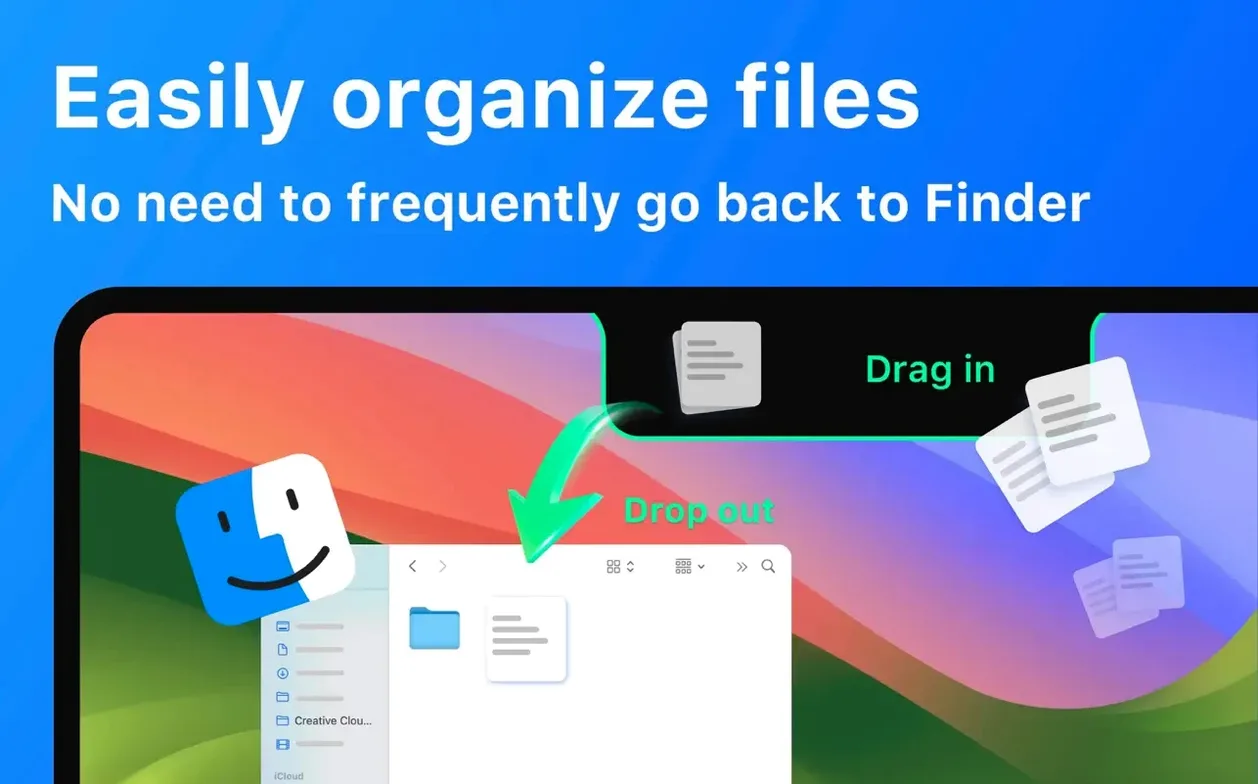
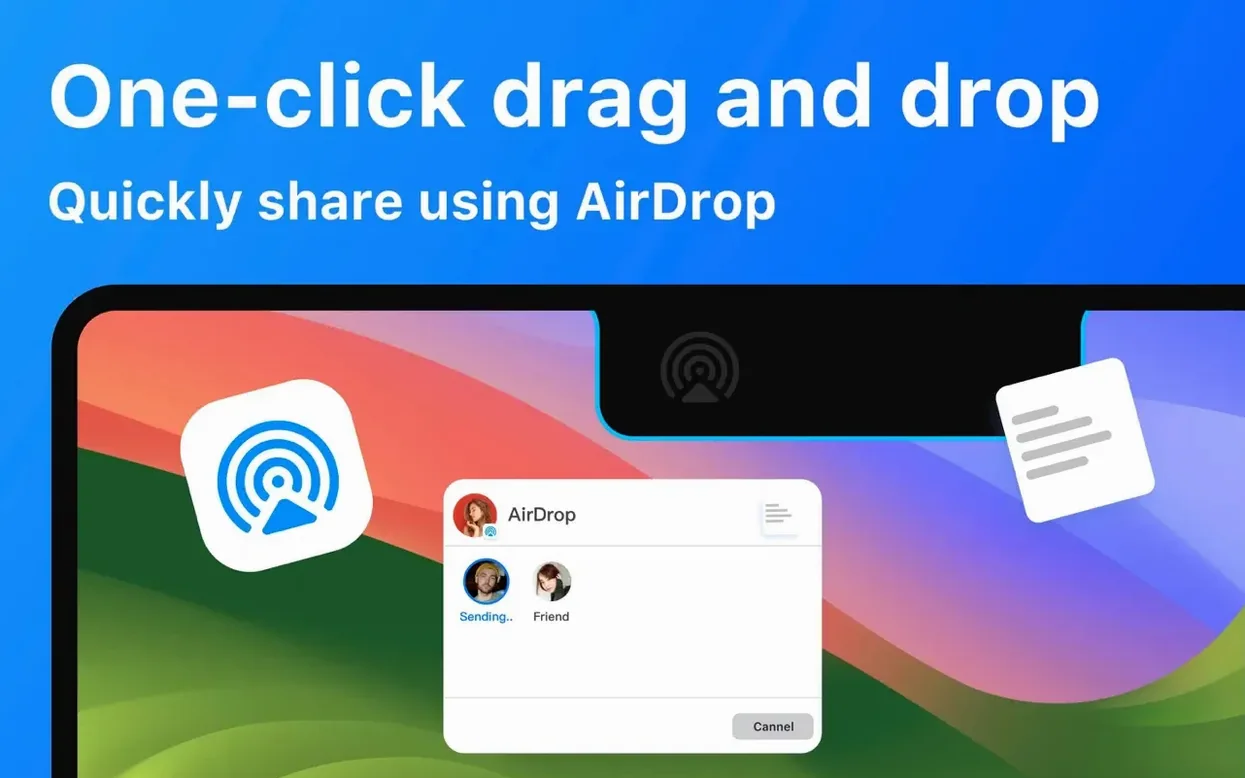
Once installed, the app lives entirely in the menubar, tucking a compact panel right under the notch. From there you can drag files straight onto the notch area to share them via AirDrop, or pull up a clipboard history that remembers everything you’ve copied recently.
Checking music, Wi‑Fi and a quick mirror
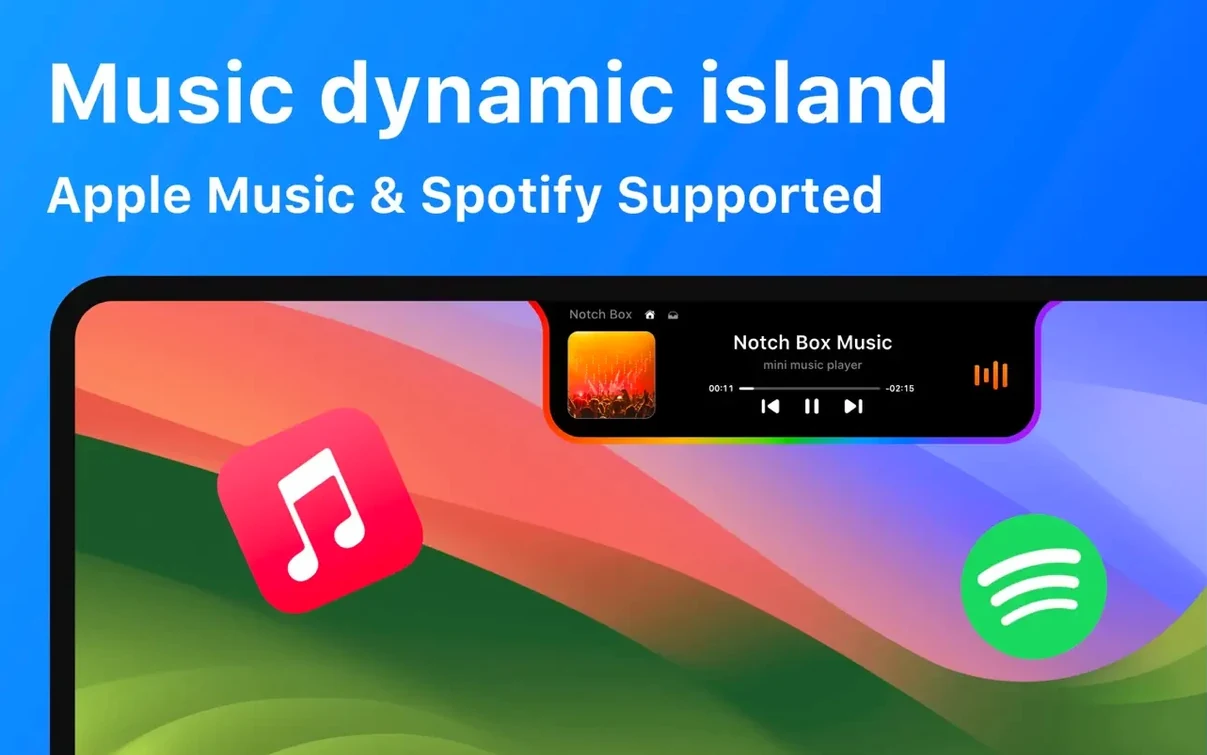
A built-in Apple Music widget shows what’s playing and lets you skip tracks without switching windows, while a tiny network readout displays your Wi‑Fi speed and signal strength at a glance. There’s even a camera mirror view — handy for checking your background before a video call.
Running a timer without opening a clock app
The countdown timer sits right in the notch panel, so you can set a quick reminder while cooking, presenting or stepping away from the desk. Everything responds to a click or a drag, and the interface disappears the moment you move on to something else.
Rich text and images survive in your clipboard history
Lots of NotchBox Pro’s cleverest touches are the ones that never announce themselves. The clipboard history, for instance, doesn’t just list recent items — it preserves rich text formatting and images, so pasting a styled paragraph or a screenshot you copied three steps back is genuinely frictionless. You can pin particular clips too, which stops them dropping off the bottom of the list during a long editing session.
Another quiet helper is the way the Wi‑Fi widget behaves. Tap it once and you see speed and signal strength; tap it a second time and it copies your current network name to the clipboard — useful when a colleague asks which access point you’re on. The date display is similarly clickable: it drops a full timestamp into your clipboard with the time, day and date, ready to paste into a log note or a filename.
If you use AirDrop often, you’ll appreciate that files dragged onto the notch don’t have to land on a specific icon. The whole notch area acts as a drop target, and the app works out whether you’re sharing to a nearby Mac, an iPhone or an iPad based on which devices are awake. That means no hunting through Finder windows — just drag and release.
The camera mirror also has a hidden trick. Right-click it and it flips to a small picture-in-picture view that stays visible above other windows, so you can keep half an eye on the door behind you during a call or watch for a courier while you work.
A real workflow: prepping a presentation folder before a meeting
Let’s walk through something practical — getting a handful of files ready to share in the five minutes before a client call. You’ve got a PDF deck on the desktop, a spreadsheet in Documents, and a screenshot you just captured. With NotchBox Pro, the whole routine stays out of Finder.
Start by dragging the PDF onto the notch. It sits there as a temporary icon, held until you decide what to do with it. Next, grab the spreadsheet and drop it onto the same spot — the app stacks multiple files without fuss. Take your screenshot, open the clipboard history from the menubar, and drag the image straight from the history list into the notch stack. Three files, no windows littering the screen.
Now glance at the calendar widget: your meeting appears with a start time and a link, and tapping it opens the event in Calendar. You notice you have seven minutes — enough time to set the countdown timer for five minutes so you don’t get caught off guard. Finally, drag the whole file stack from the notch onto the AirDrop icon that shows your iPad, and they land in the recipient’s Downloads folder before you’ve even opened the video call. The notch panel vanishes the second you click away, leaving a clean desktop for screen sharing.
Designers, writers, and cross-device file movers click hardest with it
The app suits anyone with a notched MacBook Pro or MacBook Air, but three groups of users tend to fall for it hardest. First, people who move files between Apple devices constantly — designers sending comps to an iPad, writers shunting drafts to an iPhone for reading on the train, developers testing builds on a second Mac. The drag-and-drop AirDrop shortcut alone cuts out half a dozen clicks per transfer.
Second, anyone who lives in video calls. The camera mirror is a small thing, but knowing your background is tidy before you join a call becomes second nature. Combined with the timer — ideal for keeping breakout sessions on track — and the music widget for a quick mute-and-play moment between meetings, it turns the notch into a remote-working companion.
Third, people who simply hate menubar clutter. Because NotchBox Pro collapses multiple functions into a single panel attached to the notch, it replaces several separate menubar utilities. You might delete your dedicated clipboard manager, your standalone timer app and your network monitor, freeing up space for the things that genuinely need to sit up there full-time.
If you’ve ever thought the notch was a compromise, this is the kind of software that flips the equation. A notchbox for mac setup like this one makes the hardware cutout feel intentional — a launch point rather than an obstruction. Once the panel becomes part of your muscle memory, going back to a plain menubar feels oddly empty.
One morning in the life of a podcast producer
Elena produces a weekly interview show. Her MacBook Pro sits open on a cramped desk next to a mic arm and a field recorder, and she’s usually juggling guest research, audio snippets and calendar reminders within the same ten-minute window before recording starts. Here’s how NotchBox Pro fits into her pre-session scramble.
She arrives at her desk with coffee at 8:42 a.m., eighteen minutes before the guest dials in. A quick glance at the notch shows her Wi‑Fi signal is strong — the network widget confirms 5 GHz with full bars — so she knows the remote recording won’t stutter. She taps the calendar entry showing the guest’s name and sees the Zoom link; one more tap opens it directly. No need to open the Calendar app.
While the call window loads, Elena drags three MP3 clips from a research folder onto the notch. These are questions the guest sent over as voice notes, and she wants them on hand. She opens the clipboard history and grabs a paragraph of show notes she copied from an email earlier, pinning it so it stays available throughout the recording. The camera mirror flickers on for two seconds — just long enough to check there isn’t a coat slung over the chair behind her — and she’s ready.
During the conversation, she uses the notch panel exactly twice: once to start a fifteen-minute countdown timer so the interview doesn’t overrun, and once to drag one of those MP3 clips straight to AirDrop, sending it to her producer’s iPhone for a fact-check. Neither action pulls her out of the call window. By the time the guest hangs up, Elena has a pinned transcript note, a tidy desktop and a strong coffee that’s still warm — all without opening Finder once.
- macOS 13 or later
- Apple Silicon or Intel 64-bit processor
Questions I keep hearing
Does NotchBox Pro work on a Mac without a notch?
It’s designed for MacBook models that have a notch, but it will still run on any Mac with macOS 13 or later — you just interact with it through the menubar area instead.
Can I control Apple Music or just see what’s playing?
The widget shows the current track and artist, and you can skip, play and pause directly from the notch panel without opening the Music app.
Questions from the class 0
Sign in or join the class to ask a question.
Nobody has asked anything yet. If you have used it on a real job, say what the file did.
Also on the Mac Apps shelf
The whole Mac Apps shelf Nook X
Tucks a notepad, reminders, and a private AI chat assistant into your Mac’s menu bar.
Nook X
Tucks a notepad, reminders, and a private AI chat assistant into your Mac’s menu bar.
 NotchNook
Turns the MacBook notch into a pop-out panel for shortcuts, a mini music player, and file drops.
NotchNook
Turns the MacBook notch into a pop-out panel for shortcuts, a mini music player, and file drops.
 Nik Collection
Adds film looks, black-and-white and detail filters to photos as plug-ins.
Nik Collection
Adds film looks, black-and-white and detail filters to photos as plug-ins.
 OmniGraffle Pro
Builds precise diagrams, wireframes, and site maps from a deep library of draggable stencils.
OmniGraffle Pro
Builds precise diagrams, wireframes, and site maps from a deep library of draggable stencils.
 OmniPlayer: MKV Video Player Pro
Plays almost any video file you throw at it, fetches subtitles online, and streams web clips.
OmniPlayer: MKV Video Player Pro
Plays almost any video file you throw at it, fetches subtitles online, and streams web clips.
 ON1 Photo RAW
Manages a local photo library and develops raw files with layered, non-destructive edits.
ON1 Photo RAW
Manages a local photo library and develops raw files with layered, non-destructive edits.
 Navicat Premium
Connects to multiple databases so you can manage MySQL, Postgres, and others side by side.
Navicat Premium
Connects to multiple databases so you can manage MySQL, Postgres, and others side by side.
 One Switch
Flicks common Mac settings like Dark Mode or Do Not Disturb on and off from a single menu bar panel.
One Switch
Flicks common Mac settings like Dark Mode or Do Not Disturb on and off from a single menu bar panel.