 ASPNetWorld
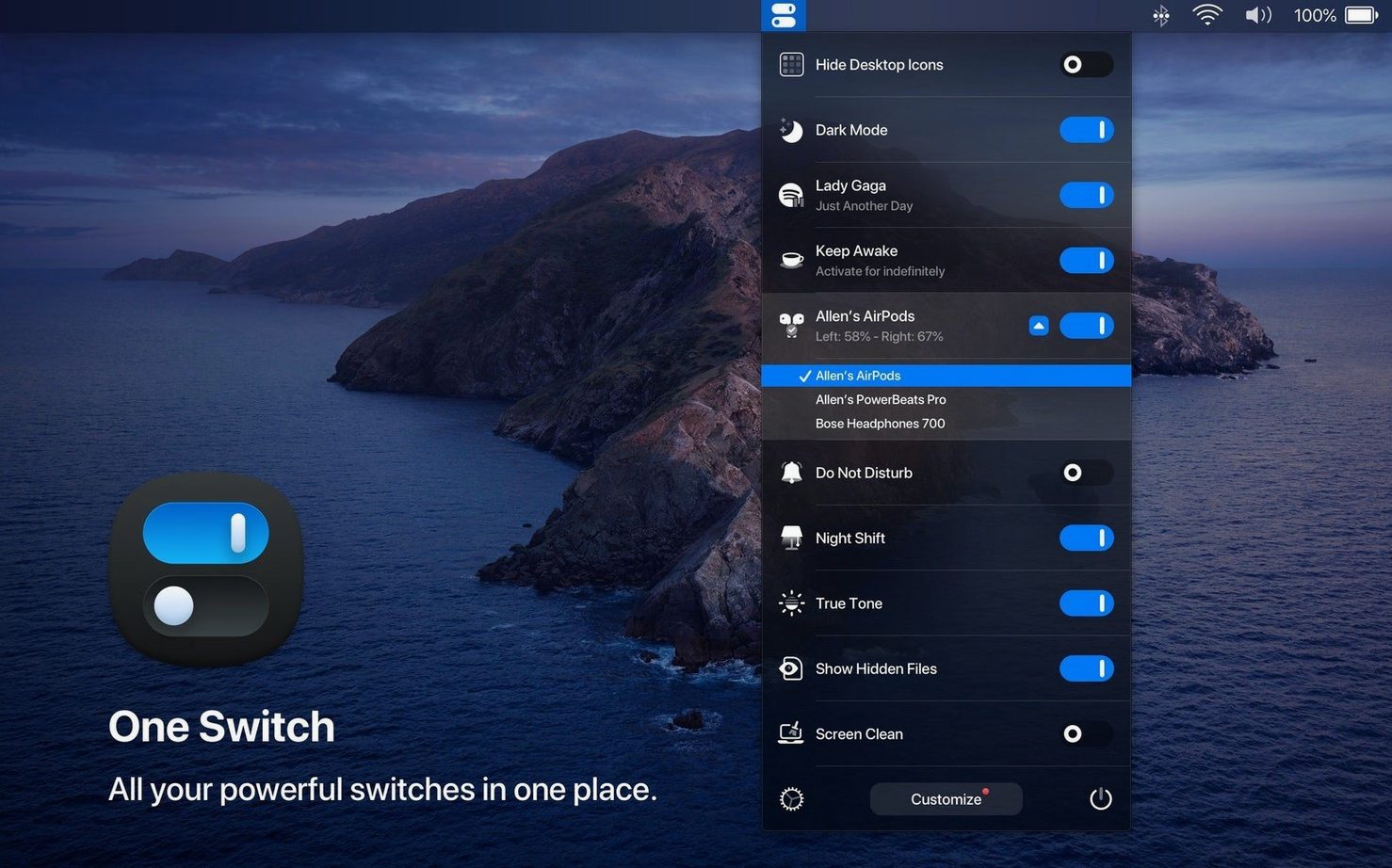
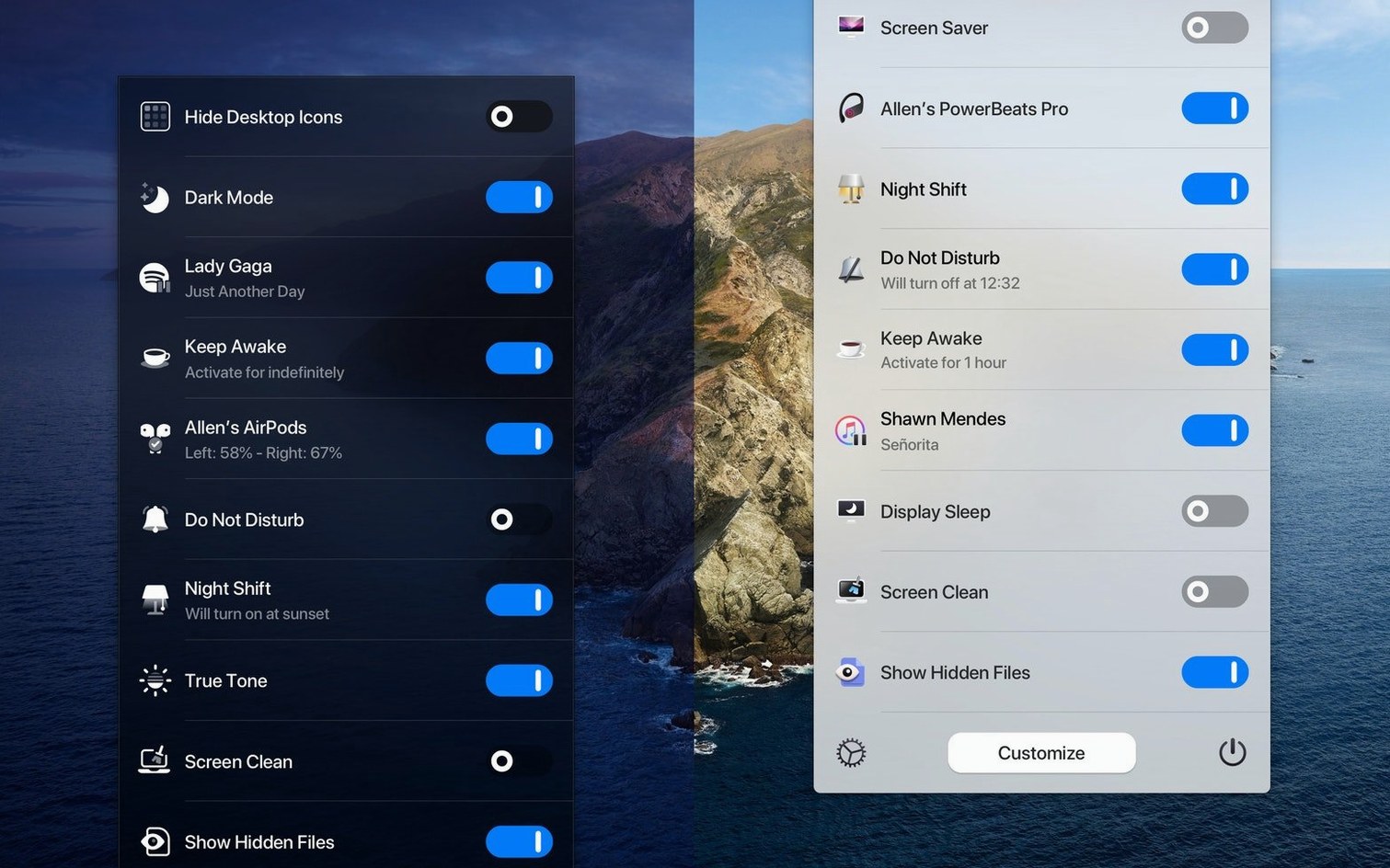
Version 1.35.4 is a quiet but thoughtful update for this little menu bar utility, adding multilingual support that covers German, Italian, Japanese, Korean, Portuguese, Russian, and Spanish alongside the original English. The core function hasn't changed — it's still the quickest way to flick system settings on and off without diving into System Settings — but it's now far more welcoming if English isn't your first language.
A switch, in this context, is simply a toggle that changes a system state: Light to Dark appearance, showing or hiding desktop icons, connecting your AirPods, or turning Do Not Disturb on and off. Think of it as a compact control surface living in your menu bar.
Instantly flip between Light and Dark modes
- Instantly flipping between Light and Dark modes without opening a single preference pane
- Connecting your AirPods in one click, rather than digging through Bluetooth menus
- Quickly hiding desktop clutter before a screen share or presentation
- Replacing several single-purpose utilities with one tidy menu that shows only the switches you actually use
Limited to seven active switches at a time
- You're limited to seven active switches visible at a time, so you'll need to choose your favourites
- The app requires macOS 10.15 Catalina or newer
- It runs natively on both Apple Silicon and Intel Macs
Turning on every switch as a dumping ground
The first mis-step is treating the app like a dumping ground for every switch it offers. One Switch ships with a dozen or so toggles, and a fresh install often has most of them lit up. That's too many. The menu grows tall, scanning it takes longer, and the whole point — speed — evaporates. Pick the four or five you genuinely reach for several times a day, then disable the rest in preferences. You can always bring one back when a project demands it.
Another common slip: forgetting that hiding desktop icons also hides everything on the desktop, including files you're actively working with. A newcomer toggles it before a presentation, then panics mid-meeting when a referenced document seems to have vanished. The files are still there in Finder; the switch just sets a flag that tells the desktop to draw nothing. Flip it back and everything reappears exactly where you left it.
Some users turn on Do Not Disturb through One Switch and then wonder why their carefully scheduled Focus modes in macOS behave oddly. The app toggles the system-wide Do Not Disturb setting, which can override or clash with Focus schedules if you're not paying attention. There's nothing broken — just two mechanisms pulling the same lever. If you rely on Focus automation, use the switch sparingly or only when you need a manual override.
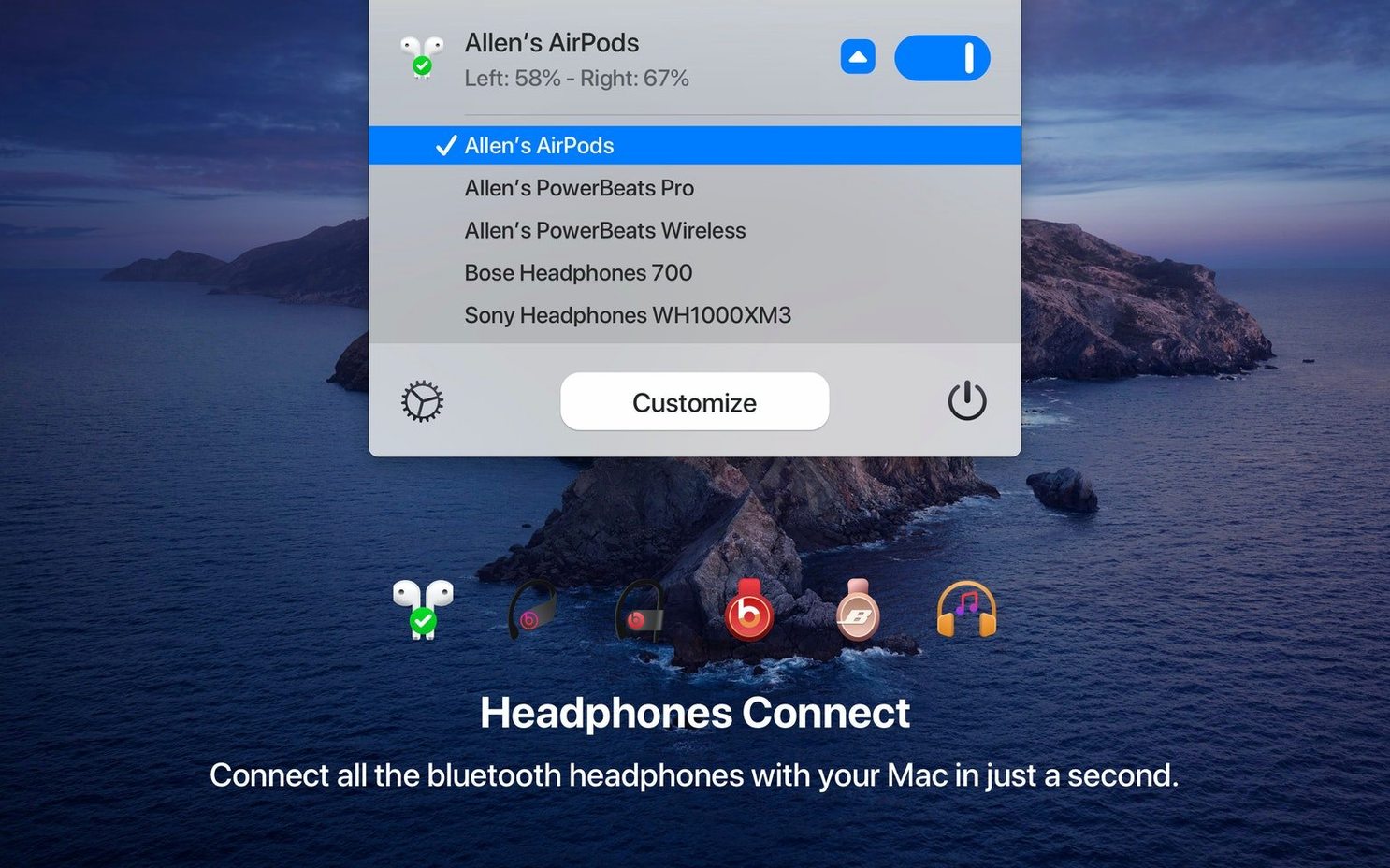
Finally, the AirPods connection switch trips up anyone who assumes it pairs new headphones. It doesn't. The switch connects to AirPods already paired with your Mac via iCloud, and it works best when the earbuds are in your ears and awake. If they're sitting in their case with the lid shut, the switch will spin briefly and give up. Pop them in first, then click.
Uncheck everything except three switches that solve daily friction
Start by pruning ruthlessly. Open preferences and uncheck everything except Dark Mode, Do Not Disturb, and one more switch that solves a daily annoyance — perhaps Desktop Icons if you screen-share often, or Sleep if your MacBook lives on a desk and you prefer a menu bar command to closing the lid. Living with three switches for a day teaches you what you actually miss.
Next, explore the automatic scheduling for Dark Mode. Instead of toggling it manually, set a custom schedule that mirrors your working hours. The app flips the appearance at the times you specify, which is gentler on the eyes than a sudden switch and means you can remove Dark Mode from your visible switches, freeing a slot. You still get the benefit without the menu bar clutter.
Assign a global keyboard shortcut if you're comfortable with them. One Switch doesn't advertise it loudly, but under preferences you'll find an option to set a hotkey that opens the switch menu right under your cursor. The combination Ctrl+Option+Space is rarely claimed by other apps and becomes muscle memory within an afternoon. From there it's a quick tap down and Enter to flip a switch, all without touching the trackpad.
Test the screen saver switch before you need it. On some Macs, starting the screen saver manually triggers an immediate lock if you've set "Require password immediately" in Security & Privacy settings. That's usually desirable, but if you only meant to show a photo slideshow during a coffee break, it can catch you out. Know what your Mac will do so the switch behaves predictably.
Lastly, if you have a multi-language setup at home or work, the new multilingual support in version 1.35.4 is worth a look even if you normally use English. The app follows the system language automatically, so a family Mac shared with someone who prefers German or Japanese will show the switches in their language without any extra configuration. It's a small touch that makes a shared machine feel less like negotiating foreign territory.
Only Switch covers similar ground as open source
The menu bar toggles space has a few familiar names, and they take different approaches. One Switch bundles common system controls into a single drop-down. Only Switch — an open-source alternative with a similar name — covers much of the same ground but adds a few extras like hiding the notch on newer MacBooks and forcing the screen to stay awake. It's less polished visually and the AirPods connection can be less reliable, but it's kept updated by a small community and its feature set occasionally edges ahead in niche areas. If you like tinkering and don't mind a slightly rougher interface, it's worth a curious download. One Switch feels more considered, like a tool designed to fade into the background.
Control Centre — the one built into macOS since Big Sur — does some of the same jobs for free. You can toggle Dark Mode, Do Not Disturb, and Bluetooth from its pull-down. What it lacks is customisation. You can't trim it to just the controls you care about, and it won't give you a one switch mac app experience where desktop icons, screen saver, and AirPods live in the same compact strip. Control Centre is fine for occasional use; One Switch is for people who treat system states like quick presets they flip between all day.
SwitchGlass, by the developer of the classic Mac utility LaunchBar, takes a purist route. It puts individual toggles directly in the menu bar as separate icons, so you see Dark Mode as its own little sun-and-moon glyph, AirPods as another, and so on. It's beautiful and immediate, but it eats menu bar real estate fast. If you're already running several status icons, adding four or five SwitchGlass toggles pushes you into cramped territory. One Switch consolidates everything into one icon — useful if you'd rather keep the right side of your menu bar breathing.
Click Light Mode to brighten the co-working space
It's 8:45 am and you've settled into a co-working space with your MacBook. The room is bright, so you click the One Switch icon — a small, unassuming circle in the menu bar — and tap Light Mode. The screen warms up from its overnight dark palette. You'll let the schedule handle the switch back this evening.
Your AirPods are already in your ears, having connected automatically to your iPhone on the commute. You click the switch that reads Connect AirPods. A brief spin, a soft chime, and the audio output hops across to the Mac. No Bluetooth menu, no right-clicking the volume icon.
A colleague messages about sharing a Figma file, so you need a clean desktop for the screen recording. You open One Switch again, choose Hide Desktop Icons, and the scattering of screenshots and PDFs vanishes. The desktop looks pristine. You record the walkthrough, send it, and flip the switch back. Everything returns.
Mid-afternoon brings a focus block. You toggle Do Not Disturb and the notification banners stop sliding in from the edge. An hour later, when you surface, you click the same switch to let the world back in.
At 5:30 pm you're done. A final click on Sleep in the One Switch menu darkens the screen and puts the Mac into low-power mode. The whole day involved maybe a dozen interactions with system settings, and none of them required opening System Settings, hunting through submenus, or remembering keyboard shortcuts buried three layers deep. That's the rhythm the app settles into after a week — not something you admire, just something you reach for.
Version 1.35.4 adds multilingual support, making the app speak your language with new localisations for German, Italian, Japanese, Korean, Portuguese, Russian, and Spanish.
- macOS 10.15 Catalina or newer
- Apple Silicon or Intel 64-bit processor
Questions I keep hearing
What exactly can One Switch control?
It gives you quick toggles for Dark Mode, desktop icons, AirPods connection, Do Not Disturb, screen saver activation, putting the display to sleep, and managing notification settings from the menu bar.
Does One Switch run on older Intel Macs?
Yes, it supports both Apple Silicon and Intel 64-bit Macs running macOS 10.15 Catalina or later.
Questions from the class 0
Sign in or join the class to ask a question.
Nobody has asked anything yet. If you have used it on a real job, say what the file did.
Also on the Mac Apps shelf
The whole Mac Apps shelf ON1 Photo RAW
Manages a local photo library and develops raw files with layered, non-destructive edits.
ON1 Photo RAW
Manages a local photo library and develops raw files with layered, non-destructive edits.
 Optimage
Compresses images to a smaller file size while keeping the visual loss invisible to the eye.
Optimage
Compresses images to a smaller file size while keeping the visual loss invisible to the eye.
 OmniPlayer: MKV Video Player Pro
Plays almost any video file you throw at it, fetches subtitles online, and streams web clips.
OmniPlayer: MKV Video Player Pro
Plays almost any video file you throw at it, fetches subtitles online, and streams web clips.
 Pacifist
Extracts a single file from a .pkg installer without running the whole package.
Pacifist
Extracts a single file from a .pkg installer without running the whole package.
 OmniGraffle Pro
Builds precise diagrams, wireframes, and site maps from a deep library of draggable stencils.
OmniGraffle Pro
Builds precise diagrams, wireframes, and site maps from a deep library of draggable stencils.
 Paragon NTFS
Lets your Mac write, copy and delete files on Windows-formatted drives.
Paragon NTFS
Lets your Mac write, copy and delete files on Windows-formatted drives.
 Parallels Desktop
Runs Windows and Linux apps alongside macOS without rebooting your Mac.
Parallels Desktop
Runs Windows and Linux apps alongside macOS without rebooting your Mac.
 Paste
Keeps a searchable visual timeline of everything you copy on your Mac.
Paste
Keeps a searchable visual timeline of everything you copy on your Mac.