 ASPNetWorld

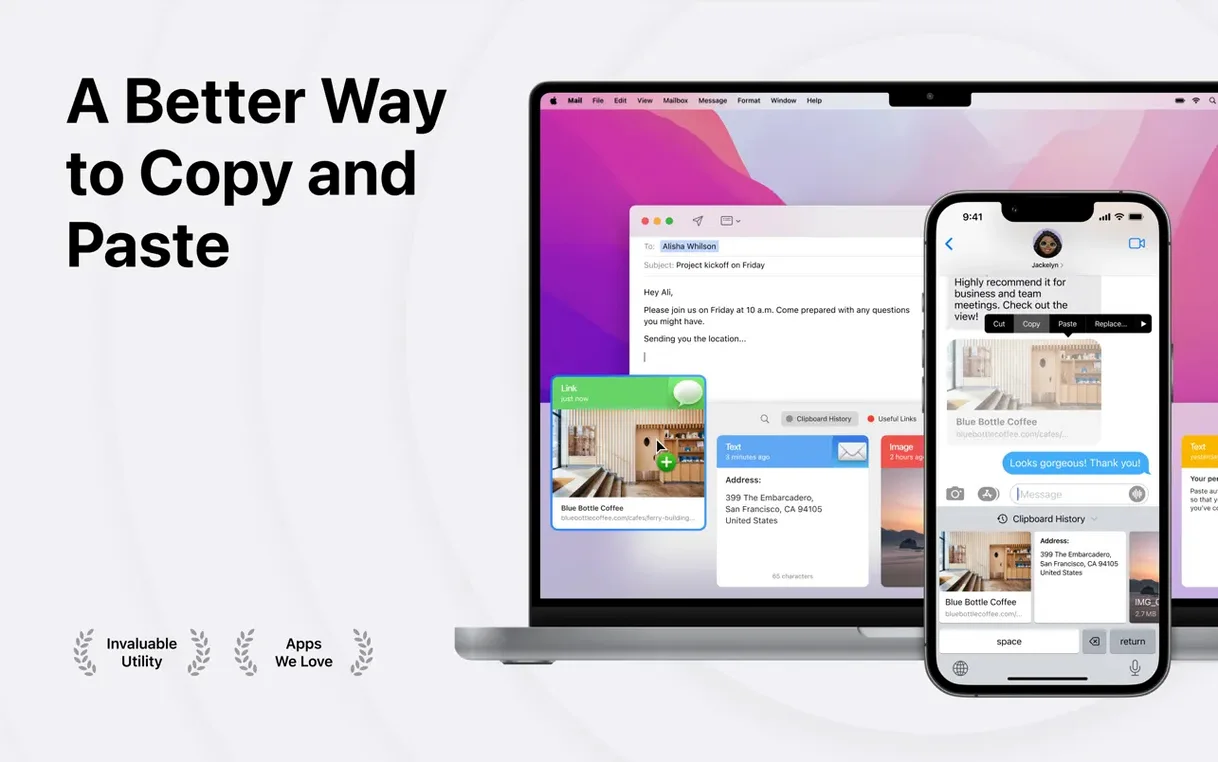
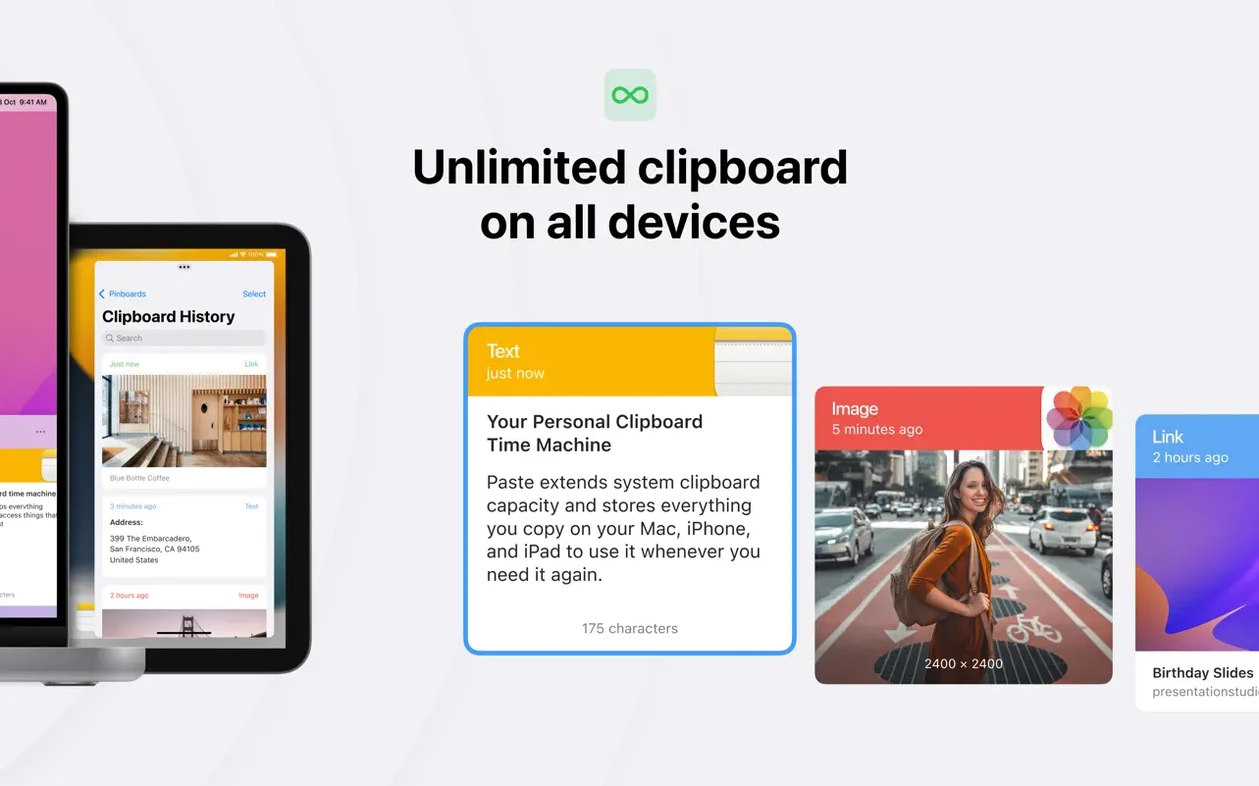
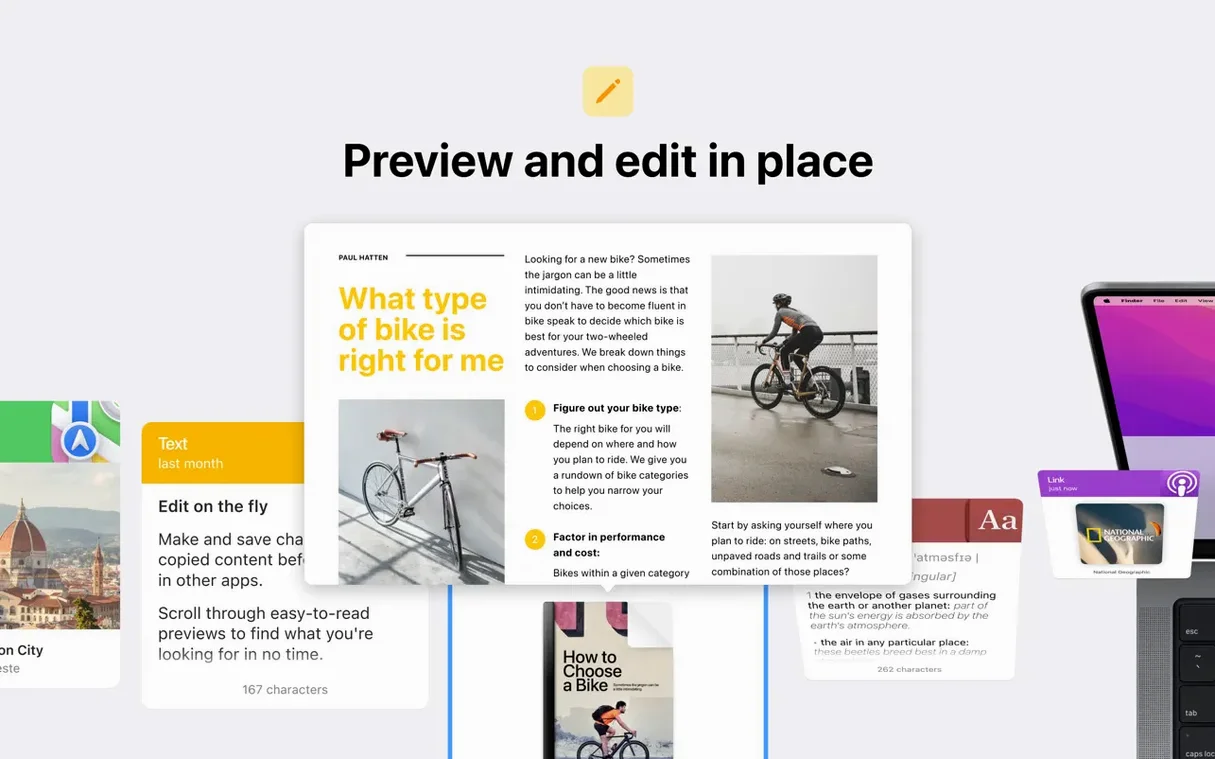
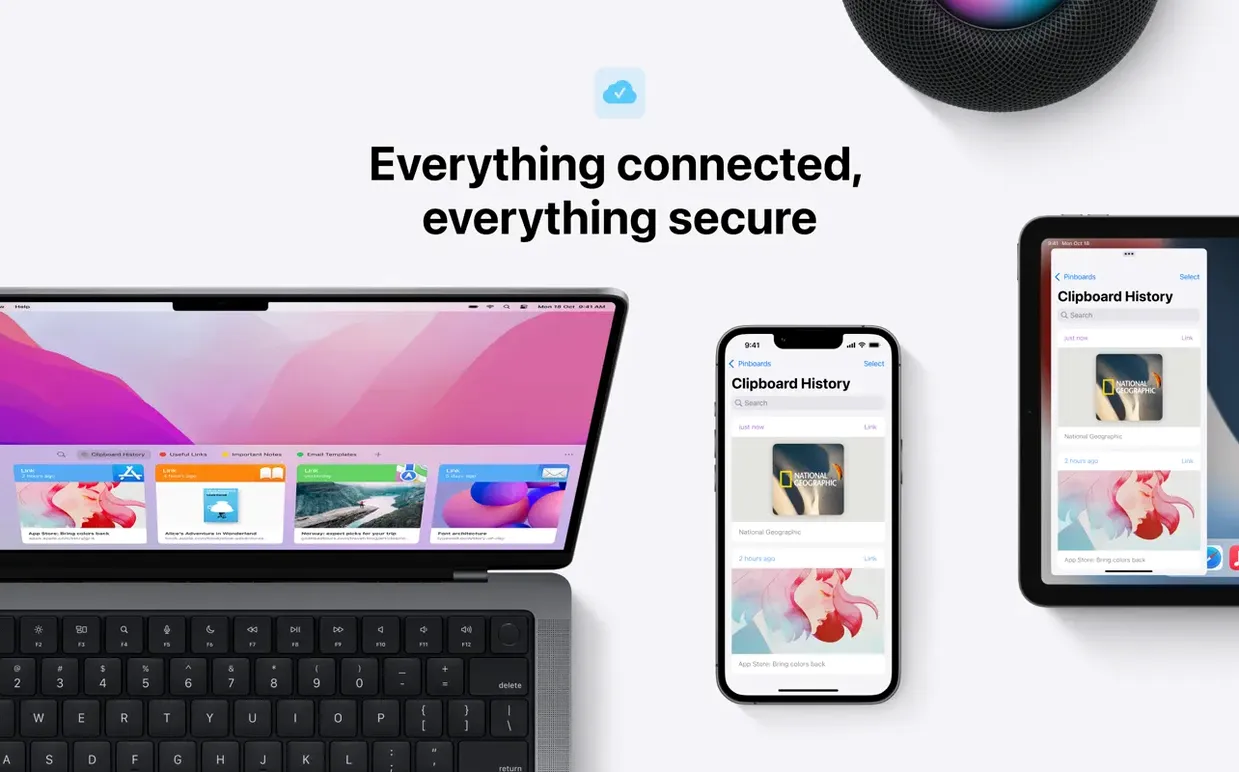
Designers who juggle mood boards, developers wrangling code snippets, and anyone who has ever copied a tracking number only to lose it to a stray screenshot—Paste steps in as the Mac clipboard you wish came built in. It quietly keeps a visual timeline of everything you copy, so that brilliant link or address you grabbed ten minutes ago is never truly gone.
Three things to do on day one
The app really starts to shine once you shape it around your day. Try these moves early on:
- Learn the quick-recall shortcut. Head into Preferences and set a keyboard command that feels second nature. A single keystroke then summons your entire clipboard history right under your cursor—no dock clicking, no window hunting.
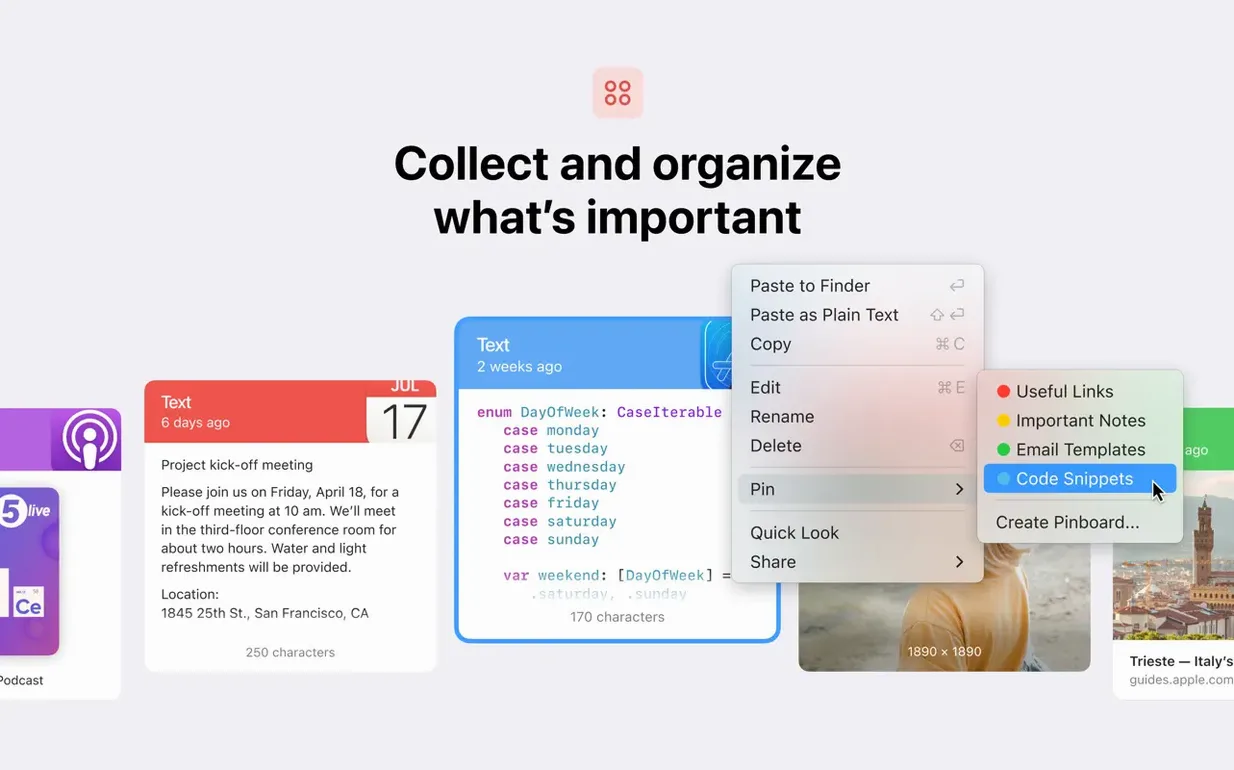
- Build your first pinboard. Think of a pinboard as a scrapbook for a single project. Drag a few related items from your history onto a new board. Those bits stay put, even as fresh copies push older ones down the main list.
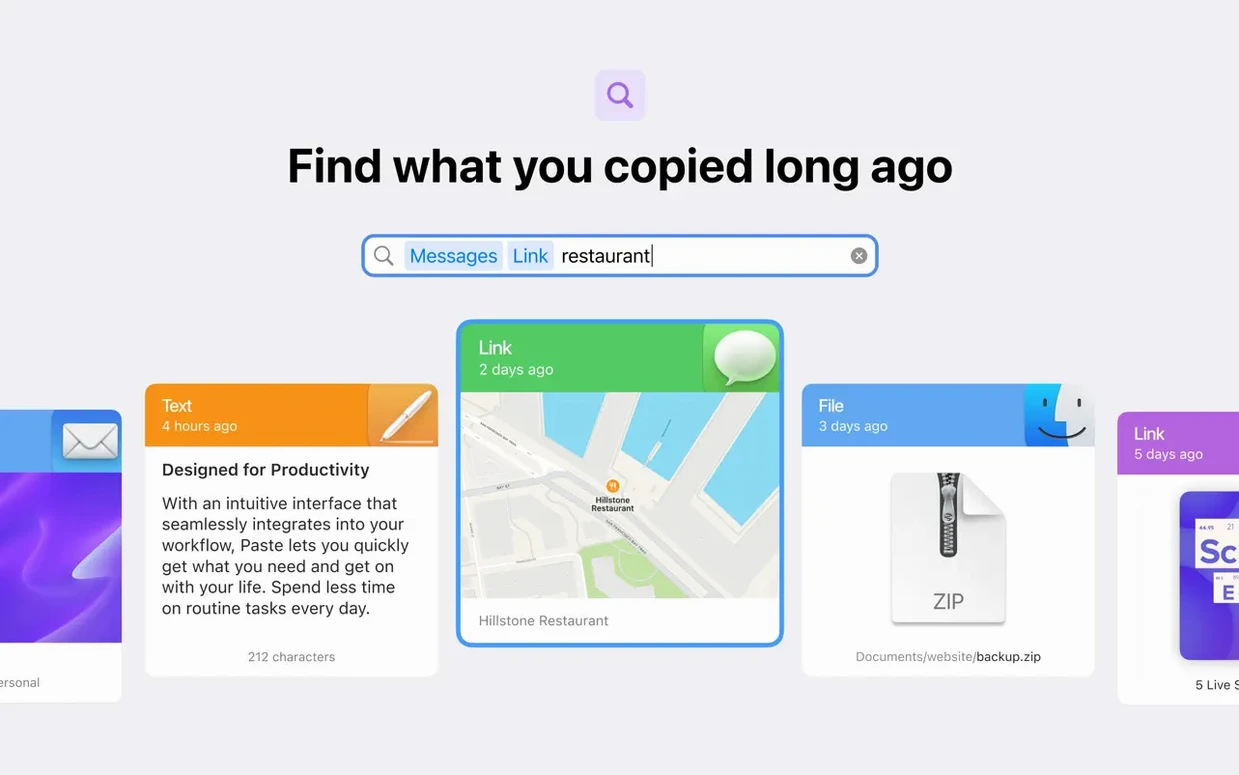
- Search with a keyword. Hit the smart search bar and type “invoice” or “hex” to instantly filter a sea of copied text down to the one fragment you need. It reads text inside images too.
Making it work across your Apple kit
If you use an iPad or iPhone alongside your Mac, Paste can bridge them through iCloud. Your history and pinboards appear on every device, so a quote copied on the sofa is ready to paste at the desk a moment later. The app also respects Universal Clipboard, meaning a nearby iPad can drop something straight into your Mac’s timeline without a second thought. Sharing is equally direct—you can send a pinboard to someone else, and their copy of Paste slots it into their own library, formatting intact.
What the 6.6.2 generation changed in everyday use
If you last used Paste a couple of major releases ago, you will notice the quiet work that has gone into making the history feel less like a list and more like a workspace. The visual cards for images and screenshots now render at higher fidelity on Apple Silicon displays, so a copied portion of a Figma frame or a colour palette from a photograph is immediately legible without opening it in Preview. Plain-text extraction—summoned by holding the Option key before pasting—handles rich text from browsers more cleanly, stripping stray font declarations that used to survive the journey and annoy anyone pasting into a plain document.
Multiple item pasting, a feature that once felt experimental, has matured. You can now select a cluster of entries—say, a name, a phone number and an address copied separately—and drop them into a form in one motion. The ordering logic respects the sequence you selected, so you’re not rearranging fields afterwards. Sharing a pinboard to another person’s Paste install has also become less brittle; background syncing resolves conflicts more gracefully when two people have added items to a shared board at the same time.
A newsletter takes shape from clipboard scraps in a café
Let us follow a freelance editor assembling a newsletter. She opens her MacBook at a café, fires up Paste and starts her morning round. A subject line from a client email, a pull quote from a PDF, a hex colour code from the brand guide and a screenshot of a layout tweak all flow into her clipboard history as she works across tabs.
Half an hour in, she pinches the trackpad to summon the quick-recall panel. There they are, arranged as a vertical stack of cards. She drags the pull quote and the hex code onto a pinboard she names February issue. The screenshot of the layout she leaves in the main history, because it is a one-off reference. Later, back at her desk, she opens Paste on her iPad and finds the same pinboard waiting—the items she collected at the café are already there, synced over iCloud. She taps the hex code, pastes it into a style panel in Procreate, and carries on.
By the end of the session, the main history has gathered a day’s worth of fragments. She searches “image” to pull up every copied visual, skims the thumbnails with the arrow keys, and deletes the ones that are no longer needed with a swipe. The pinboard stays; it will be her reference for the rest of the month.
The background process idles around 150 MB on M-series chips
Running 6.6.2 on a machine with an M-series chip feels, in the best sense, uneventful. The app keeps a background process alive to watch the system pasteboard, but its memory footprint tends to hover around 150 MB even with a few thousand items in the history. Launching the quick-recall panel is immediate; there is no perceptible delay between pressing the shortcut and seeing the cards appear, even on a MacBook Air with 8 GB of RAM. The search index builds gradually in the first few minutes after opening the app, and during that window a search for text inside images may take a second longer—after that, results appear as you type.
On Intel Macs still running macOS 13, the experience is a touch heavier but perfectly usable. The animation when expanding a card to full size can occasionally stutter if the GPU is busy with other compositing work—think a dozen Safari tabs with video content. Stability has been rock-solid across a fortnight of daily use; no crashes when waking from sleep, no garbled entries when the system clipboard receives a large Photoshop bitmap. For anyone who has pushed a pasteboard manager to its limit by copying a 200 MB layered TIFF, Paste handles it by storing a readable preview and offloading the full data to disk, so the interface never freezes.
Spend the first twenty minutes tuning history to your muscle memory
Once you have set your keyboard shortcut and made a test pinboard, spend twenty minutes tuning the behaviour to match your muscle memory. Here are the moves that pay off quickly:
- Trim the history retention window. By default, Paste holds onto everything. If you deal with sensitive information—client data, login codes—open preferences and set history to clear after a day or a week. You will still have pinboards for permanent storage, but the main timeline stays lean.
- Exclude apps that clutter your timeline. Password managers, for instance, copy secrets to the clipboard constantly. Add them to the exclusion list in the app’s preferences, and Paste will politely ignore them. Your history stays free of noise, and you avoid accidentally pasting a password into a chat window.
- Train yourself on the paste stack. Copy three or four related items in sequence, then use the multiple-paste command (by default, Shift-Command-V) to drop them in order. It feels clumsy the first few times, but once it clicks you will wonder how you filled forms without it.
- Use the plain-text modifier. Before pasting formatted text into something like a markdown editor or a code comment, hold Option. Paste strips the styling and gives you clean, unadorned text. It saves a trip through a plain-text intermediary app.
A handful of searches for paste mac download or download paste for mac might lead you to older versions; if you are looking for the current 6.6.2 build, make sure the source mentions Apple Silicon support and the refreshed card-based interface, because the visual redesign from earlier versions is the fastest way to tell them apart. Some users hunting for a paste crack or a paste mac crack find themselves with a version where iCloud sync needs a little extra attention—the shared-pinboard feature depends on a functioning connection to Apple’s servers, so with a cracked variant you'll want to double-check that iCloud Drive is enabled and signed into the same Apple ID across devices.
- macOS 13 or later
- Apple Silicon or Intel 64-bit processor
Questions from the class 0
Sign in or join the class to ask a question.
Nobody has asked anything yet. If you have used it on a real job, say what the file did.
Also on the Mac Apps shelf
The whole Mac Apps shelf Path Finder
Replaces the Finder with a dual-pane workspace that browses, sorts and searches like a pro tool.
Path Finder
Replaces the Finder with a dual-pane workspace that browses, sorts and searches like a pro tool.
 Parallels Desktop
Runs Windows and Linux apps alongside macOS without rebooting your Mac.
Parallels Desktop
Runs Windows and Linux apps alongside macOS without rebooting your Mac.
 Paragon NTFS
Lets your Mac write, copy and delete files on Windows-formatted drives.
Paragon NTFS
Lets your Mac write, copy and delete files on Windows-formatted drives.
 Pacifist
Extracts a single file from a .pkg installer without running the whole package.
Pacifist
Extracts a single file from a .pkg installer without running the whole package.
 Permute
Converts audio, video and image files to the format your other devices actually need.
Permute
Converts audio, video and image files to the format your other devices actually need.
 Photo Mechanic
Ingests and culls thousands of raw photos at speed before your main editor finishes loading.
Photo Mechanic
Ingests and culls thousands of raw photos at speed before your main editor finishes loading.
 Photomator
Hands you professional colour and curve controls layered on top of your Apple Photos library.
Photomator
Hands you professional colour and curve controls layered on top of your Apple Photos library.
 Optimage
Compresses images to a smaller file size while keeping the visual loss invisible to the eye.
Optimage
Compresses images to a smaller file size while keeping the visual loss invisible to the eye.