 ASPNetWorld

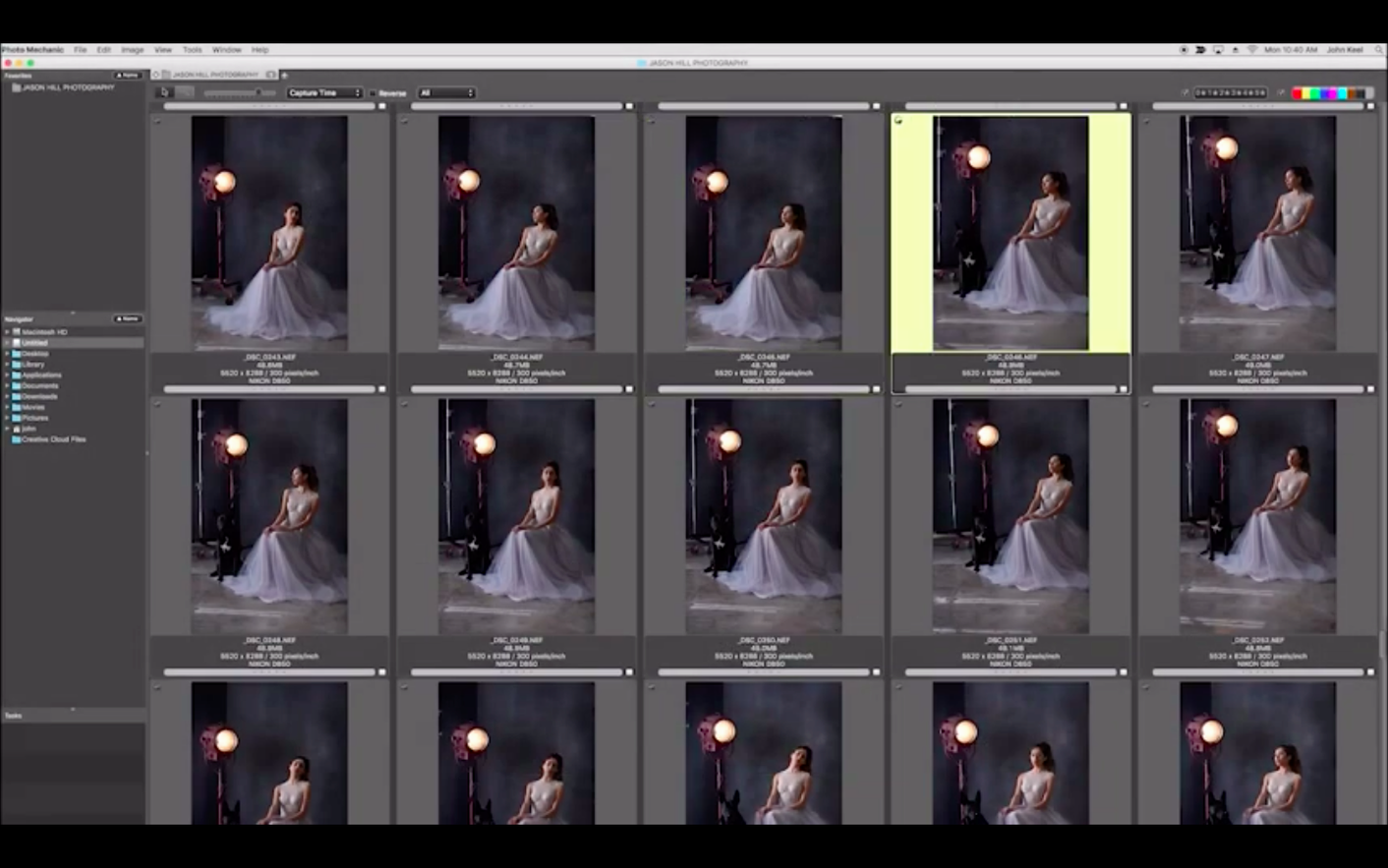
Most image editors choke the moment you point them at a folder with 5,000 raw files. Photo Mechanic doesn't. It was built for ingest—the moment a memory card hits your Mac—and it lets you cull, tag and rename before a fully-fledged editor even finishes loading its catalogue.
Rating and culling a shoot
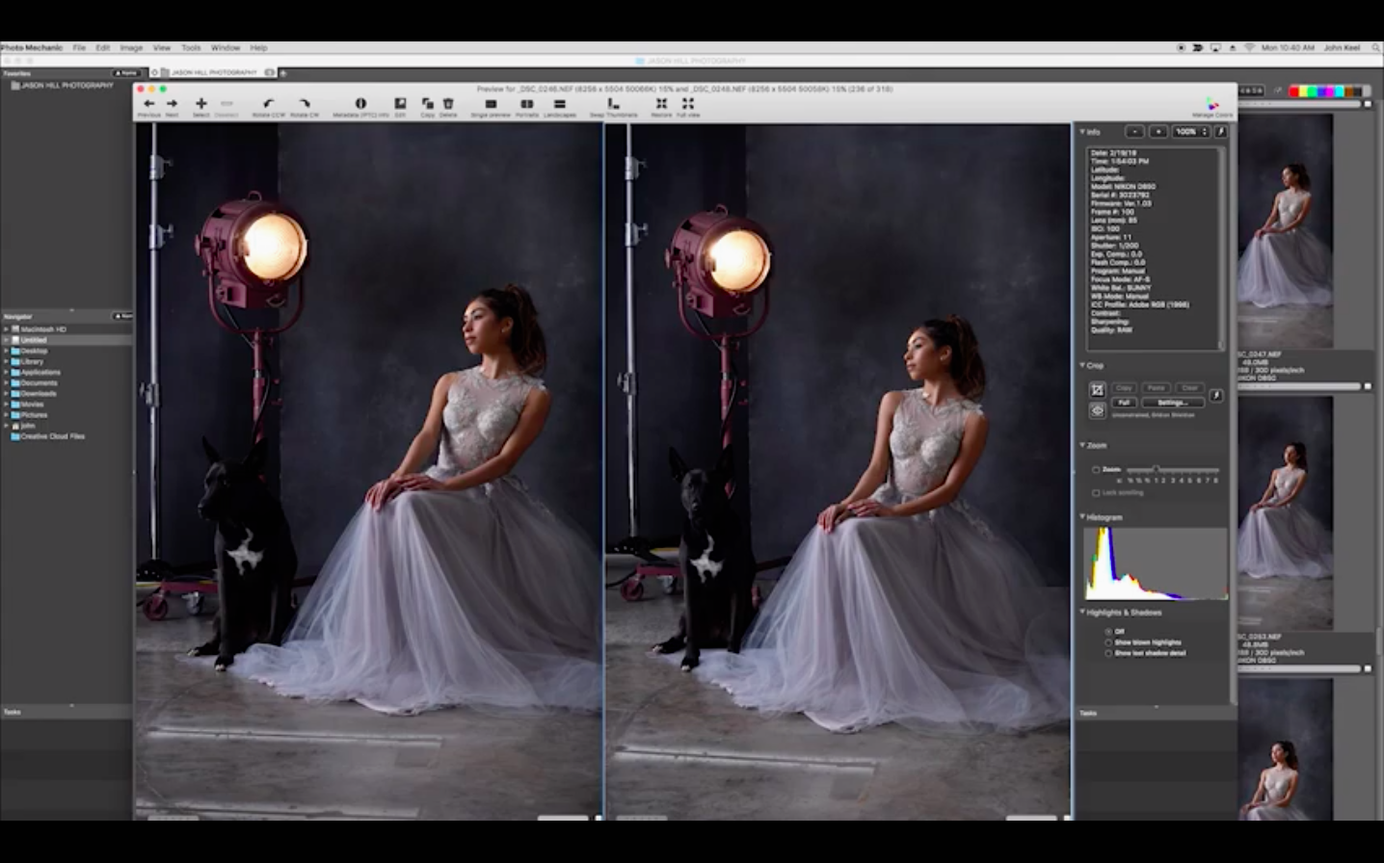
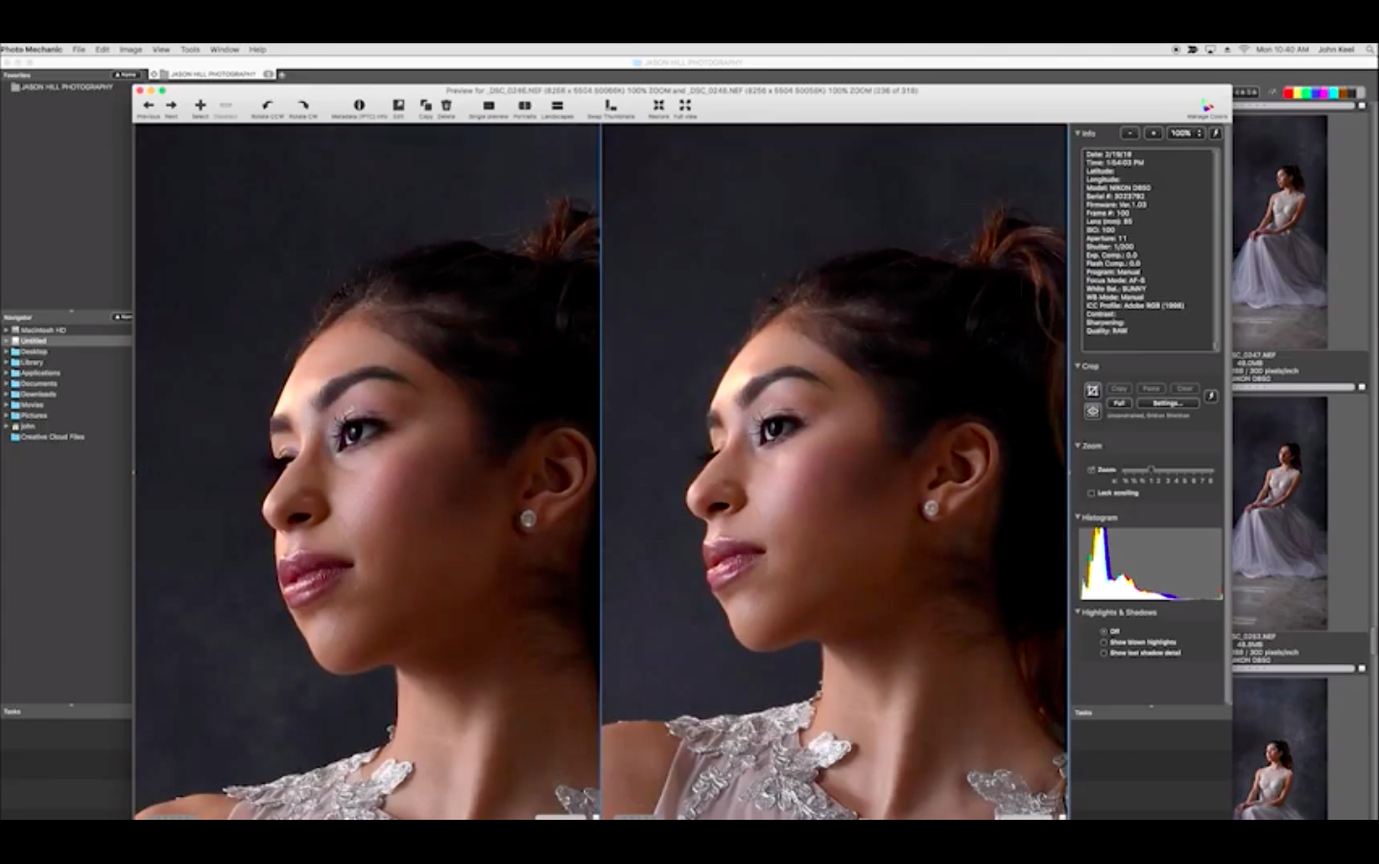
You can assign star ratings and colour labels with a single keypress while scrolling at full speed through raw previews. Side-by-side comparison lets you keep only the sharpest frame from a burst, and the full-screen mode hides every toolbar so you can judge images without distraction.
Renaming and resizing in batches
Select a hundred keepers, set a naming pattern with sequence numbers, add a destination folder and a pixel dimension—then walk away. The app handles the repetitive work of web-optimised exports or client-ready JPEGs in one go, and it can adjust capture dates if your camera clock was wrong.
Sending proofs by email
Photo Mechanic can generate compressed, watermarked proofs and attach them to a new message directly from the contact sheet, which is useful when a client wants a quick gallery before you even pack the gear away.
What the 2025 versions quietly fixed is the difference between a tool that works and one that stays out of your way. Earlier builds on Apple Silicon could pause for a beat when writing IPTC data across a few thousand selected files—a tiny hitch that only stung when you were three minutes from deadline. The newer engine flattens that pause almost to nothing, even on a dense contact sheet. Scrolling through a folder of 50-megapixel raw files now feels as light as flicking through JPEGs, and the metadata panel redraws instantly when you arrow-key from one frame to the next.
Codec handling has broadened too, which matters if your workflow pulls in video clips alongside stills. The macOS 13-era releases recognise more flavours of H.265 and give you a usable preview without opening a separate video player. Nothing cinematic—just enough to confirm which clip had the winning expression before you tag it.
Drag the proxy-size slider to shorten your wait before culling
The proxy-size slider in the contact-sheet header looks like a cosmetic zoom. Drag it smaller, though, and Photo Mechanic builds lighter previews on import, which trims the time before you can start culling when a card holds thousands of images. It's one of those settings you set once and forget, but if you've ever drummed your fingers during ingest, it's worth a look.
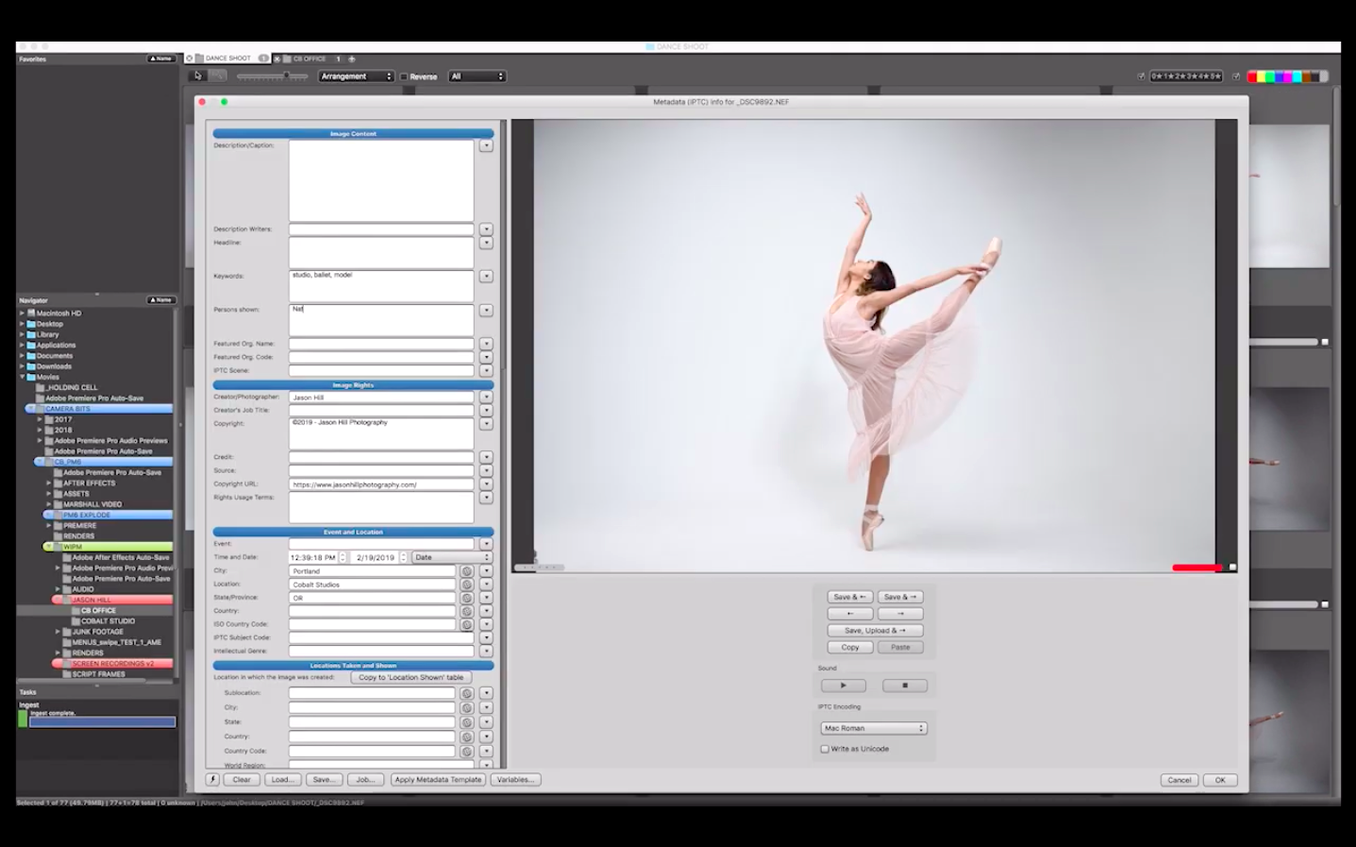
Spotlight comments straight from the contact sheet. Right-click any thumbnail, choose Spotlight Comment, and type. Those comments become searchable in Finder without you touching the file name or opening a Get Info panel. It's a tiny feature, but it turns Photo Mechanic into a low-friction bridge between your organised library and the rest of your Mac.
The structured keywords panel is the piece most newcomers overlook. Rather than typing tags freehand and hoping you remember what you called last season's "autumn colour," you build a hierarchy—Locations > Wales > Cardiff Bay—and apply the child term with a single click. The discipline pays off the first time you search six months back and don't have to guess whether you used "autumn," "fall" or "foliage."
And if you work with a second shooter or an agency, the code replacement feature deserves a morning of your time. Type a short string like \w3 into a caption field, and the app expands it to your full wedding-venue boilerplate. It's designed for sports and wire-service shorthand, but any photographer who writes the same fifty captions can save an hour a week with it.
Thumbnails look soft because Photo Mechanic reads the embedded JPEG
The most common support question isn't about a bug—it's about thumbnails that look softer than the actual raw file. Photo Mechanic draws contact sheets from the JPEG preview embedded in the raw, not from a full decode. If your camera writes a small preview, the thumbnail looks small or soft. The fix is a camera-menu setting: bump the embedded preview to full size, and the on-screen sharpness follows.
Another head-scratcher: you rename a batch and suddenly the thumbnails vanish, replaced by grey boxes. Nine times out of ten, the renaming string included a character that moved the file extension—an accidental dot before "CR3" or "NEF." The app is strict about extensions because it hands files off to other programs. Re-run the rename with a clean pattern and the contact sheet lights up again.
When the IPTC stationary pad seems to apply blank data, check whether you've ticked the Apply stationary checkbox in the ingest dialogue but left every field empty. Photo Mechanic obeys literally—it applies exactly what the stationary pad contains, which means it can overwrite populated fields with nothing. Uncheck the fields you don't want touched, or save a filled-in snapshot before you start.
A start-to-finish event-cull workflow
Say you have a 64 GB card from a day-long conference, roughly 3,000 raw files, and you need to deliver a narrowed set to the client by evening. Here's a sequence that leans on what Photo Mechanic does well.
1. Ingest with a working tag. Open the ingest dialogue, point it at the card, and tick Apply stationary with a snapshot that sets only a copyright notice and a job identifier. Set the primary destination to a folder named _RAW_IN and add a secondary destination—a backup drive—if you're cautious. Enable Incremental ingest so you don't re-copy files if the card goes back in later.
2. First pass: colour for yes. With the contact sheet open, tap the spacebar to enter full-screen preview. Arrow through. Every frame that's technically usable gets a green label (tap 8). Don't overthink—if focus is there and exposure is plausible, it's green.
3. Filter to green, then star-rate. Back in the contact sheet, filter by colour class green. Now run a second pass, slower. Three stars for solid shots, four for shots the client will likely choose, five for portfolio keepers. Use Cmd+3, Cmd+4, Cmd+5 as you go.
4. Side-by-side for bursts. Filter to four-star and above, select a burst sequence, and hit Cmd+Y for the comparison view. Keep one frame per pose, delete the colour label from the rest so they drop out of the final set.
5. Batch rename the selects. Filter to four-star and five-star, select all, hit Cmd+M. Use a pattern like {jobname}_{seqn3} and rename to a new folder called _SELECTS. Your card data stays untouched in _RAW_IN.
6. Export sized proofs. With the selects still highlighted, use Save as to write 2,000-pixel JPEGs into a _PROOFS folder. Tick Watermark if the brief calls for it. Photo Mechanic processes the batch in seconds, not minutes.
7. Email or FTP the gallery. Right-click the proof folder and use Send via email to attach the whole set, or open the FTP uploader if the client uses a server. The uploader remembers folder paths between jobs, so subsequent sends are two clicks.
The entire loop—from card insertion to a delivered gallery—can run inside forty minutes once the rhythm is muscle memory. No catalogue import, no library conversion, no waiting for a raw engine to wake up.
Returning from a job with two thousand raw files and a same-day handover
Wedding and event photographers live in the gap between capture and delivery, and that gap is where Photo Mechanic earns its keep. If you routinely return from a job with two thousand raw files and need to hand over a curated set before the next morning, the ingest-to-proof pipeline trims hours out of the week.
Sports shooters and wire-service stringers get an even sharper edge. Code replacement, FTP uploads and the speed of the contact sheet mean a caption-and-send loop can happen while the next play is still running. It's the only desktop tool many press photographers trust to stay ahead of the live feed.
Photo enthusiasts with sprawling libraries—the sort who have folders stretching back to a D70—find the metadata tools just as valuable. The ability to search across drives by keyword, lens or camera serial number, without importing into a proprietary catalogue, keeps a library portable and future-proof. You can change editing apps next year and your organisational work stays intact in the files themselves.
Anyone who has ever tried a photo mechanic mac crack search out of curiosity usually circles back to the real thing once they see the ingest speed. The app's reputation rests on being the fastest way from card to cull, and the macOS version holds that line without wobbling.
- macOS 13 or later
- Apple Silicon Mac
Questions I keep hearing
What is the difference between Photo Mechanic and Photo Mechanic Plus?
Photo Mechanic Plus adds a catalogue database for searching across multiple drives, while the standard version focuses purely on browsing and metadata work directly on folders.
Where do I find the detailed release notes for a build update?
Camera Bits includes them in the Readme file inside the disk image and posts them in the forum announcements for each incremental release.
Questions from the class 0
Sign in or join the class to ask a question.
Nobody has asked anything yet. If you have used it on a real job, say what the file did.
Also on the Mac Apps shelf
The whole Mac Apps shelf Permute
Converts audio, video and image files to the format your other devices actually need.
Permute
Converts audio, video and image files to the format your other devices actually need.
 Photomator
Hands you professional colour and curve controls layered on top of your Apple Photos library.
Photomator
Hands you professional colour and curve controls layered on top of your Apple Photos library.
 PhotoScape X Pro
Browses, fixes and collages a folder of snaps inside a single welcoming window.
PhotoScape X Pro
Browses, fixes and collages a folder of snaps inside a single welcoming window.
 Picview - Image Viewer
 Pixea Plus
Displays photos and raw files instantly without importing them into a library first.
Pixea Plus
Displays photos and raw files instantly without importing them into a library first.
 Pixelmator Pro
Develops raw shots and composites artwork in a single-window photo editor.
Pixelmator Pro
Develops raw shots and composites artwork in a single-window photo editor.
 Pixelsnap
Measures the exact pixel distance between any two points on your screen.
Pixelsnap
Measures the exact pixel distance between any two points on your screen.
 Path Finder
Replaces the Finder with a dual-pane workspace that browses, sorts and searches like a pro tool.
Path Finder
Replaces the Finder with a dual-pane workspace that browses, sorts and searches like a pro tool.