 ASPNetWorld

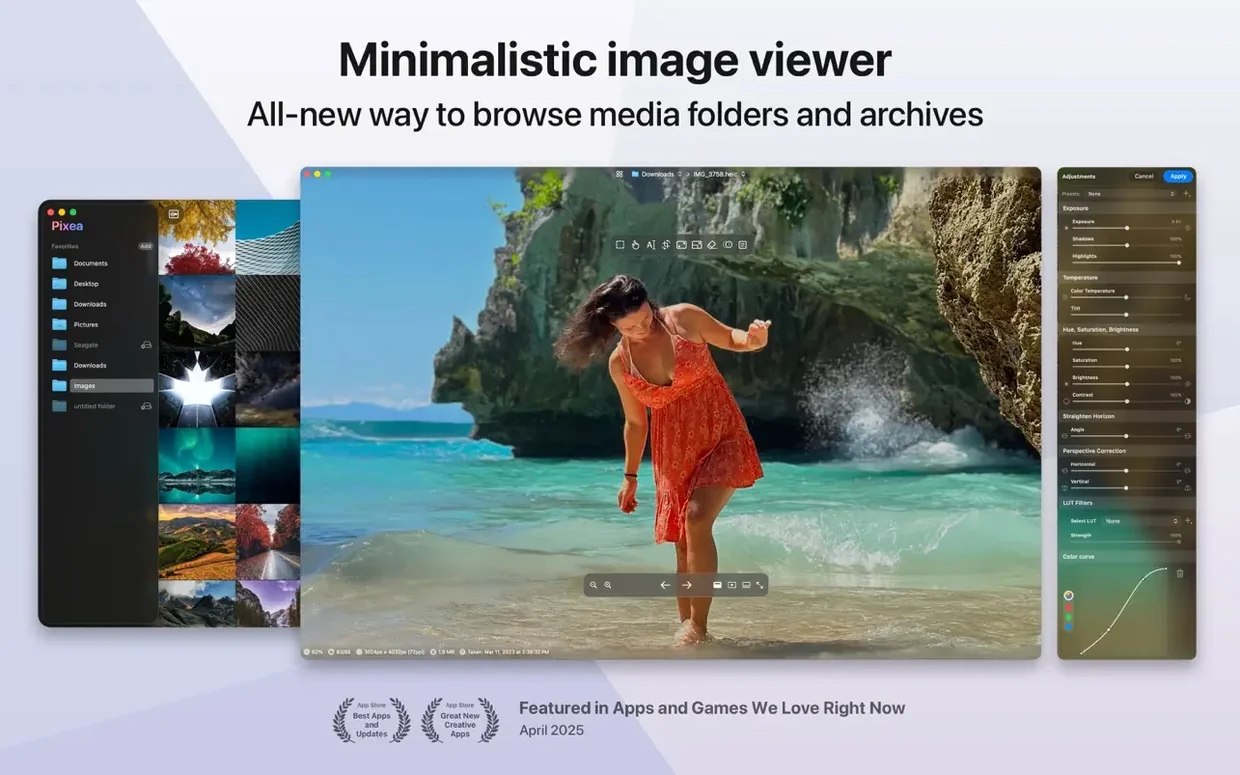
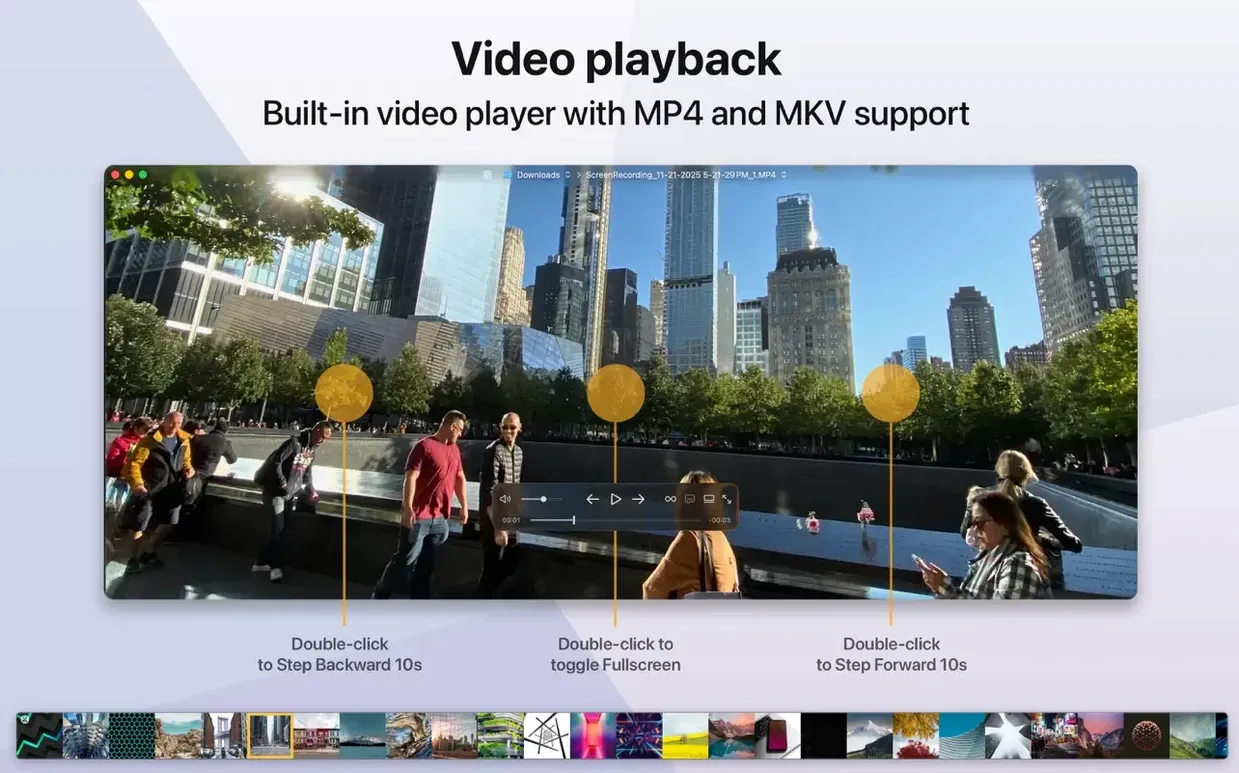
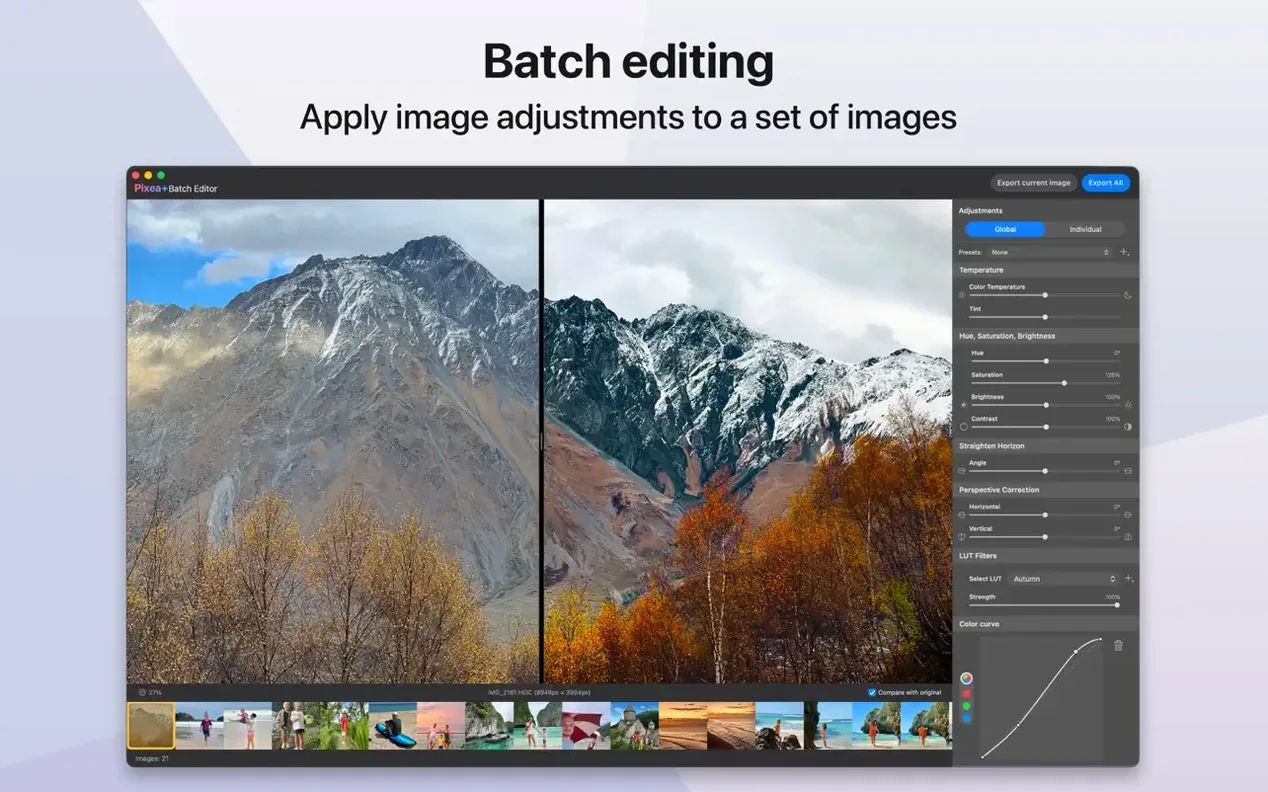
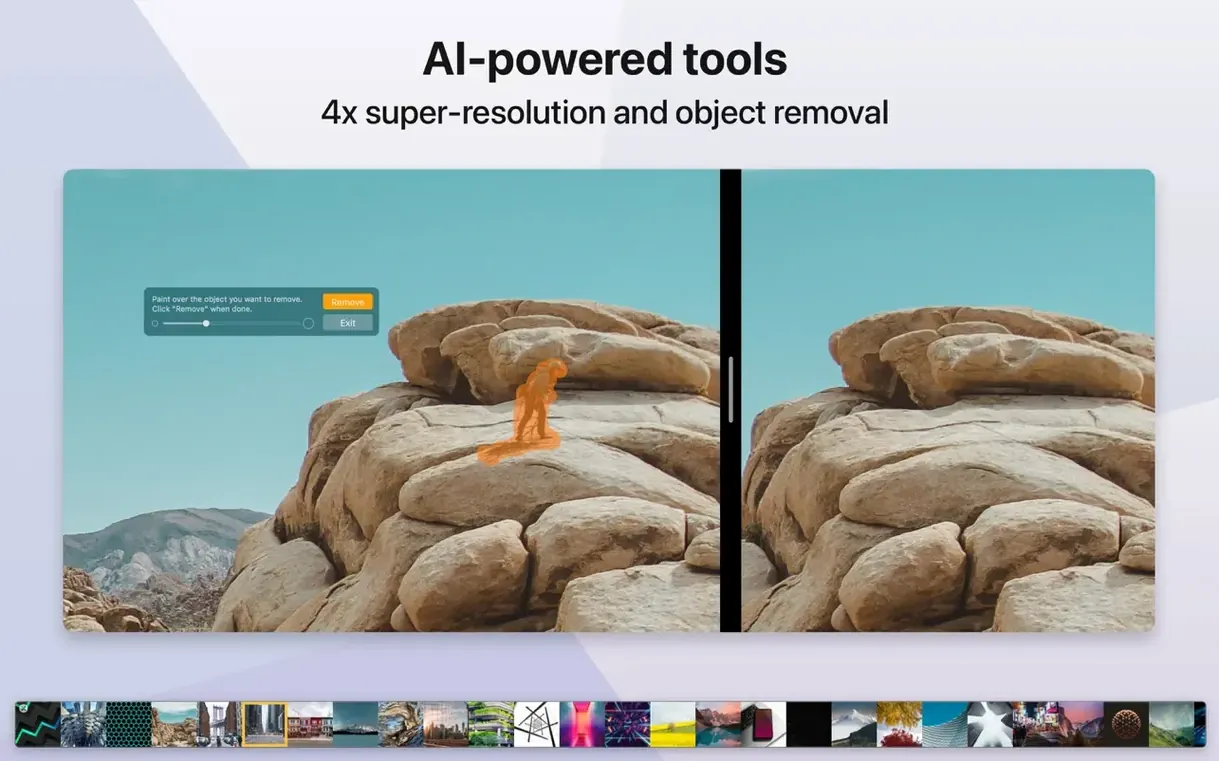
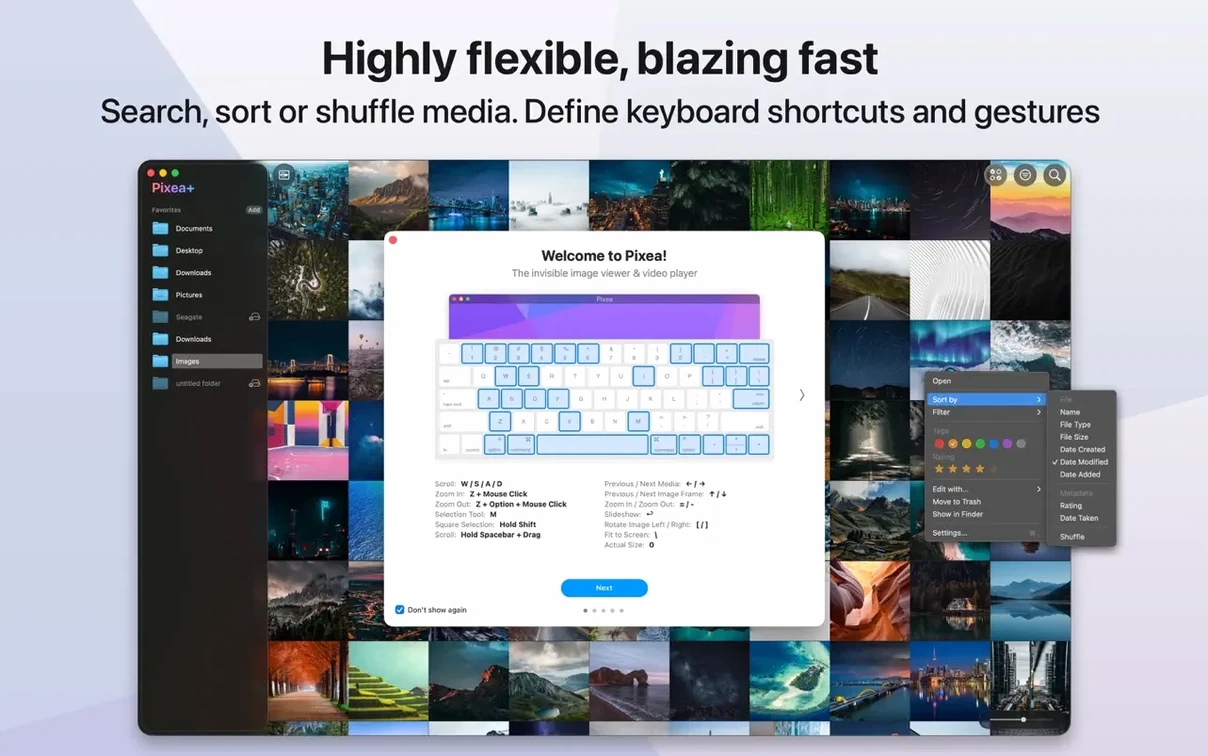
The new Masks feature in Pixea Plus 8.3 is the kind of thing you don't realise you want until you start playing with non-destructive crops — suddenly a simple viewer becomes a quick composition tool. Which leads to a few sensible questions before you install.
Is this a photo library manager?
No, and that's deliberate. Pixea is a nimble image viewer that opens individual files rather than cataloguing your entire library. Think of it as a supercharged Preview rather than a Lightroom alternative — it deals with JPEG, HEIC, PSD, RAW, WEBP, PNG, GIF, TIFF, BMP, Radiance and Google WebP without building a database in the background.
The universal binary taps every core on your M-series Mac
Yes. The application ships as a universal binary covering both ARM (M1, M2, M3) and 64-bit Intel architectures, so you get the full performance of your Mac's processor. It requires macOS 11 or later.
Can I do quick edits without leaving the app?
Absolutely. Alongside the new masks and undo/redo support in version 8.3, you have basic operations like flip and rotate right there in the minimal interface. Keyboard shortcuts and trackpad gestures make these feel instant.
What does the Pixea Image format actually mean?
It's a new addition to the format roster, sitting alongside the established support for PSD, HEIC, WEBP and the rest. The format lets you save work-in-progress edits within the app's own ecosystem while keeping the original file untouched.
One of the first things I notice when someone tries Pixea for the first time is they treat it like a folder-full-of-thumbnails app, scrolling through hundreds of files without touching the view settings. The sidebar stays at its default width, the histogram sits unopened in the corner, and the entire session becomes a slightly faster version of what the Finder already does. You'd be surprised how many people never right-click the thumbnail strip to switch between grid density and list view.
Another classic is ignoring the colour histogram entirely. It's right there in the top-right corner — a tiny graph that tells you instantly whether your shadows are crushed or your highlights are blown — but beginners tend to see it as decorative. Get into the habit of glancing at it whenever you open a RAW file from a Sony or Fuji body. It'll save you from exporting something that looked fine on screen but prints like mud.
Then there's the mask tool, which arrived in 8.3. New users often drag a rough shape, nudge the exposure slider, and wonder why the transition looks like a bad Photoshop job from 2003. The edge feathering control is tucked just below the mask parameters, and it's the difference between a visible selection and something that blends. Start with a value around twenty pixels and adjust from there — it's far more forgiving than the default hard edge.
Switch off fit-to-window for instant 1:1 pixel previews
Out of the box, Pixea defaults to opening images fitted to the window, which is sensible for quick previews but frustrating if you're pixel-peeping a portrait. Head to the Preferences pane — the little gear icon that nobody clicks on day one — and switch the default zoom to Actual Size. Your retouching sessions will thank you.
While you're in there, check the colour profile handling. The default is usually fine for sRGB JPEGs, but if you're working with ProPhoto or AdobeRGB files from a Canon or Nikon body you'll want to toggle Use embedded profile. Without it, your carefully graded skies can shift towards magenta without warning.
The keyboard shortcuts are customisable, which is worth mentioning because the defaults place flip horizontal on Cmd-Shift-H — a key combination that clashes with muscle memory from several other editors. Rebind it early. I map rotate clockwise to Cmd-R and flip horizontal to something out of the way like Cmd-Option-H. Takes thirty seconds and prevents a lot of accidental mirroring.
Password-protected ZIPs open to a blank, empty canvas
A surprisingly frequent hiccup involves ZIP archives. Pixea opens them natively — no extraction needed — which is brilliant until someone drags a password-protected archive onto the window and gets a blank stare. The app handles standard ZIP compression but can't decrypt encrypted archives. If nothing appears, check whether the file has a padlock icon in the Finder. The solution is to unzip it with the built-in Archive Utility first, then open the individual images.
Another sticking point is HEIC files from iOS devices that refuse to render correctly. This almost always traces back to the file containing a depth map or a Live Photo component that Pixea's decoder doesn't parse. The quickest fix is to open the file in Preview, export it as a plain HEIC without the extra streams, and reload. Not elegant, but effective.
If the app stutters when scrolling through a folder of forty-megapixel Hasselblad RAW files, that's not a bug — it's the thumbnail generator working harder than it should because the cache directory is on a slow external drive. Move the image folder to the internal SSD and the lag disappears. The metadata reading and histogram calculation are fast, but disk I/O still has its limits.
Feed it thirty mixed RAWs, PSDs, and TIFFs on day one
On the first day, resist the urge to drag your entire Pictures folder onto the dock icon. Instead, pull in twenty or thirty mixed files — a few RAWs, a couple of layered PSDs, some old TIFFs — and treat it as a learning batch. Notice how the interface strips away everything except the image and a thin toolbar. That minimalism is the point, but it also means you need to learn the gestures: two-finger swipe to browse, pinch to zoom, double-tap to fit. Spend ten minutes doing nothing but navigating, and the muscle memory will click in faster than you expect.
Day two is the right time to experiment with the Pixea Image format. Open a photograph you don't mind experimenting on, drop a mask across the sky, adjust the hue a fraction towards teal, then save a copy as .pixea. Close it, reopen it tomorrow, and the mask is still editable, the adjustment slider still sitting exactly where you left it. That's the non-destructive promise in action, and it's something you appreciate more when you've slept on an edit and want to tweak it with fresh eyes.
One last thing worth doing early: pin Pixea to a hot corner or assign it a global keyboard shortcut through System Settings. Because it launches so quickly — the universal binary means the ARM build opens in a single bounce on Apple Silicon — it makes an excellent default image opener for files you just need to check and discard. Set it as the handler for JPEG and PNG in a Finder Get Info panel and you'll wonder why you ever waited for heavier editors to load.
Version 8.3 adds a few thoughtful tools that turn the viewer into a light-touch editor. The headline is masks, giving you a way to isolate adjustments without baking them into the original file. Alongside that, a native Pixea Image format lets you save your working state, and proper undo/redo support means you can experiment freely.
- macOS 11 or later
- Works on both Apple Silicon and Intel 64-bit Macs
Questions from the class 0
Sign in or join the class to ask a question.
Nobody has asked anything yet. If you have used it on a real job, say what the file did.
Also on the Mac Apps shelf
The whole Mac Apps shelf Pixelmator Pro
Develops raw shots and composites artwork in a single-window photo editor.
Pixelmator Pro
Develops raw shots and composites artwork in a single-window photo editor.
 Picview - Image Viewer
 Pixelsnap
Measures the exact pixel distance between any two points on your screen.
Pixelsnap
Measures the exact pixel distance between any two points on your screen.
 Pixologic Zbrush
Sculpts digital clay into high-detail models using pixels that carry depth and material data.
Pixologic Zbrush
Sculpts digital clay into high-detail models using pixels that carry depth and material data.
 PhotoScape X Pro
Browses, fixes and collages a folder of snaps inside a single welcoming window.
PhotoScape X Pro
Browses, fixes and collages a folder of snaps inside a single welcoming window.
 Photomator
Hands you professional colour and curve controls layered on top of your Apple Photos library.
Photomator
Hands you professional colour and curve controls layered on top of your Apple Photos library.
 Photo Mechanic
Ingests and culls thousands of raw photos at speed before your main editor finishes loading.
Photo Mechanic
Ingests and culls thousands of raw photos at speed before your main editor finishes loading.
 Permute
Converts audio, video and image files to the format your other devices actually need.
Permute
Converts audio, video and image files to the format your other devices actually need.