 ASPNetWorld

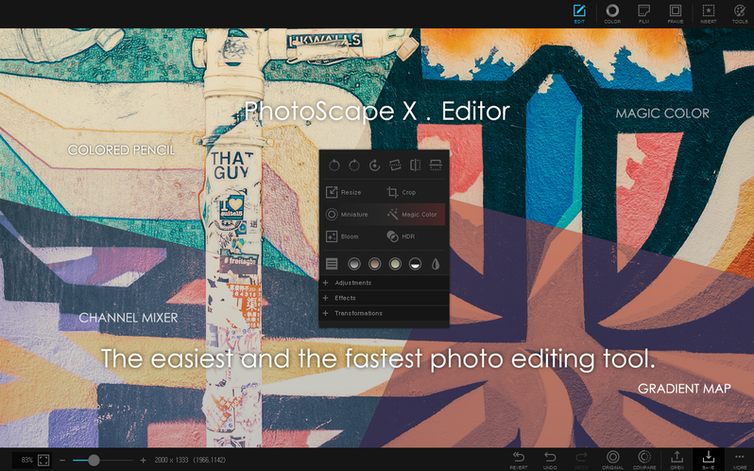
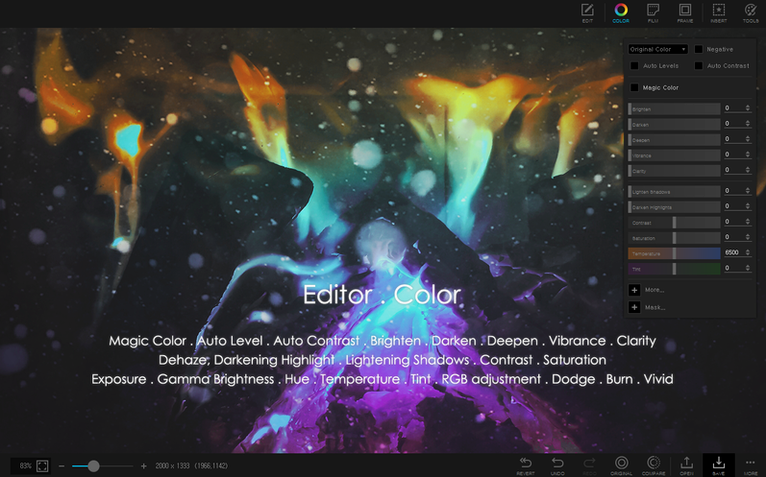
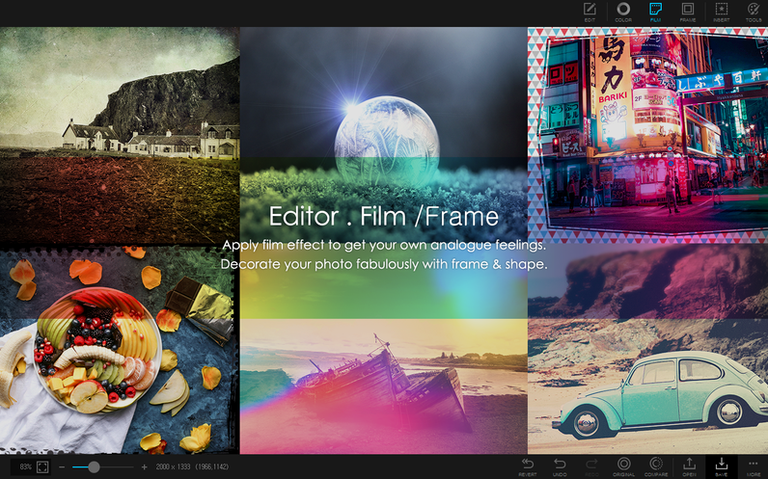
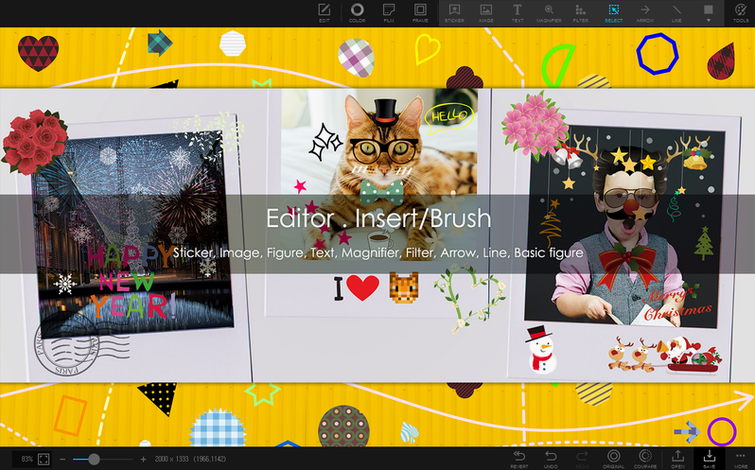
If you remember the days of Google's Picasa, you'll recall how it made sorting and fixing a folder of holiday snaps feel less like work. PhotoScape X Pro, the Mac edition from Mooii Tech, operates in a similar spirit — it's a single window onto your library where the tools for browsing, editing, and batch processing sit side-by-side rather than in separate applications.
A quick tour of the toolbox
The feature list is refreshingly broad. Beyond the usual colour and exposure adjustments, you'll find a dedicated cut-out tab where a magic eraser, lasso, and brush let you remove backgrounds without exporting to a different program. The editor also houses over a thousand stickers and 290 frames, which sounds like a recipe for chaos but is actually organised neatly enough to browse without scrolling fatigue. For more technical work, there's focus stacking and HDR merging tucked into the main editor view.
Merging a macro stack, from start to finish
Let's walk through a realistic task that would normally demand a dedicated tool: focus stacking a set of close-up shots of a flower. After opening the app, I browse to the folder in the built-in viewer and select my five source images — each one sharp at a slightly different depth. A right-click sends them straight to the editor, where the 'Focus Stack' function sits under the main tools. The merge itself is a single click and a short wait while the app aligns the layers and blends the sharpest areas from each frame into one image. What you get is a composite where the entire petal structure holds detail from front to back. A quick pass with the sharpen tool tidies up any soft transitions, and the result is ready to save or drop into a print layout. The whole process, from raw files to finished image, stays inside one application — no round-tripping to an external editor required.
From a woodland walk to a family collage in one sitting
Picture a Saturday morning. You’ve come back from a walk with forty-odd shots of the local woods — some crisp, a few underexposed, and half a dozen you want stitched into a simple collage for the family group chat. You open PhotoScape X Pro and the viewer greets you with the folder’s contents laid out as thumbnails. A quick drag upwards enlarges them just enough to spot the blurry ones. You tap the spacebar on the first keeper and the loupe view pops up, showing a pixel‑sharp preview; a left‑right arrow key nudges you through the set. Two shots earn a red flag, three get a star, and the hopeless ones you mark for deletion later — all without leaving the browser.
Now you switch to the Edit tab. The first underexposed image gets a lift from the ‘Auto Levels’ button, but the shadows are still muddy, so you nudge the curves midpoint up a fraction. Satisfied, you open the Cut Out panel on a photo of an oak leaf you want to float on a plain background. A couple of broad strokes with the green brush mark the leaf, a few red strokes mark the surrounding soil, and the magic eraser does the rest — the background vanishes with a single click, leaving a clean edge that costs you maybe ninety seconds of tidy-up with the refine brush.
For the collage, you hop to the Collage tab and drag six images into a grid template. A slider lets you adjust the gap between frames until the composition breathes properly. You round the corners by a few pixels, pick a soft charcoal border, then save the lot as a high‑quality JPEG. The entire session — cull, edit, cut-out, collage — clocks in under twenty minutes and you never once saw a file dialogue that asked which external editor you’d prefer.
Right-click ‘Open with Editor’ and other unadvertised gems
Some of the smartest touches in PhotoScape X Pro aren’t advertised on the feature list. A handful I find myself reaching for repeatedly:
- Right‑click ‘Open with Editor’ — in the viewer, selecting a batch of images and right‑clicking sends them straight to the editor as separate tabs. No dragging, no import wizards.
- Tool memory — the clone stamp, healing brush, and red‑eye tool remember your last brush size and hardness between sessions. If you’re working through a set of portraits shot under the same conditions, you set the parameters once.
- Split View in the editor — a small button toggles a before‑and‑after split that you can drag horizontally or vertically. Much faster for checking colour work than toggling the preview on and off.
- Colour picker anywhere — the picker works outside the app window. You can hover over a web page or a desktop wallpaper and grab a hex value without taking a screenshot first.
- Batch renaming with tokens — the batch tool accepts strings like
{date}and{num:3}, so a folder of holiday shots can becomeCornwall_2025_001.jpgin one pass.
The pause points newcomers hit and their fastest fixes
No piece of software is entirely frictionless, and PhotoScape X Pro has a few spots where newcomers tend to pause. Here are the ones I hear about most often in my evening classes, along with the quickest fixes.
The viewer shows empty folders
If the browser pane displays a folder icon but no thumbnails, the app is usually looking at a directory that contains subfolders rather than image files. PhotoScape X Pro doesn’t recursively scan by default — it expects images in the current folder. Switch to a flat folder of JPEGs or raw files and the thumbnails populate immediately. If you’ve stored photos across dated subfolders, the batch tool’s ‘Add Folder’ button can pull them all together for processing, but the browser itself works one folder at a time.
Focus stacking finds nothing to merge
When the focus‑stacking tool reports no usable alignment, the culprit is almost always too much movement between frames — a breeze moving a flower, or a tripod that shifted on soft ground. The algorithm expects the scene to be essentially static except for the focus plane. A gentle handheld burst at a high shutter speed often works better than a long, vibration‑prone tripod sequence. If you still get a misalignment, try selecting a subset of three frames rather than all five; the app’s alignment tolerances are stricter across many layers.
The magic eraser leaves a ragged halo
Background removal works best when the subject and background differ clearly in colour or brightness. On a low‑contrast edge — say, a brown bird against bark — the initial cut can look moth‑eaten. Rather than reaching for the undo button, switch to the refine brush and paint along the troubled edges with a small radius. The app recalculates the boundary locally, and a couple of passes usually clean up even tricky transitions like flyaway hair or fur.
Batch resize changes the wrong dimension
The batch resize dialogue offers ‘Fit’ and ‘Fill’ options that behave differently from the standard width‑and‑height boxes some users expect. ‘Fit’ ensures the whole image stays within the dimensions you set, adding transparent padding if the aspect ratio doesn’t match. ‘Fill’ scales and crops to cover the frame exactly. If your output looks unexpectedly letterboxed, you’ve likely used ‘Fit’ on a portrait‑orientation image inside a square target; switching to ‘Fill’ or setting both width and height to zero except for the long edge will sort it.
Slotting into your Finder, Preview and Share menu routine
PhotoScape X Pro doesn’t try to replace your entire toolchain, and that’s sensible design. It slots into a workflow alongside the Finder, Preview, and specialist editors quite naturally. The app respects the standard macOS Share menu, so a finished image can go straight into Messages, Mail, or AirDrop without an intermediate save to the desktop. Drag‑and‑drop works in both directions — you can pull an image from the viewer straight onto a Keynote slide or a Pages document, and you can drop a photo from the Finder into the editor or collage grid.
For users who also rely on Apple Photos, there’s no direct library integration, but the batch export settings make it easy to generate versions optimised for the Photos import dialogue — JPEG quality sliders, dimension limits, and filename tokens all help keep things tidy. Video editors working in Final Cut Pro or DaVinci Resolve often use PhotoScape X Pro as a quick stills prep station: the colour picker, batch resizer, and cut‑out tools handle assets before they ever reach a timeline. If you’ve found a photoscape x mac build that fits your machine, it’s worth noting that the app’s ARM‑native code keeps these cross‑application hops feeling snappy — the clipboard transfers high‑resolution image data without the lag you’d see under Rosetta.
One last integration worth mentioning: the screen capture tool saves directly into the app’s own browser, which means a grabbed reference image from a web tutorial lands right where you can annotate, crop, and drop it into a collage without ever touching the Desktop folder. It’s a small pipeline, but once you’ve used it a few times, the old screenshot‑find‑open‑edit loop feels needlessly clumsy.
- macOS 13 Ventura or later
- Apple Silicon Mac
Questions I keep hearing
Can PhotoScape X Pro handle a whole folder of images at once?
Yes, the batch tools cover format conversion, resizing, and renaming across multiple files in one go.
Questions from the class 0
Sign in or join the class to ask a question.
Nobody has asked anything yet. If you have used it on a real job, say what the file did.
Also on the Mac Apps shelf
The whole Mac Apps shelf Photomator
Hands you professional colour and curve controls layered on top of your Apple Photos library.
Photomator
Hands you professional colour and curve controls layered on top of your Apple Photos library.
 Picview - Image Viewer
 Photo Mechanic
Ingests and culls thousands of raw photos at speed before your main editor finishes loading.
Photo Mechanic
Ingests and culls thousands of raw photos at speed before your main editor finishes loading.
 Pixea Plus
Displays photos and raw files instantly without importing them into a library first.
Pixea Plus
Displays photos and raw files instantly without importing them into a library first.
 Permute
Converts audio, video and image files to the format your other devices actually need.
Permute
Converts audio, video and image files to the format your other devices actually need.
 Pixelmator Pro
Develops raw shots and composites artwork in a single-window photo editor.
Pixelmator Pro
Develops raw shots and composites artwork in a single-window photo editor.
 Pixelsnap
Measures the exact pixel distance between any two points on your screen.
Pixelsnap
Measures the exact pixel distance between any two points on your screen.
 Pixologic Zbrush
Sculpts digital clay into high-detail models using pixels that carry depth and material data.
Pixologic Zbrush
Sculpts digital clay into high-detail models using pixels that carry depth and material data.