 ASPNetWorld

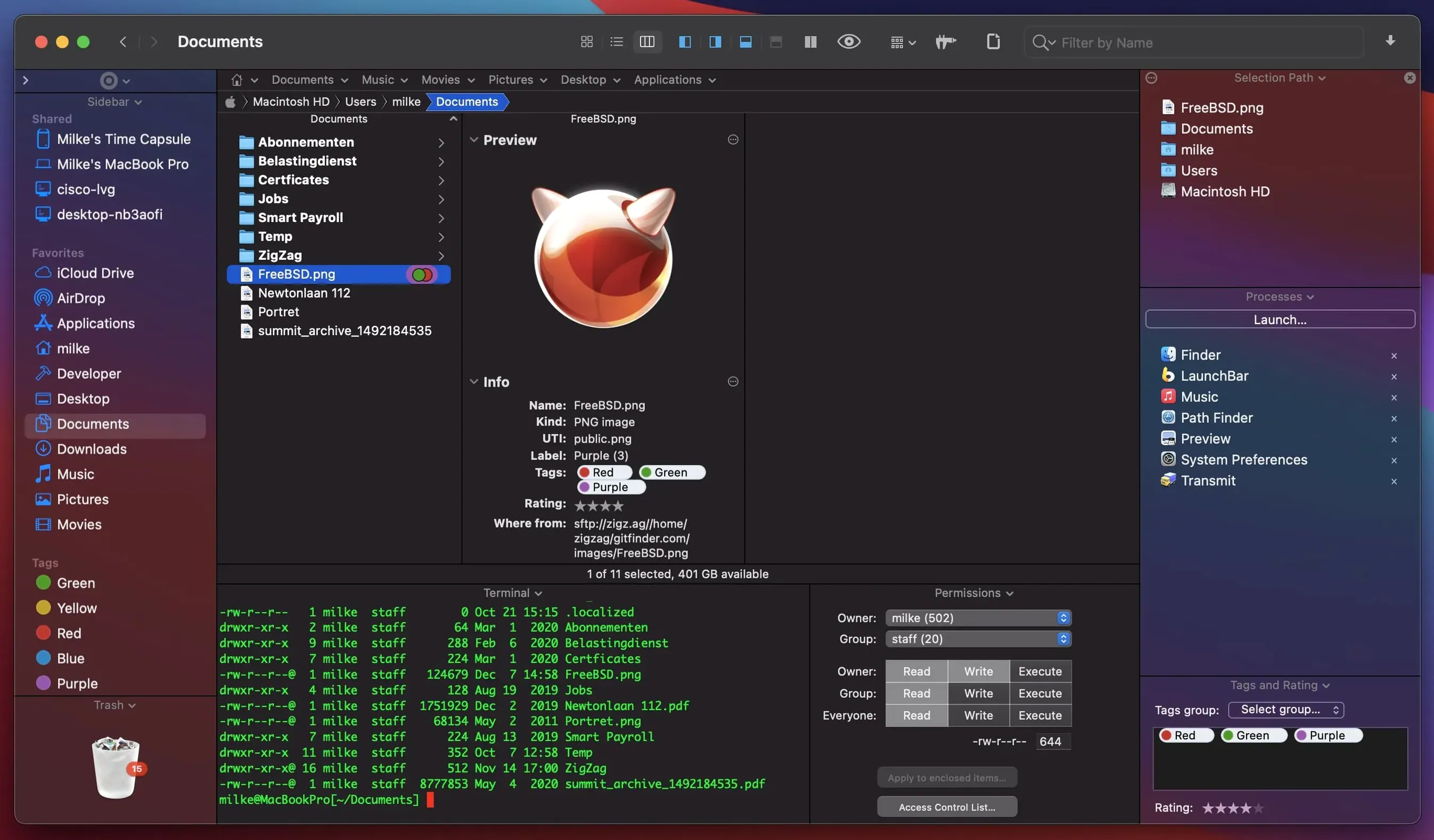
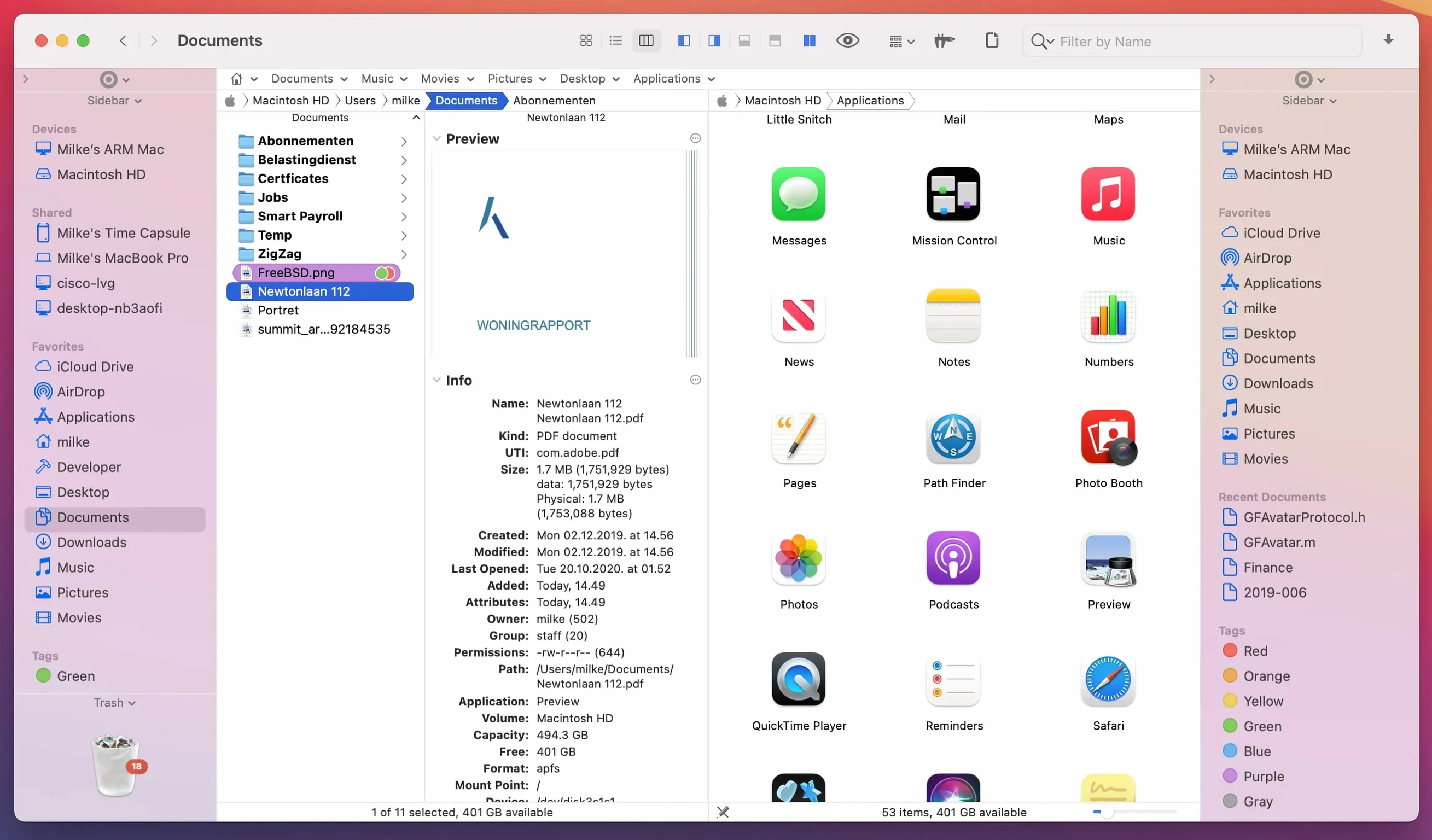
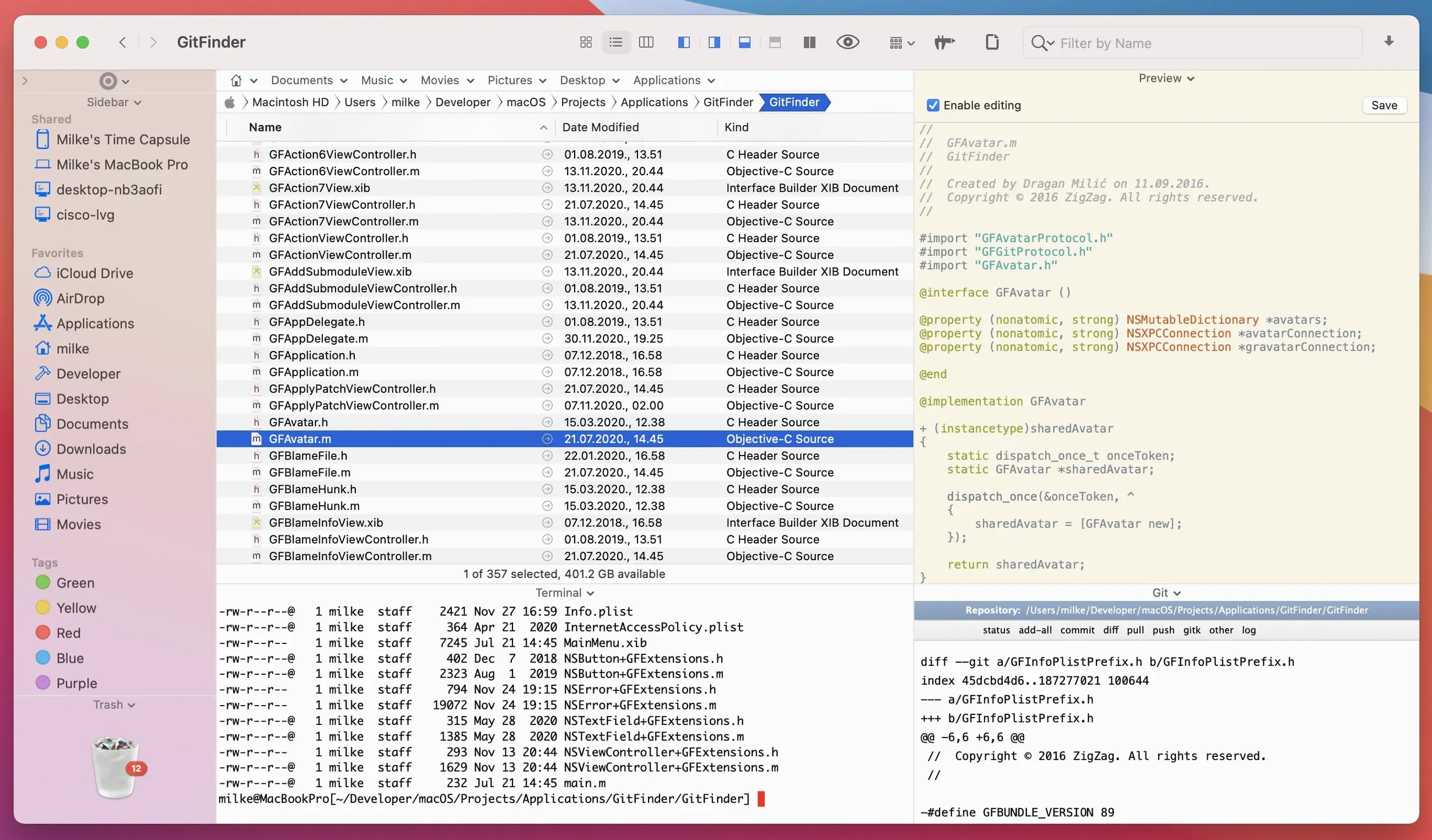
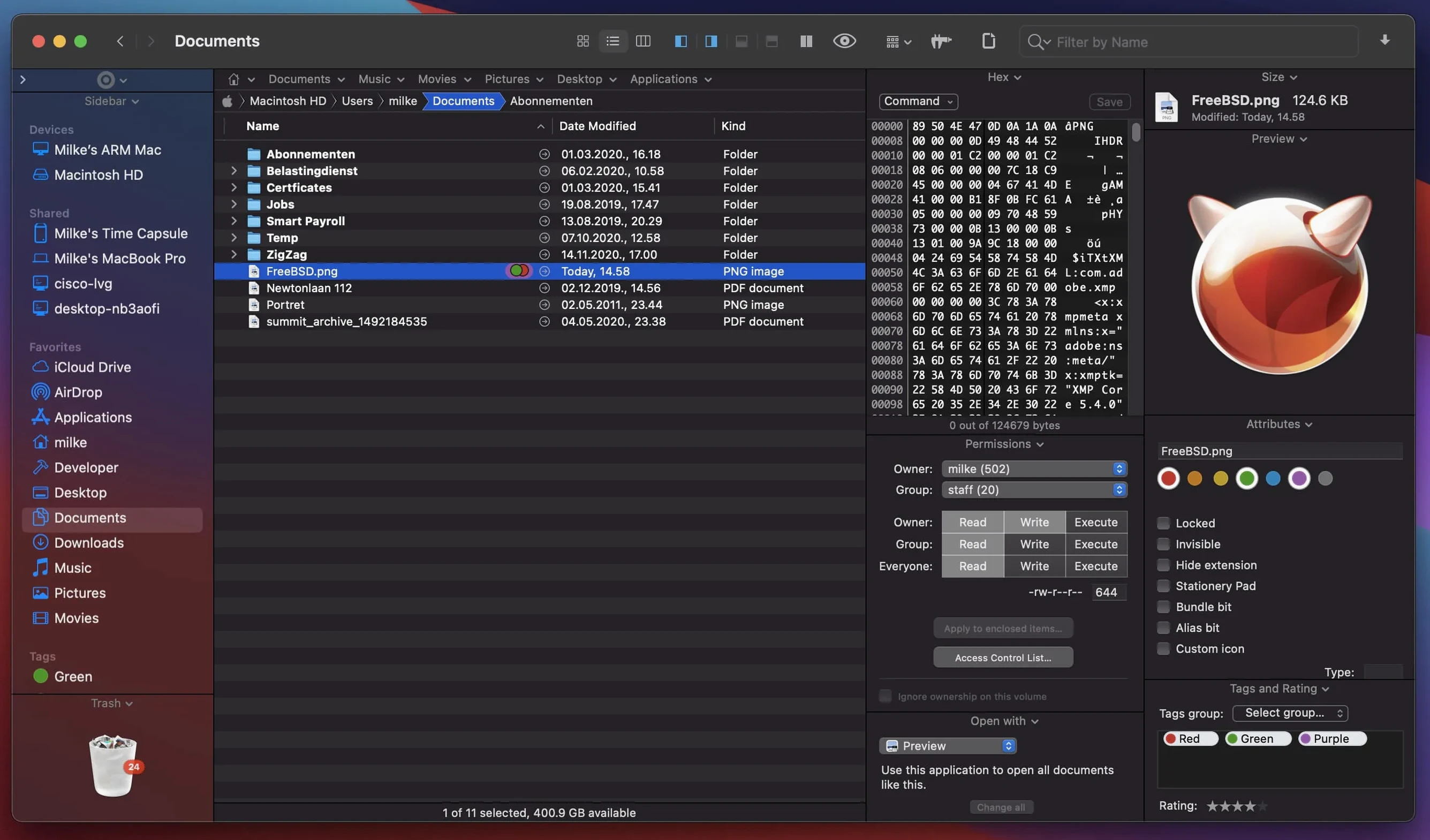
For most of us, the Finder is like the front door of the house — perfectly serviceable until you need to carry a sofa through it. Path Finder is what you get when you replace that door with a proper loading bay. It still lives on your Mac and knows every room, but it opens up ways of moving, searching and organising that the Finder was never designed to handle.
Will it replace Finder or sit alongside it?
It runs as a separate application, so Finder stays exactly where it is. You can use Path Finder as your main file browser and still drop back to Finder whenever you like — the two coexist without stepping on each other's toes.
Can it connect to remote servers without extra software?
Yes. An internal FTP client is built straight into the browser, so you can drag files between your Mac and a remote server inside the same window that shows your local folders. No separate app or session juggling required.
What does it add that Finder doesn't offer?
Dual-pane browsing lets you see two folder locations side by side, which makes moving and comparing files a single-drag affair. Tabs keep different projects within one window. Beyond browsing, you get archive handling for compressed files, disc image conversion for CD, DVD and Blu-ray formats, and a process manager that gives you a view of what's running — all from within the same file management environment. Keyboard-driven navigation and file search by keyword, extension or type round out a toolset that feels like Finder after a few years of careful listening to its users.
What makes people hesitate before installing?
It is not a tiny utility, and the first launch can feel like stepping into a cockpit. A few users worry that it will hijack their file associations or make Finder behave oddly in the background. It doesn't. Path Finder lives in its own sandbox and leaves Finder's defaults untouched unless you explicitly ask it to take over. Another common hesitation is the interface language — with nineteen languages on board, including Russian, Japanese and Dutch, the app detects your system preference automatically, but you can switch it in Preferences under General > Language if you prefer English or another tongue.
Gatekeeper blocks the app on first launch
The most frequent hiccup is a refusal to open after dragging it to the Applications folder — a Gatekeeper choreography that macOS insists on. The workaround is straightforward: mount the disk image, run the Open Gatekeeper friendly script, press Enter in Terminal when prompted, then launch the app. Once it has opened successfully the first time, subsequent launches behave normally.
Another snag crops up with label and tag colour badges. If you notice them missing in List or Columns view after an update, version 26.1.9 fixed exactly that, along with iCloud status icons. Should you still see odd behaviour, toggling the view type briefly — switching from List to Icons and back — nudges the display cache into line. Dual-pane users occasionally find that drag-and-drop feels sluggish; the recent fix for slide-back animation in all view types has smoothed this out considerably.
Dual-pane view cuts folder-wrangling clicks
If your workday involves wrangling large project folders — video edits, development repositories, photography shoots — the dual-pane view alone saves a surprising amount of clicking around. The built-in FTP client appeals to anyone who regularly pushes files to a web server or pulls logs from a remote machine, and the archive tools mean you can unpack a downloaded zip or tar without leaving the window. People who manage a sprawling Downloads folder or a deep document hierarchy also benefit: the search filters by keyword, extension and file type are faster than Spotlight for targeted hunts, and the process manager gives a quick kill-switch for hung apps without opening Activity Monitor. It is less essential for someone who uses their Mac lightly — email, browsing, the odd Pages document — but even then, the tabs and keyboard navigation can grow on you.
Switch to a split browser window right away
Out of the box, Path Finder shows a single pane. Head to View > Dual Browser to split the window horizontally or vertically — vertical suits wide displays, horizontal works well on a MacBook screen. Next, open Preferences and look at the Browser tab: you can set new tabs to open in the same window or a fresh one, and decide whether double-clicking a folder opens it in place or in a new tab. The Features tab lets you enable or disable modules like the text editor, image editor and app launcher; turning off the ones you never use keeps the interface lean. Finally, if you want Path Finder to become your default file browser, tick the box under General > Default File Browser — you can always reverse it later with a single click.
This update concentrates on fixing a handful of interface glitches that crept into recent macOS versions, particularly around selection and visual feedback.
- Double-click behaviour when clicking an icon in List View now works as expected.
- A batch rename limitation that stopped working at 31 renamed files has been lifted.
- Multiple-item selection in List View, label and tag colour badges, and iCloud status or download icons now display correctly across Icons, List and Columns views.
- Visual polish includes fixed drag-and-drop selection drawing in Icons View, corrected slide-back animation when cancelling a drag, and proper menu item icons on macOS 27 Golden Gate, plus a few minor compatibility tweaks for the same OS release.
- macOS 13 Ventura or newer
- Works on both Intel and Apple Silicon Macs
Questions I keep hearing
Which languages does the interface support?
It ships with Russian, English, German, Danish, Spanish, Italian, Traditional Chinese, Simplified Chinese, Korean, Dutch, Norwegian, Polish, Portuguese, Slovak, Finnish, French, Czech, Swedish and Japanese.
Questions from the class 0
Sign in or join the class to ask a question.
Nobody has asked anything yet. If you have used it on a real job, say what the file did.
Also on the Mac Apps shelf
The whole Mac Apps shelf Paste
Keeps a searchable visual timeline of everything you copy on your Mac.
Paste
Keeps a searchable visual timeline of everything you copy on your Mac.
 Parallels Desktop
Runs Windows and Linux apps alongside macOS without rebooting your Mac.
Parallels Desktop
Runs Windows and Linux apps alongside macOS without rebooting your Mac.
 Paragon NTFS
Lets your Mac write, copy and delete files on Windows-formatted drives.
Paragon NTFS
Lets your Mac write, copy and delete files on Windows-formatted drives.
 Pacifist
Extracts a single file from a .pkg installer without running the whole package.
Pacifist
Extracts a single file from a .pkg installer without running the whole package.
 Permute
Converts audio, video and image files to the format your other devices actually need.
Permute
Converts audio, video and image files to the format your other devices actually need.
 Photo Mechanic
Ingests and culls thousands of raw photos at speed before your main editor finishes loading.
Photo Mechanic
Ingests and culls thousands of raw photos at speed before your main editor finishes loading.
 Photomator
Hands you professional colour and curve controls layered on top of your Apple Photos library.
Photomator
Hands you professional colour and curve controls layered on top of your Apple Photos library.
 PhotoScape X Pro
Browses, fixes and collages a folder of snaps inside a single welcoming window.
PhotoScape X Pro
Browses, fixes and collages a folder of snaps inside a single welcoming window.