 ASPNetWorld
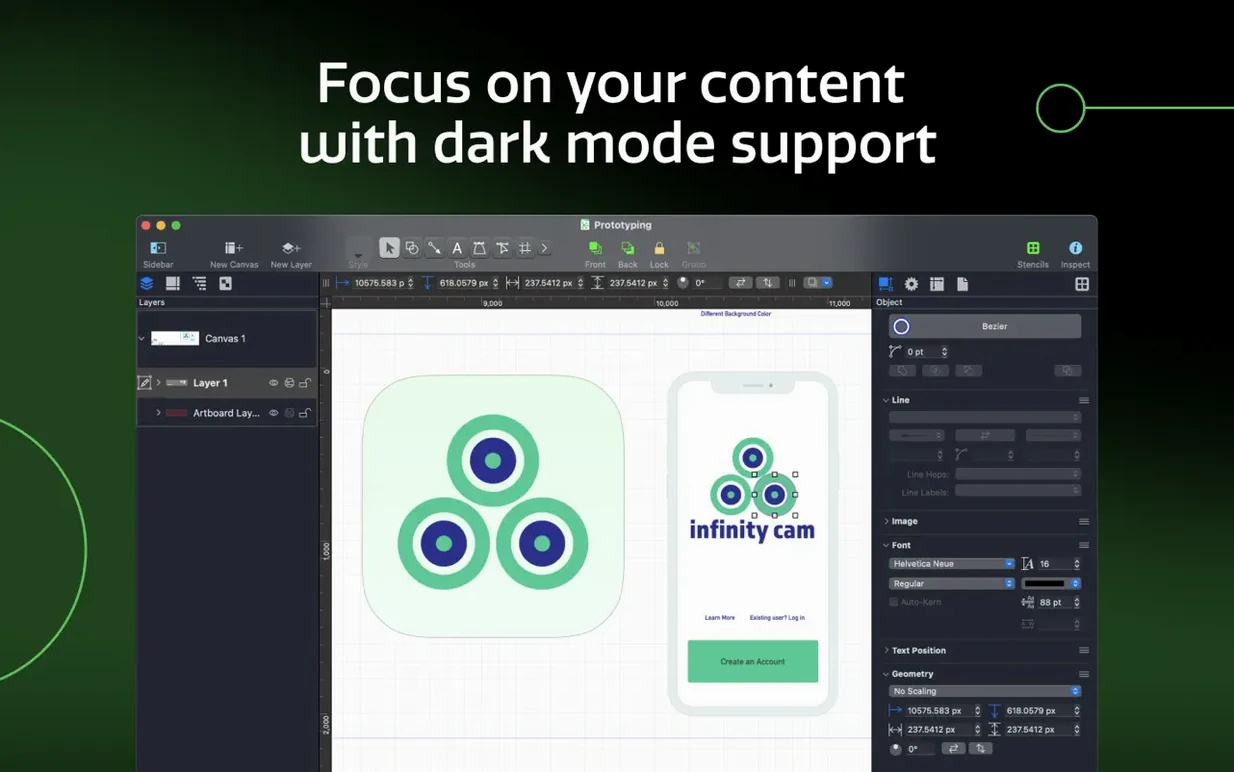
1. Visualise what's in your head
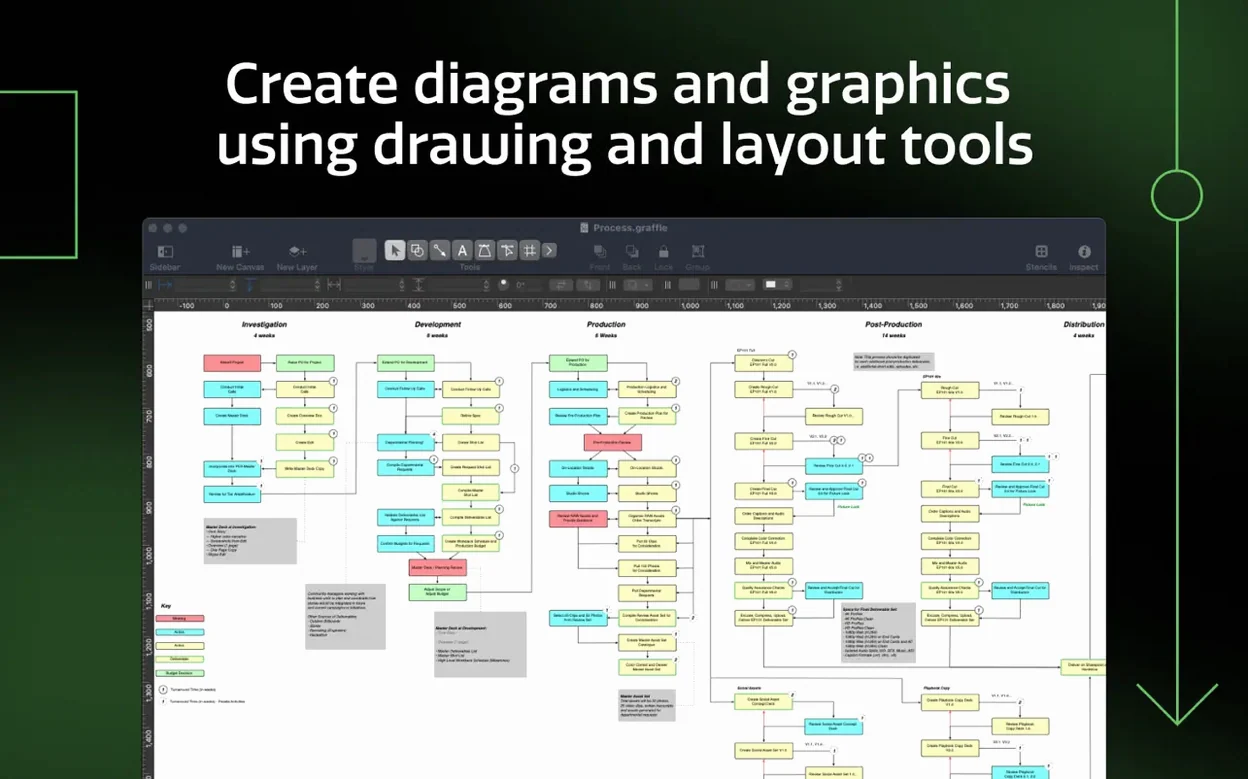
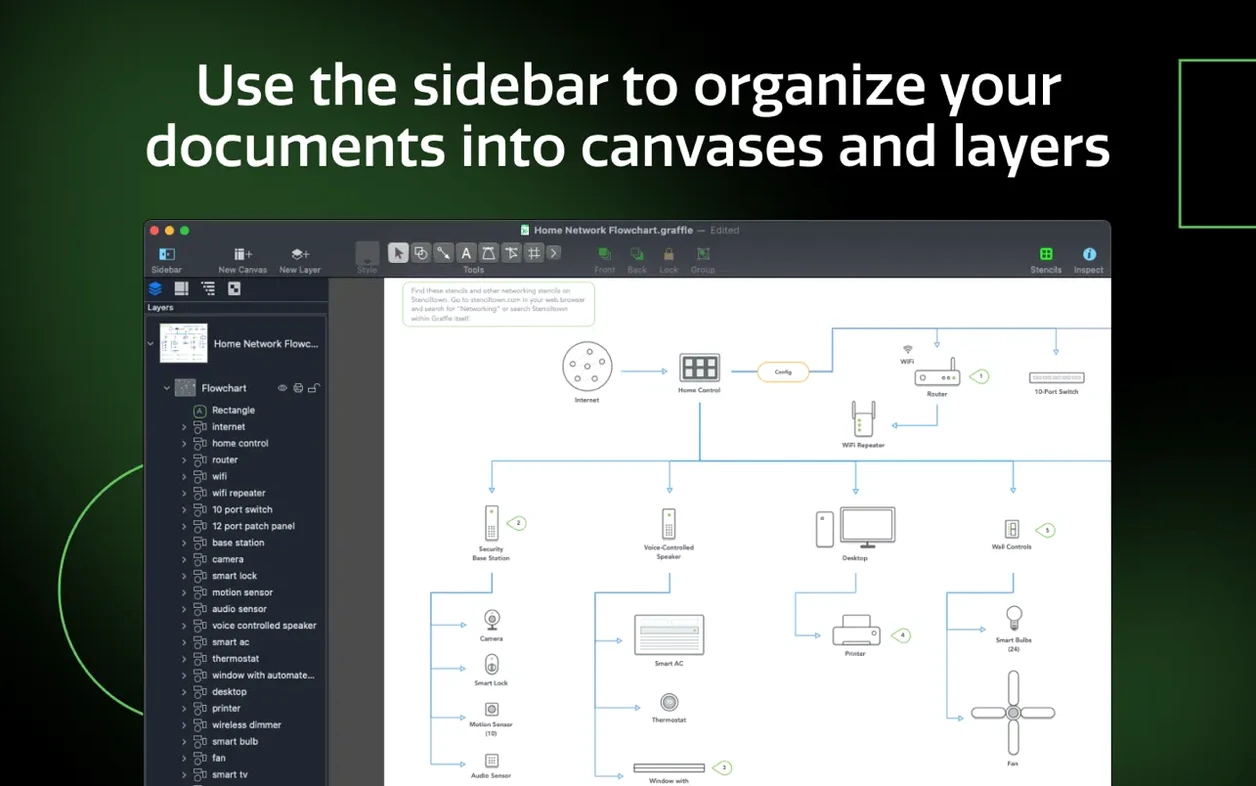
Start on a blank canvas or use one of the supplied templates. Stencils for interface elements, server racks and flowchart symbols let you drag in precisely what you need, while the sidebar keeps every artboard and shared layer visible so nothing gets buried. If you have ever wrestled with Keynote's limited alignment guides for a sitemap, you will feel the difference immediately — object snapping and smart guides here are purpose-built for precision diagrams, not borrowed from presentation software.
2. Bring in data from where it already lives
Run the Xcode importer and OmniGraffle Pro parses an entire project, generating a class diagram that reflects the current codebase automatically. Shared layers then let you overlay annotations, colour-code by module, or add explanatory callouts across multiple canvases without duplicating work — a feature that feels familiar if you use master pages in InDesign.
3. Hand off to other tools cleanly
When the diagram needs to become part of a larger design file, export layers directly to Photoshop and each OmniGraffle layer arrives as its own Photoshop layer, preserving the separation you set up. You can also convert any stroke into a filled shape before export, which is handy when a line weight needs to survive a rescale inside Affinity Designer or Illustrator.
OmniGraffle Pro sits between mind-mapping tools and full vector illustration suites. It shares a fondness for structured objects with Visio but runs natively on Apple Silicon, and its layer export pipeline means you are never trapped inside a proprietary format when the diagram needs to travel.
Option-drag duplicates a shape instantly
Some of the best time-savers in OmniGraffle Pro are tucked into modifier keys and right-click menus, quietly waiting for you to stumble across them. Hold Option while dragging a shape and you duplicate it in one motion — no copy-paste dance required. The Command-D shortcut repeats your last duplicate, placing the new object at the same offset, which turns building a grid of server icons into about three seconds of work.
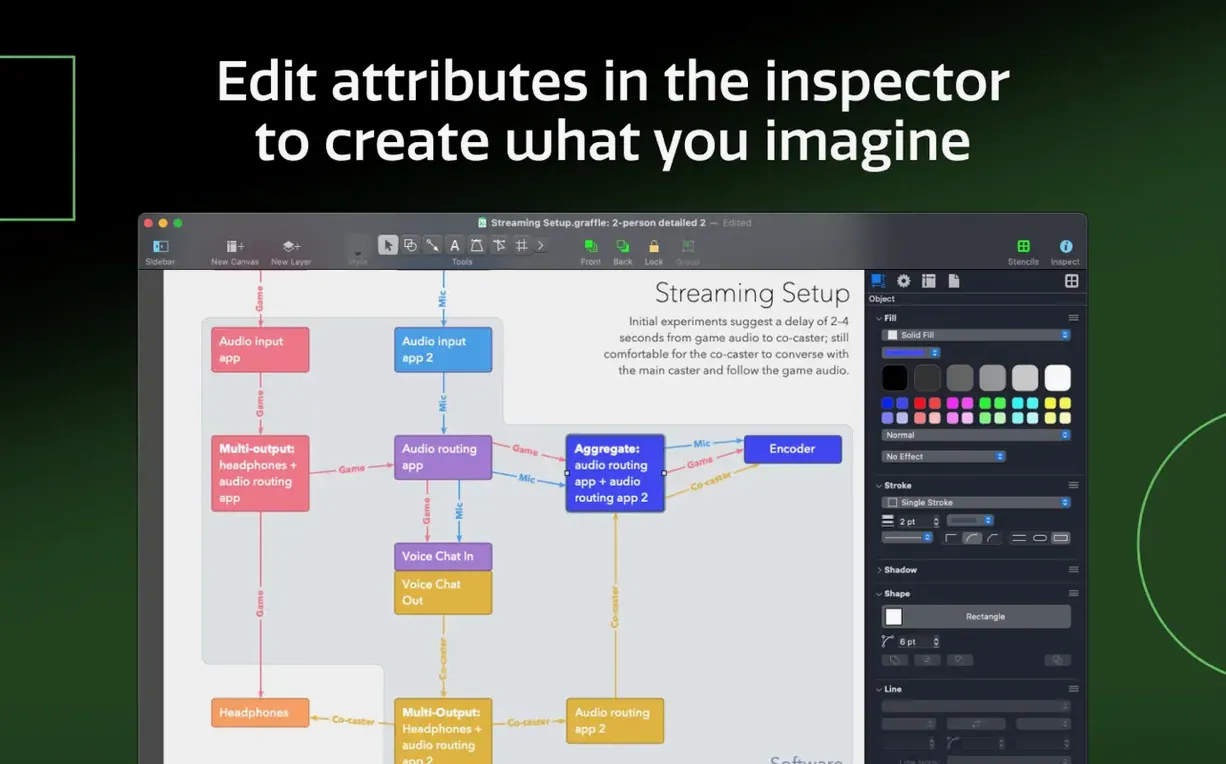
If you deal with tangled connection lines, select a line and choose Edit › Paths › Tidy Up. It reroutes the path to avoid objects automatically, saving you from manually adding midpoints. Another overlooked gem: you can type a mathematical expression directly into the width or height field in the Geometry inspector — try 320+24 or 1024/3 — and the app calculates the result. No need to open Calculator.
The stencil search box supports partial matches, but it also accepts abbreviations. Typing db pulls up the Database shape; svr finds Server. Once you learn the shorthand for your most-used objects, building diagrams feels closer to touch-typing than drag-and-drop.
Start by pinning the Stencils window and playing with shape sets
Day one is about comfort. Open the Stencils window and pin it to the left of your canvas, then spend ten minutes dragging in shapes from the Software, Vintage, and Connections sets — not to build anything useful, just to internalise where things live. While you do that, visit OmniGraffle › Settings › General and check Snap to grid and Snap to objects. The defaults are sensible, but I turn the grid spacing down to 8 pt for wireframing; it gives you finer control without losing the alignment help.
Day two: pick a real task. A small sitemap or a network layout works well because it forces you to use the connection tool properly. Draw a line between two boxes, then open the Line inspector and look at the line hops setting — it makes crossing lines arc over one another, which is one of those details that makes a diagram look professional without any extra effort.
Day three is when you should try shared layers. Create a new layer via the sidebar, right-click it and choose Make Shared. Drop a title bar or a company logo onto it, then add a second canvas. The shared content appears on both, and editing it once updates everywhere. If you have ever maintained a twenty-page wireframe document with repeated headers, this alone justifies the Pro edition.
What version 7.26 means for everyday use
The 7.26 update is a compatibility release, and that is worth paying attention to. It brings OmniGraffle Pro into line with macOS Golden Gate 27, the latest macOS release, so if you have upgraded your Mac's operating system recently you will want this version to avoid any rendering quirks or export glitches. The minimum requirement has also moved: you now need macOS 14 or newer. On an older Mac stuck on Ventura or Monterey, this build will not launch, so check your system version before you grab the omnigraffle download.
Visually and functionally, day-to-day diagramming feels identical to the 7.25 era — The Omni Group focused this update on under-the-hood stability rather than new features. For anyone who relies on the Visio import pipeline, that stability is welcome; a dot-release that quietly fixes how VSDX text blocks render under the new macOS display engine matters more than a flashy new stencil set.
What OmniGraffle Pro asks before it touches your disk
Does OmniGraffle Pro open Visio files properly?
It does, with the usual caveat that complex Visio documents lean on Microsoft-specific behaviours that no third-party app replicates perfectly. Basic flowcharts, org charts, and network diagrams translate cleanly. VSD and VDX formats open directly, and VSS stencils and VST templates import as reusable OmniGraffle stencils. When a diagram arrives from a Windows colleague, you can make your edits and send it back as a VDX export — layers, shapes, and connectors intact. For heavily customised Visio files that use add-on behaviours, expect to do some manual tidying.
What is actually different between Standard and Pro?
The Pro edition adds the Visio import and export, Photoshop layer export, shared layers, the ability to convert text to shapes and lines to shapes, table creation tools, and the Xcode project importer. If you only draw occasional flowcharts, Standard covers you. If diagrams move between your Mac and a Windows office, or if you wireframe interfaces across multiple canvases with a shared header layer, Pro earns its keep within the first week.
Natively tuned for M-series chips and large canvases
Yes — OmniGraffle Pro has been a universal binary for years. It runs natively on both Apple Silicon and Intel hardware, and the performance difference on M-series chips is noticeable when you handle large canvases with hundreds of objects. Zooming and panning stays smooth, and exports finish faster than on equivalent Intel machines. If you have searched around for an omnigraffle crack mac version that handles M1 or M2 well, this build is already compiled for that architecture.
Can I share my keyboard shortcuts between machines?
You can export your entire shortcut set as a single file from OmniGraffle › Settings › Keyboard Shortcuts and load it onto another Mac. This covers every custom assignment you have made, not just the default set. If you have spent months training your fingers to hit a particular chord for "Send to Back," that muscle memory travels with you.
Version 7.26 focuses on keeping OmniGraffle Pro running smoothly on the latest Apple hardware and operating system.
- Improves compatibility with macOS Golden Gate 27.
- Bumps the minimum requirement to macOS 14 or newer.
- macOS 14 or later
- Runs natively on Intel and Apple Silicon Macs
Questions I keep hearing
Can OmniGraffle Pro open Microsoft Visio files?
Yes, it can import and export Visio documents, though complex Visio-specific effects may need adjustment after opening.
Does version 7.26 run on Intel Macs?
It runs on both Intel and Apple Silicon Macs, but requires macOS 14 or newer.
What are shared layers used for?
Shared layers let you place common elements — like a company logo or a background grid — across multiple canvases, updating them once to change them everywhere.
Questions from the class 0
Sign in or join the class to ask a question.
Nobody has asked anything yet. If you have used it on a real job, say what the file did.
Also on the Mac Apps shelf
The whole Mac Apps shelf OmniPlayer: MKV Video Player Pro
Plays almost any video file you throw at it, fetches subtitles online, and streams web clips.
OmniPlayer: MKV Video Player Pro
Plays almost any video file you throw at it, fetches subtitles online, and streams web clips.
 ON1 Photo RAW
Manages a local photo library and develops raw files with layered, non-destructive edits.
ON1 Photo RAW
Manages a local photo library and develops raw files with layered, non-destructive edits.
 One Switch
Flicks common Mac settings like Dark Mode or Do Not Disturb on and off from a single menu bar panel.
One Switch
Flicks common Mac settings like Dark Mode or Do Not Disturb on and off from a single menu bar panel.
 Optimage
Compresses images to a smaller file size while keeping the visual loss invisible to the eye.
Optimage
Compresses images to a smaller file size while keeping the visual loss invisible to the eye.
 NotchNook
Turns the MacBook notch into a pop-out panel for shortcuts, a mini music player, and file drops.
NotchNook
Turns the MacBook notch into a pop-out panel for shortcuts, a mini music player, and file drops.
 NotchBox
Turns the empty space around your MacBook notch into a strip of quick-action buttons and live widgets.
NotchBox
Turns the empty space around your MacBook notch into a strip of quick-action buttons and live widgets.
 Nook X
Tucks a notepad, reminders, and a private AI chat assistant into your Mac’s menu bar.
Nook X
Tucks a notepad, reminders, and a private AI chat assistant into your Mac’s menu bar.
 Pacifist
Extracts a single file from a .pkg installer without running the whole package.
Pacifist
Extracts a single file from a .pkg installer without running the whole package.