 ASPNetWorld

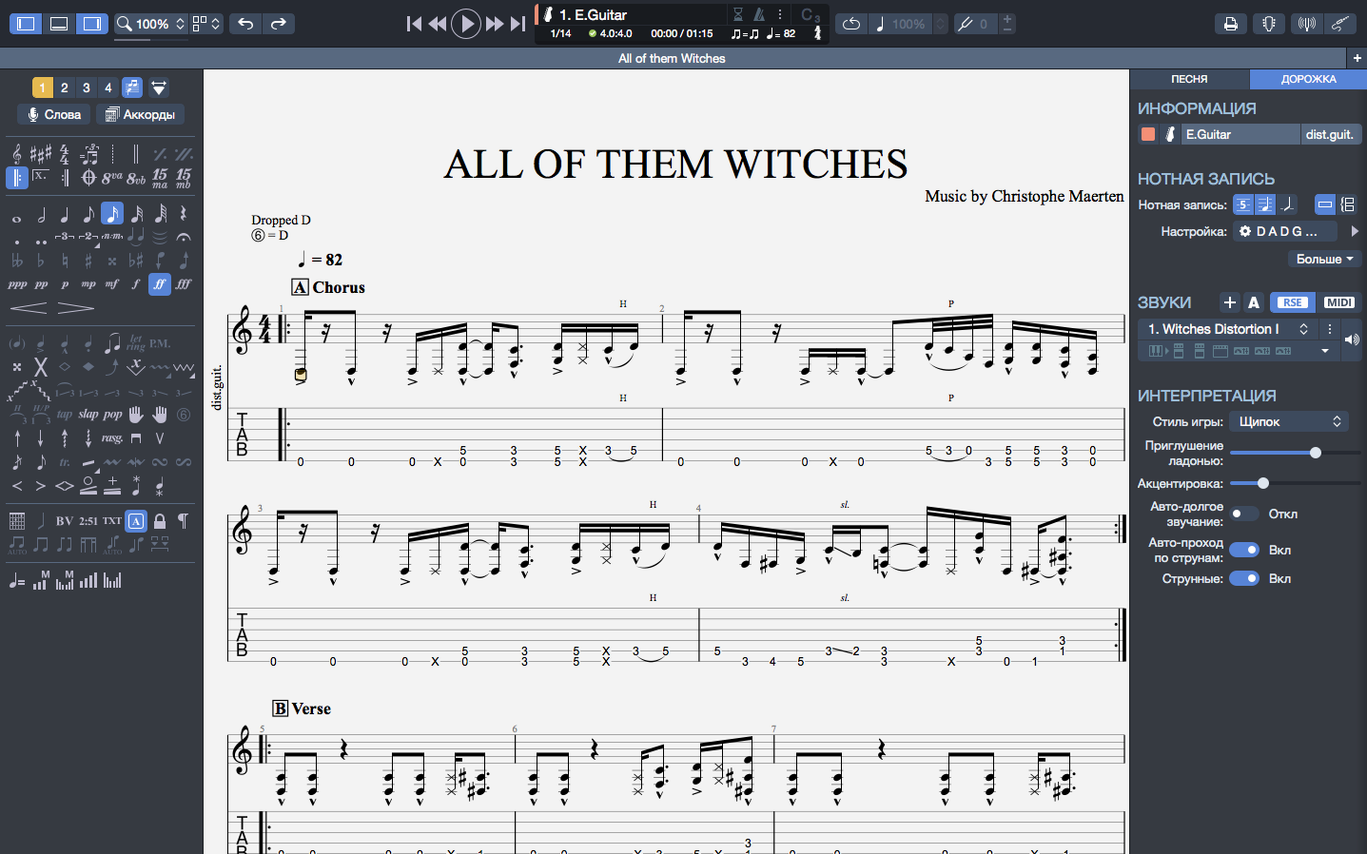
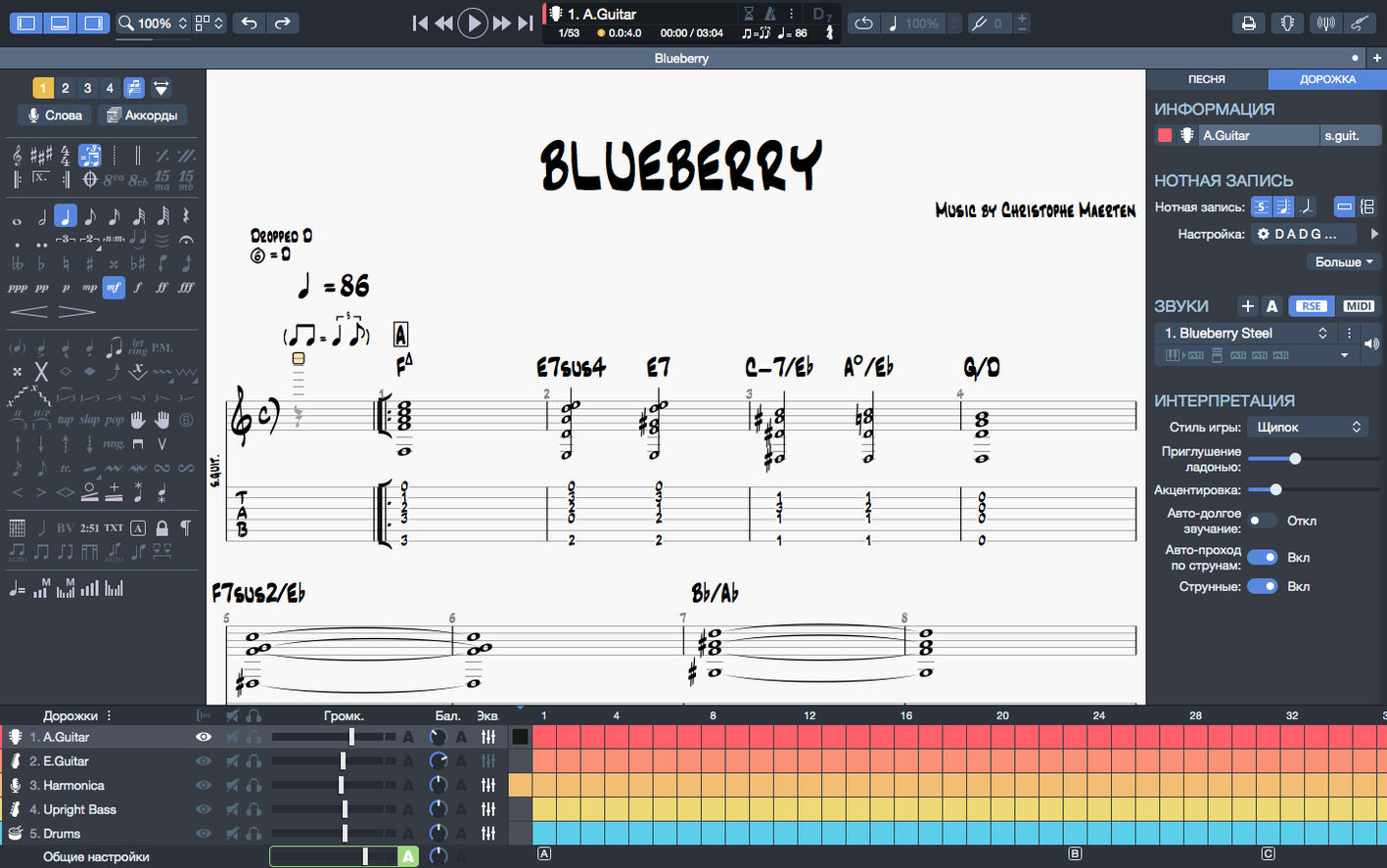
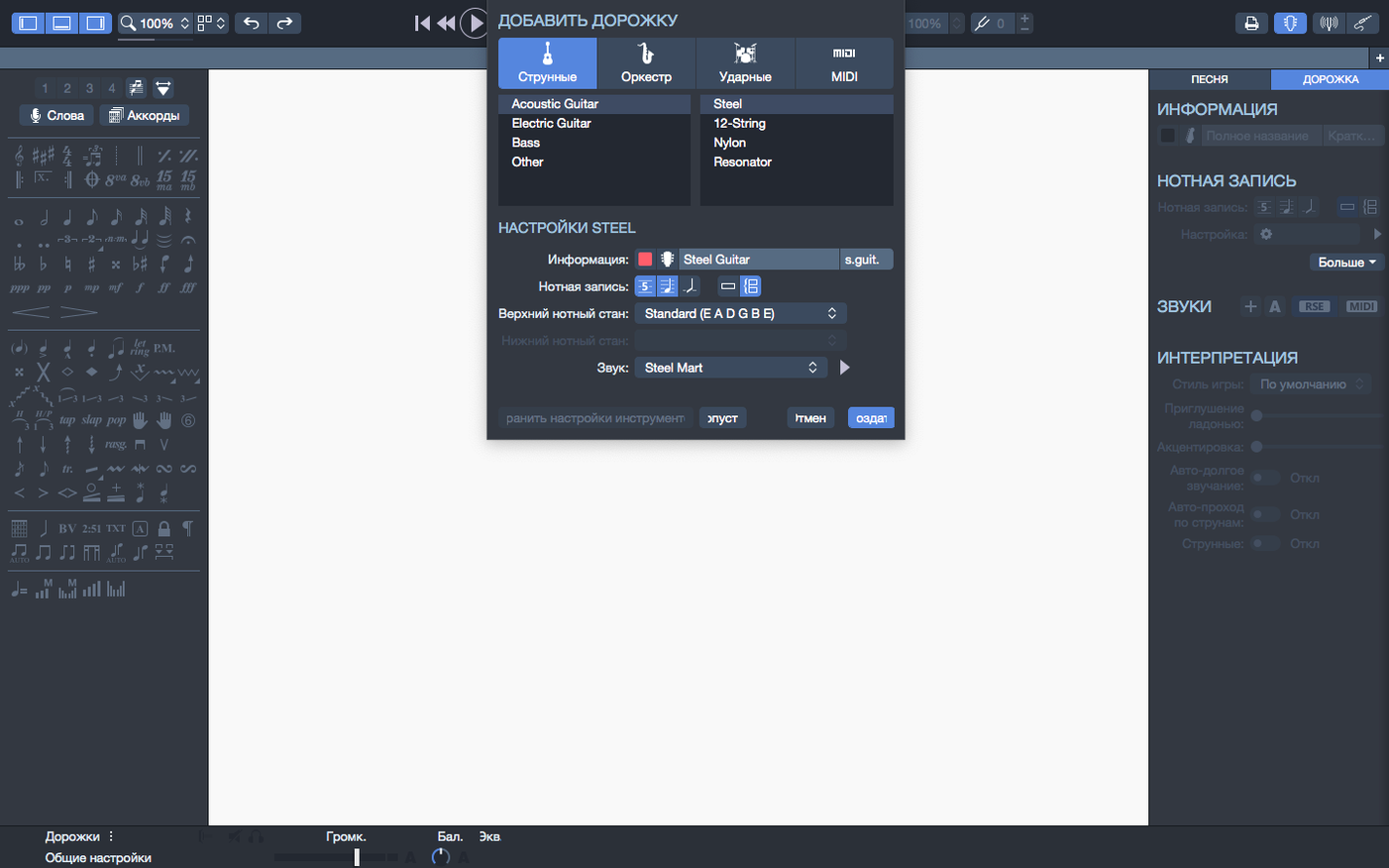
When a piece of music lives only in your head, getting it onto the page can feel like translation work with a clunky dictionary. Guitar Pro 8 is built to make that translation direct and fast, so the tab you write actually sounds like the riff you mean.
The editing engine underneath
Beyond the basics of note entry, version 8 gives experienced users a chord builder that understands voicing. You aren't just picking from a grid of dots — you can construct and audition chords based on a root note and a quality, then drag the result straight onto the staff. The score editor itself handles guitar, bass, and Hawaiian guitar, with stem-direction fixes that finally respect your manual overrides in the cases that used to fight back. Files you return to constantly can be pinned in the Recent section of the homepage, cutting through project clutter without renaming or reorganising anything.
Playing back what you've written
The playback side is where a notation editor earns its keep. Guitar Pro 8 can generate full backing tracks for drums and piano, letting you hear the arrangement before anyone else steps into the room. On a Mac with Apple Silicon, the whole engine runs with noticeably better efficiency, and the 8.1.5 update improved playback continuity when plugging or unplugging audio devices — a small fix that stops the silence that used to follow a pulled headphone jack. Arpeggios at the top of a score now sound as they should, rather than being skipped over in the first bar. The interface itself has been tuned for reading comfort, with contrast and colour adjustments that make long editing sessions feel less like staring at a screen and more like working with paper.
A real evening with a riff you're afraid of forgetting
Let's walk through a real evening with the software, because the manual never captures what it actually feels like when the kettle's just boiled and you have a riff you're afraid of forgetting.
I open Guitar Pro and the homepage shows me three pinned files — the band's current set, a half-finished fingerstyle arrangement, and a student exercise I'm still tweaking. The recent list sits just below, so I can jump into yesterday's work with a single click. I tap the pinned set list and the score opens at bar one, the virtual fretboard already hovering below the tab staff.
The first thing I do is hit play. Not because I need to hear it, but because I want to feel whether the tempo still makes sense after a night's sleep. The metronome ticks in, the drum backing track kicks up, and I listen with my eyes on the tab, watching the playback cursor glide across the bars. Some people treat the player as a proofing tool — I treat it as a second pair of ears.
At bar seventeen, the bass line feels static. I stop playback, click into the bass staff, and highlight four bars. The MIDI editor sits in the right panel, showing each note as a little horizontal block on a piano roll. I drag a few notes up a third, shorten the duration of the last note in the phrase, and hit play again. The change takes effect immediately — no rendering, no bounce, just real-time MIDI feedback through whatever sound library I've selected.
Now the chorus. The rhythm guitarist sent me a voice memo with a chord progression I need to notate. I open the chord builder — and here's the detail that saves me twenty minutes: I can type "F#m7" and see the fingering straight away, then click through alternative voicings higher up the neck until I find the one that matches what I heard. I drag it onto the staff and it lands with both the chord name and the fingering diagram, already transposed into the right key because the score's global transpose setting hasn't been touched.
I spend the next forty minutes filling out the bridge, using number-key shortcuts to set note durations and the arrow keys to move between strings. My left hand stays on the Mac's keyboard, my right occasionally reaching for the trackpad to scroll. By the time I stop, the arrangement has drums, piano, bass, and two guitar parts, all playing back as a coherent whole. I export the score to PNG with a transparent background, drop it into a shared folder for the band, and close the lid.
Resist blank-score temptation for your first afternoon
When you first download Guitar Pro and get it running on your Mac, the temptation is to open a blank score and start typing numbers onto strings. Resist that for an afternoon. The first few hours determine whether the tool feels like an extension of your hands or a piece of software you fight.
Start by loading a file you didn't create. The Guitar Pro format has been around for decades, and sites hosting community tabs are filled with GP files you can pull apart. Open one, watch how the playback handles bends and slides, and notice which notation conventions the original author used. You'll learn more about the program's logic by studying someone else's score than by reading the documentation.
Next, pin something. The homepage's Recent section gets crowded quickly, and the pinning feature is what stops you from losing the one file you actually need tomorrow. Right-click any score in the list and choose the pin option — it'll stay anchored at the top regardless of what else you open. I keep three or four pinned at all times, and I rotate them as projects move forward.
Spend an evening with just the virtual fretboard and the chord builder, no score open at all. Click through chord qualities — major, minor, diminished, suspended — and watch the fretboard update. Build a mental map of where the software places its default voicings. When you later need to slot a C#dim into bar thirty-two of a dense arrangement, you won't be hunting through menus; you'll already know where the builder keeps it and how to drag it into place.
Finally, connect your audio interface or headphones before you launch the app. The 8.1.5 update fixed the dropout that used to occur when devices were plugged or unplugged mid-session, but the habit of setting up your audio before opening a project is still the cleanest way to work. The software respects the device that's active when playback starts, and keeping that predictable eliminates the brief silence that can otherwise interrupt a listening pass.
Contrast options retuned for day-to-day feel
The default preferences are reasonable, but a handful of adjustments make a disproportionate difference to how the software feels day to day.
First, open the display settings and check the contrast options. The interface was retuned in version 8 for reading comfort, and the default palette works well on a calibrated monitor, but if you're working late with Night Shift enabled or on an older display, bumping the contrast slightly can reduce the eye strain that creeps in after two hours of note entry. The difference is subtle — think of it as choosing the right light bulb for a music stand rather than redesigning the room.
Second, visit the audio preferences and confirm that the output routing matches your actual setup. The software will happily send playback through a MacBook speaker, but if you've got an audio interface connected, switching the output to that device gives you a cleaner signal and avoids the latency that can make the playback cursor feel disconnected from the sound. While you're in there, set the metronome to give a count-in of at least two bars — the default is one, and one bar of clicks isn't enough to internalise a tempo before the notes begin.
Third, customise the keyboard shortcuts for note duration. The default number-key mappings are logical — whole note on 1, half note on 2, quarter on 4, and so on — but if you work primarily in eighth-note triplets or dotted rhythms, reassigning the keys you actually use to the durations you actually write saves hundreds of keystrokes per session. The shortcut editor is buried two menus deep, and most users never open it, which is a shame because five minutes there pays back for weeks.
Fourth, and this is the one I see skipped most often: set your default score template. The program ships with a blank template that assumes standard tuning, a 4/4 time signature, and a tempo of 120 BPM. If you're a bassist who works in drop D or a metal guitarist who writes almost everything in 6/8, building a custom template — with your tuning, your tempo, your track layout — and setting it as the default means every new project starts where you actually need it to start, not where a generic assumption places you.
Don't treat Guitar Pro as a typewriter
Most of the errors I see in my evening classes aren't about the software's complexity — they're about treating Guitar Pro as a typewriter when it's closer to a word processor with a live spell-checker.
The biggest one is ignoring the playback entirely. People type in a full score, bar after bar of tab numbers, and only hit play when the page is complete. Then they discover that the bend they notated as a full tone was interpreted as a quarter-tone, or that the tied note across the bar line actually cuts short because the duration wasn't set correctly. Use the player as you work, not as a final proof. Stop every eight bars and listen — it's the single habit that separates clean scores from messy ones.
Another common mistake is forgetting that the MIDI editor exists. Beginners often delete and re-enter notes when they want to adjust timing or pitch, working directly on the tab staff as though it's the only editing surface. But the MIDI editor in the side panel shows every note as a movable, resizable block. Dragging a note five ticks later or nudging it up a semitone takes a fraction of a second and doesn't disturb the surrounding notation. Once students discover the piano-roll view, their editing speed doubles, but the panel isn't shown by default, so many never find it.
A subtler error is building chord diagrams manually rather than using the chord builder. I've watched beginners click individual fret positions on an empty grid, constructing a Gmaj7 from memory and hoping they got the voicing right. The chord builder already knows hundreds of chord qualities and their inversions — typing the name takes seconds, and you can then cycle through alternative fingerings until you find the one that matches what you intended. Manual chord entry has its place for unusual voicings, but it shouldn't be your starting point.
Finally, there's the file-organisation mistake: scattering Guitar Pro files across the desktop, Downloads, and three project folders, then relying on the Recent list to find everything. The Recent list is a convenience, not a filing system. Develop a folder structure early — even if it's just one directory called "Scores" with subfolders by project — and the pinned-files feature becomes a way to surface what's active, not a crutch for a chaotic desktop.
A workflow for transcribing a song by ear, from start to finish
Say you've got a recording of a song you want to learn, and no tab exists for it online. Here's a method that produces an accurate score without hours of frustrated replaying.
Create a new file from your default template — or, if you haven't built one yet, set the tuning, tempo, and time signature manually before entering a single note. Name the file after the song and save it immediately; an untitled project is a recipe for losing work when the Mac restarts overnight.
Open the recording in a separate app — Apple Music, QuickTime, whatever you prefer — and play the first four bars. Don't touch the guitar yet. Just listen, and tap the tempo into Guitar Pro's metronome until the clicks lock in with the pulse of the song. Getting the tempo right before transcription begins means the playback will feel musical later, not mechanical.
Now isolate the bass line. The bass is usually the most reliable roadmap through a song's harmony, and it's easier to hear on small speakers or laptop drivers than the intricacies of a distorted guitar part. Loop the first section in your audio player, find the root notes on your instrument, and enter them into the bass staff as whole notes or half notes — just the pitches, no rhythm yet. Use the number keys to set durations and the arrow keys to move between lines on the staff.
Once the bass roots are in place, switch to the guitar track and work out the chord qualities that sit above those roots. The chord builder becomes your fast-audition tool here: type the root you identified, click through major and minor, add a seventh if the harmony calls for it, and drag the result onto the staff. Play back just the rhythm section — bass and the chord symbols you've added — and check it against the original recording. If the harmony feels right, you've built the skeleton of the song.
Now comes the detailed transcription. Go back to the recording and focus on a single instrument — the lead guitar part, a piano line, a specific vocal melody. Loop two bars at a time in your audio player. In Guitar Pro, slow the playback tempo temporarily if the passage is fast; the tempo slider sits at the top of the window and slowing to 60% doesn't alter pitch. Enter the notes one phrase at a time, playing back each completed phrase within Guitar Pro to confirm it matches what you hear.
When the lead part is complete, open the MIDI editor and scan the piano roll for any notes that are quantised too rigidly. A real performance pushes and pulls against the grid — a note that lands a few ticks late might be a deliberate swing feel, not an error. You can drag individual MIDI events slightly off the grid to preserve that human timing, and the notation on the tab staff will update to reflect the change.
Add a drum backing track last. Guitar Pro's drum editor isn't a full drum-machine replacement, but for the purposes of practising along with the score, a basic kick-snare pattern locked to the tempo you set at the start will make the playback feel grounded. Use one of the built-in drum patterns and tweak the kick pattern to match the song's accents.
Finally, play the entire score from beginning to end at full tempo, watching the notation and listening for anything that doesn't match the recording. If a bend doesn't sound right, click it and adjust the bend type or depth in the inspector panel. If a slide feels too fast, extend its duration. When the playback matches the song closely enough that you'd be happy practising to it, export a copy of the score — PDF for sharing, or PNG with a transparent background if you're dropping it into a lesson plan or a band group chat. The entire process, for a four-minute song, usually runs about ninety minutes once the workflow has become habit.
The latest update tidies up a few long-standing playback and editing annoyances.
- Arpeggios placed at the very start of a score now play correctly, rather than being silently ignored on the first pass.
- Several cases where stem directions couldn't be changed have been fixed, giving you proper control over the look of the notation.
- Playback continuity on macOS has been improved when plugging in or unplugging audio devices — no more sudden dropouts during a session.
- macOS 10.13 or later
- 64-bit dual-core Intel, AMD, or Apple Silicon processor
- 4 GB RAM
- 2 GB free disk space
Questions from the class 0
Sign in or join the class to ask a question.
Nobody has asked anything yet. If you have used it on a real job, say what the file did.
Also on the Audio shelf
The whole Audio shelf Guitar Rig
Routes your guitar through a custom chain of modelled amps and effects.
Guitar Rig
Routes your guitar through a custom chain of modelled amps and effects.
 FL Studio
Gives you one space to record, shape, and arrange your music.
FL Studio
Gives you one space to record, shape, and arrange your music.
 Fender Studio Pro
Guides you through your first recording sessions step by step.
Fender Studio Pro
Guides you through your first recording sessions step by step.
 iReal Pro
Generates a backing band that plays along to the chord chart you type on screen.
iReal Pro
Generates a backing band that plays along to the chord chart you type on screen.
 iZotope Ozone
Listens to your mix and builds a complete mastering chain from EQ to limiting.
iZotope Ozone
Listens to your mix and builds a complete mastering chain from EQ to limiting.
 Kontakt
Hosts thousands of sampled instruments that you play from a MIDI keyboard inside your DAW.
Kontakt
Hosts thousands of sampled instruments that you play from a MIDI keyboard inside your DAW.
 Dorico Pro
Engraves fully notated scores with the structural clarity of a modern DAW.
Dorico Pro
Engraves fully notated scores with the structural clarity of a modern DAW.
 djay Pro
Mixes tracks, samples, and video on a pair of software decks that grow with your skill.
djay Pro
Mixes tracks, samples, and video on a pair of software decks that grow with your skill.