 ASPNetWorld

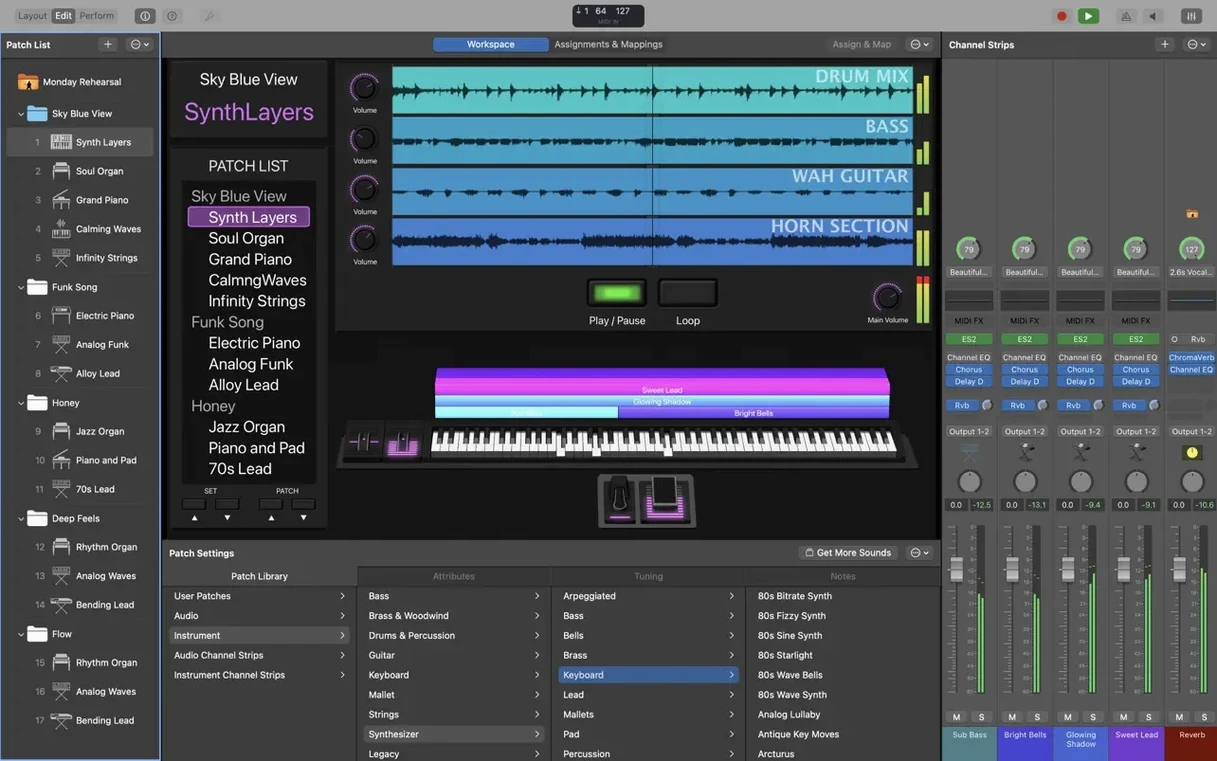
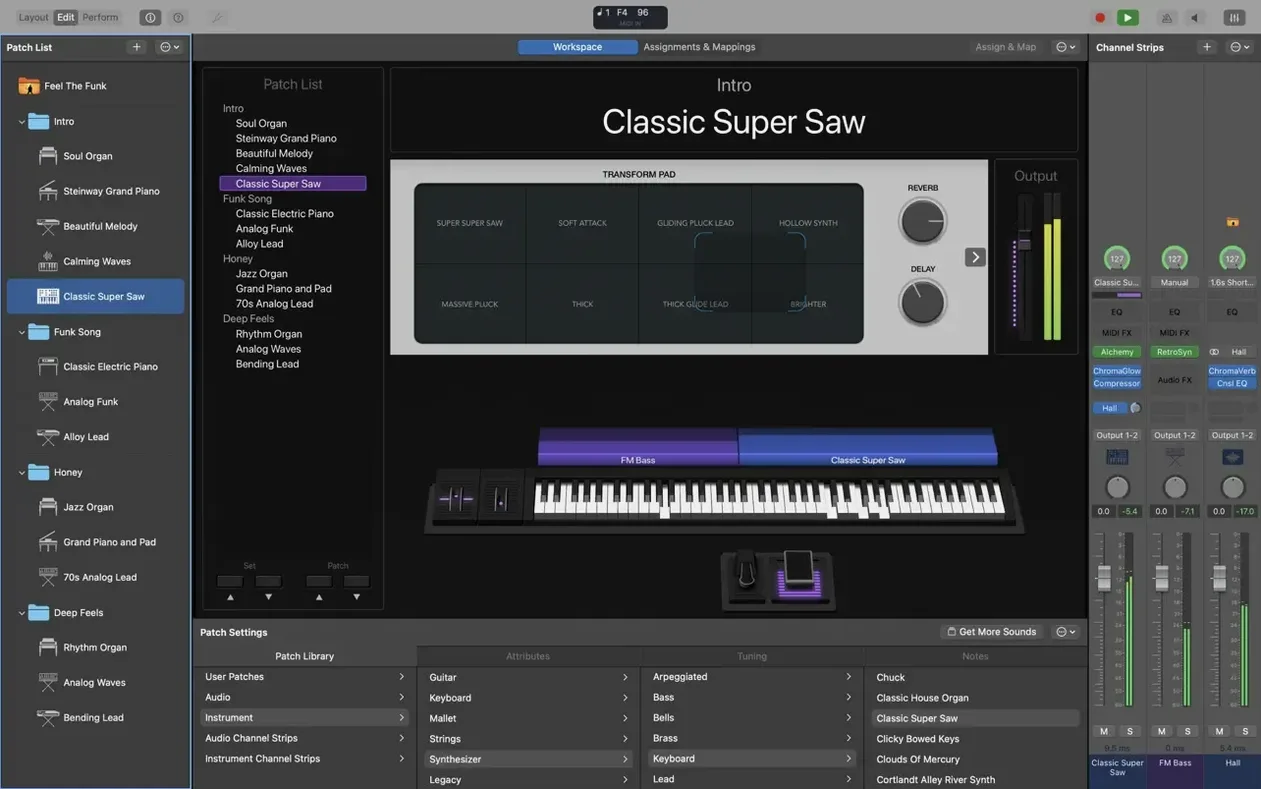
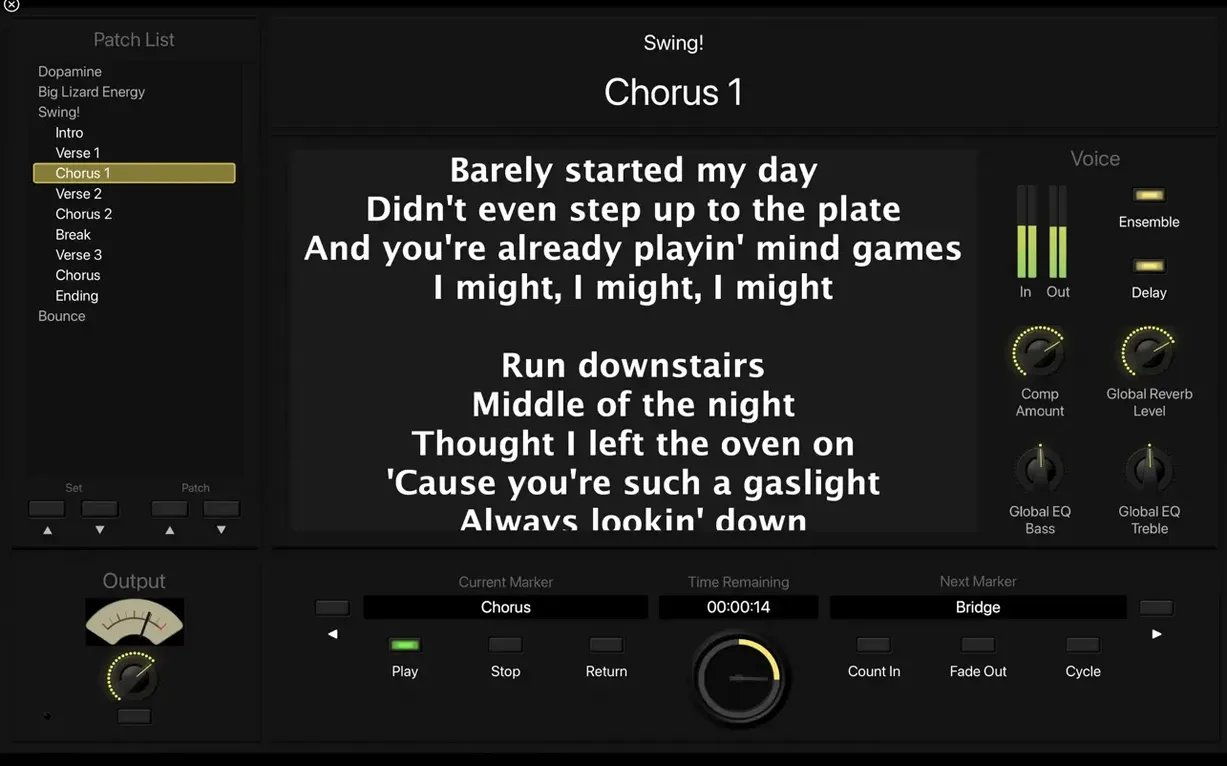
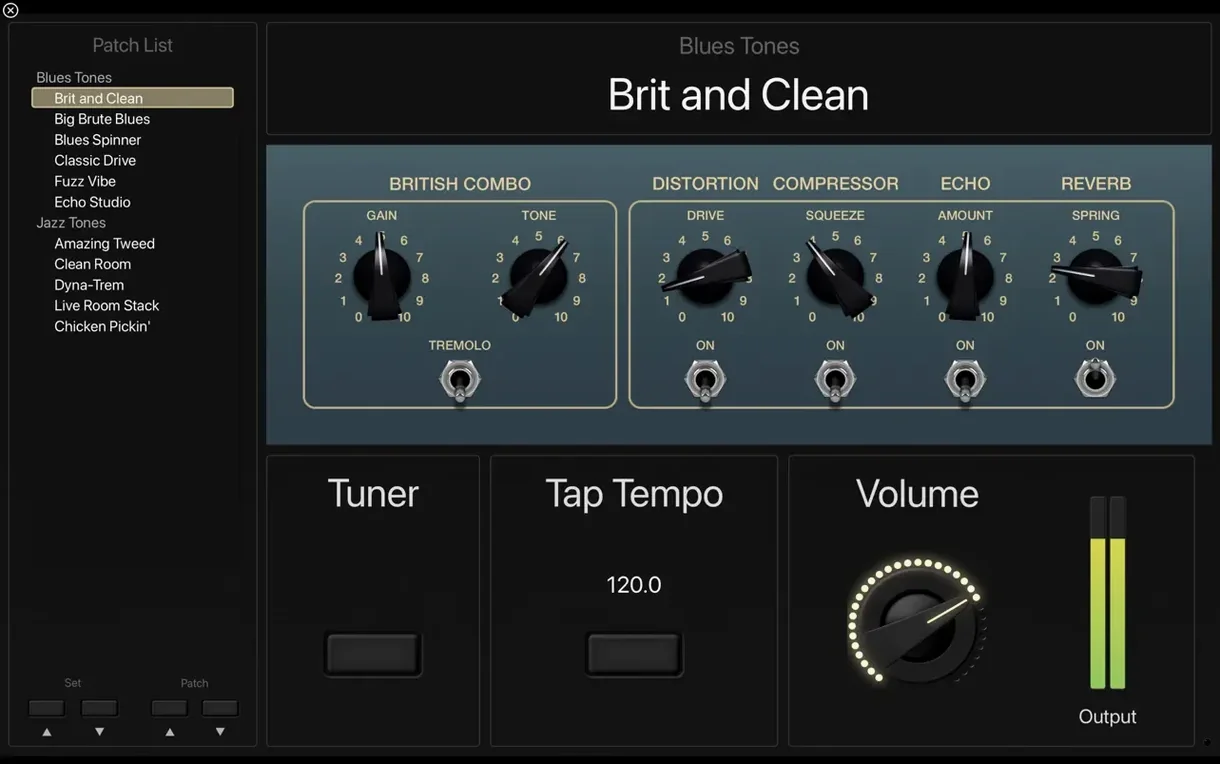
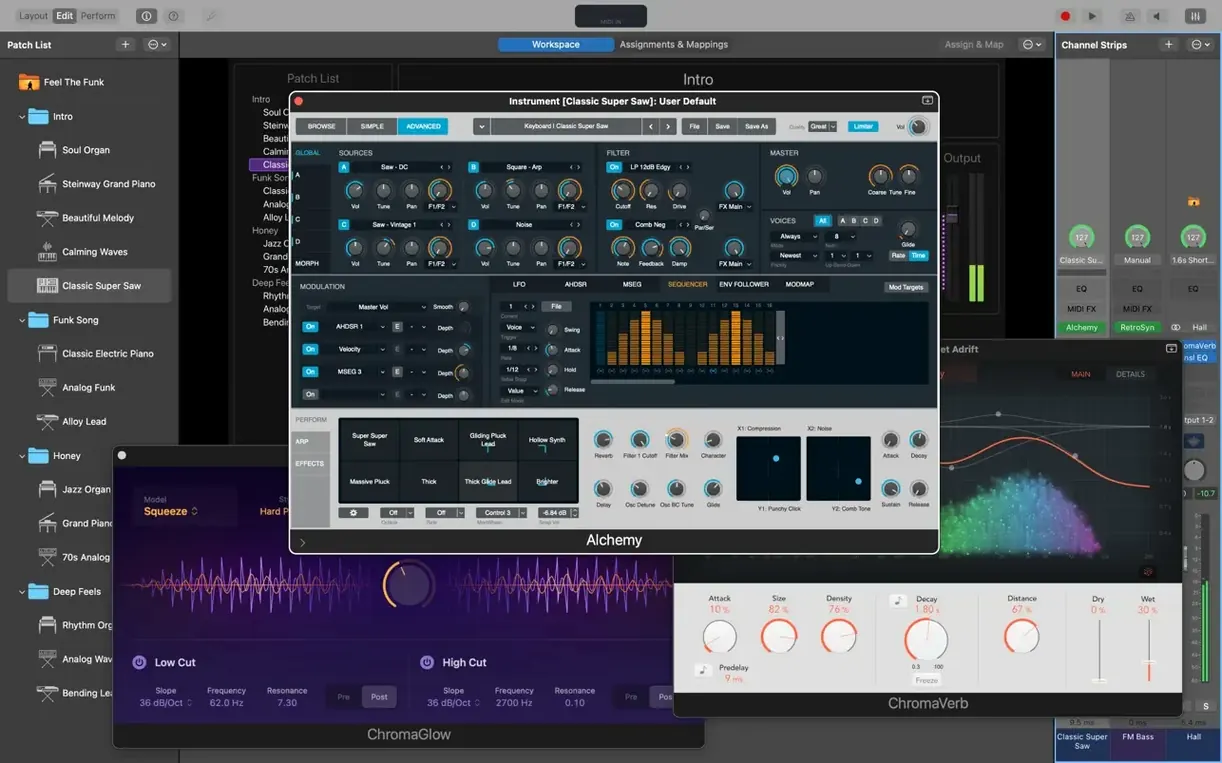
The latest 4.3.1 update quietly restores a little muscle memory for the number-crunchers among us: you can once again type values directly into the Add Channel Strip window, and it sorts out a gremlin that was blocking MIDI SysEx messages. Sampler instruments now reliably find their correct sounds, too. If you are new to the stage, here is a set of concrete first moves that reveal what the software actually feels like under your fingers.
- Pick a patch, then twist the Smart Controls. Open the Library and load any of the 750-plus sampled instruments. The on-screen knobs and faders are not just decoration — grab a low-pass filter or reverb send and listen to how immediately a studio-grade sound reshapes itself for a live moment.
- Build a layered keyboard split. Assign the Vintage B3 to the lower half of your controller and Retro Synth to the upper half. Drag the split point in the workspace, and you have a two-manual organ-plus-synth rig without a single patch cable.
- Make the Arpeggiator your new sideman. Insert a MIDI plug-in like Arpeggiator on a channel strip. Hold a simple chord and let it spin out a rhythmic pattern you can capture and tweak in real time, turning static pads into something propulsive.
- Map a physical knob to a Tape Delay. Right-click any delay plug-in parameter, choose ‘Learn’, and wiggle a knob on your controller. That immediate hardware-to-software handshake is what makes the app feel like a custom stompbox board.
- Design your own full-screen layout. Switch to Layout mode and strip everything back to just the controls you need for one song — a big gain slider, a tuner, and a bypass button. Hit ‘Perform’ and your MacBook becomes a dedicated instrument, distraction-free.
These first few experiments lean heavily on the more than 80 instrument, effect, and MIDI plug-ins that ship with the download. Once you have a feel for how the Touch Bar snaps between editing and performance on a MacBook Pro, the line between studio sound and stage tool starts to blur in the best possible way.
The footswitch silence that hits at rehearsal
Most newcomers open the app, load a piano patch, tap a key and think “lovely — it works.” Then they turn up at rehearsal, stomp a footswitch to move to the next song, and silence swallows the room. The patch changed, but the held chord died mid-breath. That is the first lesson MainStage teaches you about live performance: patches do not behave like songs in a playlist; they behave like separate instruments stacked on a dark stage, and you need to tell them how to hand over to each other.
A common early mis-step is ignoring the Patch Merging setting in the Attributes inspector. When it is off, switching patches cuts the audio dead — fine for studio browsing, lethal on stage. Setting it to Slow (crossfade) or Fast lets a reverb tail or a held pad ring naturally across the change. Another beginner habit is piling every sound into a single concert file. A fifty-song set in one concert works only if your Mac has memory to spare and you never need to tweak a single patch while the rest wait. Splitting a set into smaller concert files for each half keeps the software snappy and your brain clear.
New users also tend to ignore Aliases. They duplicate a channel strip for every song that uses the same piano sound, then discover they have twelve copies of Vintage Electric Piano to adjust when the monitor mix changes. An alias is a single channel strip that lives in multiple patches simultaneously — change the EQ on one, and every patch that references it follows. Set that up early, and your soundcheck nerves will thank you.
Finally, there is the temptation to fill Layout mode with every control a plug-in offers. A screen dense with tiny knobs is hard to read under stage lights. The smarter instinct is to place only the three or four parameters you actually ride during a song — filter cutoff, delay feedback, reverb mix — and make them large enough to grab without looking.
Keyboard entry returns to the Add Channel Strip window
The 4.3.1 release reads like a tidy-up, but a couple of its fixes genuinely alter what you can trust on stage. The restoration of keyboard entry in the Add Channel Strip window sounds minor until you are building a concert at speed and want to type “8” instead of clicking a tiny stepper twenty-three times. It is a small fluency that puts the app back in line with how power users actually work.
The fix for incoming MIDI SysEx messages being blocked matters more than a single bullet point suggests. If you use older hardware synths or MIDI controllers that rely on SysEx for patch dumps or configuration handshakes, that bug meant the app was essentially deaf to them. With 4.3.1, those devices talk to MainStage properly again, which quietly reopens the door to hybrid setups where a vintage module sits alongside the software’s own instruments.
The patch-switching glitch — where typing a number into a field could unexpectedly jump you to a different patch in the list — was a genuine hazard during editing. Losing your place in a complex concert because the software misread a keystroke broke concentration at exactly the wrong moment. That is now resolved, and the patch list stays obediently where you left it.
The statement that Sampler instruments now load the correct sounds hints at a more subtle reliability improvement. When a Sampler patch silently loads the wrong sample set, you might not notice during a quiet soundcheck, but in a dense mix the difference can throw an entire cue. Knowing the right sound will appear every time restores the kind of unthinking confidence that live performance depends on.
Patch sounds perfect at home but distorts through the PA
One of the first head-scratchers is a patch that sounds perfect at home but distorts horribly through a PA. The culprit is usually the output routing. By default, a new concert sends everything to Stereo Out, which assumes a clean line-level path. If your audio interface is configured for consumer-level output or you are running into a mixer channel with a pad engaged, the gain staging can clip long before you touch a fader. The fix is to open the channel strip’s output meter, play your loudest passage, and adjust the master fader so peaks sit around -6 dB. Then let the PA do the rest.
Another frequent complaint is that mapped hardware controls stop responding mid-set. Nine times out of ten, the controller itself has sent a program change that reassigned its own internal mapping, or the USB connection has wobbled. In MainStage, open the Controller Assignments window and check whether the expected assignment still shows a green incoming-message indicator when you move the hardware. If it does not, unplug and replug the controller, then test again. For critical gigs, assigning the same function to a backup knob on a different controller gives you a spare tyre.
Latency can sneak in when you stack too many latency-inducing plug-ins on a single channel strip. Linear-phase EQs, lookahead limiters, and some convolution reverbs add tiny delays that multiply across a complex patch. The practical solution is to use the low-latency monitoring option where possible and to audition any plug-in chain by tapping a key and listening for the gap between finger and speaker. If the delay feels musically intrusive, swap a linear-phase EQ for its standard counterpart and see if the mix still holds.
A less obvious snag is the Sound Library refusing to download fully, leaving greyed-out patches in the Library browser. The full Sound Library needs 57 GB of free space, and macOS sometimes does not warn you until the download has already stalled. Clearing space, then opening MainStage and choosing MainStage > Sound Library > Download All Available Sounds from the menu bar forces a fresh attempt. A stable internet connection is essential — the download does not always resume cleanly after a drop.
Ninety-three patches for Act One alone
Imagine a keyboard player in a theatre pit, covering a musical that veers from orchestral strings to wailing rock organ to a synth pad that must layer under dialogue without swallowing it. She has ninety-three patches for Act One alone, and the conductor’s baton waits for no one. She builds her concert so each patch corresponds to a scene cue, labelled by bar number and instrument — “Bar 42 – Strings + Celeste”, “Bar 108 – Overdriven B3”. She sets Patch Merging to a fast crossfade so held string chords bloom into the next cue without a click of silence.
Her secret weapon is the Playback plug-in, loaded with a stereo backing track of pre-recorded percussion that the pit band cannot fit live. She maps a footswitch to start and stop playback, and assigns a Smart Control knob to the track’s volume so she can tuck it under the live drums during the overture. In Layout mode, she strips the screen down to a large patch name display, one knob for the backing track level, and a panic button that sends an All Notes Off MIDI message in case a hung note survives a patch change. When the curtain rises, she never looks at the MacBook keyboard — only at the conductor, the score, and the two controls her fingers find by muscle memory.
How MainStage compares with similar Mac apps
Camelot Pro takes a different architectural approach. Where MainStage wraps everything inside a single concert metaphor, Camelot Pro thinks in terms of songs and setlists from the start, with a dedicated lyrics and chord-chart display built in. It supports Audio Unit plug-ins and offers a scene-based layout system, but its real draw is the integrated score reader — something MainStage users have to patch together with a separate PDF viewer. For a solo performer who needs lyrics and patch changes locked in step, Camelot Pro can feel more cohesive. MainStage, however, pulls ahead on the sheer depth of its bundled instrument and effect collection; Camelot Pro’s built-in sound library is serviceable but nowhere near the 1,800 patches and 750 sampled instruments that come with Apple’s app.
Gig Performer appeals to the tweaker who wants to wire everything from scratch. It presents a modular rack environment where you drag connections between plug-ins, MIDI inputs, and audio outputs on a virtual patchbay. The learning curve is steeper, but the payoff is a routing flexibility that MainStage’s channel-strip model cannot quite match without workarounds. Gig Performer also runs on both macOS and Windows, which makes it the natural choice for a touring rig that might encounter either platform. MainStage counters with an interface that feels immediately familiar to anyone who has used Logic Pro or GarageBand, and the Touch Bar support on MacBook Pro genuinely speeds up switching between edit and perform modes — a detail neither Camelot Pro nor Gig Performer replicates.
Where MainStage keeps its advantage is in the Logic ecosystem. If you already own Logic Pro, you can pull its entire sound library into MainStage without extra downloads. The Retro Synth, Vintage B3, and Amp Designer are not afterthoughts; they are the same plug-ins that drive studio productions, dropped into a live frame. For a keyboardist or guitarist who records in Logic during the week and plays live at the weekend, that continuity is hard to beat.
The 4.3.1 update is a short, practical polish. It restores the ability to type numbers into the Add Channel Strip window, fixes an issue where incoming MIDI SysEx messages were blocked, and ensures sampler instruments load the correct sounds every time.
- macOS 15.6 or later
- Apple Silicon processor
- 64-bit Audio Unit plug-ins required
- 6 GB free disk space for a minimal installation
- 57 GB free disk space for the full Sound Library
Questions I keep hearing
Does MainStage work with my Logic Pro plug-ins?
Yes, it includes a collection of plug-ins and sounds that are fully compatible with Logic Pro, so a patch you design on stage can open in the studio and vice versa.
What kind of hardware can I control from the app?
It offers flexible hardware control; you can map knobs, faders, buttons and pedals to almost any on-screen parameter using a simple learn function.
What instruments come bundled with the download?
The sound library includes more than 750 sampled instruments alongside modelled classics such as Vintage B3, Vintage Electric Piano, Vintage Clav and Retro Synth.
Questions from the class 0
Sign in or join the class to ask a question.
Nobody has asked anything yet. If you have used it on a real job, say what the file did.
Also on the Audio shelf
The whole Audio shelf Maschine
Builds beats and launches loops from a hardware controller.
Maschine
Builds beats and launches loops from a hardware controller.
 Loopback
Creates virtual audio devices by drawing connections between apps and hardware on your Mac.
Loopback
Creates virtual audio devices by drawing connections between apps and hardware on your Mac.
 Loop Mash Up Pro
Lets you stack royalty-free loops from a curated library into full musical arrangements.
Loop Mash Up Pro
Lets you stack royalty-free loops from a curated library into full musical arrangements.
 Logic Pro
Records, arranges and mixes whole songs with instruments and loops built in.
Logic Pro
Records, arranges and mixes whole songs with instruments and loops built in.
 Kontakt
Hosts thousands of sampled instruments that you play from a MIDI keyboard inside your DAW.
Kontakt
Hosts thousands of sampled instruments that you play from a MIDI keyboard inside your DAW.
 iZotope Ozone
Listens to your mix and builds a complete mastering chain from EQ to limiting.
iZotope Ozone
Listens to your mix and builds a complete mastering chain from EQ to limiting.
 Native Instruments Reaktor
Gives you a workbench to build your own synths and effects from oscillators, filters, and envelopes.
Native Instruments Reaktor
Gives you a workbench to build your own synths and effects from oscillators, filters, and envelopes.
 iReal Pro
Generates a backing band that plays along to the chord chart you type on screen.
iReal Pro
Generates a backing band that plays along to the chord chart you type on screen.