 ASPNetWorld
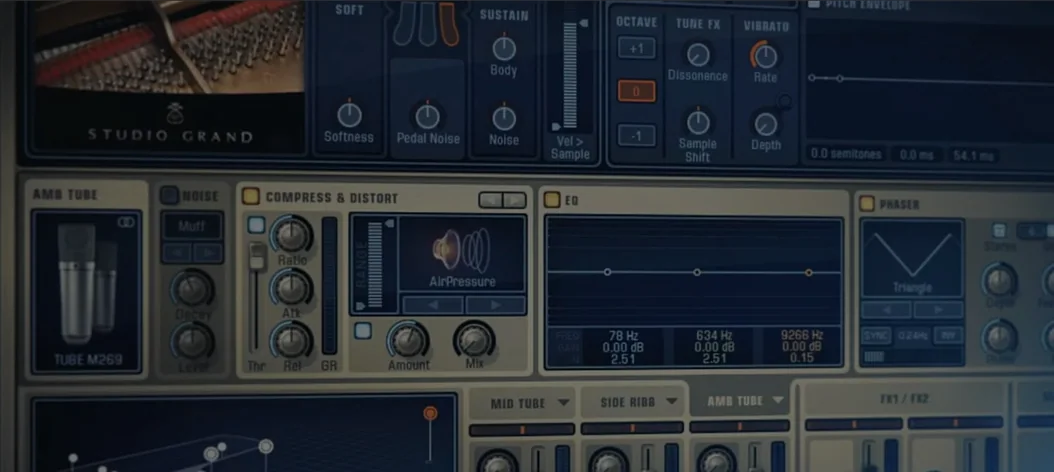
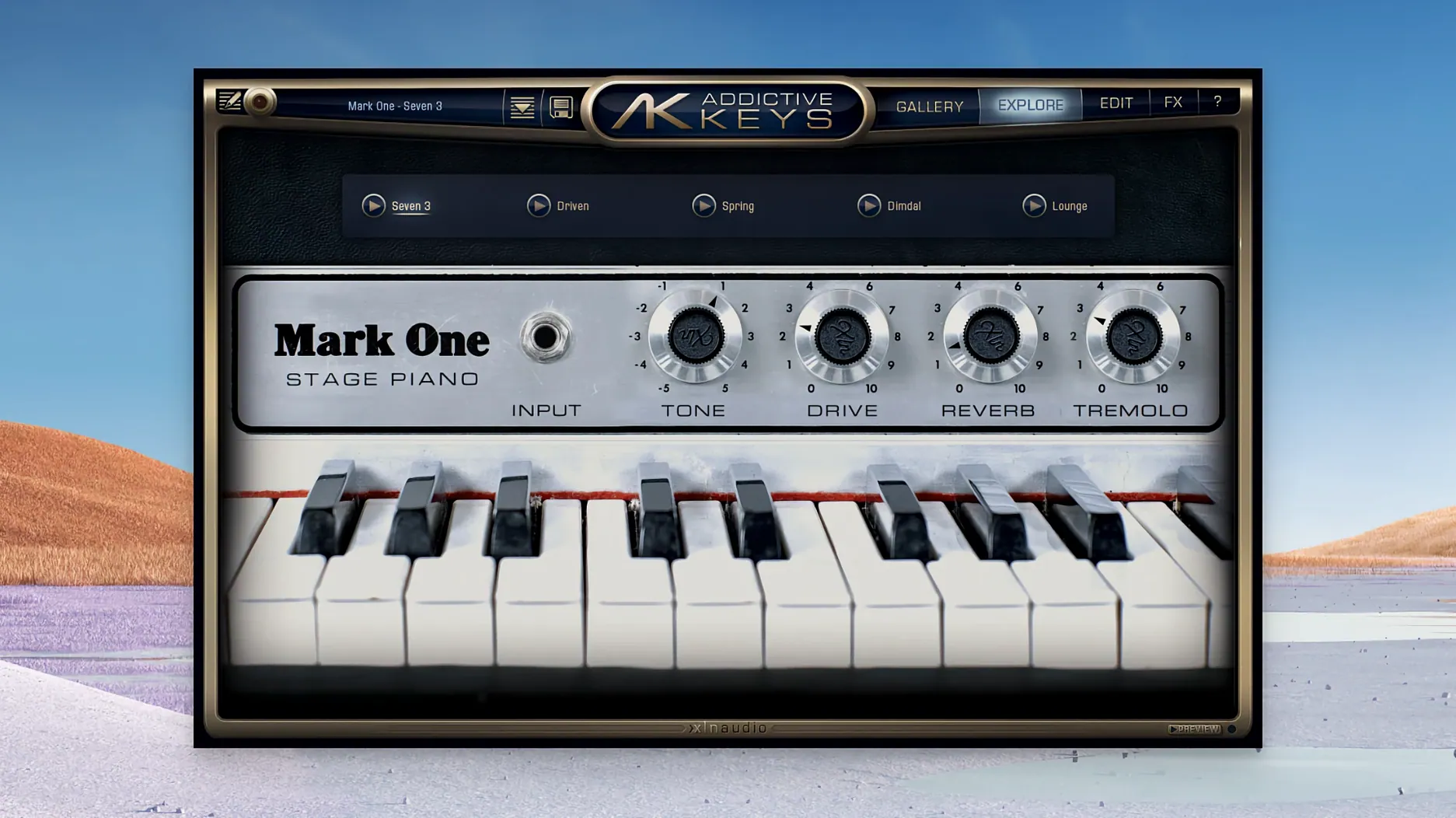
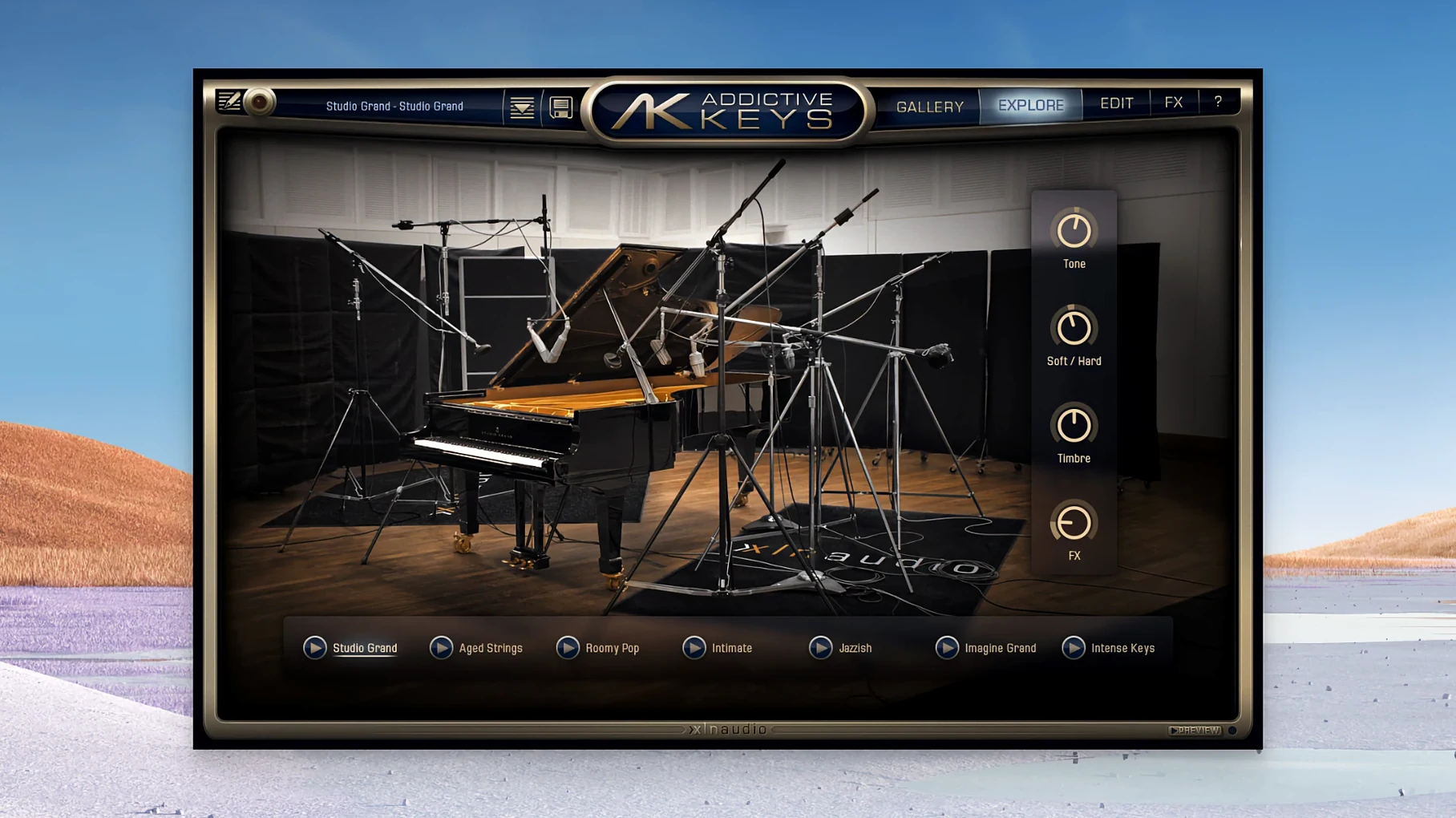
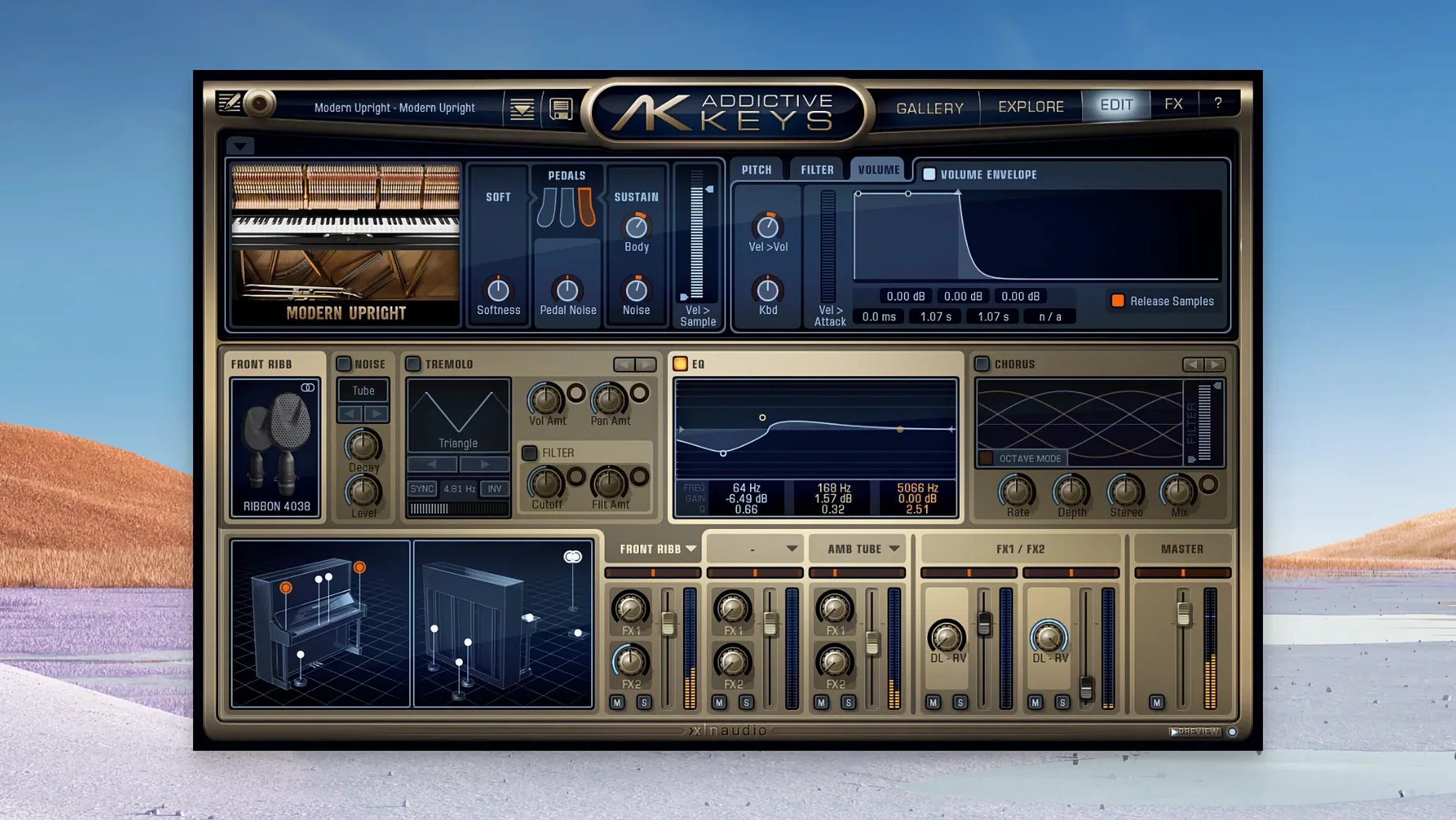
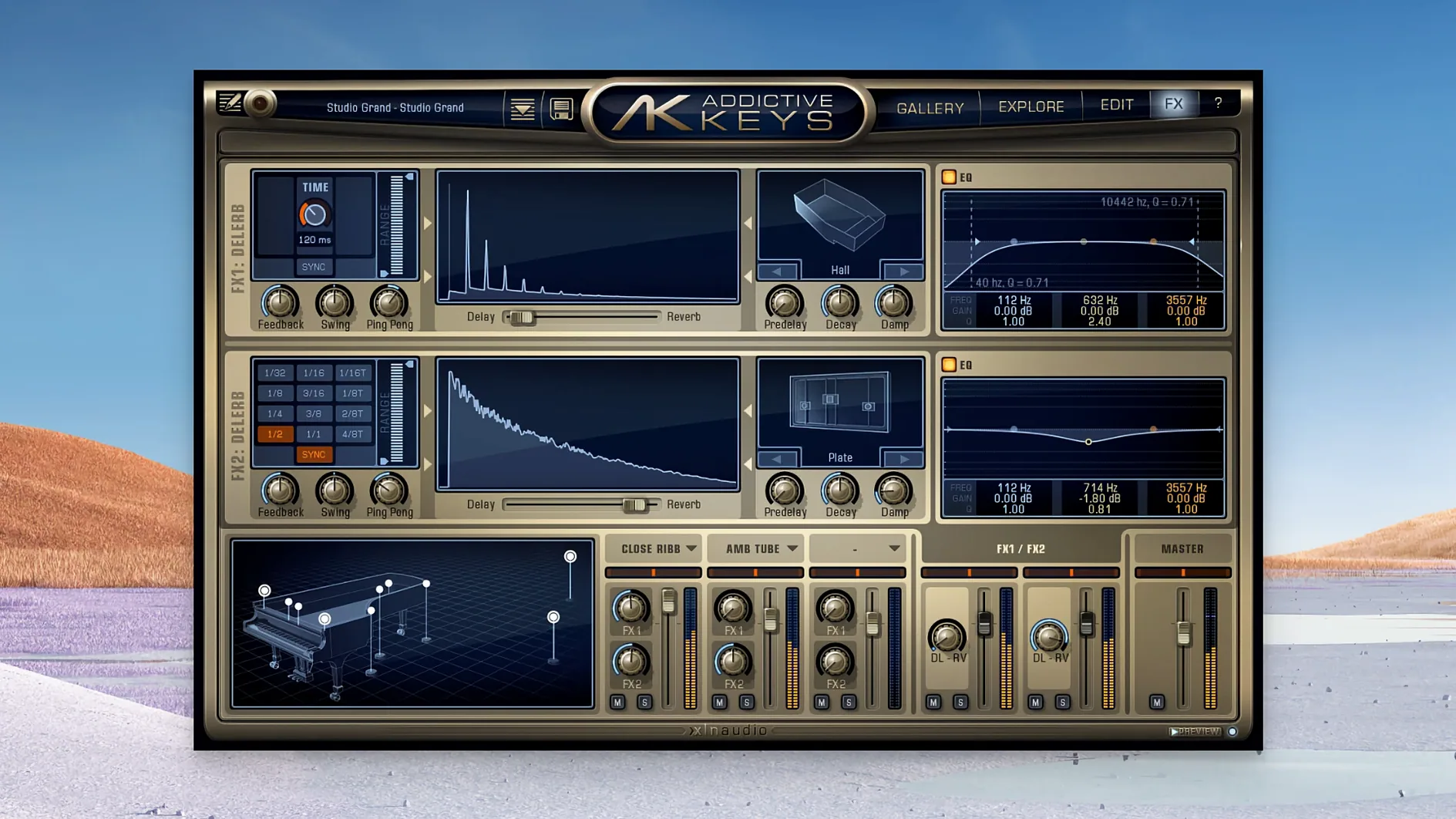
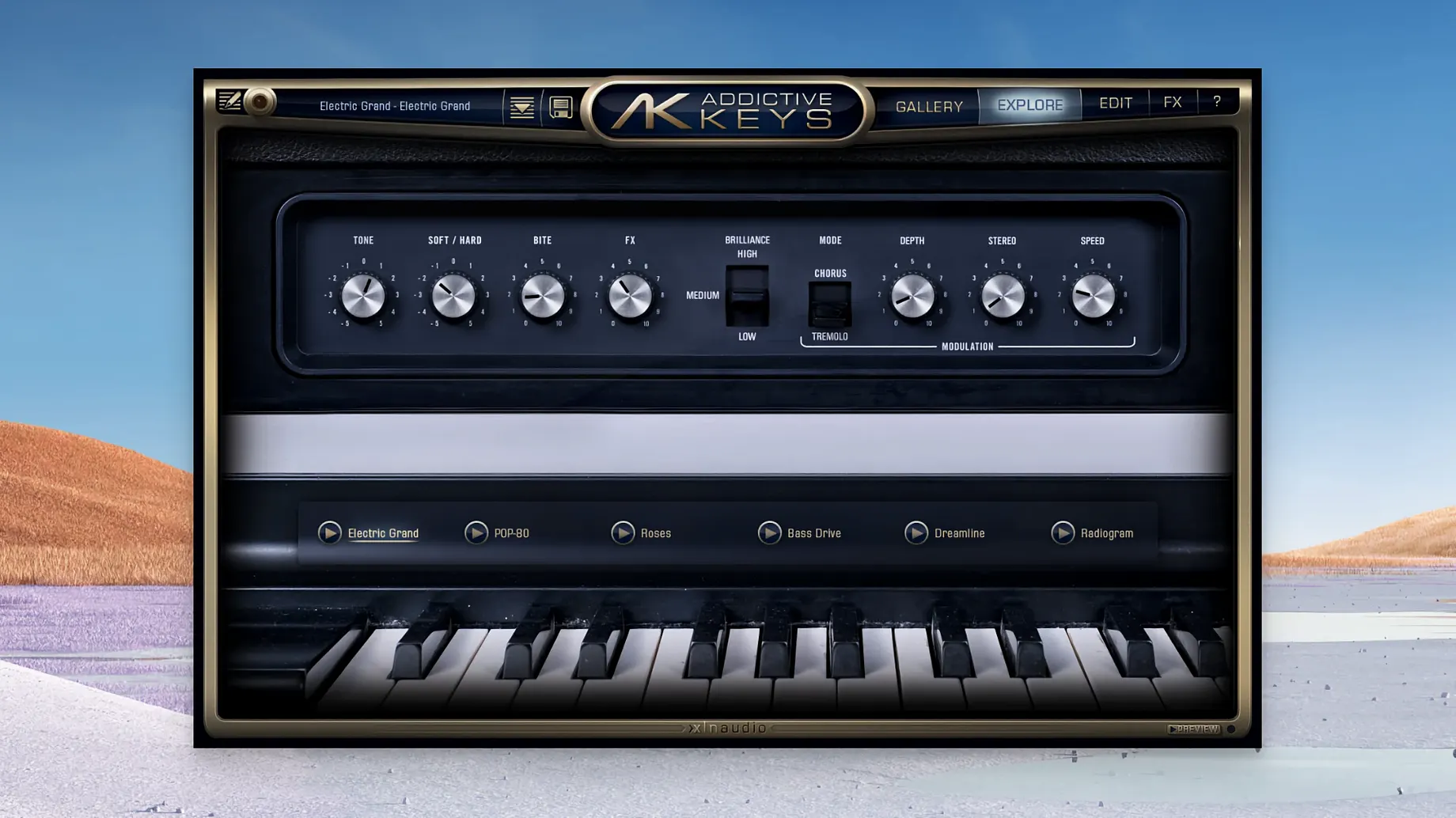
Keyboard players, beatmakers and songwriters who build tracks in a DAW will find Addictive Keys slots straight into that workflow. It is a virtual keyboard instrument from XLN Audio that models four distinct pianos, each recorded in a proper studio space, and it loads as a plug‑in inside most major hosts. If you prefer working without a DAW open, a standalone version is available too.
Runs inside Logic, Live, Cubase and Pro Tools with no extra bridging
The plug‑in supports the formats you would expect for a modern music‑production setup — VST, AU and AAX — so it sits happily inside Logic Pro, Ableton Live, Cubase, Pro Tools and pretty much any other host that follows those standards. On the Mac side you need macOS 10.13 or later, and the current version runs natively on both Intel and Apple Silicon machines, which keeps the manual’s promise of fast loading times feeling true even on newer systems. The installer comes as a standard disk image: open it, run the installer and the instruments appear in your plug‑in list. English is the interface language.
The sound of four pianos
What makes Addictive Keys worth the download is the range of colours across the four instruments. The Studio Grand is the big, versatile concert‑piano voice that works for anything from a pop ballad to a cinematic cue. The Modern Upright is built around a Yamaha U3, so it has that familiar, slightly percussive upright character that cuts through a busy mix without sounding thin. Then there is the Mark One, a warm electro‑mechanical model, and the Electric Grand, which gives you the bright, bell‑like attack of a CP‑style stage piano. Having all four together in the Complete Collection means you can pick the right piano for a part rather than forcing one instrument to do everything.
Most problems trace back to host, file path or authorisation handshakes
Most issues people bump into with Addictive Keys are not really about the plug‑in itself — they are about how the host, the file system and the authorisation layer talk to each other. Here are the ones that crop up repeatedly and what I tell my evening‑class students to try.
The plug‑in does not appear in the DAW after installation. This is almost always a scan issue. Logic Pro, Ableton Live and Cubase each have their own way of rescanning plug‑ins, and a freshly installed AU or VST3 does not always trigger an automatic refresh. In Logic, go to Plug‑In Manager and run a full rescan. In Ableton, head to Preferences → Plug‑Ins and toggle the VST3 custom folder off and on again while holding the Alt key — it forces a deep rescan. If that fails, check that the .component or .vst3 file actually landed in the right system folder. Occasionally an over‑zealous Gatekeeper setting on macOS quarantines a freshly downloaded component. A quick trip to System Settings → Privacy & Security often reveals a blocked item waiting for approval.
Silence when you hit a key, even though MIDI is arriving. Nine times out of ten the plug‑in has loaded with a preset that has the main volume fader pulled all the way down, or the onboard effects send is set to 100% wet with no dry signal. Open the Addictive Keys interface and glance at the mixer‑style controls on the right. If the volume knob is at zero or the reverb is drowning the direct sound, that is your culprit. The other possibility is a MIDI channel mismatch — the plug‑in defaults to omni mode, but if you have nudged it to receive only channel 1 and your controller is transmitting on channel 2, nothing will sound.
Crackles and dropouts even on a fast machine. The sample‑streaming engine is efficient, but if you are running a large buffer in your DAW for mixing and then switch to playing piano live, the latency can trip you up. Drop the audio buffer to 128 or 64 samples while you track; push it back up when you mix. Also, check that the plug‑in is not trying to stream samples from a slow external drive over a USB hub that shares bandwidth with your audio interface. The library belongs on an internal SSD, or at least a directly connected Thunderbolt or USB‑C drive.
A workflow: tracking a Rhodes part from scratch to mix‑ready
Let us walk through a real session task — laying down a warm, slightly woolly Mark One part that sits behind a vocal without fighting the midrange. I will assume you have Logic Pro open and a rough vocal and drum guide already in place.
First, load Addictive Keys as a software instrument track and pick the Mark One from the instrument browser. The default preset is playable but a little too present for what we want. Open the plug‑in window and head to the Mic panel — the Mark One was recorded with close and room mic options, and I tend to push the room fader up by about 6 dB while pulling the close mics down by 3 dB. That immediately softens the transient and makes the piano feel like it is sitting a metre behind the speakers.
Next, dial the tone control towards the darker end. There is a simple bass and treble section on the front panel; roll the treble back to around 10 o’clock and nudge the bass up until the low mids feel full but not boomy — usually around 2 o’clock on the dial. Now open the effects tab and add a touch of the built‑in chorus. The Mark One through a gentle chorus is a sound that has paid a lot of people’s mortgages. Keep the mix low, maybe 25%, so it thickens rather than warbles.
Record your part. I like to play in a few takes and comp the best phrases, but even a single pass with a light touch works. Once the MIDI is down, open the DAW’s piano roll and humanise the velocities slightly — Addictive Keys responds beautifully to velocity changes, and a part played at a uniform 100 velocity sounds like a machine. Select all notes, hit the randomise velocity function with a range of plus or minus 8, and the instrument wakes up.
For the final polish, drop an EQ after the plug‑in. Scoop a gentle 3 dB cut around 400 Hz to leave room for the vocal, and add a high‑shelf boost from 8 kHz up by a couple of decibels to bring back the sparkle that the dark tone setting took away. The whole process takes about ten minutes once you know the controls, and the result is a Rhodes that sounds like it was tracked in a real room with a real amp.
Linear velocity curve flattens dynamics on many weighted controllers
Out of the box, Addictive Keys makes sensible choices, but a few defaults are worth revisiting before you commit anything to a project.
Velocity curve. The plug‑in ships with a linear velocity response, which works for most weighted controllers but can feel stiff on a semi‑weighted keyboard. Open the settings panel and try the soft curve — it makes the transition from pianissimo to mezzo‑forte much smoother, and you will find yourself playing more expressively without thinking about it. If you are on a synth‑action controller, the hard curve can prevent accidental velocity spikes.
Polyphony. The default is set high enough to handle dense classical material, but for pop and electronic productions you can drop it to 48 or even 32 voices without noticing. This frees up CPU headroom, which matters when you are running multiple instances of the plug‑in alongside other virtual instruments. The Studio Grand is the hungriest of the four; the Mark One and Electric Grand are lighter, so adjust per instance rather than globally.
Pedal noise and key release samples. These are on by default and they add realism, but in a busy mix they just create low‑level clutter. If the piano is not exposed — say it is layered under a pad and a bassline — switch both off. You can always re‑enable them for the sections where the piano is soloed or prominent. The difference in clarity is more noticeable than you might expect.
Output routing. The plug‑in can send each microphone channel to a separate output pair, which is brilliant for mixing but not obvious at first glance. In the Mic panel, look for the output assignment dropdowns. Sending the close mics to one bus and the room mics to another lets you process them independently — compress the close signal, add a different reverb to the room, or EQ them separately. It is worth setting up a template with this routing saved so you do not have to rebuild it every session.
For songwriters who want an instrument, not a sample library
The plug‑in is broad enough to suit a range of Mac users, but three groups tend to connect with it more than others.
Songwriters who need a piano that feels like an instrument, not a library. If you write at the keyboard and you are tired of scrolling through a thousand presets to find a sound that responds to your playing, the four‑instrument format is a relief. The presets are production‑ready, so you spend less time tweaking and more time writing. The quick‑loading architecture means you can open a session and start playing within seconds, which matters when an idea is fragile and you do not want to lose it while a multi‑gigabyte library loads off
- macOS 10.13 or later
- Intel or Apple Silicon Mac
- VST, AU or AAX compatible host (or standalone use)
Questions I keep hearing
Which pianos come in the Addictive Keys Complete Collection?
The Complete Collection bundles all four instruments: Studio Grand, Modern Upright, Mark One and Electric Grand.
Questions from the class 0
Sign in or join the class to ask a question.
Nobody has asked anything yet. If you have used it on a real job, say what the file did.
Also on the VST Plugins shelf
The whole VST Plugins shelf Addictive Drums 2
Places a meticulously captured studio drum kit inside your DAW.
Addictive Drums 2
Places a meticulously captured studio drum kit inside your DAW.
 Ample Guitar M
Delivers sampled acoustic guitar parts played across a full virtual fretboard.
Ample Guitar M
Delivers sampled acoustic guitar parts played across a full virtual fretboard.
 Ample Sound Ample Guitar LP III
Recreates the sound of a classic electric guitar with built-in amps and effects.
Ample Sound Ample Guitar LP III
Recreates the sound of a classic electric guitar with built-in amps and effects.
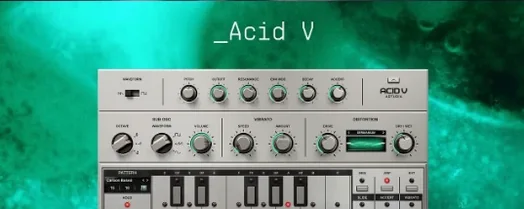 Arturia Acid V
Builds squelchy, sequenced basslines from a single init patch and a handful of knob turns.
Arturia Acid V
Builds squelchy, sequenced basslines from a single init patch and a handful of knob turns.
 Arturia Analog Lab V
Gives you thousands of production-ready presets you can shape with simple macro controls.
Arturia Analog Lab V
Gives you thousands of production-ready presets you can shape with simple macro controls.
 Arturia Efx AMBIENT
Generates evolving, three-dimensional backgrounds from any static input signal.
Arturia Efx AMBIENT
Generates evolving, three-dimensional backgrounds from any static input signal.
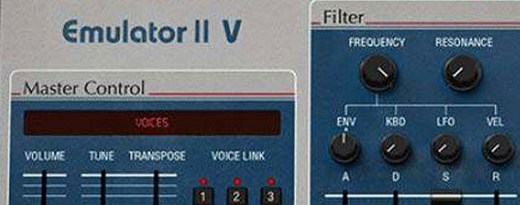 Arturia Emulator II V
Recreates the crunchy, grainy character of an early 8-bit sampling keyboard.
Arturia Emulator II V
Recreates the crunchy, grainy character of an early 8-bit sampling keyboard.
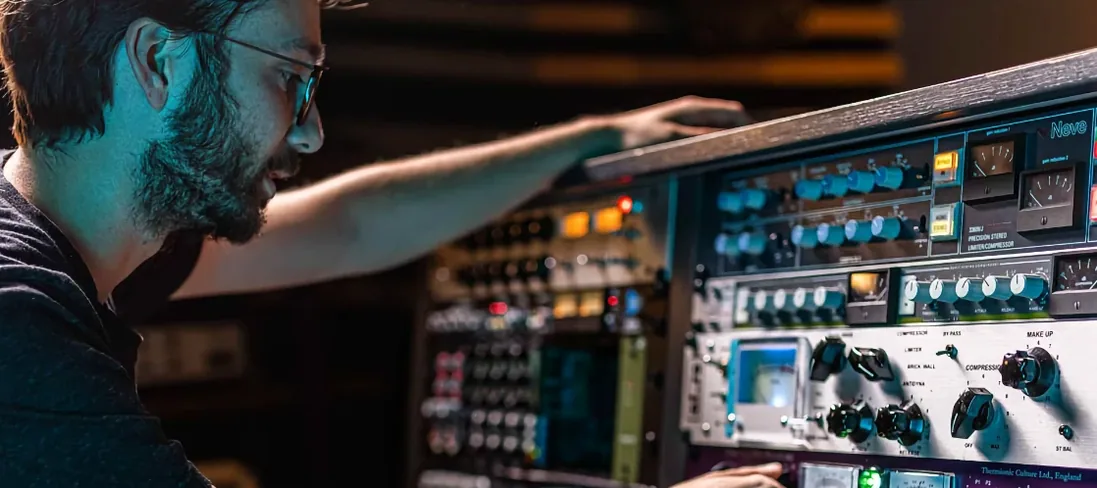 Arturia FX Collection
Bundles over thirty precise modelled processors, from studio classics to creative oddities.
Arturia FX Collection
Bundles over thirty precise modelled processors, from studio classics to creative oddities.