 ASPNetWorld

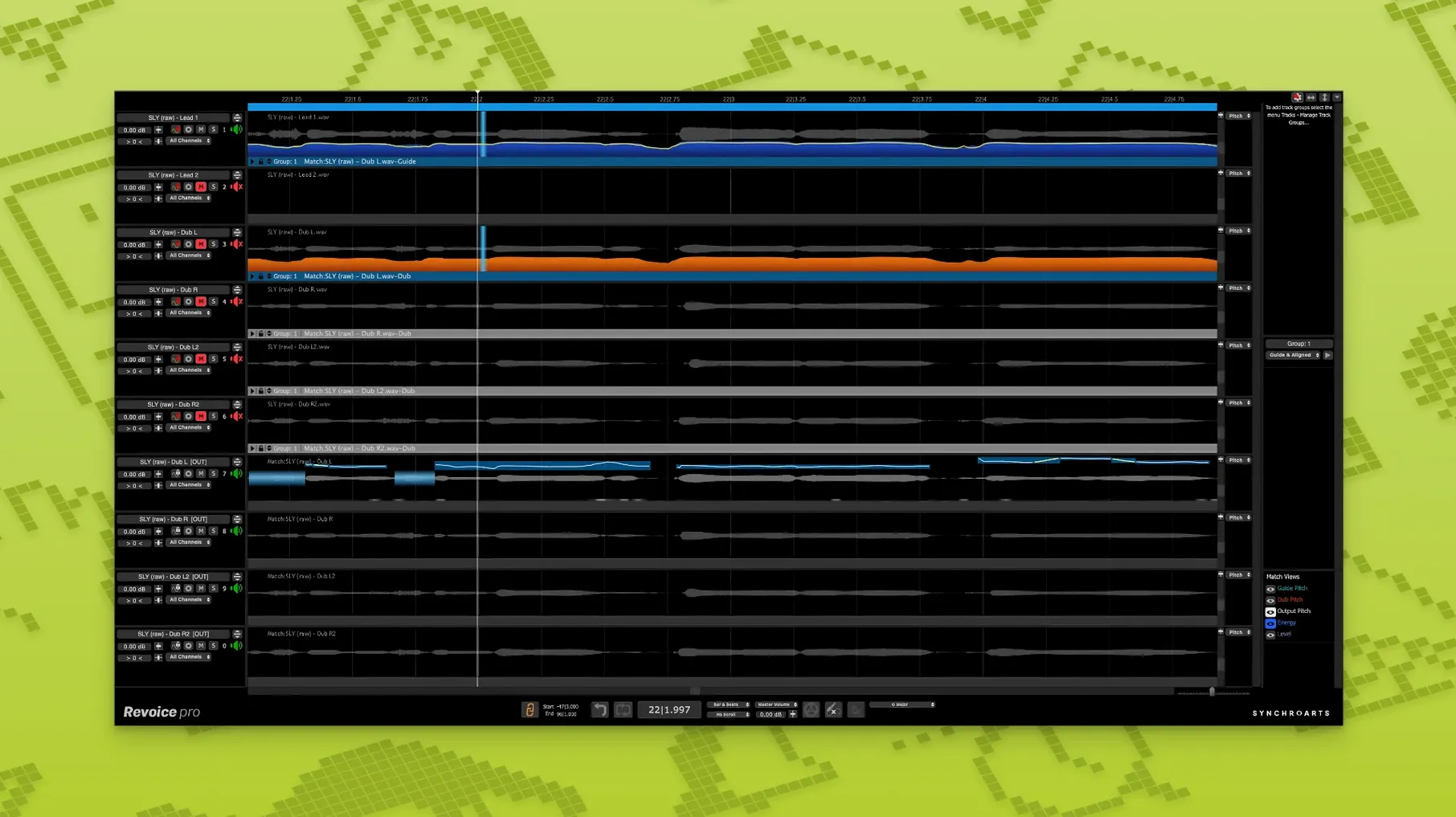
If you have used VocAlign, think of Revoice Pro as its more fully equipped older sibling. Where VocAlign handles quick alignment, Revoice Pro builds out a complete toolkit for matching timing, pitch and creating layered doubles.
The workflow tends to follow a clear sequence:
- Capture a guide signal from the lead vocal you want to match.
- Use SmartAlign to synchronise a second take, even when the start and end positions differ from the guide. The processing handles the stretching and squeezing for you.
- Apply SmartPitch to tighten the pitch relationship between the guide and the double, keeping the result musically natural rather than robotic.
- Generate a doubled part with the built-in doubler, which creates a layered-sounding twin from a single take.
- Fine-tune contour with the Shaper Tool, where a specific note or phrase needs manual pitch adjustment.
A week in a vocal editor’s chair
Imagine a producer working on a six-song EP for an indie folk band. The singer tracked three-part harmonies on every chorus, but between the home-recorded guide takes and the studio doubles, the timing is loose enough to distract. Opening Revoice Pro, they capture the lead vocal as the guide, then feed in the first harmony part. SmartAlign sorts the timing discrepancies in a few seconds, even where the singer came in a bar early on the double — the sort of fix that would take fifteen minutes of manual slicing in a DAW. With the timing locked, SmartPitch nudges the pitching closer to the guide without ironing out the natural waver that gives the performance its character. By lunchtime, all three harmony parts sit snug against the lead, and the doubler has thickened the chorus hook from a single take. The session moves on to mixing instead of editing.
Capture, process, and render audio back through a DAW plugin bridge
Revoice Pro works as a standalone application that communicates with your DAW via plugin bridges, using AU, VST3 or AAX 64-bit formats. You typically insert it on a track, capture audio into its environment, process, then render the result back into the session. This setup plays well with Logic Pro’s ARA-lite workflow, Pro Tools’ AudioSuite batch processing, and Ableton Live’s real-time clip handling. Beyond the DAW itself, Revoice Pro taps into macOS audio routing through Core Audio and respects the system’s sample rate and buffer settings — no separate audio device configuration is needed.
For producers who also lean on iZotope RX for noise cleanup or Melodyne for surgical pitch work, the chain tends to go: clean first in RX, align and time-correct in Revoice Pro, then open the result in Melodyne only if a single syllable needs microscopic retuning. Because Revoice Pro handles timing and pitch together, it often removes the need for that third step entirely. The processed files stay in standard WAV format, so anything you render drops straight into a Finder-based sound library or a sampler like Logic’s Quick Sampler without conversion headaches.
Apple Silicon processes a full vocal with doubles in about a coffee break
On Apple Silicon Macs, processing feels almost instant for short vocal phrases, and a full three-minute lead vocal with multiple doubles rarely takes longer than a coffee break. Intel machines work fine but expect longer render times on dense projects. RAM usage sits modestly — around 400–600 MB on a typical session — and the app does not hammer the GPU, so it coexists peacefully with a large mixing session running in the background. The only time the fan spins up on a MacBook Pro is when processing several long, high-resolution files back-to-back.
Stability is a strong point. Crashes are rare, and the auto-save function has rescued more than one late-night session. The one recurring quirk: sometimes the plugin bridge loses its connection to the DAW after a macOS sleep/wake cycle, requiring a quick relaunch of the bridge. It is a minor annoyance rather than a workflow killer, and Synchro Arts have acknowledged it in release notes. People who downloaded Revoice Pro via torrent or searched for a Revoice Pro Mac crack sometimes find it helpful to check that the plugin's support files are placed in the correct Library folders and that the audio cache directory has write permissions — a quick setup step that gets things running smoothly. A Revoice Pro Mac torrent floating around on certain forums may need you to manually point the app to the SmartAlign reference data, and users who go that route often discover interesting community-made presets and configurations that the official 5.1.30 build handles beautifully.
Capturing too much silence at the clip edges throws off SmartAlign timing
Three mistakes appear in almost every new user’s first week. The first is capturing too much silence at the start or end of a guide clip. SmartAlign interprets silence as part of the timing structure, so a long gap before the vocal can confuse the alignment and pull the double slightly out of phase. Trimming your guide to the actual performance solves this instantly. The second is setting SmartPitch’s correction depth too high on a double that was meant to sound loose. A setting of 85–100% will lock the double so tightly to the guide that it loses the chorusing effect — try 55–70% first and nudge it up only if the pitching sounds sour. The third is feeding a stereo file as a guide without checking channel content. Revoice Pro expects a monophonic source for analysis; a stereo guide with heavy reverb or ping-pong delays will produce unpredictable timing and pitch results. Bounce to mono first, or use only the dry close-mic channel.
One more habit worth breaking early: ignoring the output gain staging after processing. The doubler and SmartPitch can introduce small level boosts, and stacking three or four processed doubles without trimming their outputs will push your mix bus into clipping before you have reached for an EQ. A quick gain check after each render saves headroom later.
Because the time and pitch processing live in one place, you are not bouncing between separate utilities to get a tight, polished vocal arrangement.
Version 5.1.30 brings the Shaper Tool into focus as a dedicated pitch-adjustment workspace. SmartPitch handles pitch matching across doubles and harmonies, while SmartAlign synchronises takes that begin or end at different points.
- macOS 10.14 or newer
- Intel or Apple Silicon processor (x86 64-bit and ARM)
- AU, VST3, or AAX 64-bit host
Questions from the class 0
Sign in or join the class to ask a question.
Nobody has asked anything yet. If you have used it on a real job, say what the file did.
Also on the VST Plugins shelf
The whole VST Plugins shelf reFX Nexus
Plays a large library of ROMpler sounds and presets.
reFX Nexus
Plays a large library of ROMpler sounds and presets.
 RC-20 Retro Color
Adds vintage character and noise to digital recordings.
RC-20 Retro Color
Adds vintage character and noise to digital recordings.
 RipX DAW Pro
Separates and edits audio into individual stems.
RipX DAW Pro
Separates and edits audio into individual stems.
 Roland Cloud Legendary Series
Recreates classic Roland synthesizers and drum machines.
Roland Cloud Legendary Series
Recreates classic Roland synthesizers and drum machines.
 Roland ZENOLOGY Pro
Layers four ZEN-Core tones in one multitimbral instrument.
Roland ZENOLOGY Pro
Layers four ZEN-Core tones in one multitimbral instrument.
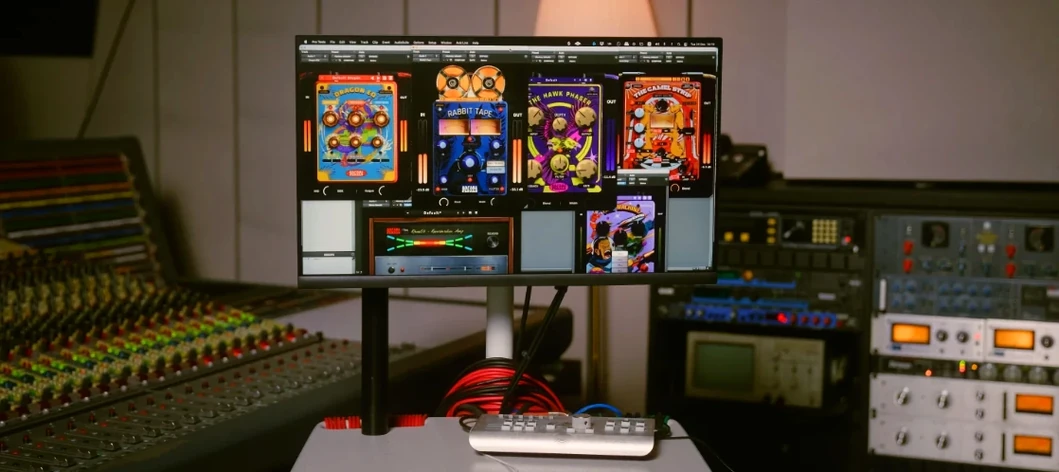 Safari Pedals Everything Bundle
Offers a collection of animal-named audio processors.
Safari Pedals Everything Bundle
Offers a collection of animal-named audio processors.
 Scaler 3
Detects your playing and suggests chords that will work with it.
Scaler 3
Detects your playing and suggests chords that will work with it.
 Pulsar Audio IPA
Reshapes instrument bus dynamics with a VCA compressor.
Pulsar Audio IPA
Reshapes instrument bus dynamics with a VCA compressor.