 ASPNetWorld
Version 2026.2.3 landed with a handful of under-the-hood fixes, most notably patching a crash that could strike during startup or while exporting a finished project. The update also includes the usual round of miscellaneous bug fixes and improvements, keeping the app steady on macOS 14.0 and later.
What Camtasia actually does
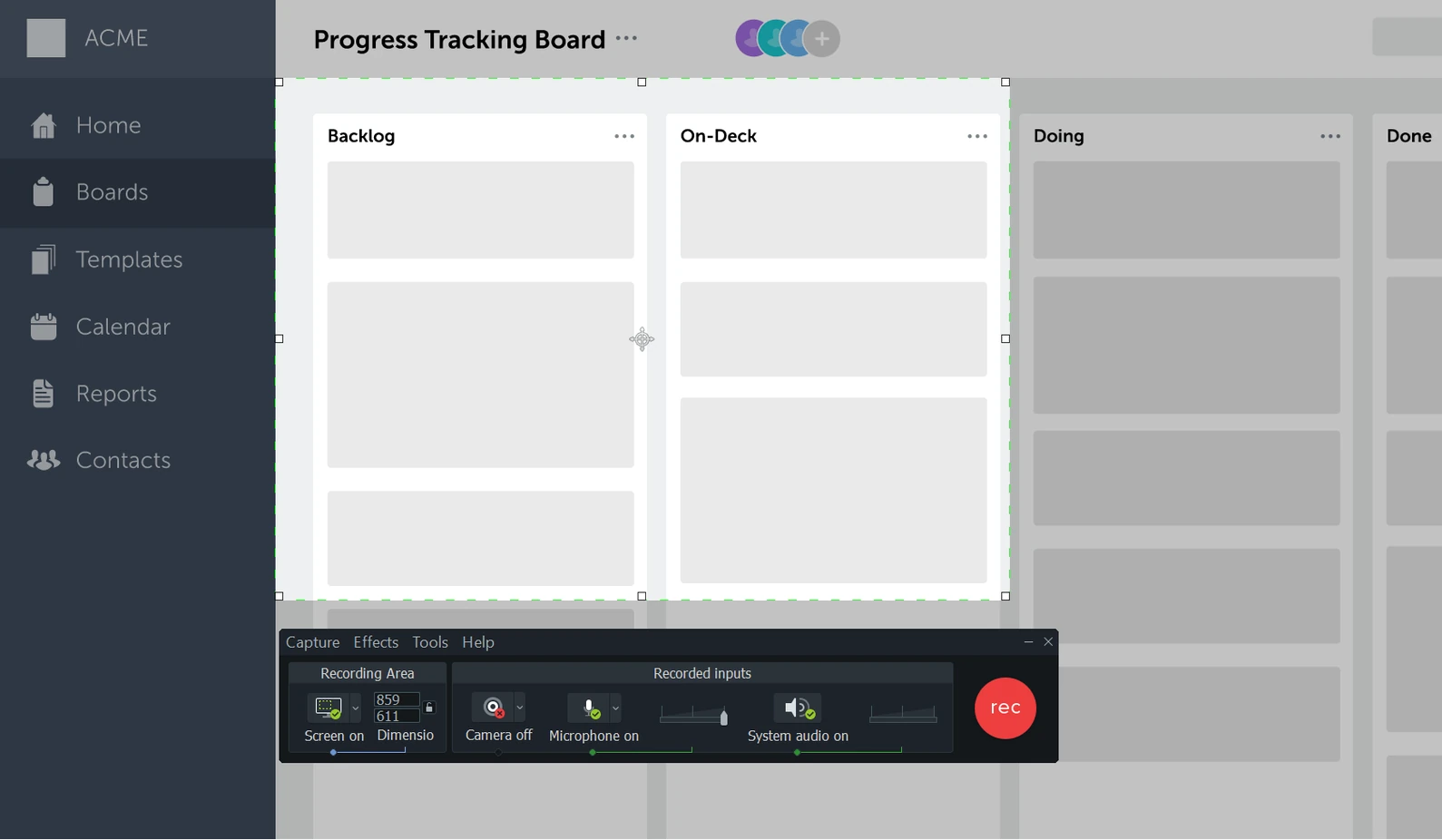
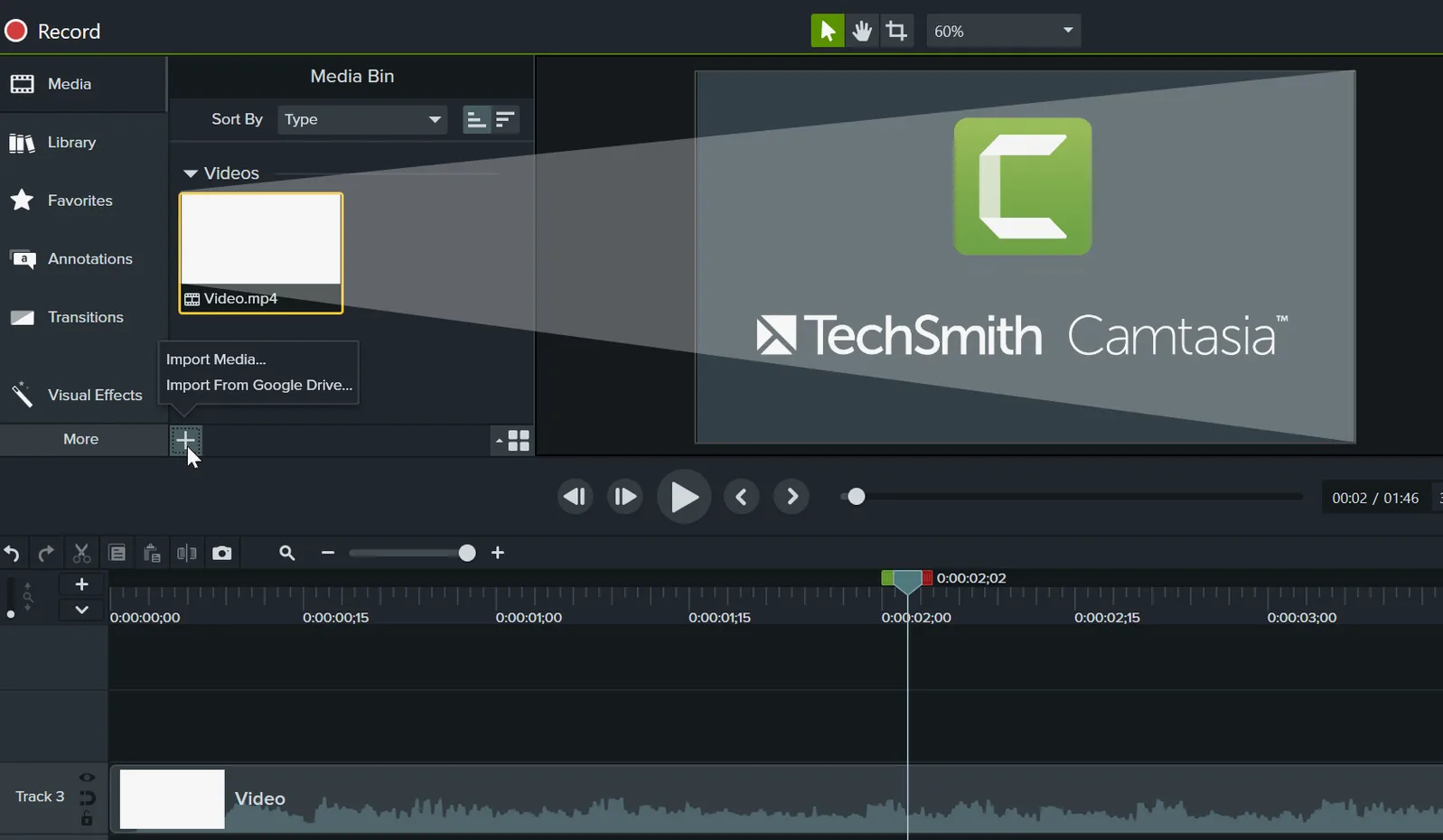
At its heart, Camtasia is two tools that share the same workspace. The first is a screen recorder that captures your whole desktop, a single window, or a custom region — along with system audio, microphone input, and a webcam feed if you want a talking-head overlay. The second is a video editor built for people who need to explain something clearly rather than win a film festival. You trim clips, stitch recordings together, add drag-and-drop transitions and effects, and export a polished video without ever leaving the app. It can also pull in existing video recordings and even import PowerPoint presentations, which is handy if you are turning a slide deck into a narrated walkthrough.
Who it suits best
Camtasia makes most sense for trainers, teachers, product teams, and anyone whose job involves showing a process on screen. The interface — available in English, German, Spanish, Simplified Chinese, Japanese, Portuguese, and French — prioritises clarity over complexity. If you need to record a software demo, build an onboarding video, or create a tutorial where the viewer follows along step by step, the tool puts all the essentials within reach without burying you in features you would never touch.
A single-track recording barely registers on Apple Silicon
A single-track screen recording with a voice-over barely registers on an Apple Silicon Mac. The timeline stays responsive, scrubbing feels immediate, and playback from the canvas doesn't stutter even with a few callouts and transitions stacked on top. What I notice on a long editing day is that Camtasia rarely grabs attention for the wrong reasons — beachballs are genuinely infrequent, and the app has grown out of a reputation it once had for wobbling under anything beyond simple trims.
Where you start to feel the weight is multi-track projects with lots of imported media. Mix a 4K screen capture, a webcam picture-in-picture, a couple of audio tracks, and a dozen annotations, and the app leans on memory more heavily. On an Intel Mac with 8 GB of RAM, you will notice the export queue taking its time and the odd half-second pause when jumping between large media bins. On a machine with 16 GB or more, whether Intel or Apple Silicon, the pressure eases considerably. Camtasia uses GPU acceleration where it can, and the export pipeline in recent versions does a decent job of distributing work across the cores you have available, though it still favours single-threaded performance for the final render pass.
Stability in the 2026.2.3 release is better than it was six months ago. The crash-on-export bug that plagued a handful of users has been addressed directly in this update, and during a week of daily use I didn't see a single unexpected quit. Autosave is active by default and the recovery dialogue, if you ever need it, presents your last few saves without drama. The app's background media caching can occasionally balloon to a few gigabytes over a long session, so it is worth keeping an eye on your free disk space — the cache clears when you quit the app, but if you are working close to a full drive, a large project might start to feel sluggish.
Mistakes beginners tend to make
The first big one is treating Camtasia like a traditional video editor and ignoring the canvas dimensions from the start. A screen recorded on a 27‑inch iMac at full resolution lands on the timeline at 5120×2880; if you then try to export a tutorial at 1080p without scaling anything, every UI element becomes illegible. The habit worth forming is setting your project resolution early — before you invest an hour in annotations that end up the size of dust.
Another classic slip is recording system audio and microphone to the same track. Camtasia lets you split them during recording, and you absolutely should. A single combined track leaves you with no way to duck the music under your voice, no way to remove a cough without losing the system sounds underneath it, and no way to apply different noise reduction to each source. Splitting tracks costs nothing at the recording stage and saves a headache later.
New users also overlook the ripple delete behaviour. When you cut a section from the middle of the timeline, Camtasia by default closes the gap, which is usually what you want. But if you have placed annotations, callouts, or a second audio track that you intended to stay in sync, that automatic ripple can nudge everything out of alignment. Learning to lock tracks and understanding the difference between a standard delete and a ripple delete — look for the small toggle in the toolbar — prevents the baffling moment where your captions suddenly drift three seconds off.
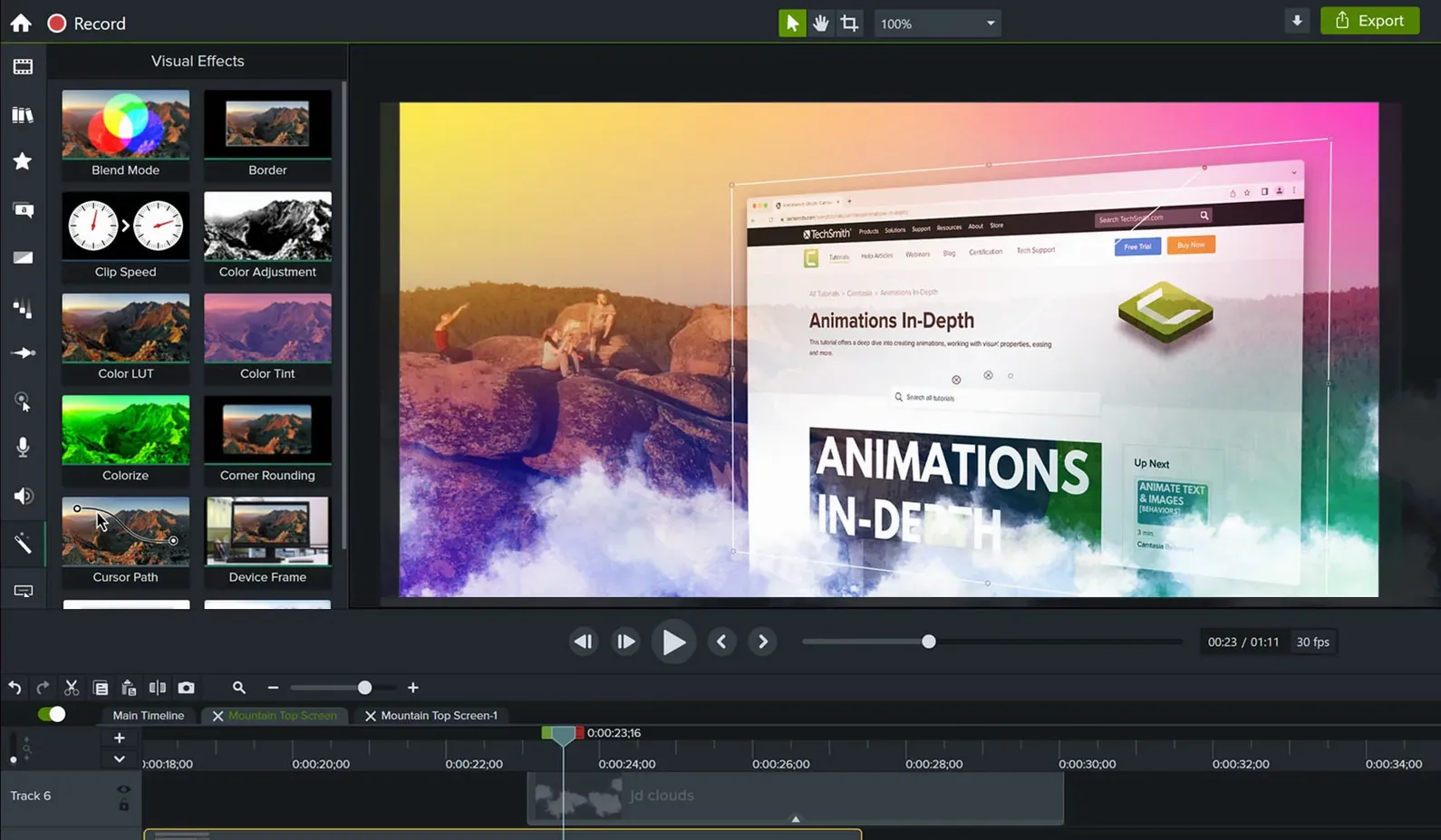
Finally, there is a tendency to reach for the most eye-catching transitions in the library. A well-timed dissolve or a quick fade through black reads as professional; a star-wipe or a 3D page-turn in the middle of a software tutorial just distracts. The simplest transition is almost always the right one, and Camtasia gives you plenty of restraint-friendly options if you resist the urge to browse the more theatrical end of the effects bin.
Camtasia needs macOS 13 or later and has a native Apple Silicon build
The most common question is about system requirements, and the short answer is that Camtasia runs on anything from macOS 13 upwards, Intel or Apple Silicon alike. The native Apple Silicon binary is what you want if you have an M-series chip — it launches faster and renders noticeably more quickly than the Intel version under Rosetta. Both architectures are included in the same bundle, so you don't have to choose; the installer sorts it out automatically.
Another frequent concern is whether Camtasia can handle footage from other sources. It can. You are not locked into using only recordings made inside the app. Drop an MP4 from a camera, a screen grab from QuickTime, or a clip someone sent you from a Windows machine, and the editor treats it like any other media file. The importer also pulls in PowerPoint files directly, converting each slide to an image sequence on the timeline, which saves the round-trip of exporting slides as images manually.
People also ask about watermarking, and it is worth clarifying that the app itself doesn't stamp your output with a trial logo. What you export is clean. If you want to add your own watermark or branding, Camtasia includes a library of lower-thirds, title cards, and customisable motion graphics that you can save as presets and reapply across projects — more of a production feature than a restriction.
The editor covers roughly eighty percent of what instructional video needs
Camtasia doesn't aim to replace a full non-linear editor like DaVinci Resolve or Final Cut Pro, and it works best when you stop expecting it to. The editing toolset covers about eighty percent of what an instructional video needs — trimming, splitting, titles, transitions, cursor highlighting, zoom-and-pan — and for the remaining twenty percent, the sensible workflow is to finish in Camtasia and then hand off to another app if you genuinely need advanced colour grading or multi-channel audio mixing.
For quick captures, macOS has its own built-in screenshot toolbar and QuickTime screen recording, and plenty of people looking for a Camtasia torrent or a Camtasia Mac torrent assume the free tools might do the same job. They cover the recording part, but they leave you with a raw clip and no editing environment. Camtasia's value sits in what happens between the recording and the export: a single timeline where cursor effects, annotations, imported slides, and audio tweaks all live together without round-tripping through three different apps.
If you already use TechSmith's Snagit for still-image captures, the two apps share a library format and a visual language — Snagit for screenshots and quick GIFs, Camtasia for anything that moves with a voice-over. Some people search for Camtasia Studio torrent expecting the older Windows-era branding, but the current macOS version is simply called Camtasia, and it integrates with the operating system's permissions model properly, asking for screen recording and microphone access through the standard Security & Privacy pane rather than through custom drivers.
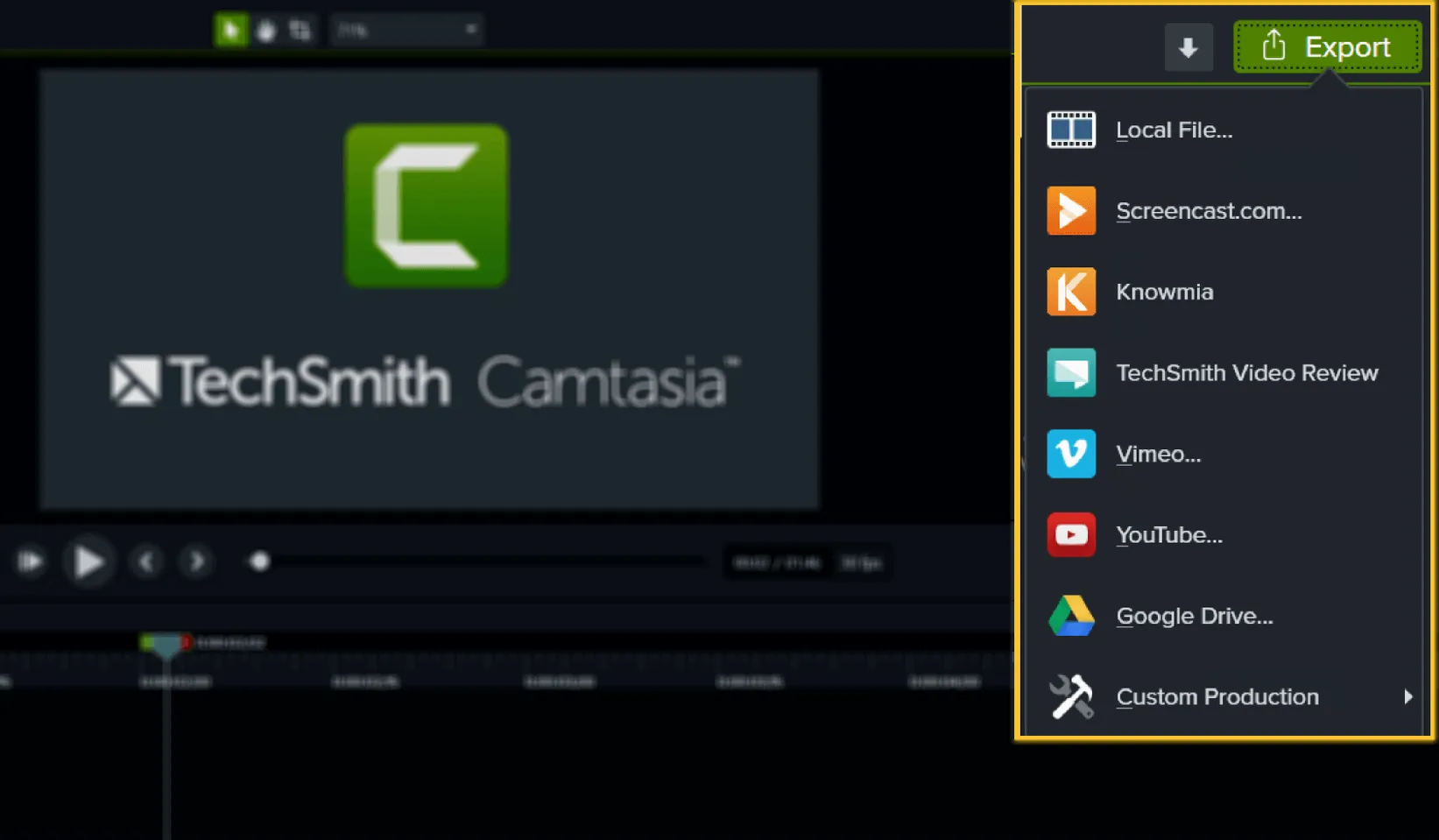
The export presets are tuned for the places tutorial makers actually share work — YouTube, Vimeo, a direct MP4 file for an LMS, or an animated GIF for a knowledge-base article. The presets aren't glamorous but they are sensible, and you can save a custom preset if your organisation requires a specific bitrate or codec. Handing the finished file off to a compression tool like HandBrake is always an option, though I rarely find it necessary for screen-capture material where perfect colour fidelity matters less than readable text and smooth mouse movement.
The latest maintenance update for Camtasia tightens a few loose bolts and smooths out small playback niggles across the editor.
- macOS 13 or later
- Apple Silicon or Intel 64-bit processor
Questions from the class 0
Sign in or join the class to ask a question.
Nobody has asked anything yet. If you have used it on a real job, say what the file did.
Also on the Mac Apps shelf
The whole Mac Apps shelf Camo Studio
Turns a phone or tablet into a studio webcam with manual focus and a virtual green screen.
Camo Studio
Turns a phone or tablet into a studio webcam with manual focus and a virtual green screen.
 Canopy
Adds an iPhone-style interactive panel to your Mac for quick glances at weather or calendar.
Canopy
Adds an iPhone-style interactive panel to your Mac for quick glances at weather or calendar.
 Cap Pro
Records your screen into a local, shareable video without touching a cloud service.
Cap Pro
Records your screen into a local, shareable video without touching a cloud service.
 CapCut
Assembles short videos with auto-captions, effects, and a timeline that stays out of your way.
CapCut
Assembles short videos with auto-captions, effects, and a timeline that stays out of your way.
 BricsCAD
Draws and models in the DWG format so a team can share files without converting a single line.
BricsCAD
Draws and models in the DWG format so a team can share files without converting a single line.
 Capture One
Processes raw photos with colour tools that let you correct a white balance with a single click.
Capture One
Processes raw photos with colour tools that let you correct a white balance with a single click.
 Carbon Copy Cloner
Creates an exact, bootable duplicate of your drive so you can start up from the copy in an emergency.
Carbon Copy Cloner
Creates an exact, bootable duplicate of your drive so you can start up from the copy in an emergency.
 Bootstrap Studio
Turns a drag-and-drop library of responsive components into a complete website front-end.
Bootstrap Studio
Turns a drag-and-drop library of responsive components into a complete website front-end.