 ASPNetWorld

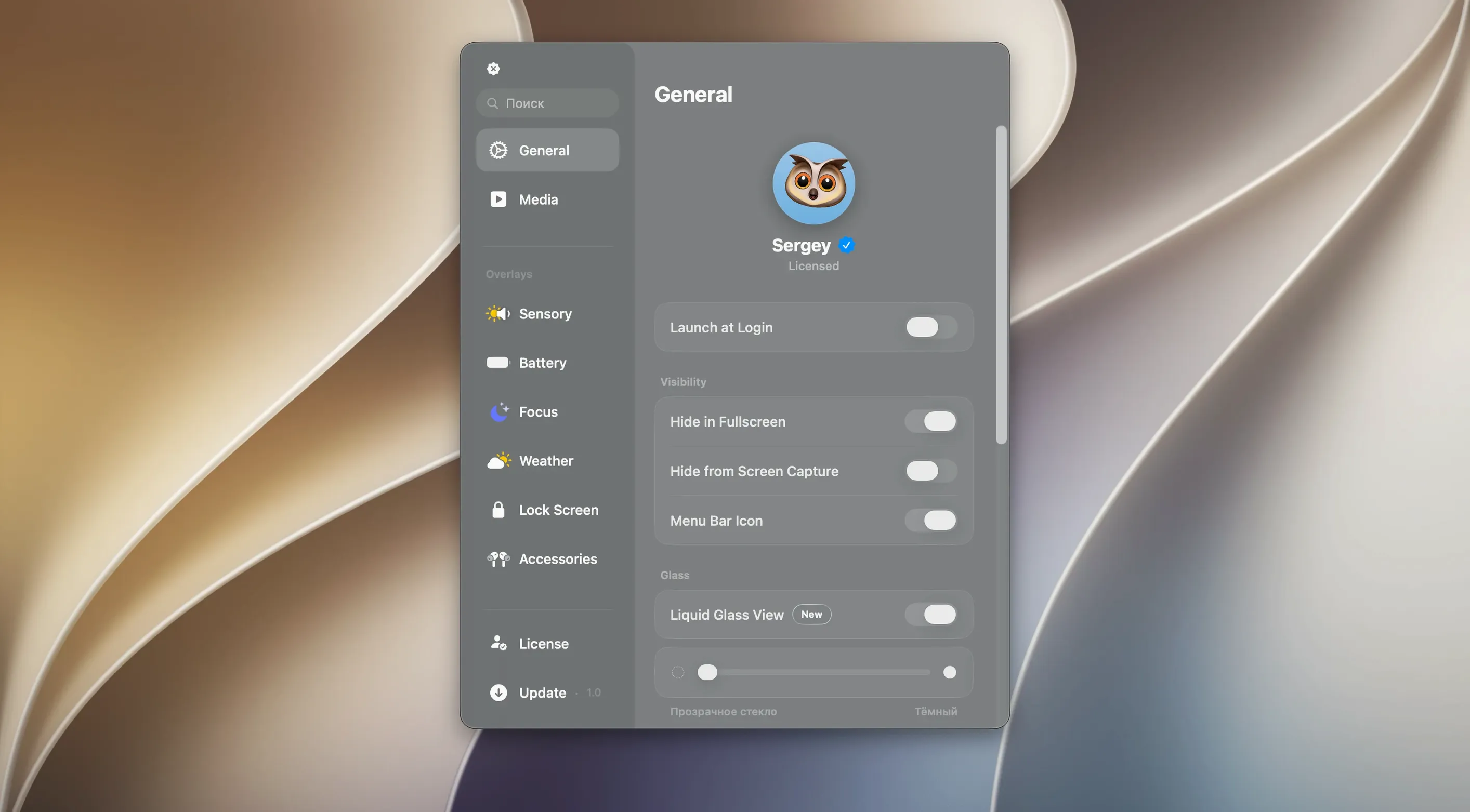
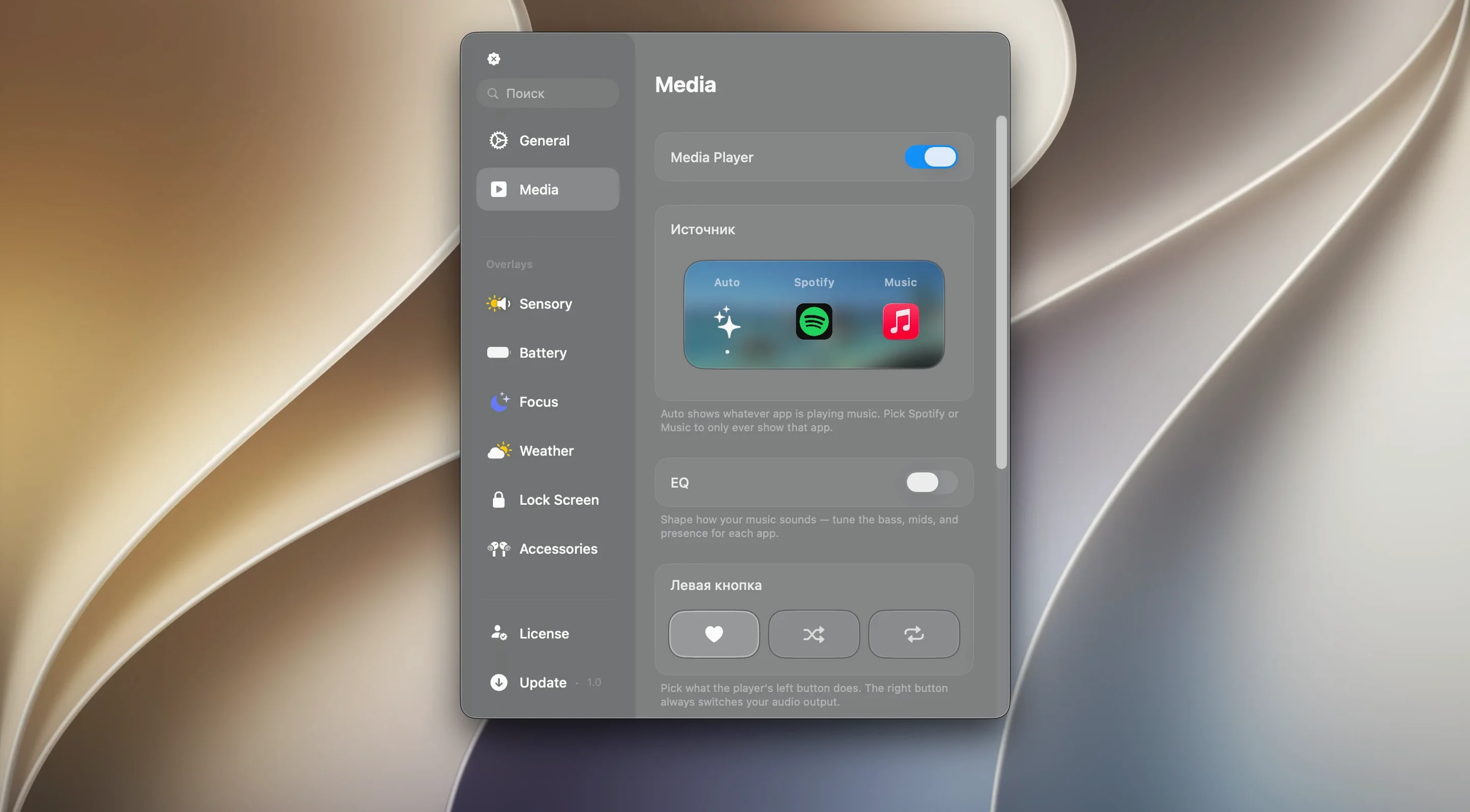
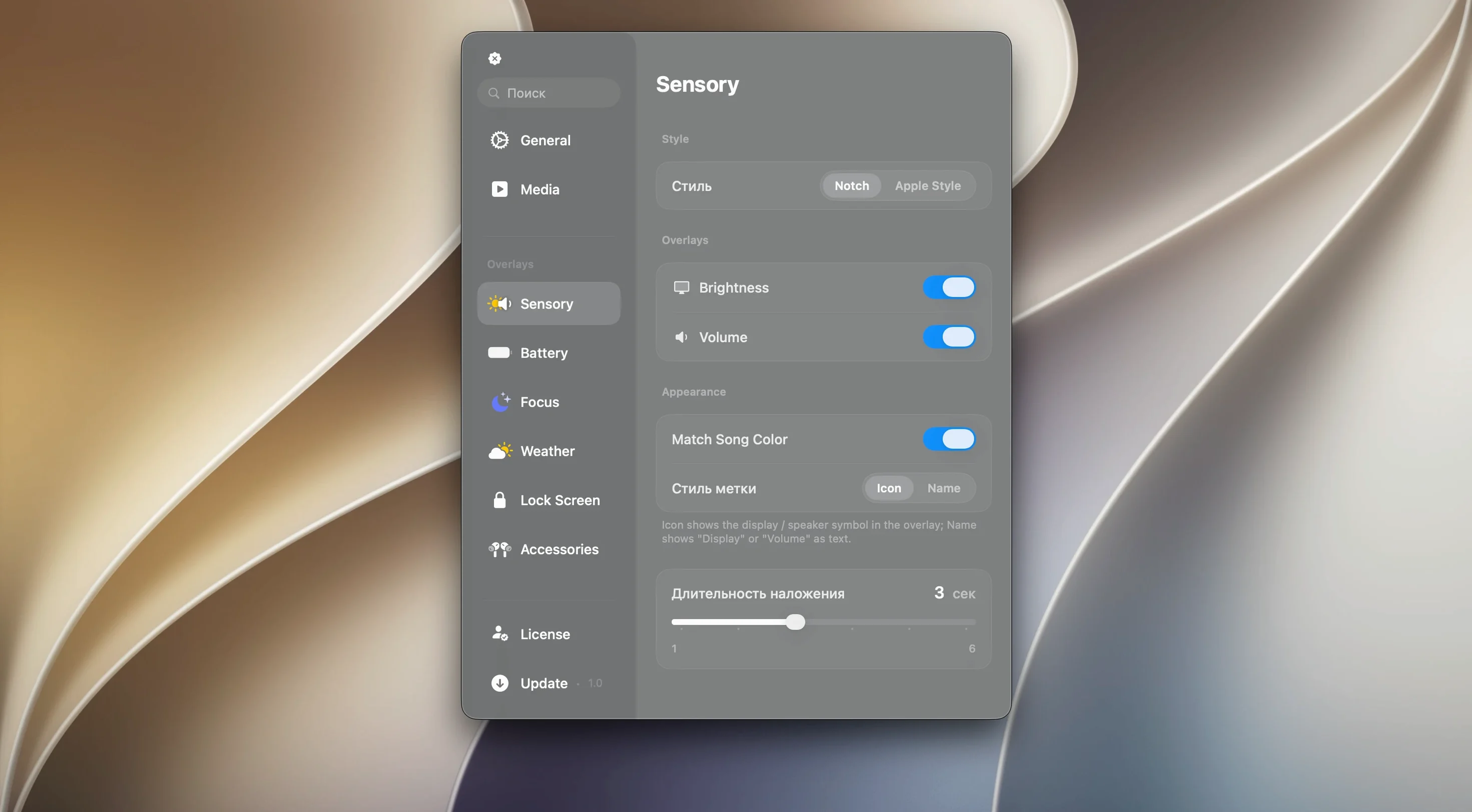
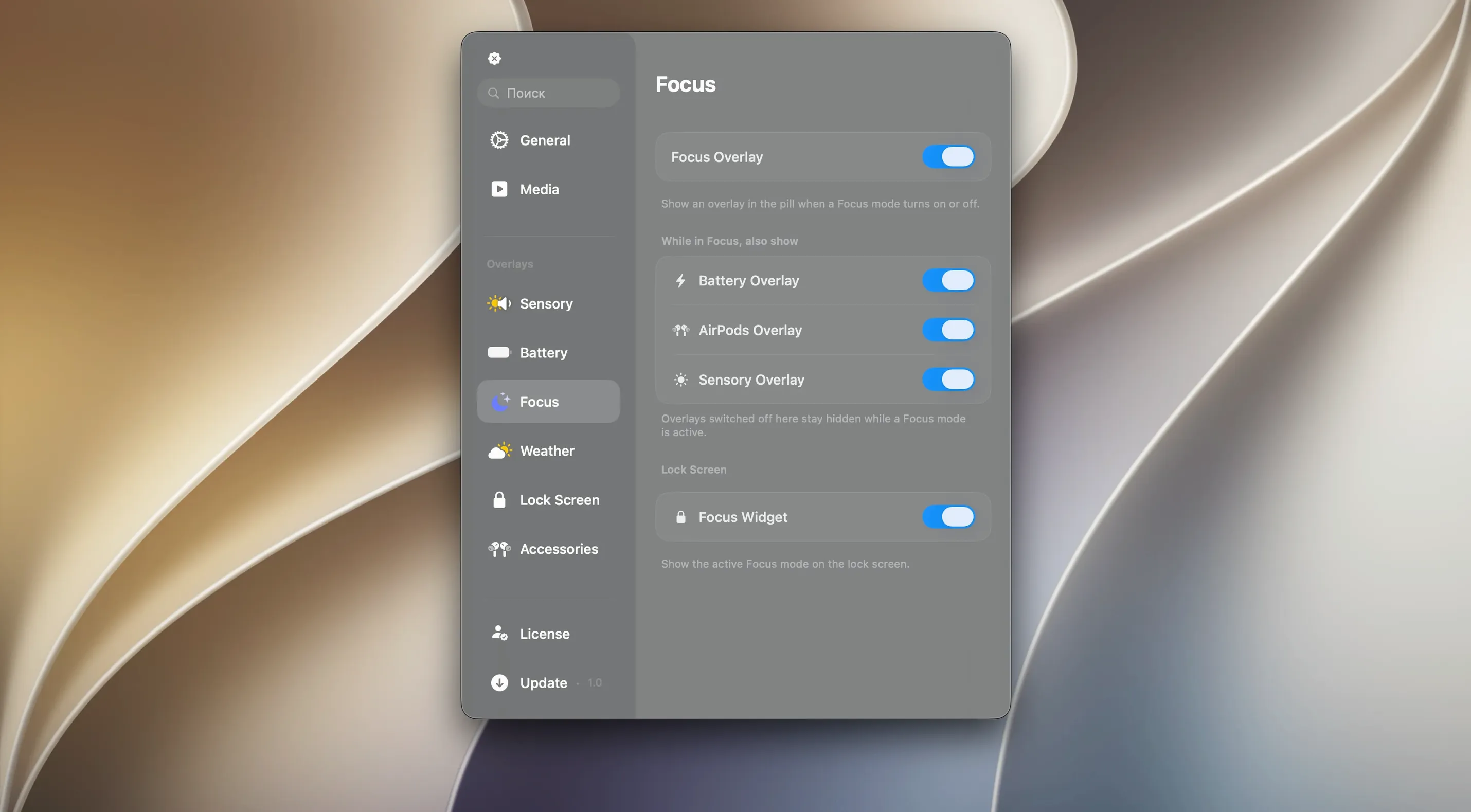
Canopy arrives with a clear mission: give every Mac the kind of interactive panel Apple reserves for newer iPhones. Version 2.1.0 keeps that focus sharp, refining the floating widget so it feels less like an overlay and more like part of the system. The Liquid Glass effects — think frosted translucency that picks up your desktop wallpaper — now blend with the menu bar more convincingly, and media controls respond with a snappiness that makes the panel genuinely useful rather than a novelty.
Good for
- Seeing album artwork and track names without switching apps
- Running countdown timers that stay visible while you work
- Catching live activity updates — timers, music, notifications — in a single glance
- Macs without a notch, where the widget floats neatly at the top of the screen
Keep in mind
- Designed for macOS 26 and later; older systems won't run it
- On notched MacBooks, the panel hugs the notch area rather than expanding the display
- Interface is currently English only
Creative pros, focus seekers, and the sensory-soothed
Three groups of Mac users tend to light up when they first try the canopy mac app, and each extracts something slightly different from it.
First, anyone who spends hours inside creative tools — Logic Pro, Final Cut, Photoshop — finds the always-visible media controls a quiet revelation. Instead of reaching for a phone or swiping into Control Centre, you glance at the menu bar, see what's playing, and tap pause or skip. It sounds trivial, but multiply those three-second interruptions across an eight-hour session and the canopy app macbook experience pays back in preserved concentration. Musicians working in dense timelines particularly appreciate the timer widget: set a Pomodoro, arrange for twenty-five minutes, and the countdown lives right where your eyes already land when scanning track headers.
Second, the notchless desktop crowd. Mac mini, Mac Studio, iMac — none of these machines ship with the cutout that inspired the original Dynamic Island, yet Canopy builds them a floating panel that looks entirely at home. Positioned at the top centre of the screen, it borrows enough visual language from iOS to feel familiar without aping it slavishly. The Liquid Glass effect does most of the heavy lifting here, sampling the desktop wallpaper so the widget seems to belong to your specific machine rather than being a generic overlay. It is one of the few third-party additions that could pass a cursory “is that stock macOS?” test from someone glancing over your shoulder.
Third, notification-weary professionals who have trained themselves to keep Do Not Disturb permanently on. The canopy mac notch integration — or the floating equivalent — gives you a tiered system: system alerts stay suppressed, but the app's own subtle animations for timers finishing or tracks changing slip through. Because the panel is visually compact, it does not yank your attention the way a banner alert does. You check it on your terms.
Menu bar waveform, no dock icon required
Imagine a Tuesday morning. You sit down with coffee, wake the Mac, and Canopy is already there — not a window to open, not an icon to hunt for. The widget sits in the menu bar, showing a small waveform icon that means no media is currently playing.
You open Apple Music and hit play on something instrumental. Instantly, the waveform is replaced by album artwork, scaled down but recognisable, flanked by track name and artist. Tapping the artwork expands the panel with playback controls and a scrubber. You do not need to click precisely; the hit targets are generous enough for a quick cursor flick. You skip a track, the artwork crossfades to the next album cover, and the panel collapses back to its compact form after a few seconds — no manual dismissal required.
An hour in, you need a timer. A right-click on the widget opens a short menu: Timer, Media, Settings. You pick Timer, set thirty minutes with two clicks, and a live countdown replaces the music info. The seconds tick down inside a small pill-shaped readout. When time runs out, the panel pulses gently with a soft haptic-style animation — no sound unless you want one — and returns to the media view. You stand up, stretch, and come back to work without having touched your phone once.
Later, while compiling a report, a notification arrives from a delivery app. Canopy catches it and shows a brief live activity: the order status, a progress bar, and an estimated time. It appears in the same panel space, cycling naturally with whatever else is active. You glance, register the information, and return to your spreadsheet. The interaction cost is near zero.
Hunting for a dock icon that does not exist
A surprising number of people install the canopy mac app and immediately hunt for a dock icon. There is not one, and that is deliberate. The app lives in the menu bar and reveals itself through the floating panel. Trying to launch it from the Applications folder a second time just produces a polite “already running” state. Get comfortable with the menu bar presence early; it is the front door.
Another common stumble involves the installer. The downloaded disk image contains the app bundle, but dragging it to a folder other than Applications — the Desktop, say — can produce odd behaviour with permissions and auto-launch. The intended path is straightforward: mount the image, drag to Applications, launch from Launchpad. Apple's Gatekeeper sometimes holds the app on first run because it is not notarised through the App Store. Right-clicking and selecting Open, then confirming, resolves this in seconds and only ever needs doing once.
Beginners also tend to assume the panel will expand the usable screen area on notched MacBooks. It will not. The canopy mac notch behaviour is designed to coexist with the cutout, not to reclaim it. It sits adjacent to or around the notch, depending on your model, and never pushes system menus out of the way. Expecting extra screen real estate leads to disappointment; treating it as a compact information layer leads to satisfaction.
Finally, the difference between clicking and right-clicking catches people out. A left-click on the widget toggles the expanded panel for the currently active feature. A right-click opens the feature switcher. Discovering the right-click menu early saves you from cycling through modes by accident.
Works best on a Mac without a notch
Does it work on a Mac without a notch? Yes, and it is arguably at its best there. On notchless displays, Canopy creates a floating widget at the top centre of the screen. It uses the same Liquid Glass translucency and adapts to your wallpaper, so it looks tailored rather than tacked on. The canopy app mac dynamic island experience translates surprisingly well to a rectangular display; the absence of a physical cutout gives the widget more breathing room.
Will it interfere with full-screen apps? By default, the panel respects full-screen spaces and stays out of the way. If you are working in a full-screen code editor or video timeline, Canopy does not overlay your content unless you explicitly configure it to persist. Most users leave the default behaviour in place and only notice the panel when they move the cursor to the menu bar area or when a notification arrives.
How much system resource does it use? On both Apple Silicon and Intel machines, the footprint is light. The app runs a single background process that wakes for media changes, timer ticks, and incoming notifications. It does not maintain a constant render loop when the panel is idle, so battery impact on MacBooks — notched or otherwise — is negligible. Activity Monitor typically shows it somewhere between a clipboard manager and a weather widget in terms of CPU and memory.
Does it replace the macOS menu bar clock? No, and it does not try to. Canopy adds a companion panel, not a replacement for existing system elements. The clock, Control Centre, and other menu extras remain exactly where they were. The widget sits alongside them, either hugging the notch or floating centrally on notchless displays, without displacing anything.
Can I hide it when I do not need it? A menu bar toggle lets you suspend the panel entirely with one click — useful for screen recordings, presentations, or moments when you want absolute visual quiet. Suspending does not quit the app; it simply hides the widget until you re-enable it. The canopy mac key equivalent for this toggle is customisable in Settings, though the default is a simple click on the menu bar icon.
A real-world workflow: timed study session with music
Here is a concrete scenario that shows how Canopy's pieces fit together during a focused work block — the kind of session where switching contexts costs momentum.
You are preparing for an exam and plan to study in fifty-minute intervals with ten-minute breaks. You open your notes app, set it to full screen, and open a study playlist in Apple Music. Canopy automatically picks up the playback and shows the current track in its compact menu bar view.
You right-click the widget, select Timer, and pick a custom duration of fifty minutes. The panel switches to a countdown view. For the next fifty minutes, your screen contains exactly two things: your notes and a small ticking timer at the top. No music controls are visible, but playback continues — Canopy re-displays the media panel automatically when the track changes, holds it for a few seconds, then returns to the timer. The transition is a soft crossfade, not a jarring swap.
When the timer finishes, the panel pulses. You stretch, take your break, and with a right-click set a ten-minute timer. This time you switch to a podcast app. Canopy detects the new audio source and adjusts its media controls accordingly, showing the podcast artwork and episode title without any manual source selection.
After the break, you repeat the cycle. Over a four-hour study block, you never open a separate timer app, never glance at a phone, and never lose your place in full-screen notes. The entire orchestration happens through a small interactive panel that feels, by the end of the session, less like an app and more like a native macOS behaviour Apple forgot to ship.
- macOS 26 or later
- Works on Apple Silicon and Intel Macs
Questions I keep hearing
Does Canopy work on a Mac without a notch?
Yes, it creates a floating widget at the top of the screen that behaves like a Dynamic Island, so any Mac gets the same interactive panel.
What kind of controls does Canopy show?
It handles music playback controls, countdown timers, and live activity notifications — the things you'd normally dig into separate apps to see.
Will Canopy slow down my Mac?
The app is lightweight by design; it sits in the menu bar area and uses modest resources because it's essentially a clever notification and control layer rather than a heavy background process.
Questions from the class 0
Sign in or join the class to ask a question.
Nobody has asked anything yet. If you have used it on a real job, say what the file did.
Also on the Mac Apps shelf
The whole Mac Apps shelf Camtasia
Records your screen and camera, then gives you a timeline to trim, annotate, and export the lesson.
Camtasia
Records your screen and camera, then gives you a timeline to trim, annotate, and export the lesson.
 Cap Pro
Records your screen into a local, shareable video without touching a cloud service.
Cap Pro
Records your screen into a local, shareable video without touching a cloud service.
 CapCut
Assembles short videos with auto-captions, effects, and a timeline that stays out of your way.
CapCut
Assembles short videos with auto-captions, effects, and a timeline that stays out of your way.
 Camo Studio
Turns a phone or tablet into a studio webcam with manual focus and a virtual green screen.
Camo Studio
Turns a phone or tablet into a studio webcam with manual focus and a virtual green screen.
 Capture One
Processes raw photos with colour tools that let you correct a white balance with a single click.
Capture One
Processes raw photos with colour tools that let you correct a white balance with a single click.
 Carbon Copy Cloner
Creates an exact, bootable duplicate of your drive so you can start up from the copy in an emergency.
Carbon Copy Cloner
Creates an exact, bootable duplicate of your drive so you can start up from the copy in an emergency.
 BricsCAD
Draws and models in the DWG format so a team can share files without converting a single line.
BricsCAD
Draws and models in the DWG format so a team can share files without converting a single line.
 Bootstrap Studio
Turns a drag-and-drop library of responsive components into a complete website front-end.
Bootstrap Studio
Turns a drag-and-drop library of responsive components into a complete website front-end.