 ASPNetWorld

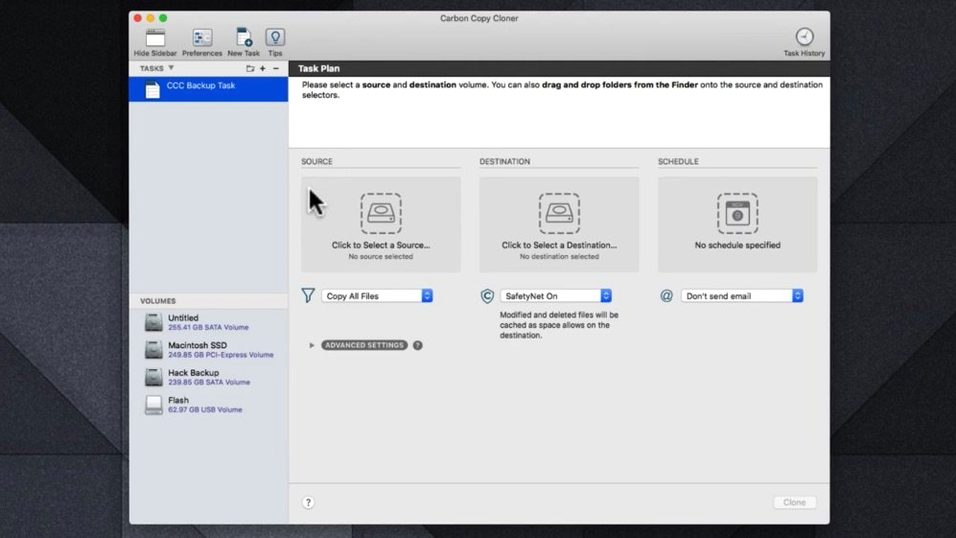
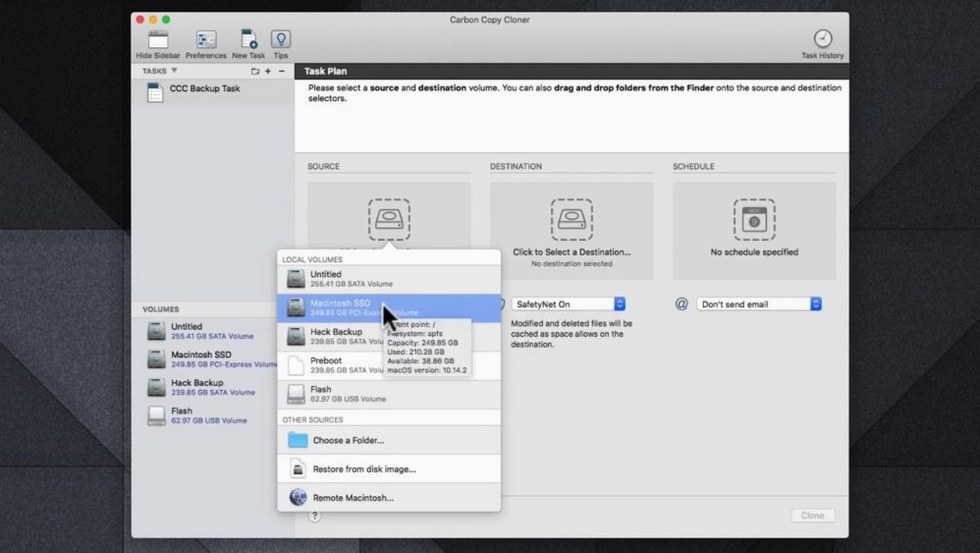
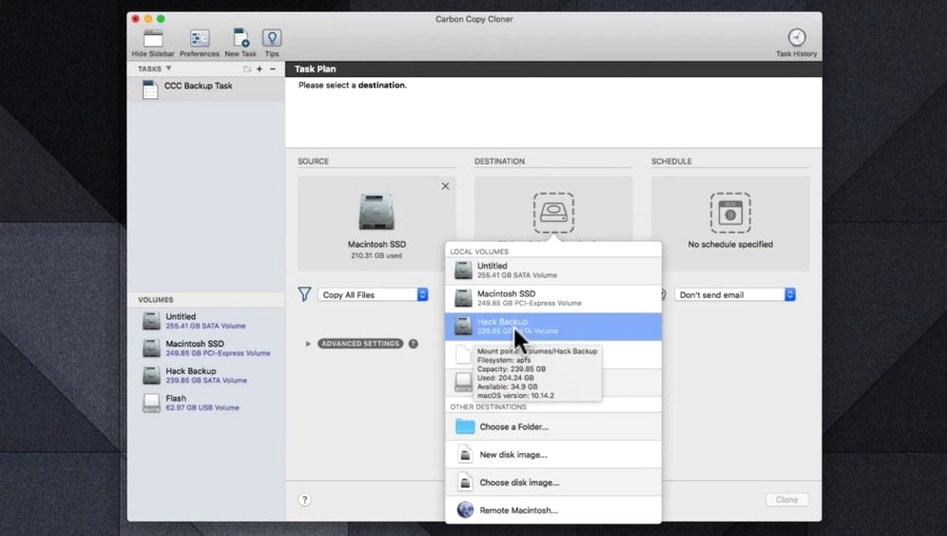
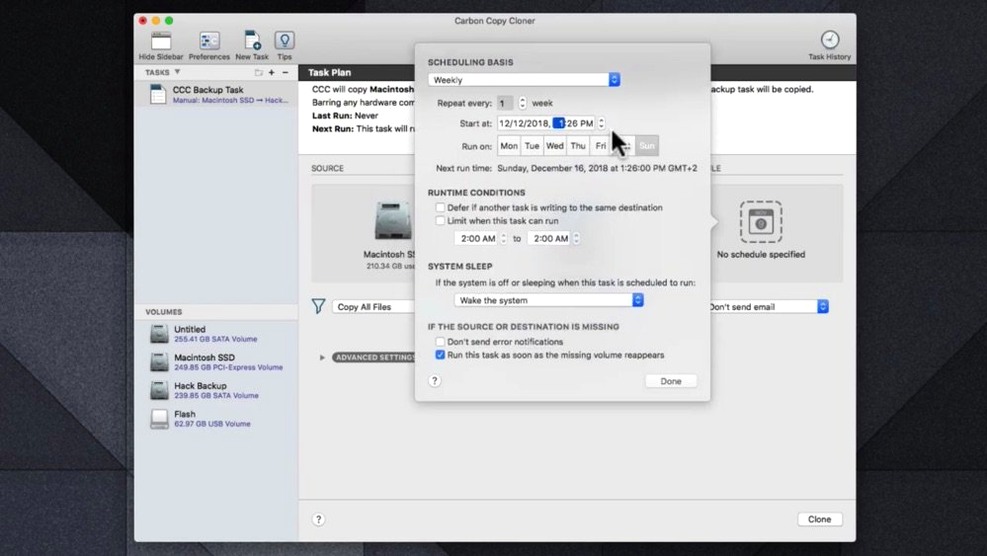
Carbon Copy Cloner is a Mac backup and disk cloning utility that makes exact, bootable copies of your data. Before you think about a full mega backup plan, the first sensible step is checking whether version 7.1.6 will play nicely with your Mac. The headline is simple: it runs natively on both Intel and Apple Silicon machines, so the architecture isn't a hurdle. You do need to be on a reasonably modern OS — macOS 10.15 Catalina is the minimum, which covers a good spread of Macs from the last several years. Once you have confirmed that base compatibility, here is what you are actually getting with the app:
- A straightforward interface for selecting an entire disk or just a handful of folders to protect.
- The ability to create a perfect clone of a drive, right down to being bootable, which is handy if your main drive fails.
- Automatic scheduling that you can tie to a specific day of the week and time, so it does the work while you sleep.
Ultimately, the core job of the app is to let you choose a source, choose a destination, and repeat the process reliably. The scheduling engine turns that manual task into a background habit, and the cloning feature means your backup isn't just a pile of files but a fully functional safety net.
Users who lean on block-level clones rather than Time Machine snapshots
Not every Mac user needs a block-level clone of their startup disk. Plenty of people are fine with Time Machine's gentle hourly snapshots and never think about bootable backups. The users who get the most from Carbon Copy Cloner tend to fall into a few distinct camps, and the reason usually comes down to one word: downtime.
Freelance video editors and motion designers sit at the top of that list. A failed drive on a Tuesday afternoon means lost billable hours, and waiting for macOS Recovery to reinstall everything over a sluggish café connection isn't a viable plan. With a bootable clone sitting on a USB-C SSD, they swap the external in, hold the Option key at startup, and they're cutting again in under two minutes. The clone carries the OS, the plug-ins, the font library and the project files — no reinstalling, no re-authorising. The same logic applies to audio engineers who have carefully tuned plugin licence activations tied to a specific machine identity. Migrating those by hand is a half-day headache; booting from a clone sidesteps it entirely.
Another group that leans hard on the app is the small office where one person wears the IT hat without actually being an IT professional. They need a backup that makes sense to a non-technical colleague who might have to restore something while they are on holiday. CCC's interface gives them a single window with clear source and destination panes, and a big "Clone" button. That simplicity matters when someone is already panicking about missing files.
There's also a quieter audience: people who simply don't trust backup systems they can't see. The ability to browse a clone in the Finder — a plain, readable folder structure rather than a database or a snapshot bundle — gives them a tangible sense of control. If they can drag a file from yesterday's backup and open it, they trust the process. CCC delivers that without asking them to learn any new metaphors.
Mac users who dual-boot or test beta OS releases get a different kind of safety. Before installing a Ventura or Sonoma beta, they clone their stable system to an external drive. If the beta turns their daily workflow into a crash loop, they boot from the clone, wipe the internal drive, and clone back. The whole round trip takes about as long as a coffee break. That freedom to experiment without consequences is quietly addictive once you've used it a couple of times.
The smaller features that shift how you use the app
Most people open the app, pick a source and destination, and hit the button. That's the headline, and it works. But a handful of smaller features sit just below the surface, and they tend to change how you use the tool once you know they exist.
The menubar agent is one. By default CCC installs a small icon that lives in the menu bar and shows the status of scheduled tasks. What's easy to miss is that you can click it to see a compact list of upcoming and recently completed backups, and right-clicking lets you run any saved task without opening the main window. For a laptop user who keeps the app tucked away, that tiny access point saves a surprising number of trips to the Dock.
Another detail hiding in plain sight is the "SafetyNet" feature on the destination drive. When CCC copies files to a destination, it can optionally keep a folder called _CCC SafetyNet that stores files modified or deleted on the source since the last backup. It's not a full versioned history, but it has rescued more than one person who synced a half-edited document over the top of the finished version and then closed the lid. Being able to reach into that folder and pull out the earlier state before the next scheduled clone runs is the kind of second chance you don't appreciate until you need it.
Power users eventually stumble upon the "Before and After" shell script hooks. Each backup task can run a custom script right before it starts and right after it finishes. The obvious use is mounting and unmounting network volumes, but a subtler trick is using a post-clone script to fire off a pushover notification or log the task result to a shared file. That turns a silent backup into something you can monitor from another machine without babysitting the Mac.
The "Sample a file" button in the task filter pane deserves a mention too. When you set up exclusion rules — say, skipping .cache folders or old render files — you can drag any file into the sampler to see instantly whether it would be included or excluded by your current rules. It's a small QA tool that prevents the "I thought I was backing that up" realisation after it's too late.
That first full clone pushes your hardware to its I/O limit
The first full clone taxes any disk. Reading every block on the source and writing it to the destination is an I/O-bound operation, and CCC pushes the hardware about as hard as it can go. On a modern Mac with an internal NVMe drive and a Thunderbolt destination, the progress bar moves at a clip that makes the initial wait bearable — think minutes, not hours, for a couple of hundred gigabytes. Over USB 3.1 Gen 2, the numbers drop but the process stays predictable. The app shows throughput in the task log, and watching that figure gives you a rough idea of whether your cable or enclosure is the bottleneck.
Incremental backups are where the app feels light on its feet. CCC's file copier compares the source and destination directory structures and only touches what changed. A typical weekday backup on a system that saw a few hours of email, browsing and document editing finishes in under a minute, often under thirty seconds. The disk activity is brief and focused, and on Apple Silicon machines the energy impact is low enough that a scheduled midday backup on battery doesn't trigger the low-power anxiety that heavier operations can.
RAM usage sits comfortably in the background. The main process hovers around 80–120 MB during a backup on a typical system, and the menubar helper uses a fraction of that. It's not the kind of app that slowly leaks memory over days of uptime; Bombich has been refining the engine for long enough that stability feels like a solved problem. I've left it running on a Mac mini that stays awake for weeks at a stretch, and the scheduled tasks fire without drama. The logs confirm it: occasional warnings about a file that was locked during the copy, but no silent failures.
The one resource note worth flagging is the destination disk itself. An APFS-formatted destination with snapshots enabled will gradually consume free space as snapshots accumulate. CCC lets you set a snapshot retention policy — keep the last seven daily snapshots, for instance — and the disk fills to a steady state rather than ballooning forever. But if you never set that policy, you might glance at the destination one day and wonder where the space went. It's not a CCC bug; it's just APFS doing what it's told.
Why your first task shapes a smooth or confusing experience
Installation is straightforward — the disk image mounts, you drag the app to Applications, and you open it. What happens next shapes whether you have a good experience or a confusing one.
The first task you create should be a manual clone to an external drive that has nothing else on it. Don't schedule it yet. Run the clone, then restart your Mac holding the Option key and confirm the external drive appears as a bootable volume. Actually boot from it. Poke around. Open a few files. This five-minute verification step catches problems while you're still calm and caffeinated, rather than discovering them during a real emergency at 11pm. Once you've confirmed the clone boots, you can delete it, reformat the drive, and set up your proper scheduled task with confidence.
On the scheduling screen, resist the urge to pick "hourly" unless you have a very specific reason. Daily is the sweet spot for most people, and if you configure it for a time when the Mac is awake but idle — say, 1pm during a lunch break or 8pm after the kids are in bed — the task rarely interferes with anything. The "Wake the computer to run this task" checkbox is worth enabling on desktops but think twice on a laptop that might wake inside a bag. Modern MacBooks handle that better than they used to, but a spinning disk destination that wakes up in a confined space can still overheat.
Spend ten minutes with the task filter. Drag in a few folders you know you don't need backed up — Steam libraries, old iOS backups in ~/Library/Application Support/MobileSync, the sprawling cache folders that Adobe apps scatter around. Excluding them early keeps the clone lean and makes every subsequent incremental run faster. You can always adjust it later, but setting it now saves drive space from day one.
Finally, enable email or on-screen notifications for task completion. The quiet confidence of "it's working" is better than the nagging doubt of "did I remember to set that up?" A daily notification that says "Backup completed successfully" takes two seconds to read and dismiss, and it pays for itself in peace of mind within the first week.
Common Stumbles and How to Sidestep Them
The most frequent beginner mistake is cloning to a destination that already holds important data and assuming CCC will somehow merge the two. It won't. By default, CCC makes the destination match the source. Files on the destination that aren't on the source get deleted unless SafetyNet is on. If you point it at a drive full of family photos and run a clone of your system disk, those photos vanish. The fix is simple: dedicate a drive or a partition to the backup, or toggle SafetyNet on and understand it's a safety net, not an organiser.
Another classic error is treating a clone as a versioned backup. A clone updated daily gives you one state: yesterday's. If you need last Tuesday's version of a spreadsheet, a clone alone won't help unless you've paired it with snapshots. CCC's snapshot support on APFS volumes gives you that time dimension with minimal overhead, but you have to turn it on and set a retention policy. Skipping that step leaves you with a perfect copy of the current mess, which isn't quite the insurance policy people imagine.
Some users disable System Integrity Protection or fiddle with boot arguments and then wonder why their clone won't boot. A bootable clone on Apple Silicon is a delicate thing — the system expects a specific signed boot environment, and CCC works within those rules. If the clone fails to boot, the culprit is almost never the app; it's usually a destination drive formatted with the wrong scheme (it needs to be GUID Partition Map with an APFS container) or an enclosure whose firmware doesn't play nicely with macOS boot security. Test early, as described above, and you'll catch these gremlins before they matter.
Finally, there's the "set it and forget it until the drive dies" mistake. External drives degrade. Cables get loose. A scheduled task that ran perfectly for six months might start failing silently if the destination drive's file system develops errors. The best habit is a monthly glance at the task history. CCC keeps a clear log, and a quick scroll tells you if the green checkmarks have been consistent. Thirty seconds a month buys you certainty, and that's a trade worth making.
- macOS 10.15 Catalina or newer
- Runs natively on Intel and Apple Silicon Macs
Questions I keep hearing
Does Carbon Copy Cloner work on the latest Apple Silicon Macs?
Yes, version 7 is a native application for both Apple Silicon and Intel-based Macs, so it runs without needing Rosetta translation.
Can I schedule a backup to run at a specific time?
Yes, the built-in scheduler lets you set a backup to run automatically on a chosen day of the week and at a particular time.
Questions from the class 0
Sign in or join the class to ask a question.
Nobody has asked anything yet. If you have used it on a real job, say what the file did.
Also on the Mac Apps shelf
The whole Mac Apps shelf Capture One
Processes raw photos with colour tools that let you correct a white balance with a single click.
Capture One
Processes raw photos with colour tools that let you correct a white balance with a single click.
 CapCut
Assembles short videos with auto-captions, effects, and a timeline that stays out of your way.
CapCut
Assembles short videos with auto-captions, effects, and a timeline that stays out of your way.
 Cap Pro
Records your screen into a local, shareable video without touching a cloud service.
Cap Pro
Records your screen into a local, shareable video without touching a cloud service.
 CCleaner Pro
Sweeps away browser caches, logs, and leftover files that macOS's own tools leave behind.
CCleaner Pro
Sweeps away browser caches, logs, and leftover files that macOS's own tools leave behind.
 Canopy
Adds an iPhone-style interactive panel to your Mac for quick glances at weather or calendar.
Canopy
Adds an iPhone-style interactive panel to your Mac for quick glances at weather or calendar.
 Camtasia
Records your screen and camera, then gives you a timeline to trim, annotate, and export the lesson.
Camtasia
Records your screen and camera, then gives you a timeline to trim, annotate, and export the lesson.
 Camo Studio
Turns a phone or tablet into a studio webcam with manual focus and a virtual green screen.
Camo Studio
Turns a phone or tablet into a studio webcam with manual focus and a virtual green screen.
 BricsCAD
Draws and models in the DWG format so a team can share files without converting a single line.
BricsCAD
Draws and models in the DWG format so a team can share files without converting a single line.