 ASPNetWorld

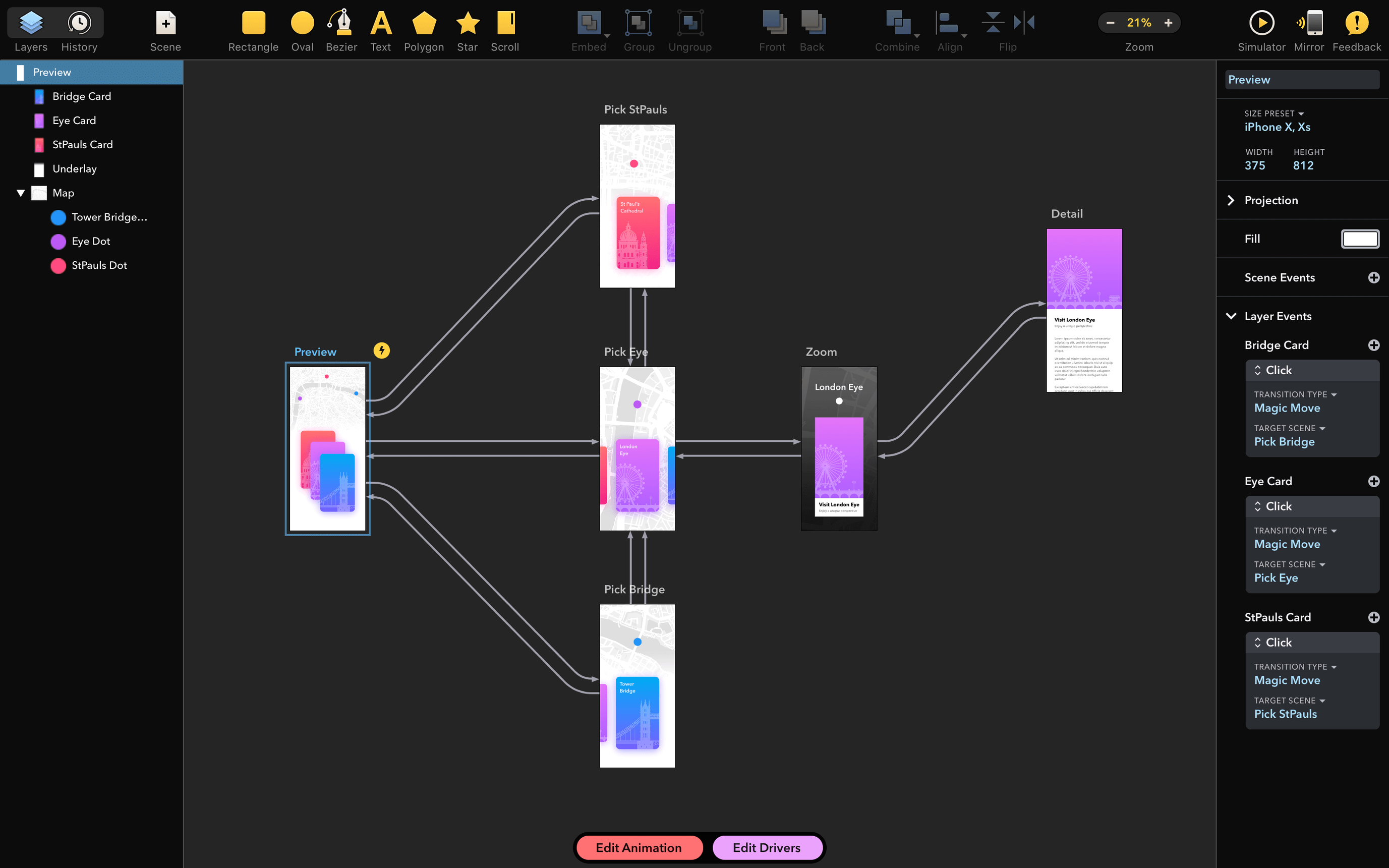
Drama tends to find its way onto the Macs of interface designers, motion artists, and anyone who needs to show how a screen or interaction should feel, not just look. The app pulls three disciplines — design, animation, and prototyping — into a single workspace, so you can draw a layout, give it movement, and make it tappable without switching tools.
Design layouts
You build screens directly on the canvas with vectors, shapes, and text, much as you would in a dedicated drawing tool. The difference is that every element you place is already part of a scene that can move.
Add motion
Animation isn’t bolted on afterwards. You set keyframes and timing on the same objects you drew, watching transitions play back as you tweak them. It feels less like exporting to a separate motion package and more like sketching movement by hand.
Make it interactive
Prototyping ties the visuals and animation together with triggers, linking screens so you can tap through a flow as if it were a real app. It’s useful for demonstrating an idea to a client or testing a user journey before a single line of production code exists.
Drama’s deeper appeal, though, sits in the small conveniences you only notice after a few sessions. The canvas supports a quick-duplicate gesture — hold Option and drag any element — that copies not just the shape but its animation keyframes too. If you’ve built a button with a subtle scale-up on hover and you need five more just like it, you save a surprising amount of time. Another tucked-away trick is the ⌘-Return shortcut, which jumps straight into prototype play mode from anywhere in the interface. You don’t have to reach for the mouse and hunt for a toolbar icon; it becomes muscle memory and makes the feedback loop almost instant.
The colour picker has a hidden talent as well. By default it presents a tidy set of swatches, but a long press on any colour well reveals a small palette history of the last six colours you’ve used in that document. When you are nudging a palette towards something coherent across a dozen screens, that tiny history strip stops you from repeatedly copying hex values out of a sticky note.
Large canvases can outrun the infinite undo stack
One of the first things people trip over is performance with very large canvases. Drama keeps an infinite undo stack and stores preview renders in memory, so if you paste a stack of high-resolution bitmaps into a scene you may see the beachball on older Intel machines. The simplest fix is to flatten background images outside Drama before bringing them in, then lean on vector shapes for everything that doesn’t need to be a photo. That habit keeps the timeline snappy even on machines that just scrape the macOS 11.5 requirement.
Another common hiccup involves fonts. Version 2.1.4 patched a crash-on-start bug triggered by certain installed fonts, but a handful of corrupt or damaged font files can still make the app refuse to launch. If Drama bounces once in the Dock and quits, open Font Book, select all fonts, and choose File → Validate Font. Removing anything flagged as broken usually clears the problem in minutes. It’s also worth keeping the app in your Login Items off because, oddly, launching before the font subsystem fully settles can reproduce the same symptom on a cold boot.
Gatekeeper adds a step during installation that newcomers fumble. The disk image includes an “Open Gatekeeper friendly” script, but the terminal prompt that follows isn’t a traditional installer wizard — it expects you to tap the Enter key while the Terminal window is in front. If you click away and type elsewhere, nothing happens and the terminal just sits there. A quick click back into Terminal and a deliberate press of Enter is all it needs, but the lack of a button to click makes it feel broken the first time.
From static mockup to motion comp in under an hour
UI designers who regularly move between static mockups and motion comps get the most value from Drama. They tend to work in short, intense bursts where an idea needs to look plausible and feel responsive within an hour, and the app’s all-in-one structure removes the friction of syncing files between a design tool and an animation timeline. Freelancers who handle end-to-end app concept work — wireframes, visual design, and a tappable prototype for a client walkthrough — often keep it as their primary sandbox before handing off to developers.
Educators teaching interaction design find it a natural fit as well. Because the tool doesn’t split design, animation, and interactivity into separate modes, a student can follow a single lesson arc from a blank canvas to a working prototype without ever feeling like they’ve switched applications. The shallow learning curve for basic transitions means more time discussing why a particular gesture feels right and less time troubleshooting export settings.
Motion artists who already own a heavyweight animation package sometimes keep Drama around as a sketchbook. It won’t replace a dedicated timeline-based compositor for finished work, but for blocking out interface animations or testing how a transition feels before committing to a complex rig, it’s fast enough to change your mind three times in ten minutes without costing you much patience.
A few nearby alternatives
Drama sits in a busy corner of the Mac software landscape, so it helps to know where it overlaps and where it stands apart. Principle focuses tightly on animated, interactive prototypes and imports from Sketch and Figma beautifully. Its timeline feels more visual and immediate for micro-interactions, but it doesn’t try to be a design tool — you build your screens elsewhere and bring them in. Drama covers the drawing side itself, which means fewer round-trips if you prefer to work in one app, but you trade Principle’s polish on complex gesture-driven transitions.
Kite Compositor is another Mac-native animation and prototyping app with a strong keyframe editor and a node-based logic system for interactivity. It gives you finer control over individual property curves and lets you build custom components that respond to drag events with more nuance. The trade-off is complexity: Kite’s interface rewards learning but can intimidate someone who just wants to sketch a quick flow. Drama puts more emphasis on staying out of the way during the early stages of an idea.
Compared with a general vector tool like Sketch, the difference is motion and state. Sketch excels at screen design and has a vast plugin ecosystem, but its prototyping features are intentionally simple — basic transitions between artboards, with limited control over easing and no timeline-based animation. Drama treats movement as a first-class design element rather than an add-on, so if your work leans heavily on the feel of an interface rather than just its layout, the two tools solve different problems.
A rare but frustrating crash on launch — caused by conflict with a handful of installed fonts — has been squashed in version 2.1.4.
- macOS 11.5 or later
- Intel-based Mac
Questions from the class 0
Sign in or join the class to ask a question.
Nobody has asked anything yet. If you have used it on a real job, say what the file did.
Also on the Mac Apps shelf
The whole Mac Apps shelf DriveDx
Warns you while a drive is still in the failing stage, before it dies completely.
DriveDx
Warns you while a drive is still in the failing stage, before it dies completely.
 Dropover
Holds dragged files on a floating shelf so you can gather items before dropping them elsewhere.
Dropover
Holds dragged files on a floating shelf so you can gather items before dropping them elsewhere.
 Duplicate File Finder Pro
Scans folders for duplicate files and helps you merge similar folders into one tidy library.
Duplicate File Finder Pro
Scans folders for duplicate files and helps you merge similar folders into one tidy library.
 DockView
Shows a live preview of any app’s open windows when you hover over its Dock icon.
DockView
Shows a live preview of any app’s open windows when you hover over its Dock icon.
 DVDFab
Copies a DVD-9 film onto two standard DVD-5 discs while keeping the original menus.
DVDFab
Copies a DVD-9 film onto two standard DVD-5 discs while keeping the original menus.
 DMG Canvas
Builds polished disk-image installers with a custom background and licence window.
DMG Canvas
Builds polished disk-image installers with a custom background and licence window.
 DxO PhotoLab
Processes raw photos with lens-specific corrections and local adjustment masks.
DxO PhotoLab
Processes raw photos with lens-specific corrections and local adjustment masks.
 DxO ViewPoint
Corrects distorted perspective and volume deformation in wide-angle architectural shots.
DxO ViewPoint
Corrects distorted perspective and volume deformation in wide-angle architectural shots.