 ASPNetWorld

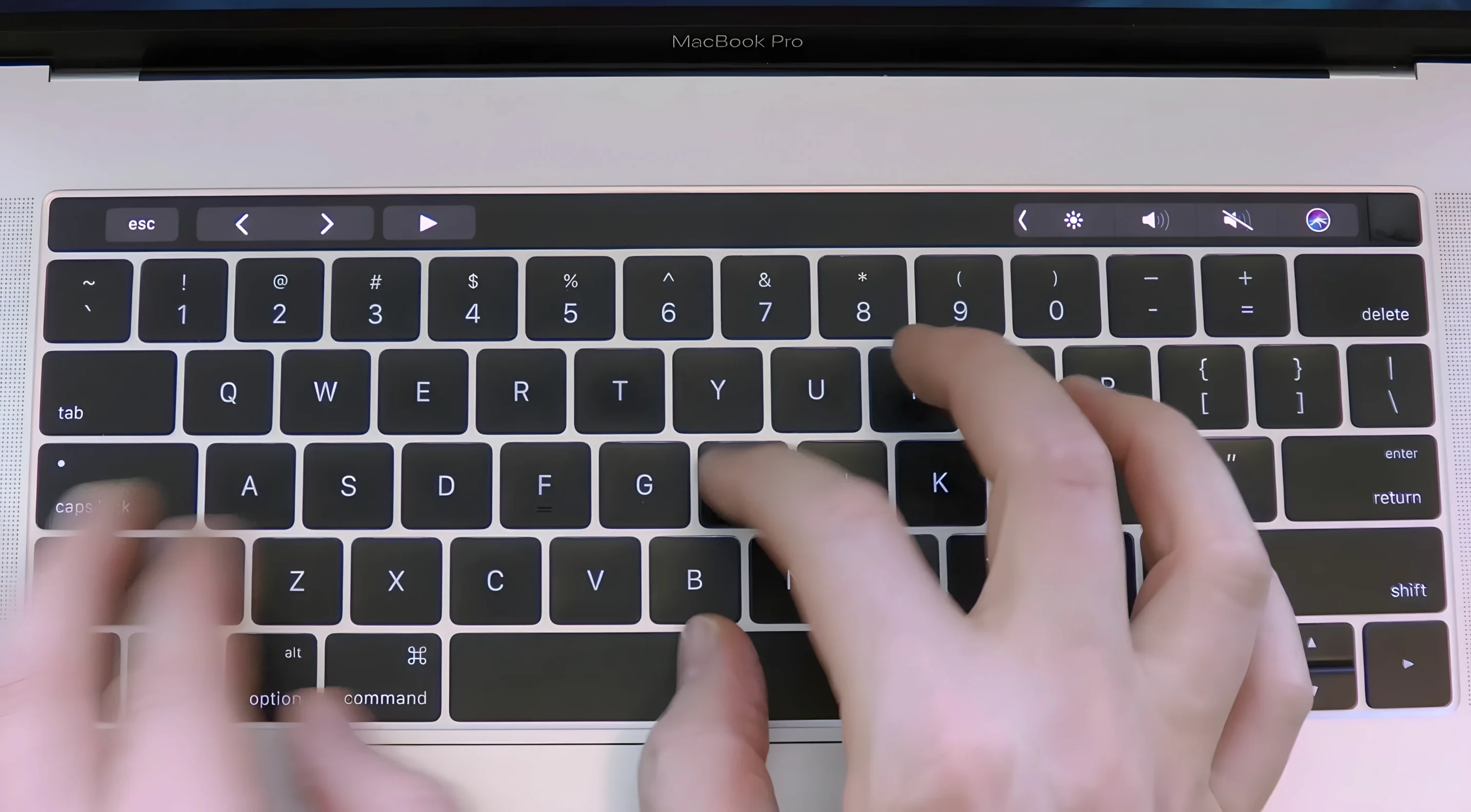
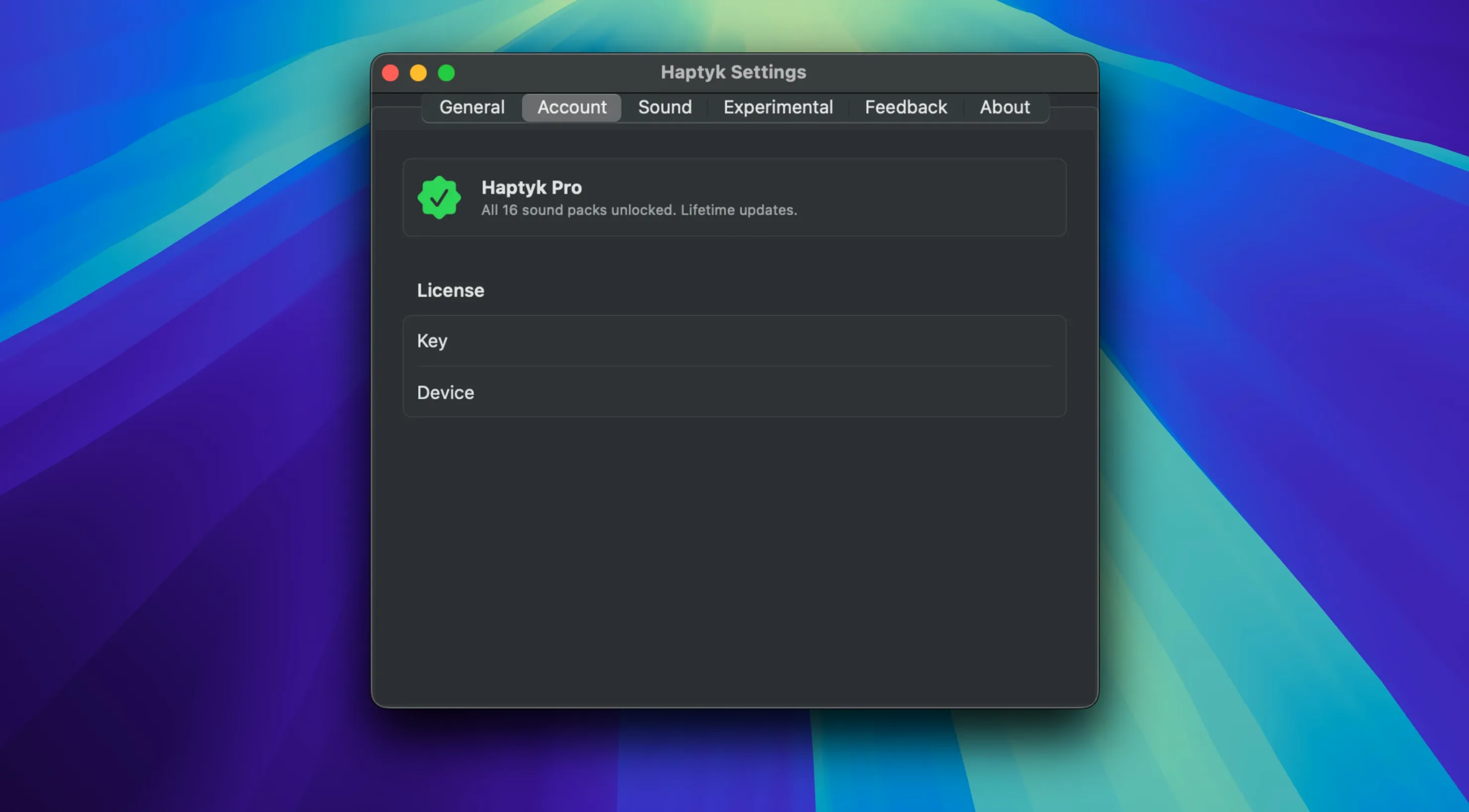
Typing on a solid-state keyboard can feel a little disconnected — there is no mechanical travel giving you that subtle confirmation of every stroke. Haptyk bridges that gap by turning the invisible force of your keypresses into audible, satisfying feedback.
How Haptyk shapes your typing feedback
- Reading the force beneath your fingers. Haptyk listens to the built-in accelerometer that is already present in Apple Silicon MacBooks. This sensor detects the tiny vibrations and impact energy of every keypress, so the app knows not just that you pressed a key, but how firmly you struck it.
- Translating pressure into sound. Once the force is measured, the app triggers a corresponding sound. A gentle tap might produce a soft, short click, while a more deliberate press lands with a deeper, more pronounced thwack. The relationship between your physical effort and the audio response stays consistent, which makes the feedback feel oddly natural after a few sentences.
- Playing the sound in real time. The audio is routed through the system output, blending with your music or staying solo when you need to concentrate on the keyboard feel. There is no perceptible lag — the sound arrives as your finger bottoms out, reinforcing the illusion that the keyboard itself has a voice.
The result is a typing experience that feels weightier and more grounded. Because the app works with the hardware already in your MacBook Pro, there is nothing to calibrate and no extra accessories to carry around.
A writer’s morning with Haptyk
Imagine a novelist working from a café on a 14-inch MacBook Pro. The background hum of the espresso machine and low chatter make the usual near-silent keyboard feel oddly absent, as if her words are disappearing into the noise. She launches Haptyk, and suddenly every keystroke leaves a small sonic footprint — a crisp, woody click that rises slightly when she leans into a dramatic sentence and softens during dialogue. Within ten minutes she has stopped consciously noticing the sounds, but her typing rhythm has settled into a steadier pace. The feedback is no longer something she thinks about; it has simply become part of the physical act of writing, much like the weight of a good pen.
Most issues come down to your Mac model, not the app
Most issues with Haptyk stem from hardware expectations rather than the software itself. The first thing to check is your exact Mac model. The app relies on a specific accelerometer that Apple introduced with the M1 Pro and M1 Max chips, so an M1 MacBook Air or the 13-inch M1 MacBook Pro will not produce any sound at all — those machines lack the necessary sensor. If you are using a supported MacBook and still hear nothing, open System Settings and confirm that Haptyk has permission to monitor input from accessibility features; macOS sometimes blocks background sensor access without an explicit prompt.
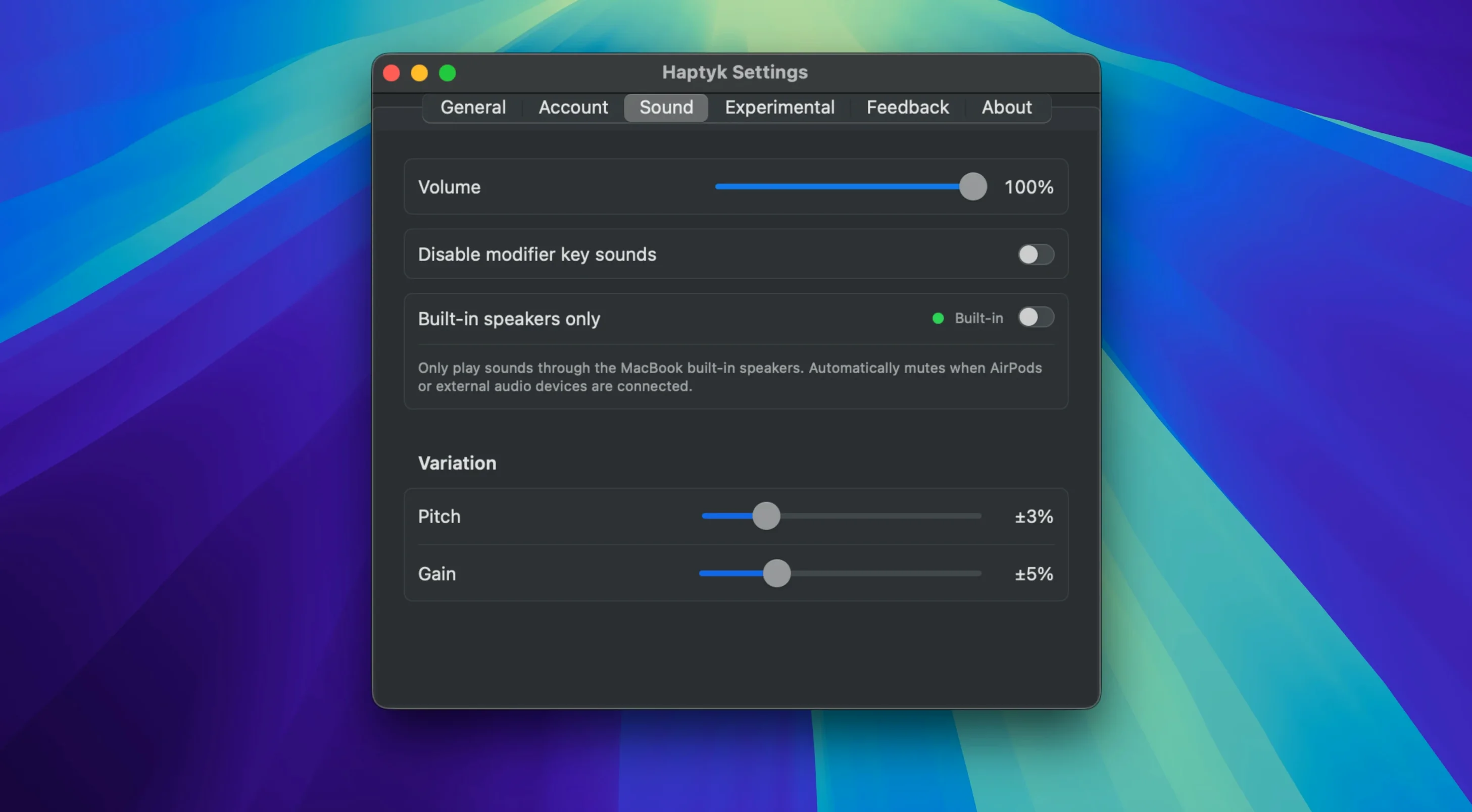
A less obvious snag involves third-party audio routing. If you use tools like Loopback or BlackHole to redirect system audio, Haptyk’s output may end up on a virtual channel you are not monitoring. Switch your system output back to the built-in speakers or your regular headphones momentarily to test whether the sounds return. Lastly, the app does not have a manual volume slider — its loudness follows the system output level, so if your Mac’s volume is hovering around two or three notches, the typing sounds will be barely perceptible over ambient noise.
How Haptyk compares with similar Mac apps
Klaw takes a different route entirely: it plays typing sounds through your speakers but has no concept of pressure sensitivity. Every keypress gets the same flat click, which makes it feel more like a novelty than a tactile extension of the keyboard. Haptyk’s force-aware approach means the audio mirrors your physical intent, so the experience adapts as you type rather than playing a one-size-fits-all sample.
NoisyKey offers a broader palette of sound packs — everything from vintage typewriters to bubble wrap — and it does work across all Mac models, including Intel machines. The trade-off is that it triggers sounds purely on key-down events, ignoring how hard you press. If you type with a varied touch, NoisyKey stays oblivious to your dynamics, whereas Haptyk treats every keystroke as a unique event with its own intensity.
Mechvibes sits somewhere between the two, with a respectable library of mechanical-switch samples and a loyal following among keyboard enthusiasts. It runs on Intel and Apple Silicon alike, but like the others it lacks force detection. Haptyk’s narrow hardware requirement is its greatest limitation, yet also its defining strength: by tapping into the accelerometer, it achieves a degree of expressiveness that purely event-driven apps cannot match.
An update reined in the aggressive force-to-sound mapping
Version 2.0.2 refined the force-to-sound mapping that had been a little aggressive in earlier builds. Previously, a moderately firm press could sometimes trigger a sound sample that felt disproportionately loud, creating an uneven feedback loop during fast typing. The update tightened that curve so the transition from soft to hard strokes feels more gradual and predictable across the full range of typing speeds.
Earlier revisions introduced broader MacBook Pro support and quietly fixed a bug where the app would occasionally stop responding after a system wake from sleep. For anyone who leaves their MacBook in clamshell mode overnight, that fix was significant — there is no longer a need to manually quit and relaunch Haptyk each morning. The cumulative effect of these updates is an app that fades further into the background, doing its job without demanding attention.
- macOS 13 (Ventura) or later
- Works natively on both Apple Silicon and Intel 64-bit Macs
Questions I keep hearing
Which MacBooks does Haptyk work with?
Haptyk requires an Apple Silicon MacBook — models such as the 13-inch M2, or the 14-inch and 16-inch MacBook Pro with M1 Pro, M1 Max, and later chips — running macOS Ventura or newer.
Questions from the class 0
Sign in or join the class to ask a question.
Nobody has asked anything yet. If you have used it on a real job, say what the file did.
Also on the Mac Apps shelf
The whole Mac Apps shelf HitPaw Edimakor
Edits video by letting you drag, trim and tweak on a literal-minded timeline.
HitPaw Edimakor
Edits video by letting you drag, trim and tweak on a literal-minded timeline.
 HitPaw Univd
Converts media across over a thousand video and audio container formats.
HitPaw Univd
Converts media across over a thousand video and audio container formats.
 HitPaw Video Converter
Transforms unruly video files into the format your project actually needs.
HitPaw Video Converter
Transforms unruly video files into the format your project actually needs.
 HitPaw Watermark Remover
Erases logos and timestamps by drawing a loose selection around them.
HitPaw Watermark Remover
Erases logos and timestamps by drawing a loose selection around them.
 Hype 4 Pro
Constructs interactive HTML5 animations without writing a single line of code.
Hype 4 Pro
Constructs interactive HTML5 animations without writing a single line of code.
 Glyphs
Builds a new typeface from a single well-structured capital letter.
Glyphs
Builds a new typeface from a single well-structured capital letter.
 Hyperspace
Hunts down and deletes duplicate files that are quietly wasting your disk space.
Hyperspace
Hunts down and deletes duplicate files that are quietly wasting your disk space.
 Ghost Buster Pro
Clears leftover files after you uninstall an app.
Ghost Buster Pro
Clears leftover files after you uninstall an app.